 Stellar Phoenix Stellar Disk Wipe (Win)
Step 1:- Insert the bootable CD of Stellar Disk Wipe in CD drive and restart your computer. Press any key to boot from the CD. You will see the screen as shown stating that your system is booting with this boot disc.
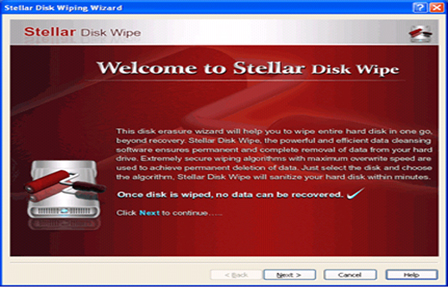
Step 2:- After successful booting with the CD, you will see the first screen of Stellar Disk Wipe as shown in the screenshot. Click ‘Next’ to proceed.

Step 3:- Here the list of all the hard drives attached to your system with their detailed description like Disk No., Disk Size, and Model No is shown. Check the box against the hard disk that is to be wiped and click ‘Next’.

Step 4:- The next interface of the software provides a list of different wiping algorithms, with their description in the box below the list. Select one algorithm from this list and click ‘Next’ to continue.

Step 5:- The last interface of the software provides the summary of what you have chosen. This summary contains the information about the disk that you have selected for wiping and the wiping algorithm. After reviewing this summary, click ‘Finish’ to continue the process. If you have any doubt, then you can go back through ‘Back’ button and to exit from this wizard you can click ‘Cancel’.

Step 6:- After clicking ‘Finish’, you will get a confirmation dialog box. If you want to continue the wiping process, click ‘Yes’. After completion of the process, a message indicating that the Stellar Disk Wipe has successfully wiped the selected hard disk pops up.