- Hosted Exchange
- Offline EDB
Step 1: After selecting 'Hosted Exchange' mode, the software proceeds with exporting the mailboxes. Select 'Connect to single mailbox' if you want to export single mailbox from Hosted Exchange. Select 'Connect to all mailboxes on server' if you want to export multiple mailboxes from Hosted Exchange.

Step 2: Select 'Connect to all mailboxes on server' and enter the live Exchange server credentials to export multiple mailboxes. Click OK

Step 3: All the connected and disconnected mailboxes will be shown listed down in the window with their current status. Click OK to continue.

Step 4: The mailbox preview windows will show you the connected and disconnected mailboxes in the left pane.

Step 5: Select the mailbox folder and click Save from File menu to save the mailboxes in multiple formats. Select 'PST' if you want to convert the data in PST format.

Step 6: Specify the location where you want to save the converted PST file.

Step 7: PST file has been saved at your desired location. The mailbox data is converted and saved successfully at the desired location.

Step 1: The home screen of Stellar Converter for EDB displays two options for EDB file conversion. Select 'Hosted Exchange' if you've an Online EDB file. Select 'Offline EDB' if you've a Offline EDB file.

Step 2: Click 'Browse' if you know the EDB file location, or click 'Find' to search the EDB file located anywhere in the computer.

Step 3: The EDB converter tool will display all EDB file stored in the particular drive. Once you have found the required EDB, select it and click Next.

Step 4: In the mailbox preview window, all the converted mailboxes in the EDB file will be shown listed down in the preview pane.

Step 5: Select any mailbox folder and click 'Save' from File menu. Select 'PST' if you want to convert the data in PST format.

Step 6: Specify the location where you want to save the converted PST file.

Step 7: PST file has been saved at your desired location.
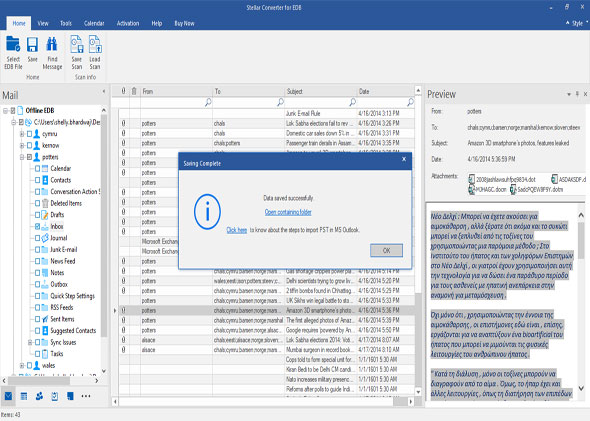
Step 8: Select any mailbox folder which you want to export to live Exchange server mailbox. Select 'Live Exchange' option and Click Next.

Step 9: You will be prompted to enter live Exchange server credentials to export mailboxes data directly to the connected Exchange server mailboxes. Enter Server Name and Administrator login credentials. Click OK

Step 10: A screen with a list of all the mapped and unmapped mailboxes will be displayed. Review the list to check that all the required mailboxes are mapped. Unmapped mailbox can be mapped after clicking its respective Map Mailbox link. Click Export

Step 11: A message 'Mailbox exported successfully' will appear on the screen. Click OK to finish the EDB to live Exchange export process.

Step 12: Select Office 365 from the different file saving formats. Click Next to begin exporting the mailboxes data to Office 365 mailboxes.

Step 13: Enter Office 365 Admin ID and password. Click OK to export the selected mailbox folders to Office 365.
