- Soho
- Tech
Step 1: Select the source mail client to be converted from the drop-down into Outlook PST file
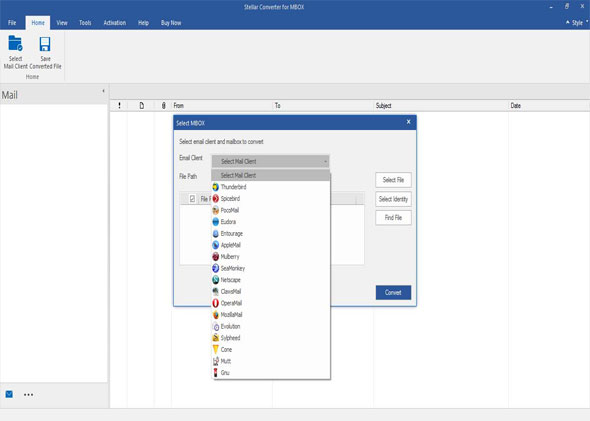
Step 2: Click on 'Select File' to convert a single MBOX file. If you wish to convert multiple MBOX files in a folder, then click on 'Select Identity Folder'

Step 3: The scanning process is going on.

Step 4: Now, you can check preview of all mailbox components

Step 5: You can save the converted mails to new or existing MS Outlook PST file, EML or MSG File formats.

Step 6: Saving process is running

Step 7: The converted PST file saved successfully

Step 1: This is home interface of 'Stellar Converter for MBOX Technician'. Select the source mail client of MBOX file for conversion from the drop down, to PST.

Step 2: Click on 'Select File' to convert a single file. To convert multiple files in a folder, just click on 'Select Identity Folder'.

Step 3: Right now, scanning in progress

Step 4: Preview converted mailbox components

Step 5: Now, you can save the converted MBOX file into desired file formats like PST, Office 365, MSG, EML, RTF, PDF and HTML or new or existing PST.

Step 6: The software is saving all converted emails.

Step 7: The converted PST file saved successfully.
