 Stellar Phoenix PDF Password Recovery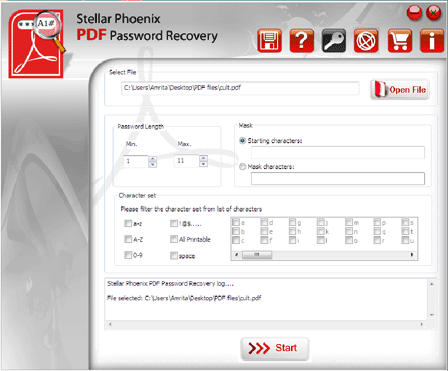
Step 1:- This is the main interface of Stellar Phoenix PDF Password Recovery. In order to recover the password of the PDF file, click the 'Open File' icon on the top left corner of the interface and select the file from its location.

Step 2:- If you remember, provide the length of the password under 'Password Length' section. The first option in the ‘Mask’ module enables you to and provide the 'Starting characters'
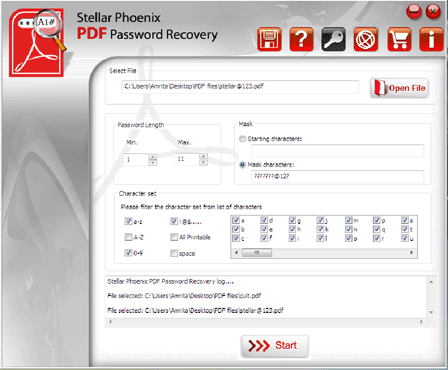
Step 3:- If you remember your password length, and some of the characters, then under the section, 'Mask Characters' build the character set by providing a '?' symbol in place of the unknown character. For example, if the password is ‘Stellar@123’, you can mask with a character set like; ‘???????@12?’, where ‘?’ are the unknown characters. You also can choose the character set (from 'a to z' 'A to Z', '0 to 9', 'All Printable', special characters used etc.) for more efficient recovery. After the required fields are specified, click 'Start' button to begin the recovery process.
Step 4:- The process dialog box opens, indicating the progress of the process and other information regarding the PDF password recovery process.

Step 5:- On completion of the recovery process, the software shows the recovered 'User Password'. If the PDF file also has Owner password, the button, 'Decrypt File' is shown. Click the button to remove all the security settings and reset PDF password.