 Stellar Phoenix PSD Repair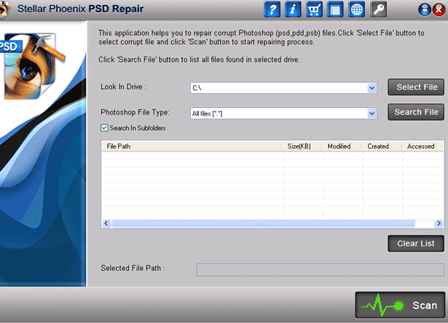
Step 1:- Launch Stellar Phoenix PSD Repair; in the main interface, click 'Select File' button in the top-right corner to choose a Photoshop file for repair. Click 'Search File' to search for Photoshop files in any drive or folder.

Step 2:- The files in the selected drive get listed in the space below the ‘Select’ and ‘Search’ options; with details, such as ‘File Path’, ‘Size’, and ‘Modified Date’ etc. Select the desired Photoshop file and click 'Scan' to initiate the scanning process.

Step 3:- After scanning, the software shows the preview of the Photoshop file in the main interface. Click 'Save', specify a location in the 'Browse for Folder' dialog box and then click 'Save'.

Step 4:- When the saving process is complete, you will receive the message 'File saved successfully'.