stellar data recovery
search
data recovery services
My status

Sales Contact Numbers

USA : 1-877-778-6087
UK : +44-203-026-5337
Australia & APAC : +61-280149899
Worldwide : +91-921-395-5509

stellar data recovery
windows data recoveryStellar Phoenix Windows Data Recovery

Partition Recovery Software


A Windows Partition Recovery Software that retrieves lost information/data from FAT, NTFS, and exFAT file system and saves it into a new file. It works on various storage media including hard drives and memory cards. It comes with a BOOT CD for the Professional and above licenses, which can be used in case the system is not bootable. This Partition recovery tool is capable of taking images of the hard drive and cloning them, apart from informing about the Drive status and S.M.A.R.T attributes.


home edition download pro edition download

Note : The partition recovery software comes in two separate editions for the “Home' as well as 'Professional' users. Refer to the comparison chart below for more information about the key features of the Home and Professional editions of the software.

  • Edition Compare
  • Overview
  • Spec
  • FAQs
  • Support
  • Testimonials

Comparison Chart Between SPWDR – Home and SPWDR - Professional :


Key Feature SPWDR
Home
Buy Now ($49)
SPWDR
Professional
Buy Now ($99)
 
1. Partition Recovery – Recovers lost, deleted or formatted data from FAT, NTFS, and exFAT file systems.
2. Search Option – Enables the users to search any specific lost or deleted file, folder in the drive.
3. Deleted File Recovery – The Deleted File Recovery option enables recovery of deleted or formatted MS Word, Excel, Access, PowerPoint, Zip, and BKF files.
4. Lost/Deleted Audio/Video Recovery – Allows recovery of audio and video files from lost, deleted, and formatted Windows Partitions.
5. Photo Recovery – The software recovers lost, deleted photos, pictures, and images from computer Hard Drive, Memory Card, Pen drives, SD card, and external drives.
6. Search Lost Drive – The 'Search Lost Drive' option is useful to search any lost drive.
7. Auto Update – The 'Auto Update' feature enables software upgrade.
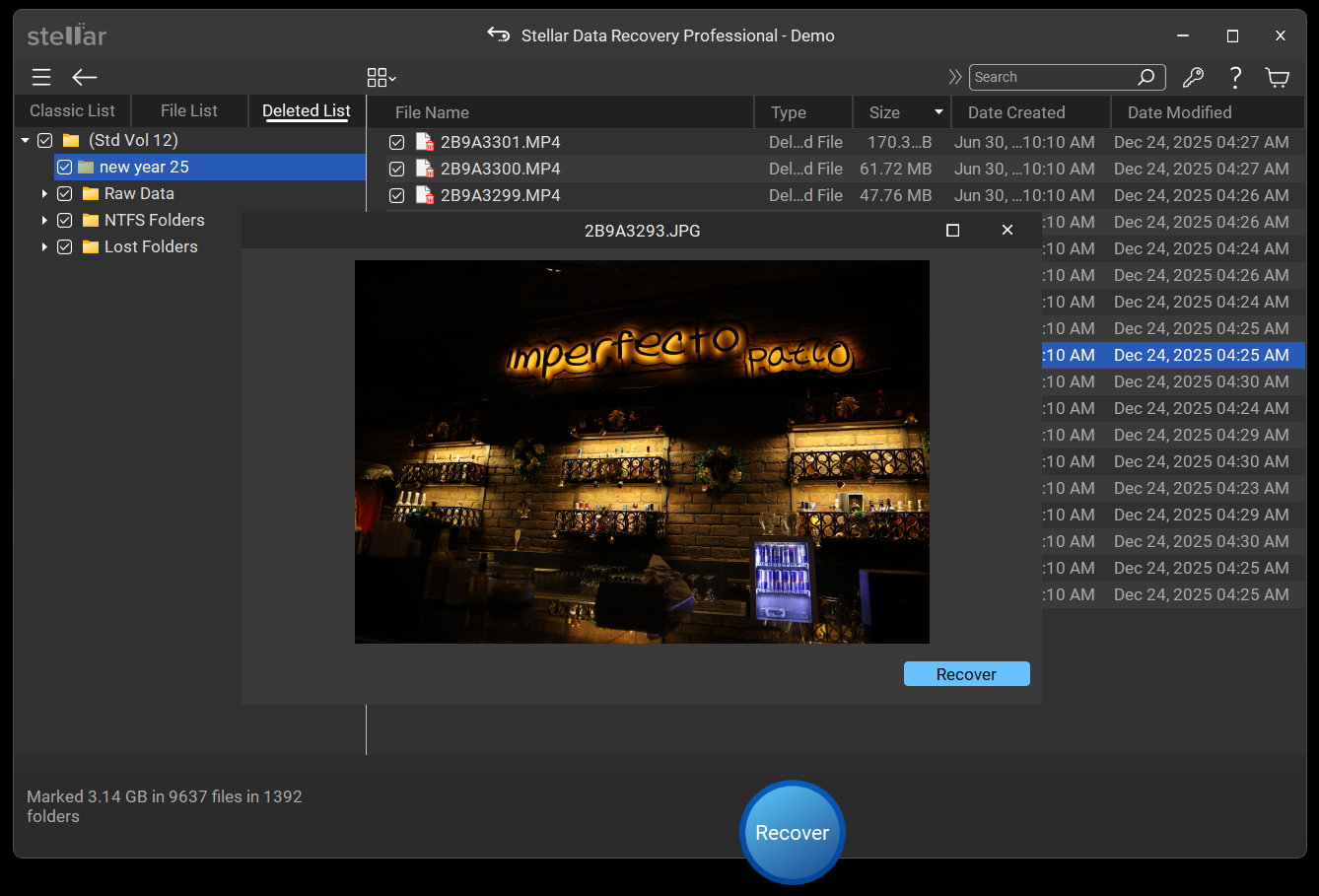
8. File Preview – The software enables preview of all the recoverable files after scanning.
9. Tree View – The recoverable files are shown in a tree view after the scanning.
10. Formatted Files/Folders Recovery – Enables lost and formatted file and folders recovery from the drive.
11. E-mail Recovery – Recovers lost, deleted Emails from email clients, such as Microsoft Outlook and Outlook Express.
12. File Filter – The ''File Filter' option allows recovery of files on the basis of their extensions.
13. Signature Based Recovery – Allows recovery of selected file types.
14. Resume Recovery – Helpful to restart recovery process at any later time.
15. Raw Recovery – Recovers all the data from hard drive, external drive, or a logical volume of the hard drive.
16. Save Scan – Enables to save the scanned data to start data recovery at later time using the saved scan result.
17. Drive Status – Monitors and updates about the status of the drive to inform about any impending hardware issues.
18. Clone Drive – Creates a similar copy of the hard disk.
19. Create Image – Creates an images of the hard disk or the selected logical volumes.
20. Masking – The 'Masking' option is useful to narrow the scan result.


Stellar Phoenix Windows Data Recovery - Features

Windows Data Recovery

  • Retrieves all types of files including Excel, Access, PowerPoint, backup files, etc
  • Recovers Deleted Emails from MS Outlook and MS Outlook Express
  • Recovers information about partitions and Volumes
  • Retrieves Photos, Music, Videos
  • Compatible with Windows 7, Vista, 2003, XP and 2000
  • Works on FAT, NTFS file systems including FAT32, VFAT, NTFS and NTFS5
  • Performs data recovery operation on USB flash drives, external hard drives and memory cards.
  • Supports 185 different file types
  • Performs Hard Drive Cloning and Imaging
  • Scans hard drive for Drive status and S.M.A.R.T information
  • Available with a Boot CD which can be used to Boot the system if the file system gets crashed or the OS does not start.

Recovers data from following data loss situations:


File corruption can occur at any time owing to any Reasons for Data Loss:

  • Partition corruption and Partition resizing
  • System malfunction
  • Incomplete or unsuccessful repartitioning of hard drive
  • File System damage
  • Boot Sector corruption
  • Hard drive formatting
  • MBR (Master Boot Record) damage
  • Cross linked files
  • Virus infection
  • Power Surges
  • Human errors


Stellar Phoenix Windows Data Recovery 4.2 is capable of data recovery not only from the above data loss situations but others too.

Partition Recovery Software Features :


Stellar Phoenix Windows Data Recovery 4.2 is capable of Partition Recovery, File Recovery, Email Recovery, Disk Cloning, Deep Scan, Drive Status and Raw Recovery from CD and USB drives. This Partition recovery software scans and retrieves information from your hard drive by applying complex algorithms to corrupted, deleted, and lost Windows partitions. The software works with Windows 7.0, Vista, 2003, XP and 2000, and recovers complete data from FAT32, VFAT, NTFS and NTFS5 based partitions and volumes.


Stellar Phoenix Windows Data Recovery 4.2 gives various Partition Recovery options in the form of tabs. The Tabs include Data Recovery Tab, Email Recovery Tab, Resume Recovery Tab, Advance Options Tab and Recovery Services Tab.


Data Recovery Tab


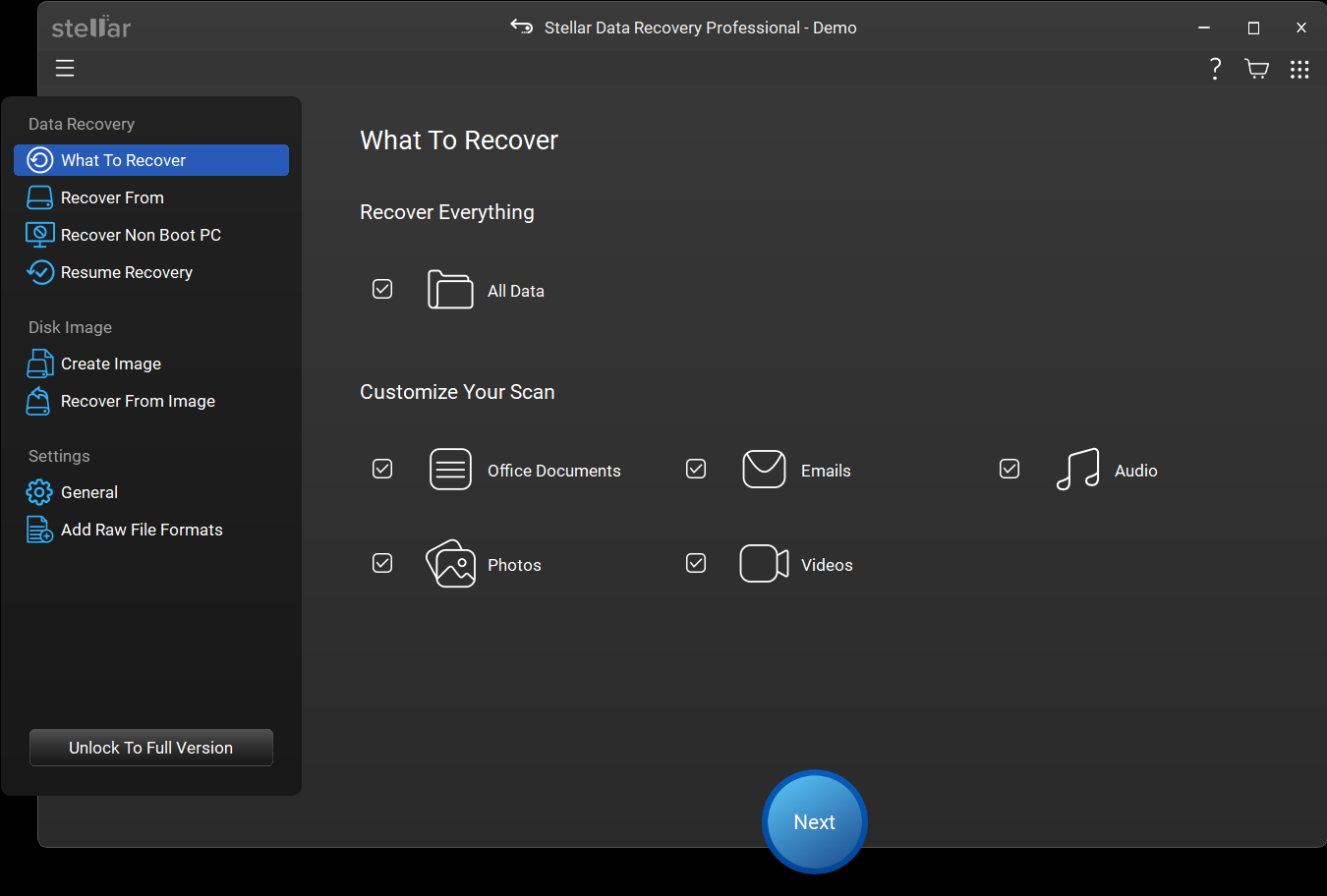
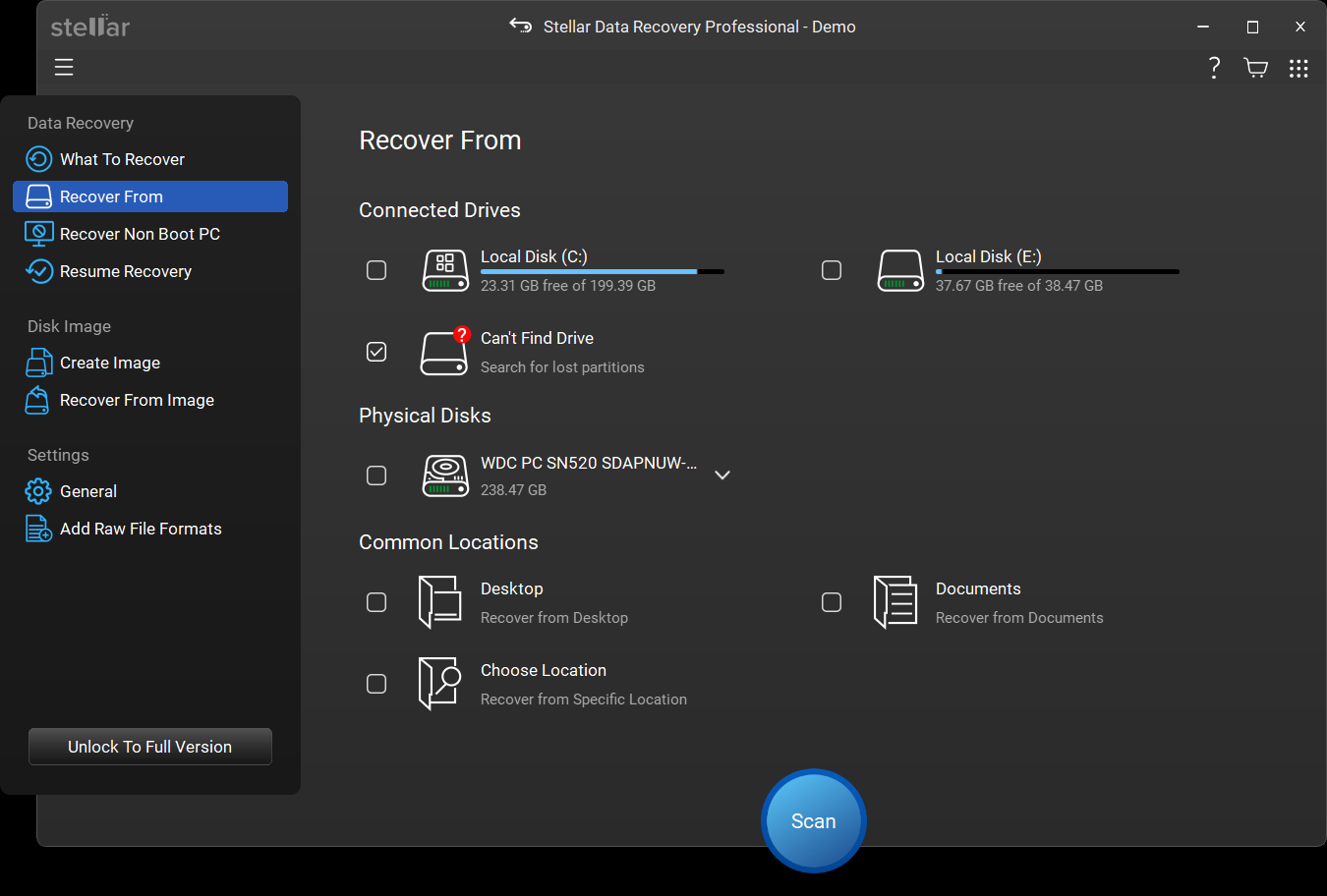
Data Recovery Tab (which pops-up the moment the software starts up) of this partition recovery software features Quick Recovery, Deleted File Recovery, Formatted/Lost File and Folder Recovery, and Search Lost Volume Options.


  • Quick Recovery scans the hard drive and shows all the files and folders that exist and that got deleted.
  • Deleted File Recovery recovers deleted files from a selected partition.
  • Formatted/Lost File and Folder Recovery recovers all the data from any particular partition of the hard drive.
  • Search Lost Volume allows recovering partition that got deleted.


Email Recovery


Email Recovery Tab of this Windows partition recovery tool allows recovering emails from PST and DBX files of Microsoft Outlook and Outlook Express.

  • Microsoft Outlook Email Recovery option of this software retrieves deleted files from the Outlook .pst file and saves retrieved file as .pst, .eml or .msg file.
  • Outlook Express Email Recovery option of this Data recovery software retrieves deleted files from Outlook Express .dbx file and saves the retrieved file as a .DBX or .EML file.


Resume Recovery Tab


Allows resuming recovery process by starting the saving procedure from a pre-scanned and saved file.


Advance Options Tab


Advance Options Tab of this Windows Partition Recovery tool allows Raw Recovery, Disk Imaging and Drive Status Information.


Raw Recovery

Raw Recovery feature is used when the system area is corrupt. In this case, though the files are recovered, however, their names are not. So, they are displayed with their addresses instead of with their names. This feature also allows searching the files on the basis of their extensions.


Disk Image


  • Disk Image feature of Stellar Phoenix Windows Data Recovery 4.2 allows Creating Image and Cloning of Disk.
  • Create Image is used to take create image file of your hard disk or selected drives. The image taken is a single file or storage device containing the complete contents and structure representing a data storage medium or device. This is done by taking a sector-by-sector copy of the source medium and thereby perfectly replicating the structure and contents of a storage device.
  • Drive cloning feature in this Partition recovery tool is used to replicate the contents of the hard drive for use in another system. This can be used to take backup of the entire drive with the OS. It requires cloning of file structure and the files.


Drive Status


Drive Status displays model number, serial number, size, temperature, status, S.M.A.R.T feature and firmware revision number of attached hard disk. This is a very useful feature of Windows partition recovery software. Drive Information box shows information such as total sectors, sectors per track, number of cylinders and number of heads. The volume Information box shows information of existing logical volumes in the hard disk.


Recovery Services Tab


Recovery Services Tab gives information about Stellar Data Recovery Services.

Along with scanning of the hard drive, the Windows Partition Recovery Software allows saving the scan result, finding specific files, masking to narrow the scan process and filtering to scan files on the basis of extension.


  • Saving the scan result allows the files to be retrieved later.
  • Find and save some specific files from the list of files shown.
  • Mask to retrieve not just specific files but also the complete hierarchical structure in which they were saved at any particular time.
  • Filter allows including or excluding particular file extensions.


Try Stellar Phoenix Windows Data Recovery 4.2 Demo version and experience not just the functionality of the software but also preview all those files that can be recovered from your partitions and from other storage media.


Windows Data Recovery Software


License Types :


Lifetime License available in


  • Single User – ESD Format
  • Single User + Box – ESD & Box
  • Technician License (CD+Download) – Can install the software on different systems in different location
    * Simultaneous recovery from multiple systems is not possible in Technician license
  • Admin License (educational) (CD+Download) – Can install the software on multiple systems in one location
    * Simultaneous recovery from multiple systems is not possible in administrator license
  • Administrator License (corporate ) (CD+Download) – Can install the software on multiple systems in one location
    * Simultaneous recovery from multiple systems is not possible in administrator license


Languages :


Software Interface Available In :

  • English
  • French
  • German
  • Spanish
  • Italian


Package Details :


Name: Stellar Phoenix Windows Data Recovery

  • Version: 4.2
  • Version Launch – June 2010
  • Do it yourself software


Software Components :

Box – Version

  • CD - 1
  • Hardware Lock – 1
  • Boot CD - 1


Supported OS, Files, Storage Devices


  • Operating Systems: Windows 7, Vista, XP, 2003 and 2000
  • File Systems supported: FAT16, FAT32, VFAT, NTFS and NTFS5
  • File Types: 185 file types supported
  • Supported Storage Devices: Hard drives and USB Flash drives


Systems Requirement:


  • Processor: Pentium Class
  • Operating System: Windows 7, Vista, XP, 2003 and 2000.
  • Memory: 128 MB minimum
  • Hard Disk: 35 MB of free space


Installation Guide for Home Edition


Home Edition


Professional Edition

FAQs – Windows Data Recovery Software


How can I recover my data from Inaccessible drive?

Follow the following steps to recover your data from Inaccessible drive using our software.

  • Open the Stellar Phoenix Windows Data Recovery.
  • Under ‘Recovery Option’ tab, select ‘Start Recovery’ icon.
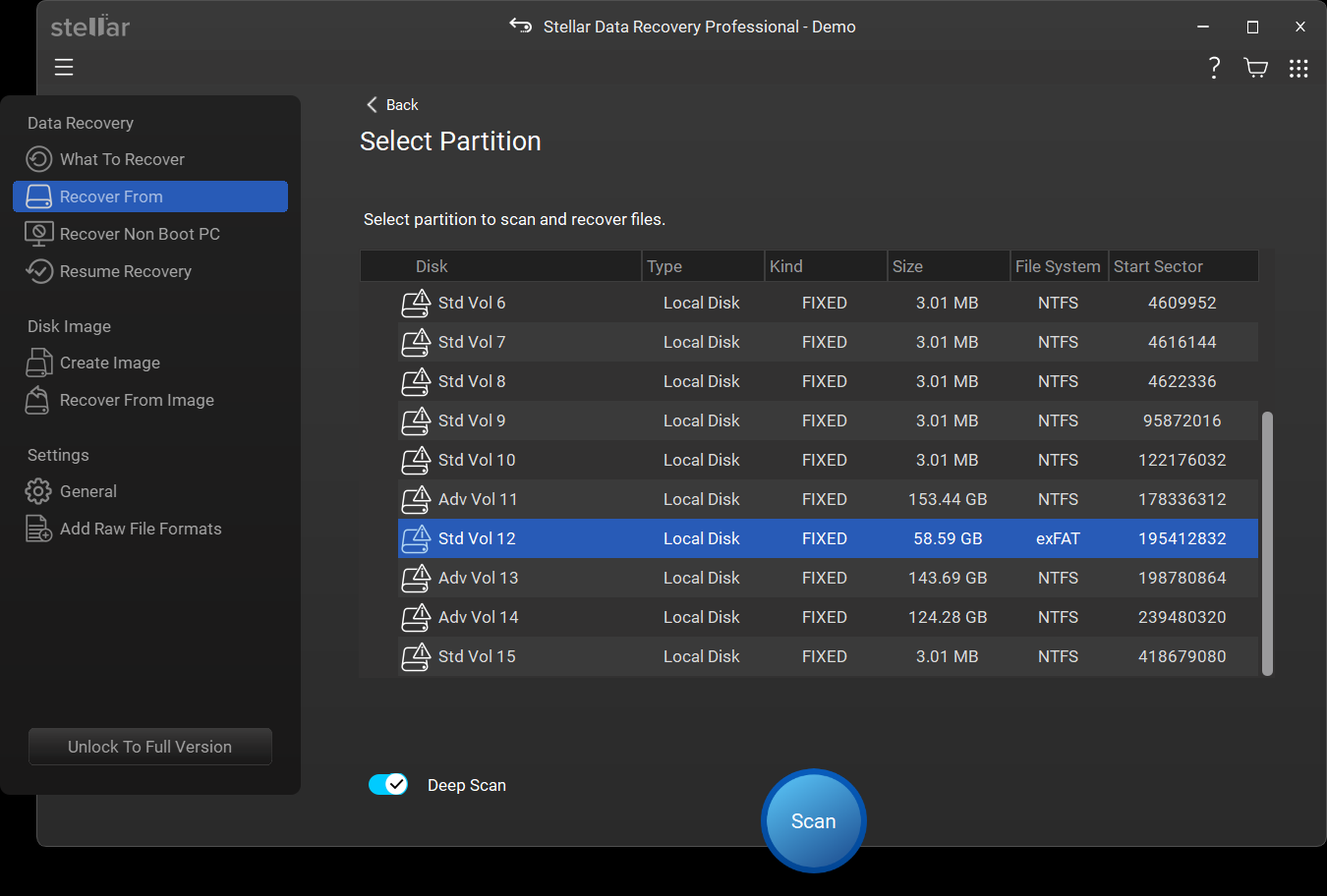
  • In the ‘Select Scan Method’ window, click on ‘Quick Recovery’ icon.
  • Now, under ‘Select Volume’ window, select the drive from which you need to recover and click on ‘Start Scan’ icon on the bottom right of the software.
  • Now the software will scan your data and display in the tree structure.
  • Check mark the files or folders you need to recover and click on the ‘Recover’ icon.
  • Now, click on ‘Browse’ button to select the destination folder to save the selected files and folders and click ‘OK’.
  • Click ‘OK’ again on the ‘Choose Destination’ window and now the software will save the recovered files and folders.

Back to top


How can I recover data from my formatted drive?

  • Open the Stellar Phoenix Windows Data Recovery.
  • Under ‘Recovery Option’ tab, select ‘Start Recovery’ icon.
  • In the ‘Select Scan Method’ window, click on ‘Formatted/Lost File & Folder Recovery’ icon.
  • Now, under ‘Select Volume’ window, select the drive from which you need to recover and click on ‘Start Scan’ icon on the bottom right of the software.
  • Now the software will scan your data and display in the tree structure.
  • Check mark the file or folder you need to recover and click on the icon ‘Recover’.
  • Now, click on ‘Browse’ button to select the destination folder to save the selected files and folders and click ‘OK’. Click ‘OK’ again on the ‘Choose Destination’ window and now the software will save the recovered files and folders

Back to top


I have formatted my drive and changed my file system from FAT to NTFS, how do I recover my data from my FAT partition?

  • Open Stellar Phoenix Windows Data Recovery.
  • Under ‘Recovery Option’ tab, select ‘Start Recovery’ icon.
  • In the ‘Select Scan Method’ window, click on ‘Formatted/Lost File & Folder Recovery’ icon. d) Select the drive from which you need to recover and select FAT from ‘Scan As’ area and click on ‘Start Scan’.
  • Now the software will scan your data and display in the tree structure.
  • Check mark the files or folders you need to recover and click on the icon ‘Recover’.
  • Now, click on ‘Browse’ button to select the destination folder to save the selected files and folders and click ‘OK’
  • Click ‘OK’ again on the ‘Choose Destination’ window and now the software will save the recovered files and folders.

Back to top


I have formatted my drive and changed my file system from NTFS to FAT, how do I recover my data from my NTFS partition?

  • Open Stellar Phoenix Windows Data Recovery.
  • Under ‘Recovery Option’ tab, select ‘Start Recovery’ icon.
  • In the ‘Select Scan Method’ window, click on ‘Formatted/Lost File & Folder Recovery’ icon.
  • Select the drive from which you need to recover and select NTFS from ‘Scan As’ area and click on ‘Start Scan’.
  • Now the software will scan your data and display in the tree structure.
  • Check mark the files or folders you need to recover and click on the icon ‘Recover’.
  • Now, click on ‘Browse’ button to select the destination folder to save the selected files and folders and click ‘OK’.
  • Click ‘OK’ again on the ‘Choose Destination’ window and now the software will save the recovered files and folders.


How do I recover deleted files?

  • Open the Stellar Phoenix Windows Data Recovery.
  • Under ‘Recovery Option’ tab, Click on ‘Start Recovery’ icon.

Back to top


I deleted my partition. How can I recover the data from the drive?

  • Open Stellar Phoenix Windows Data Recovery.
  • Under ‘Recovery Option’ tab, select ‘Start Recovery’ icon.
  • In the ‘Select Scan Method’ window, click on ‘Search Lost Volume’ icon.
  • In the ‘Select Drive’ window, select the drive from which you need to recover the data from and click on ‘Start Scan’.
  • A small window will pop-up and you need to select ‘Quick Scan’ option and click on ‘Continue’.
  • Software will scan the ‘Logical Volume’ and display all available logical volumes and you need to select the appropriate drive from which you need to recover and click on ‘Continue’.
  • Now click on ‘Quick Recovery’.
  • Now the software will scan your data and display in the tree structure.
  • Check mark the files or folders you need to recover and click on the ‘Recover’ Icon.

Back to top


I’m using Microsoft Outlook. How can I recover my deleted emails?

  • Open Stellar Phoenix Windows Data Recovery.
  • Under ‘Recovery Options’ tab, click on ‘Email Recovery’.
  • Now click on ‘Microsoft Outlook Email Recovery’.
  • Now select the PST file.
  • You may also select the ‘Destination Path’ if you need to save the recovered PST file in a different location.
  • Select ‘Save as PST’ and click on ‘Recover’ icon.
  • Software scans your PST file and after the repairing the software will show you the status and you need to click ‘Close’.
  • Now the software will show you the recovered emails.
  • Now close the software and open your Outlook to import the recovered PST file.

Back to top


I’m using Outlook Express. How can I recover corrupted emails?

  • Open Stellar Phoenix Windows Data Recovery.
  • Under ‘Recovery Options’ tab, click on ‘Email Recovery’.
  • Now click on ‘Outlook Express Email Recovery’.
  • Now select the DBX file.
  • You may also select the ‘Destination Path’ if you need to save the recovered file in a different location. f) Select ‘Save as EML’ if you need the mails in EML format or select ‘Save as DBX’ if you need the mails in DBX format (This option is not available in Windows Vista) and click on ‘Recover’ icon.
  • Now the software will scan your DBX file and will create the file accordingly.

Back to top


How do I recover data from the hard disk having bad sectors?

  • Open Stellar Phoenix Windows Data Recovery
  • Click on ‘Advance Drive Option’ tab.
  • Now click on ‘Drive Imaging’ icon.
  • Then, click on ‘Create Image’.
  • Now in the ‘Select Drive/Volume’ window, select the physical drive or logical volume and click on ‘Continue’.
  • Software will ask for the destination folder to save the image file.
  • After the completion of the process click on Ok.
  • To start the recovery process from the created image file you need to click on ‘Continue’
  • Now click on ‘Quick Recovery’.
  • Now the software will scan your data and display in the tree structure.
  • Check mark the file or folder you need to recover and click on the icon ‘Recover’.
  • Now, click on ‘Browse’ button to select the destination folder to save the selected files and folders and click ‘OK’.
  • Click ‘OK’ again on the ‘Choose Destination’ window and now the software will save the recovered files and folders.

Back to top


How can I clone my drive to another drive?

  • Open Stellar Phoenix Windows Data Recovery.
  • Click on ‘Advance Drive Option’ tab.
  • Now click on ‘Drive Imaging’ icon.
  • Then, click on ‘Clone Disk’ Icon.
  • In the ‘Disk Cloning’ window, you need to select the ‘Source Disk’ which you need to clone and the ‘Target Disk’ on which you want to make the clone of the drive.
  • Now, click on the button ‘Start Cloning’ and software will create a clone of the drive on the destination Disk.

Back to top

Support Options :


Phone Support :


USA (Tollfree- Pre Sales Queries) : 1-877-778-6087
USA (Post Sales Queries) : 1-732-584-2700
UK & (Europe) : +44-203-026-5337
Germany : +49-180-110-105-0051
Netherlands ( Pre & Post Sales Support ) +31-208-111-188
Worldwide : +91-921-395-5509


SKYPE : stellarsupport

Support is available
Monday-Friday (except holidays) 24/5


Support :


Free Download --- details :


Free Download – is demo download of the product and offers preview of all the recoverable files using the software. Only those files viewed in preview are recoverable. For Recovering data you will have to purchase the software.


A friend of my wife had XP behave awkwardly on her laptop. She purchased an external harddrive and had someone copy files over before doing a deep format and installing XP.


However, somehow her private photo album (of four years) never made it. My wife asked if there was anything I could do, I didn't think so. Phoenix recovery tool, however, made the process possible.


I had an installation problem, but the customer support was very helpful.


I have some complaints.

  • It should warn you when you are attempting to save scan information data to the volume that you try to recover. I had not the slightest idea that it would generate a file well over 300 megabytes. And I couldn't abort it either.
  • Virtual memory can grow up in the gigs. This is very unfortunate if the files you try to recover is on the system volume. The software should instead use temporary files on a selectable medium.


The two above can be troubling if they mess up something you attempt to recover, in which case it will produce an error message and abort. Thus forcing you to rescan the volume which takes hours.


The GUI becomes highly unresponsive due to the amount of data when scanning a whole volume. When selecting file types for recovery, I had to set a timer alarm for nine minutes because that's how long it took to check off a check box until the gui returned to allow me to check off the next one. Especially when you try to select all picture file types, this is highly unnecessary hassle. If it takes this long to select file types, at least it should queue the mouse clicks asynchronously so that I can do other stuff in the meantime. Maybe even give a noise when it is done until I start working on it again.


I recommend using this tool. It gets the job done. You tolerate the inconveniences when you are doing the "impossible".


Tormod Steinsholt,


As a computer technician, I have been using the Stellar/Phoenix recovery software for about 5 years, this newest version really hits a home run! Easy user interface, and 100% recovery of failed raid array. Thanks for a great product, you make my job easier, and really make my business shine!


Jerry


Grazie a Stella Phoenix ho recuperato tutti i dati di un Hard Disk esterno, ho trovato il software molto semplice da utilizzare e ottimo come funzionalità. Per la mia esperienza è un software che consiglio anche per il prezzo contenuto. Luca Zanchin


(Padova) Italia


"But this computer only prints the labels we put on all our packaging! You mean we were supposed to backup that hard drive too?" That's the story that came with the PC that unexpectedly arrive from one of our satellite warehouses. Stellar Phoenix Windows Data Recovery was able to quickly recover all the contents of the corrupted hard drive for transfer to a new drive. The system went back into production the next day. Thanks to Stellar, we only had one business day of downtime versus the days it would take a recovery service to get around to doing the same thing at four times the cost..

Joe V., Cleveland, OH.


Your software worked flawlessly. I had a boot drive that would continually loop and go into "safe mode" upon boot up. I could not boot into DOS to see what was out there. As a matter of fact, when I placed the drive in another machine and tried to access it, the drive was not recognized and I was asked to format it. I thought for sure this drive was trashed. I had over 3gb of photos on this drive. I first ran the free version on the faulty hard drive to see if it would even find what I was looking for. After it found what I was looking for, I purchased the full version and recovered all my data easily. Your software was very easy to used, and I would definitely recommend it to others. Kudos to all involved.

Greg

buy windows data recovery software30 days money back guarantee
download partition recovery software

* Free Download offers free evaluation of the software & preview all the lost files and folder that can be recovered by the software.


product tour

screenshots windows data recovery


contact for lab recovery services