


![[Fixed]: MySQL Error #1932: Table Doesn't Exist in Engine](https://www.stellarinfo.com/public/image/article/Table-Doesn't-Exist-in-Engine-1836.jpg)
[Fixed]: MySQL Error #1932: Table Doesn't Exist in Engine
December 9, 2025| 5 min read



Our content follows trusted Editorial Standards - accurate & unbiased.
Summary: SQL Server Error 18456 Severity 14, State 38 is a login failed error. It occurs when SQL Server rejects a login because the user’s default database is unavailable. To resolve the error, check that SQL Server logins are enabled, verify the authentication mode, check the credentials, change the default database, or grant the appropriate permissions. If you cannot log in at all due to lost or forgotten credential, you can use Stellar Password Recovery for MS SQL. This tool can help you recover the SQL Server Admin and User passwords.
Free Download 100% SecureYou may encounter the Microsoft SQL Server error 18456 Severity 14, State 38 Couldnot find database requested by user, when you try to connect to a SQL Server instance. The error indicates that connection attempt is rejected by the server due to an authentication failure. You can face this issue with both SQL Server Authentication (for example, the ‘sa’ account) and Windows Authentication. The server displays general messages related to failed user logins, such as invalid credentials, null/empty users, or anonymous logon \NT AUTHORITY. It hides the specific details about the error due to security reasons, but you can check the SQL Server Error Log for the exact reason. The error can occur due to several reasons such as incorrect credentials, mismatched authentication modes, or expired passwords. In this article, we will learn what causes the error 18456 in SQL Server and how to fix it.
This SQL Server error can occur due to one of the following reasons:
SQL Server intentionally hides the exact reason and nature of the authentication error 18456 on the client side to keep the system safe. However, it records a specific State number in the logs. You need to check the SQL server logs for the error state that indicates the cause of failure. For example, 2 or 5 indicates an invalid user ID, 8 or 9 incorrect password, and 38 or 46 fails to find database requested by user. These can help you troubleshoot the authentication issues.
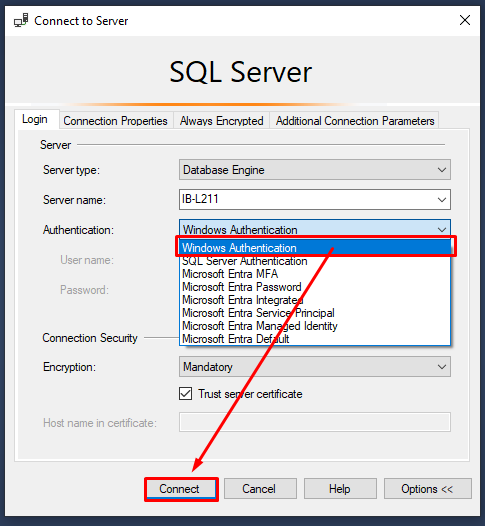
To check for the State number in 18456 error, you can use SSMS (if accessible) or the Windows Event Viewer. If you fail to connect to server instance using SA account, try using an alternative administrative account to open SSMS. For example, Windows Authentication.
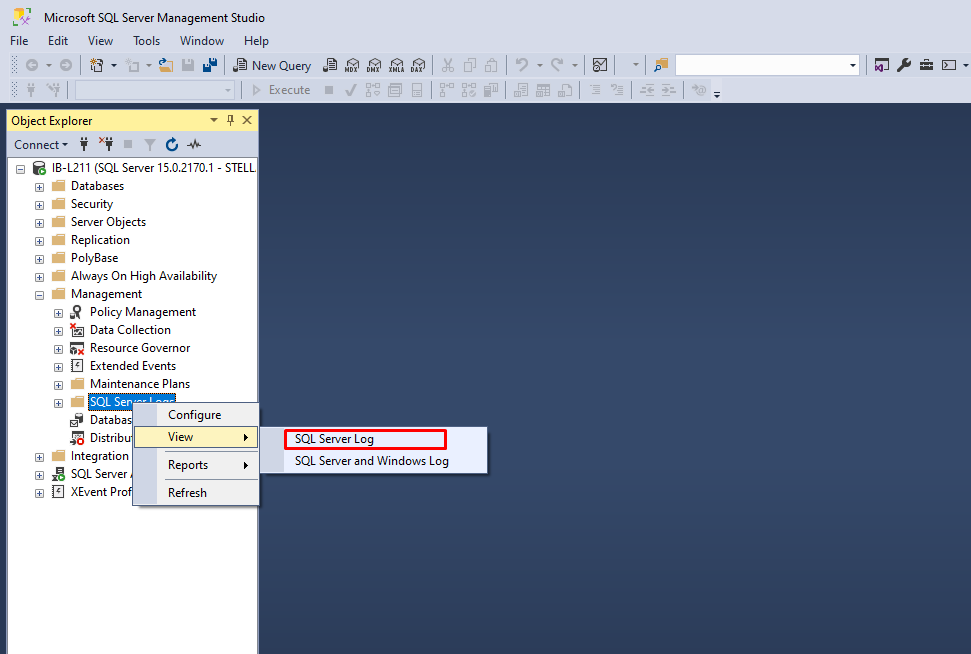
After connecting to the server instance, under Object Explorer, expand Management section, click SQL Server Log, and then click View.
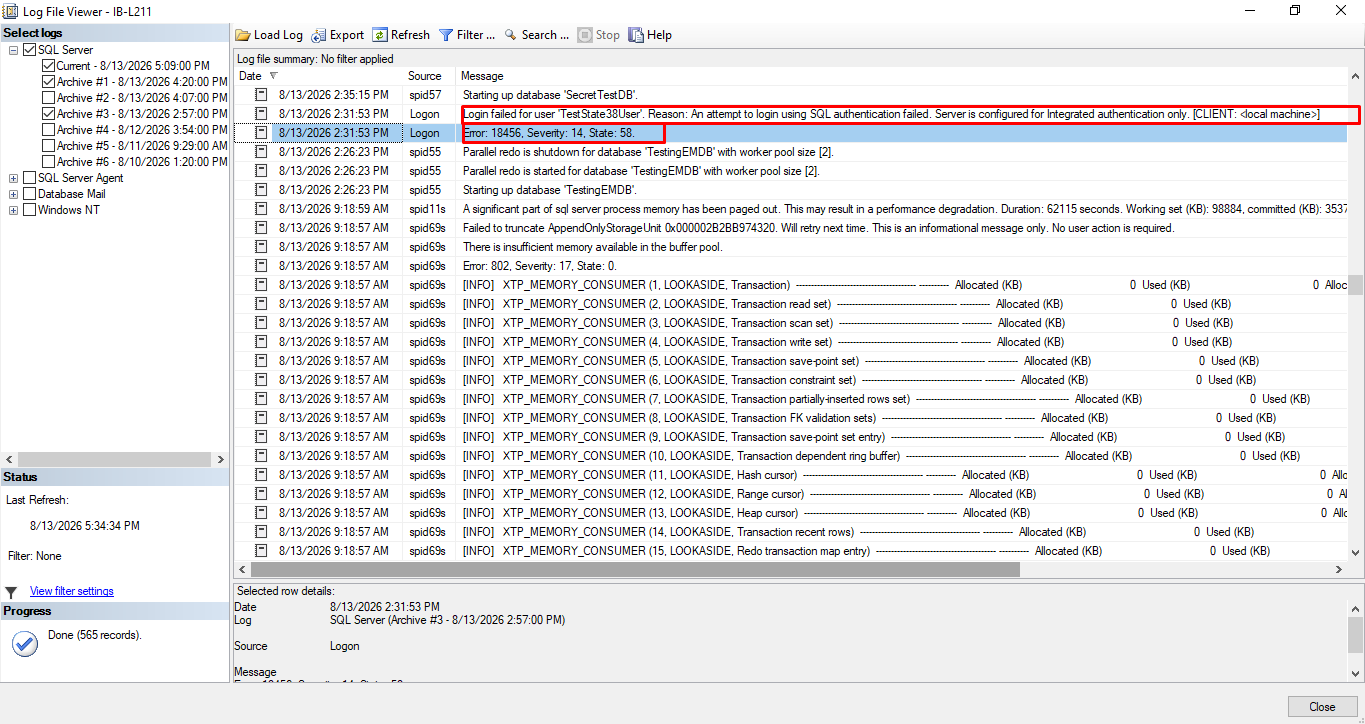
Search the SQL Server error logs for “18456”. You will find the error details, including the state number and reason, listed on the line directly above it.
If you cannot access the SSMS, follow this path to open the SQL Error log:
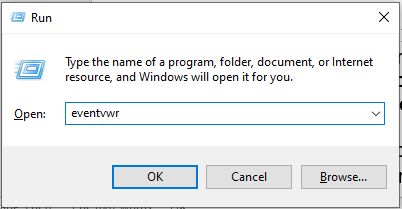
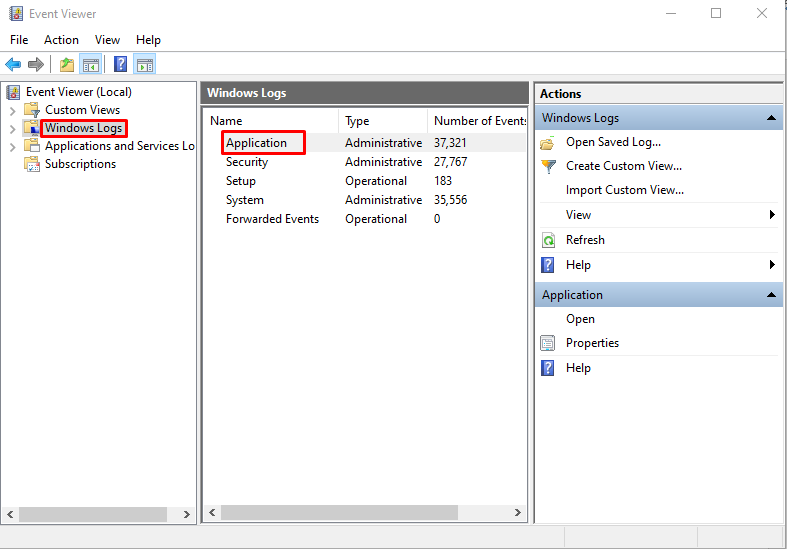
Alternatively, open the Windows Event Viewer to check the error logs. To open Event Viewer, type eventvwr in Run window and click OK.
In Event Viewer window, expand Windows Logs and select Application.
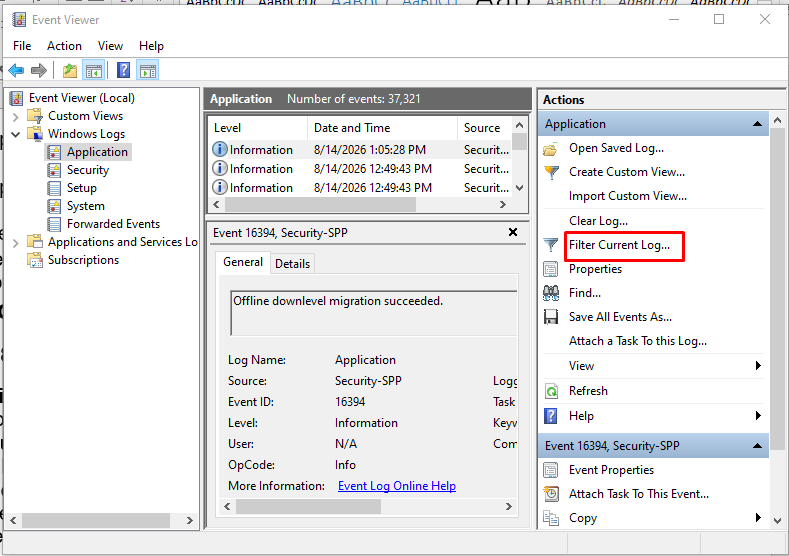
Go to the right pane. Under Actions, select Filter Current Log…
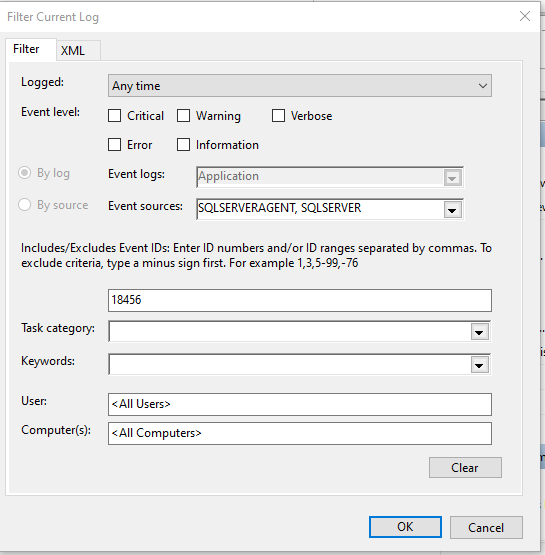
In the Filter Current Log window, select MSSQLSERVER (or your specific instance name) as the Event source, enter 18456 in the Event IDs field, and click OK.
You can follow the methods mentioned below to fix the authentication failure error 18456 in SQL Server.
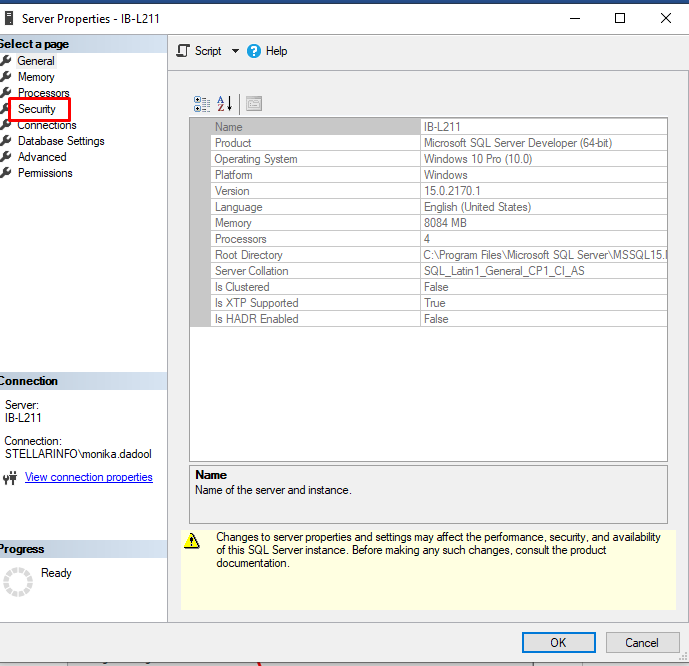
The error 18456 Login failed for user may occur when you try to log in with a SQL password, but the server is set to allow "Windows Authentication Only." In this case, you can enable the SQL logins. To do this, you can either use an Integrated Authentication or follow the below steps:
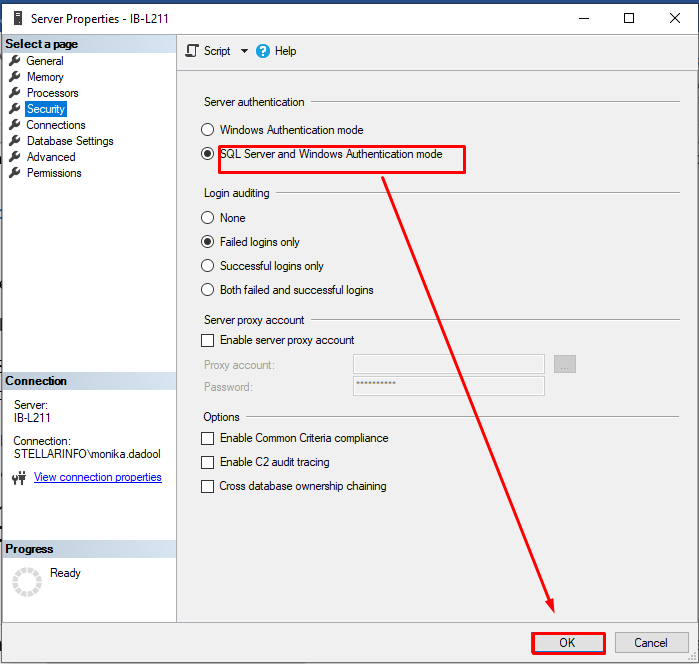
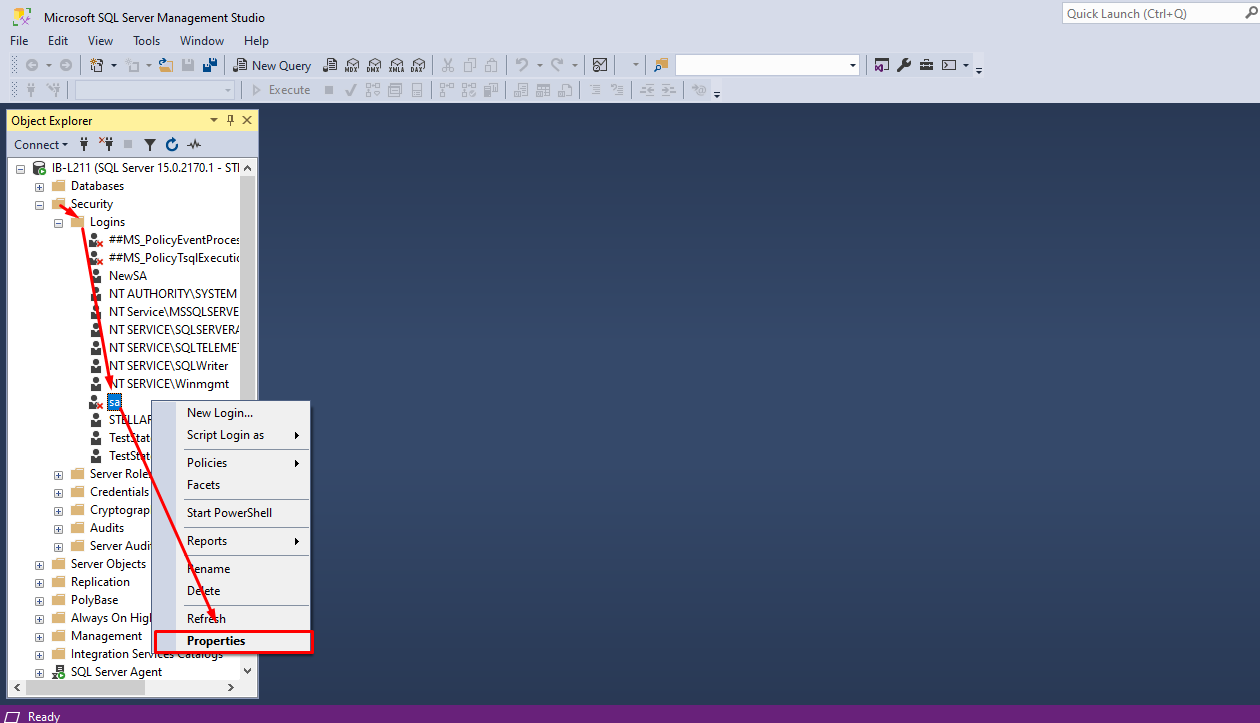
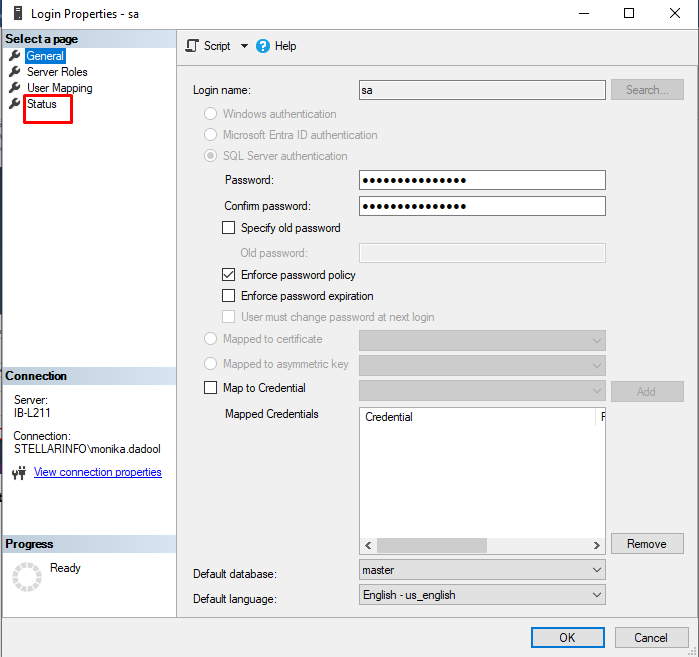
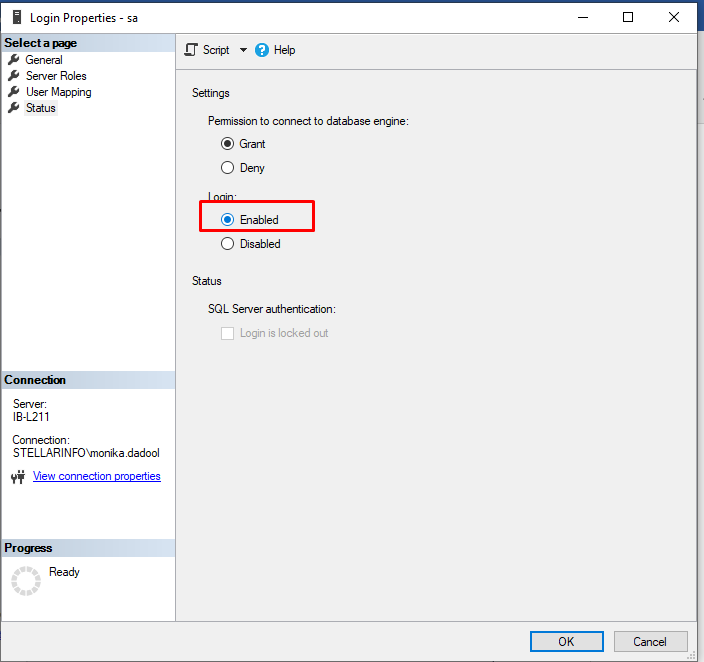
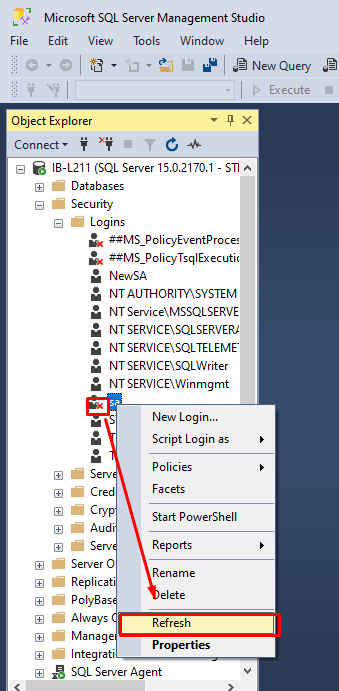
Once refreshed, the red icon will disappear, confirming the account is enabled.
If you still get the error, check your password again.
You may encounter the login error 18456, when the SQL Server fails to connect to the default database. It occurs right after authentication, if the database is unavailable due to being dropped, renamed, or offline. You can check and reset the user’s default database to master by using the following command:
Alternatively, you can change default database to master by following these steps:
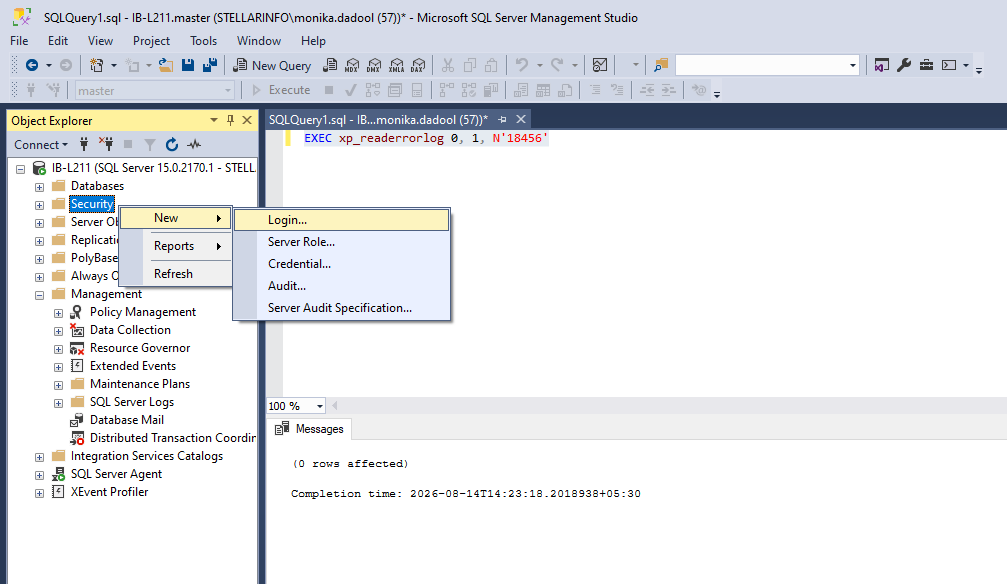
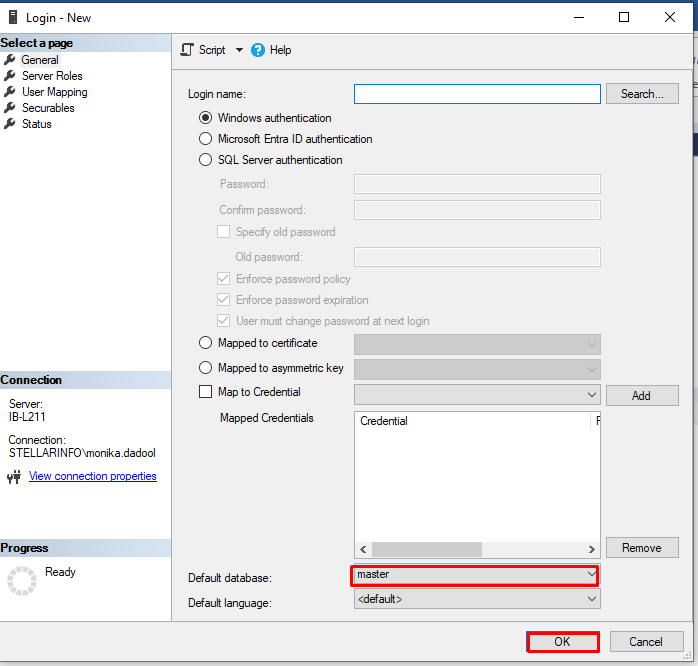
This method of resetting the database to master only works if the application relies on the server's default settings. However, if the application is specifically looking for a missing explicitly specified database, this command will not fix the error. You can change the application's connection settings instead.
The SQL Server Error 18456 'Login failed for user' can also occur if you provide an incorrect username or password, while using SQL Server Authentication. To confirm this, you can check the error log for the reason “Password did not match that for the login provided.”
To fix the issue, try to use the correct password in your application. In case you forgot the password, take the help of a SQL Admin or use Stellar Password Recovery for MS SQL to reset the System Administrator account (SA) and user passwords.
You can also verify the credentials outside the application by creating a UDL file. According to Microsoft documentation, the UDL file helps to test the connection by using the SQL Server OLE DB Driver.
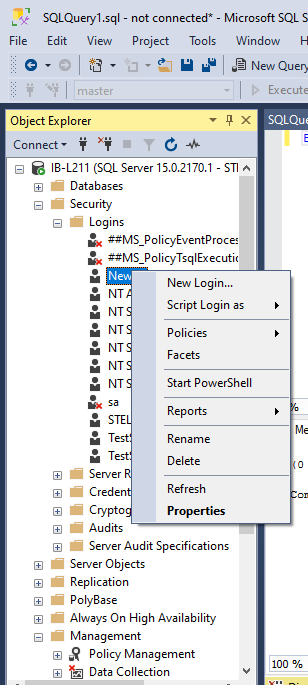
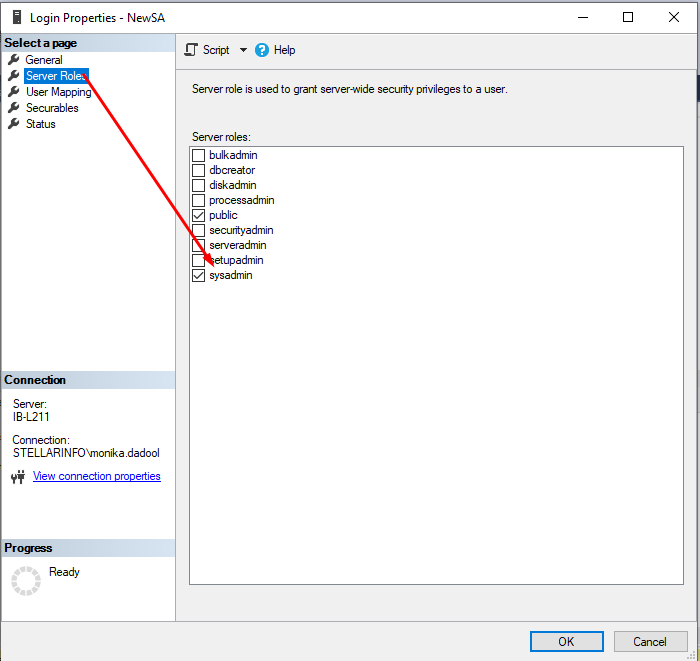
You may encounter the error 18456 when you attempt to log into SQL Server using Windows Authentication through an AD group. This indicates that the server instance has rejected your connection request. This connection failure usually occurs if the AD group has not been added as a server login, if cross-domain trust restrictions prevent visibility, or if SQL Server fails to verify the group membership token. To resolve this, you can check the existing login configuration and grant the sysadmin server role directly to that specific Active Directory group. Here’s how:
Note: Only the authorized admin like security admin can grant server-level roles and permissions.
It is good practice to check if all the databases are healthy. You can use DBCC CHECKDB command to detect corruption. This command displays the integrity issues and helps to resolve database corruption. However, it may cause data loss while repairing severely corrupt databases.
To prevent data loss, you can use Stellar Repair for MS SQL Technician. It can repair corrupt SQL database including master .mdf files and restore the data, without requiring backup.It allows you to repair a SQL database when corruption is severe.
If you forgot the SA account credentials, then use the tool’s utility - Stellar Password Recovery for MS SQL. It resets SA and user passwords, as well as the MDF file's password, ensuring you regain control of your SQL Server environment quickly and securely.
The error 18456 “Login failed for user” in Microsoft SQL Server can occur due to various reasons, like incorrect credentials, incorrect server authentication mode, and others. It can lead to downtime if administrator credentials are lost or if database metadata corruption locks users out. You can follow the methods discussed above to check and resolve the error. If your SQL database is corrupted, then you can use Stellar Repair for MS SQL Technician.
Senior Content Writer
This article was written by Monika Dadool, a Content Writer at Stellar Data Recovery.
Curious about our content creation process? Take a look at our Editor Guidelines.
December 9, 2025| 5 min read

July 14, 2025| 5 min read
June 24, 2025| 5 min read






 5 min read