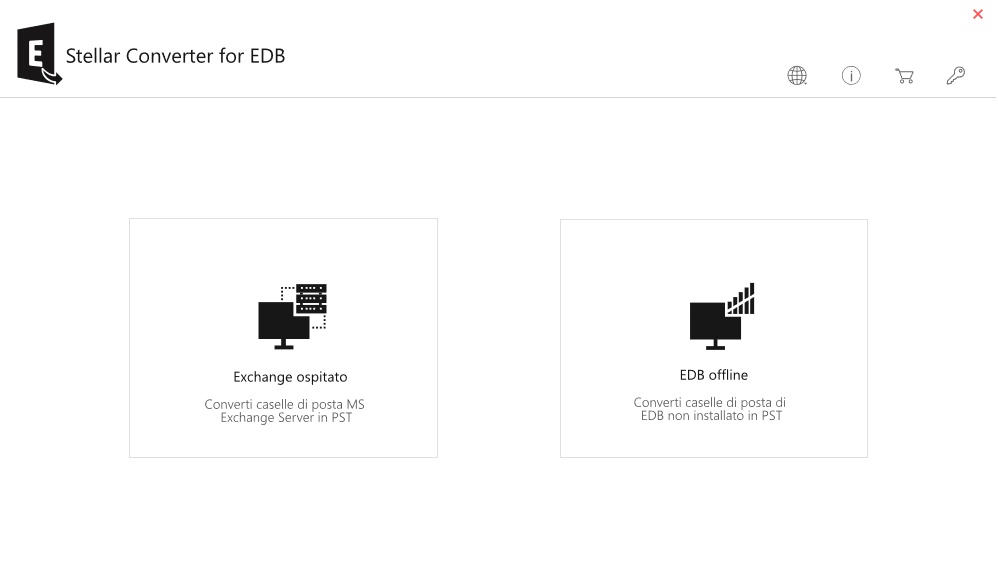
Selezionare "Hosted Exchange" per esportare le caselle di posta da un file EDB online. Per convertire le caselle di posta da un database offline, selezionare "Offline EDB".
Passo 2
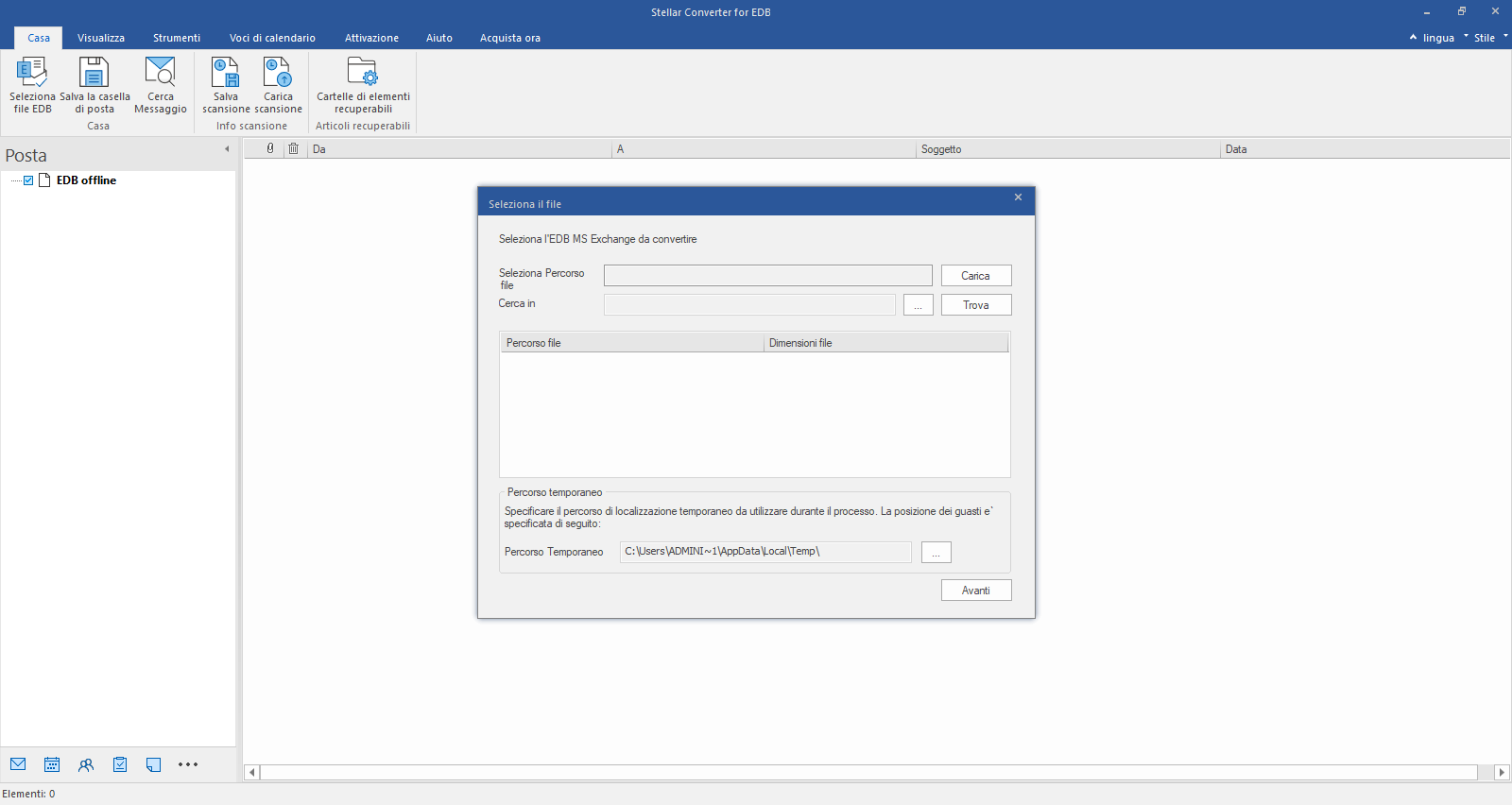
Individuare o cercare il file EDB offline
Fare clic su "Sfoglia" per selezionare il file EDB se se ne conosce la posizione, oppure utilizzare il pulsante "Cerca" per individuare il file EDB.
Passo 3
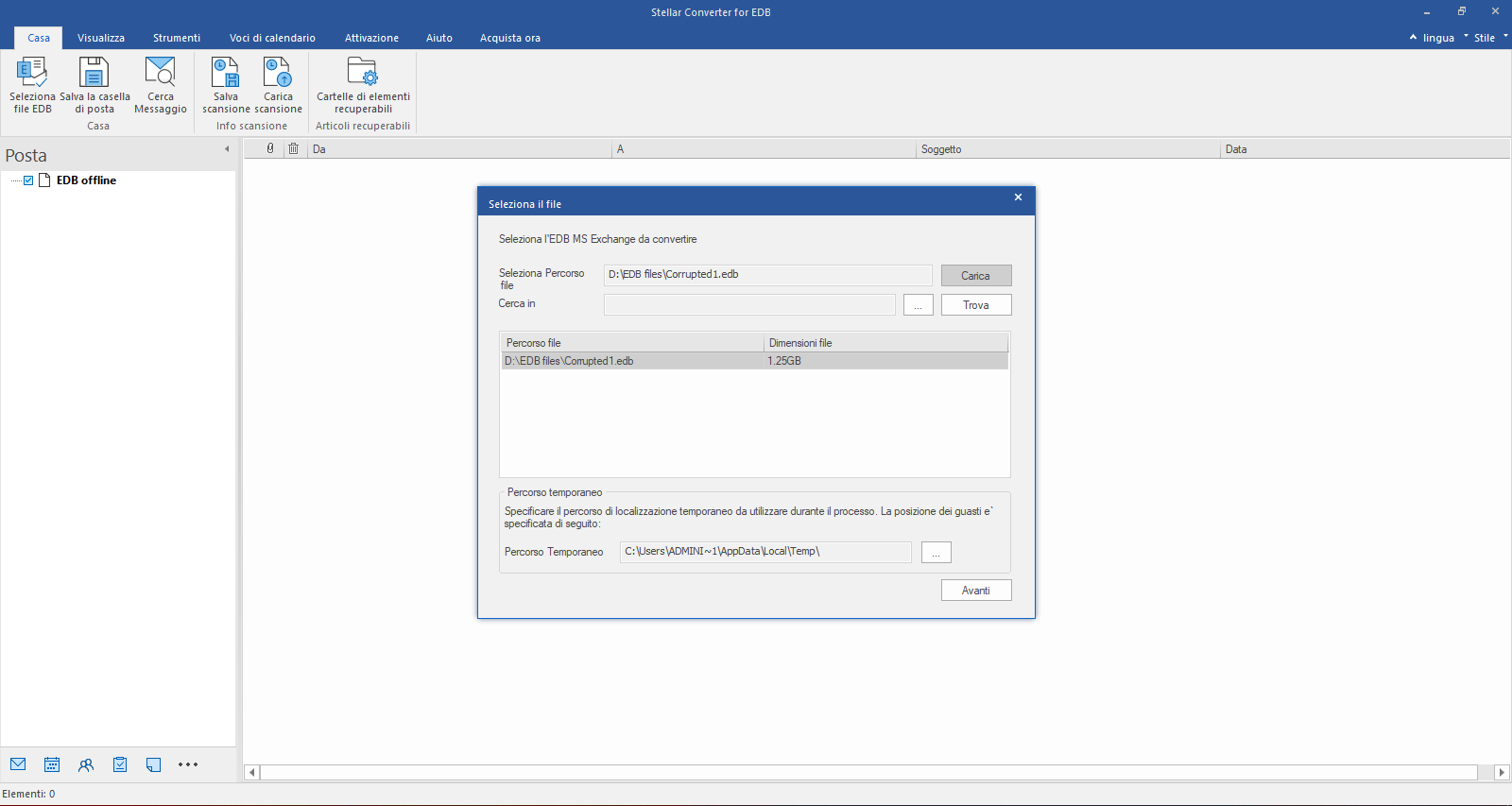
Selezionare il file EDB
Selezionare il file EDB desiderato e quindi fare clic su "Avanti".
Passo 4
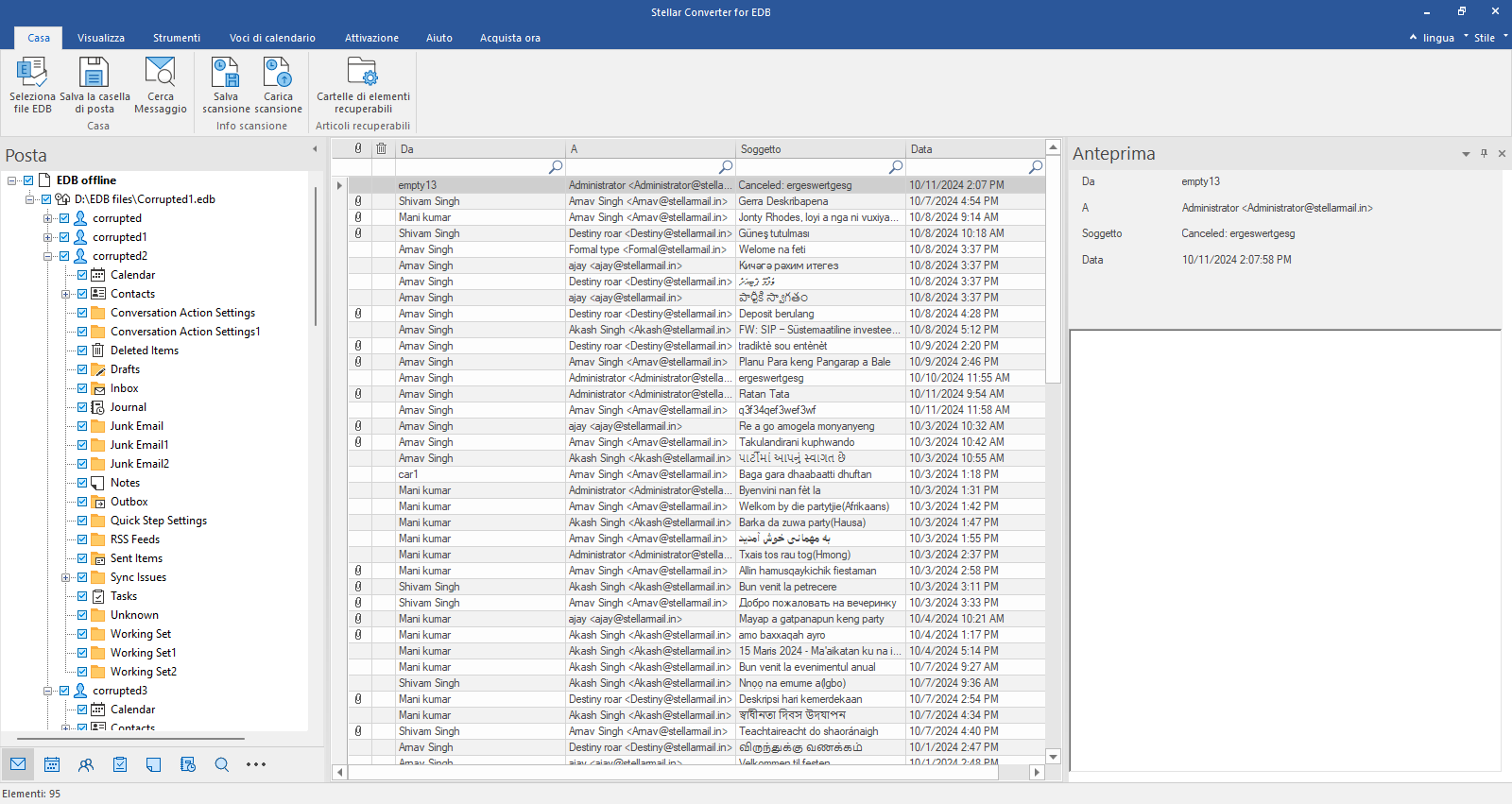
Anteprima delle caselle di posta
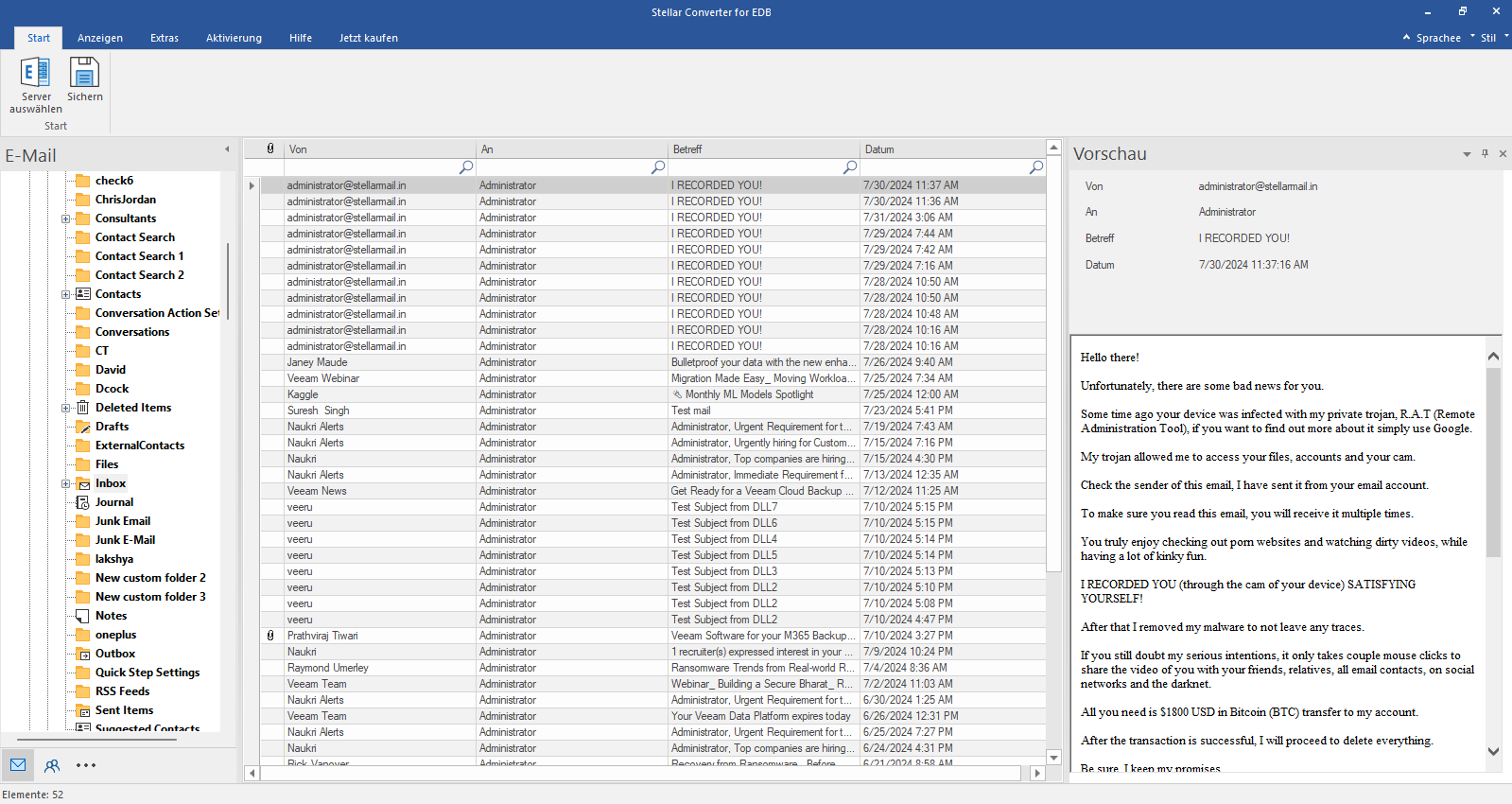
Dopo la scansione, fare clic su una casella di posta o su un elemento per visualizzarne l'anteprima.
Passo 5
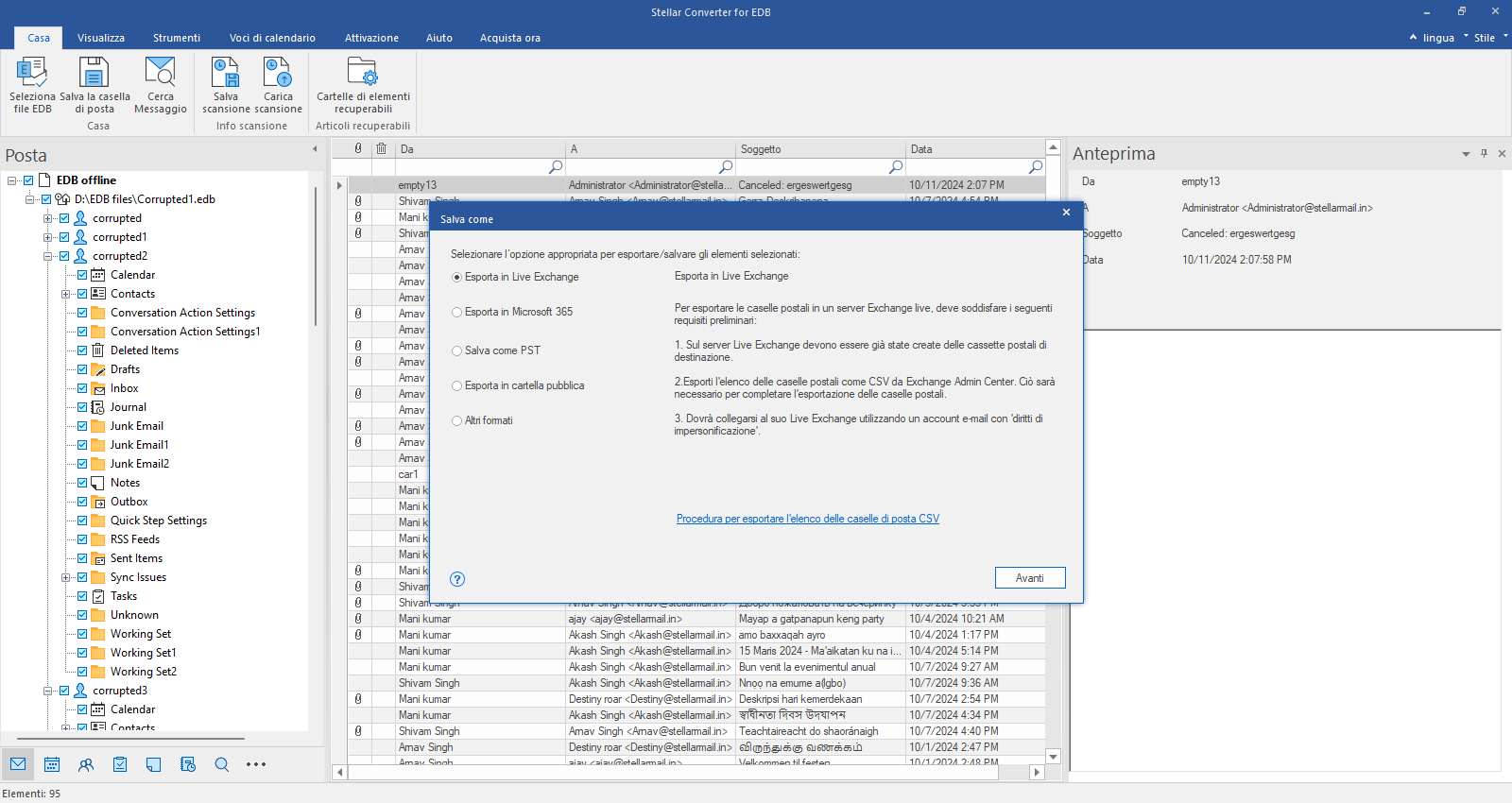
Esporta su Live Exchange
Selezionare tutte le caselle di posta che si desidera convertire e fare clic su "Salva casella di posta". Selezionare l'opzione di salvataggio desiderata, ad esempio "Esporta su Live Exchange", quindi fare clic su "Avanti".
Passo 6
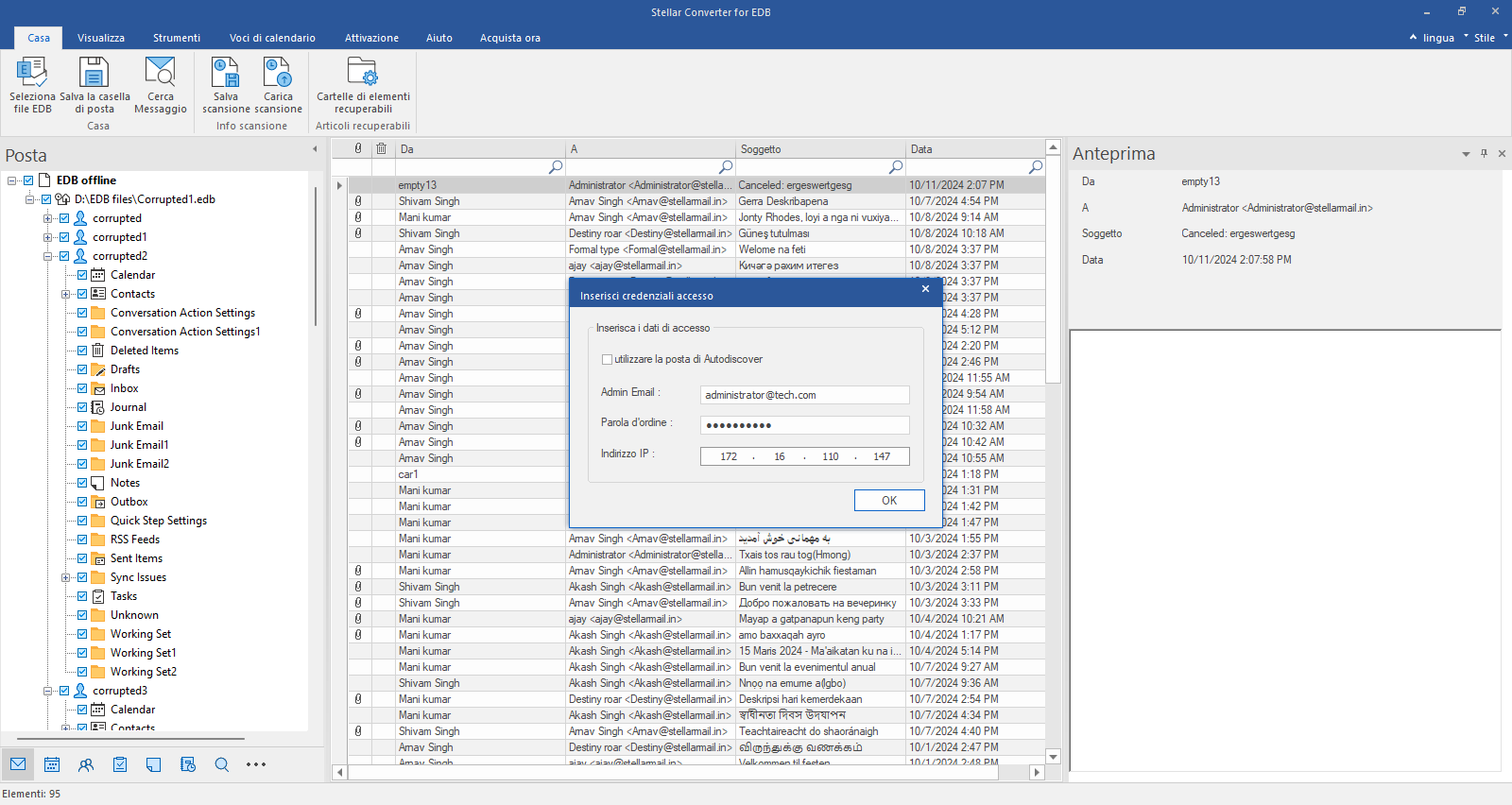
Inserire i dettagli di accesso
Verrà visualizzata la finestra di dialogo "Inserisci dettagli di accesso", che offre due opzioni per la connessione al server Live Exchange. È possibile utilizzare "Rileva automaticamente l'e-mail" o inserire manualmente i dettagli del server, quindi fare clic su "OK".
Passo 7
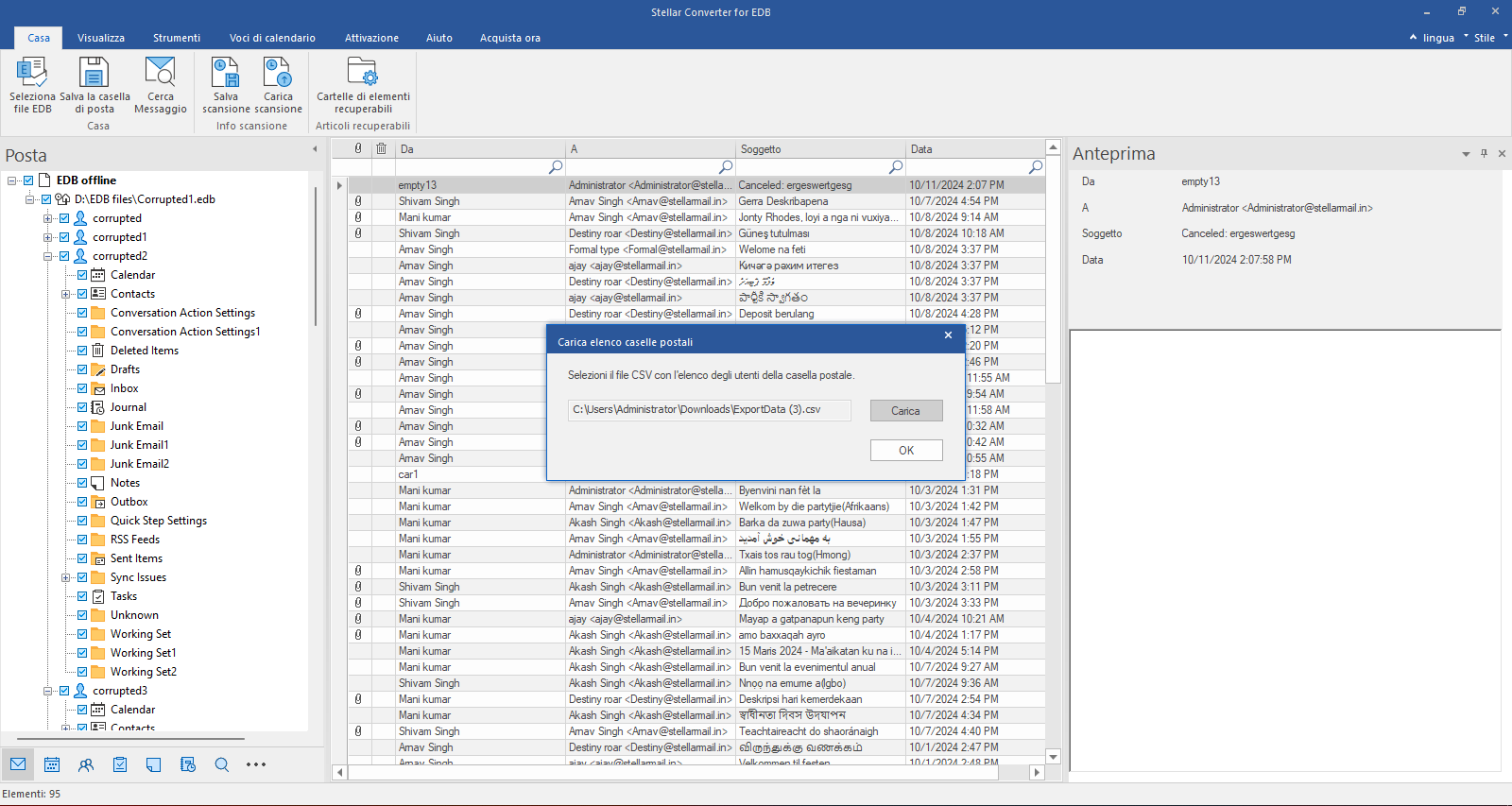
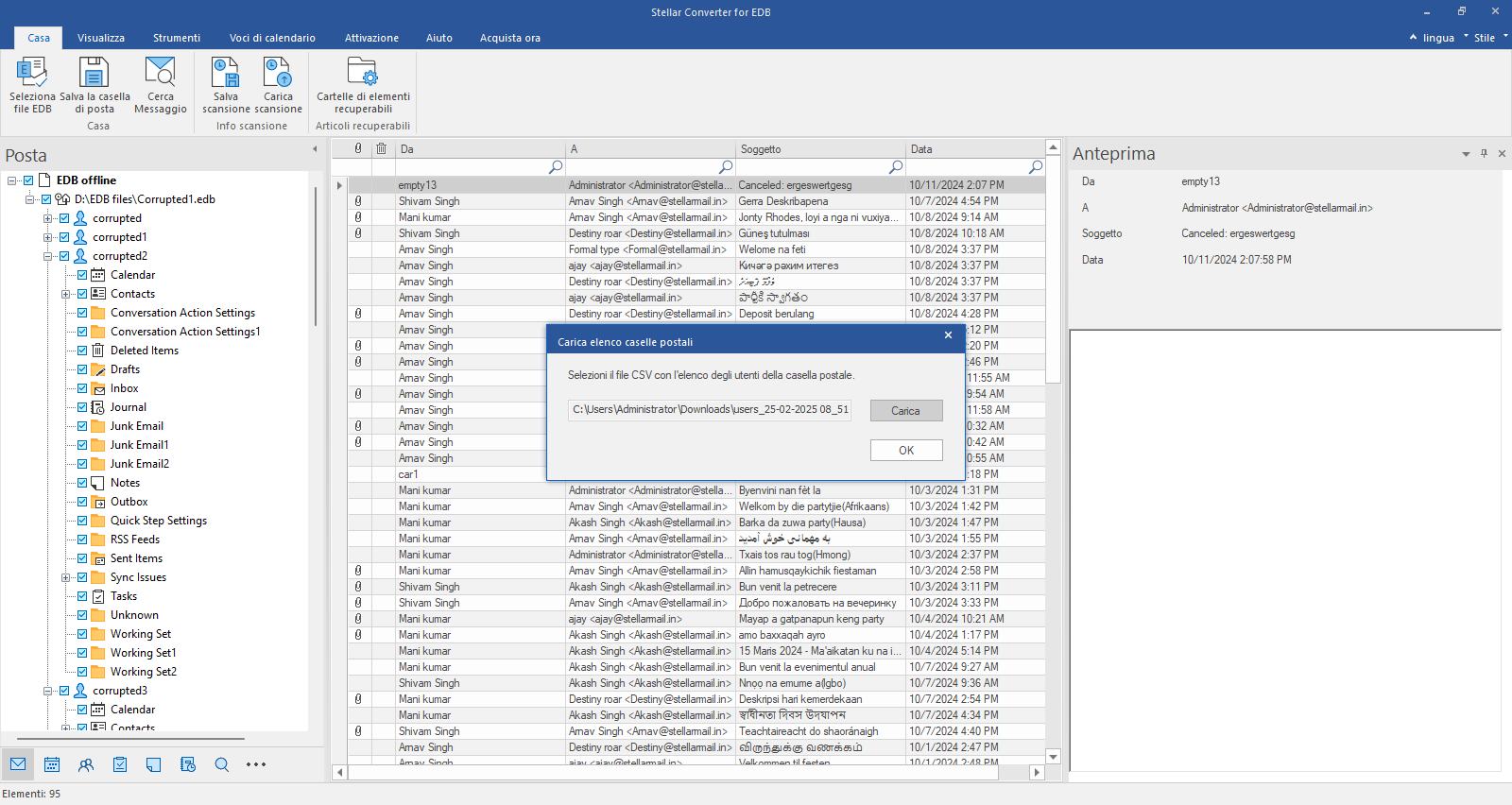
Caricare il file CSV
Verrà visualizzata la finestra di dialogo Carica elenco caselle di posta. Fare clic sul pulsante Sfoglia per selezionare il file CSV contenente l'elenco degli utenti delle caselle di posta. Fare clic su OK.
Passo 8
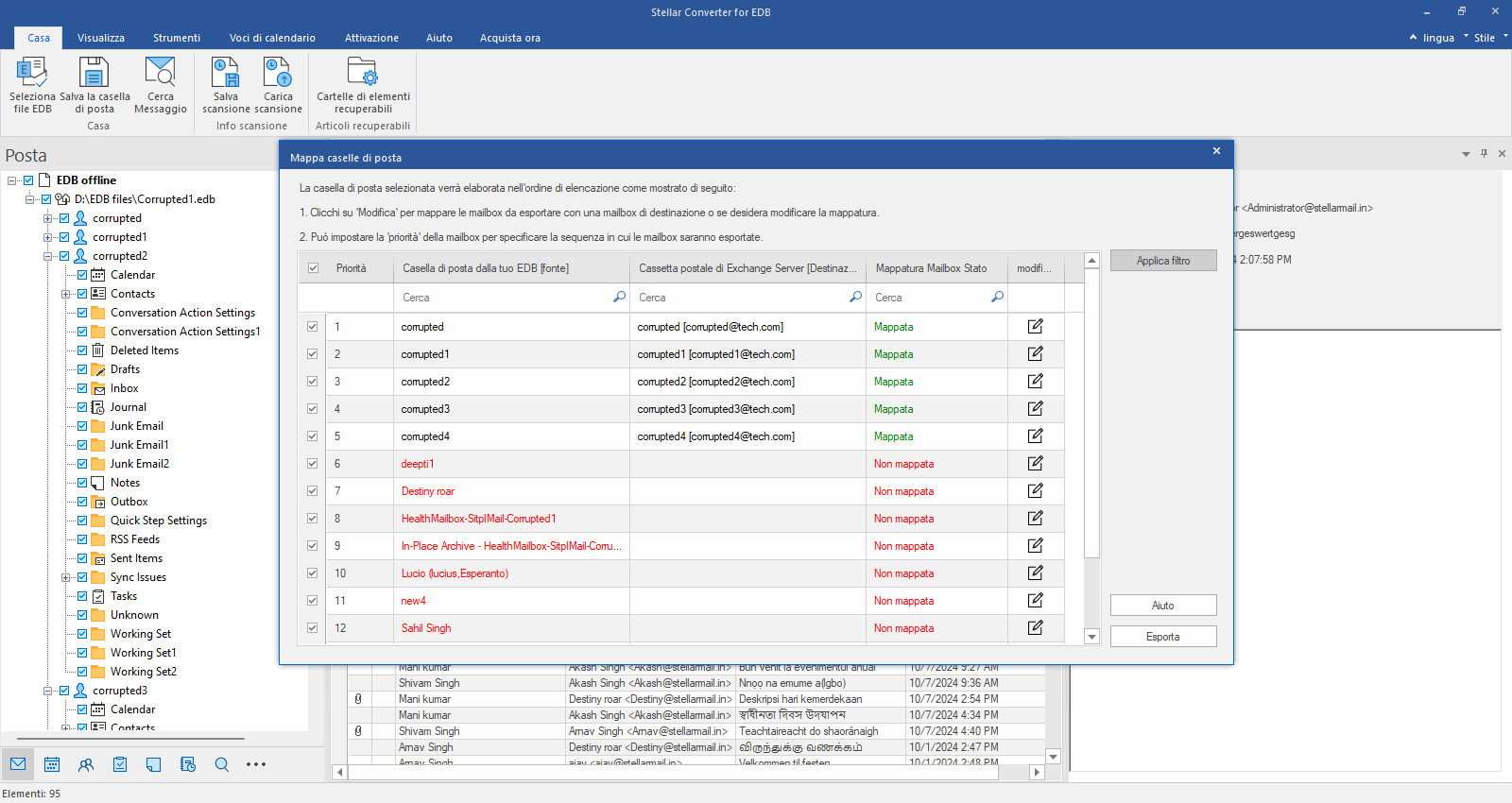
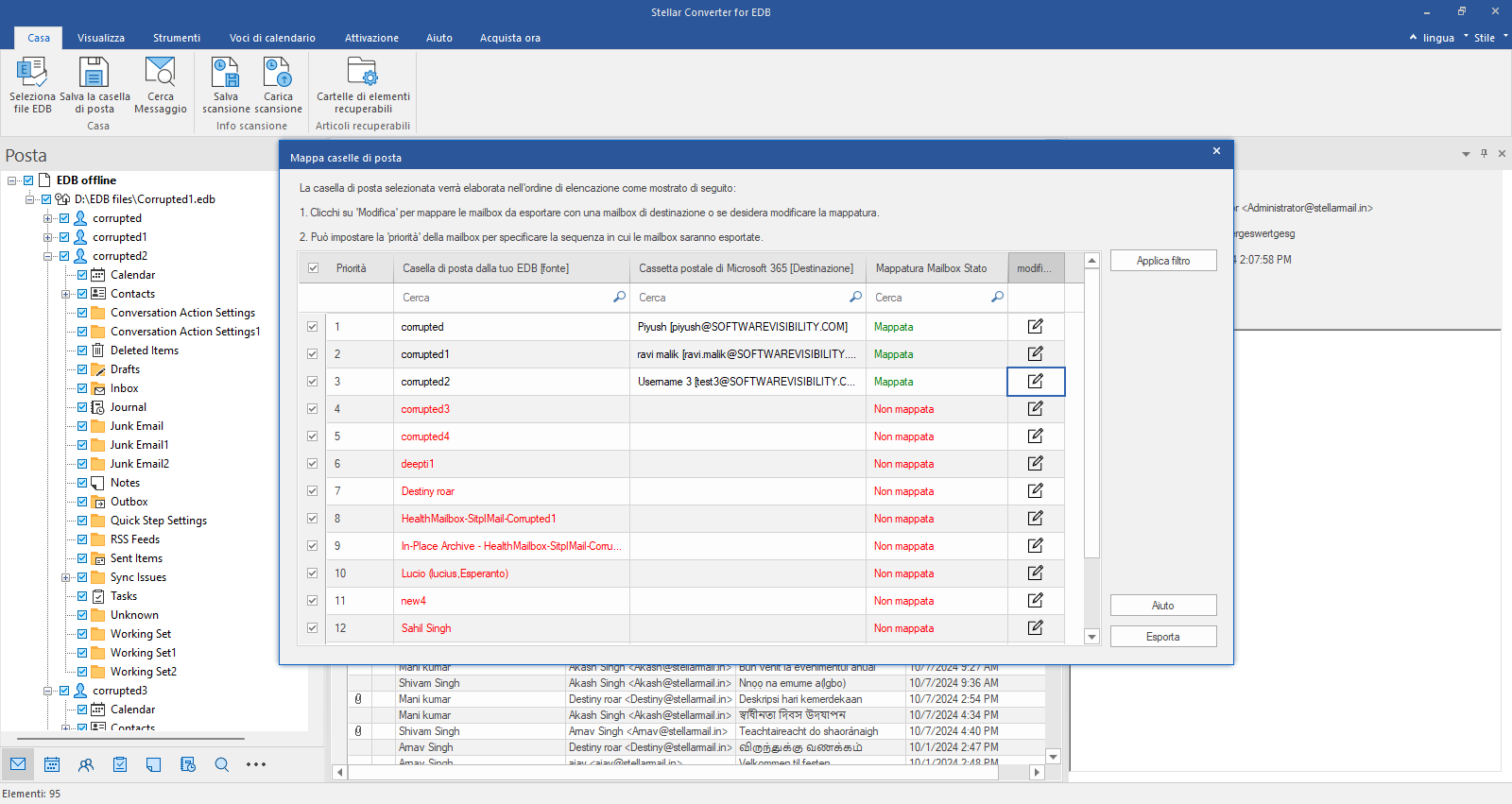
Finestra Mappa caselle di posta
Il software mappa automaticamente le caselle di posta di origine e di destinazione. È anche possibile mappare manualmente le caselle di posta e modificare la priorità per l'esportazione delle caselle di posta. Utilizzare Applica filtro per includere/escludere le e-mail, quindi fare clic su Esporta.
Passo 9
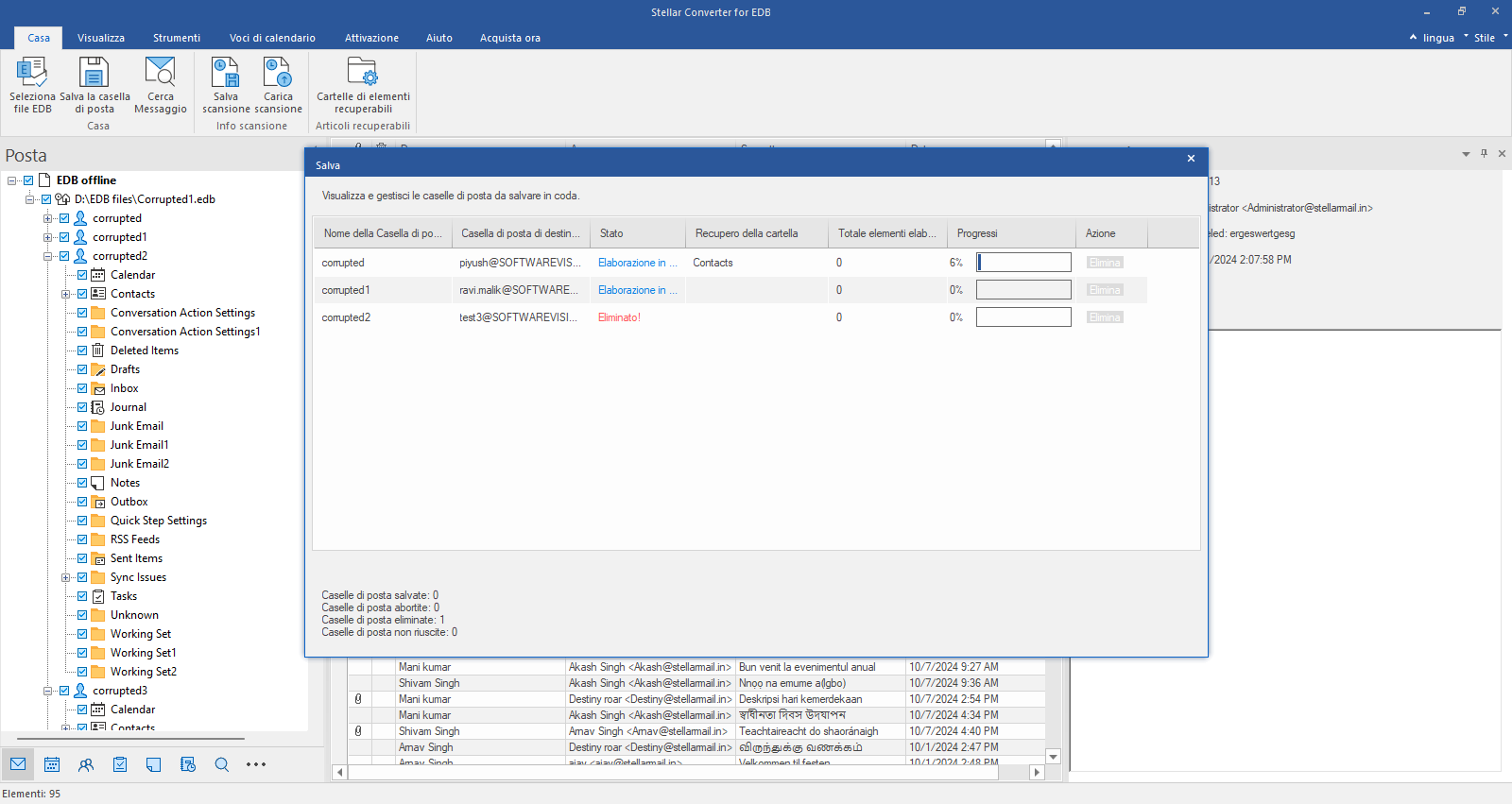
Salvataggio delle caselle di posta
Il software avvia l'esportazione delle caselle di posta dal file EDB al server Exchange attivo.
Passo 10
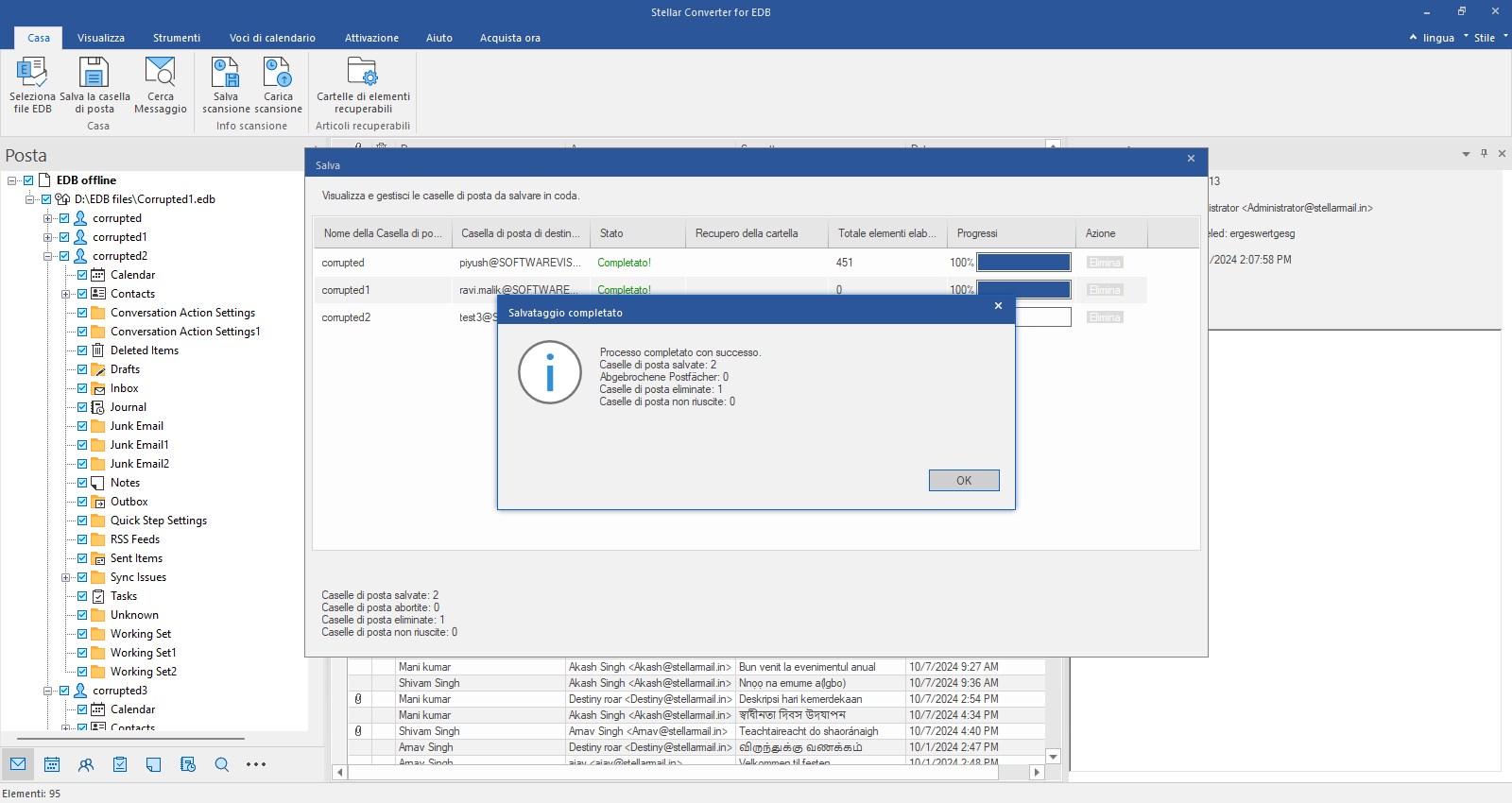
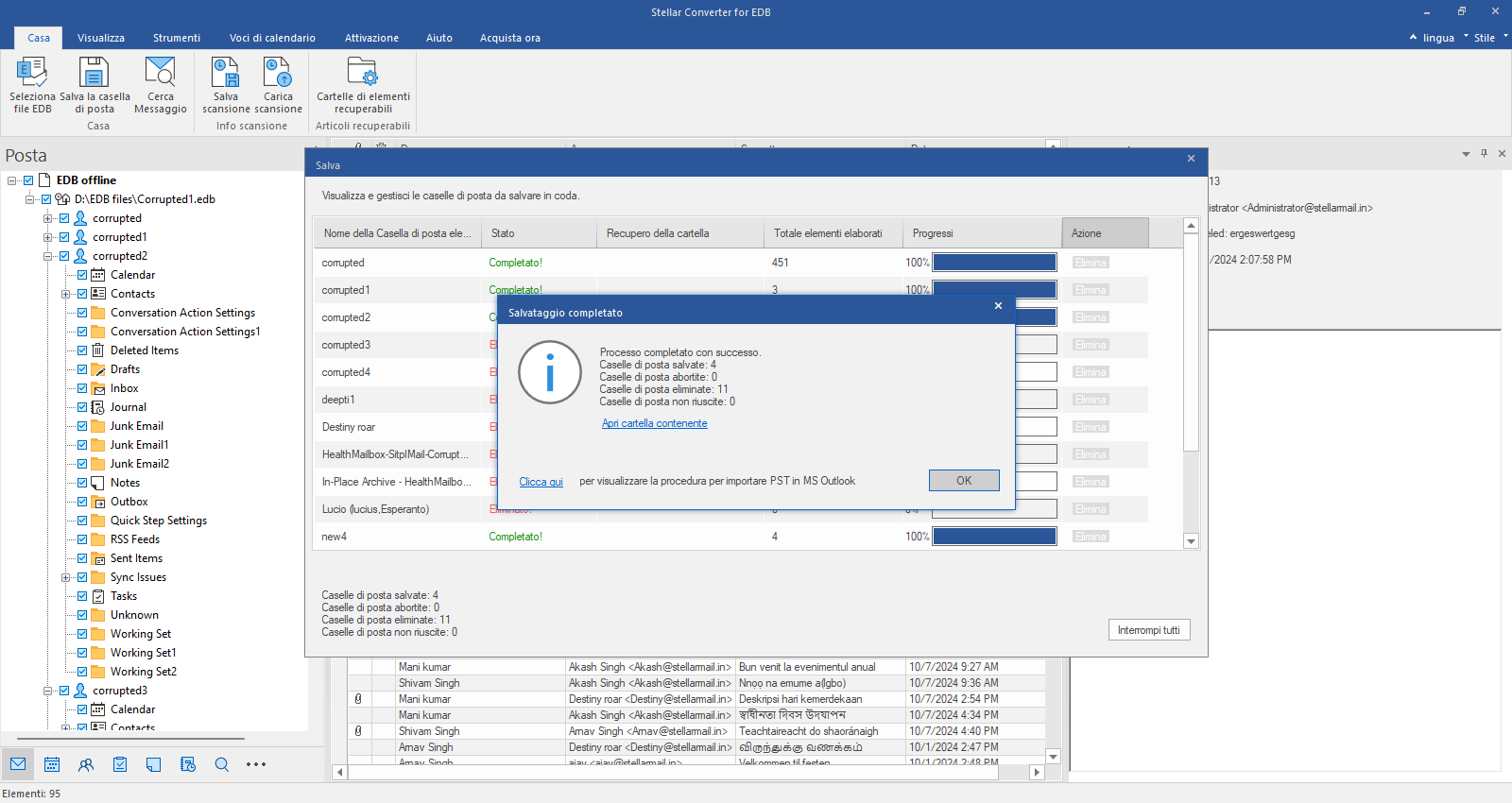
Finestra Salvataggio completato
Viene visualizzata una finestra di dialogo "Salvataggio completato" che mostra il numero di caselle di posta salvate, annullate, rimosse e non salvate. Fare clic su "OK" per chiuderla.
Passo 11
Esportazione nella cartella di archiviazione in loco
Per esportare le caselle di posta direttamente nella cartella di archiviazione in loco sul server Exchange, selezionare l'opzione "Esporta nella cartella di archiviazione in loco" nella finestra "Salva con nome" e fare clic su "Avanti". Quindi connettersi al server Exchange per esportare le caselle di posta di archiviazione.
Passo 12
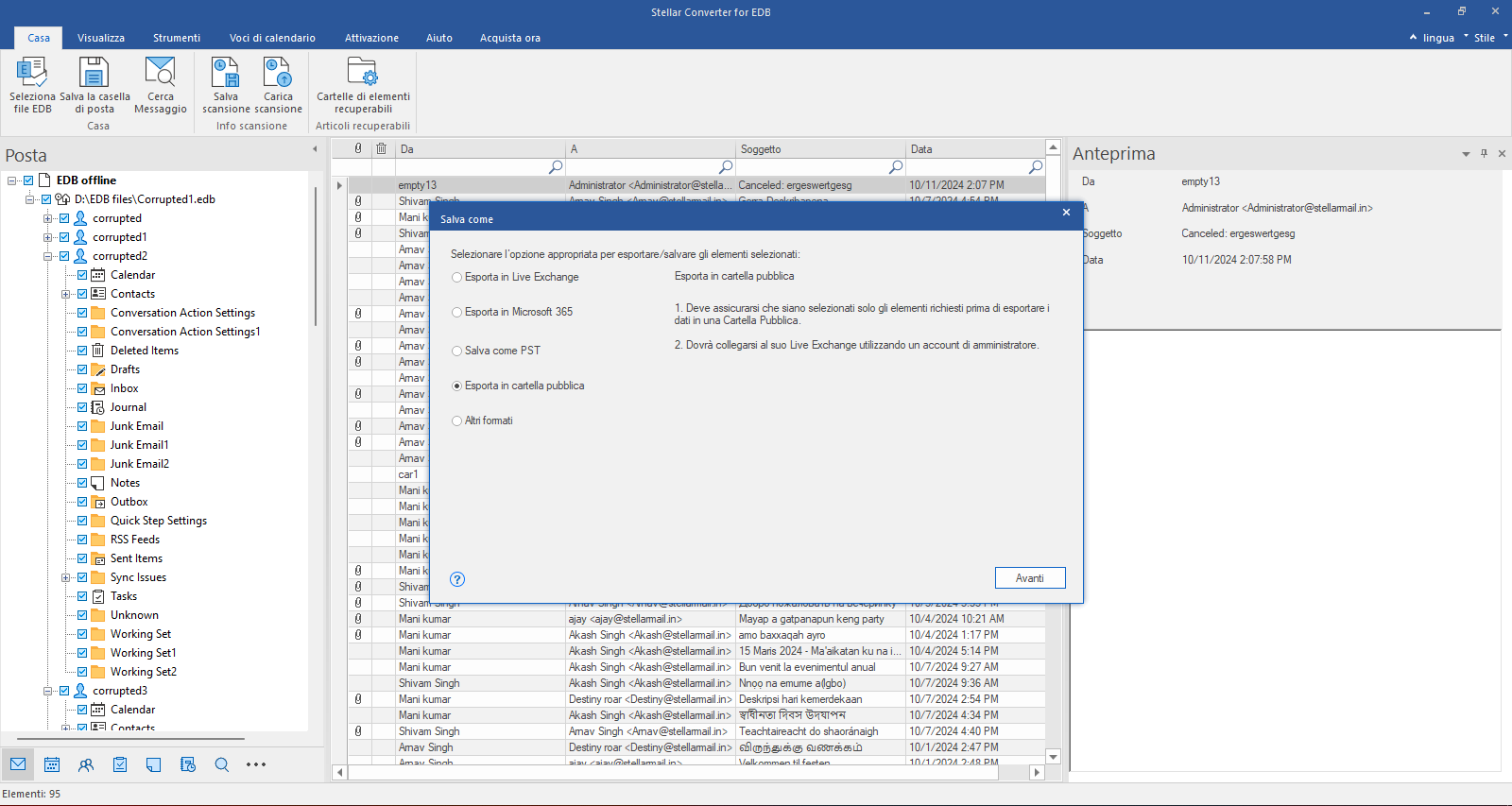
Esportare nelle cartelle pubbliche
Se si desidera esportare le caselle di posta nelle cartelle pubbliche sul server Exchange, selezionare "Esporta nella cartella pubblica" e fare clic su "Avanti".
Passo 13
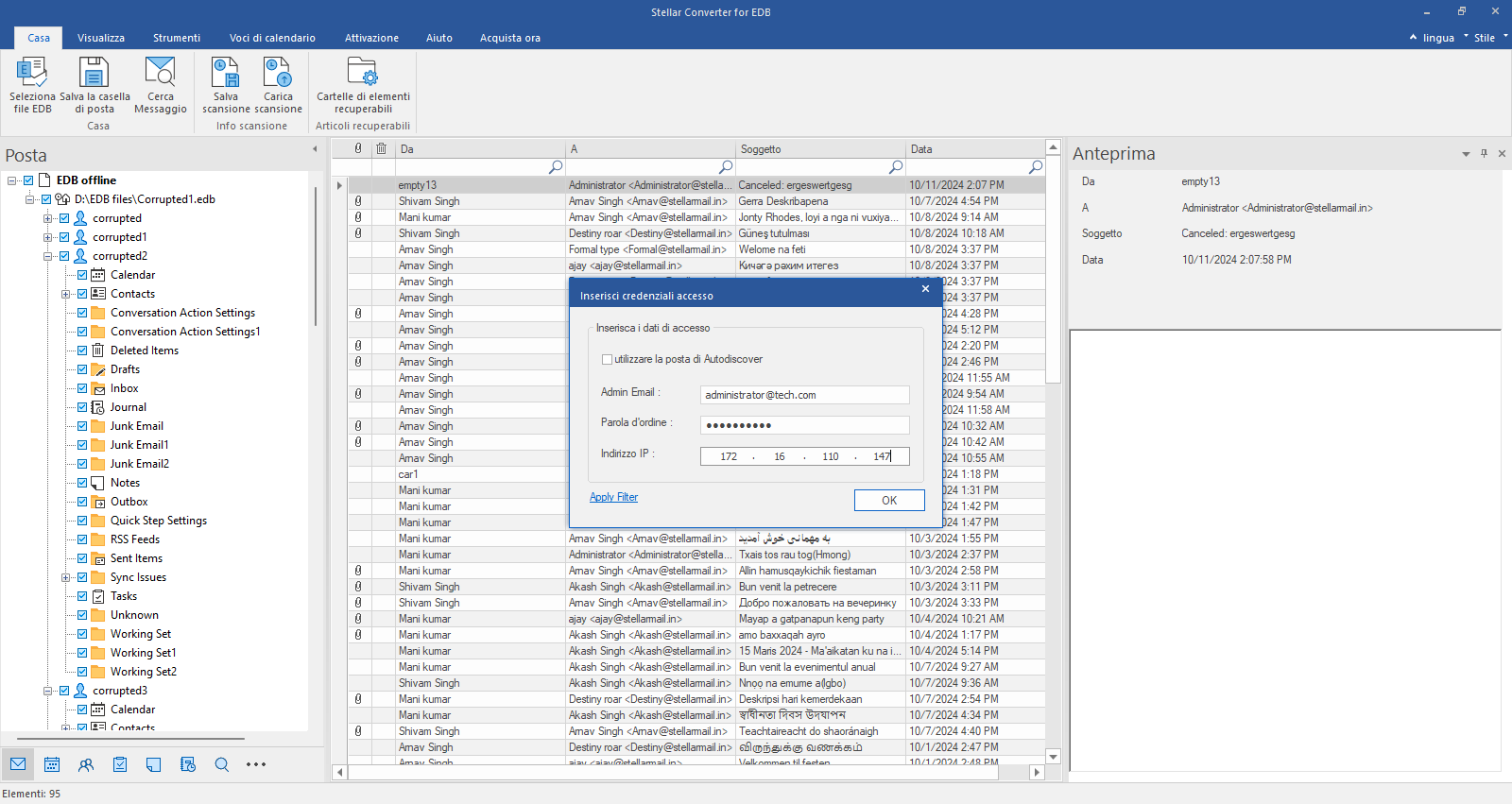
Connettersi al server Exchange attivo
Viene visualizzata la finestra di dialogo "Inserisci credenziali", che offre due opzioni per connettersi al server Exchange attivo. È possibile utilizzare "Rileva automaticamente e-mail" o inserire manualmente i dettagli del server.
Passo 14
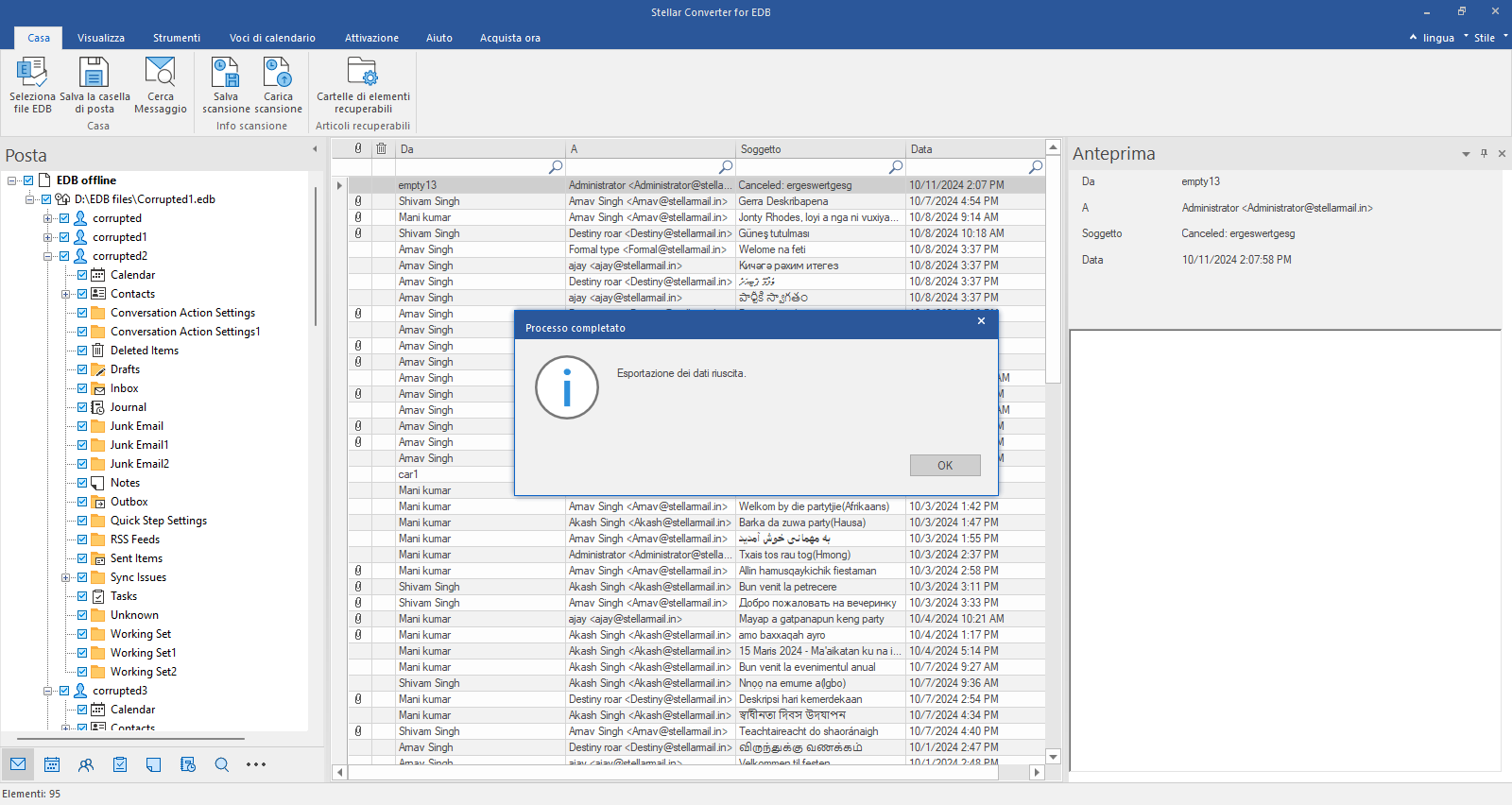
Processo completato
Viene visualizzata la finestra di dialogo "Operazione completata". Fare clic su "OK" per chiuderla.
Passo 15
Esportazione in Microsoft 365
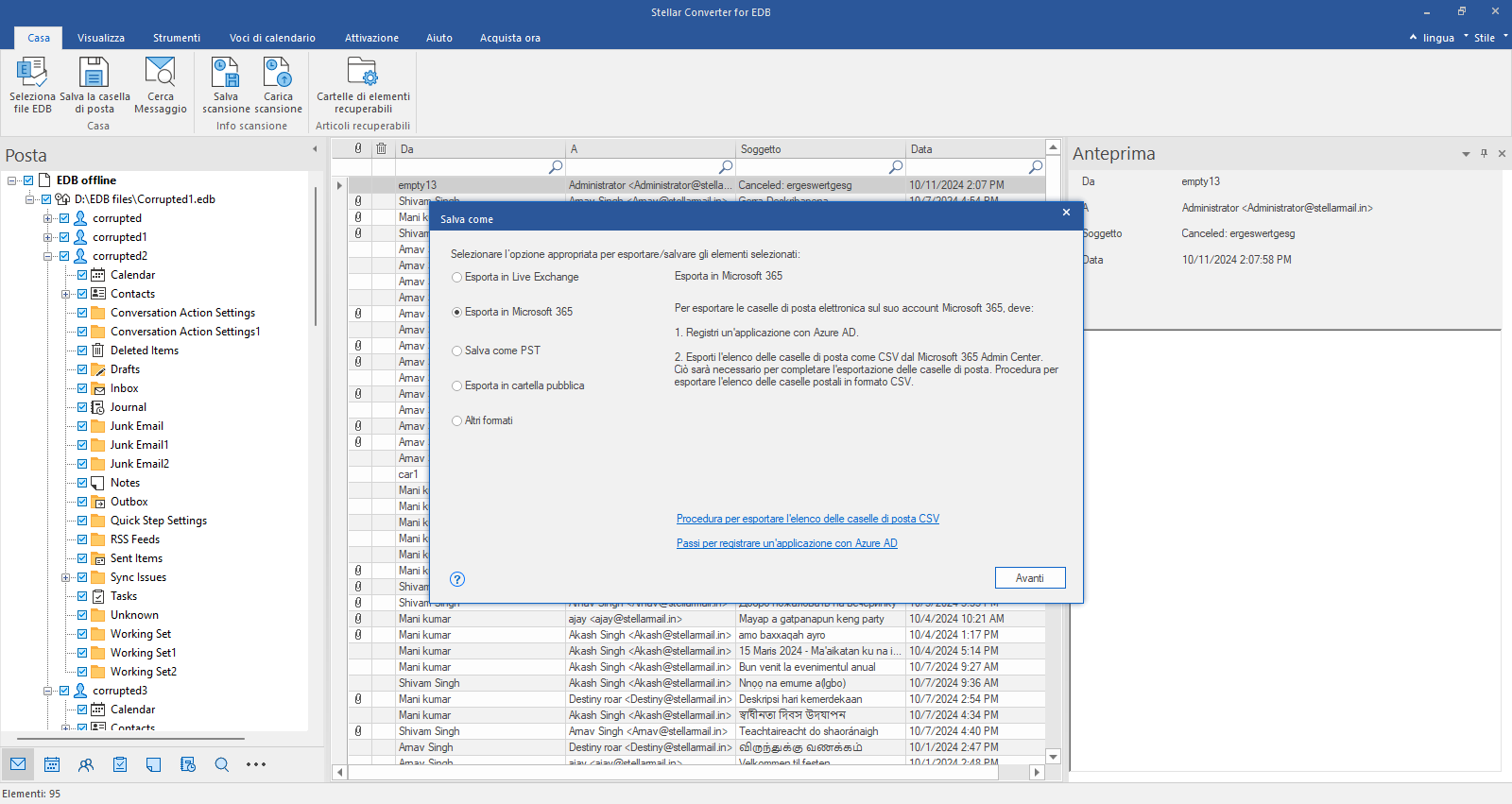
Se si desidera esportare le caselle di posta in Microsoft 365, selezionare l'opzione "Esporta in Microsoft 365" nella finestra "Salva con nome". Quindi fare clic su "Avanti".
Passo 16
Connettersi alla destinazione
Dopo aver selezionato Microsoft 365 come destinazione, è possibile scegliere tra la registrazione automatica e quella manuale. La registrazione automatica automatizza il processo di autenticazione, mentre quella manuale richiede l'inserimento manuale delle credenziali Microsoft 365. Selezionare "Registrazione manuale" e fare clic su "Avanti".
Passo 17
Connettersi a Microsoft 365
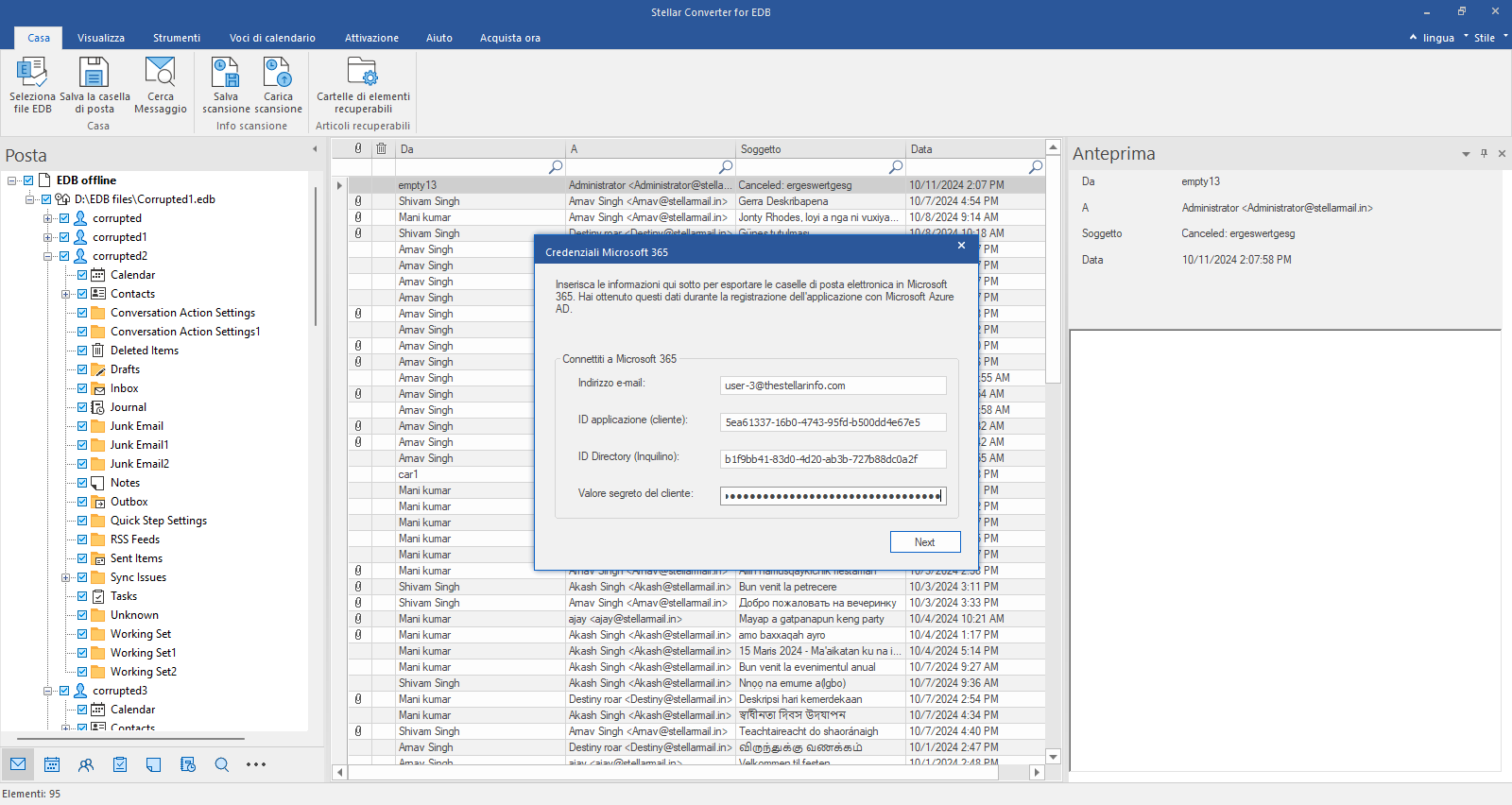
Nella finestra di dialogo "Credenziali Microsoft 365", inserire il proprio indirizzo e-mail, l'ID applicazione (ID client), l'ID directory (ID tenant) e la chiave client segreta. Fare clic su "Avanti" per continuare.
Passo 18
Caricare il file CSV
Viene visualizzata la finestra di dialogo Carica elenco caselle di posta. Fare clic sul pulsante Sfoglia per selezionare il file CSV contenente l'elenco degli utenti delle caselle di posta. Fare clic su OK.
Passo 19
Finestra Mappa caselle di posta
Il software assegna automaticamente le caselle di posta sul server Microsoft 365 e fornisce anche un'opzione per modificare l'assegnazione delle caselle di posta. È inoltre possibile modificare la priorità o applicare filtri per includere o escludere le e-mail in base all'intervallo di date o all'indirizzo e-mail. Al termine, fare clic su Esporta.
Passo 20
Salvataggio delle caselle di posta
Il software avvia l'esportazione delle caselle di posta dal file EDB all'account Microsoft 365.
Passo 21
Finestra Salvataggio completato
Viene visualizzata la finestra di dialogo "Salvataggio completato". Essa contiene una panoramica delle caselle di posta salvate, annullate, rimosse e non riuscite. Fare clic su "OK" per chiuderla.
Passo 22
Esportare nella cartella pubblica di Microsoft 365
Se si desidera salvare le caselle di posta nelle cartelle pubbliche di Microsoft 365, selezionare l'opzione "Esporta nelle cartelle pubbliche M365" nella finestra "Salva con nome" e fare clic su "Avanti". Quando viene visualizzata la schermata con il messaggio "Si sta tentando di salvare più caselle di posta nella 'cartella pubblica'", fare clic su "Sì".
Passo 23
Inserire i dati di accesso a M365
Nella finestra "Credenziali Microsoft 365", inserire l'indirizzo e-mail, l'ID applicazione (ID client), l'ID directory (ID tenant) e la chiave client segreta. Quindi fare clic su "Avanti". Le caselle di posta vengono esportate direttamente nelle cartelle pubbliche di M365.
Passo 24
Esporta in file PST
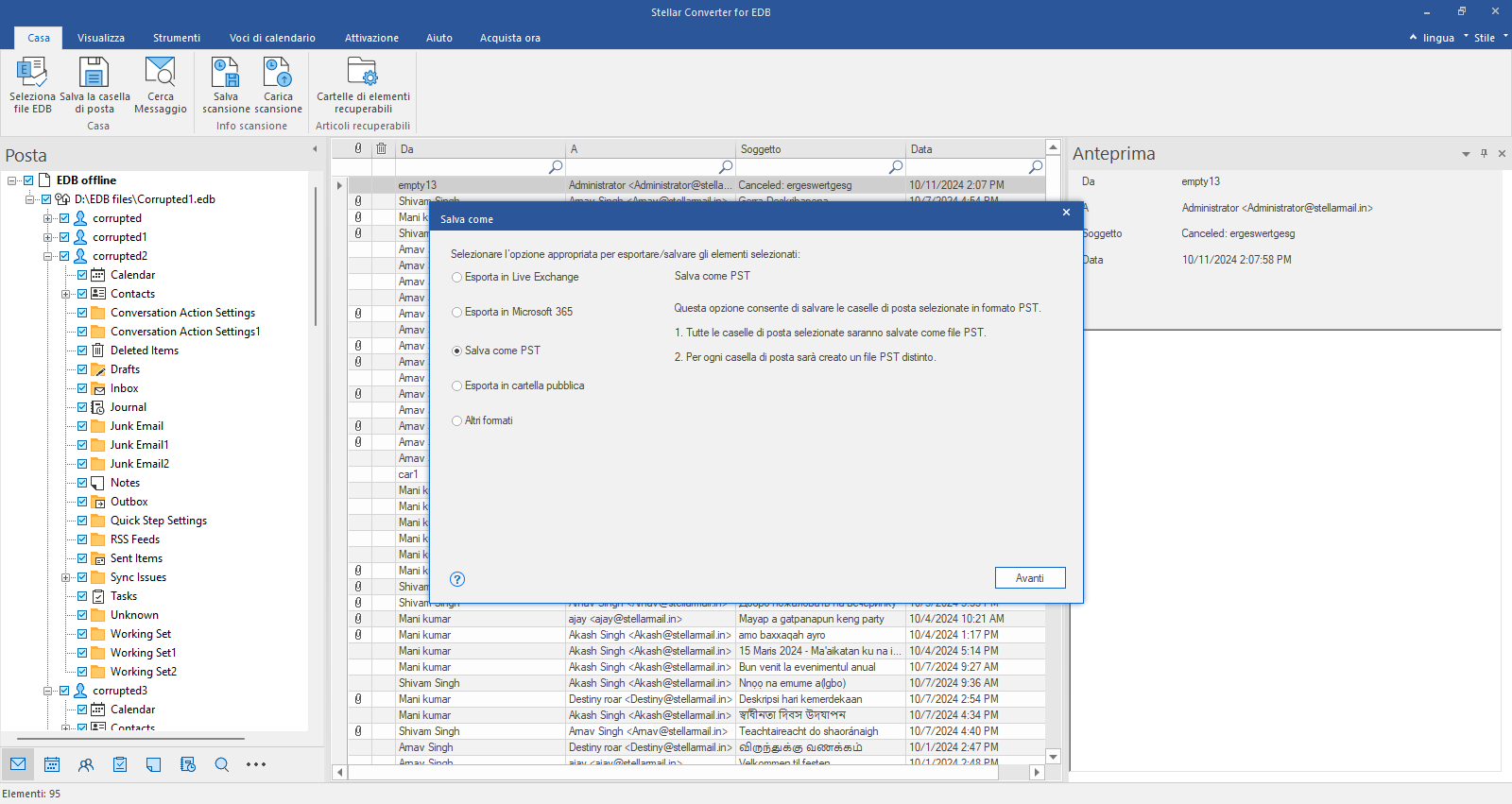
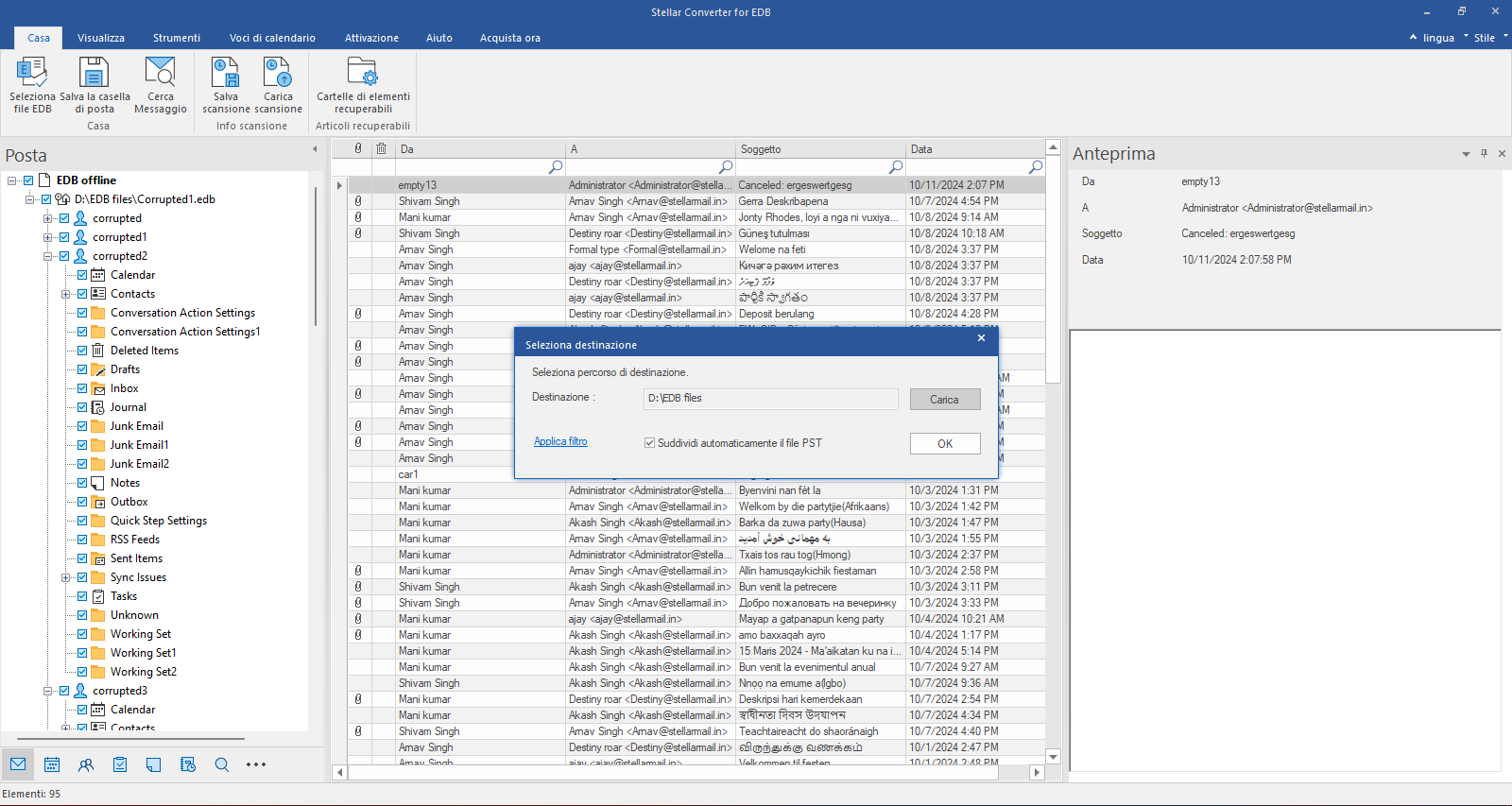
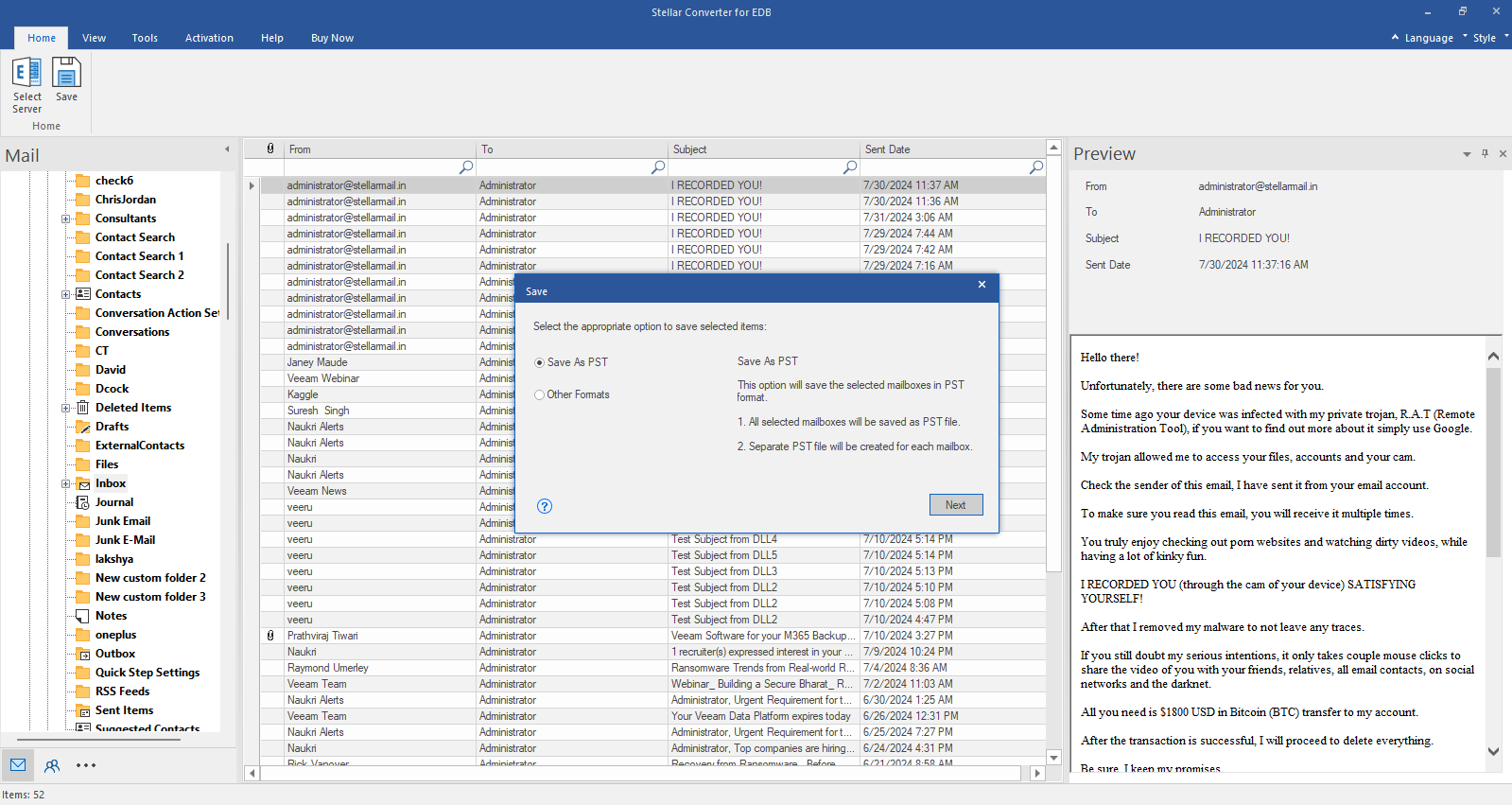
Se si desidera convertire le caselle di posta in PST, selezionare l'opzione "Salva come PST" nella finestra "Salva con nome" e quindi fare clic su "Avanti".
Passo 25
Selezionare la posizione di archiviazione per il file PST
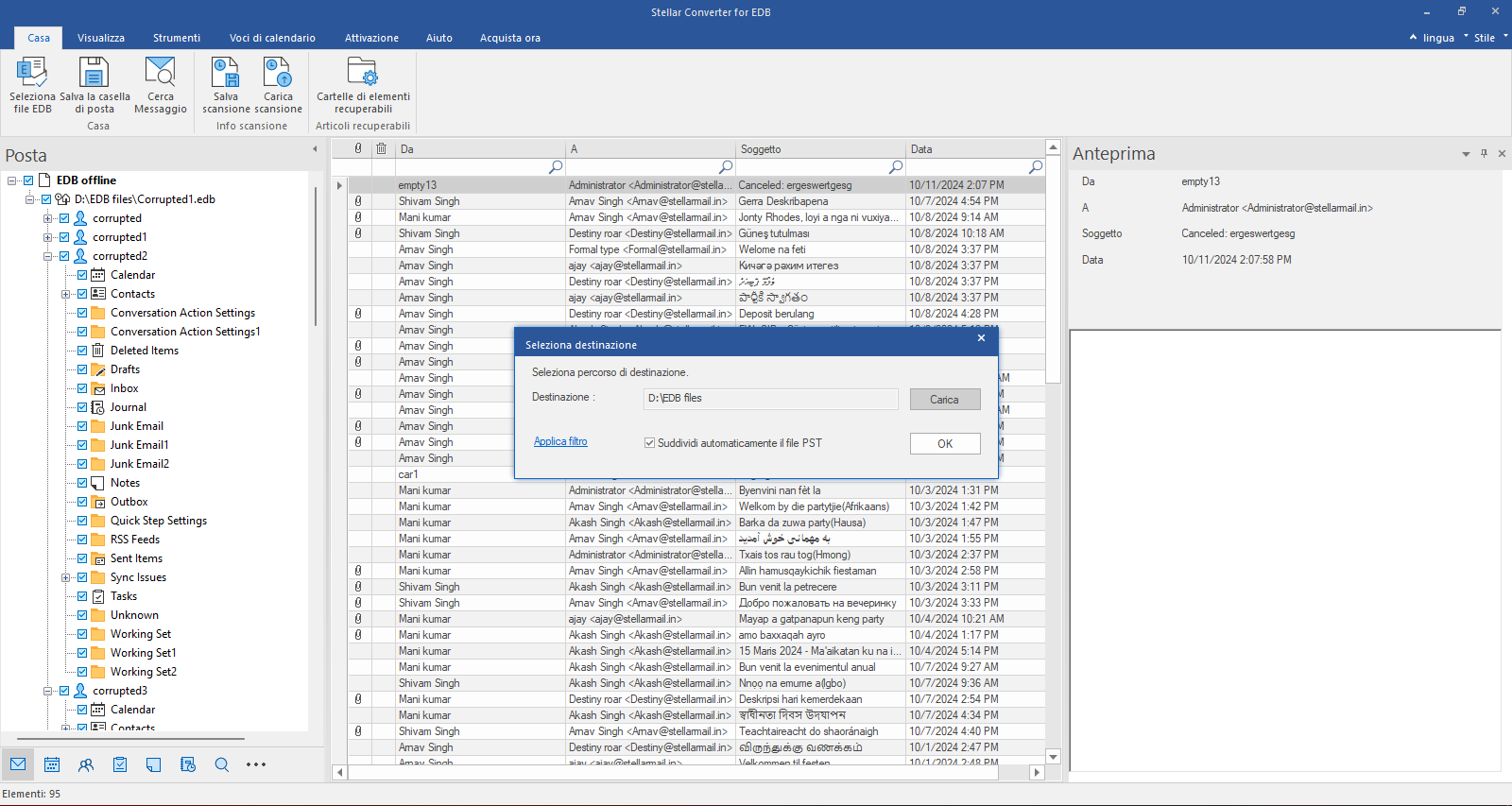
Fare clic su "Sfoglia" per selezionare una posizione per il file PST, quindi fare clic su "OK".
Passo 26
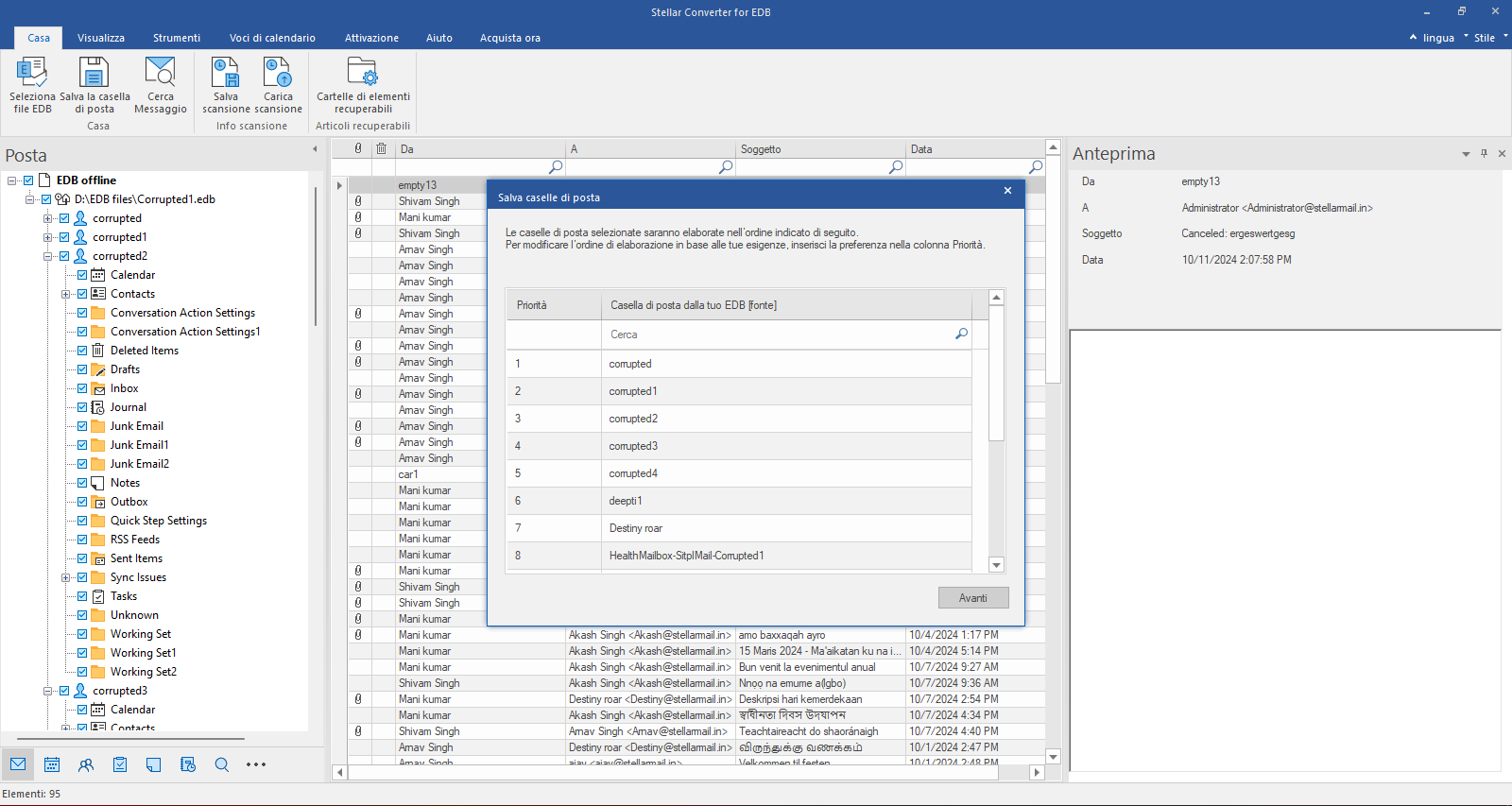
Finestra Salva caselle di posta
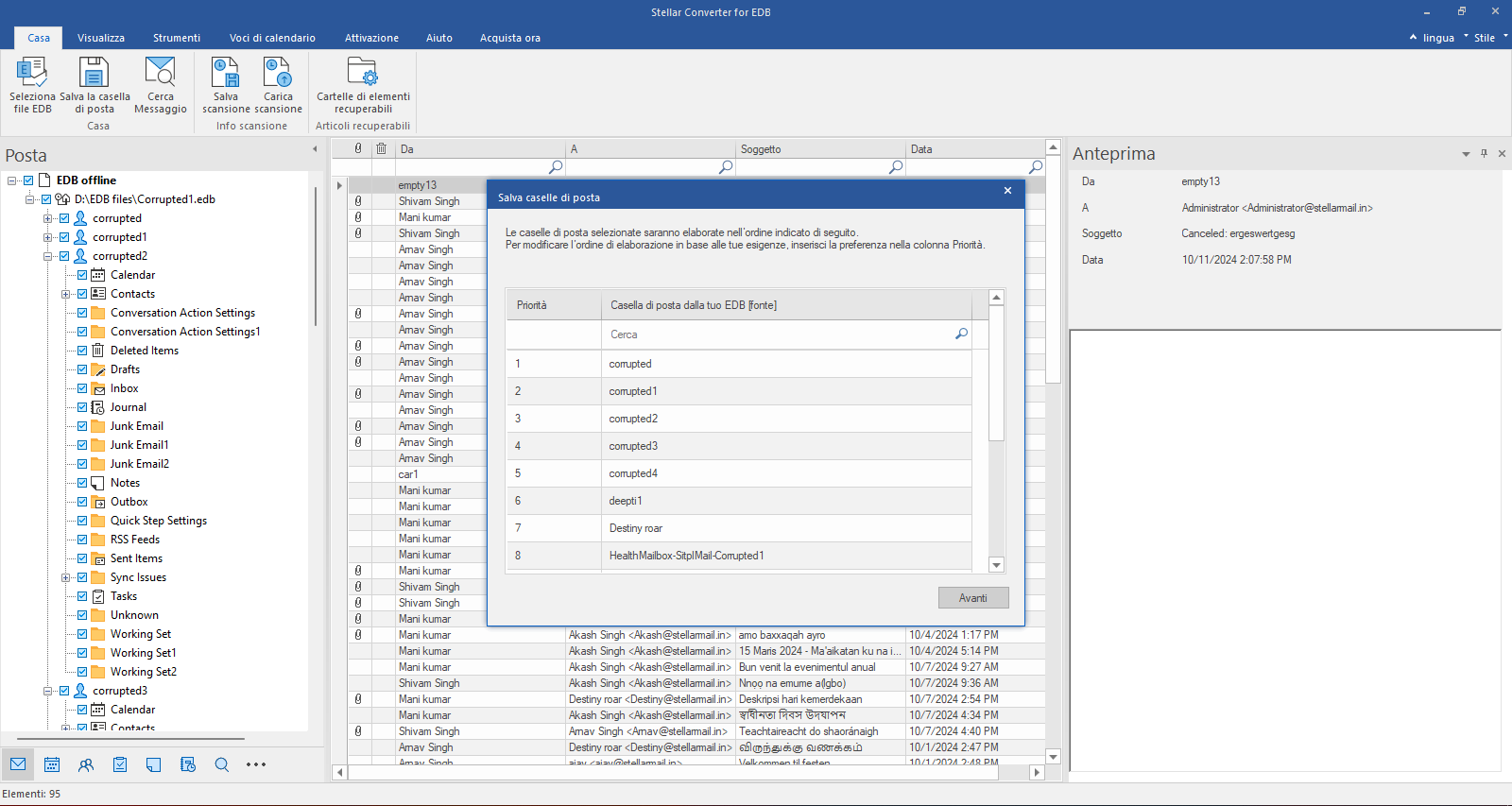
Nella finestra "Salva caselle di posta", è possibile modificare la priorità di esportazione delle caselle di posta in modo che quelle importanti vengano esportate per prime. Quindi fare clic su "Avanti".
Passo 27
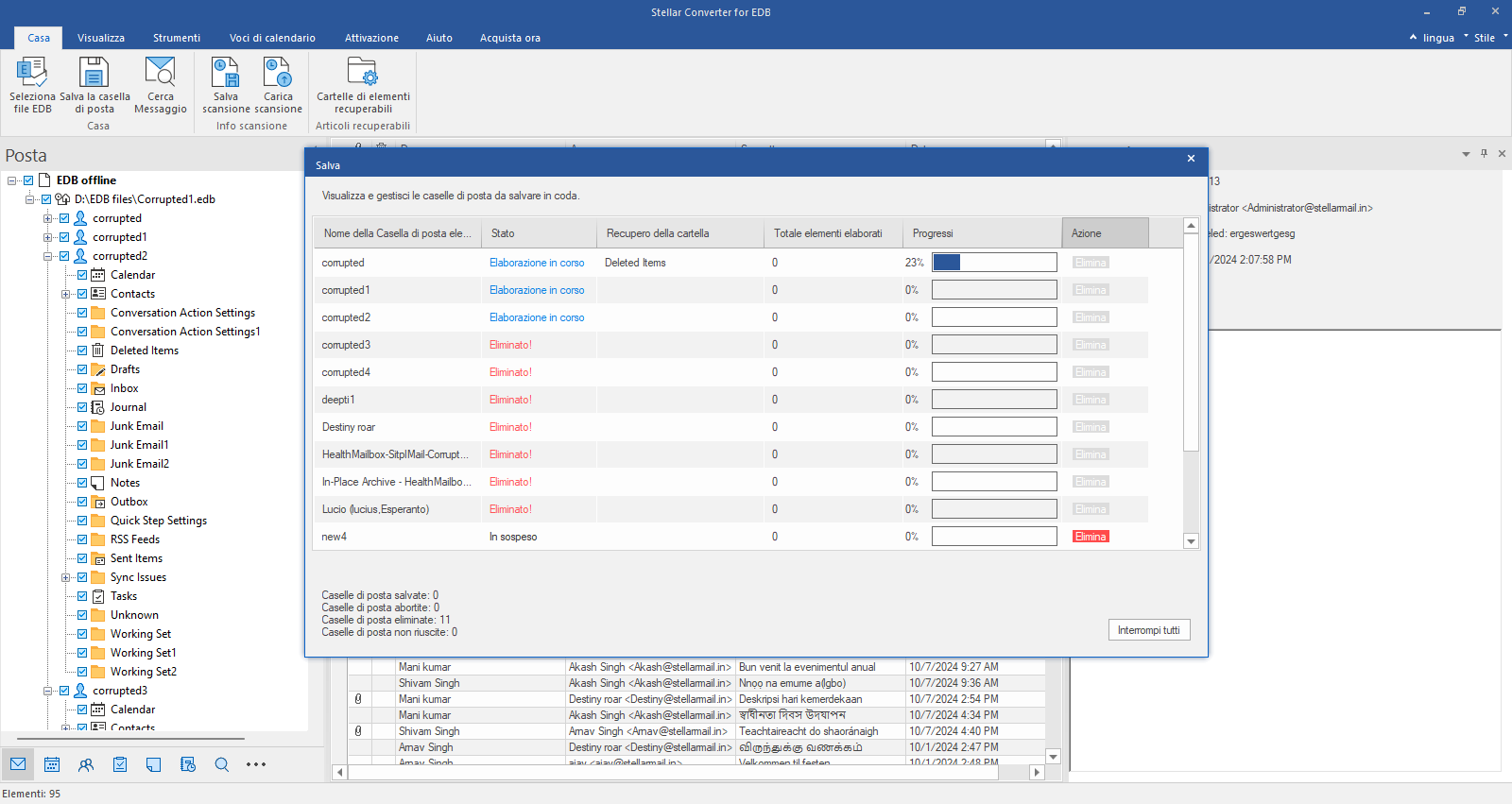
Stato di archiviazione delle caselle di posta
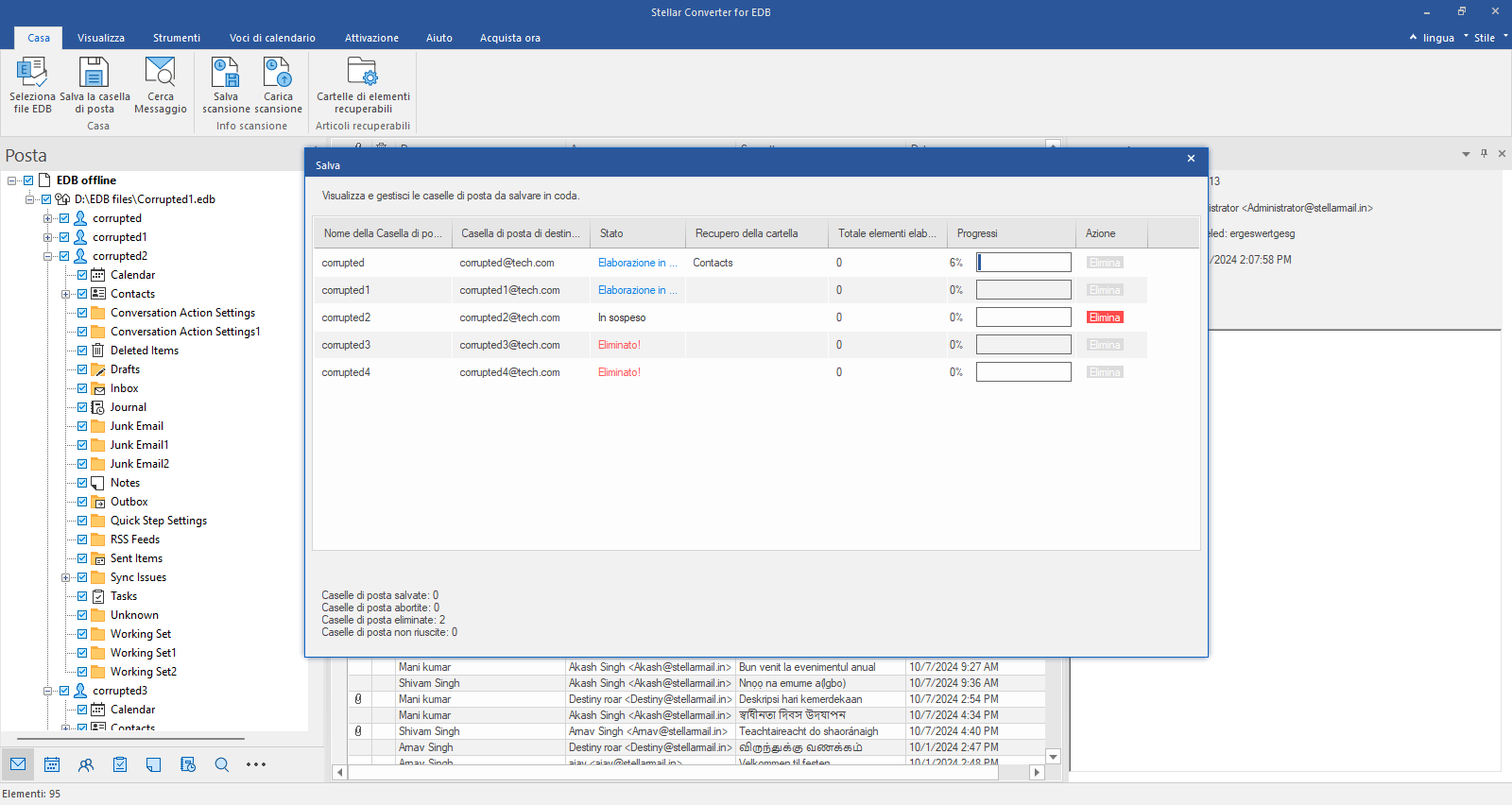
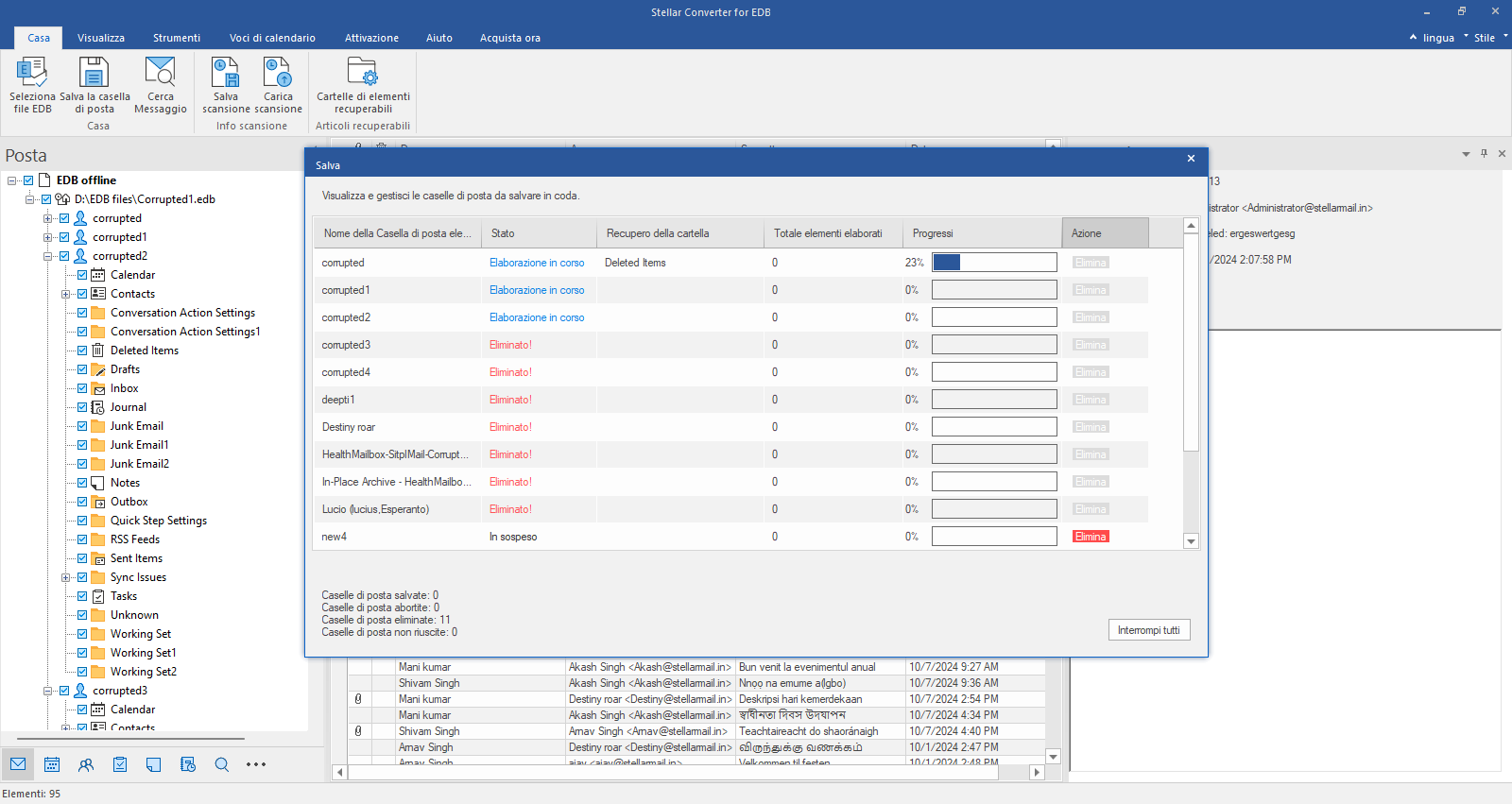
Il software inizierà a esportare le caselle di posta selezionate in formato PST nella posizione specificata. È anche possibile rimuovere dalla lista le caselle di posta con stato "In sospeso" facendo clic sul pulsante "Rimuovi" oppure interrompere l'intero processo di salvataggio delle caselle di posta facendo clic sul pulsante "Interrompi tutto".
Passo 28
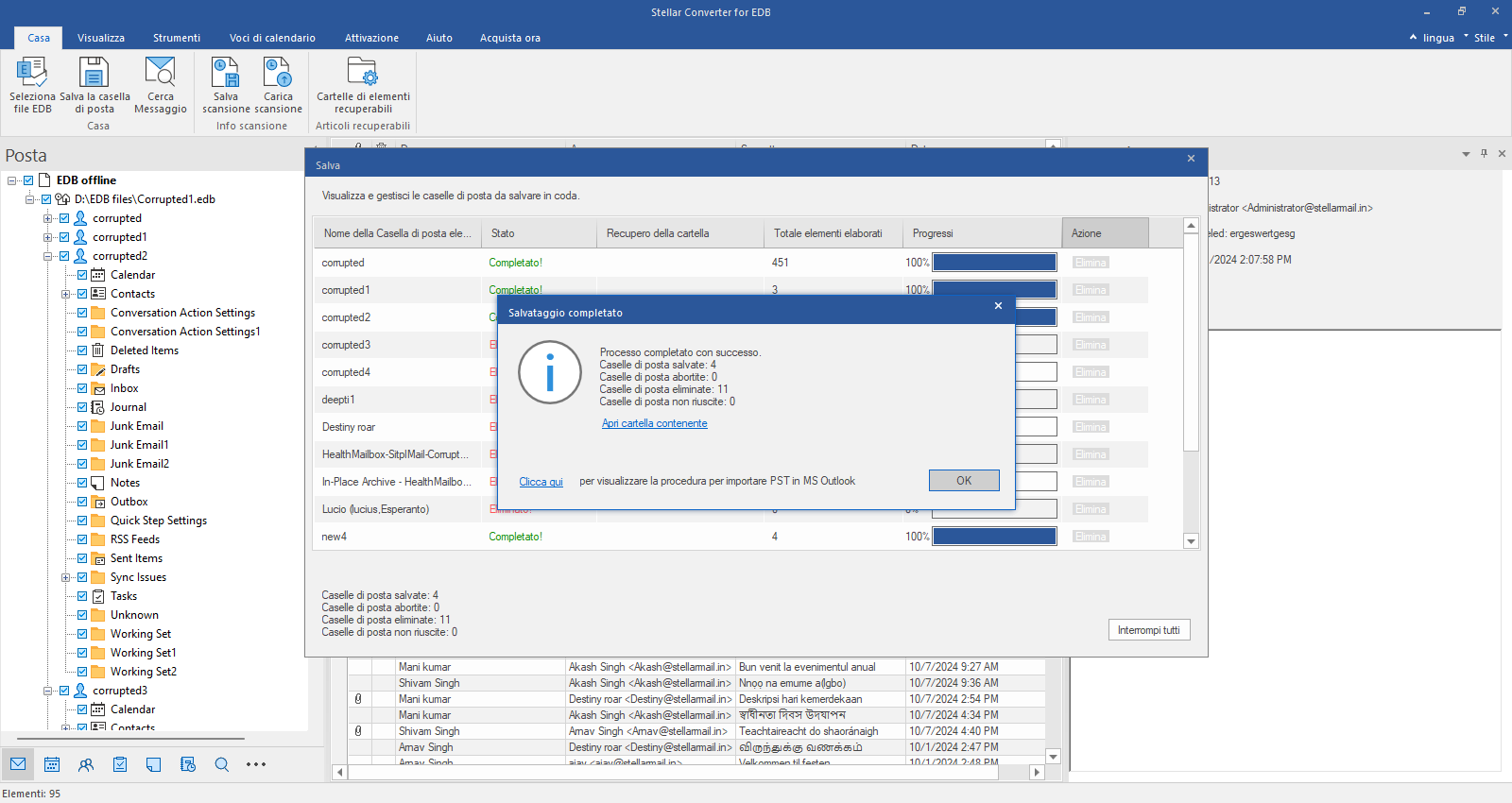
Finestra "Salvataggio completato"
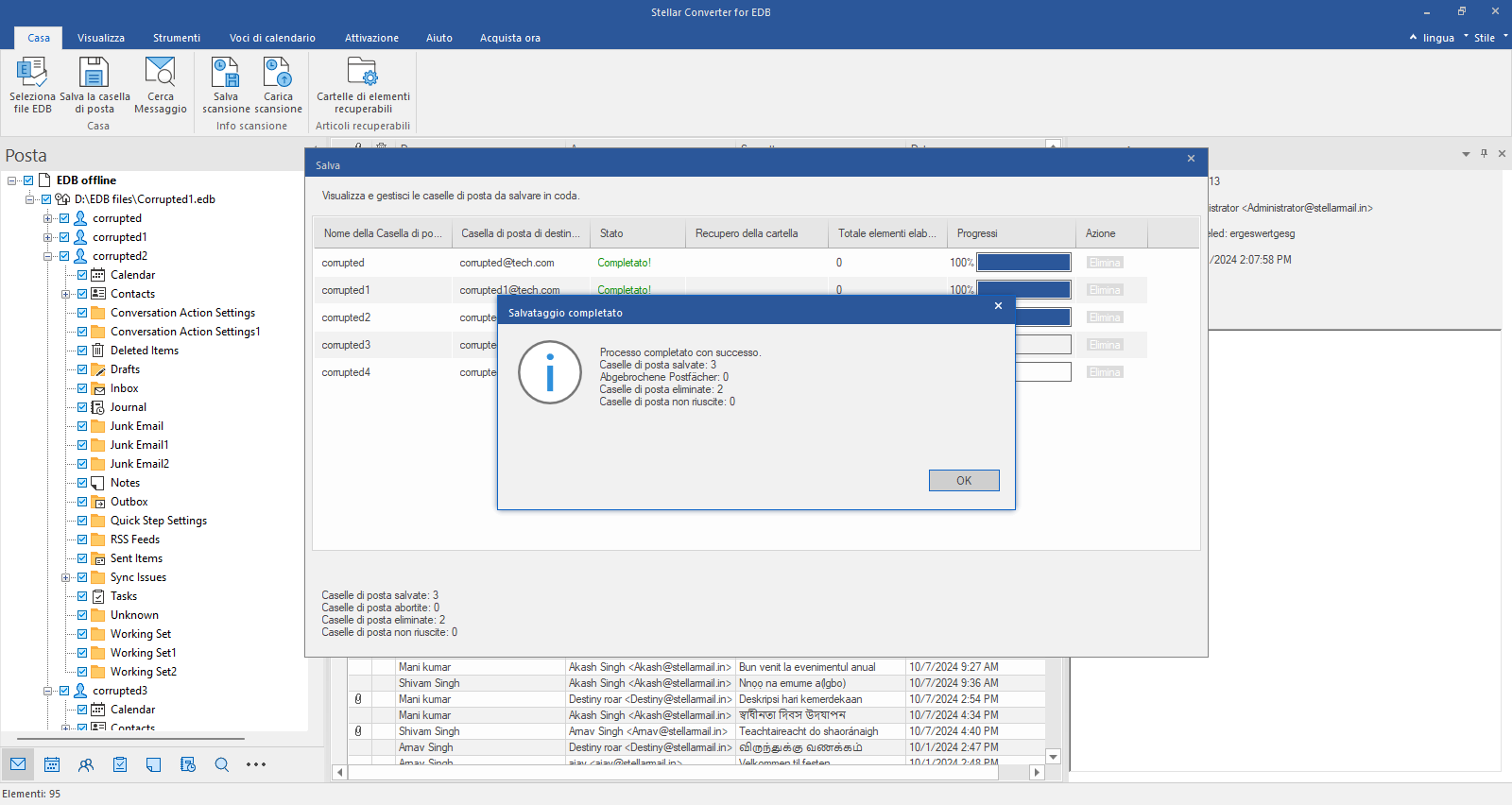
Al termine del processo di esportazione verrà visualizzato un messaggio. Fare clic su "Apri cartella contenuta" per visualizzare i file PST esportati.
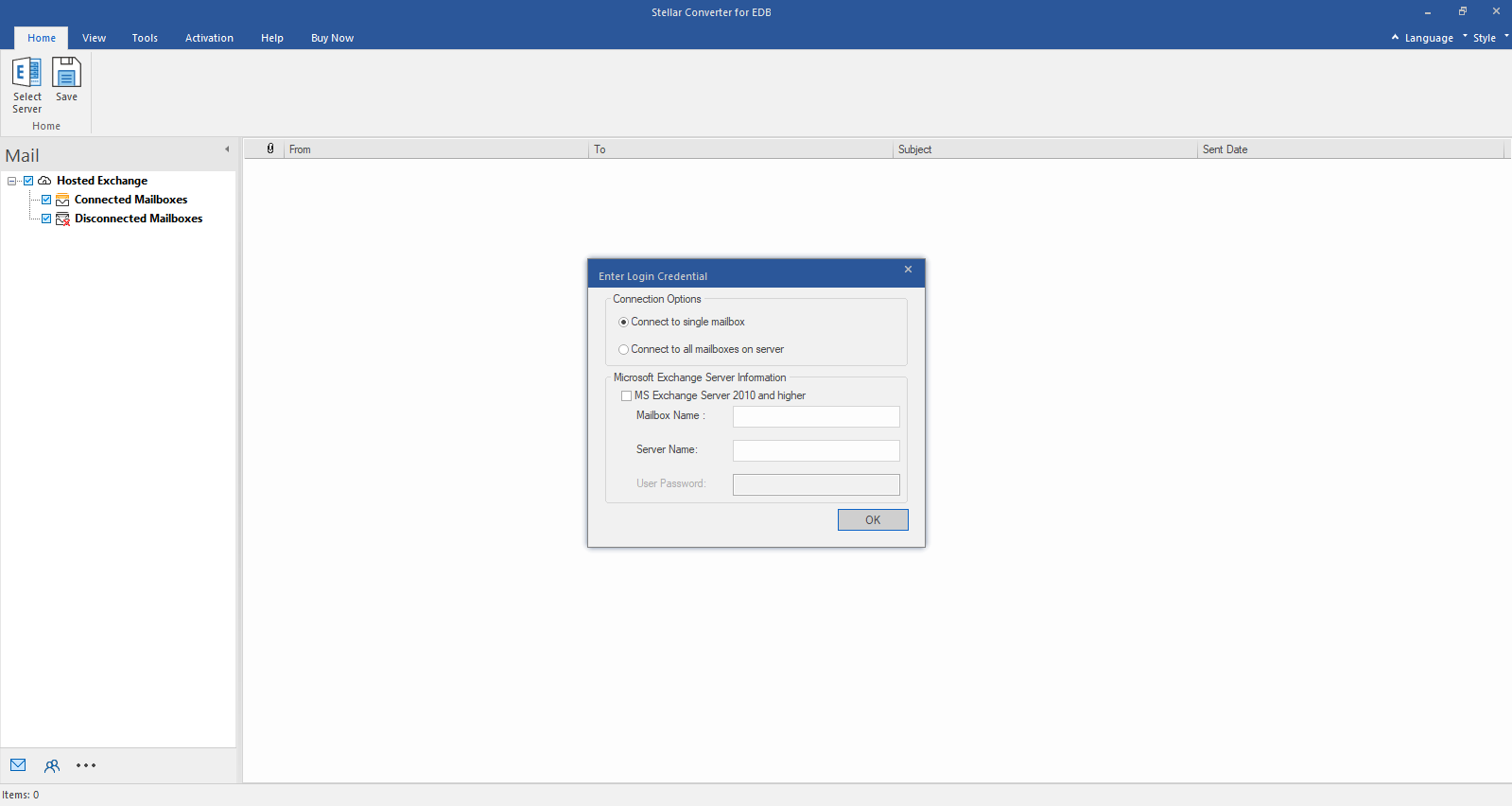
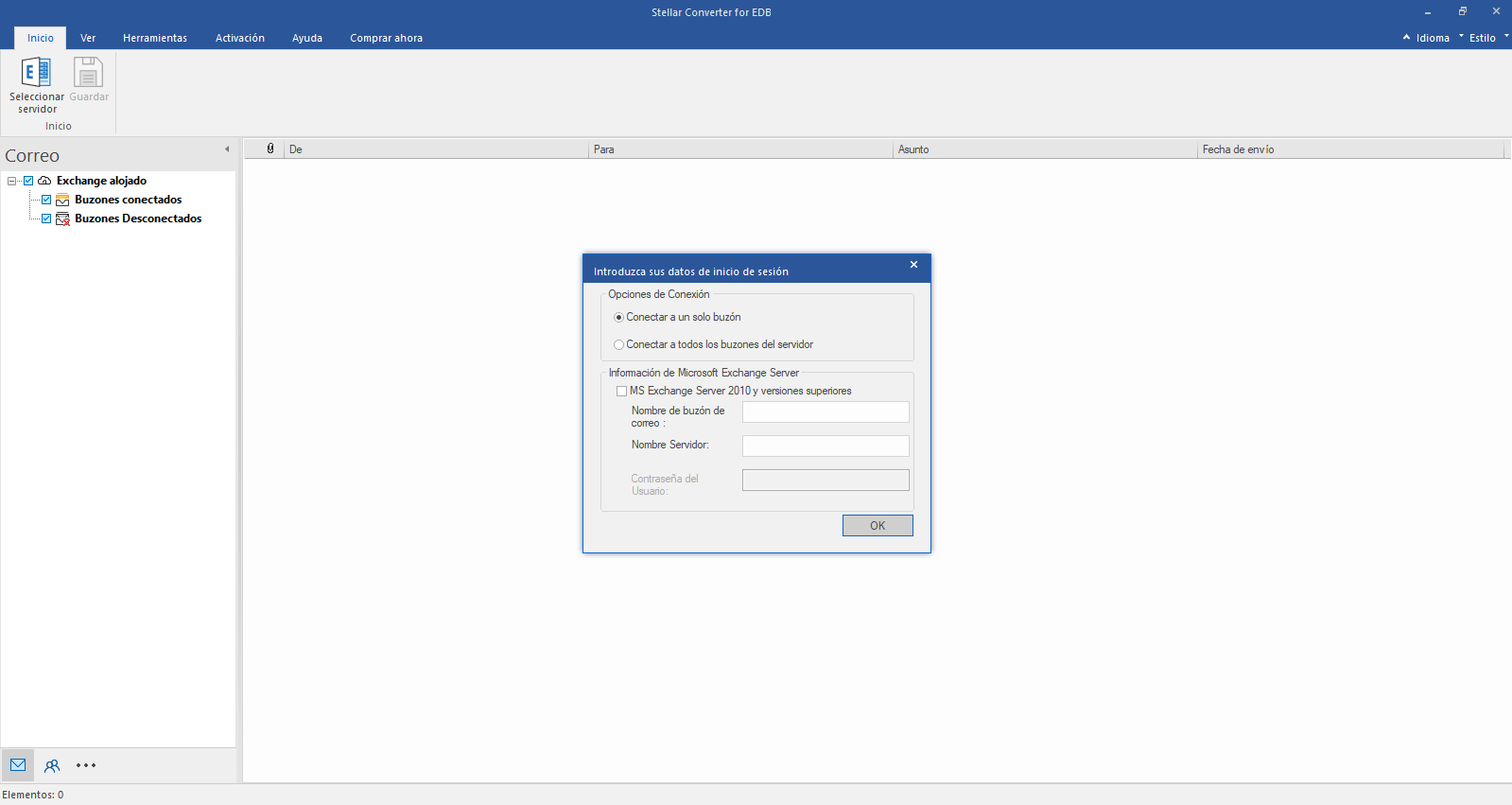
Select Hosted Exchange to export mailboxes from an online EDB file. Select Connect to Single Mailbox or Connect to Single Mailbox from Connection Options
Step 2
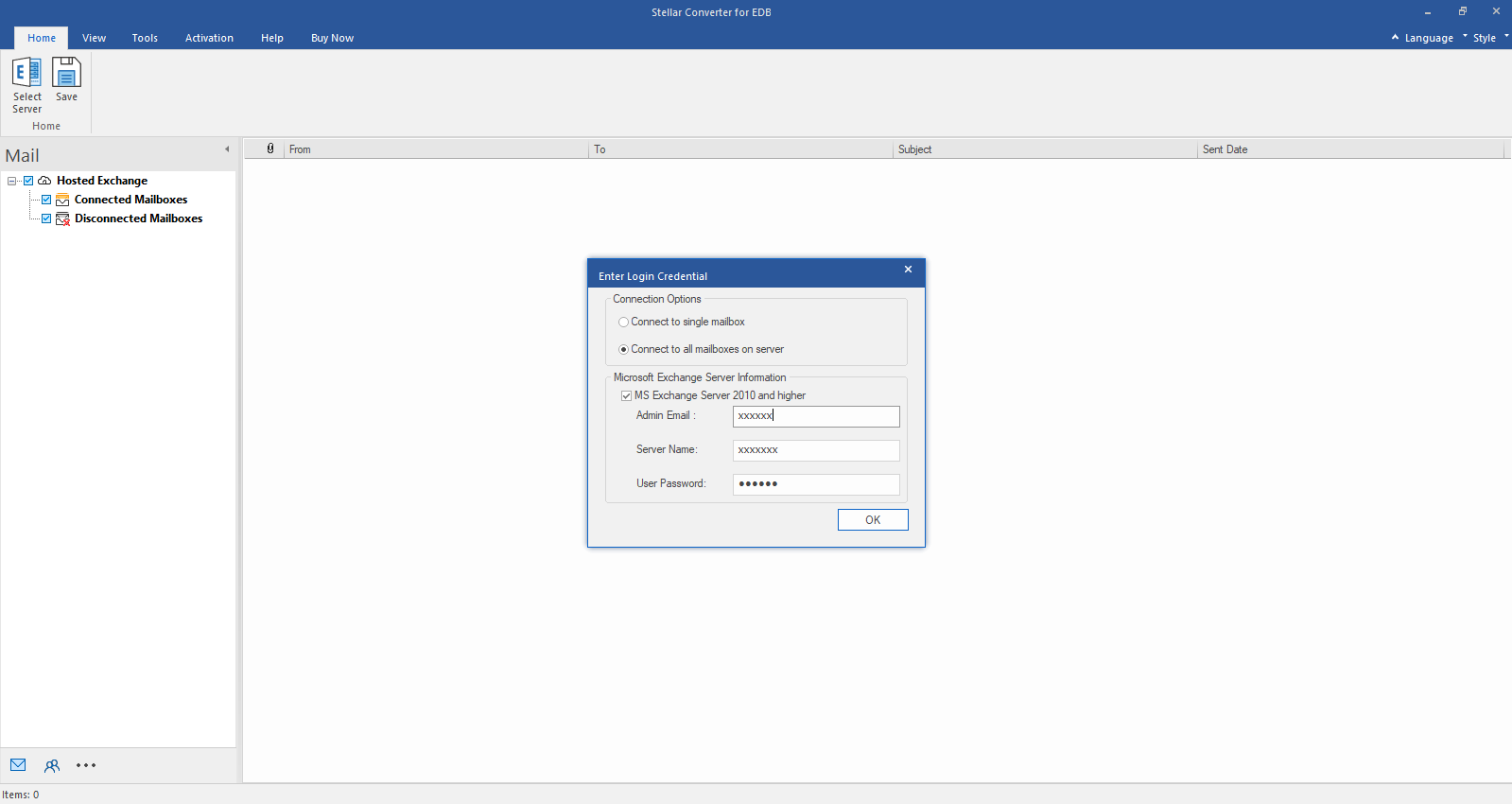
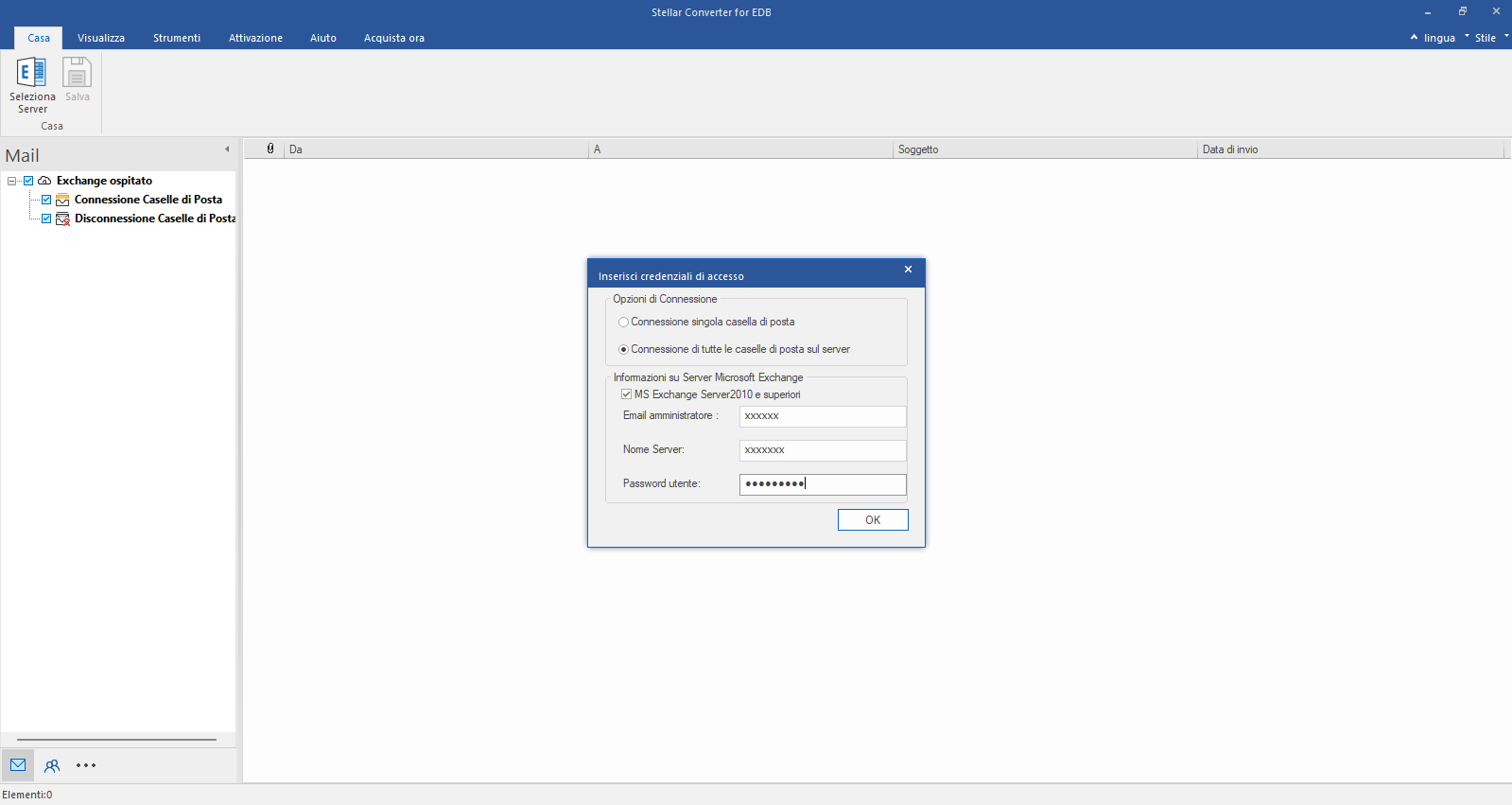
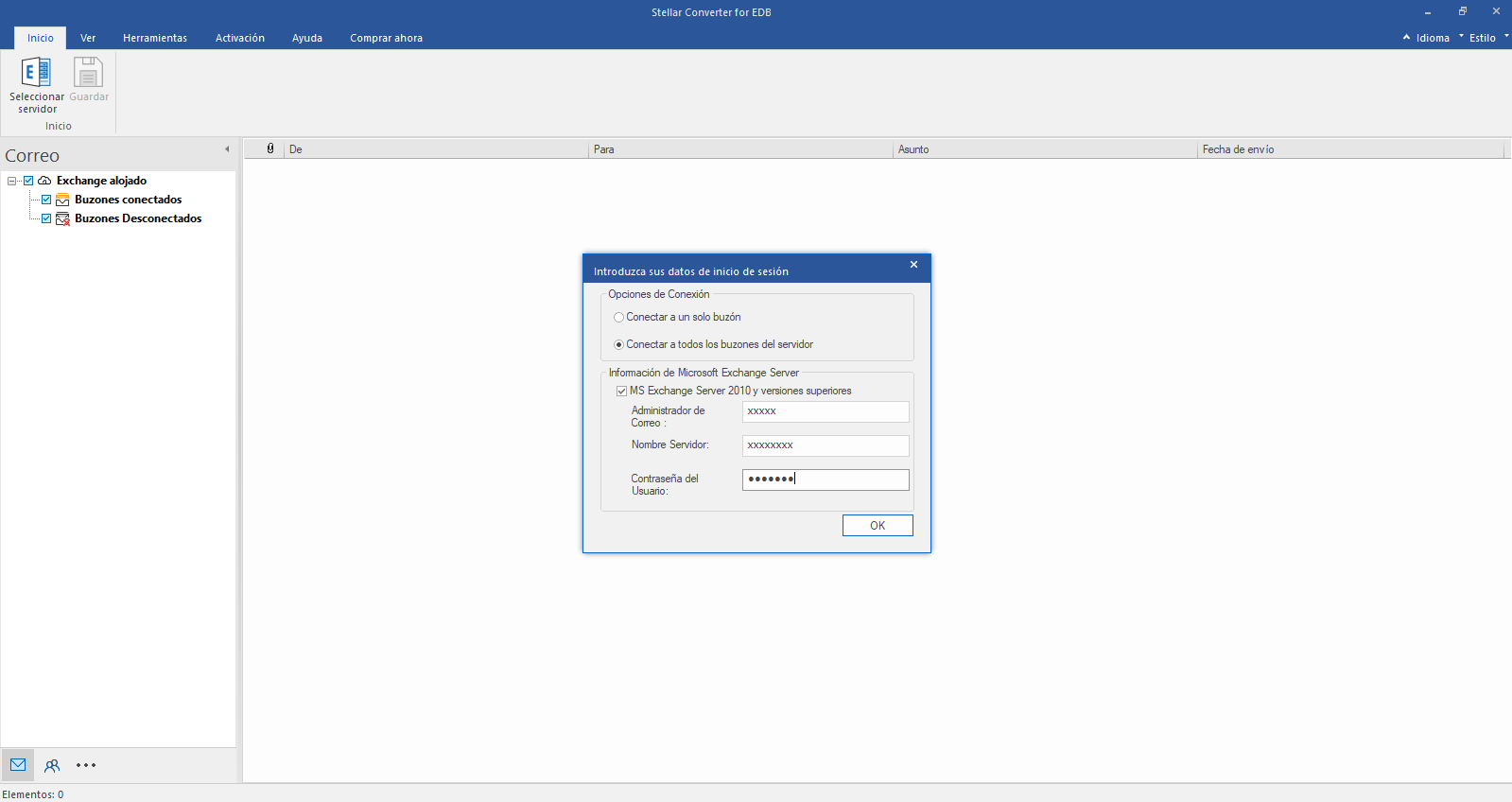
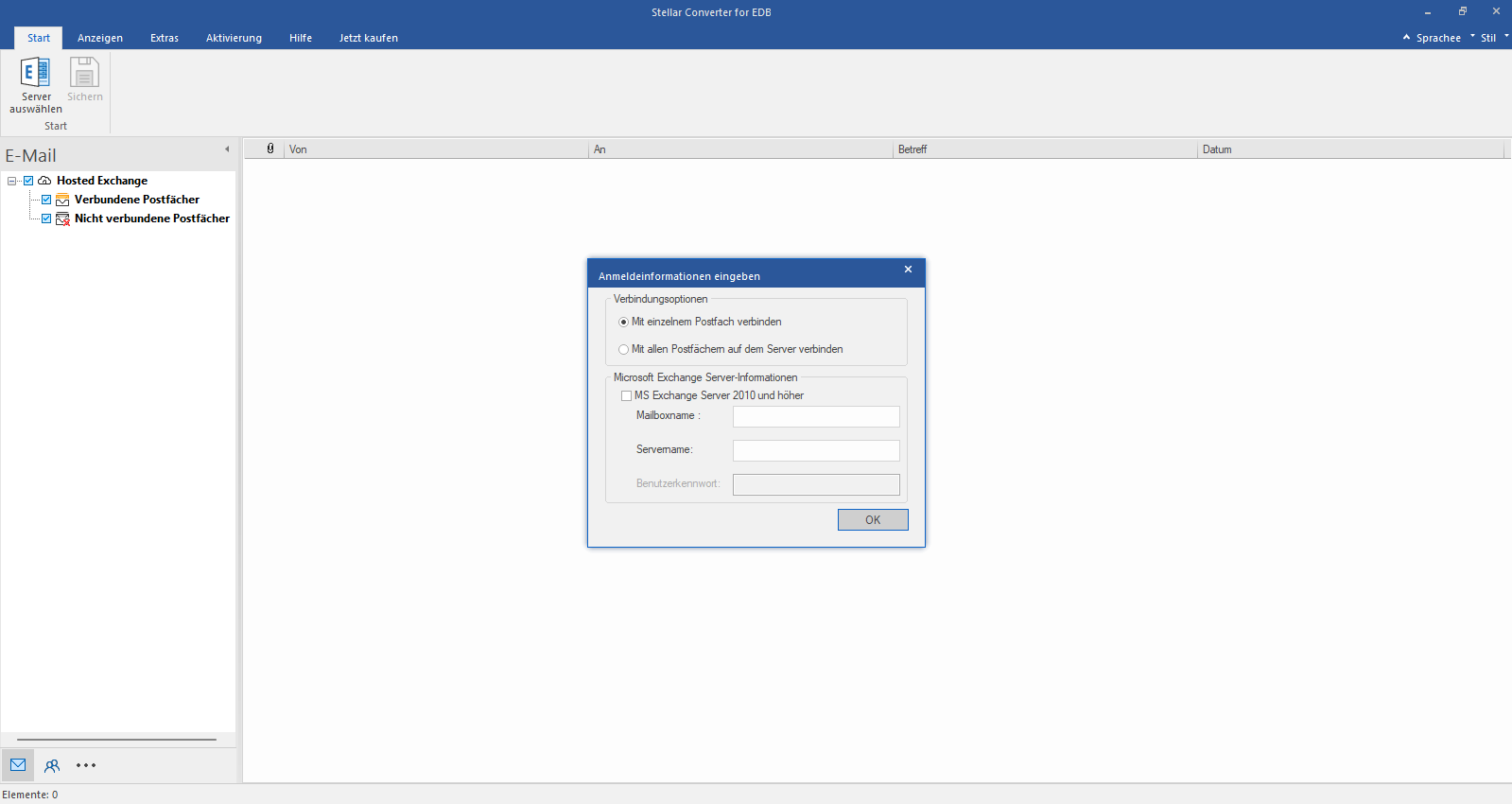
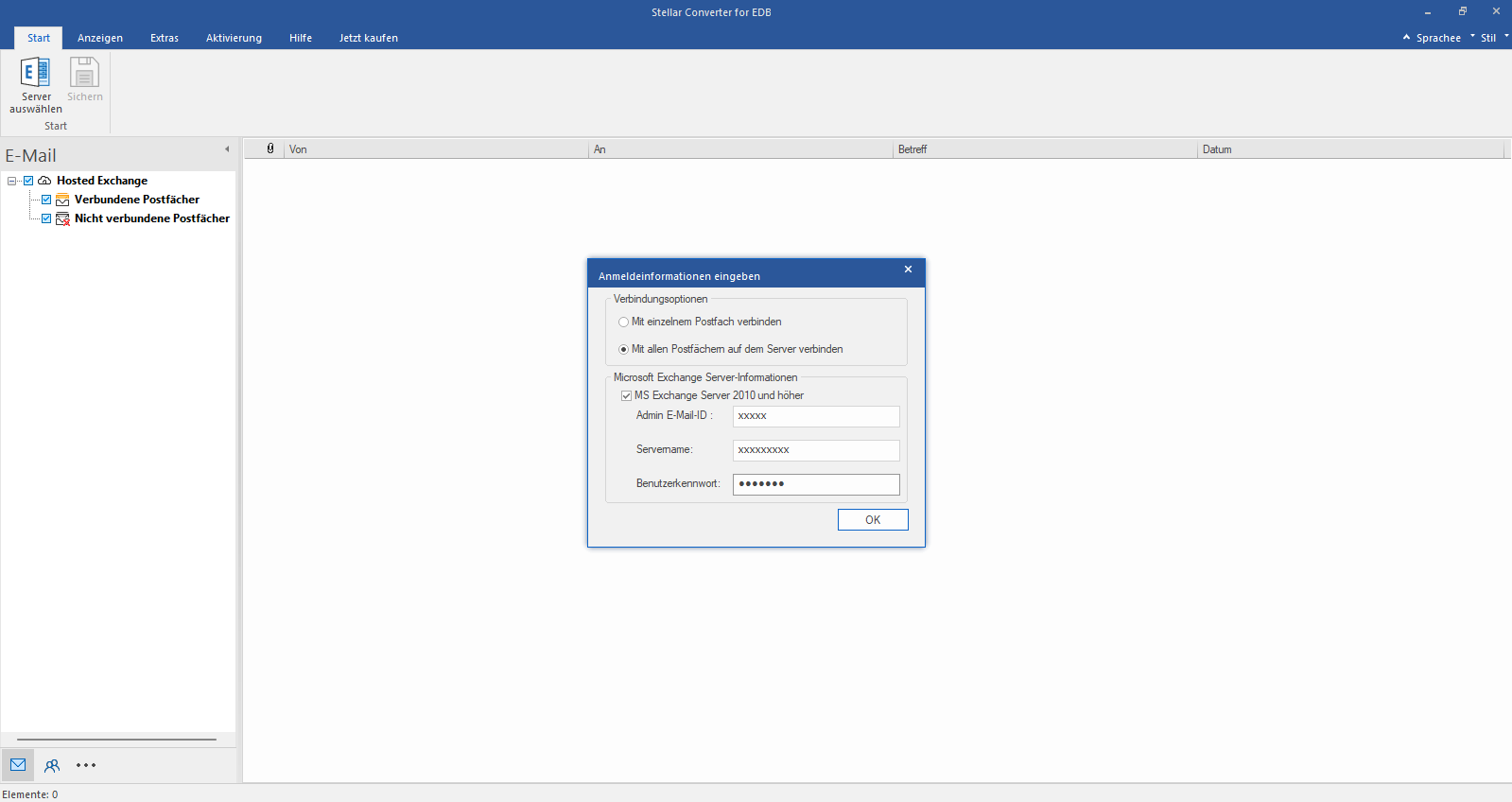
Enter Admin Email and Server Name
Enter Admin and Server Name (for Exchange 5.5, 2000, 2003, 2007) or tick "Exchange Server 2010 and higher" checkbox to enter Admin Email, Server Name and Password (for MS Exchange 2010, 2013, 2016, and 2019). Click OK.
Step 3
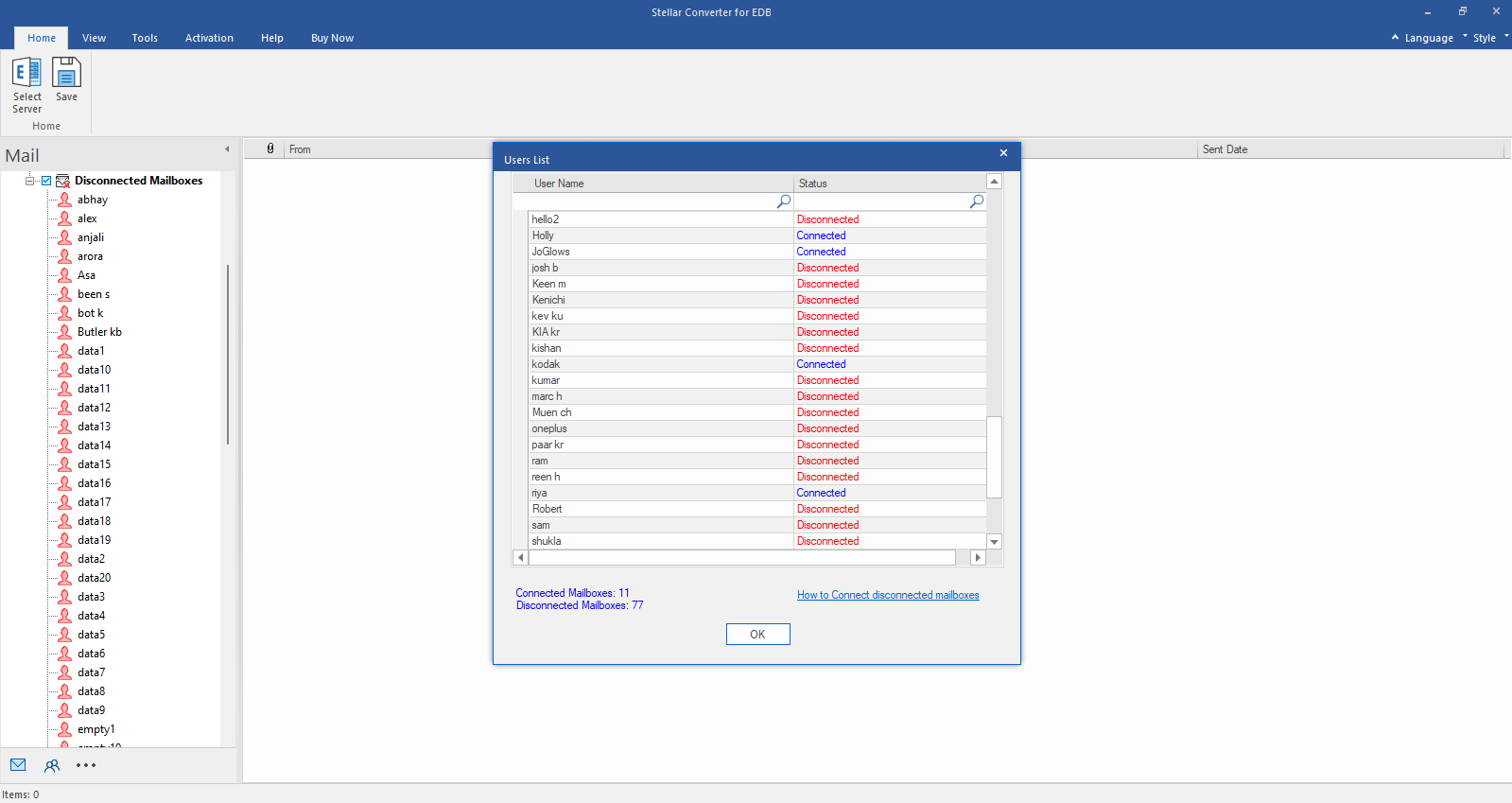
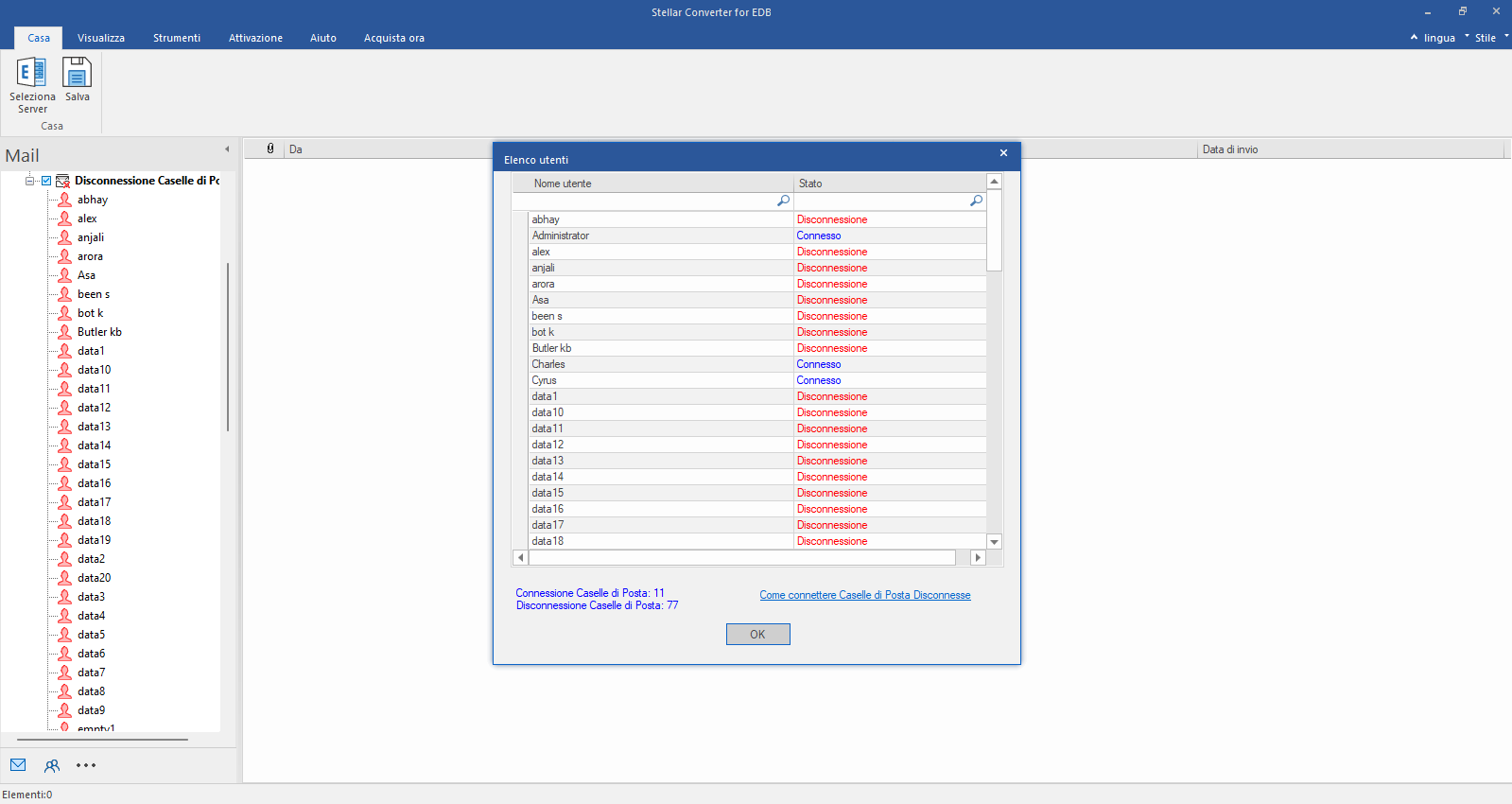
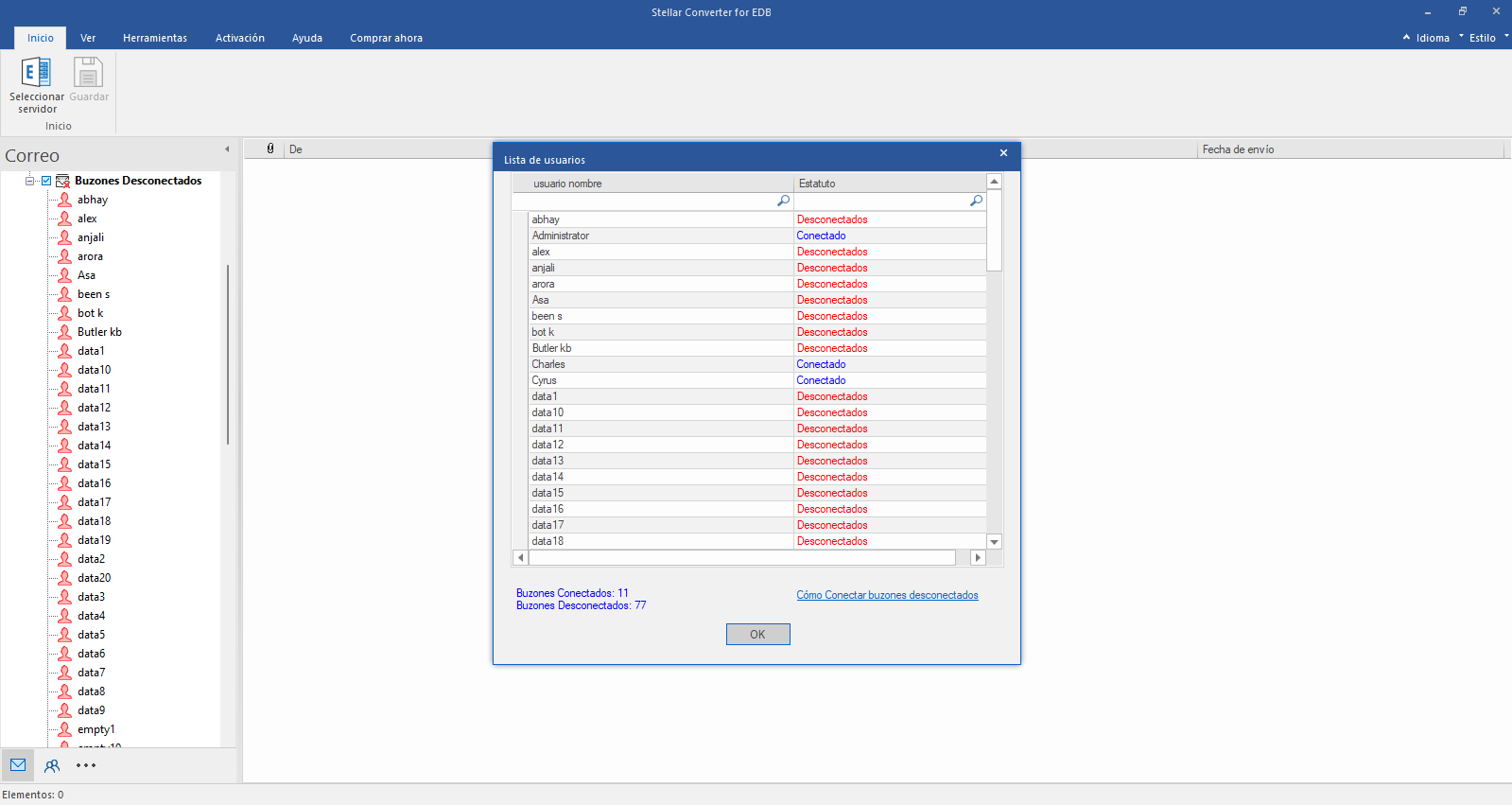
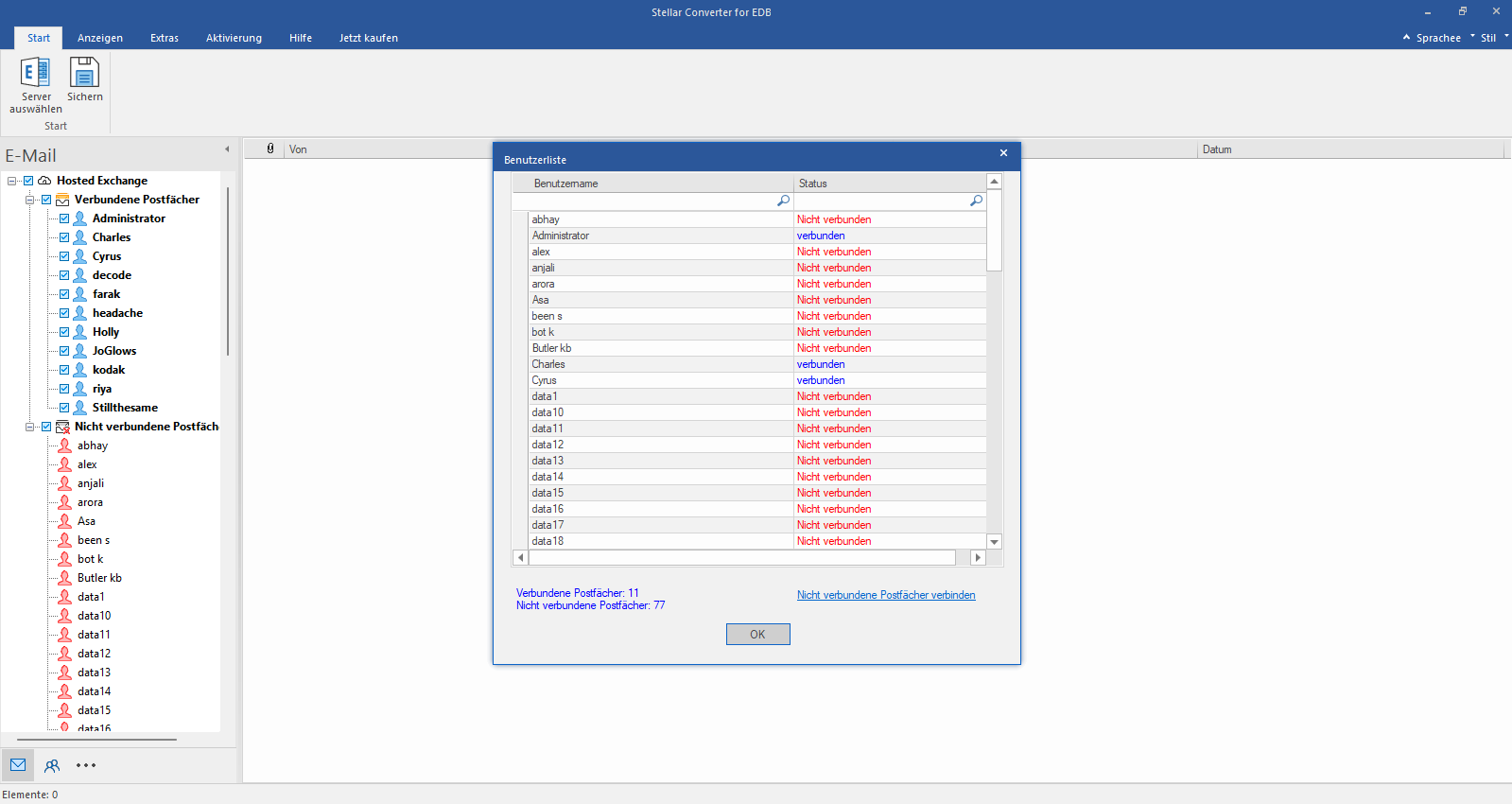
Check Connected/Disconnected Mailbox Status
After establishing the connection with Exchange Server, Next window displays list of connected and disconnected mailboxes. Click "OK" to proceed.
Step 4
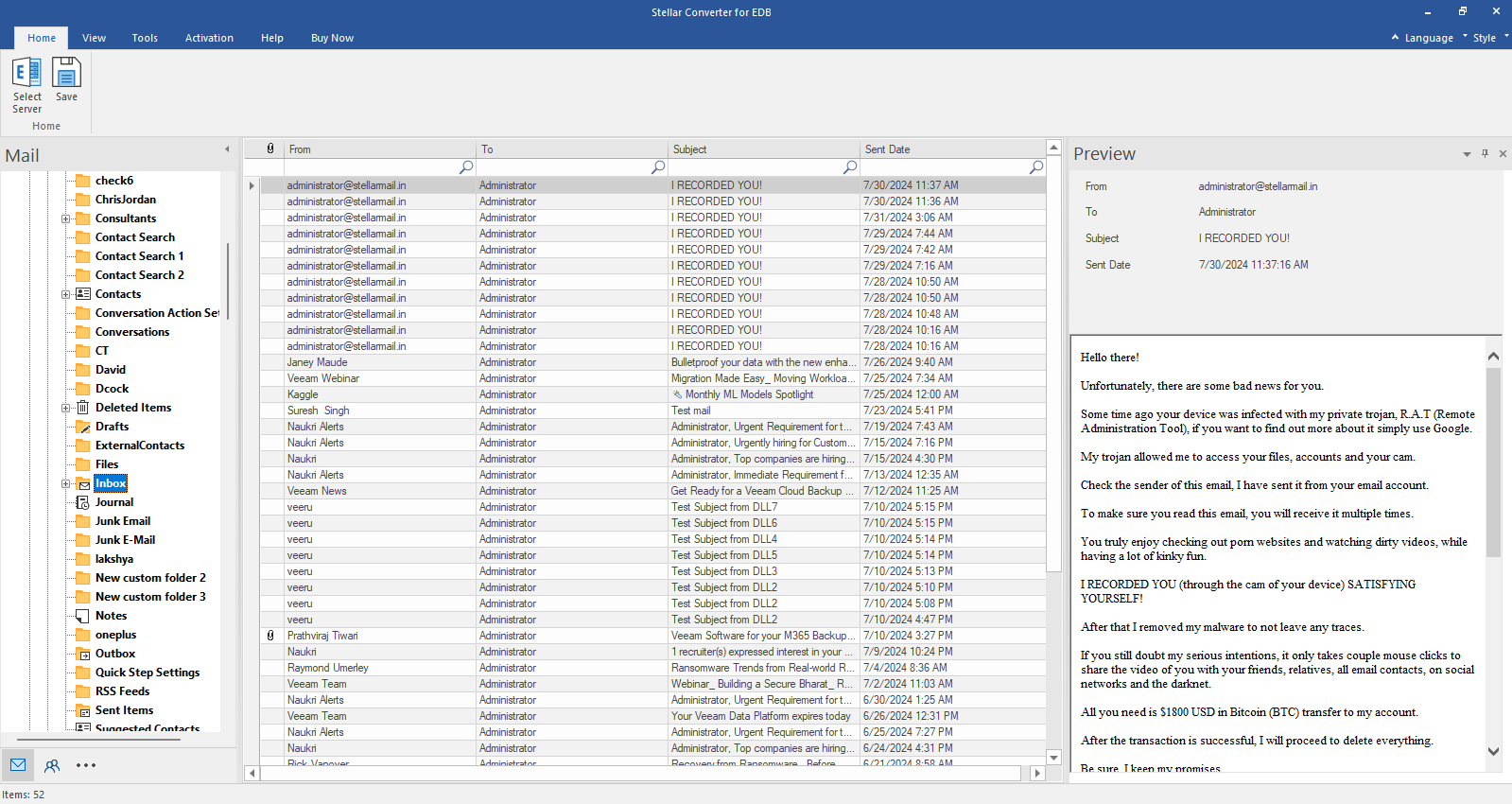
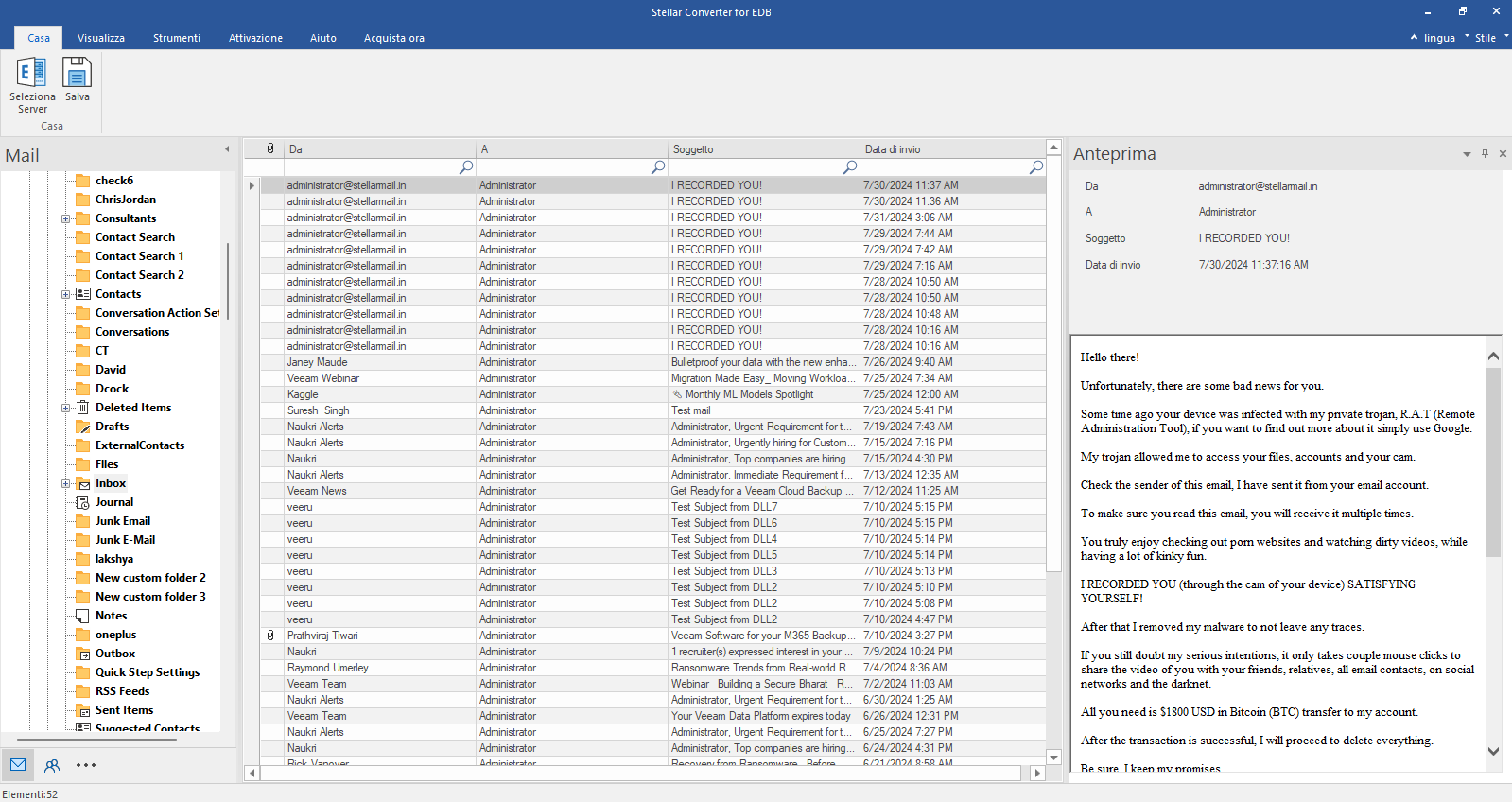
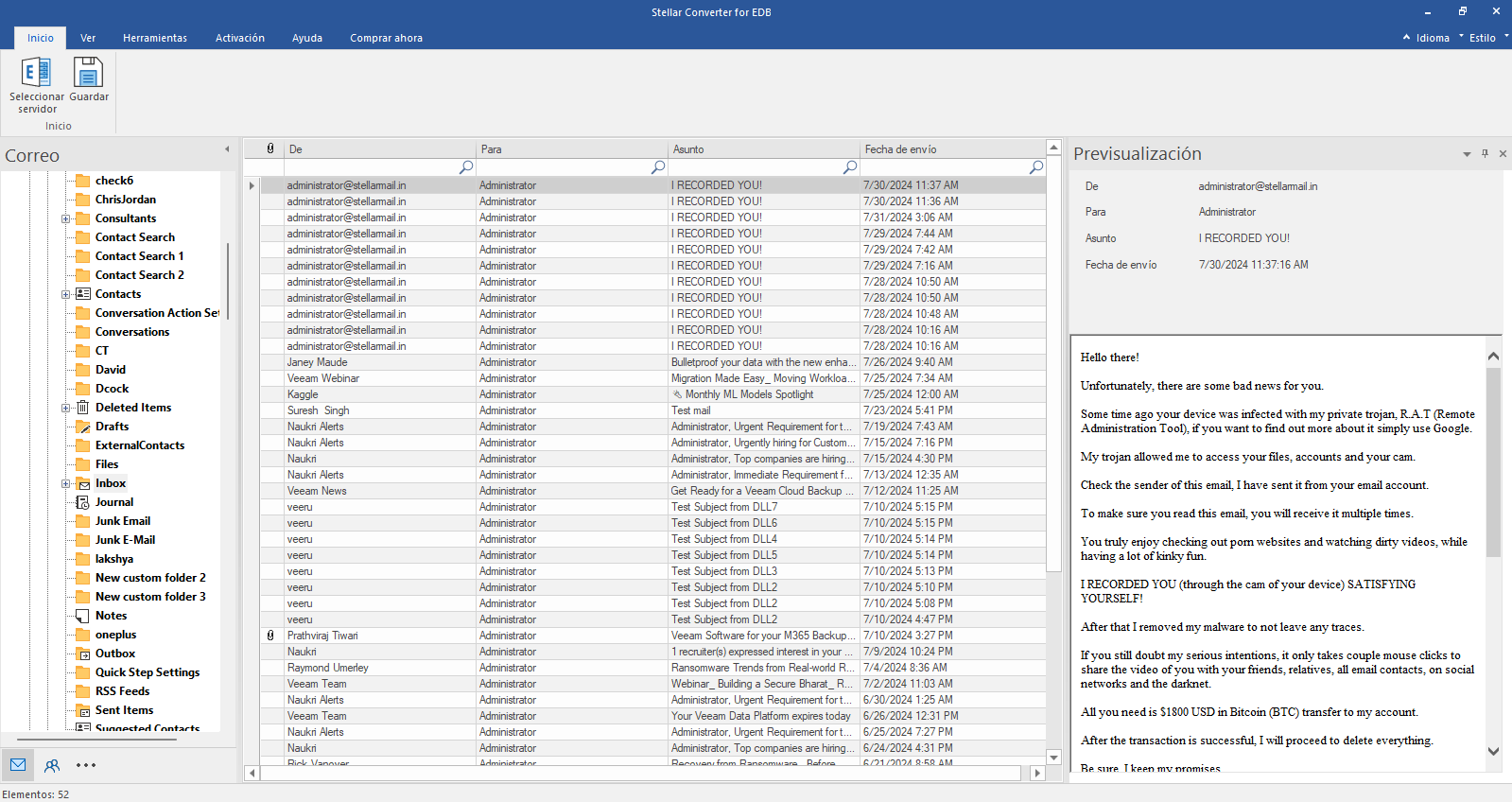
Check the Preview of all Mailboxes
Check the preview of all mailbox items- Emails, Calendars, Contacts etc.
Step 5
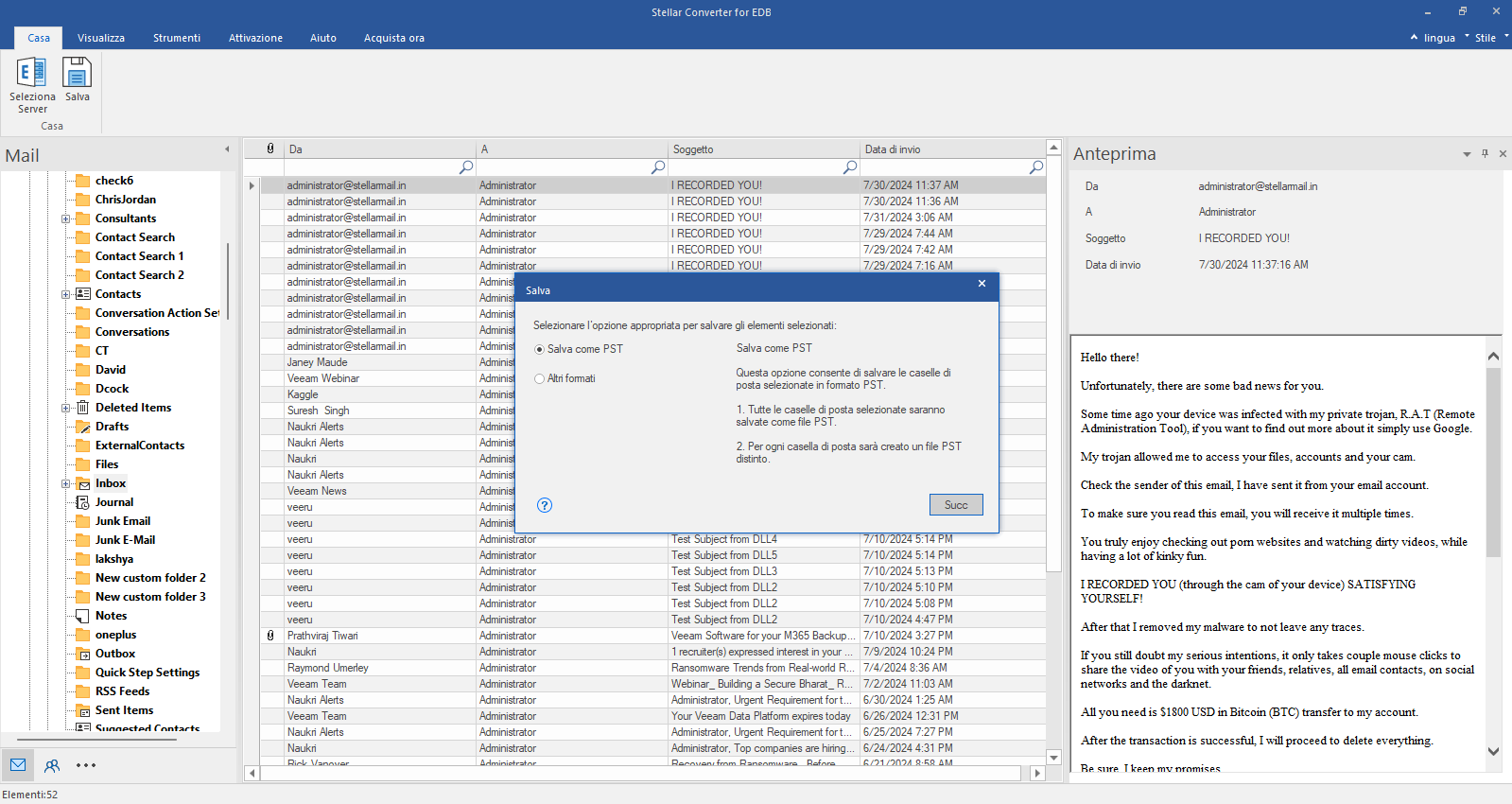
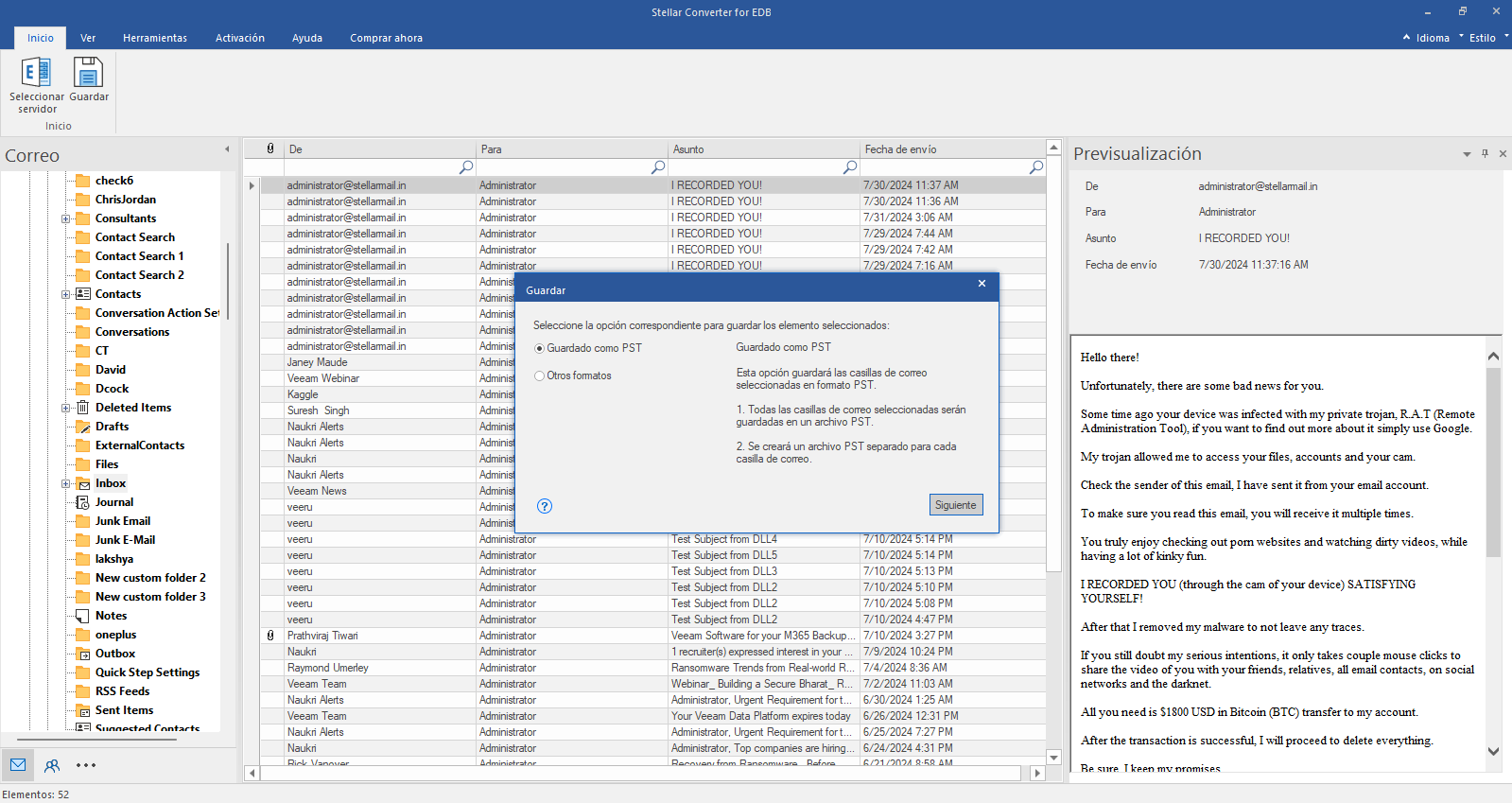
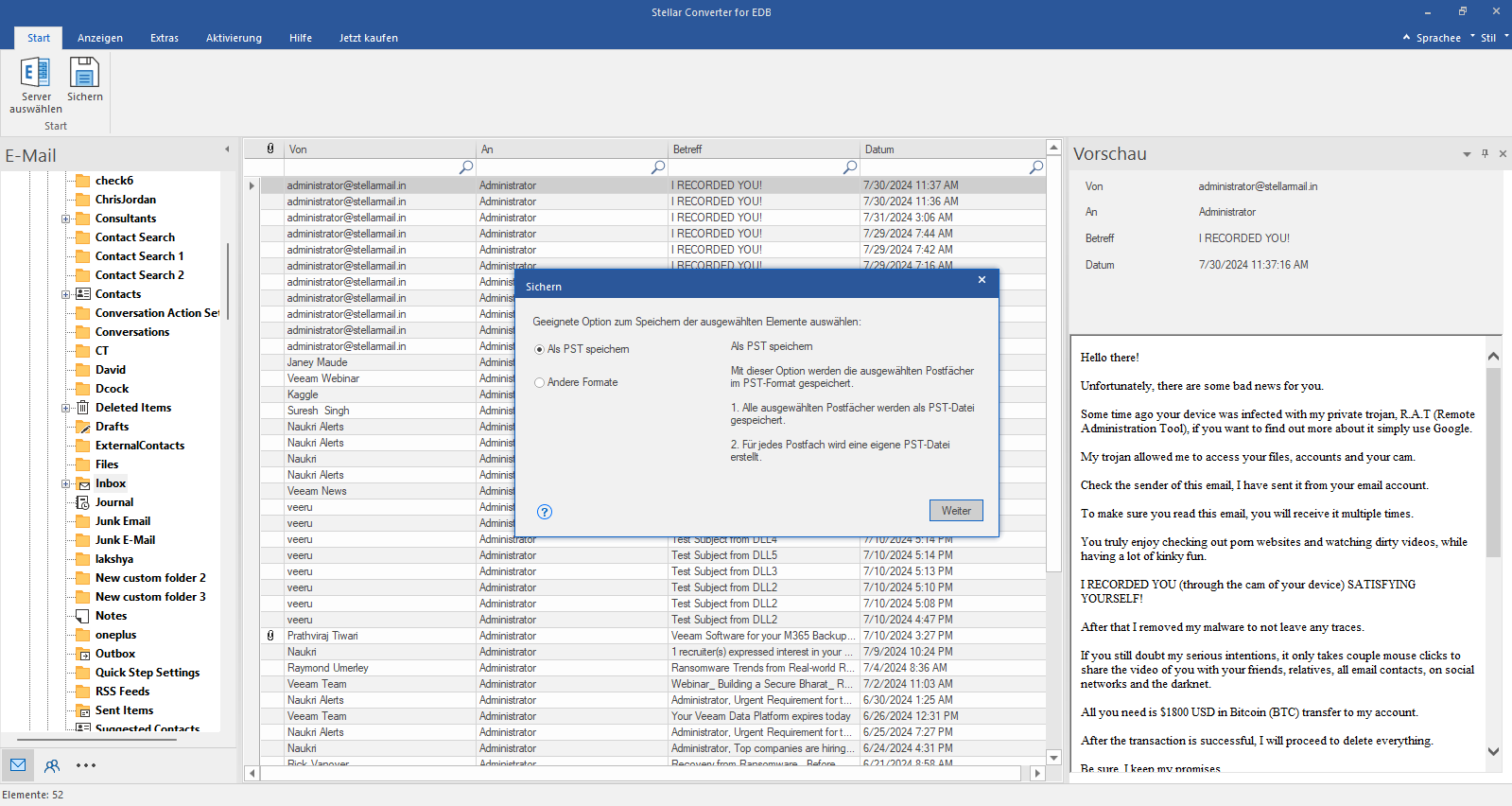
Select “Save as PST”
Click Save from Home Ribbon and Select Save as PST option. Click "Next" to proceed.
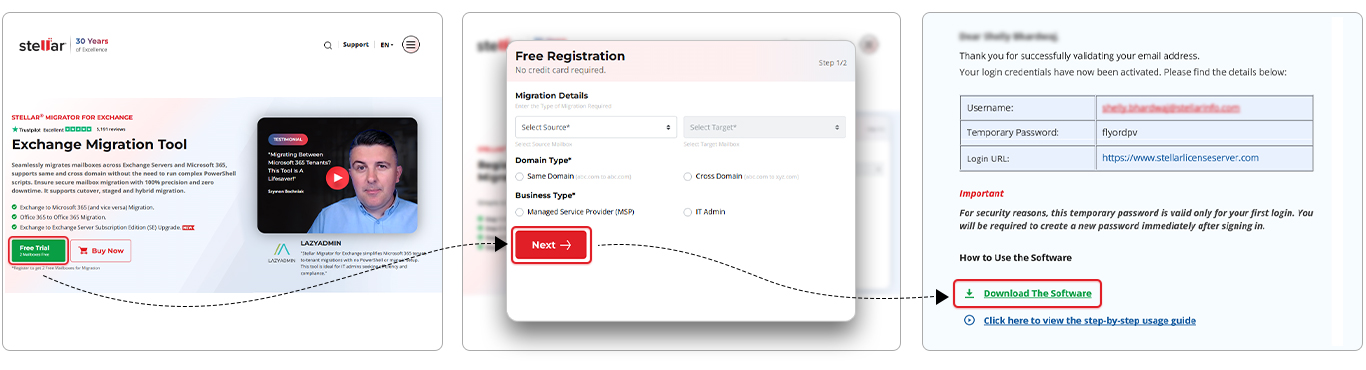
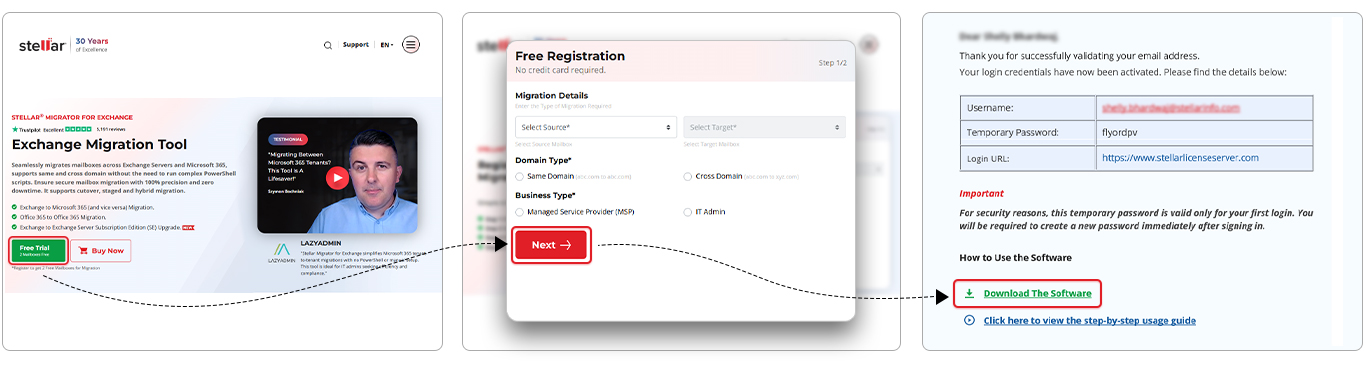
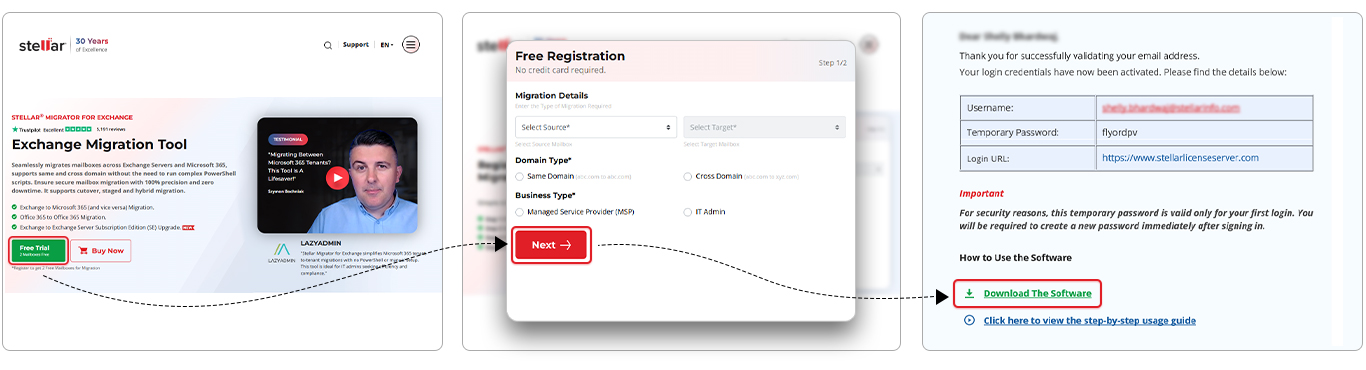
Welcome! If you're here, you've likely registered through the Stellar Migrator for Exchange website and received an email containing your login credentials. This email includes a download link for the Stellar Migrator for Exchange software (EXE) and access details for the Licensing Portal (stellarlicenseserver.com). To get started, click on the download link provided in the email or access it directly from the Licensing Portal.
Step 2
Install the software
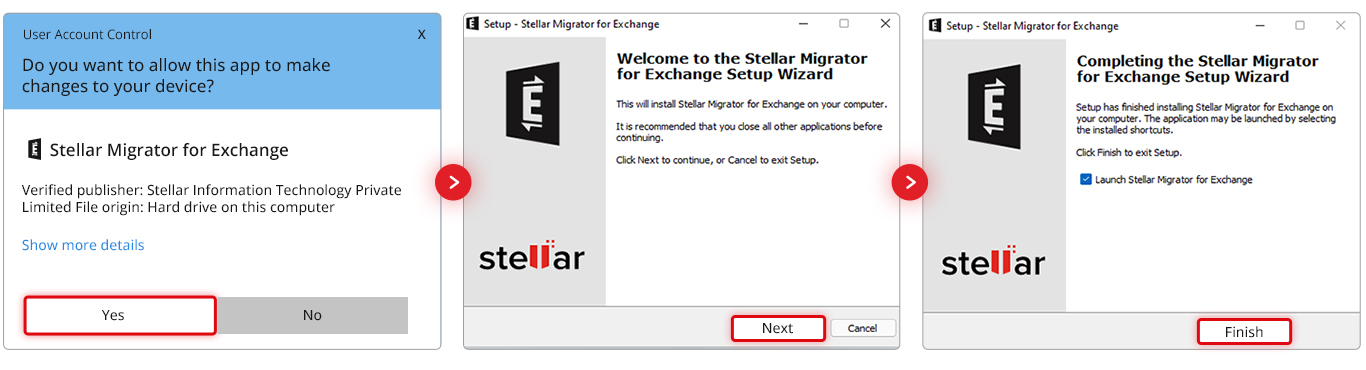
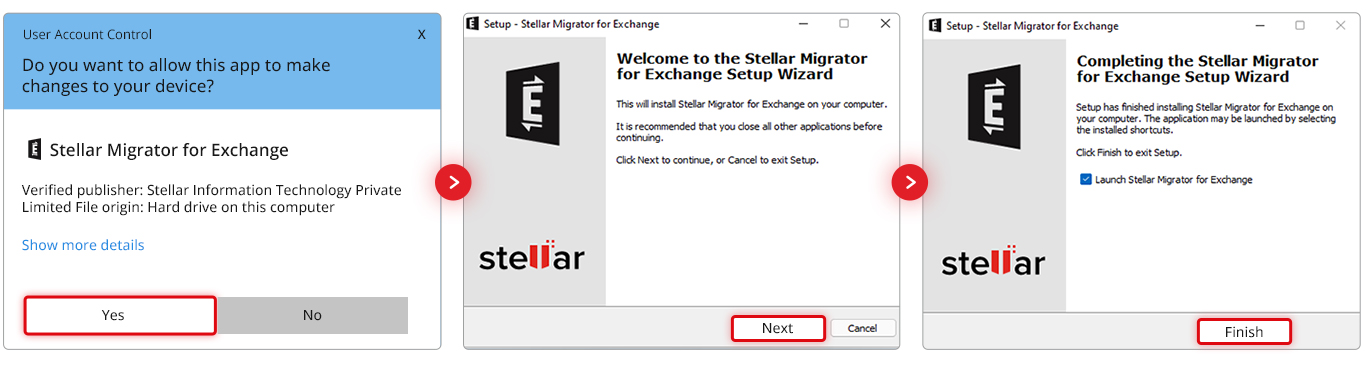
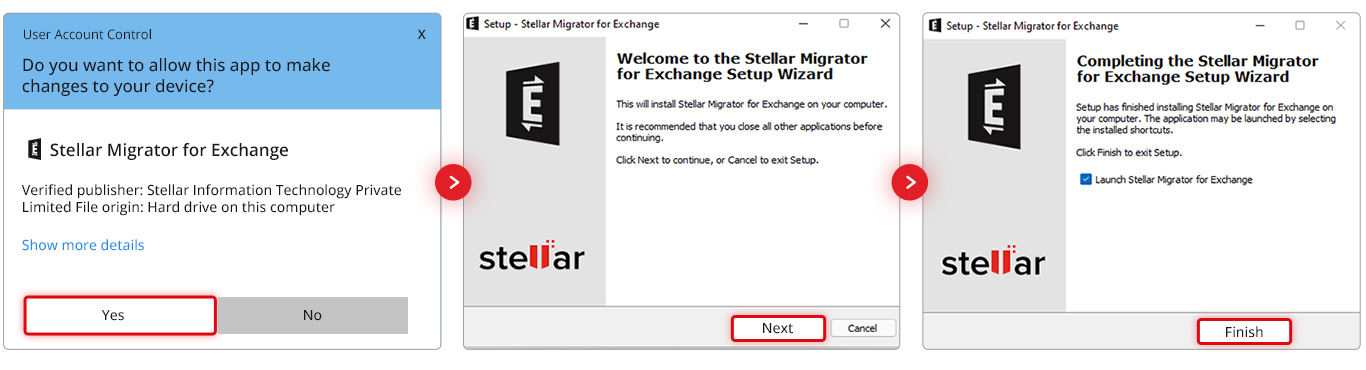
After downloading the Stellar Migrator for Exchange setup file, run the installer and follow the on-screen instructions to complete the installation. Once installed, launch the software — no additional configuration is required. You're now ready to start your test migration using the 2 free mailbox credits included. The next step is to create your first migration job.
Step 3
Login to Licensing Server
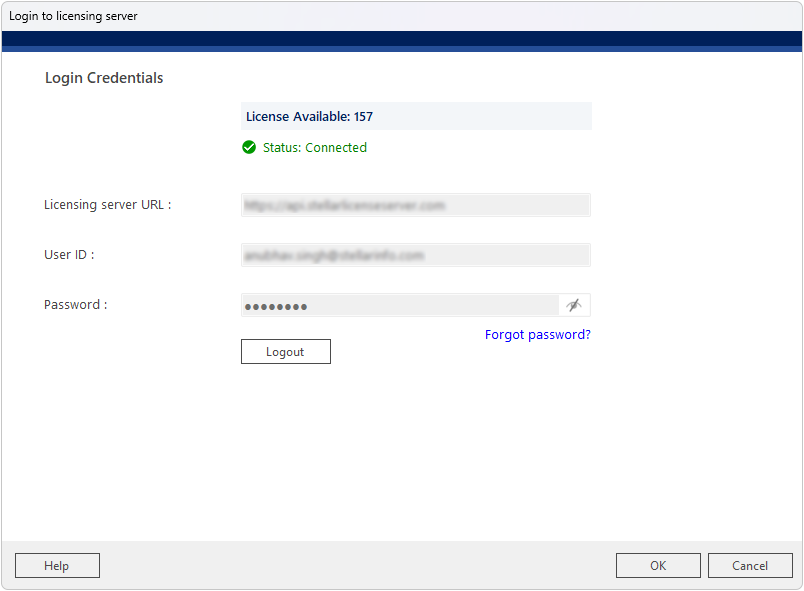
When prompted, the 'Login to Licensing Server' window will appear. The Licensing Server URL (https://api.stellarlicenseserver.com) is pre-filled. Enter your User ID and Password. The screen displays License Available count and a green 'Status: Connected' indicator once successfully authenticated. Click OK to proceed with the licensed migration.
Step 4
Migration Type
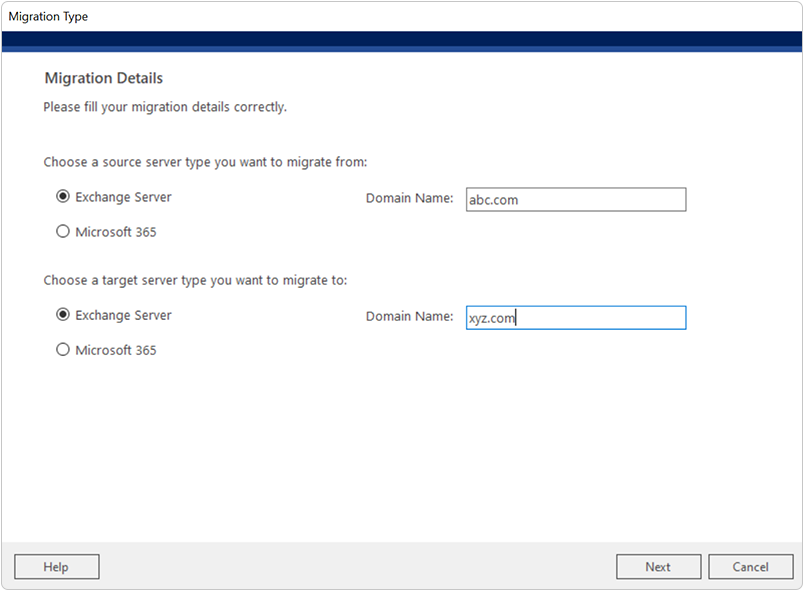
When you launch the software and create a new job, the Migration Type screen appears first. Under 'Choose a source server type you want to migrate from', select Exchange Server and enter the source Domain Name. Under 'Choose a target server type you want to migrate to', select Exchange Server and enter the target Domain Name. This configures the job as an Exchange to Exchange (server-to-server) migration. Click Next to proceed.
Step 5
General – Create Migration Job
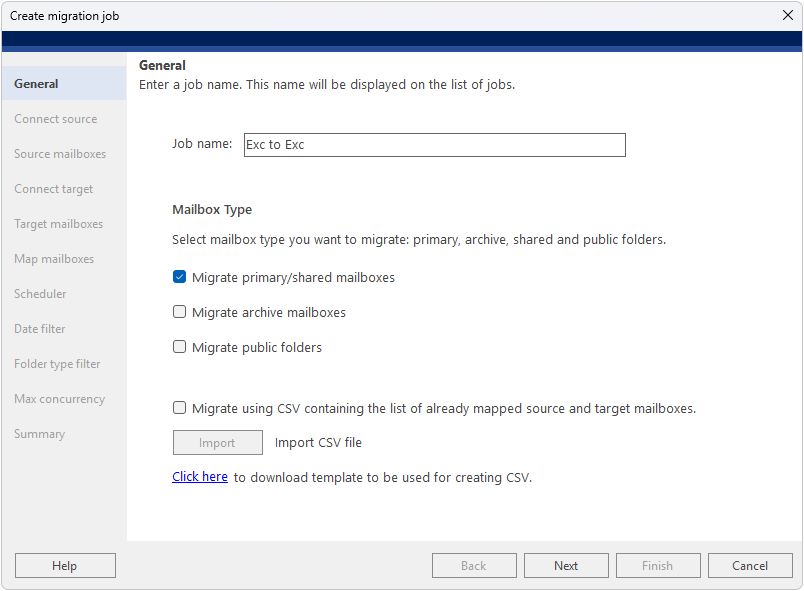
Provide a name for your migration job (for example, 'Exc to Exc') — this name will be displayed on the list of jobs. Then select the mailbox type(s) you want to migrate: primary/shared mailboxes, archive mailboxes, or public folders. You can also import a pre-mapped CSV file directly from this screen.
Step 6
Connect Source
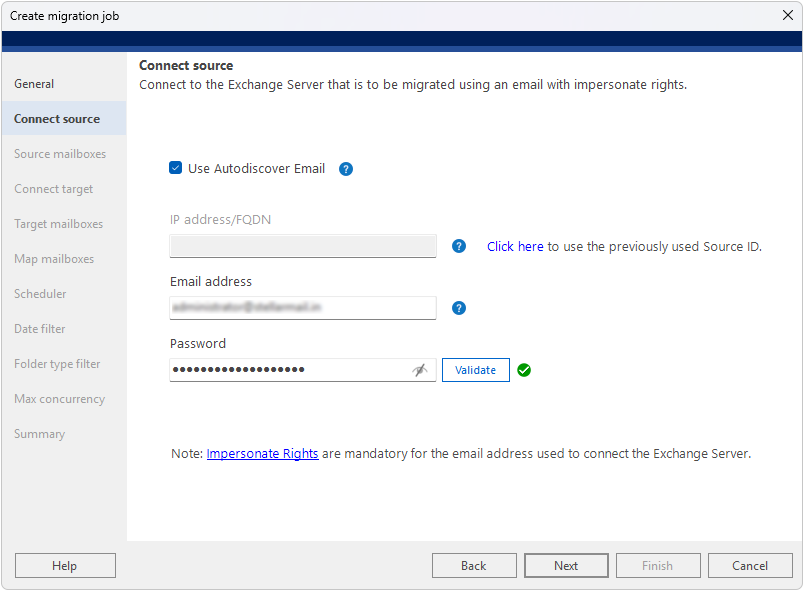
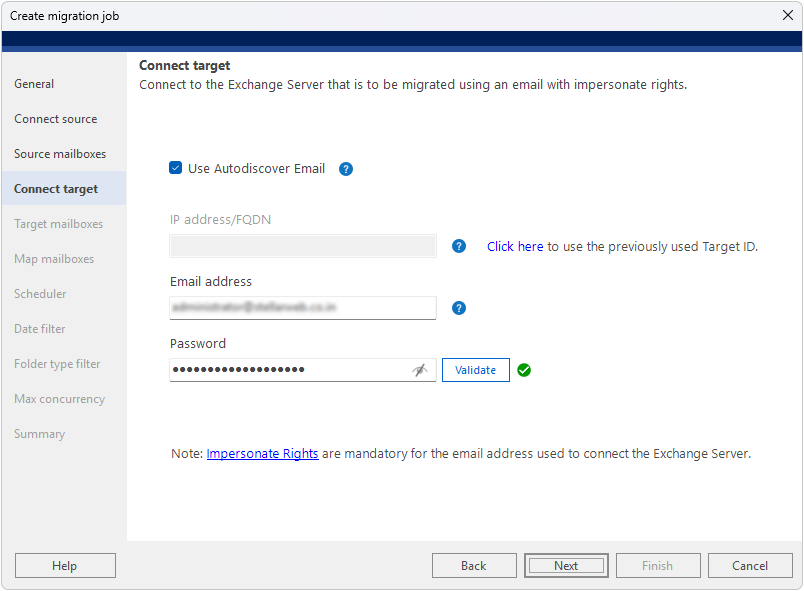
Connect the software to the source Exchange Server. Enable 'Use Autodiscover Email' and enter the Email address and Password — the software will automatically locate and connect to the source server. Alternatively, uncheck Autodiscover and manually enter the IP address/FQDN, Email address, and Password. You can also click 'Click here' to reuse the previously used Source ID. Click Validate to confirm the connection before proceeding. Note: Impersonate Rights are mandatory for the email address used to connect to the Exchange Server.
Step 7
Source Mailboxes
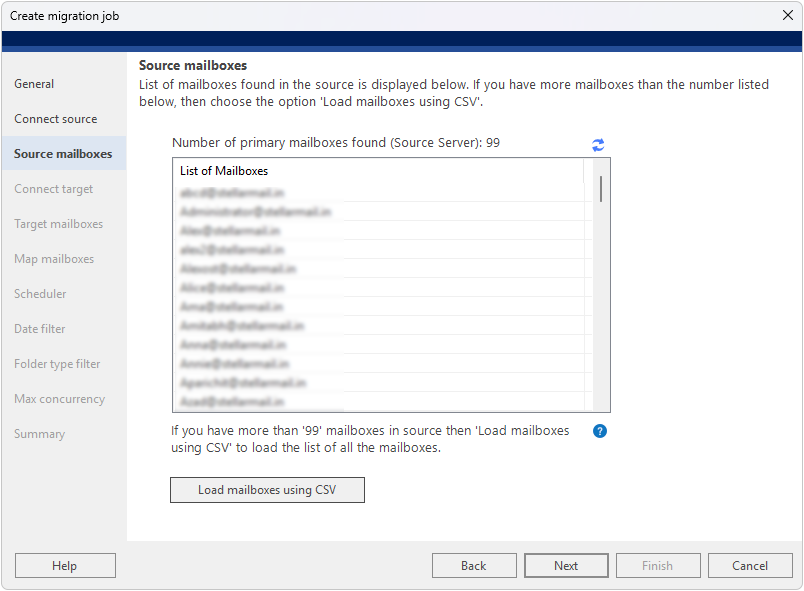
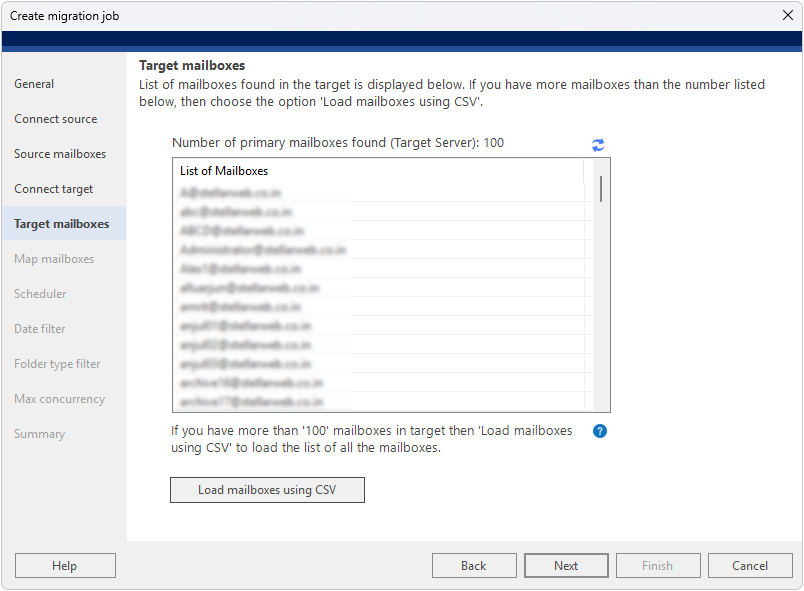
The next screen displays the list of mailboxes found in the source Exchange Server. Review the list to confirm all required source mailboxes are present. If you have more than 99 mailboxes, use the 'Load Mailboxes Using CSV' option and upload a CSV file containing all mailbox addresses.
Step 8
Connect Target
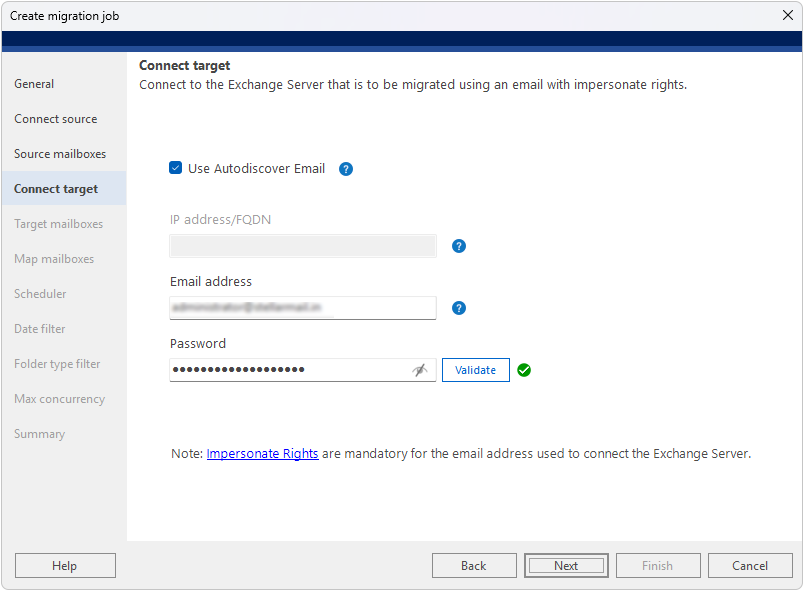
Connect the software to the target Exchange Server. Enable 'Use Autodiscover Email' and enter the Email address and Password — the software will automatically locate and connect to the target server. Alternatively, uncheck Autodiscover and manually enter the IP address/FQDN, Email address, and Password. You can click 'Click here' to reuse the previously used Target ID. Click Validate to confirm the connection before proceeding. Note: Impersonate Rights are mandatory for the email address used to connect to the Exchange Server.
Step 9
Target Mailboxes
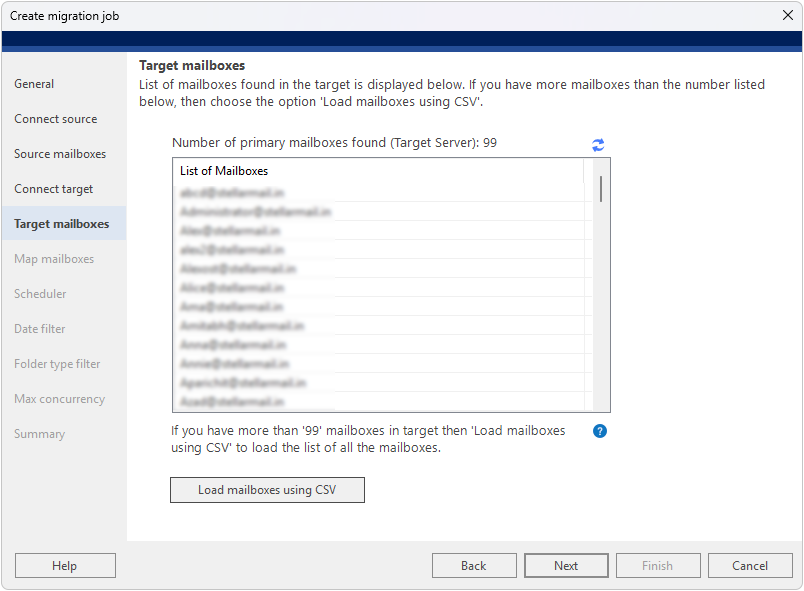
The next screen displays the list of mailboxes found in the target Exchange Server. Review the list to ensure all destination mailboxes are available for mapping. If you have more than 100 mailboxes, use the 'Load Mailboxes Using CSV' option to load the complete list.
Step 10
Map Mailboxes
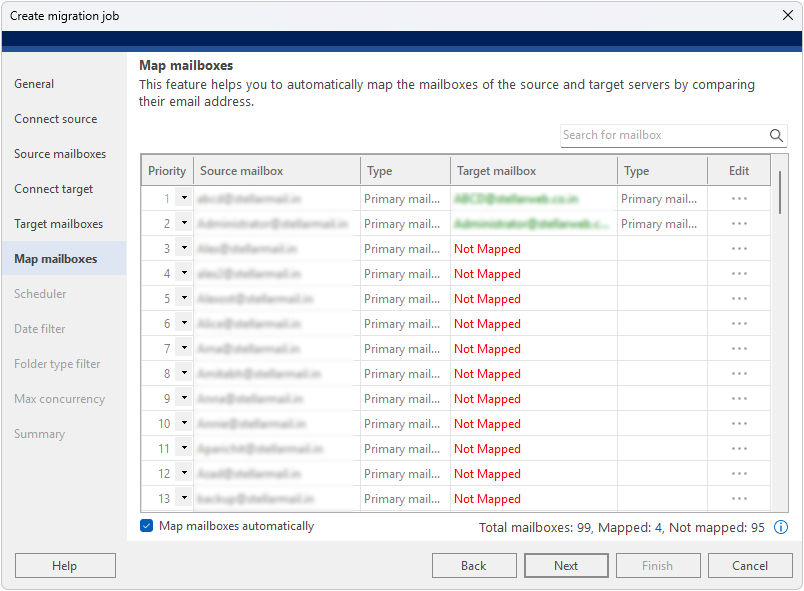
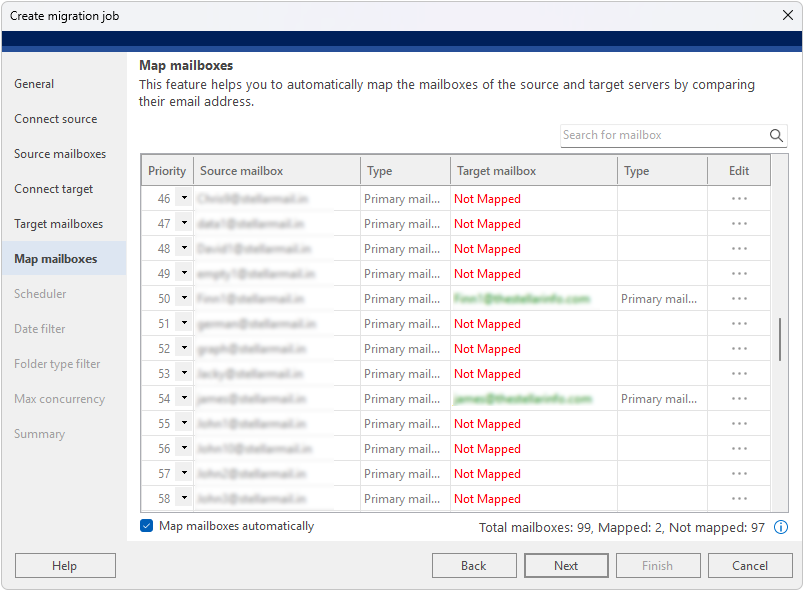
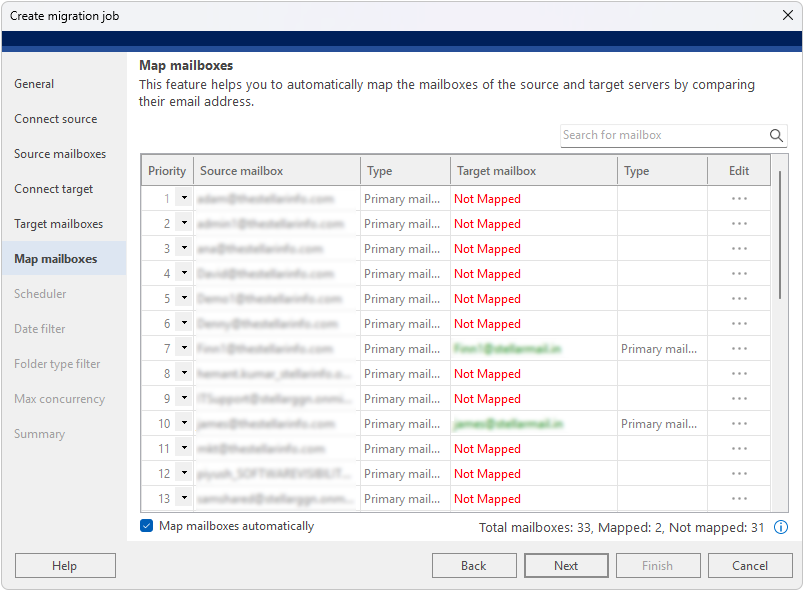
The software automatically maps source and target mailboxes by comparing their email addresses. Mailboxes that are successfully matched appear in green; unmatched mailboxes are marked 'Not Mapped' in red. Use the Edit (…) button to manually map any unmatched mailboxes. The status bar at the bottom shows Total mailboxes, Mapped count, and Not mapped count.
Step 11
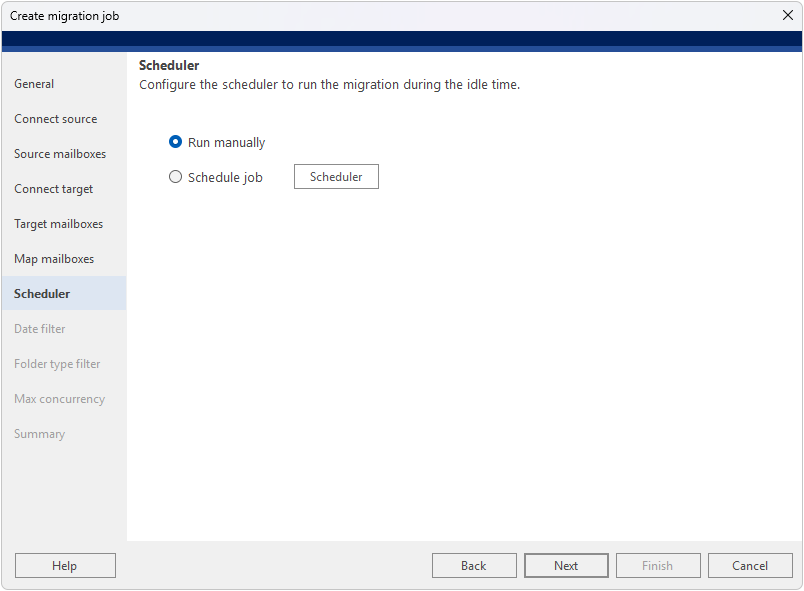
Scheduler
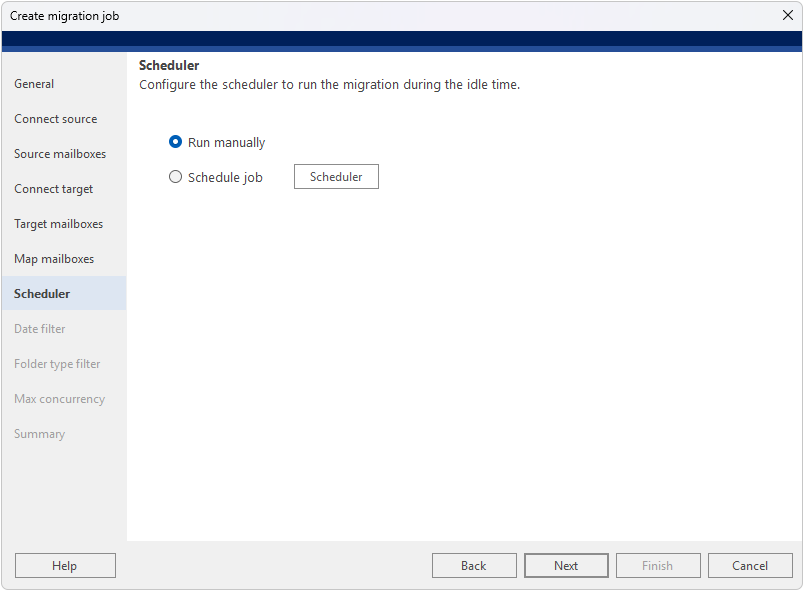
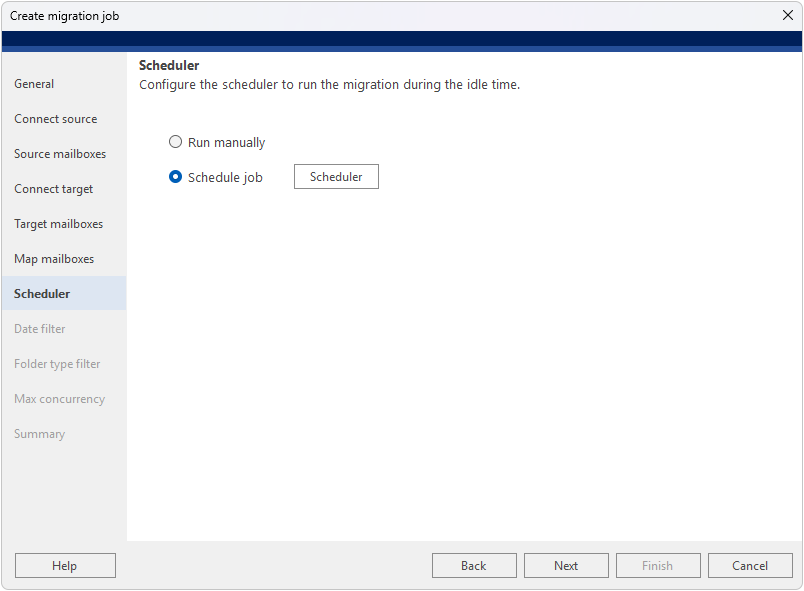
Configure when the migration job should run. Choose 'Run manually' to start migration on demand, or select 'Schedule job' and click the Scheduler button to set the frequency (Run once, Daily, Weekly, or Monthly), start and end times, and duration. The description field at the bottom previews the configured schedule. Use the Scheduler dialog to set the exact frequency, occurrence times, start date, and optional end date for the migration run.
Step 12
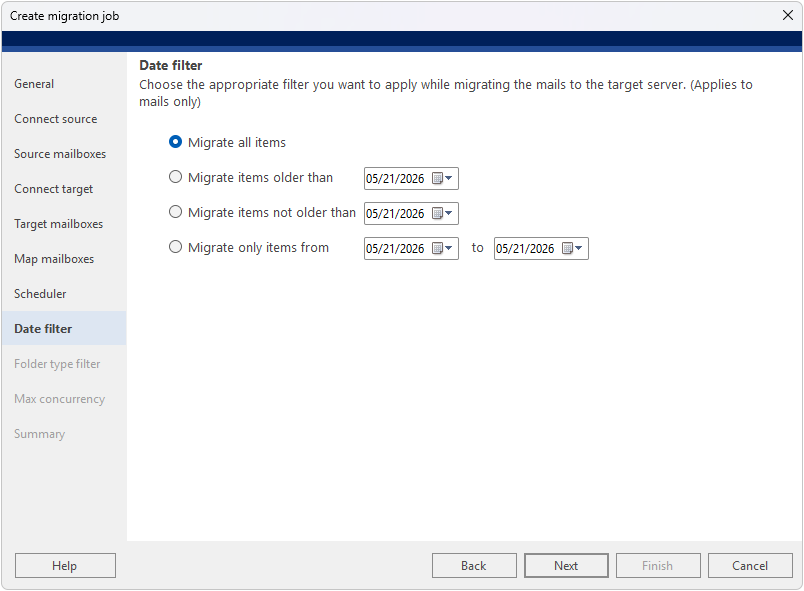
Date Filter
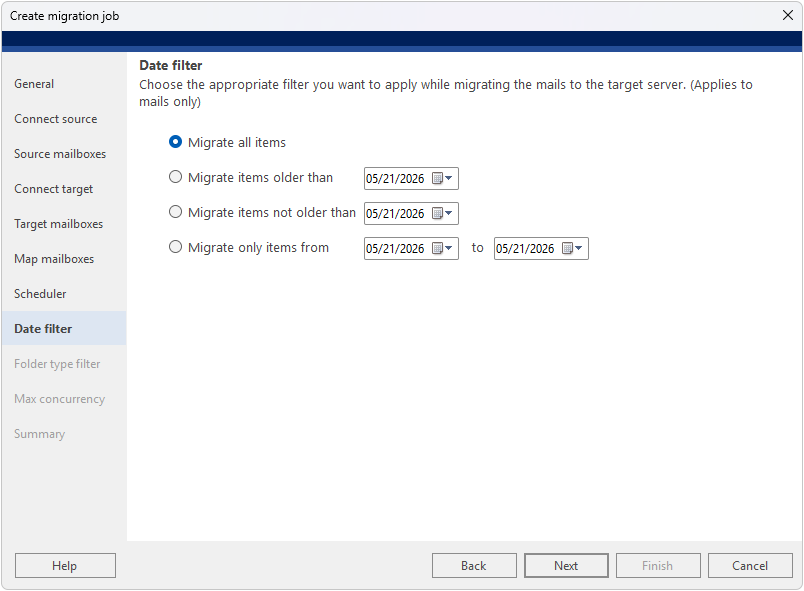
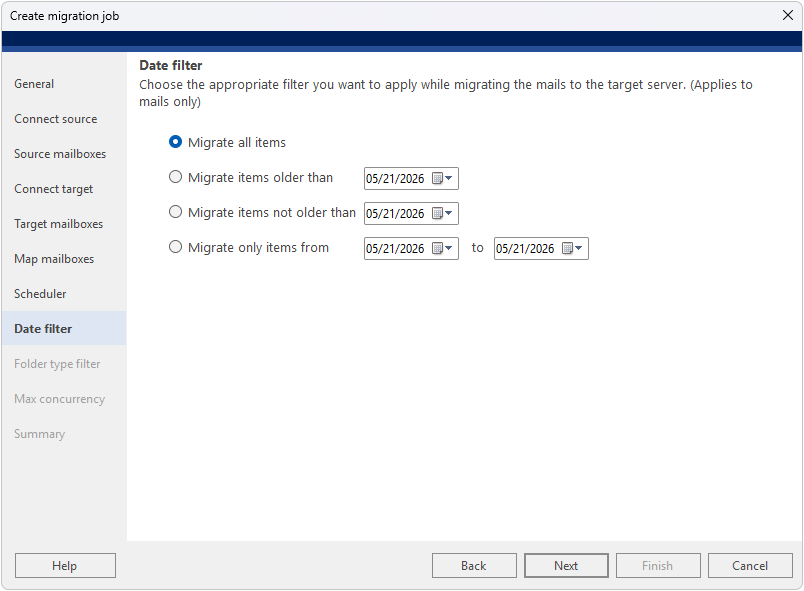
Apply a date filter to control which mail items are migrated (applies to mail items only). Options include: Migrate all items, Migrate items older than a specific date, Migrate items not older than a specific date, or Migrate only items from a specific date range. This helps reduce migration scope when needed.
Step 13
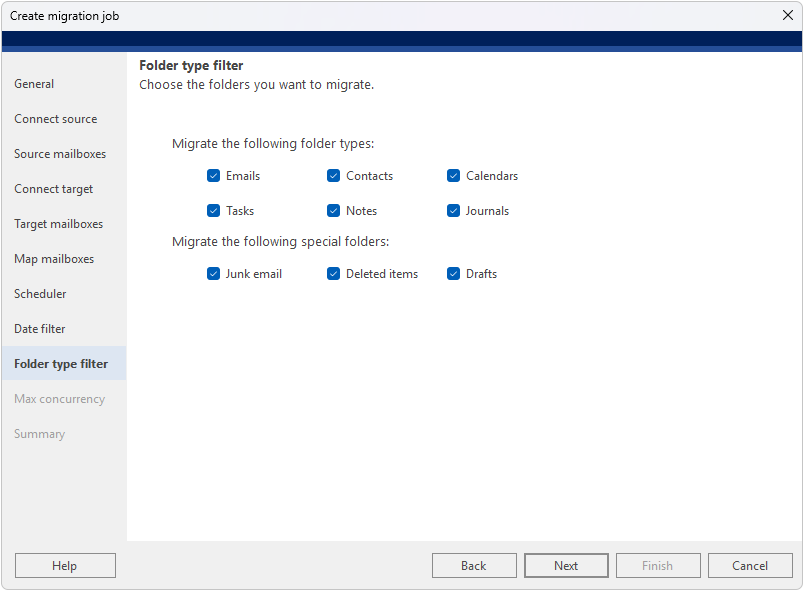
Folder Type Filter
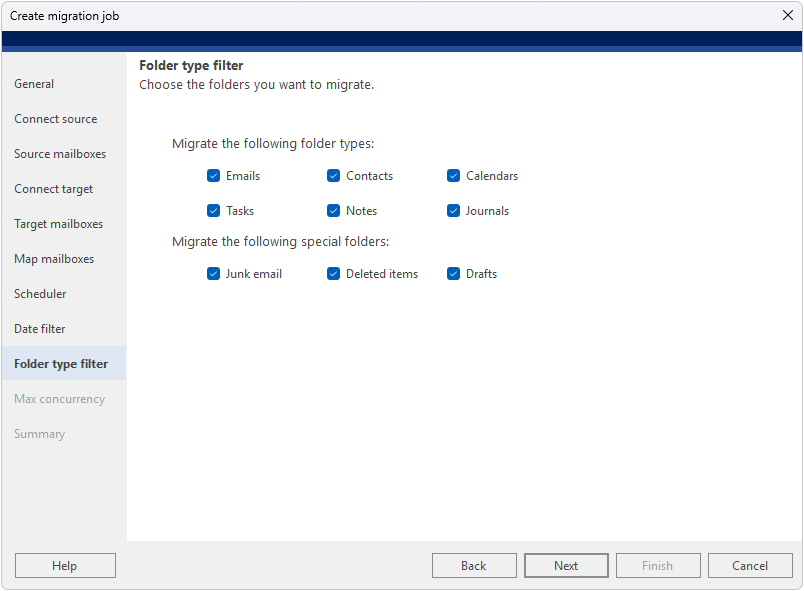
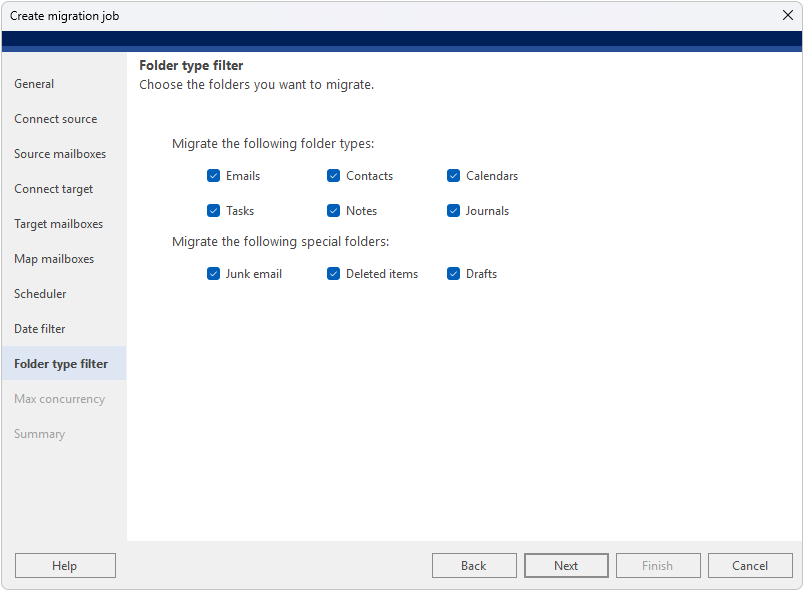
Select the folder types to include in the migration. Available folder types are: Emails, Contacts, Calendars, Tasks, Notes, and Journals. Special folders include Junk Email, Deleted Items, and Drafts. All are selected by default. Uncheck any folders you want to exclude to ensure only the required data is migrated.
Step 14
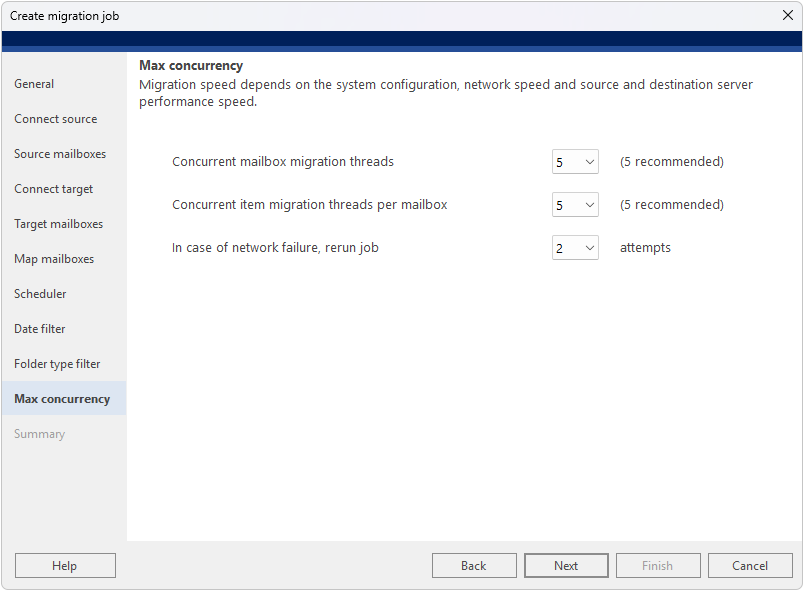
Max Concurrency
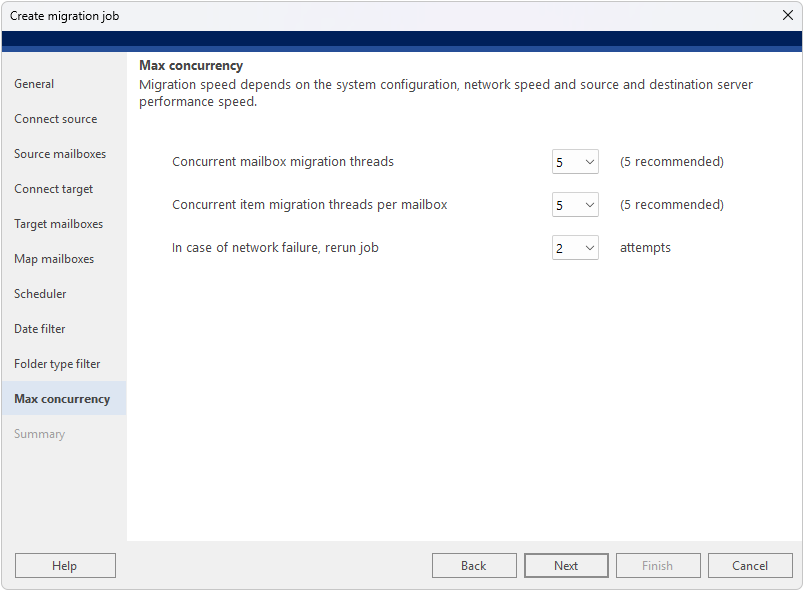
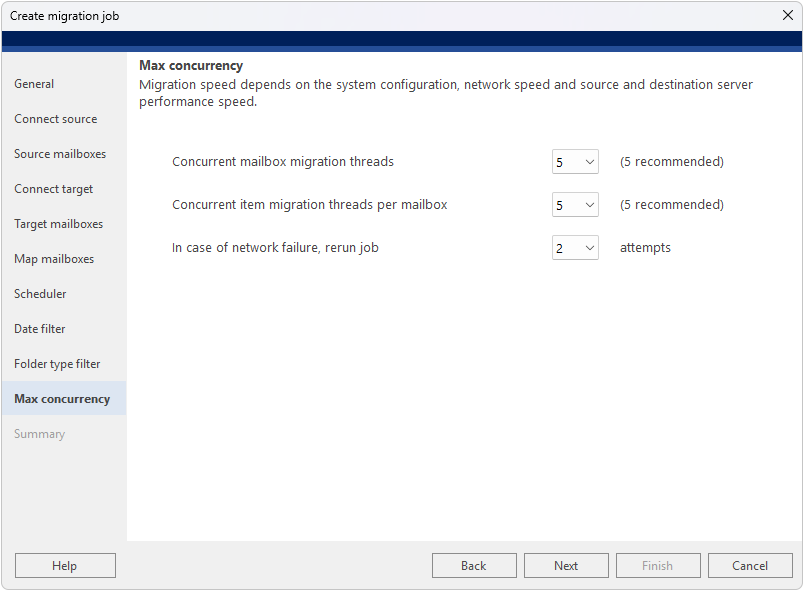
Configure migration speed and resilience. Set the number of Concurrent mailbox migration threads (5 recommended), Concurrent item migration threads per mailbox (5 recommended), and the number of retry attempts in case of network failure (default: 2). Migration speed depends on system configuration, network speed, and source and destination server performance.
Step 15
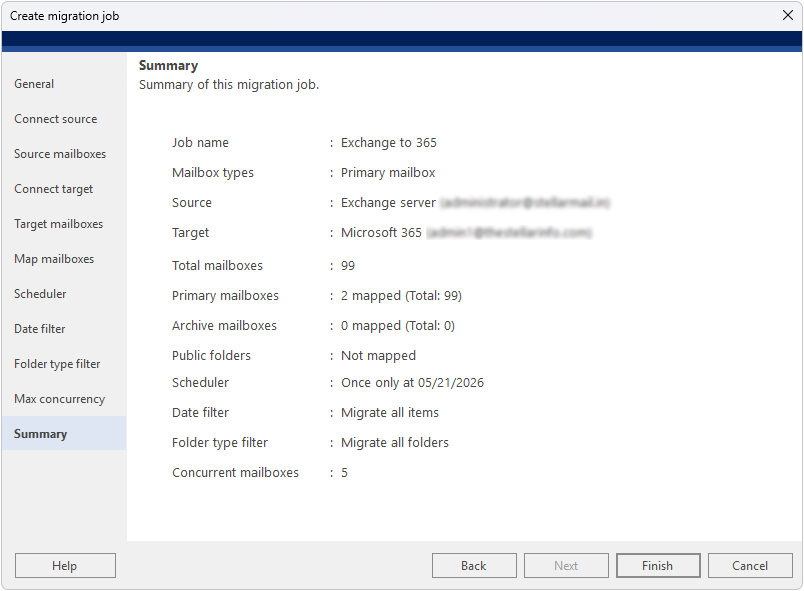
Summary
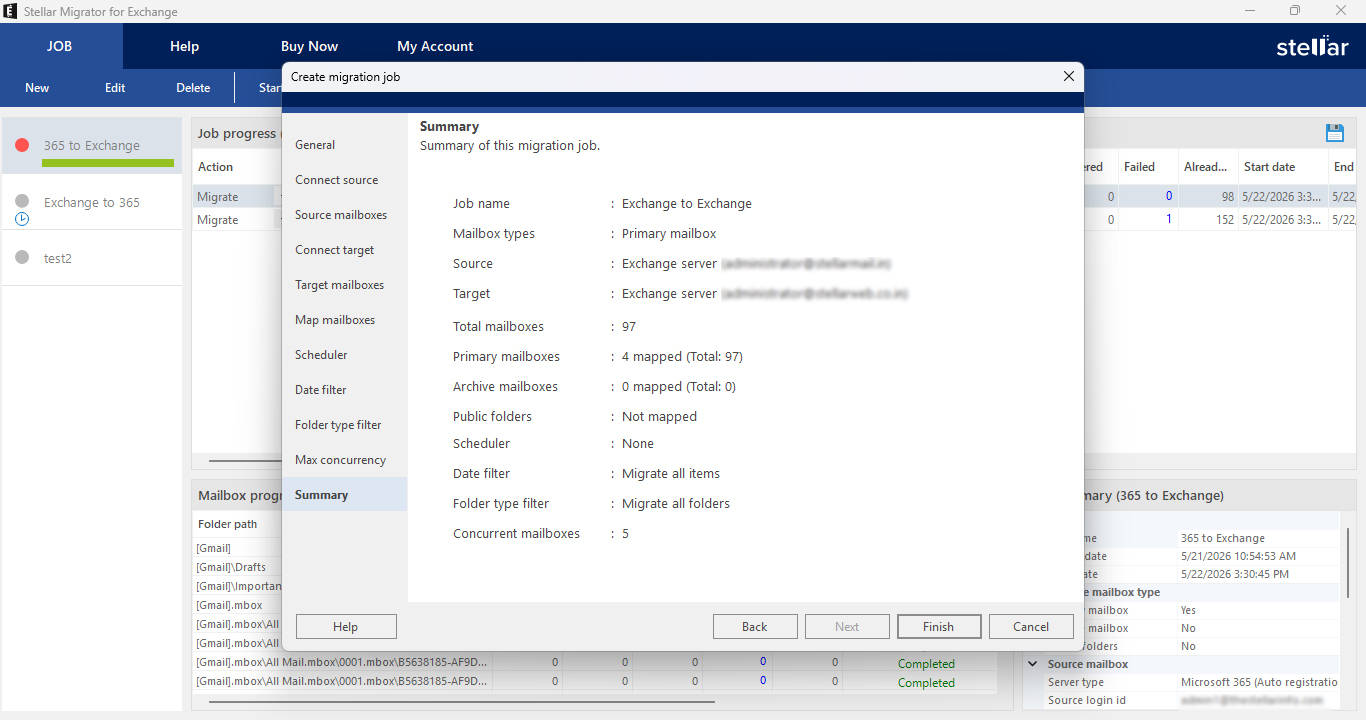
Review the complete job summary before starting migration. The summary displays: Job name, Mailbox types, Source server (Exchange Server), Target server (Exchange Server), Total mailboxes, Mapped counts for primary/archive mailboxes and public folders, Scheduler setting, Date filter, Folder type filter, and Concurrent mailboxes. If any setting needs correction, click the relevant section in the left panel to go back and edit it. Click Finish to create the migration job.
Step 16
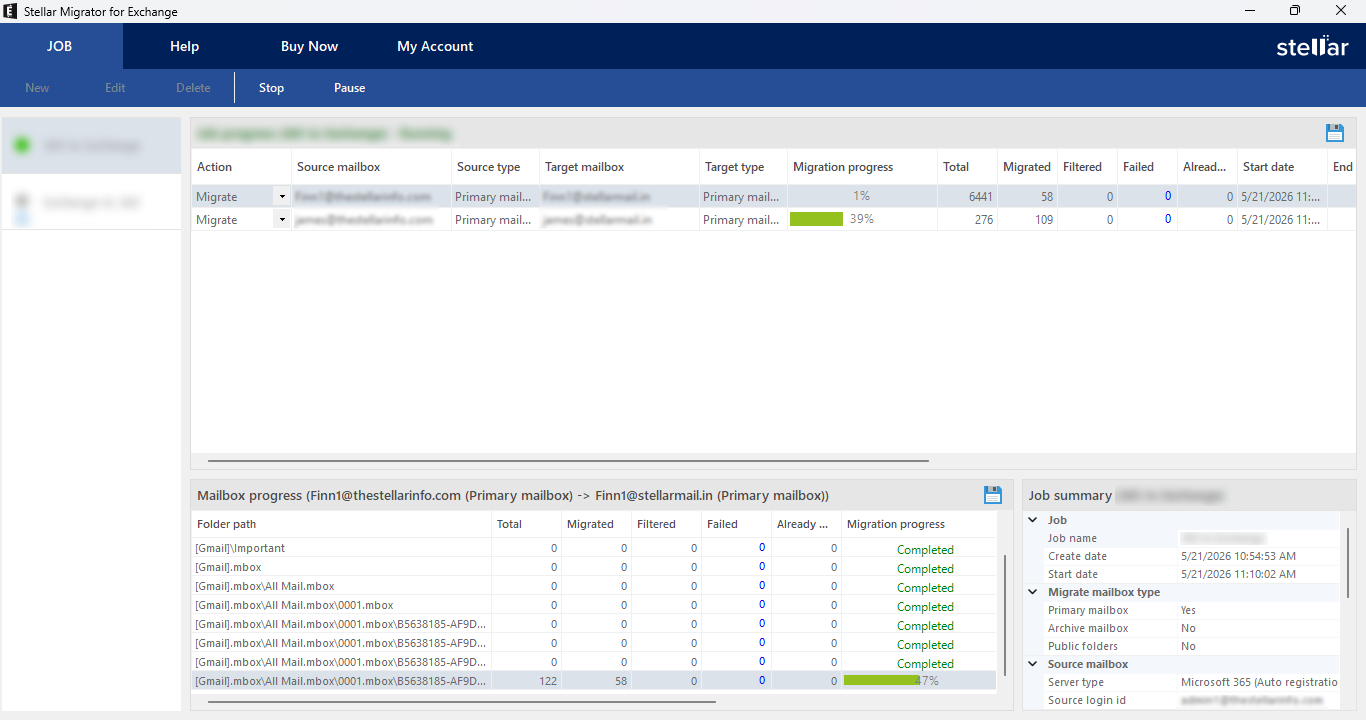
Initiate Migration
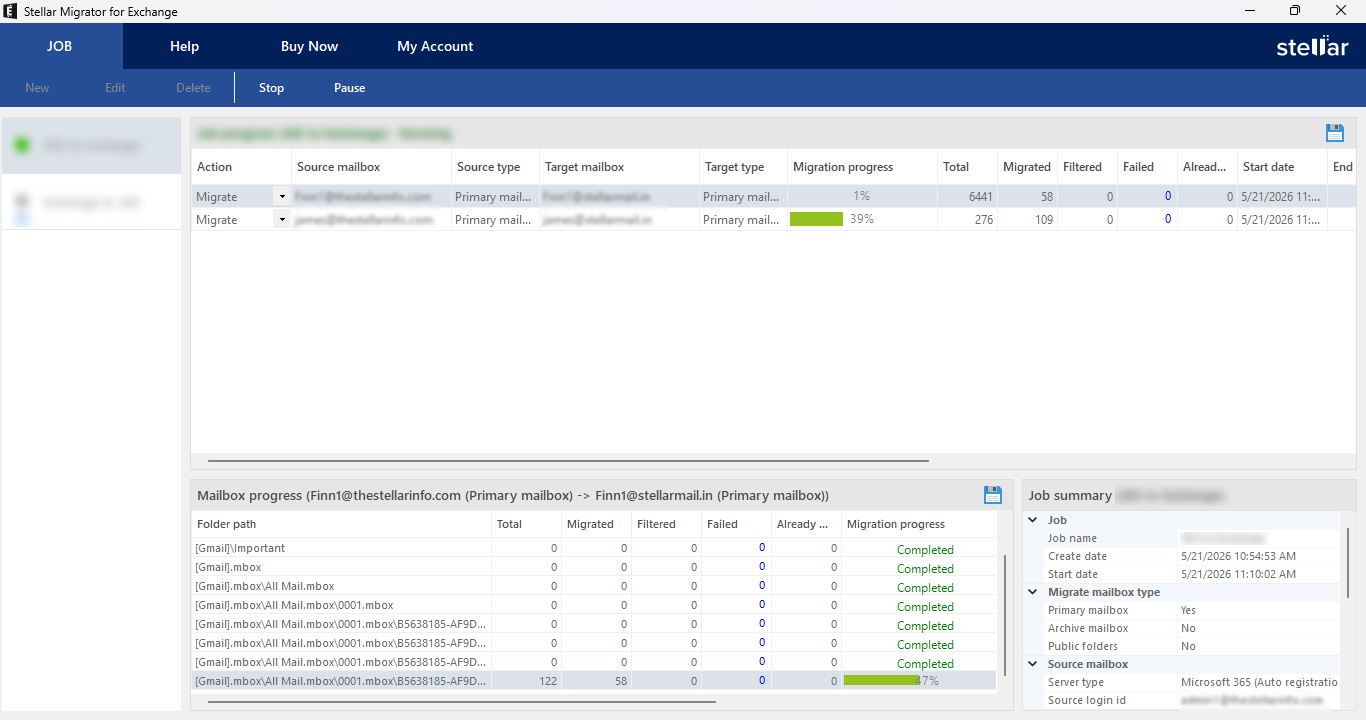
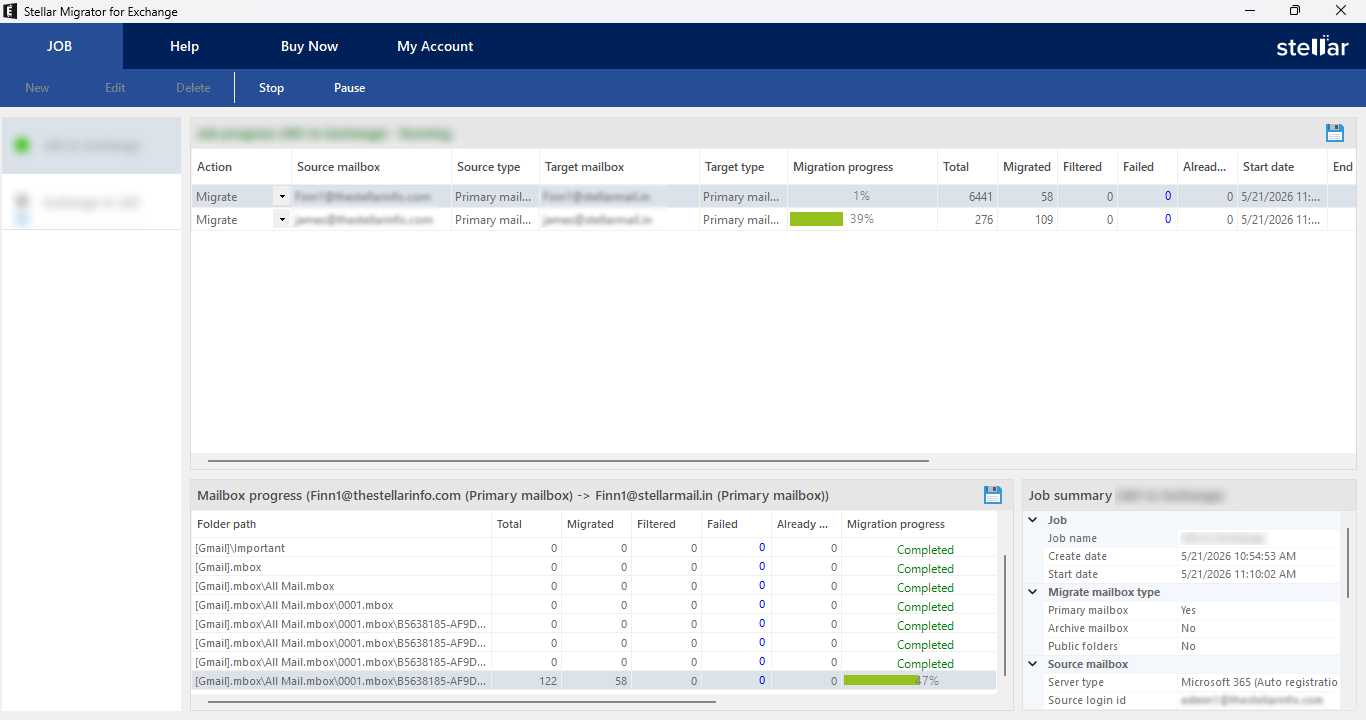
After clicking Finish to create the job, click Start in the JOB ribbon at the top to begin the migration process. The migration dashboard shows real-time Job Progress with columns for Action, Source mailbox, Target mailbox, Migration progress (%), Total items, Migrated, Filtered, Failed, and Start date. The Mailbox Progress panel at the bottom shows folder-level detail. You can Pause or Stop the migration at any time using the buttons in the JOB ribbon.
Step 17
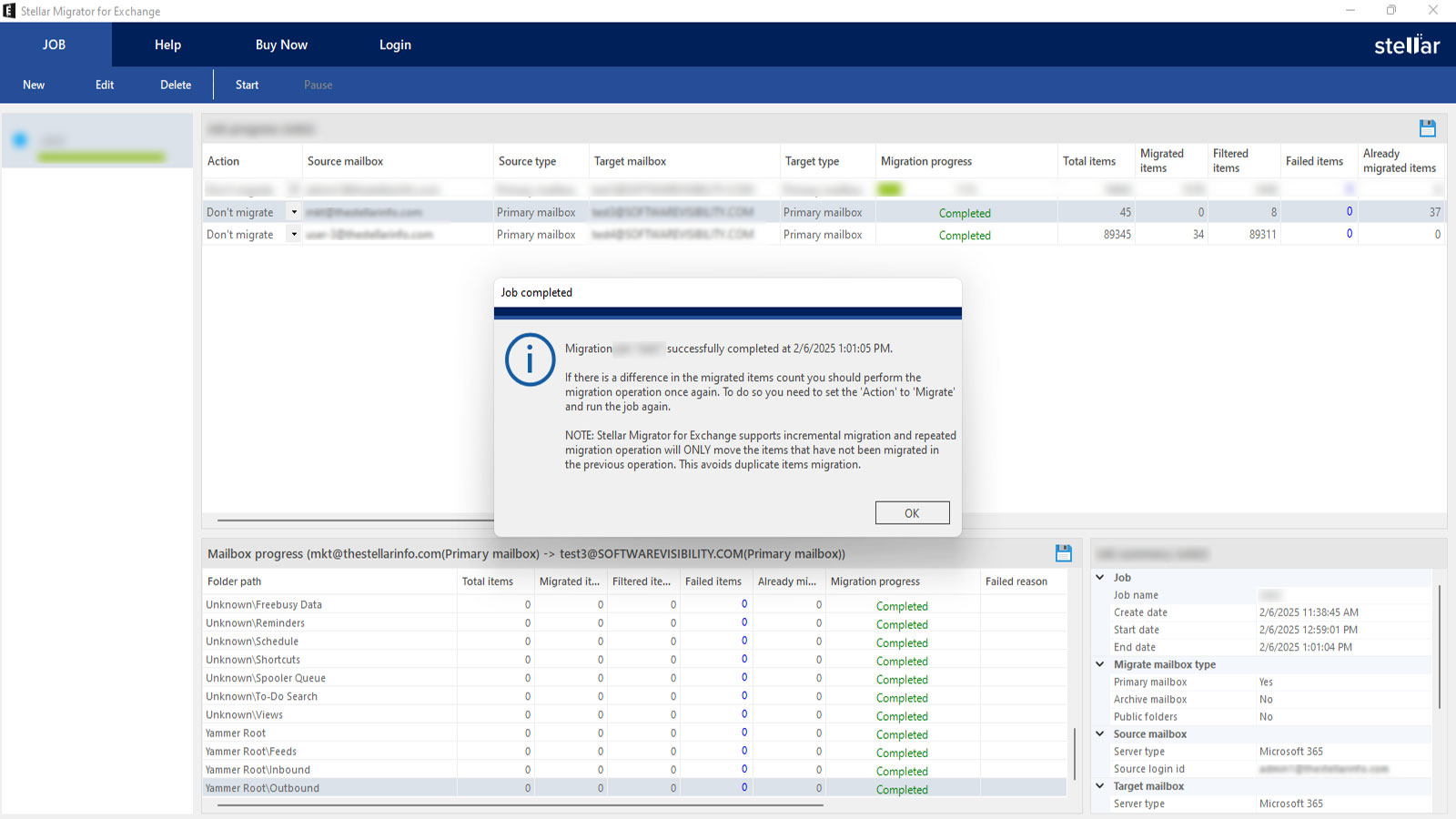
Migration Completed
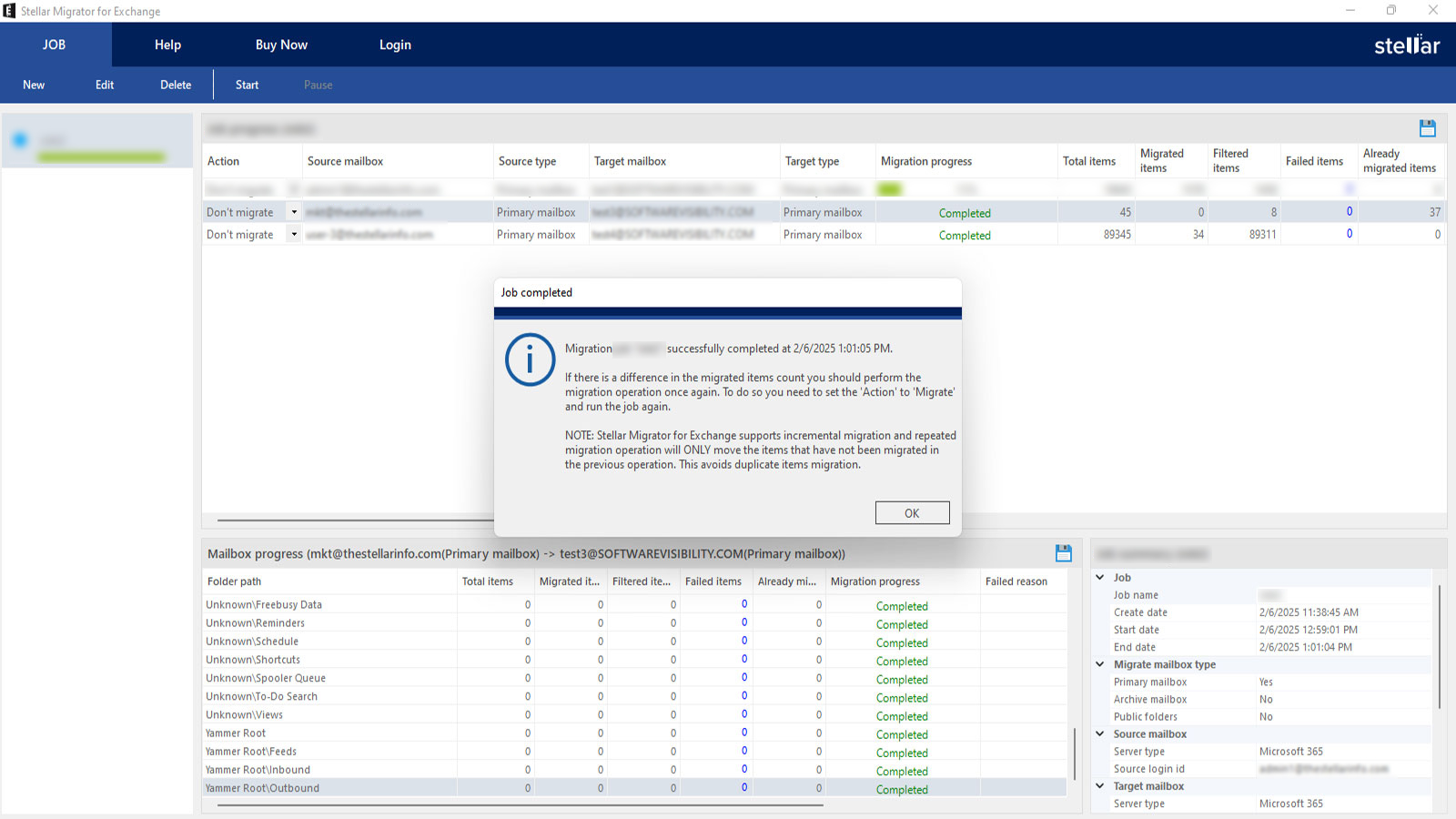
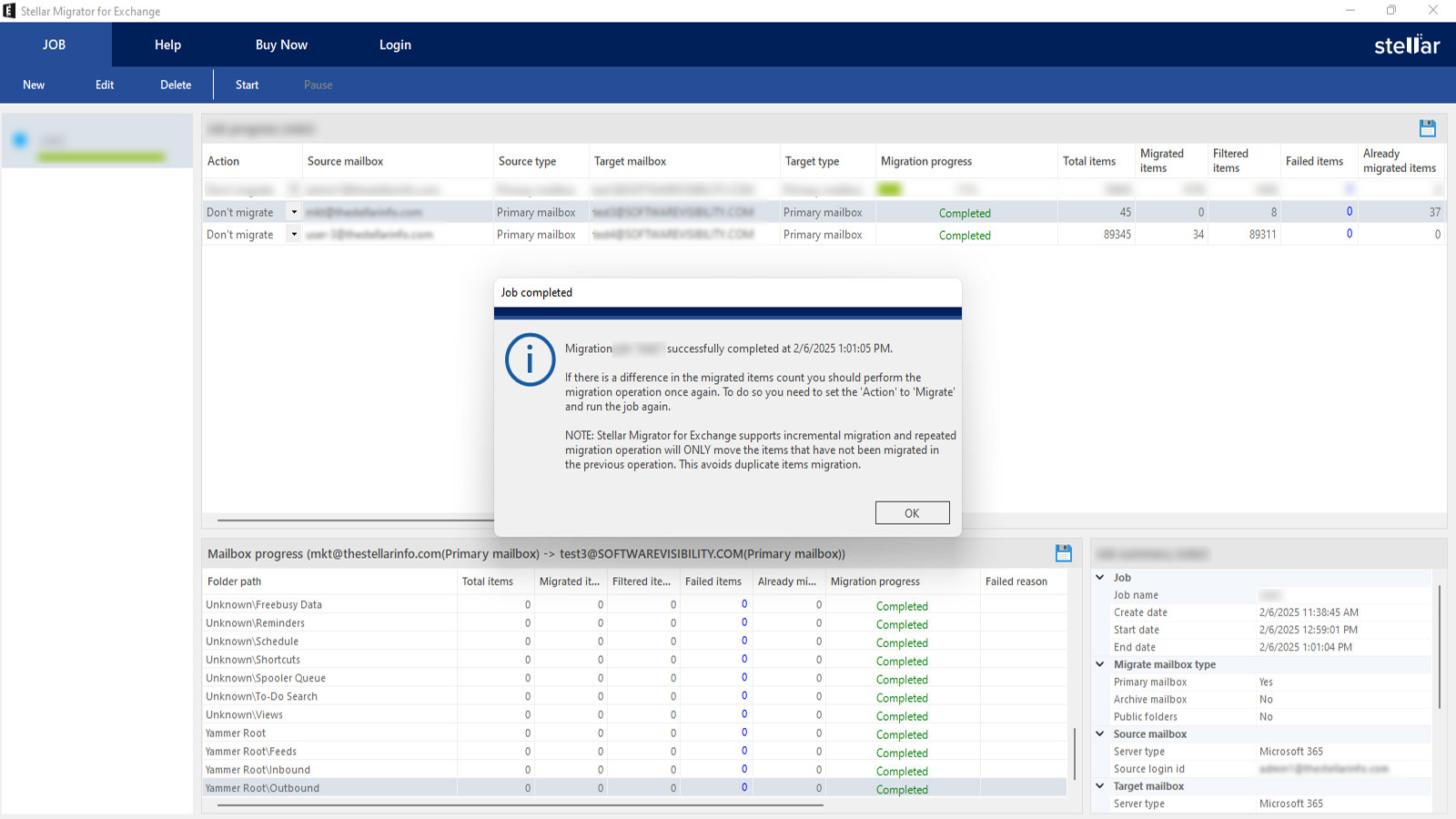
After completing the migration, the action field in the job progress section will change from Migrate to Don't Migrate. If the job fails to migrate, it will remain in the Migrate state, allowing you to attempt the migration again without making repeated changes.
Welcome! If you're here, you've likely registered through the Stellar Migrator for Exchange website and received an email containing your login credentials. This email includes a download link for the Stellar Migrator for Exchange software (EXE) and access details for the Licensing Portal (stellarlicenseserver.com). To get started, click on the download link provided in the email or access it directly from the Licensing Portal.
Step 2
Install the Software
After downloading the Stellar Migrator for Exchange setup file, run the installer and follow the on-screen instructions to complete the installation. Once installed, launch the software — no additional configuration is required. You're now ready to start your test migration using the 2 free mailbox credits included. The next step is to create your first migration job.
Step 3
Login to Licensing Server
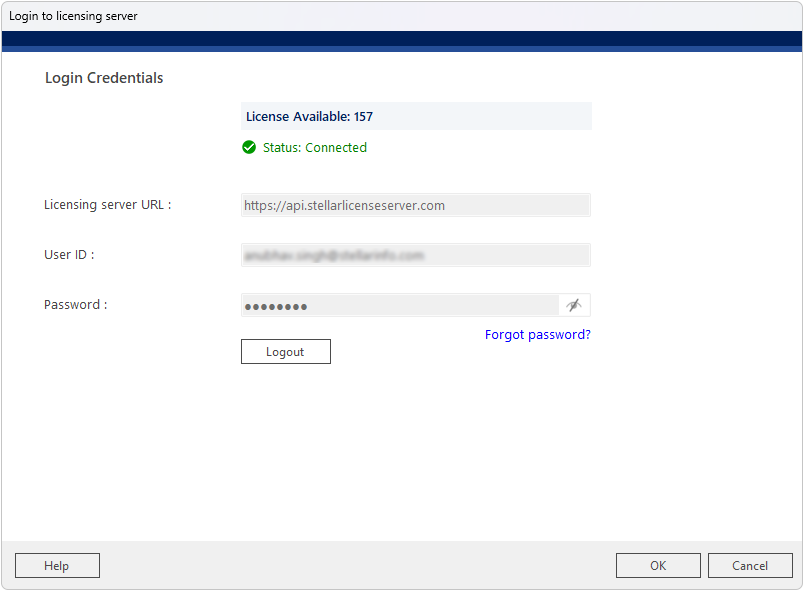
When prompted, the 'Login to Licensing Server' window will appear. The Licensing Server URL (https://api.stellarlicenseserver.com) is pre-filled by default. Enter your User ID and Password to authenticate.
The screen displays the License Available count and a green 'Status: Connected' indicator once successfully authenticated. Click OK to proceed and consume licenses for the migration.
Step 4
Migration Type
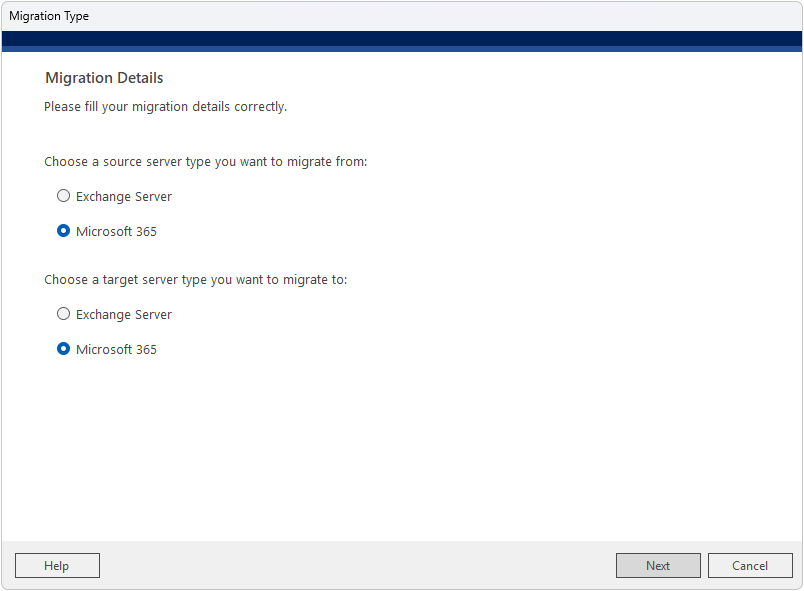
When you launch the software and create a new job, the Migration Type screen appears first. Under 'Choose a source server type you want to migrate from', select Microsoft 365. Under 'Choose a target server type you want to migrate to', also select Microsoft 365. This configures the job as an Office 365 to Office 365 (tenant-to-tenant) migration. Click Next to proceed.
Step 5
General – Create Migration Job
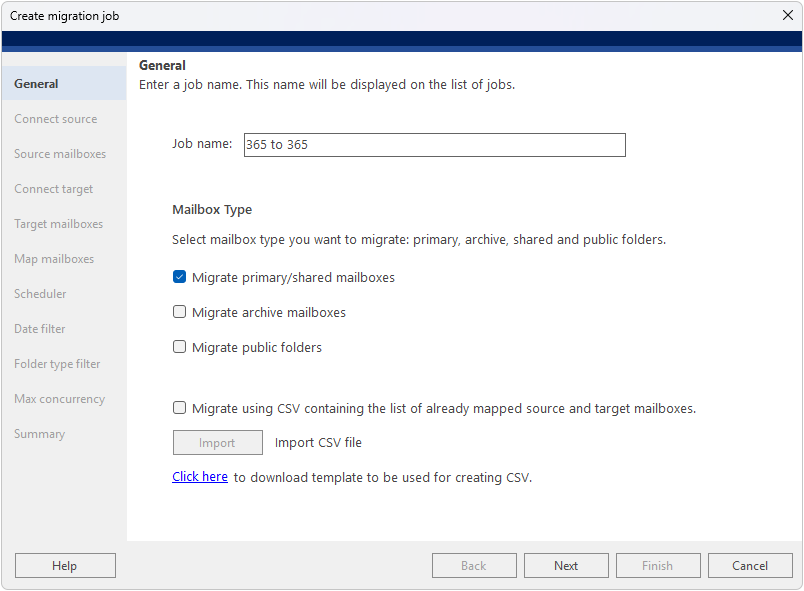
Configuring General Settings is the first step in creating a migration job. Start by providing a name for your migration job, such as “365 to 365,” which will appear in the list of migration jobs for easy identification. Next, select the mailbox type(s) you want to migrate, including primary/shared mailboxes, archive mailboxes, and public folders. If you already have a CSV file containing mapped source and target mailboxes, you can enable the option “Migrate using CSV containing the list of already mapped source and target mailboxes” and click Import to upload the file, which allows you to skip the automatic mapping process.
Step 6
Connect Source – Auto Registration
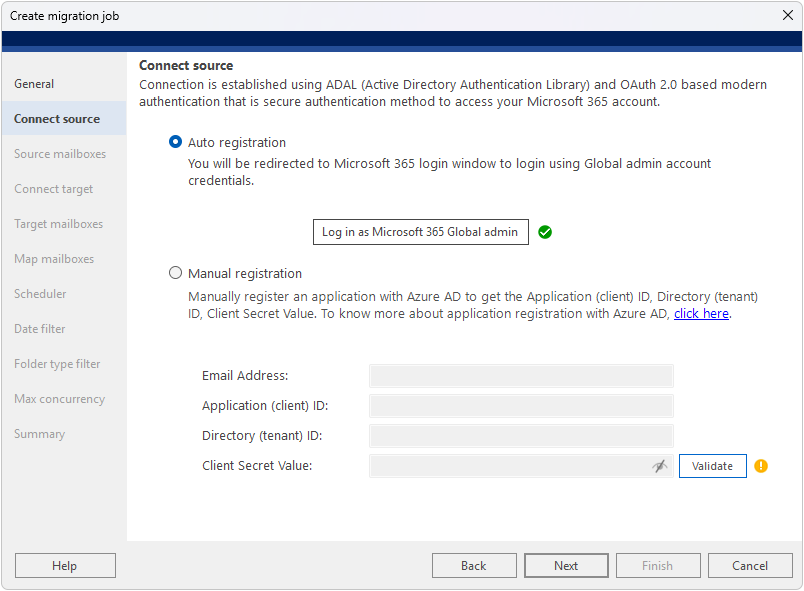
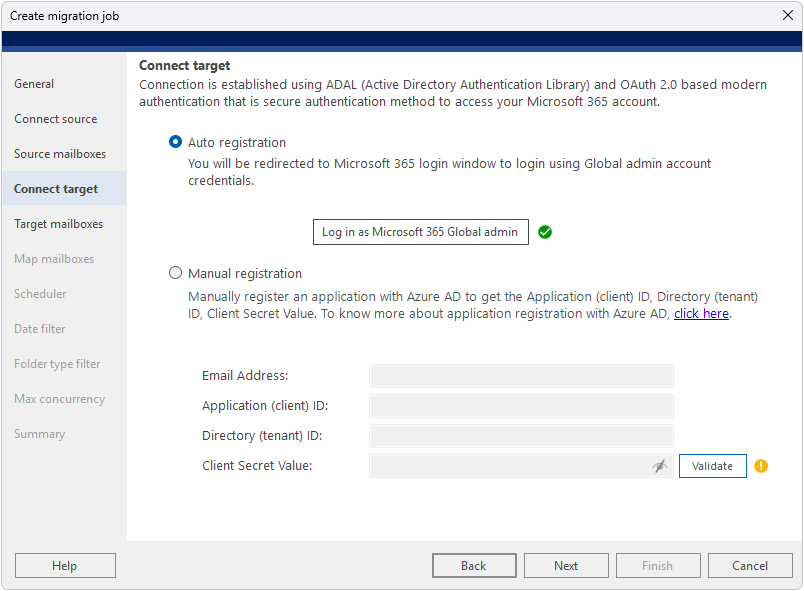
The Connect Source screen provides two registration methods for the source Microsoft 365 tenant: Auto Registration and Manual Registration. With Auto Registration, click “Log in as Microsoft 365 Global admin” to sign in through the Microsoft 365 login window, after which a green checkmark confirms the connection. For Manual Registration, register an application in Azure AD and enter the Email Address, Application (client) ID, Directory (tenant) ID, and Client Secret Value.
Step 7
Source Mailboxes
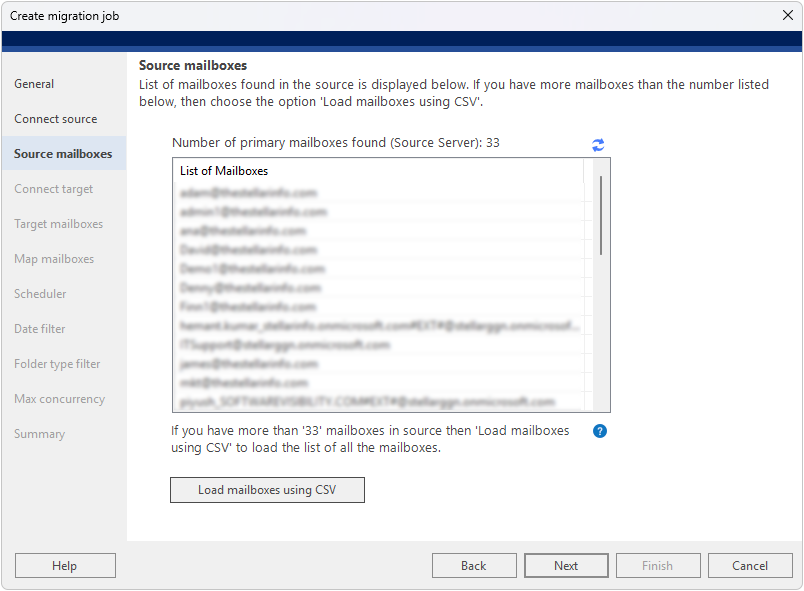
The next screen displays the list of mailboxes found in the source Microsoft 365 tenant. The total number of primary mailboxes detected is shown above the list. Review the list to confirm all required source mailboxes are present.
If you have more than the displayed mailbox limit, use the 'Load Mailboxes Using CSV' button and upload a CSV file containing all mailbox addresses to load the complete list.
Step 8
Connect Target – Auto Registration
Connect the software to the target Microsoft 365 tenant using the same ADAL and OAuth 2.0 based modern authentication process. With Auto Registration selected, click “Log in as Microsoft 365 Global admin” and sign in using the target tenant’s Global Admin credentials. The Auto App Registration – Target dialog displays the verification steps, and once all steps are completed successfully with green checkmarks, click OK. Alternatively, use Manual Registration by entering the Email Address, Application (client) ID, Directory (tenant) ID, and Client Secret Value for the target tenant’s Azure AD application.
Step 9
Target Mailboxes
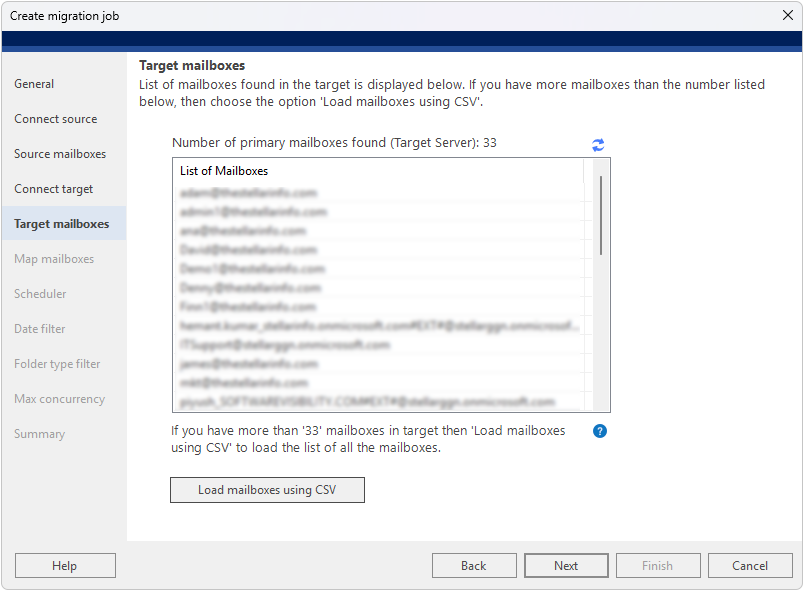
After successfully connecting to the target Microsoft 365 tenant, the next screen shows the list of mailboxes found in the destination tenant. Review the list to ensure all required target mailboxes are available for mapping.
If you cannot see all your target mailboxes, use the 'Load Mailboxes Using CSV' option to load the complete list from a CSV file.
Step 10
Map Mailboxes
The software automatically maps source and target mailboxes by comparing their email addresses. Mailboxes that are successfully matched display the target address in green; unmatched mailboxes are marked 'Not Mapped' in red. Use the Edit (…) button on any row to manually assign a target mailbox to an unmatched source mailbox. The status bar at the bottom shows the total count of mailboxes along with how many are Mapped and Not mapped.
Step 11
Scheduler
The Scheduler step lets you configure when the migration job should run. Two options are available:
• Run manually – Start the migration on demand by clicking Start in the JOB ribbon. • Schedule job – Click the Scheduler button to set the frequency (Run once, Daily, Weekly, or Monthly), the occurrence start and end times, and the start date. The Description field at the bottom previews the configured schedule in plain language.
Step 12
Date Filter
Apply a date filter to control which mail items are included in the migration (applies to mail items only). Choose one of the following options:
• Migrate all items – No date restriction; all mail items are migrated.
• Migrate items older than – Only items before the selected date are migrated.
• Migrate items not older than – Only items from the selected date onwards are migrated.
• Migrate only items from – Migrate items within a specific date range (from date to date).
Step 13
Folder Type Filter
Select the folder types to include in the migration. By default, all folder types are selected, including Emails, Contacts, Calendars, Tasks, Notes, Journals, Junk Email, Deleted Items, and Drafts. You can uncheck any folders you want to exclude so that only the required data is migrated.
Step 14
Max Concurrency
Configure migration performance and resilience settings. Adjust the following parameters based on your system and network capacity:
• Concurrent mailbox migration threads – Number of mailboxes migrated simultaneously (5 recommended).
• Concurrent item migration threads per mailbox – Number of items migrated in parallel per mailbox (5 recommended).
• In case of network failure, rerun job – Number of automatic retry attempts if the migration is interrupted (default: 2). Note: Migration speed depends on system configuration, network speed, and the performance of both the source and target Microsoft 365 tenants.
Step 15
Summary
Review the complete job summary before starting the migration and verify that all settings are correct before clicking Finish. The summary includes details such as the job name, selected mailbox types, source and target Microsoft 365 tenants, total mailboxes, mapped counts for primary/archive mailboxes and public folders, scheduler settings, date and folder type filters, and the number of concurrent mailboxes. If any setting needs to be changed, use the relevant section in the left navigation panel to go back and edit it. Once everything is verified, click Finish to create the migration job.
Step 16
Initiate Migration
After clicking Finish to create the job, click Start in the JOB ribbon at the top of the main window to begin the migration process. The migration dashboard displays real-time job progress, including the current action, source and target mailbox details, migration status percentage, total items, migrated, filtered, and failed items, along with the start and end dates. The Mailbox Progress panel at the bottom provides folder-level migration details, and you can pause or stop the migration at any time using the corresponding buttons in the JOB ribbon.
Step 17
Migration Completed
After the migration completes successfully, the Action field in the Job Progress section changes from 'Migrate' to 'Don't Migrate' for each completed mailbox, indicating that those mailboxes have been fully migrated.
If a mailbox fails to migrate, it remains in the 'Migrate' state, allowing you to retry the migration for that mailbox without reconfiguring the entire job or making repeated changes to other mailboxes.
Welcome! If you’ve registered through the Stellar Migrator for Exchange website, you will have received an email containing your login credentials. This email includes a download link for the Stellar Migrator for Exchange software (EXE) and access details for the Licensing Portal (stellarlicenseserver.com). To get started, click the download link provided in the email or access it directly from the Licensing Portal.
Step 2
Install the Software
After downloading the Stellar Migrator for Exchange setup file, run the installer and follow the on-screen instructions to complete the installation. Once installed, launch the software — no additional configuration is required. You’re now ready to start your test migration using the 2 free mailbox credits included. The next step is to create your first migration job.
Step 3
Login to Licensing Server
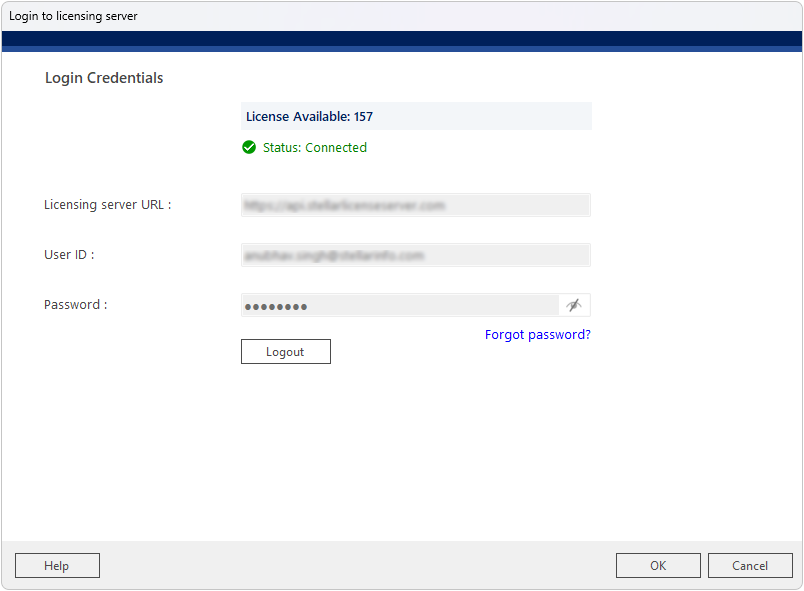
When prompted, the ‘Login to Licensing Server’ window will appear. The Licensing Server URL (https://api.stellarlicenseserver.com) is pre-filled. Enter your User ID and Password. The screen displays the License Available count and a green ‘Status: Connected’ indicator once successfully authenticated. Click OK to proceed with the licensed migration.
Step 4
Migration Type
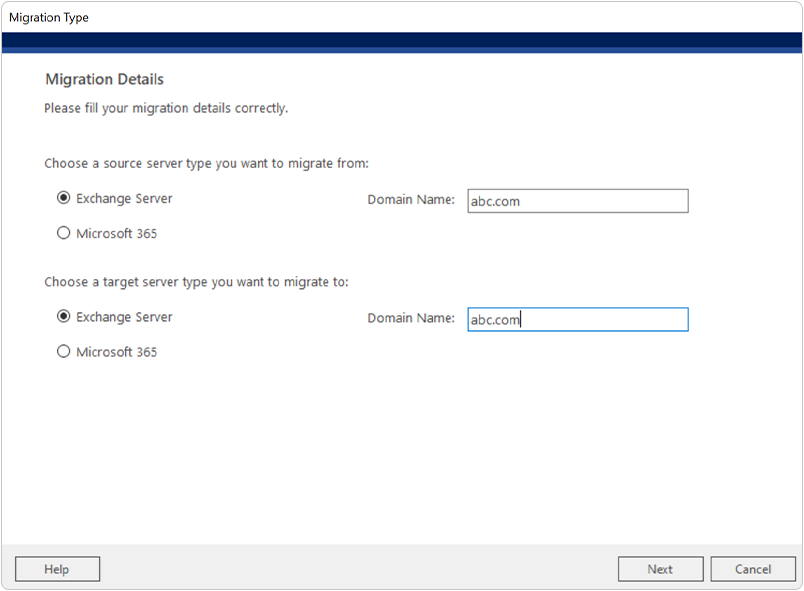
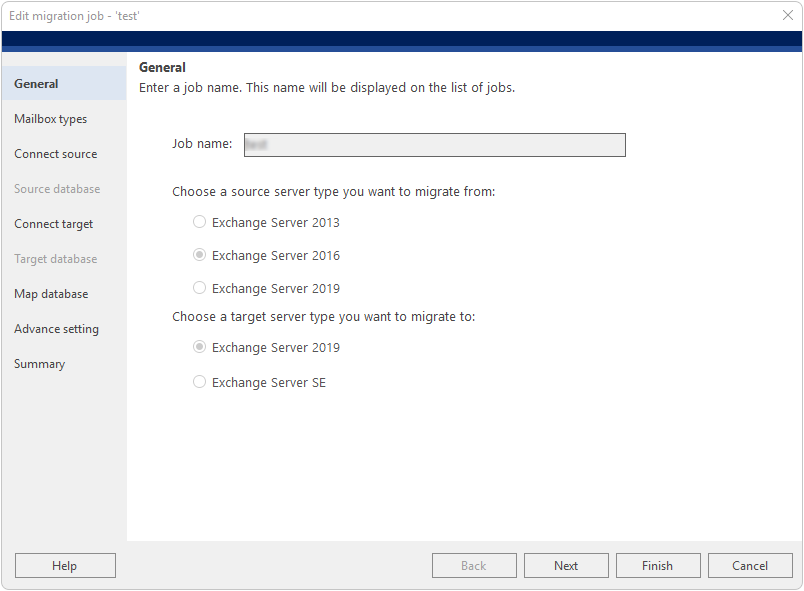
When you launch the software and create a new job, the Migration Type screen appears first. Under 'Choose a source server type you want to migrate from', select Exchange Server and enter the source Domain Name. Under 'Choose a target server type you want to migrate to', select Exchange Server and enter the target Domain Name. This configures the job as an Exchange to Exchange (server-to-server) migration. Click Next to proceed.
Step 5
Migration Scenario
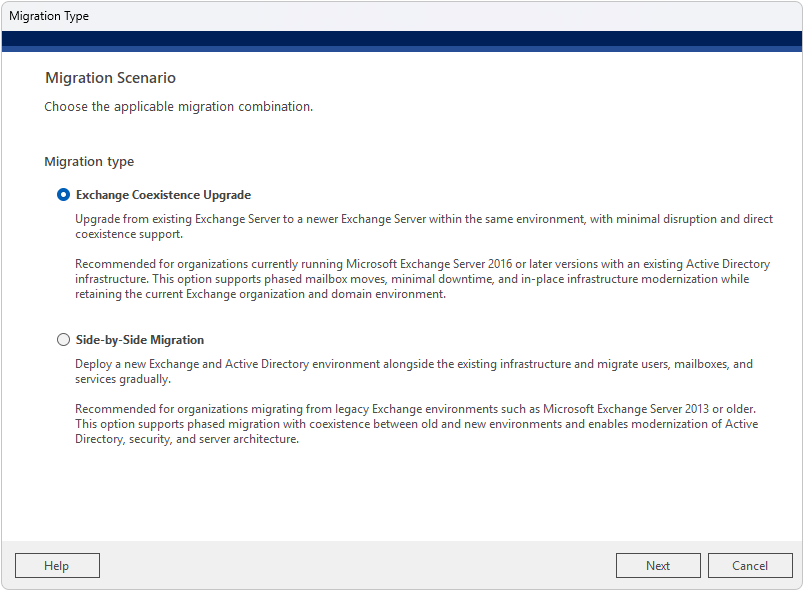
Choose the applicable migration combination. Based on your migration requirements, you can choose options such as Exchange Coexistence Upgrade or Side-by-Side Migration. Choose Exchange Coexistence Upgrade migration approach when you want to upgrade your existing Microsoft Exchange Server to a newer version within the same environment. Choose Side-by-Side Migration approach when you want to build a completely new Exchange and Active Directory environment alongside your existing infrastructure. Here we are selecting Exchange Coexistence Upgrade.
Step 6
General – Create Migration Job
Provide a name for your migration job (for example, 'Exc to Exc') — this name will be displayed on the list of jobs. Then select the mailbox type(s) you want to migrate: primary/shared mailboxes, archive mailboxes, or public folders. You can also import a pre-mapped CSV file directly from this screen.
Step 7
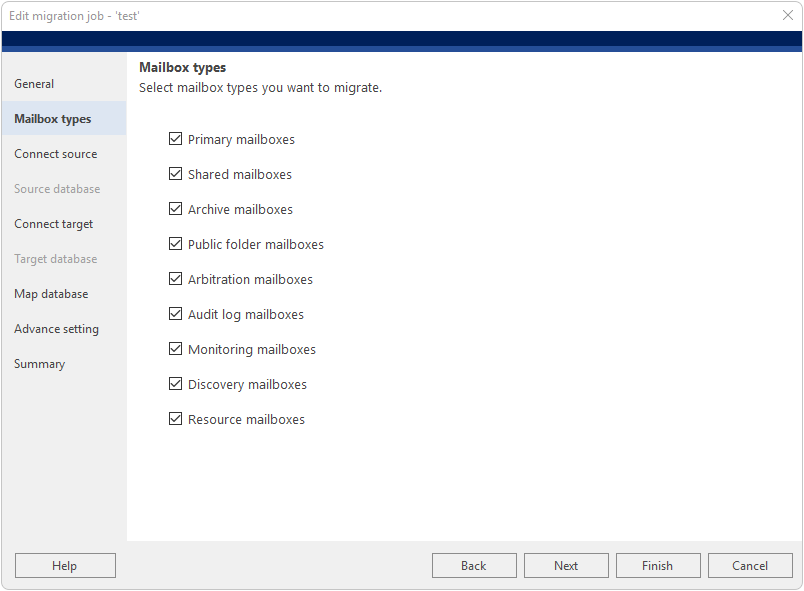
Mailbox Types
Select the mailbox types you want to include in the migration. All types are selected by default. Uncheck any types you want to exclude:
Click Next to proceed once your selection is complete.
Step 8
Connect Source
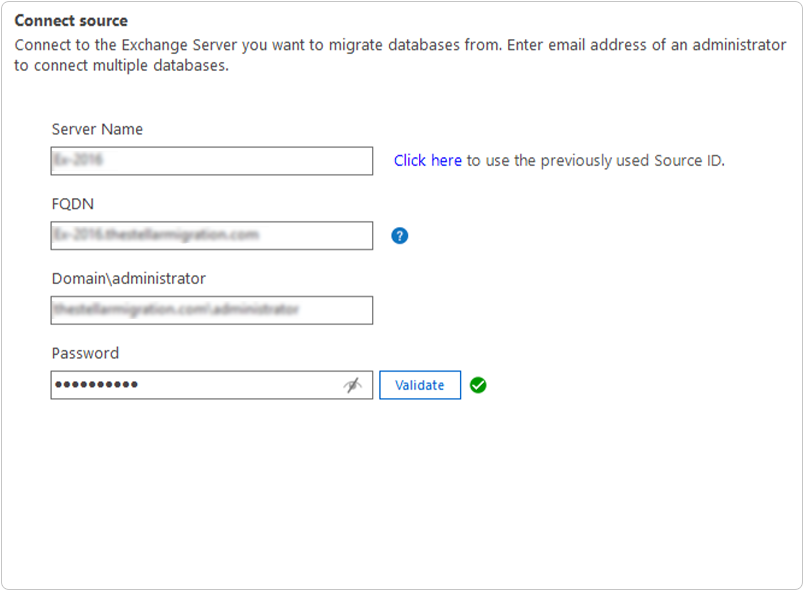
Connect the software to the source Exchange Server 2016. Enter the following details:
• Server Name — e.g., Ex-2016 • FQDN — e.g., Ex-2016.thestellarmigration.com • Domain\Administrator — e.g., thestellarmigration.com\administrator • Password — enter the administrator password
Click Validate to confirm the connection. A green checkmark will appear upon successful authentication. You can also click ‘Click here’ to reuse a previously saved Source ID and skip re-entering credentials.
Note: Administrator or impersonation rights are required for the account used to connect to the source Exchange Server.
Step 9
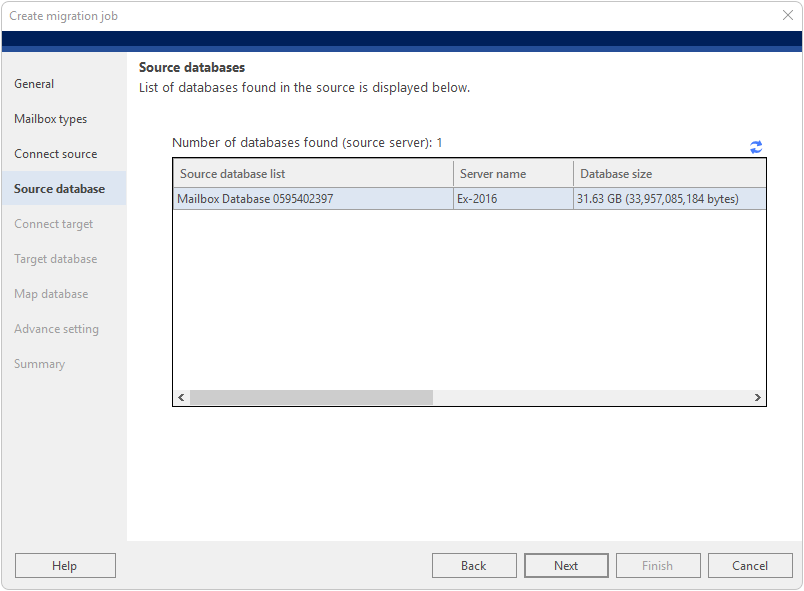
Source Databases
The software automatically discovers and displays all mailbox databases found on the source Exchange Server 2016. Review the list to confirm all required source databases are present. The database name, server name, and database size are shown for reference.
In this example, Mailbox Database 0595402397 is found on Ex-2016 with a size of 31.63 GB. Click Next to proceed.
Step 10
Connect Target
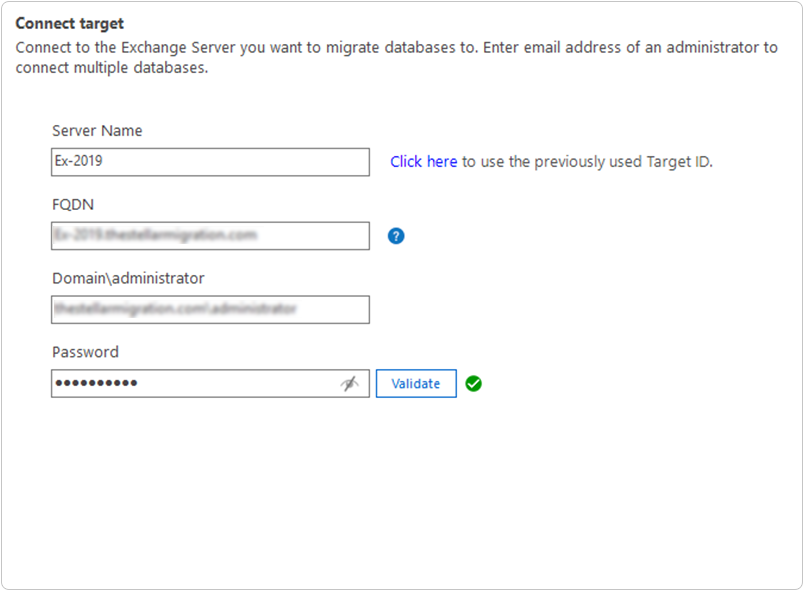
Connect the software to the target Exchange Server 2019. Enter the following details:
• Server Name — e.g., Ex-2019 • FQDN — e.g., Ex-2019.thestellarmigration.com • Domain\Administrator — e.g., thestellarmigration.com\administrator • Password — enter the administrator password
Click Validate to confirm the connection. A green checkmark will appear upon success. Alternatively, click ‘Click here’ to load a previously saved Target ID from the Saved Connections dialog — this allows you to skip re-entering credentials and streamlines the setup process.
Note: Administrator or impersonation rights are required for the account used to connect to the target Exchange Server.
Step 11
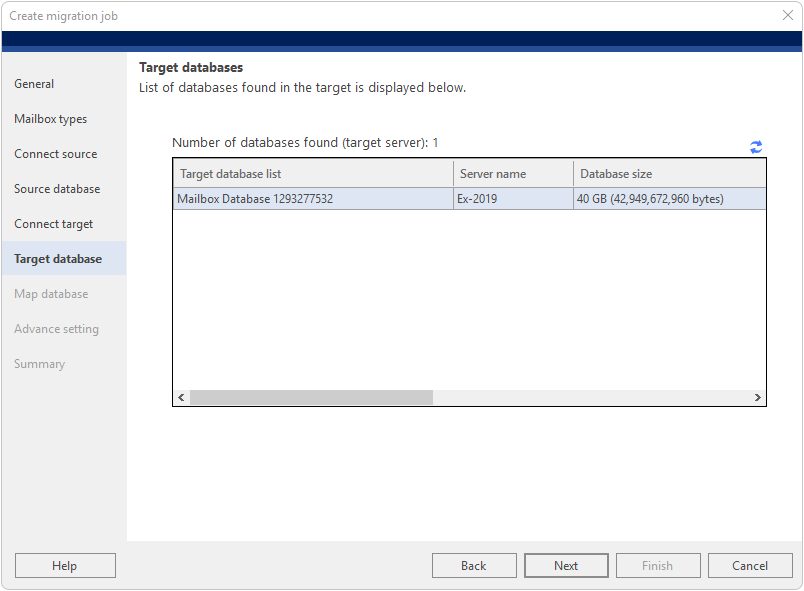
Target Databases
The software automatically discovers and displays all mailbox databases found on the target Exchange Server 2019. Verify that the destination database is available and has sufficient storage space to accommodate the migrated data.
In this example, Mailbox Database 1293277532 is found on Ex-2019 with a size of 40 GB. Click Next to proceed
Step 12
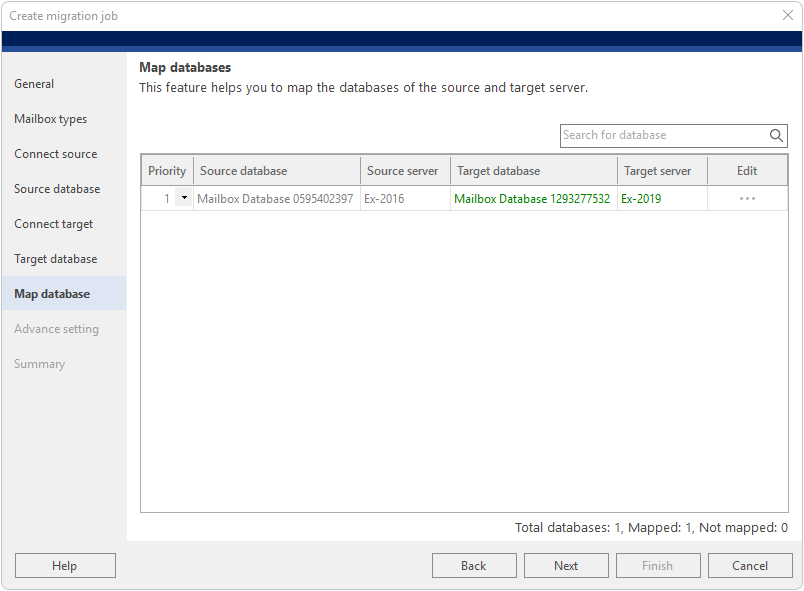
Map Databases
The software maps the source database (Exchange Server 2016) to the target database (Exchange Server 2019). The mapping screen displays the source database alongside the available target databases for pairing.
Review the mapping to ensure the correct source and target databases are paired. If the auto-mapping is incorrect, use the dropdown to select the correct target database for each source database. Click Next once all databases are correctly mapped.
Step 13
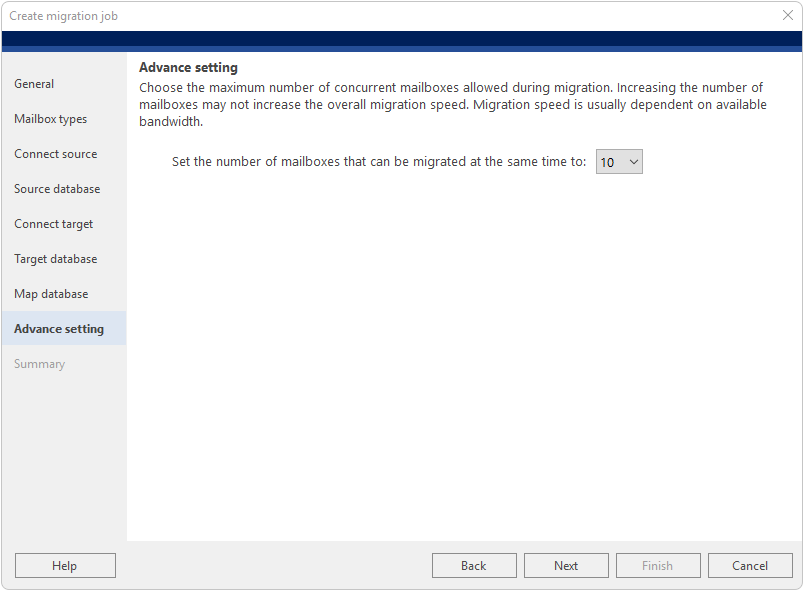
Advance Setting
Configure the maximum number of concurrent mailboxes allowed during migration. This setting controls how many mailboxes are migrated simultaneously.
Note that increasing the concurrency does not necessarily improve overall migration speed — performance is primarily dependent on available network bandwidth and server load. The default value is 10 concurrent mailboxes. Adjust as required and click Next to proceed.
Step 14
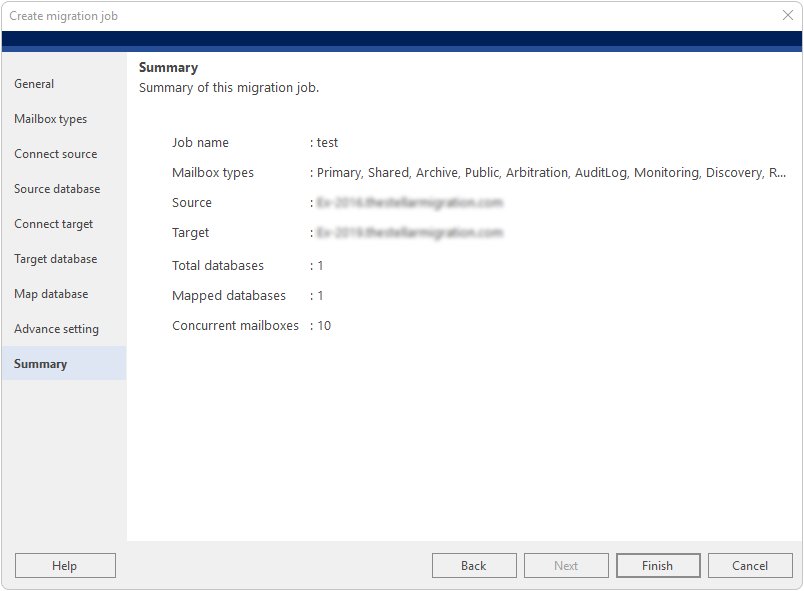
Summary
Review the complete migration job summary before finishing. The summary screen displays all configured settings for the job:
• Job name • Mailbox types selected (Primary, Shared, Archive, Public, Arbitration, AuditLog, Monitoring, Discovery, Resource) • Source server — Ex-2016.thestellarmigration.com • Target server — Ex-2019.thestellarmigration.com • Total databases and Mapped databases • Concurrent mailboxes setting
If any setting requires correction, click the relevant section in the left panel to go back and edit it. Once satisfied, click Finish to create the migration job.
Step 15
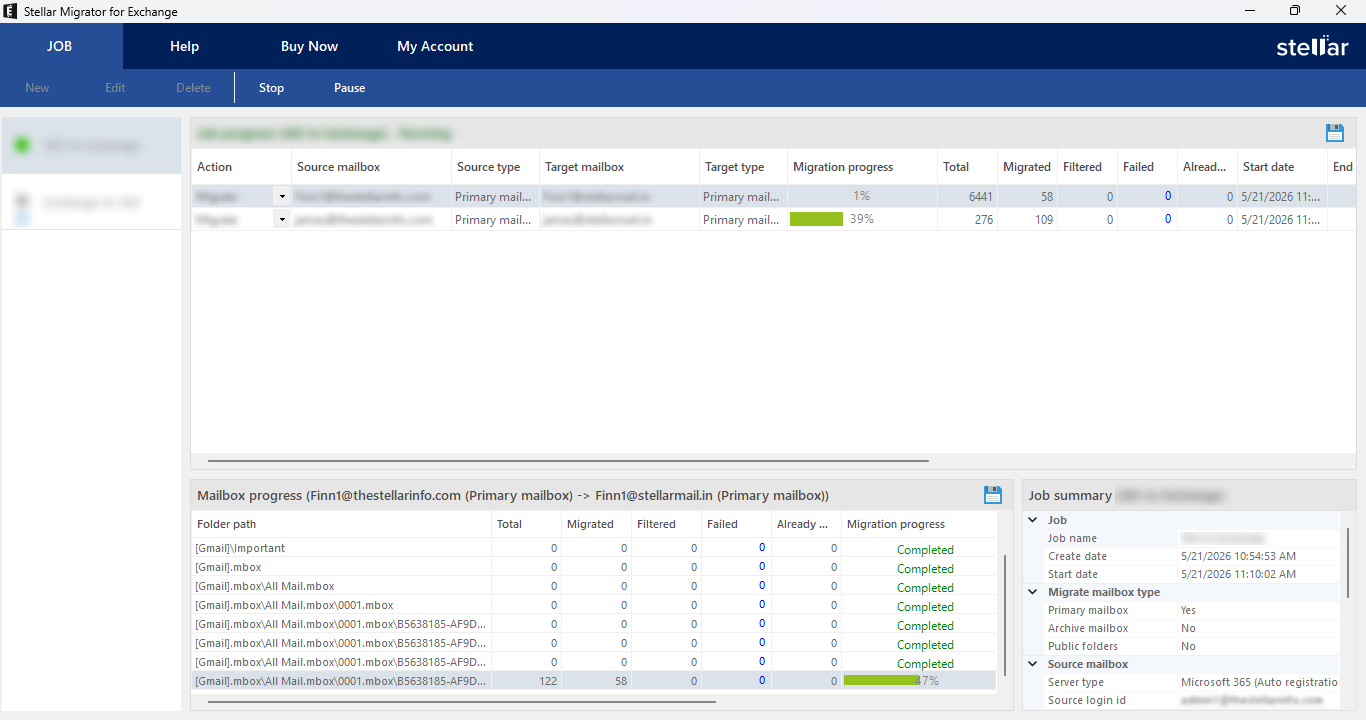
Initiate Migration
After clicking Finish to create the job, the job will appear in the jobs list. Click Start in the JOB ribbon at the top to begin the migration process.
The migration dashboard shows real-time Job Progress with the following columns:
• Action — current operation (Migrate / Don’t Migrate) • Source mailbox — the mailbox being migrated from • Target mailbox — the mailbox being migrated to • Migration progress (%) — percentage completion • Total items, Migrated, Filtered, and Failed counts • Start date — when the mailbox migration began
The Mailbox Progress panel at the bottom shows folder-level detail for each mailbox being processed. You can Pause or Stop the migration at any time using the buttons in the JOB ribbon.
Step 16
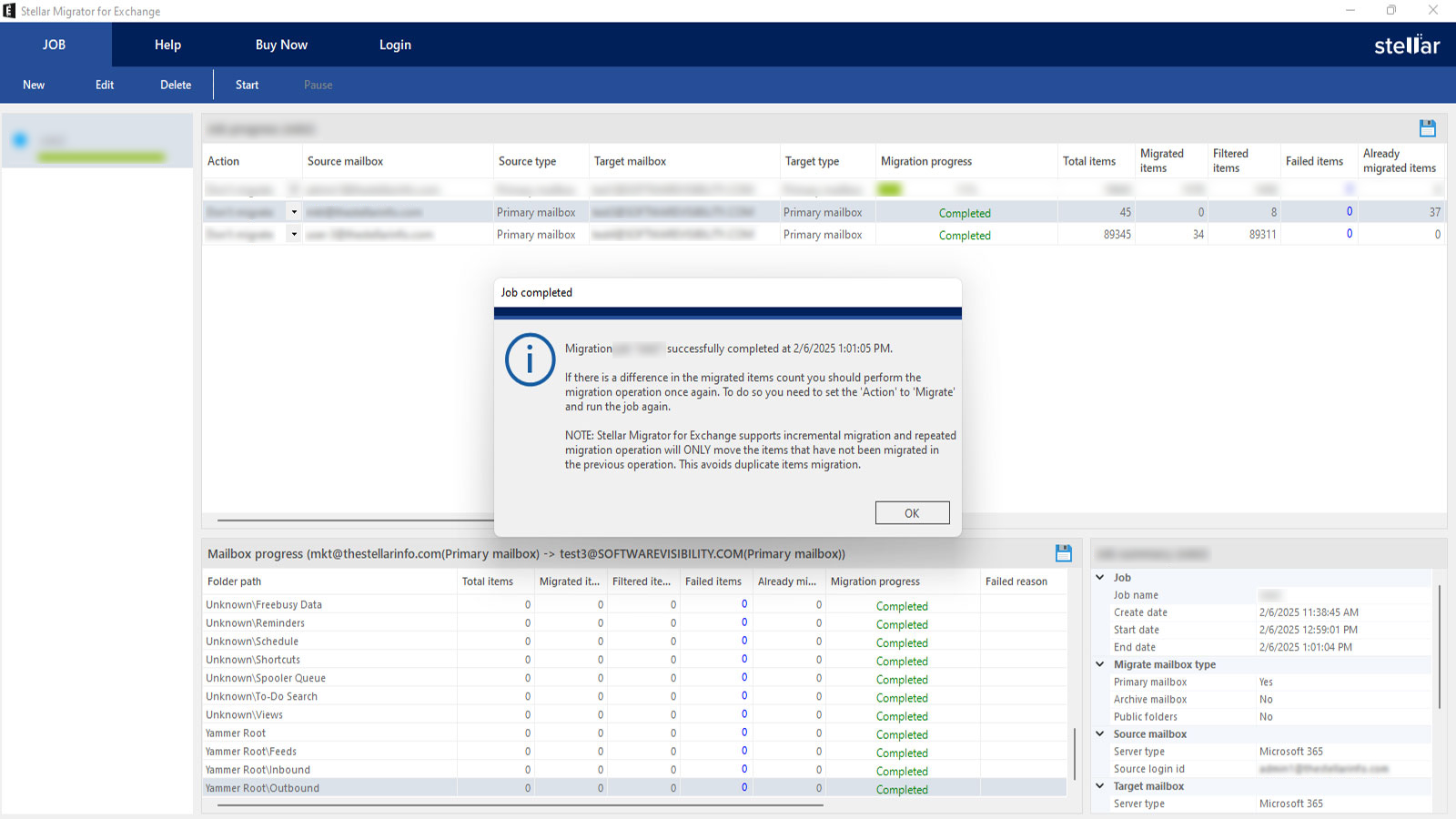
Migration Completed
After completing the migration, the Action field in the Job Progress section will change from ‘Migrate’ to ‘Don’t Migrate’, indicating the job has finished successfully.
If any mailbox fails to migrate, it will remain in the ‘Migrate’ state, allowing you to retry the failed mailboxes without reconfiguring the entire job. Review the progress report to identify and address any failures before re-running the job.
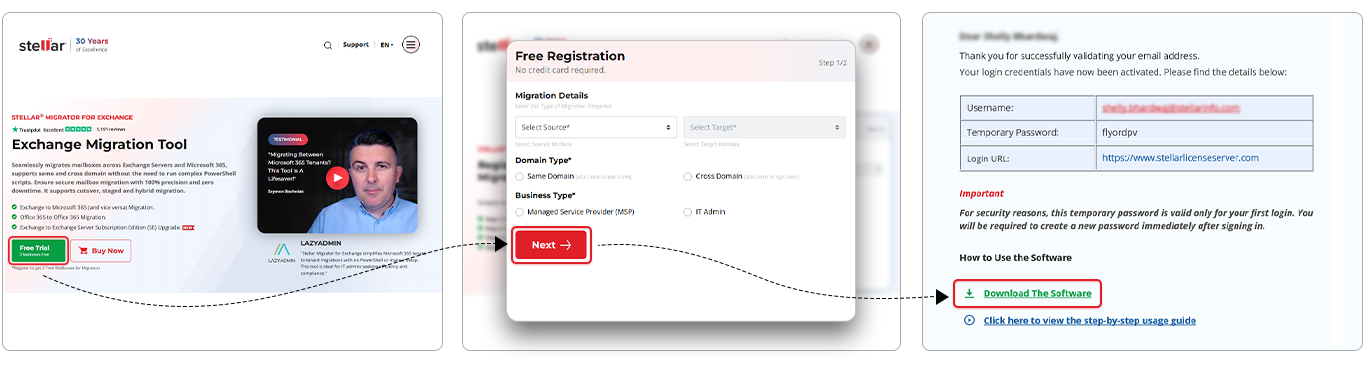
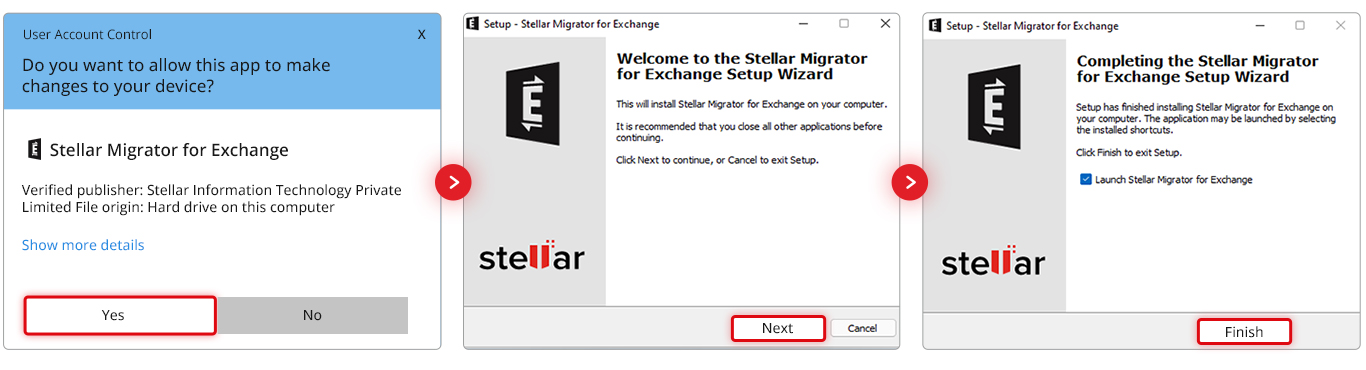
Welcome! If you're here, you've likely registered through the Stellar Migrator for Exchange website and received an email containing your login credentials. This email includes a download link for the Stellar Migrator for Exchange software (EXE) and access details for the Licensing Portal (stellarlicenseserver.com). To get started, click on the download link provided in the email or access it directly from the Licensing Portal.
Step 2
Install the Software
After downloading the Stellar Migrator for Exchange setup file, run the installer and follow the on-screen instructions to complete the installation. Once installed, launch the software — no additional configuration is required. You're now ready to start your test migration using the 2 free mailbox credits included. The next step is to create your first migration job.
Step 3
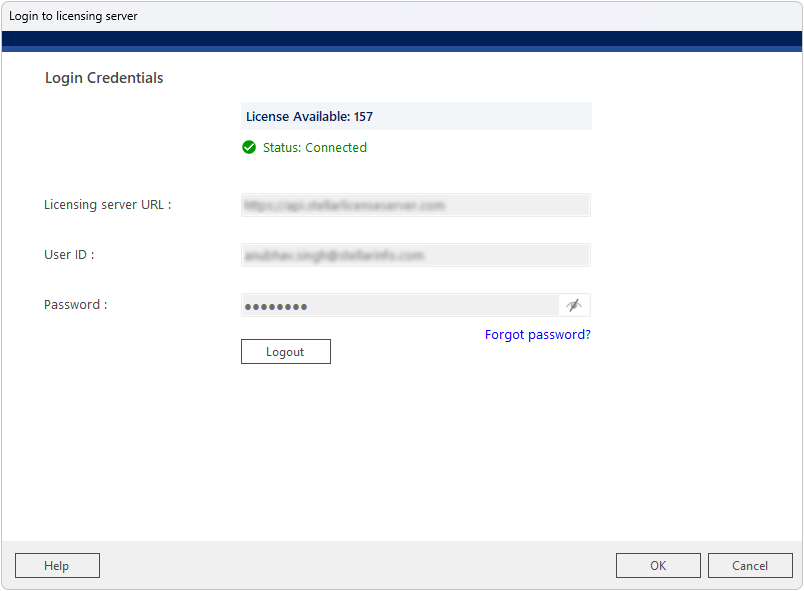
Login to Licensing Server
When prompted, the 'Login to Licensing Server' window will appear. The Licensing Server URL (https://api.stellarlicenseserver.com) is pre-filled. Enter your User ID and Password. The screen displays License Available count and a green 'Status: Connected' indicator once successfully authenticated. Click OK to proceed with the licensed migration.
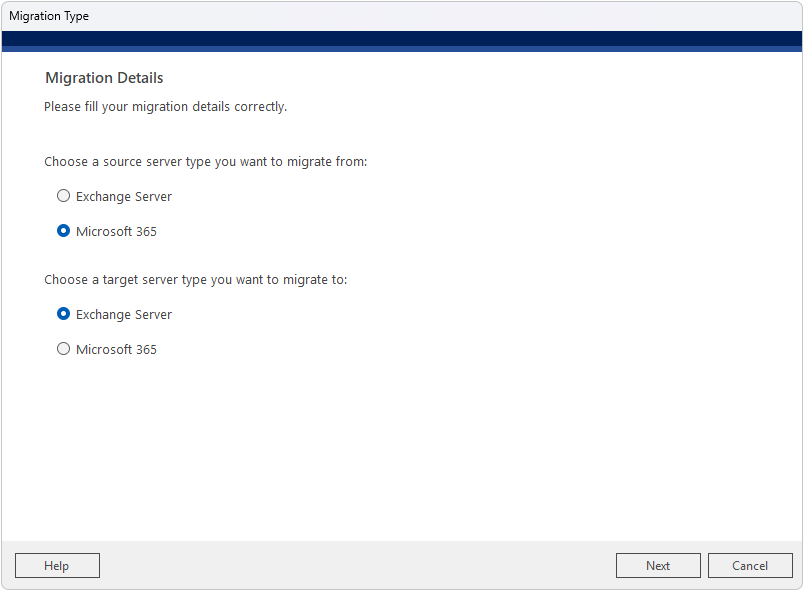
Step 4
Migration Type
When you launch the software and create a new job, the Migration Type screen appears first. Under 'Choose a source server type you want to migrate from', select Microsoft 365. Under 'Choose a target server type you want to migrate to', select Exchange Server. This configures the job as an Office 365 to Exchange Server migration. Click Next to proceed.
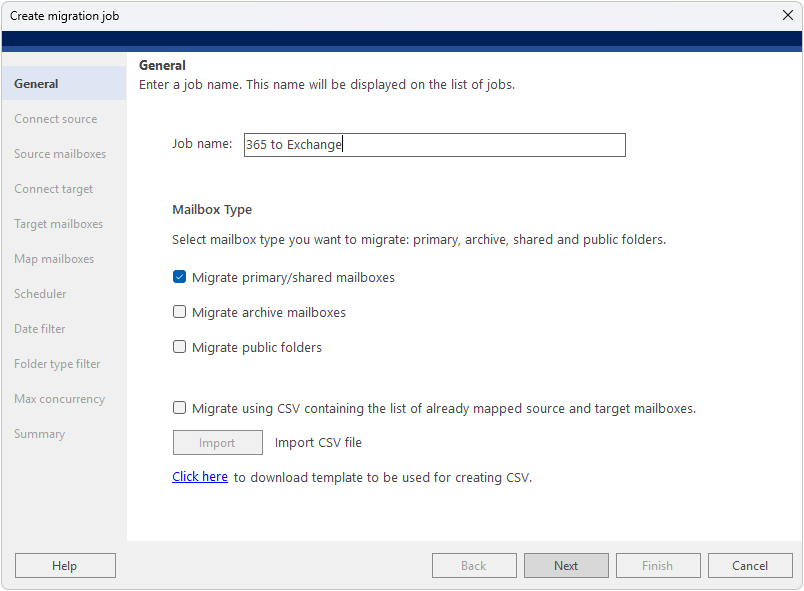
Step 5
General – Create Migration Job
Provide a name for your migration job (for example, '365 to Exchange') — this name will be displayed on the list of jobs. Then select the mailbox type(s) you want to migrate: primary/shared mailboxes, archive mailboxes, or public folders. You can also import a pre-mapped CSV file directly from this screen.
Step 6
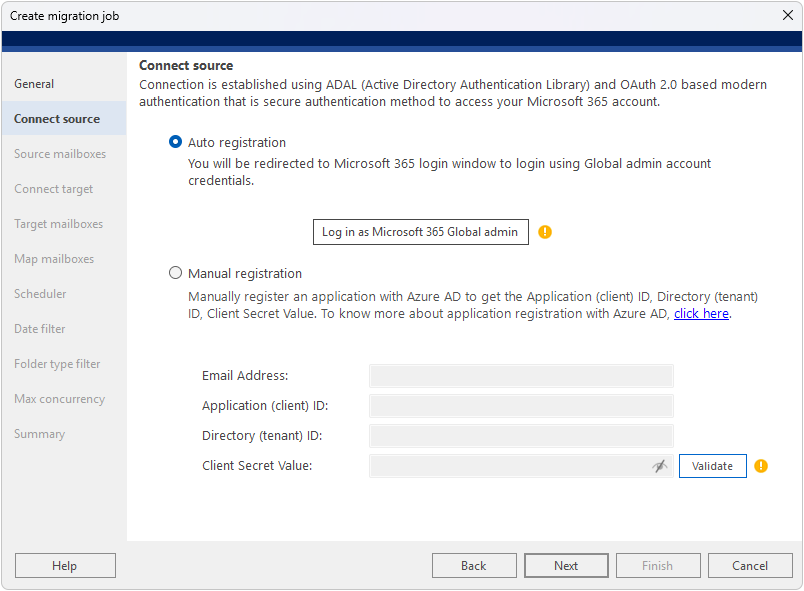
Connect Source
The Connect Source screen provides two registration methods for the source Microsoft 365 tenant: Auto Registration and Manual Registration. With Auto Registration, click “Log in as Microsoft 365 Global admin” to sign in through the Microsoft 365 login window, after which a green checkmark confirms the connection. For Manual Registration, register an application in Azure AD and enter the Email Address, Application (client) ID, Directory (tenant) ID, and Client Secret Value.
Step 7
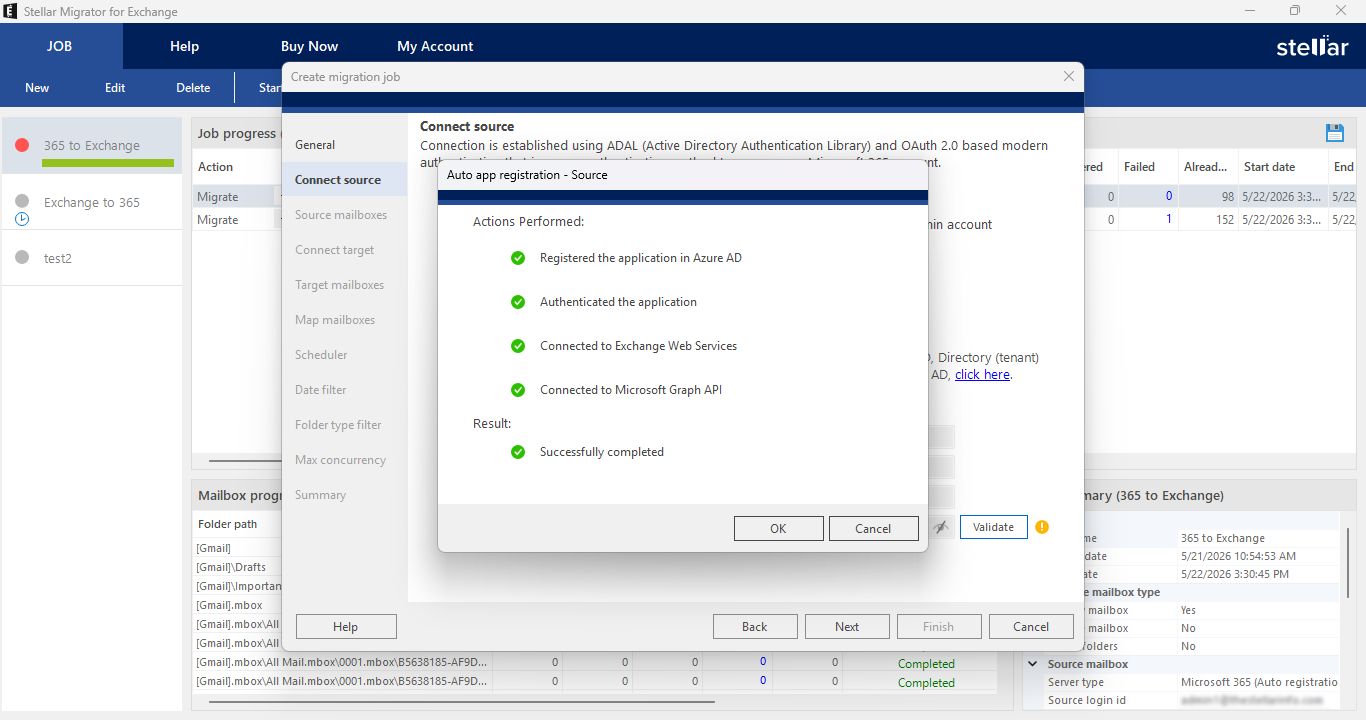
Connect Source – Auto Registration
Once all Auto registration steps finish successfully, the dialog shows green checkmarks for all actions performed: Registered the application in Azure AD, Authenticated the application, Connected to Exchange Web Services, and Connected to Microsoft Graph API. The Result section confirms 'Successfully completed'. Click OK to return to the Connect Source screen.
Step 8
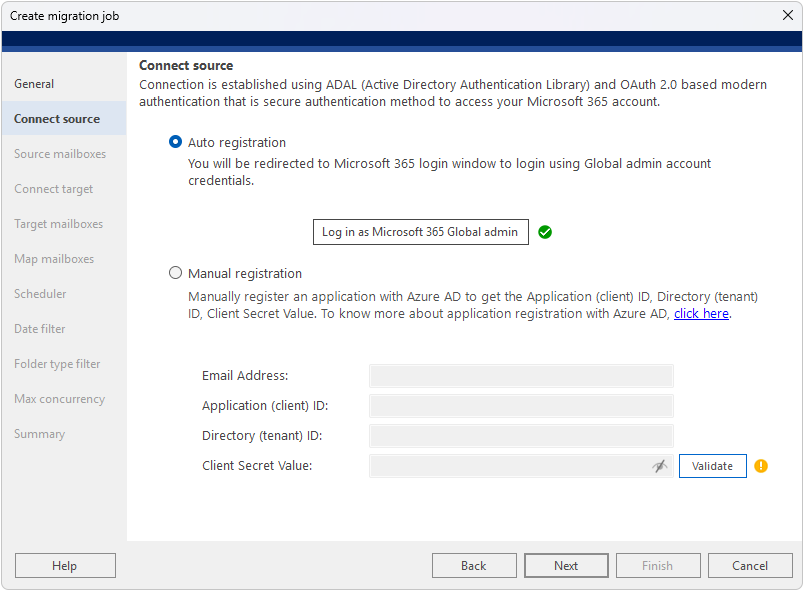
Connect Source – Connection Confirmed
After successful authentication, a green checkmark appears next to the 'Log in as Microsoft 365 Global admin' button, confirming the source Microsoft 365 tenant is connected.
Step 9
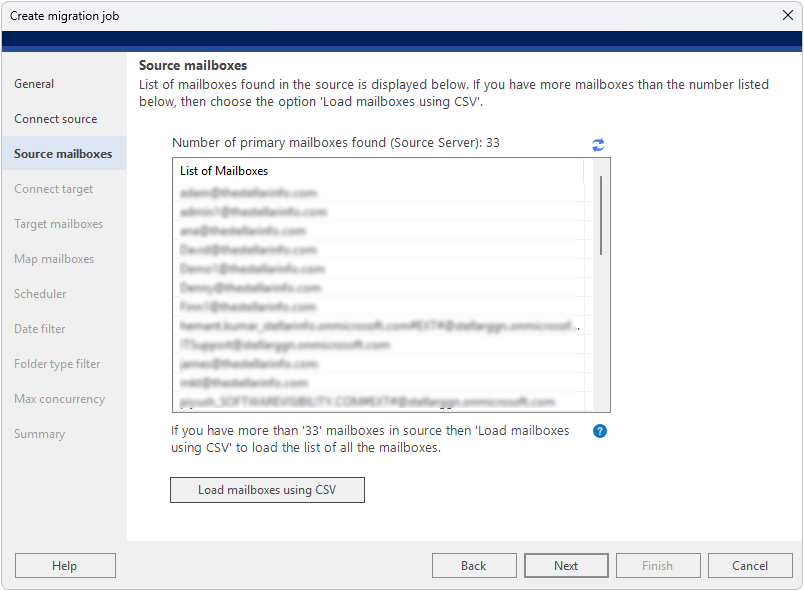
Source Mailboxes
The next screen displays the list of mailboxes found in the source Microsoft 365 tenant. Review the list to confirm all required source mailboxes are present. If you have more mailboxes than the number listed, use the 'Load Mailboxes Using CSV' option and upload a CSV file containing all mailbox addresses.
Step 10
Connect Target
Connect the software to the target Exchange Server. Enable 'Use Autodiscover Email' and enter the Email address and Password — the software will automatically locate and connect to the target server. Alternatively, uncheck Autodiscover and manually enter the IP address/FQDN, Email address, and Password. Click Validate to confirm the connection.
Note: Impersonate Rights are mandatory for the email address used to connect to the Exchange Server.
Step 11
Target Mailboxes
The next screen displays the list of mailboxes found in the target Exchange Server. Review the list to ensure all destination mailboxes are available for mapping. If you have more mailboxes than the number listed, use the 'Load Mailboxes Using CSV' option to load the complete list.
Step 12
Map Mailboxes
The software automatically maps source and target mailboxes by comparing their email addresses. Mailboxes that are successfully matched appear in green; unmatched mailboxes are marked 'Not Mapped' in red. Use the Edit (…) button to manually map any unmatched mailboxes. The status bar at the bottom shows Total mailboxes, Mapped count, and Not mapped count.
Step 13
Scheduler
Configure when the migration job should run. Choose 'Run manually' to start migration on demand, or select 'Schedule job' and click the Scheduler button to set the frequency (Run once, Daily, Weekly, or Monthly), start and end times, and duration. The Description field at the bottom previews the configured schedule. Use the Scheduler dialog to set the exact frequency, occurrence times, start date, and optional end date for the migration run.
Step 14
Date Filter
Apply a date filter to control which mail items are migrated (applies to mail items only). Options include: Migrate all items, Migrate items older than a specific date, Migrate items not older than a specific date, or Migrate only items from a specific date range. This helps reduce migration scope when needed.
Step 15
Folder Type Filter
Select the folder types to include in the migration. Available folder types are: Emails, Contacts, Calendars, Tasks, Notes, and Journals. Special folders include Junk Email, Deleted Items, and Drafts. All are selected by default. Uncheck any folders you want to exclude to ensure only the required data is migrated.
Step 16
Max Concurrency
Configure migration speed and resilience. Set the number of Concurrent mailbox migration threads (5 recommended), Concurrent item migration threads per mailbox (5 recommended), and the number of retry attempts in case of network failure (default: 2). Migration speed depends on system configuration, network speed, and source and destination server performance.
Step 17
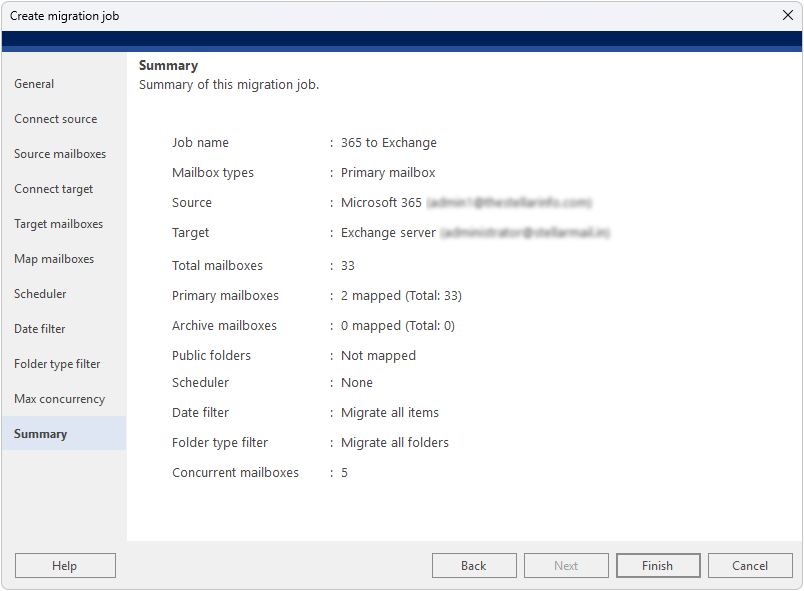
Summary
Review the complete job summary before starting migration. The summary displays: Job name, Mailbox types, Source server (Microsoft 365), Target server (Exchange Server), Total mailboxes, Mapped counts for primary/archive mailboxes and public folders, Scheduler setting, Date filter, Folder type filter, and Concurrent mailboxes. If any setting needs correction, click the relevant section in the left panel to go back and edit it. Click Finish to create the migration job.
Step 18
Initiate Migration
After clicking Finish to create the job, click Start in the JOB ribbon at the top to begin the migration process. The migration dashboard shows real-time Job Progress with columns for Action, Source mailbox, Target mailbox, Migration progress (%), Total items, Migrated, Filtered, Failed, and Start date. The Mailbox Progress panel at the bottom shows folder-level detail. You can Pause or Stop the migration at any time using the buttons in the JOB ribbon.
Step 19
Migration Completed
After completing the migration, the action field in the job progress section will change from Migrate to Don't Migrate. If the job fails to migrate, it will remain in the Migrate state, allowing you to attempt the migration again without making repeated changes.
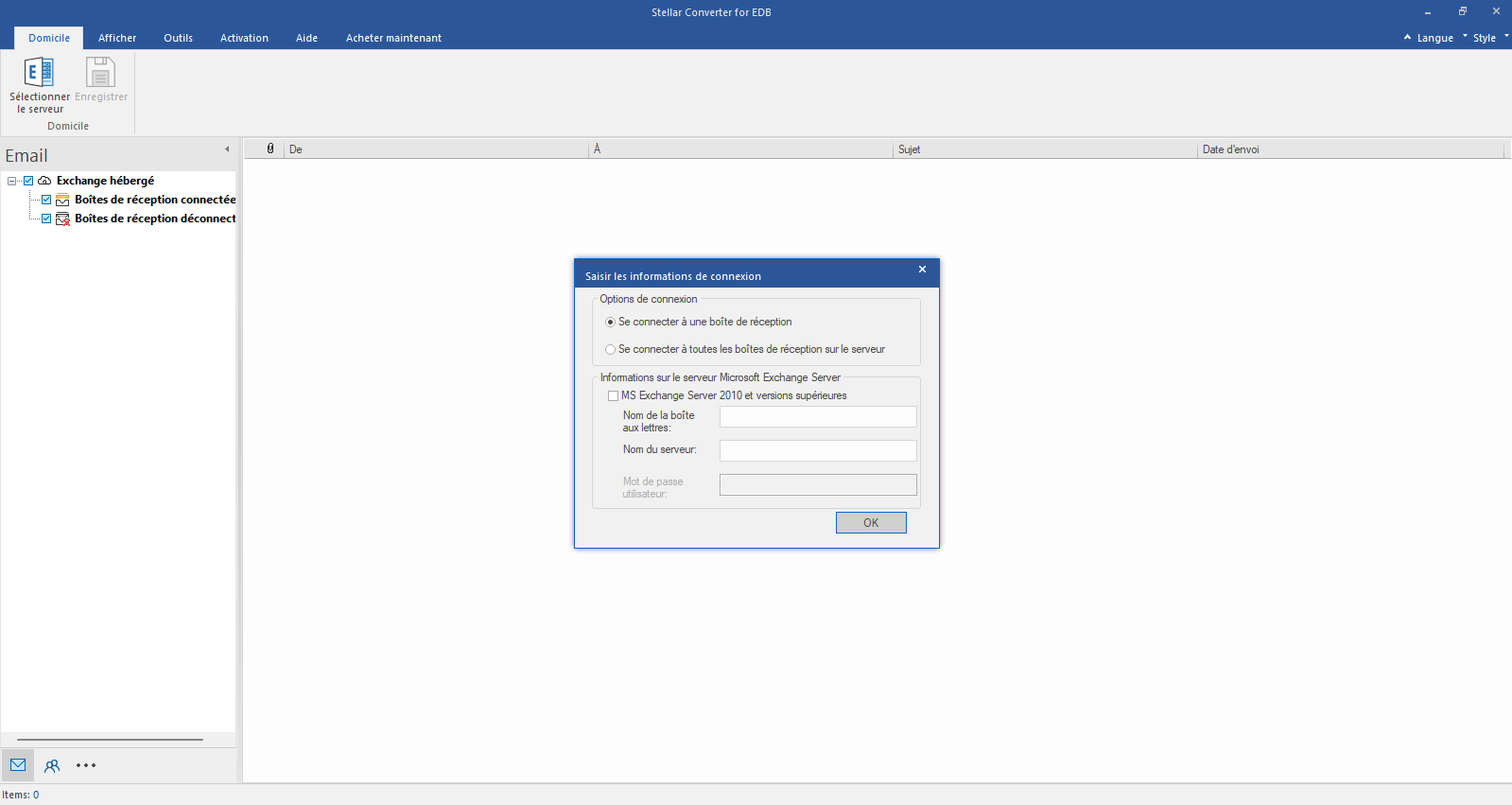
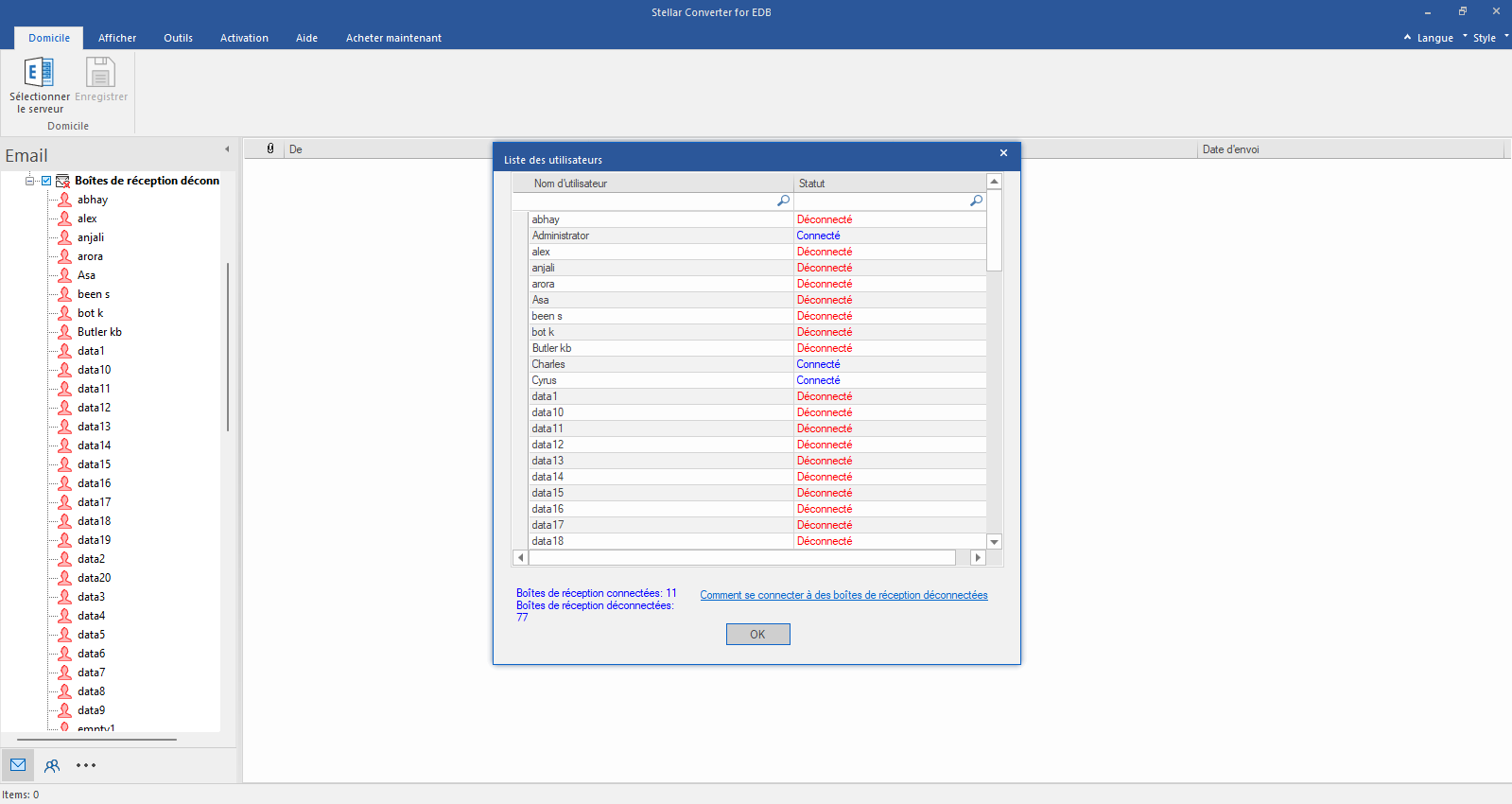
Sélectionnez Hosted Exchange et entrez vos données de connexion.
Sélectionnez Hosted Exchange pour exporter des boîtes aux lettres à partir d'un fichier EDB en ligne. Sélectionnez Connecter à une seule boîte aux lettres ou Connecter à une seule boîte aux lettres dans les options de connexion.
Étape 2
Saisissez l'adresse électronique de l'administrateur et le nom du serveur
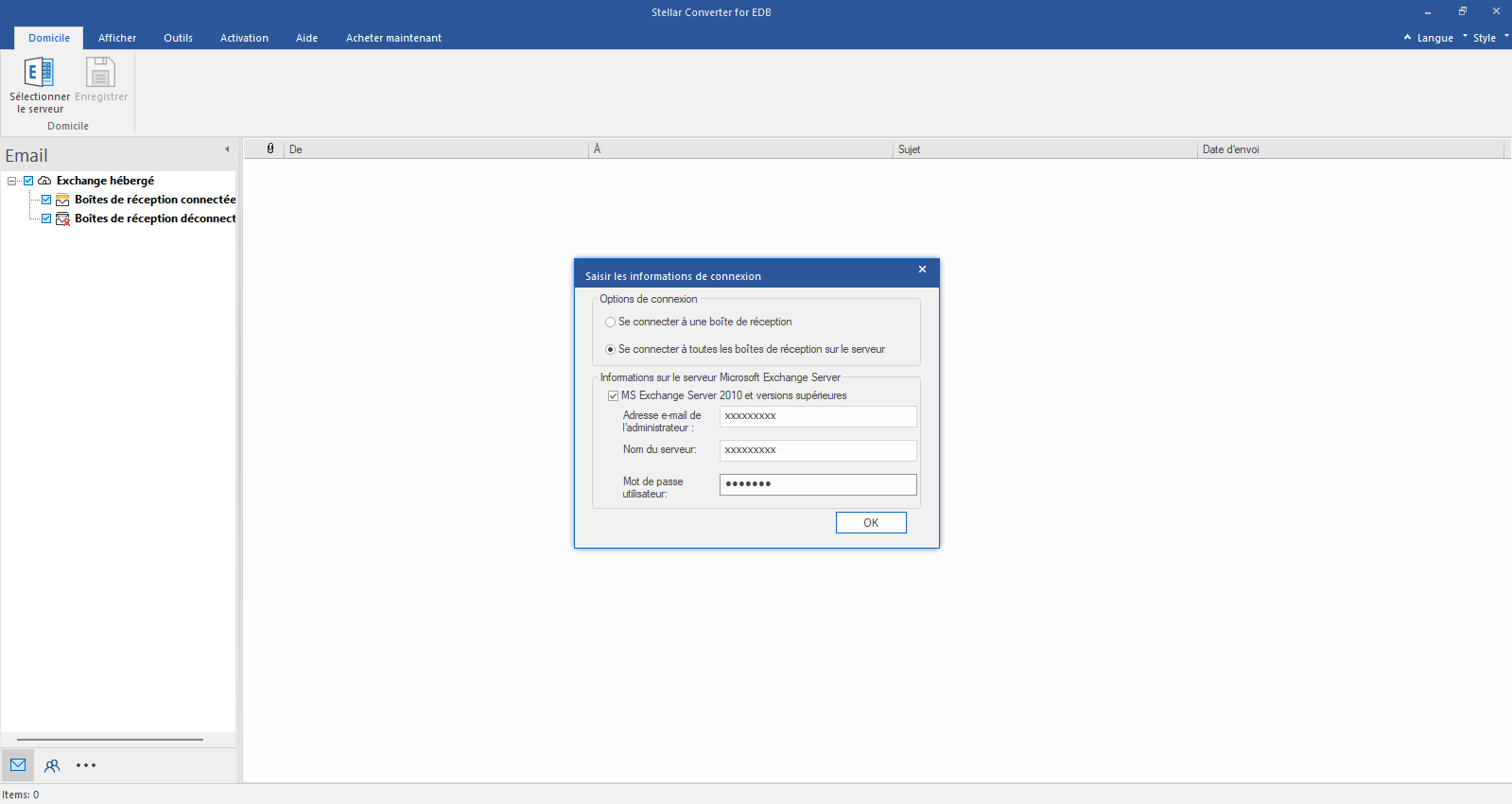
Saisissez le courriel de l'administrateur et le nom du serveur (pour Exchange 5.5, 2000, 2003, 2007) ou cochez la case "Exchange Server 2010 and higher" pour saisir le courriel de l'administrateur, le nom du serveur et le mot de passe (pour MS Exchange 2010, 2013, 2016 et 2019). Cliquez sur OK.
Étape 3
Vérifier l'état de la boîte aux lettres connectée/déconnectée
Une fois la connexion à Exchange Server établie, une liste des boîtes aux lettres connectées et déconnectées s'affiche dans la fenêtre suivante. Cliquez sur "OK" pour continuer.
Étape 4
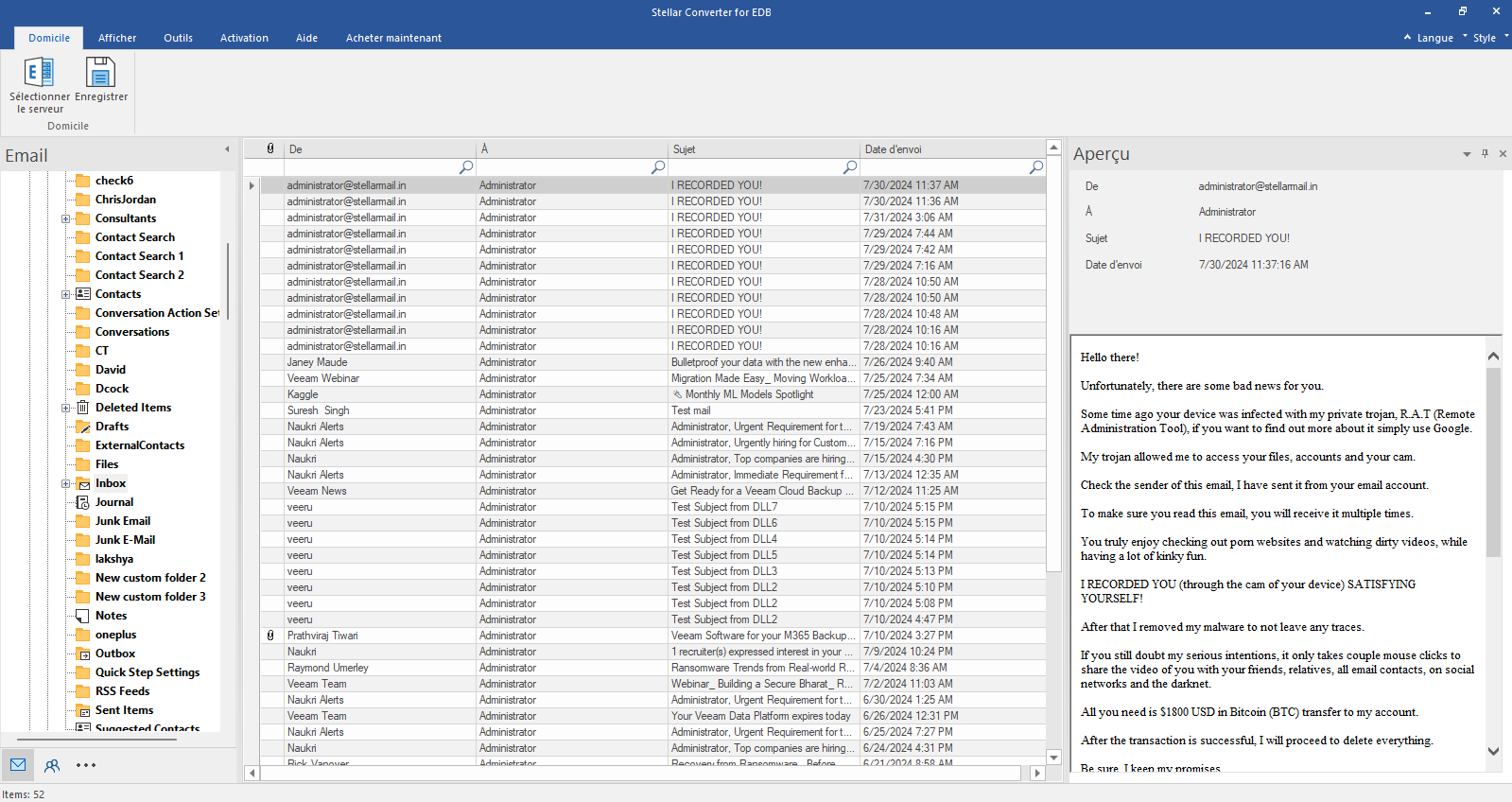
Vérifier l'aperçu de toutes les boîtes aux lettres
Vérifiez l'aperçu de toutes les boîtes aux lettres - courriels, calendrier, contacts, etc.
Étape 5
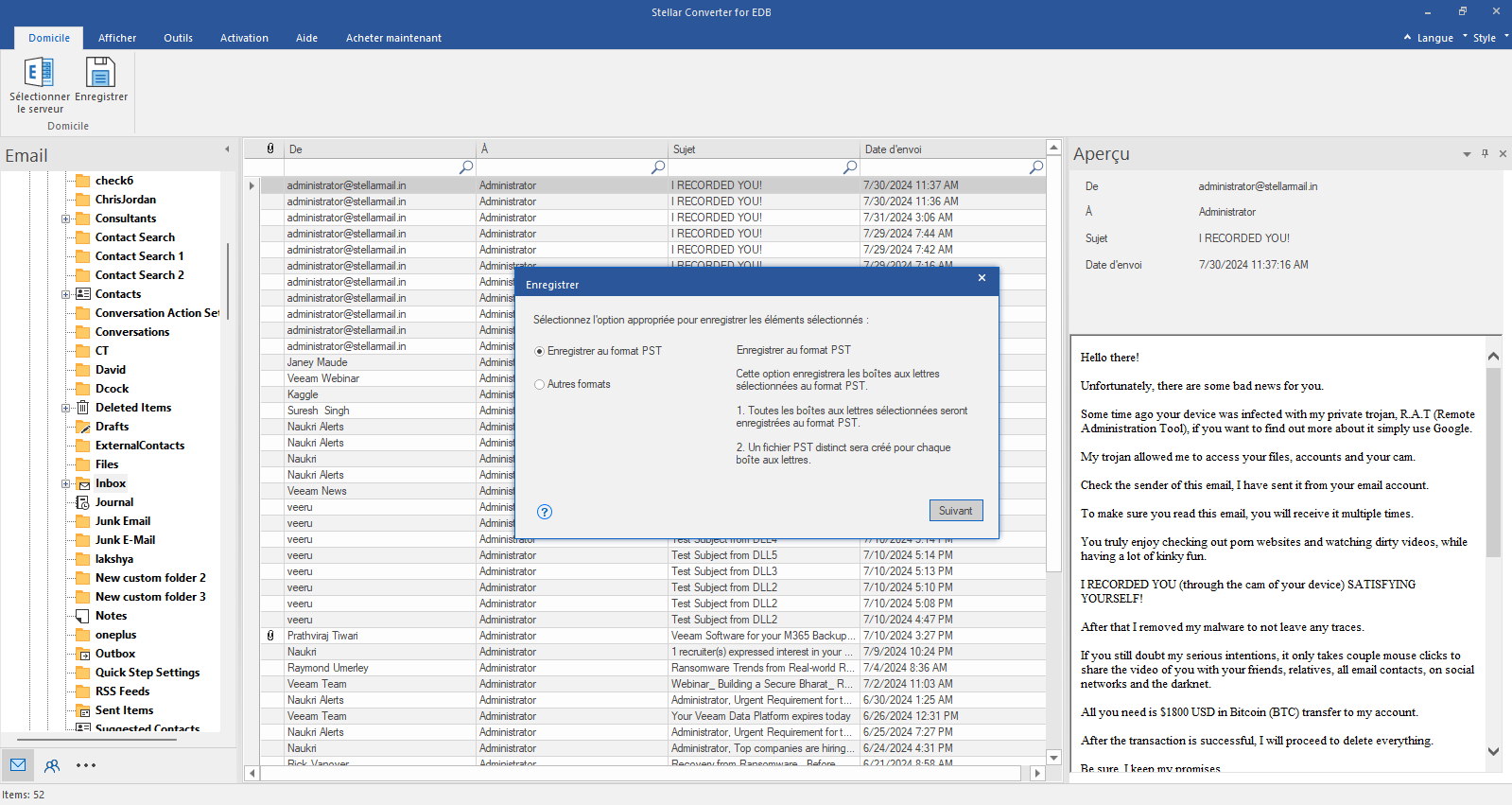
Sélectionnez "Enregistrer sous PST".
Cliquez sur Enregistrer dans le ruban Démarrer et sélectionnez l'option Enregistrer sous PST. Cliquez sur "Suivant" pour continuer.
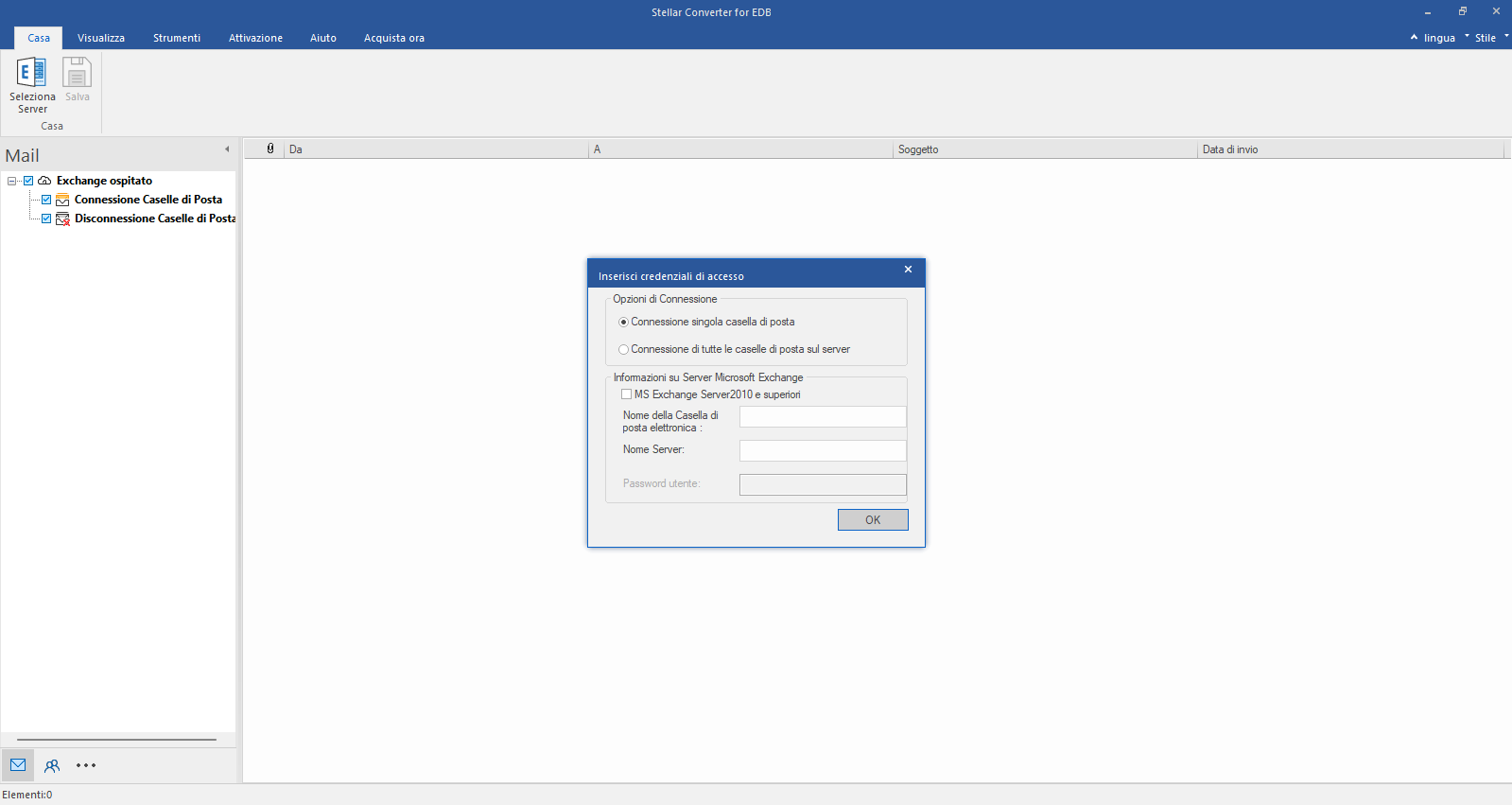
Selezioni Hosted Exchange e inserisca i suoi dati di accesso.
Selezioni Hosted Exchange per esportare le caselle postali da un file EDB online. Selezioni Connetti a una singola casella postale o Connetti a una singola casella postale dalle opzioni di connessione.
Passo 2
Inserisca l'e-mail dell'amministratore e il nome del server
Inserisca il nome dell'amministratore e del server (per Exchange 5.5, 2000, 2003, 2007) o selezioni la casella di controllo "Exchange Server 2010 e superiore" per inserire l'e-mail dell'amministratore, il nome del server e la password (per MS Exchange 2010, 2013, 2016 e 2019). Clicchi su OK.
Passo 3
Controlli lo stato della mailbox collegata/disconnessa.
Una volta stabilita la connessione a Exchange Server, nella finestra successiva viene visualizzato un elenco di caselle postali collegate e scollegate. Clicchi su "OK" per continuare.
Passo 4
Controlli l'anteprima di tutte le cassette postali
Controlli l'anteprima di tutte le caselle di posta elettronica - e-mail, calendario, contatti, ecc.
Passo 5
Selezionare "Salva come PST".
Clicchi su Salva nella barra multifunzione Avvio e selezioni l'opzione Salva come PST. Clicchi su "Avanti" per continuare.
Seleccione Hosted Exchange e introduzca sus datos de acceso.
Seleccione Hosted Exchange para exportar buzones desde un archivo EDB en línea. Seleccione Conectarse a un único buzón o Conectarse a un único buzón en las opciones de conexión.
Paso 2
Introduzca el correo electrónico del administrador y el nombre del servidor
Introduzca el correo electrónico del administrador y el nombre del servidor (para Exchange 5.5, 2000, 2003, 2007) o marque la casilla "Exchange Server 2010 y superior" para introducir el correo electrónico del administrador, el nombre del servidor y la contraseña (para MS Exchange 2010, 2013, 2016 y 2019). Haga clic en Aceptar.
Paso 3
Comprobar el estado del buzón conectado/desconectado
Una vez establecida la conexión con Exchange Server, en la siguiente ventana aparecerá una lista de los buzones conectados y desconectados. Haga clic en "Aceptar" para continuar.
Paso 4
Comprobar la vista previa de todos los buzones
Compruebe la vista previa de todos los buzones: correos electrónicos, calendario, contactos, etc.
Paso 5
Seleccione "Guardar como PST".
Haga clic en Guardar en la cinta Inicio y seleccione la opción Guardar como PST. Haga clic en "Siguiente" para continuar.
Wählen Sie Hosted Exchange und geben Sie Ihre Anmeldedaten ein.
Wählen Sie Hosted Exchange, um Postfächer aus einer Online-EDB-Datei zu exportieren. Wählen Sie Verbinden mit einem einzelnen Postfach oder Verbinden mit einem einzelnen Postfach aus den Verbindungsoptionen
Schritt 2
Admin-E-Mail und Servernamen eingeben
Geben Sie admin und den Servernamen ein (für Exchange 5.5, 2000, 2003, 2007) oder aktivieren Sie das Kontrollkästchen "Exchange Server 2010 und höher", um admin E-Mail, Servernamen und Passwort einzugeben (für MS Exchange 2010, 2013, 2016 und 2019). Klicken Sie auf OK.
Schritt 3
Prüfen Sie den Status der verbundenen/getrennten Mailbox
Sobald die Verbindung zu Exchange Server hergestellt ist, wird im nächsten Fenster eine Liste der verbundenen und nicht verbundenen Postfächer angezeigt. Klicken Sie auf "OK", um fortzufahren.
Schritt 4
Prüfen Sie die Vorschau aller Postfächer
Prüfen Sie die Vorschau aller Postfächer - E-Mails, Kalender, Kontakte, etc.
Schritt 5
Wählen Sie "Als PST speichern".
Klicken Sie im Menüband Start auf Speichern und wählen Sie die Option Als PST speichern. Klicken Sie auf "Weiter", um fortzufahren.
How to Video
PROVARE PRIMA DI ACQUISTARE
Iniziare a usare Stellar Converter for EDB oggi stesso.
 Per gli individuiTorna al menu principale
 Recupero dati
 Riparazione dei file
 Cancellazione dei dati
  Per aziendeTorna al menu principale
 Riparazione via e-mail
 Convertitore di e-mail
 File & Riparazione dei file
  Kit di strumenti
 Servizi di laboratorio
  I nostri partner
  Circa
Circa Risorse
 Supporto
  Contattaci
  Azienda
 Leadership
  Copertura Mediatica
 Comunicati Stampa
 Casi di studio
 Blogs
Blogs  Articoli
  Video
Video 
 Installation




