After creating the migration batch to migrate public folders from on-premises Exchange Server to Exchange Online (Microsoft 365), you run the Complete-MigrationBatch command to complete the migration. However, you notice that the migration batch has failed. When you run the Get-MigrationBatch command, it shows the migration status as Failed.
Get-MigrationBatch
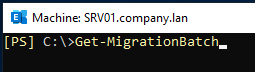
So, to get more information on the status message of the migration batch, you run the Get-MigrationBatch command with the FL option.
Get-MigrationBatch <batch name> | FL status.message
This command shows the status as failed with a message similar to the below.
Status: FailedMessage: No active public folder mailboxes were found. This happens when no public folder mailboxes are provisioned, or they are provisioned in 'HoldforMigration' mode.
The error message indicates that the public folder is on hold for migration. This means that there might be an option of the public folder in question or the public folders, which is hindering the migration.
Solutions to Resolve the “No Active Public Folder Mailboxes were Found” Error
Here are some possible solutions to fix the “No active public folder mailboxes were found” error in Exchange.
1. Check if Hold is Setup
You can check if the hold is setup. For this, run the Get-OrganizationConfig command in the Exchange Management Shell (EMS) as given below.
Get-OrganizationConfig | Select-Object PublicFoldersLockedForMigration, PublicFolderMigrationComplete

If the result is true, then it means there is a previous failed migration of public folder. So, you need to set the above option to false. For this, use the Set-OrganizationConfig command as given below:
Set-OrganizationConfig -PublicFoldersLockedForMigration:$false -PublicFolderMigrationComplete:$false

After the command is complete, you can re-run the migration batch and then use the Complete-MigrationBatch command to see if the issue is resolved.
2. Move the AD Account
If you have a setup with multiple Active Directory domains and you’re migrating public folder mailboxes, then both the public folder and the user must reside in the same Active Directory Forest. You may encounter the error if the public folder mailbox and the associated user account with the public folder mailbox are not in the same Active Directory. For example, the public folder mailbox is in the primary Active Directory Forest and the associated user account is in one of the child domains.
To resolve the issue, you can move the Active Directory account associated with the public folder mailbox to the same Active Directory domain. To do so, you can use the Active Directory Migration Tool (ADMT). Here’s how:
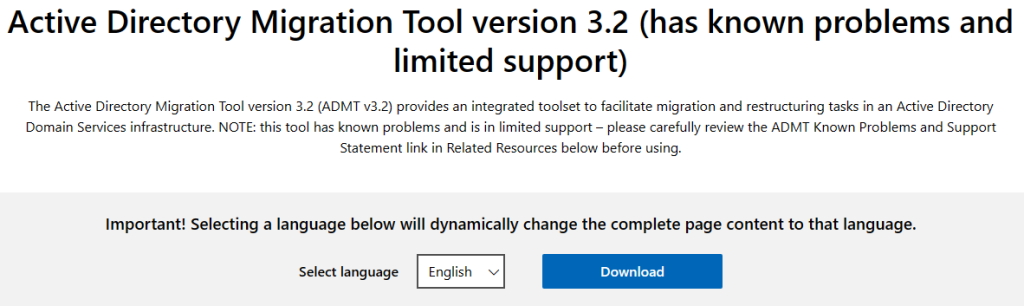
- Once downloaded, open the setup file – admtsetup32.exe.
- On the main screen, click Next.
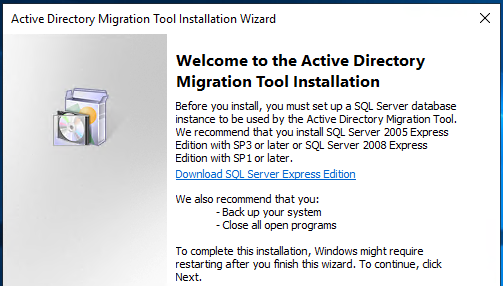
- Click on I agree on the License Agreement and click Next.
- Click Next. After the installation is complete, open the tool and migrate the Active Directory user from the child forest to the root forest or the child forest where the public folder mailbox resides.
Once this is done, re-run the Complete-MigrationBatch command to see if the issue is resolved.
Alternatively, you can use the Move-ADObject PowerShell command to move the active directory from one domain to another (see the example below).
Move-ADObject -Identity "<user distinguished name>" -TargetPath "<ou distinguished name>" -TargetServer "<Target-Domain-RID-master>" -Server "<Local-Domain-RID-master>"

An Alternative Solution to Migrate Public Folders
It is common to encounter issues and errors during Exchange migration. To avoid such challenges and streamline the migration process, you can use a specialized tool like Stellar Migrator for Exchange. This tool facilitates the smooth migration of user mailboxes, archive mailboxes, and public folders between on-premises Exchange and Office 365 or cross-tenant environments. It supports live migrations with features such as automatic mailbox mapping, concurrent mailbox transfers, and real-time progress tracking. You can also perform delta (incremental) migrations to ensure no data is missed and minimize downtime.
Conclusion
When migrating public folders or mailboxes from on-premises Exchange Server to Microsoft 365, issues like “No active public folder mailboxes were found” can arise. Using Exchange data migration tool like Stellar Migrator for Exchange helps you bypass such errors by automating and simplifying the migration process. The tool offers a reliable and user-friendly solution for transferring Exchange data with complete integrity and minimal administrative effort.
