The transaction replication is a common technique that can be applied between two SQL Servers to replicate the data of two databases. In this, you need to create a snapshot with the replicated database objects (tables, views, etc.) and the changes are replicated later. Sometimes, issues arise during the transaction replication process. Let’s discuss some common issues and errors related to transaction replication and the solutions to fix them.
Common Transaction Replication Errors and Issues
Here, we will discuss a list of errors and issues related to transaction replication and how to fix them.
Issue 1: SQL Server replication requires the actual server name to make a connection to the server. Specify the actual server name.
Solution: This error can occur in both the publisher and the subscriber. When someone changes the computer name, the value is not reflected in SQL Server. So, you need to update the information.
To check the server name, use these sentences:
SELECT @@SERVERNAME
Compare the server’s name with the values of the sys.servers view.
SELECT * FROM sys.servers
If the values do not match, drop the current server’s name using the sp_dropserver stored procedure.
sp_dropserver 'old_server_name';
GO
Also, add the new server’s name using the sp_addserver stored procedure.
sp_addserver 'new_server_name', local;
GO
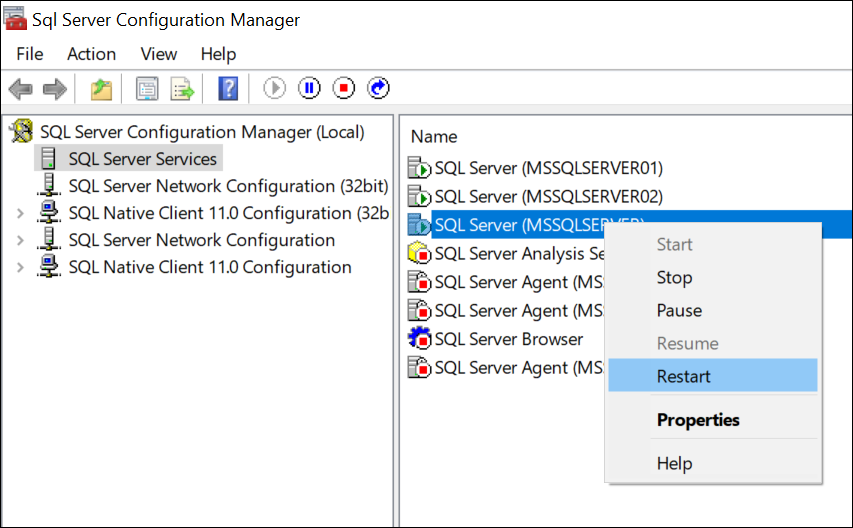
Finally, use the SQL Server Configuration Manager to restart the SQL Server Services.
Issue 2: The replication agent has not logged a progress message in 10 minutes. This might indicate an unresponsive agent or high system activity.
Solution: You need to verify that the records are being replicated to the destination and connections to the Subscriber, Publisher, and Distributor are still active.
If you have several publishers and subscribers, the activity could be high and the replication agent may not respond. You can use the Task Manager to verify the activity and other running processes.
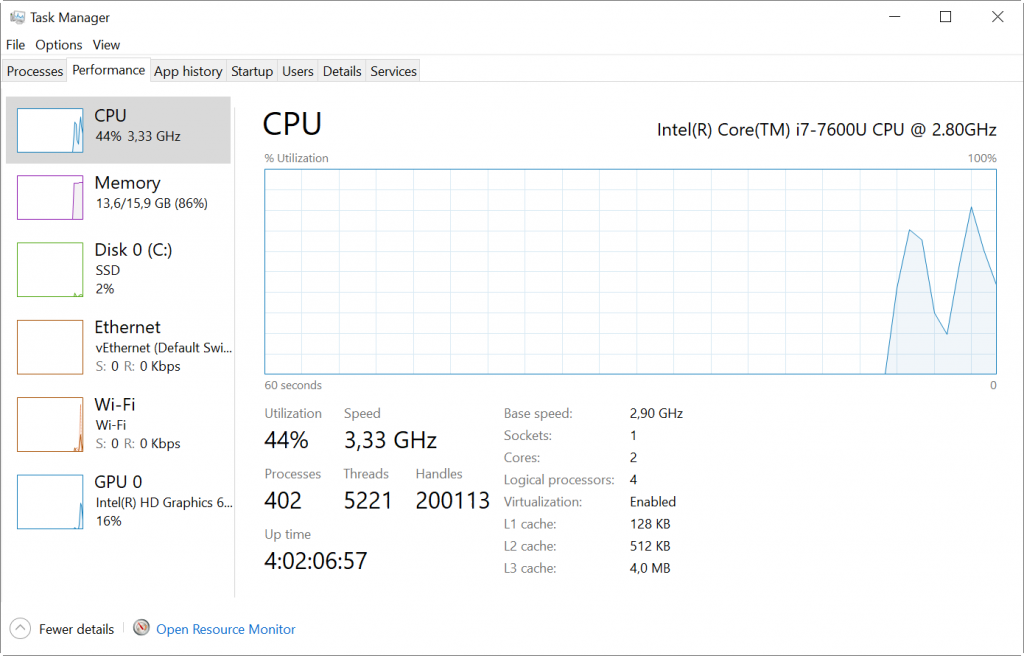
If the CPU, disk, or memory usage is high, check which processes are consuming more resources.
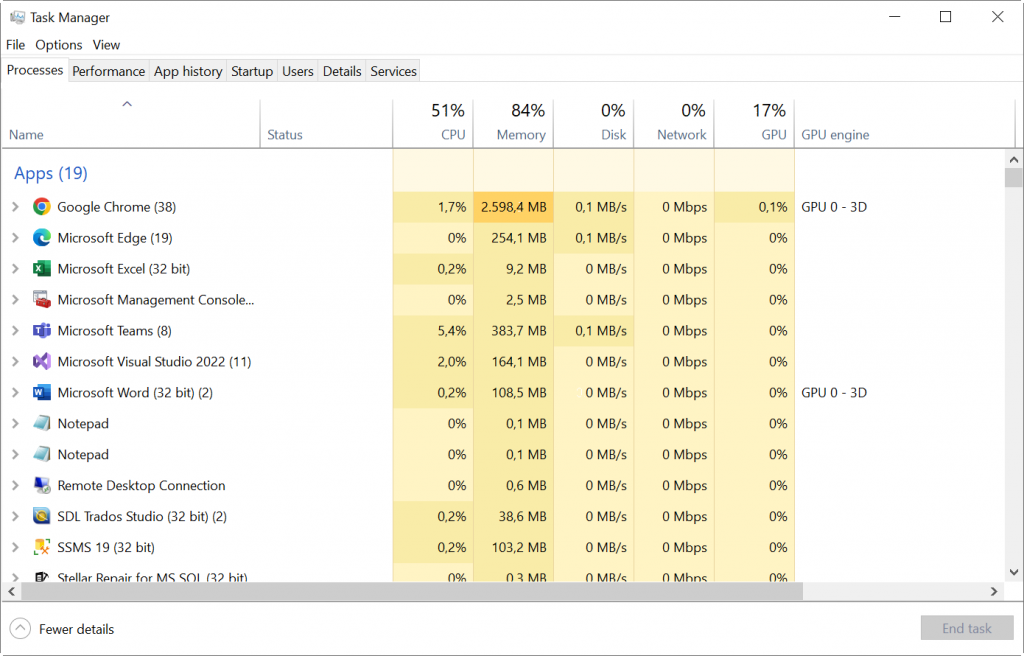
Coordinate with the team and check which processes can be closed.
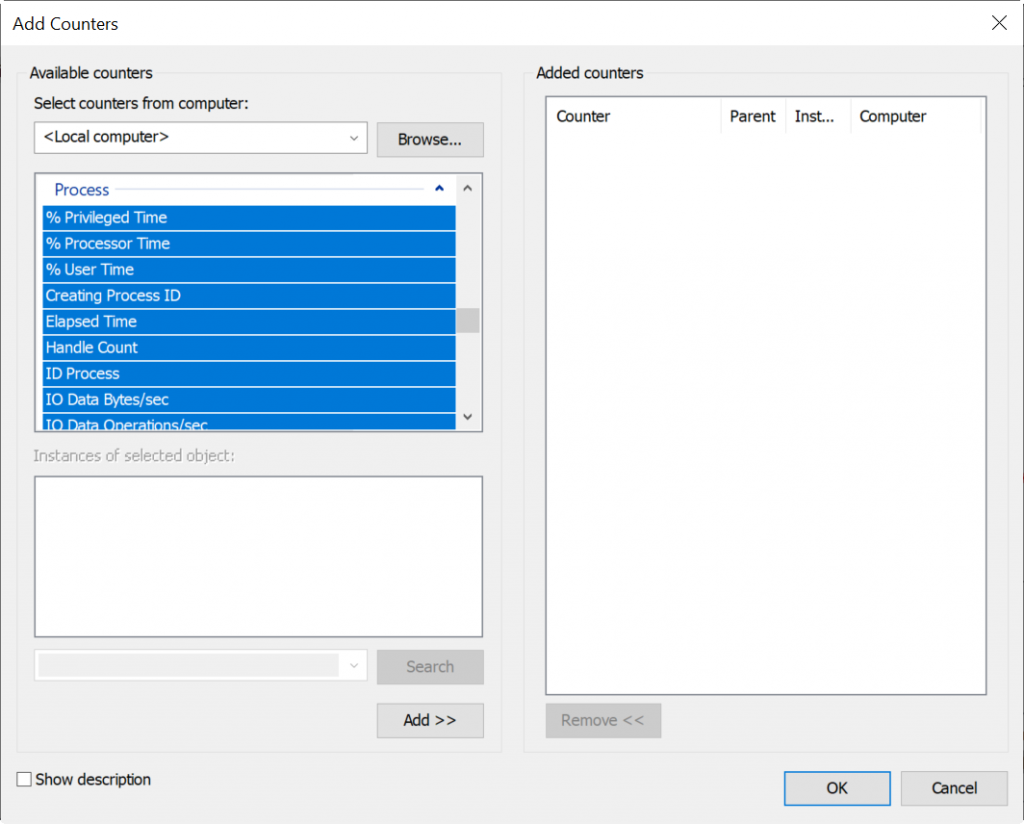
You can also use the Performance Monitor to check different counters of the CPU, memory, and minimize the replication or SQL Server activity.
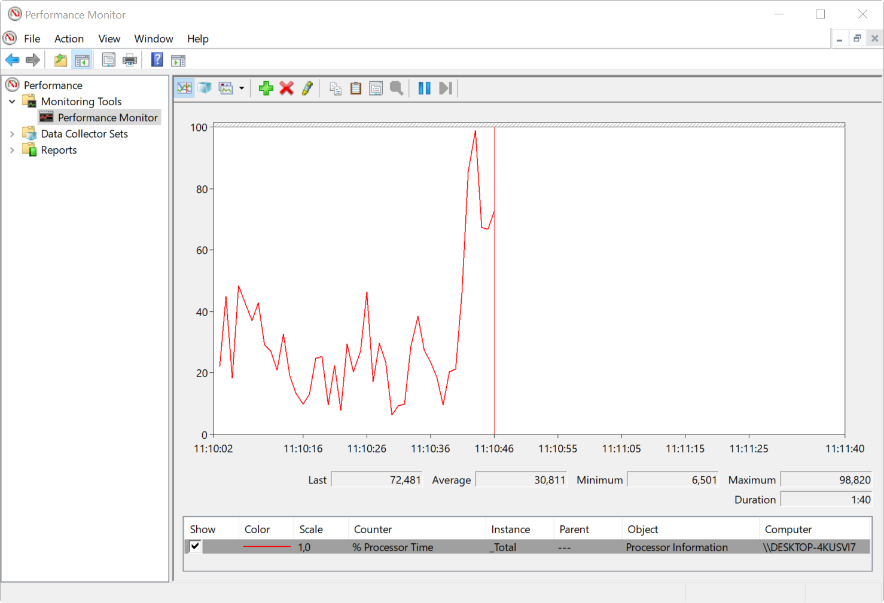
You can add different counters and also monitor them.
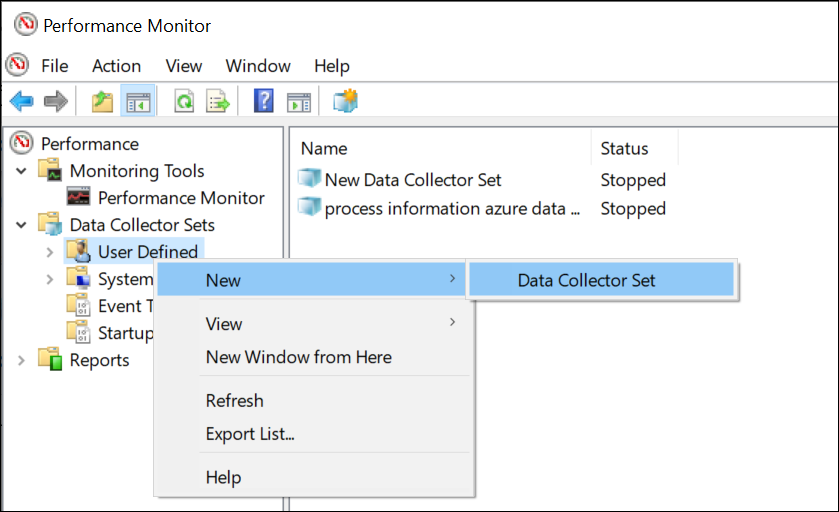
Optionally, you have Data Collector Set to schedule, monitor, and record the counters’ activity.
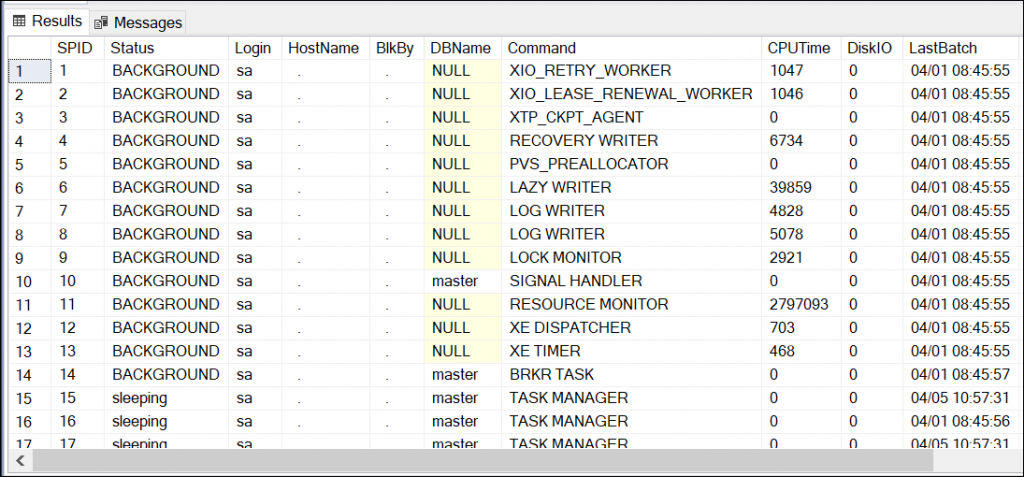
If the problem is inside SQL Server, you can use the sp_who2 to check all the processes running inside SQL Server.
sp_who2
Check the processes that are taking more CPUTime and DiskIO, and coordinate with the users to check which processes need to be stopped.
Also, try to minimize replication usage. Make sure that only the necessary information is being replicated and irrelevant information is excluded.
Issue 3: Error 20598
The common error messages are:
- An UPDATE command cannot be replicated because there is no record that matches the update condition on the subscriber side.
- A DELETE command cannot be replicated because there is no record that matches the update condition on the subscriber side.
Solution: To fix this problem, you need to manually insert the row in the subscriber. Alternatively, you may skip the error to continue.
Issue 4: The Agent is not configured to start automatically.
Solution: The transaction replication depends on the SQL Server Agent, which is why it requires to have the SQL Server Agent Service running.
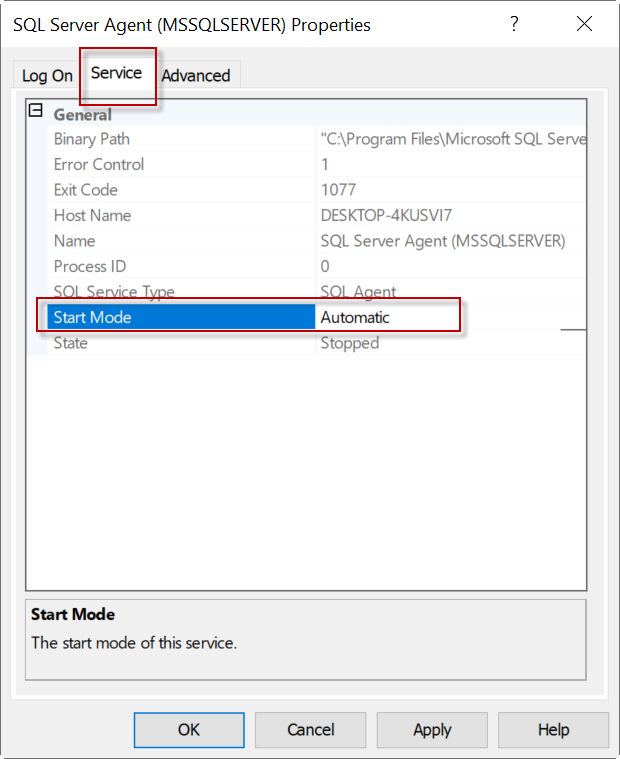
Sometimes, the SQL Server Agent service is set to restart manually. If that is the case, the service will not start automatically. If the server is restarted for some reason, the transactional replication will fail.
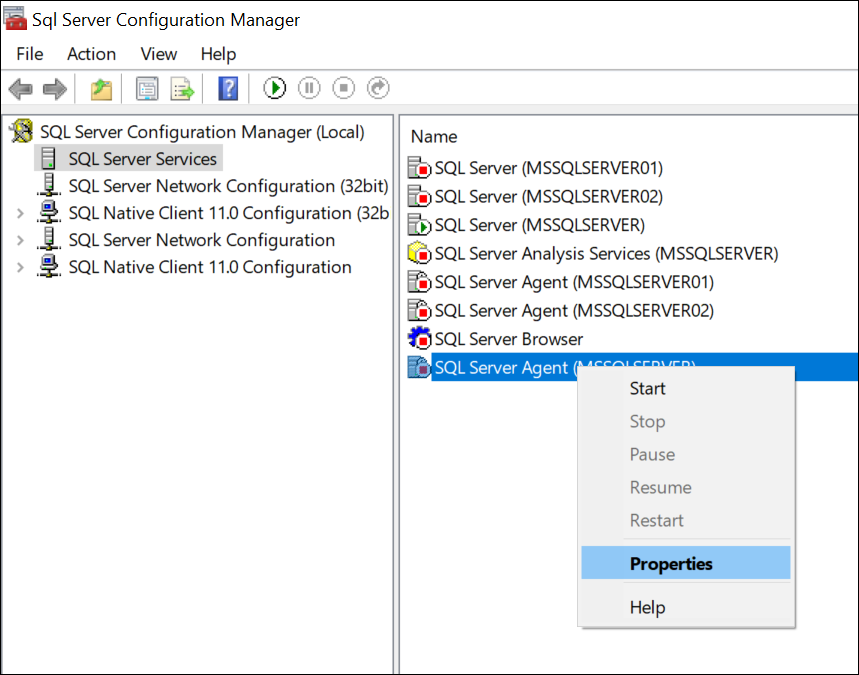
To avoid this problem, in the SQL Server Configuration Manager, go to the service Properties.
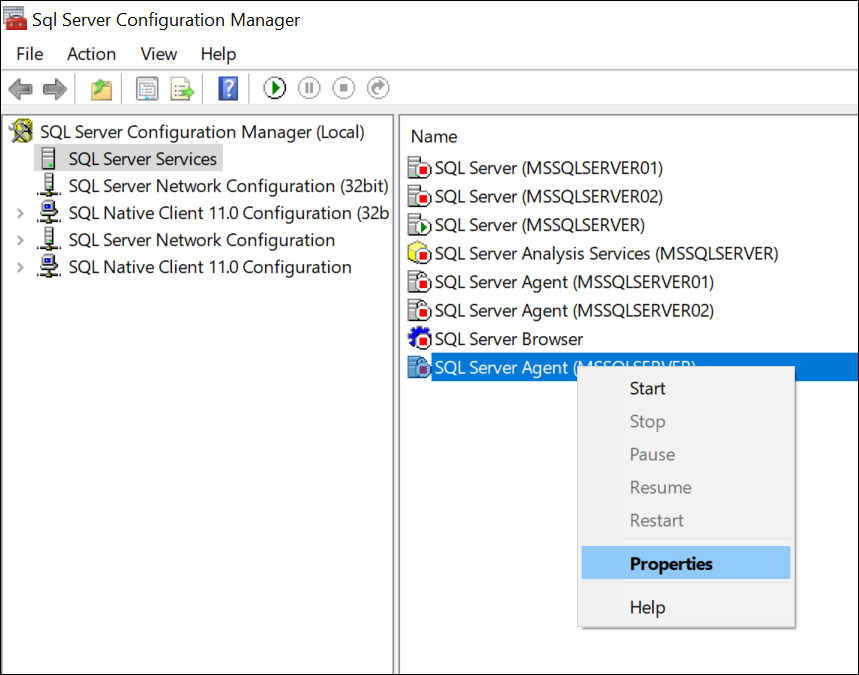
Go to the Service page and set the service to restart automatically.
Issue 5: Security Issues
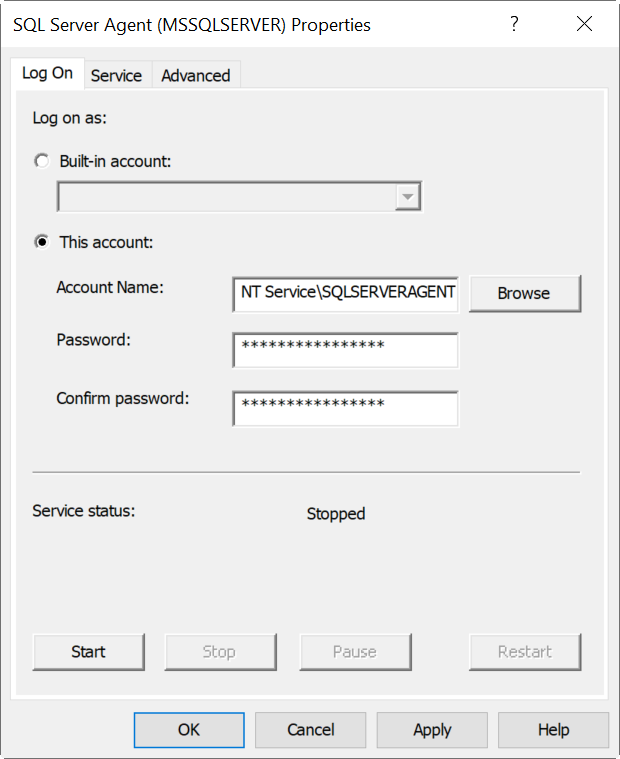
Permission is also a common problem during replication. Make sure that the account used by the service is running with enough permissions.
To check the account, in the SQL Server Configuration Manager, go to the service Properties:
In the Log On page, check the Account name. Make sure that the account has access to other servers on the replication.
What to do if the database in the transaction replication is damaged?
Sometimes, the database gets damaged or corrupted due to viruses, hardware problems, malware attacks, malicious programs, natural disasters, etc.
To fix the corrupt or damaged database, you can use Stellar Repair for MS SQL.
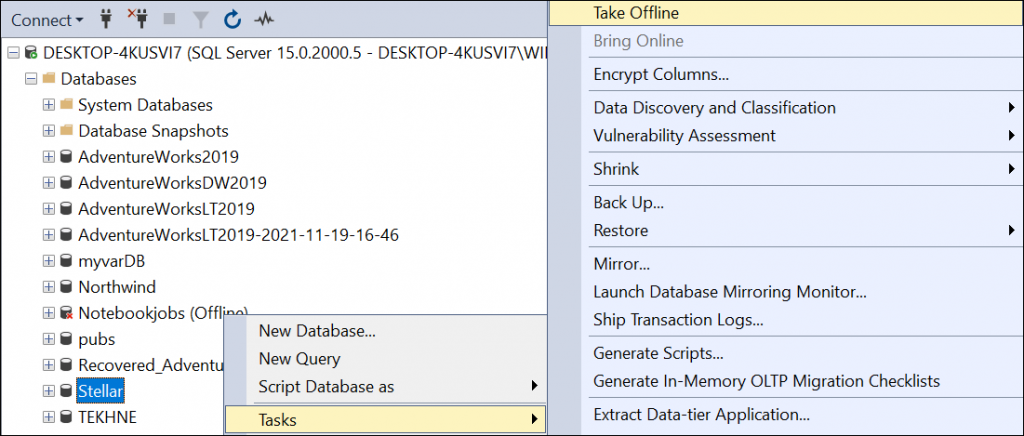
The software requires you to set the database OFFLINE. The following code shows how to set the database OFFLINE using T-SQL.
ALTER DATABASE stellar SET OFFLINE
GO
Another way to set the database offline is by using the SQL Server Management Studio (SSMS). Open SSMS, right-click the database in the Object Explorer pane, and select Task > Take Offline.
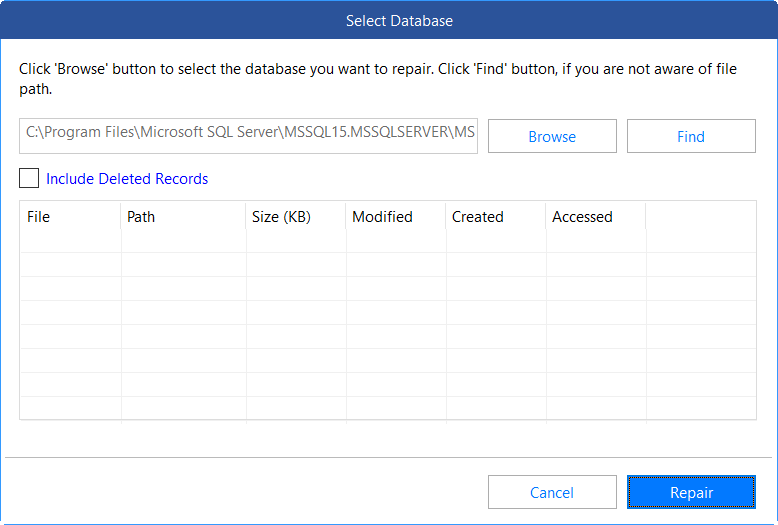
Now, launch the software and select your mdf file to repair. The mdf files are stored, by default, in the data folder. The path may be similar to this one:
C:\Program Files\Microsoft SQL Server\MSSQLversion.MSSQLSERVER\MSSQL\DATA
Optionally, the software has a Find button to search for the data file.
After selecting the file, press the Repair button.
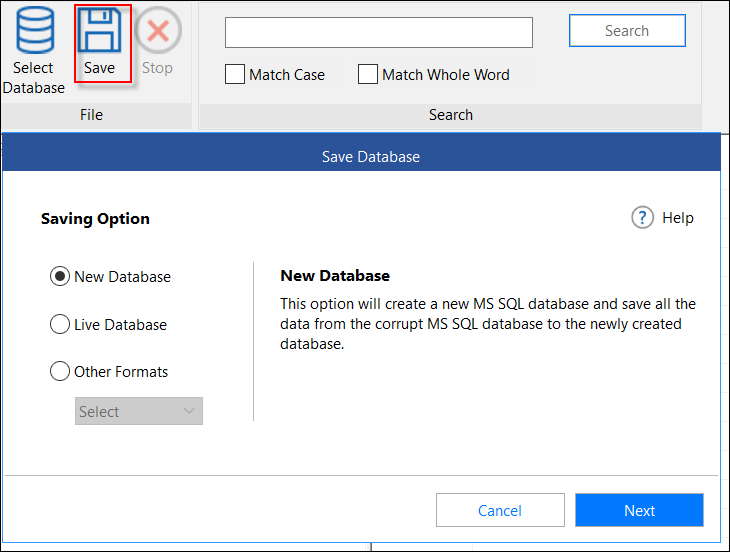
Once the repair process is finished, press the Save icon. You can create a new database or replace the existing one.
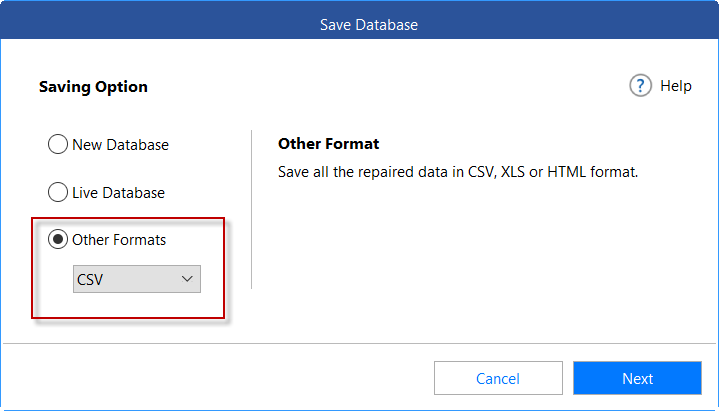
You can also save the data in other file formats, like Excel, CSV, and HTML. You can export the data from the repaired data file to the format of your preference.
Conclusion:-
You may experience issues and errors during the transaction replication process in SQL Server. In this post, we discussed some common transaction replication errors and learned how to troubleshoot them. We also learned how to fix a damaged database in the transaction replication using Stellar Repair for MS SQL.
