The error 3241 – “RESTORE HEADERONLY is terminating abnormally” can occur during backup restore in SQL Server. It also appears when restoring a transaction log backup or when running the RESTORE HEADERONLY command to check metadata in a .bak file.
The complete error message appears as:
“The media family on device ‘.bak’ is incorrectly formed. SQL Server cannot process this media family. RESTORE HEADERONLY is terminating abnormally.”
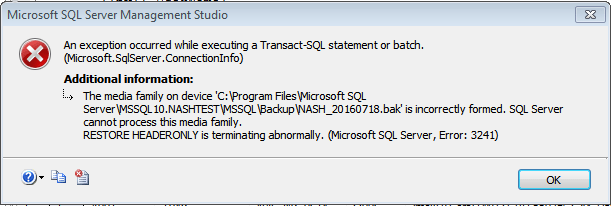
SQL Server error 3241 is one of media family errors (3200–3280) that usually appears when the server fails to read the backup header. When you restore the backup, SQL Server first validates the file header. If it fails, then you may encounter this error. Thus, it is also known as a pre-restore failure error in SQL Server.
It can occur when backup media structure becomes damaged, incompatible, or incomplete. When it happens, you may fail to restore database pages. The error appears in different scenarios like:
- When SQL Server attempts to read backup header metadata to verify or inspect the contents of a backup file before restoration.
- While using the ‘RESTORE FILELISTONLY’ statement, due to a bug in SQL Server 2008 R2 / 2012 documented in Microsoft KB2849351.
- Trying to restore backups from newer SQL Server versions on older ones. (e.g., backup from SQL Server 2008 attempted on SQL Server 2005).
- Compressed backups of TDE-enabled databases in SQL Server 2019 — Backup compression combined with TDE caused an incompatible backup format before CU16. Documented in KB5014298.
When SQL Server cannot read the backup media header during the restore process can lead to the error 3241 in SQL server. It can occur due to several reasons like corruption, storage issues, or incompatibility. Some common reasons that can lead to this error are:
- Version Mismatch: If you restore a backup from a recent version of SQL Server to an earlier version of SQL Server
- Incomplete or interrupted backup: If the header gets corrupted when backup process gets stopped in the middle.
- Corrupted BAK file:When the backup file you are trying to restore is corrupted.
- Network storage failure: NAS or SAN issues during backup write can corrupt the file.
- Malware or virus Attack: Malicious activity on the system storing the BAK file, damage the backup set.
- CRC checksum mismatch: Integrity checks fail when the backup set does not match expected values.
- Selected wrong path reference: You might be trying to restore a backup that has an incorrect path
- SQL Server bug in RESTORE FILELISTONLY: Error caused by a known issue in SQL Server 2008 R2/2012 (KB2849351)
How to Diagnose SQL Error 3241 before Applying Solutions?
Before applying any solution for error 3241, first verify that the backup file is readable. Run two diagnostic checks to determine whether the .BAK file is corrupted and whether the problem is hardware‑related or version‑related:
1. Use RESTORE VERIFYONLY Command
This command checks the integrity of the backup set and helps identify whether the file can be read successfully by SQL Server. It does not restore the database.
RESTORE VERIFYONLY
FROM DISK = ‘C:\Backup\Database.bak’;
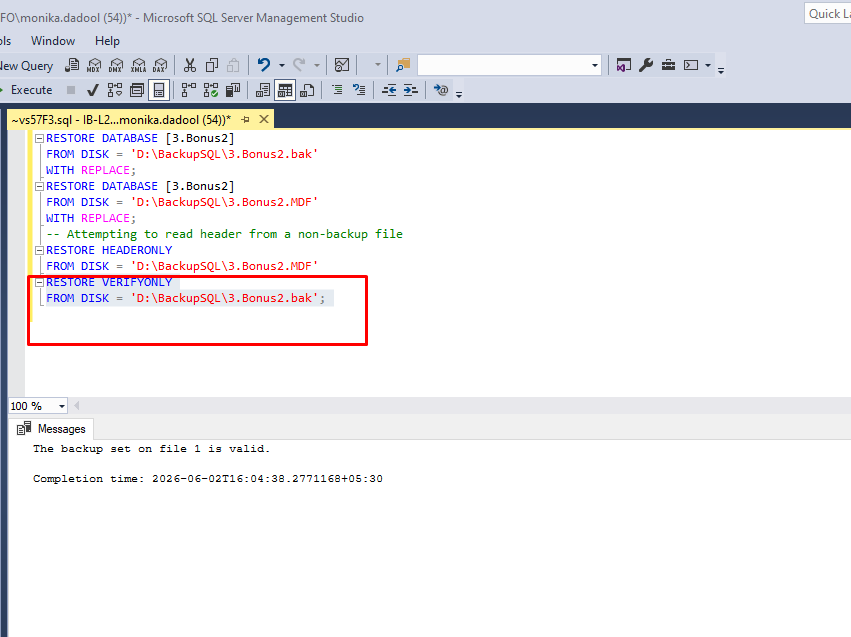
If SQL Server returns the message: “The backup set on file 1 is valid” clears that your backup file is free from corruption. This clearly means that other reasons are behind the error. And, if the command display an error, this means the backup file is corrupted. You can even run RESTORE HEADERONLY to check for the file header.
2. Check Windows System Event Logs
If the backup file is readable, then check the Event Viewer on your system to detect other causes like storage or networking problems. Here’s how to do so:
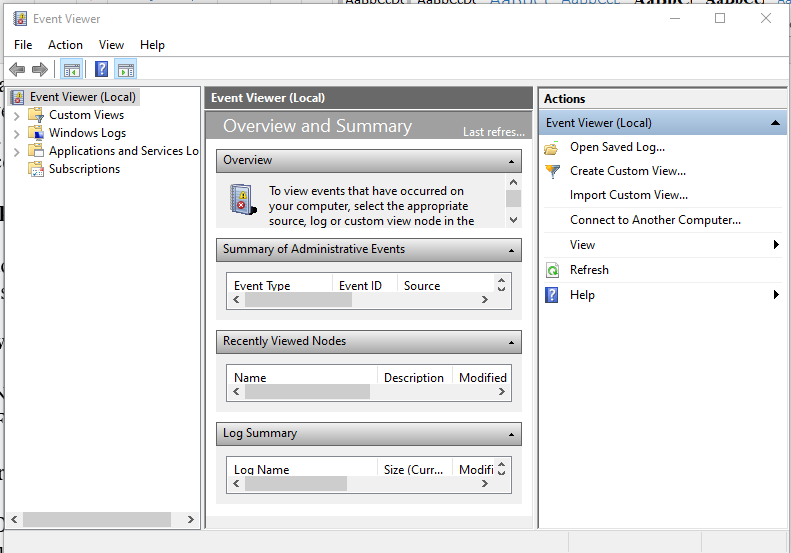
- Open Event Viewer (Win + R → eventvwr).
- Go to Windows Logs and then click System > View.
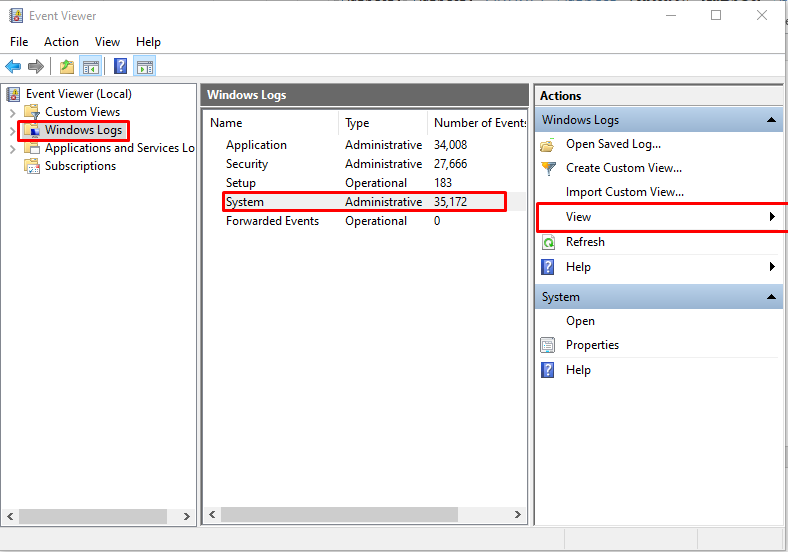
- Next, check and filter the log by error and warning events at the time your backup restore failed.
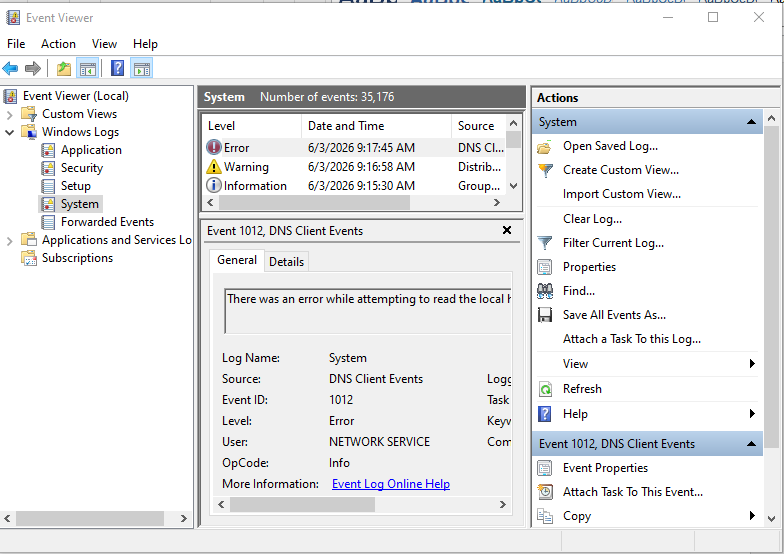
Look for events like ID 7, 11, or 15 for any hardware-related or networking issues.
Solutions to Resolve SQL Database Error 3241
SQL error 3241 occurs because SQL Server cannot reconcile backup metadata with the current environment. It means issue in .BAK file header due to reasons already discussed in above section. Choosing the right fix based on whether you have another healthy backup and if the source database is still accessible. Always check first if the backup is valid or if the issue comes from hardware, storage, or version mismatch. Follow these four solutions below. It give you a clear path — restore from another backup, create a new one, or use repair tools when no valid copy exists:
Method 1: Use RESTORE WITH REPLACE or WITH MOVE Command
The backup file path conflict is also one of the reasons for SQL database error 3241, ‘RESTORE HEADERONLY is Terminating Abnormally’. It happens if,
- The backup file you’re trying to restore doesn’t contain the targeted database file.
- There are file name conflicts.
To resolve this, at the time of restoring your SQL backup, you can use WITH REPLACE and WITH MOVE commands.
WITH REPLACE forces SQL Server to overwrite the existing database, even if the metadata of the backup mismatches. You can use this, when restoring the backup over an existing database with the same name but different file paths or IDs.
Here’s how to use it:
RESTORE DATABASE [3.Bonus2]
FROM DISK = ‘C:\Backups\3.Bonus2.bak’
WITH REPLACE;
If there are path issues with the file, then you can use WITH MOVE command (see the below example). It helps redirect the file to the correct location.
RESTORE DATABASE [3.Bonus2]
FROM DISK = ‘C:\Backups\3.Bonus2.bak’
WITH MOVE ‘3.Bonus2_Data’ TO ‘D:\SQLData\3.Bonus2.mdf’,
MOVE ‘3.Bonus2_Log’ TO ‘D:\SQLLogs\3.Bonus2.ldf’,
REPLACE;
Method 2: Install Cumulative Updates (RESTORE FILELISTONLY Variant)
In SQL Server 2008 R2 and SQL Server 2012, certain cumulative updates introduced a bug that affects the RESTORE FILELISTONLY command. Instead of simply listing the contents of a backup file, these builds applied an unnecessary database completeness validation check, which caused the command to fail with Error 3241 (“The media family on device is incorrectly formed”). This is documented in Microsoft KB2849351 and this issue is specific to these versions only.
To get rid of this problem, install the latest SQL Server build cumulative update. You can check and confirm the current version of SQL Server. For this, use SELECT @@VERSION; command.
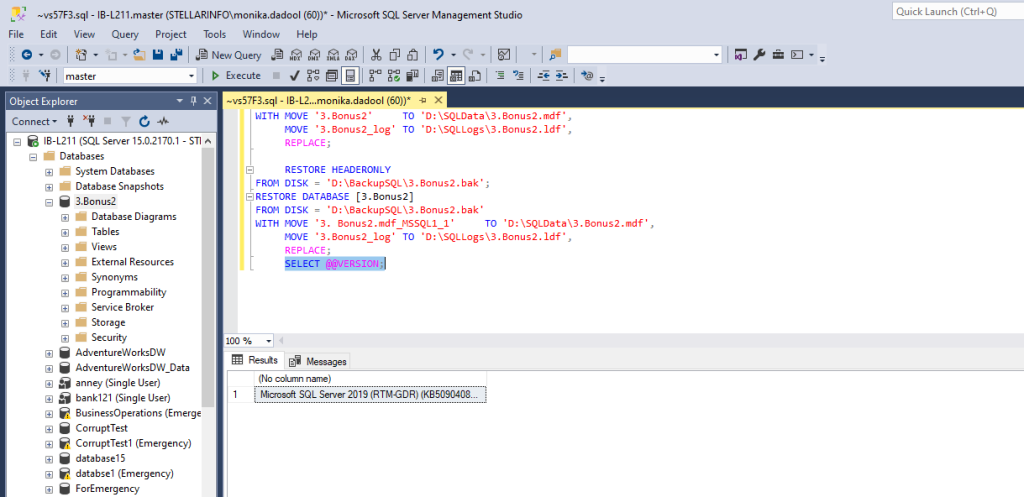
And then compare the build number against Microsoft’s CU list. If your build is older, download and install the latest CU for your edition.
Next, restart the SQL Server service.
Now, rerun RESTORE FILELISTONLY, then retry the RESTORE command.
You can face the same Error 3241 scenario in SQL Server 2019. It occurs when you try to restore compressed backups of TDE‑enabled databases, documented in KB5014298. In this case, the incompatibility is caused by backup compression combined with Transparent Data Encryption before CU16. The fix was introduced in CU16, and the workaround is to disable compression for TDE‑enabled backups if restoring to pre‑CU16 builds
Method 3: Locate Another Valid Backup File to Restore the Database
If the error 3241 has occurred due to backup file corruption, then check whether another backup copy exists before attempting to repair or restore. For this, you can verify backup retention policy for the SQL backup. And check the backup destination folder or offsite backup locations for any readable .bak files. If a valid backup is available, then restore it using the below command:
RESTORE DATABASE James714
FROM DISK = ‘D:\BackupSQL\James714.bak’
WITH REPLACE, RECOVERY;
If you don’t know about the restore process or you want to restore a specific type of backup in SQL Server, see this blog: How to Backup and Restore SQL Server Database.
Method 4: Create a New Backup if the Database is Accessible
If you’re able to access the original database, use it to create a fresh backup (.bak) file. This helps you create a healthy backup copy and prevent this error. This approach saves time. Here’s the process, to do so:
BACKUP DATABASE [YourDB]
TO DISK = ‘C:\Backup\NewBackup.bak’
WITH COMPRESSION,
CHECKSUM,
STATS = 10;
If you will add CHECKSUM option, it validates page integrity during backup creation and helps detect corruption before the backup is written.
Method 5: Extract Data from Corrupt BAK File using Stellar Repair for MS SQL
If no valid backup copy exists and creating a new backup is not possible for you, try repair and recover data directly from the corrupt BAK file. As SQL Server Error 3241 indicates that a backup file is damaged and there is no native method available in SQL to repair a BAK file, you can use Stellar Repair for MS SQL Technician. It has a backup extractor tool that helps you easily and quickly recover data from a corrupt BAK file of any backup type. It allows you to save the repaired data in a new database or export in different formats. You can also try the tool’s demo version to see how it works before purchase.
To use this tool to repair SQL .bak file, follow these steps:
- Download, install, and launch Stellar Repair for MS SQL Technician software.
- From the software’s user interface, select Extract from MS SQL Backup.
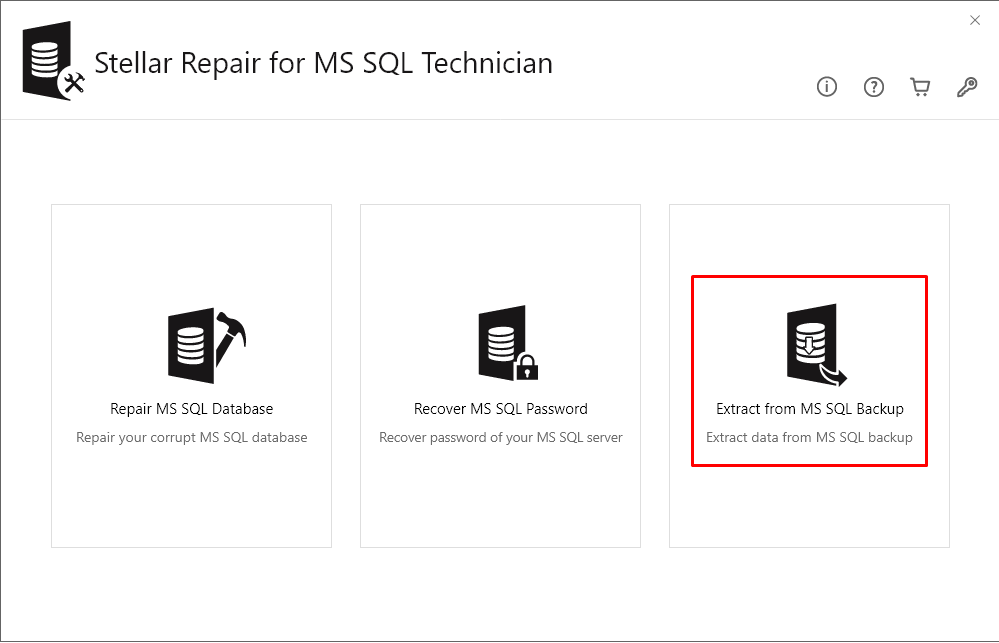
- In the Stellar Backup Extractor for MS SQL window, click Browse to select the .bak file.
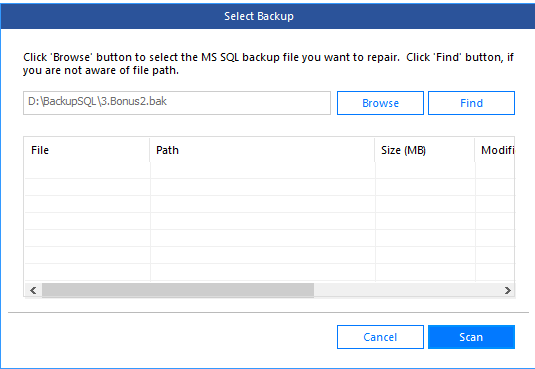
- Next, click Scan.
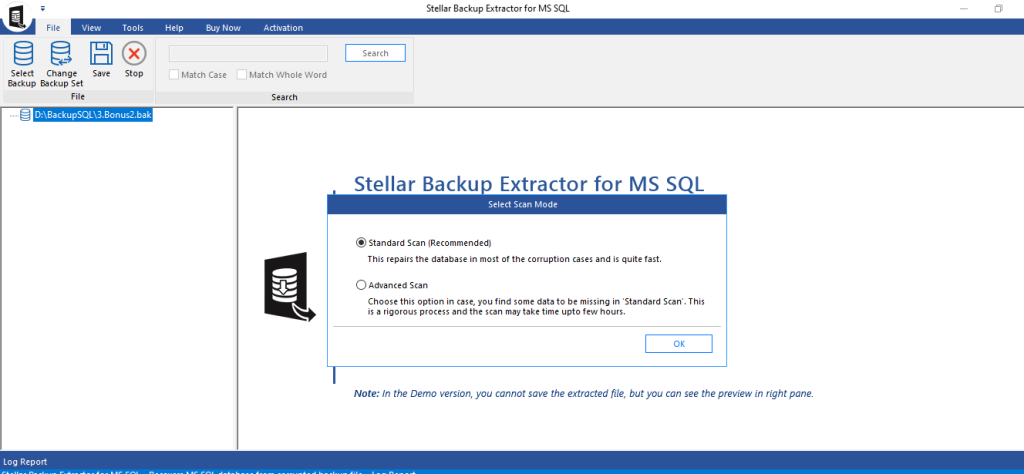
- Select one of the two options – Standard Scan or Advanced Scan to scan the file.Click OK.
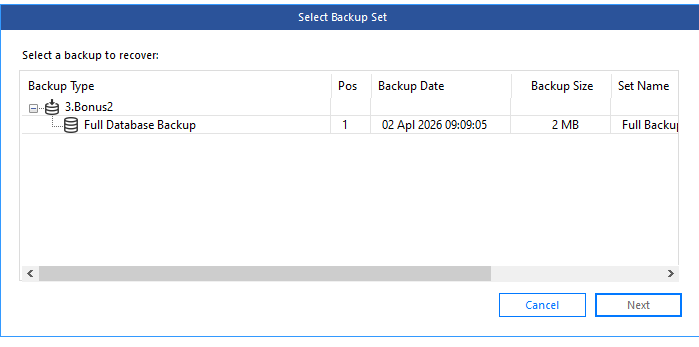
- In Select Backup Set, select the backup set and then click Next.
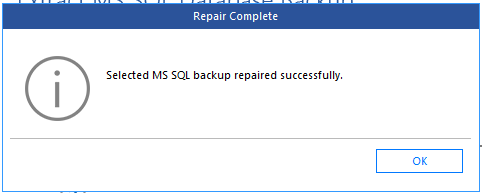
- A Repair Complete dialog box is displayed once the scanning process is complete. Click OK. It displays a preview of file’s repaired data.
- To save the repaired .bak file, click Save on the File menu. Click Next.
- Specify the required details, choose a location to save the repaired file, and then click Next.
- In Save Database, select the Save Mode and click Save.
For detailed steps on using the backup extractor tool for data recovery, read this:How to Recover SQL Server Database from a Corrupt Backup File?
Stellar Repair for MS SQL Technician also comprises tools to repair a corrupt SQL database MDF/NDF files. Also, it provides a utility to reset the lost or forgotten password of master.mdf file.
How to Prevent SQL Error 3241 in Future Backups?
Once you’ve retrieved your backup data and restored the database, you must prevent the 3241 media error from recurring. For this, do the following:
- To avoid backing up a corrupt database, ensure that the Backup CHECKSUM option is enabled. For more information, see Possible Media Errors during Backup and Restore (SQL Server).
- You can enable the CHECKSUM option with trace flag 3023 at the time you create the backup file using any backup utility.
- Follow the 3-2-1 backup rule to reduce the risk of data loss from backup corruption.
End Note
You might fail to perform a backup and restore operation on a SQL Server database with the error ‘Restore HEADERONLY is terminating abnormally, Microsoft SQL Server error 3241’. It usually occurs due to a corrupt or incompatible backup file. To fix it, follow the tested methods explained above. The optimal method is to use Stellar Repair for MS SQL Technician to repair or restore corrupted .BAK file.
FAQs
