


![[Fixed] User Profile Service Failed the Logon Error on Windows](https://www.stellarinfo.com/blog/wp-content/uploads/2020/06/generic-image2-407x247.jpg)
[Fixed] User Profile Service Failed the Logon Error on Windows
May 13, 2025| 4 min read



Summary: A DLL error occurs when Windows can't find, load, or access a required .dll file. They can prevent applications from launching or cause them to crash. These errors can be resolved by repairing or reinstalling the Microsoft Visual C++ Redistributable, installing the required DirectX runtime, repairing corrupted Windows system files with SFC and DISM, or reinstalling the affected application.
Free Download 100% SecureMost Windows users don’t come across the term DLL until something goes wrong. If you’re facing error messages like “DLL file is missing,” “DLL not found,” or “The code execution cannot proceed because [filename].dll was not found,” there’s a good chance that you’ve run into a DLL-related issue.
Dynamic Link Library, or more commonly DLL, contains shared code and resources that Windows and installed applications rely on. When these files are deleted, corrupted, or become inaccessible, Windows displays a DLL error. This guide will cover the most common DLL errors in detail and walk you through the most effective ways to fix them.
Windows uses thousands of DLL files that allow the operating system and installed apps share code, functions, and resources. Because a single DLL can be referenced by multiple programs, it eliminates the need to duplicate the same code in every application. DLL errors occur mostly due to:
| DLL Name | Category | Primary Data Loss Risk |
| Kernel32.dllkernelbase.dll | Kernel / Runtime | Application termination during file operations may leave incomplete saves. |
| acedao.dll / dao360.dll | Database Engine | Breaks connections to structural data engines, leading to immediate database drops or unreadable segments. |
| esent.dll | Database Engine | Prevents Access databases from opening or completing transactions. |
| shell32.dll | User Interface & File Operations | Interrupts moving, copying, or pasting files, leaving half-written data. |
| version.dll/ uxtheme.dll | Desktop Windows Manager | Targeted by side loading attacks, allowing ransomware to gain access and encrypt or delete files. |
| rpcrt4.dll | Remote Procedure Call (RPC) | Disrupts network file transfers and client-server database saves. Drops the connection mid-save, operations fail or remain incomplete. |
| crypt32.dll | Crypto & Data Protection | Blocks access to encrypted folders (EFS) or BitLocker keys. If it fails during encryption tasks, it locks you out of your own files or corrupts the container header. |
| bcrypt.dll | CNG Cryptographic Library | Crashes applications that encrypt data on the fly (like local cloud sync apps or password managers), resulting in partially encrypted, unusable files. |
MSVCP140.dll and VCRUNTIME140.dll are part of the Microsoft Visual C++ Redistribution, which is a runtime package that many desktop apps, games, and creative software depend on. When the redistributable is missing, corrupted, or outdated, the affected program will not launch and display error messages like:
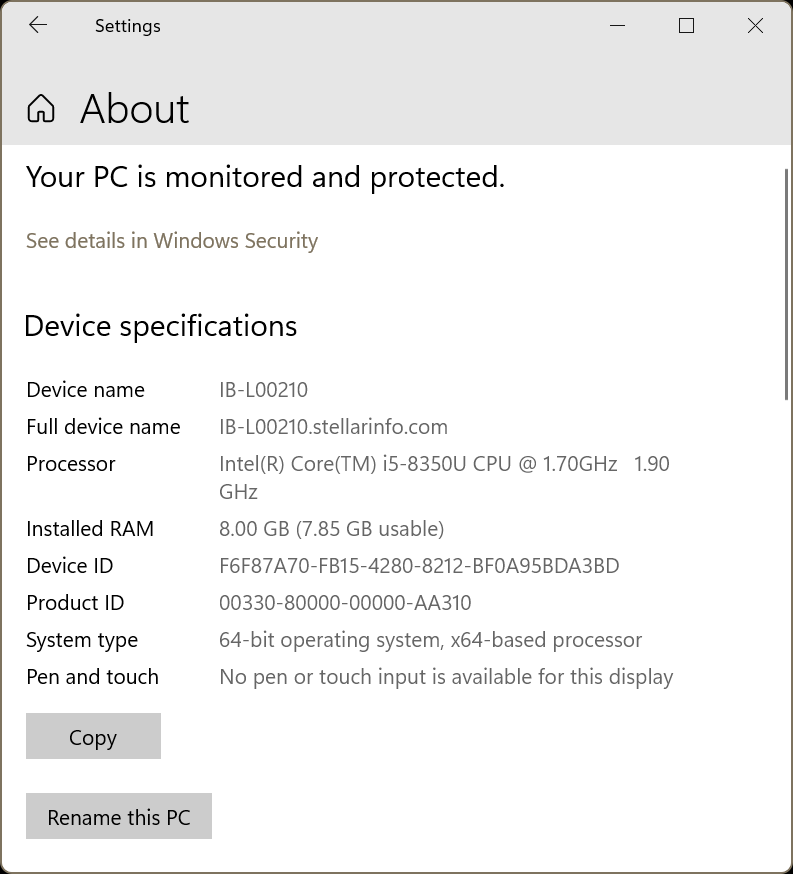
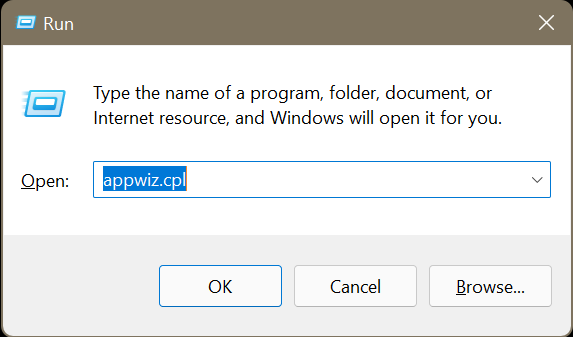
The safest way is to install the latest Microsoft Visual C++ Redistributable from Microsoft’s official website. This package includes both MSVCP140.dll and VCRUNTIME140.dll along with other important runtime libraries. But first check whether your PC is running 32-bit (x86) or 64-bit (x64) version of Windows:
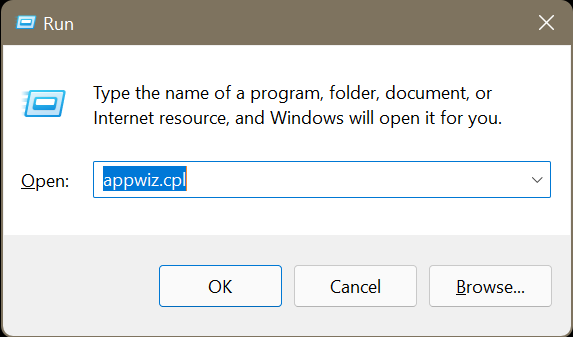
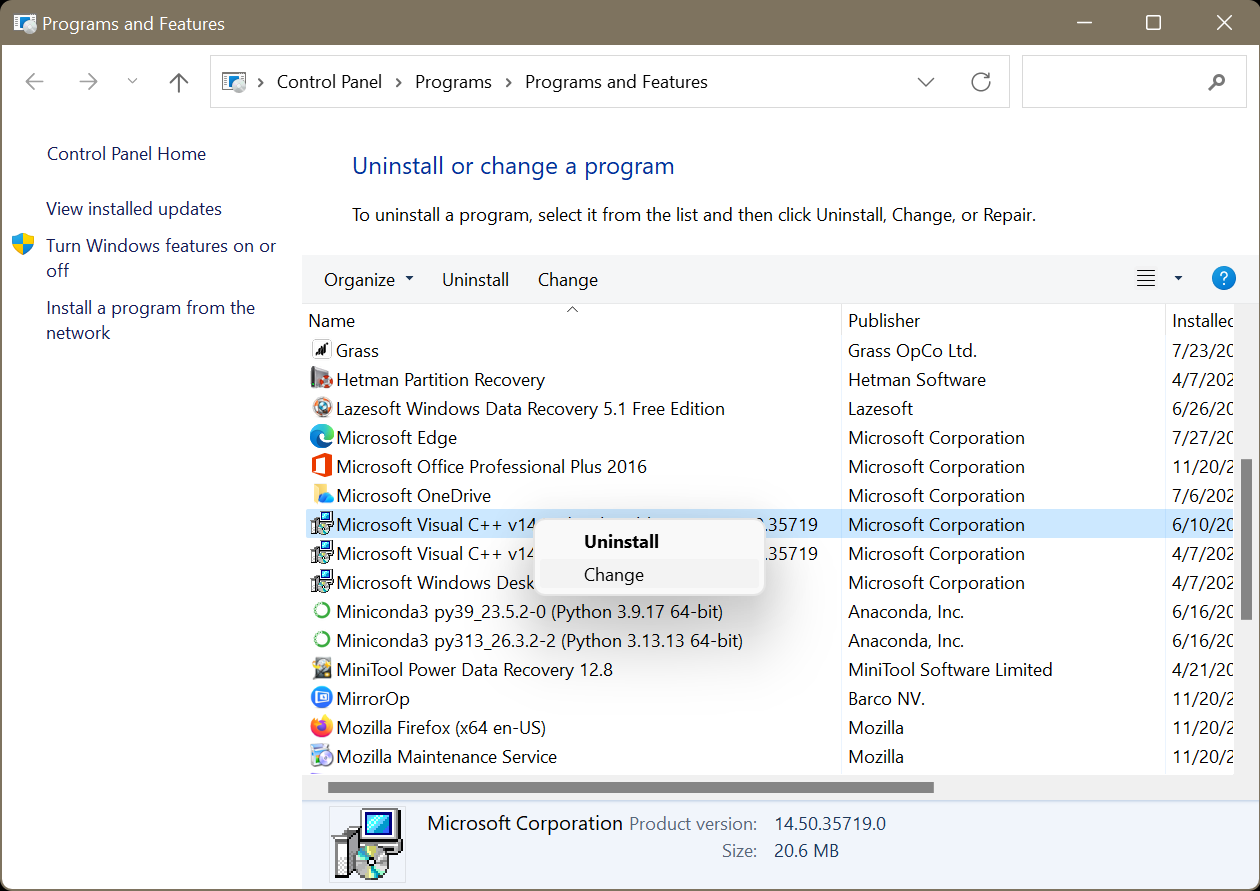
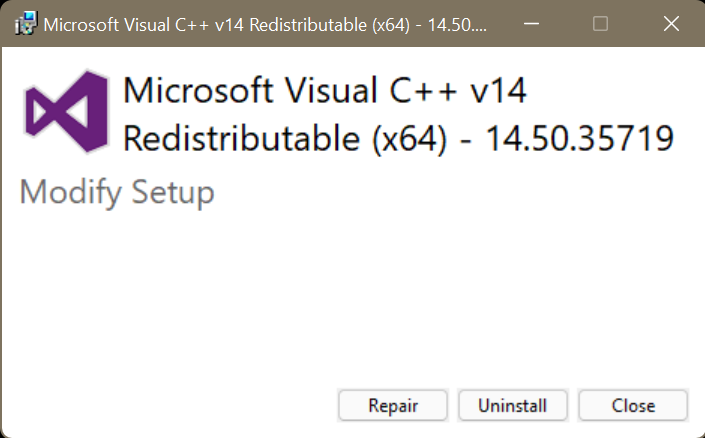
If the problem still persists, Uninstall the existing Visual C++ Redistribution package (using the above method) and re-download the compatible redistribution package from Microsoft’s official downloads page. If you’re using a 64-bit version of Windows, Microsoft recommends installing both x64 and x86 redistribution packages because many 32-bit apps still rely on the x86 runtime.
If there’s a certain program that’s showing the MSVCP140.dll or VCRUNTIME140 error, a simple fix is to uninstall and then reinstall that particular application. The fresh install will replace program’s files which also include DLLs and registry entries.
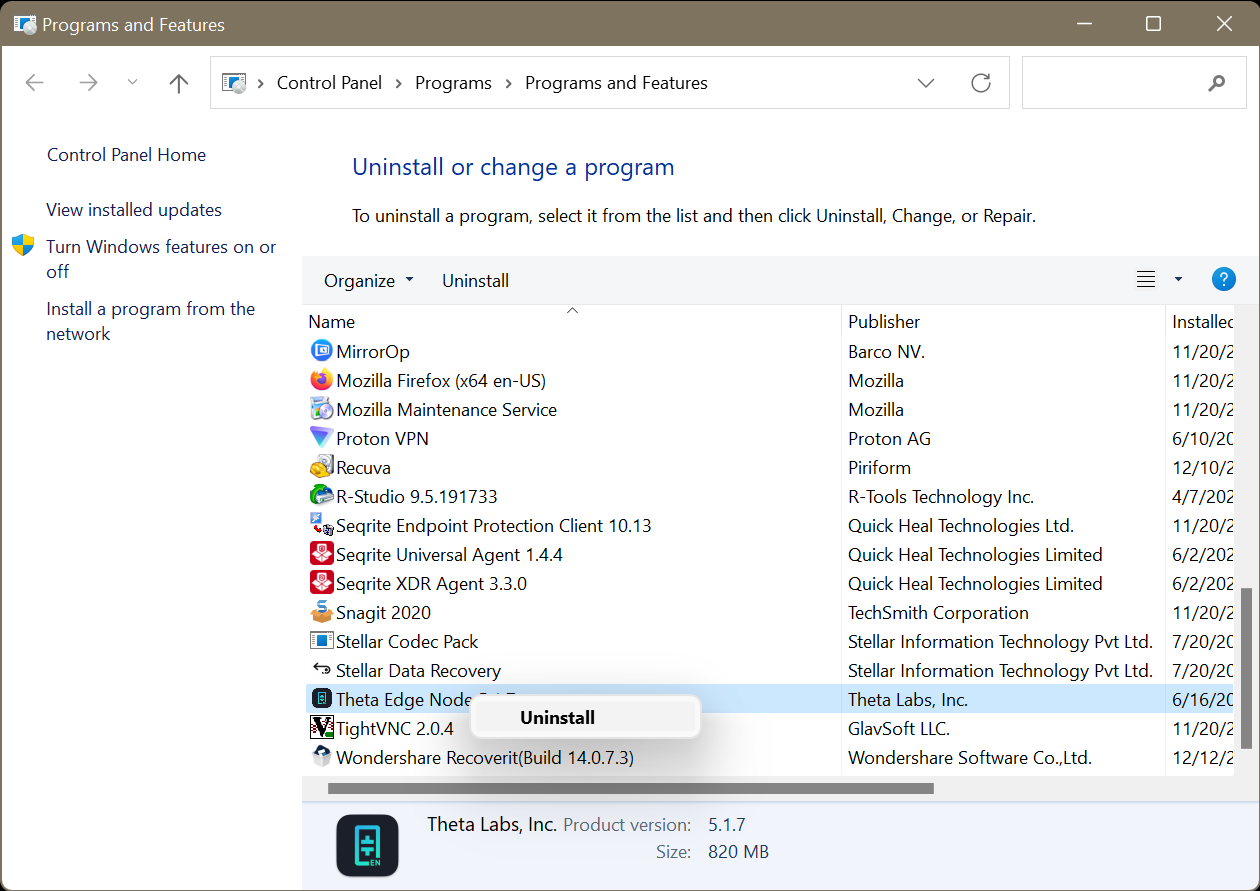
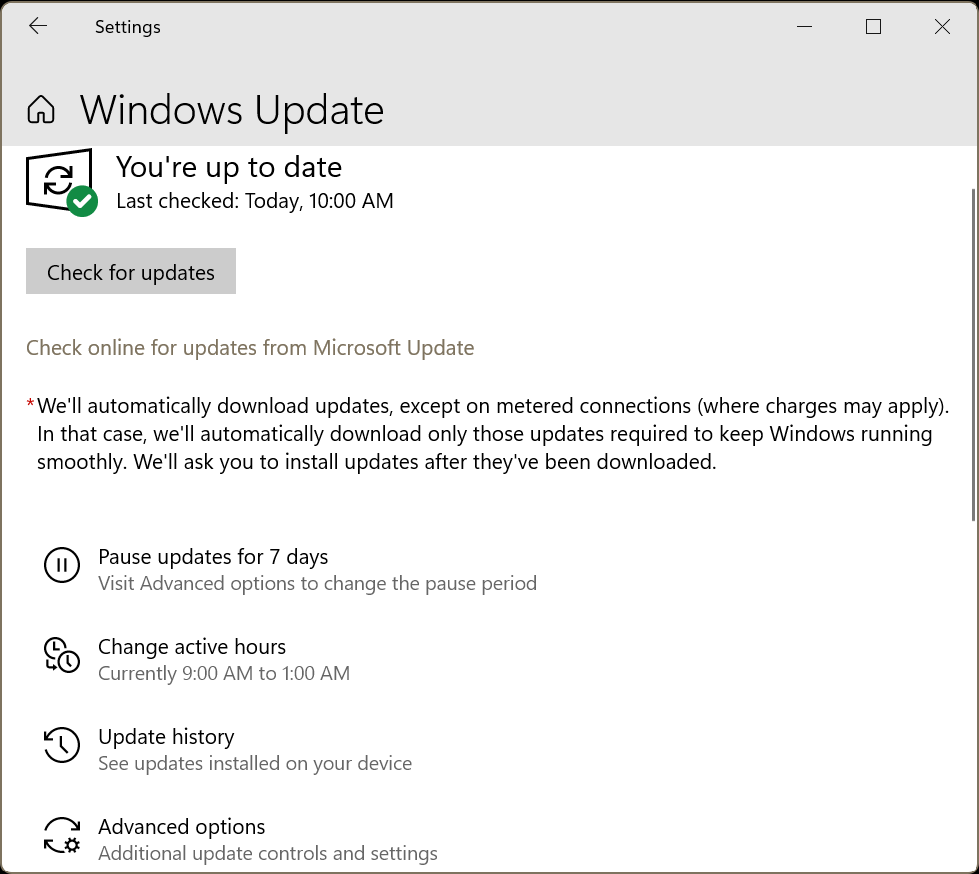
If the above solutions fail to fix the errors, update Windows to the latest version. This step is crucial for your system’s security and stability. Also, a Windows update might ship a fix for the bugs causing the MSVCP140.dll and VCRUNTIME140.dll errors on your PC.
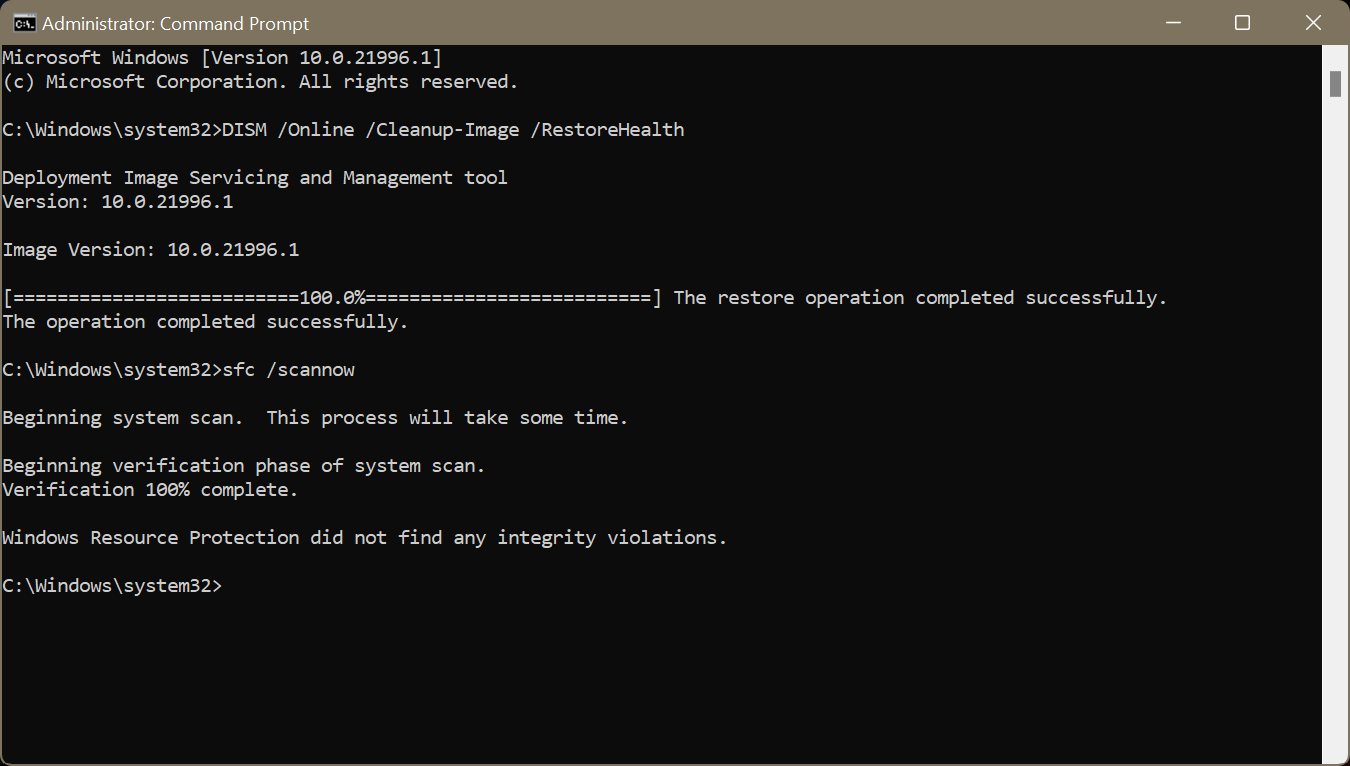
In case the DLL error is caused by corrupted Windows system file rather than a missing runtime package, Windows built-in utility System File Checker can help restore the original files. Since corrupted system files can trigger the DLL errors, run DISM first to repair the Windows component store, then run SFC to scan system files and replace the damaged ones. Order matters here: SFC pulls its replacement files from the component store that DISM repairs.
DISM /Online /Cleanup-Image /CheckHealth
DISM /Online /Cleanup-Image /ScanHealth
DISM /Online /Cleanup-Image /RestoreHealth
sfc /scannow
D3dx9_43.dll and Xinput1_3.dll are DirectX runtime files which help accelerate the hardware on Windows for a smoother gaming experience. When these DirectX files go missing or corrupted, Windows shows error messages like:
Modern versions of Windows include newer DirectX components but they may be missing the optional legacy libraries required by older games. Install the DirectX End-User Runtime Web Installer package from Microsoft’s official website to restore these missing DLLs.
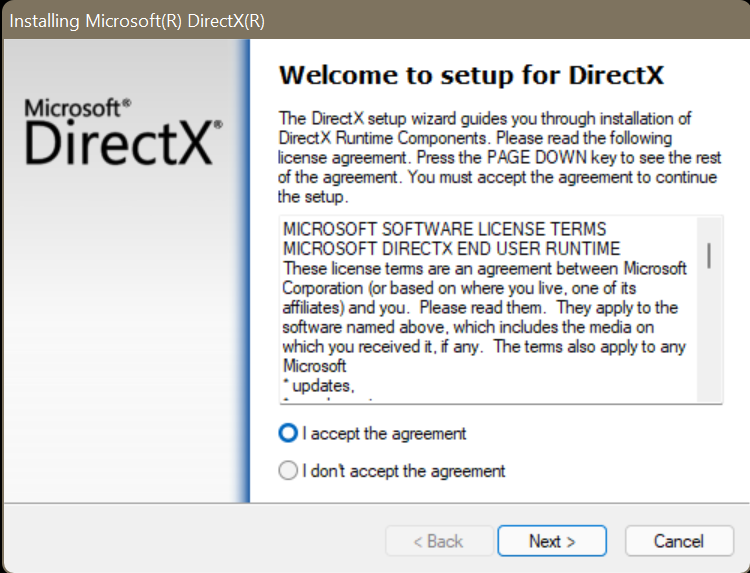
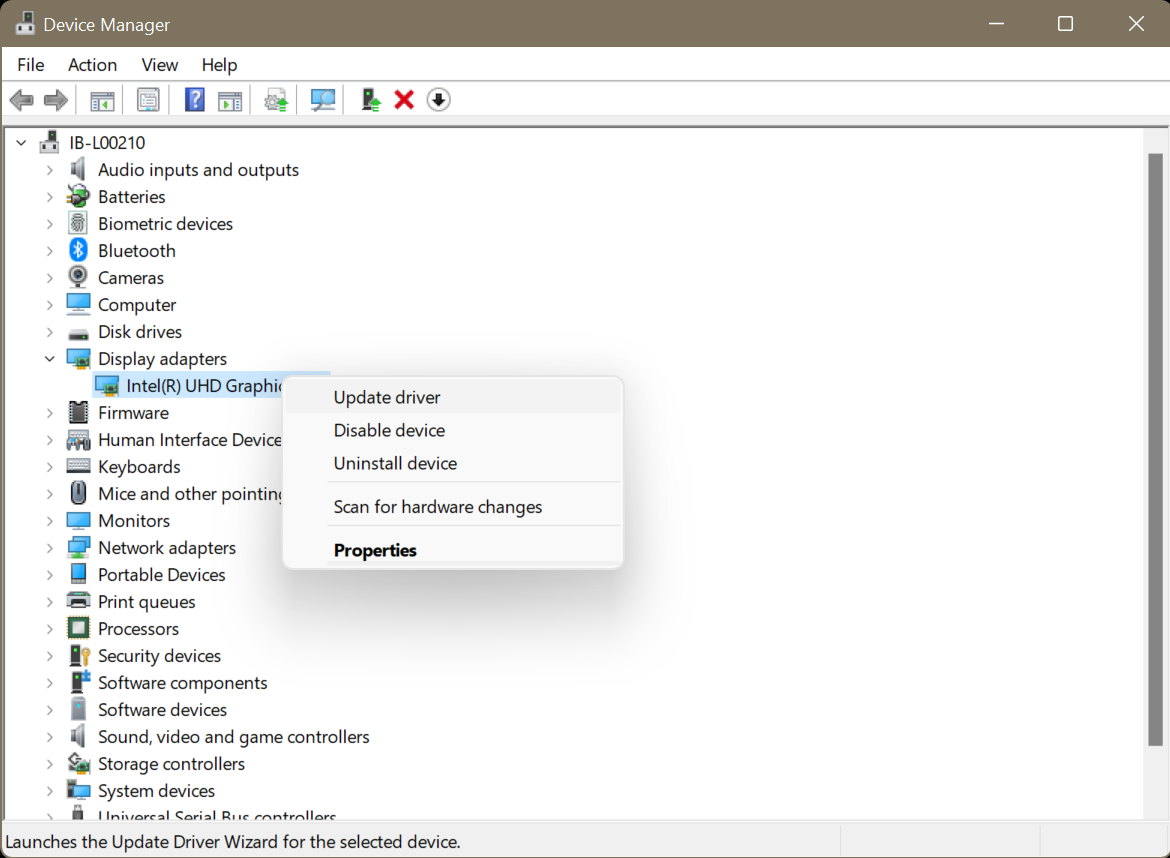
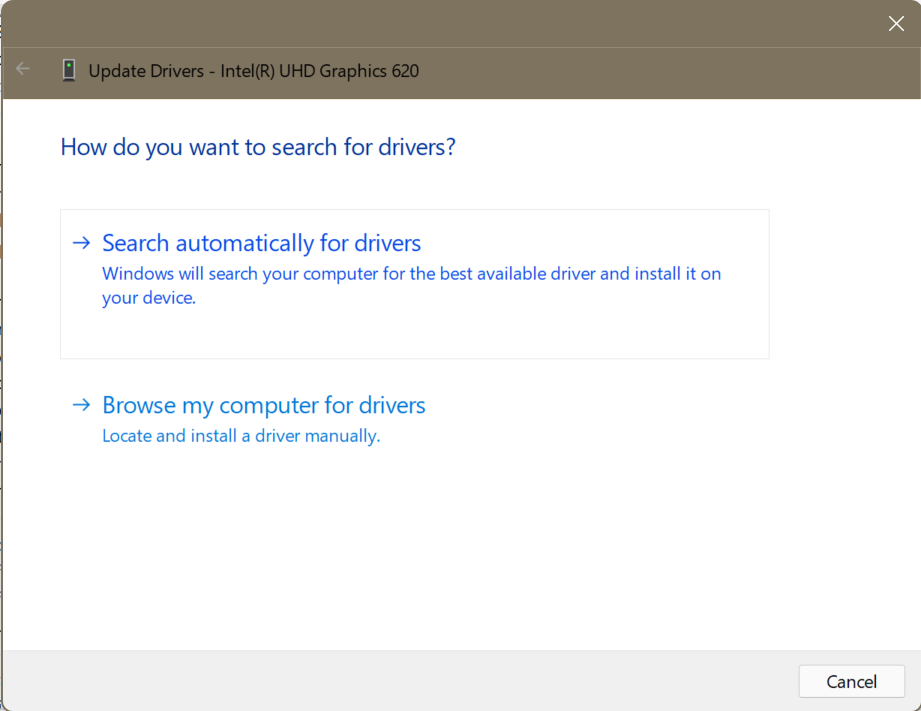
Check if your device drivers are up to date as outdated graphic drivers can also be responsible for DirectX related errors or prevent games from loading required runtime components correctly. You can update the drivers with the following steps:
Ole32.dll is a core Windows system library that supports Object Linking and Embedding (OLE) and Component Object Model (COM) functionality. If this file becomes corrupted or inaccessible, applications may fail to launch, Windows features may stop responding, or you'll see error messages like:
Since Ole32.dll is a protected Windows system file, the recommended fixes typically involve running SFC, DISM, installing pending Windows updates, or repairing the affected application rather than downloading the DLL manually. Learn how to fix Ole32.dll Missing or Not Found Error.
Comdlg32.dll is another essential Windows system DLL responsible for common dialog boxes, including the Open, Save, and Print windows used by many applications. Errors involving this file often occur because of corrupted system files, faulty Windows updates, damaged registry entries, or incompatible software.
General system repair tools, such as SFC, DISM, and Windows Update resolve many Comdlg32.dll issues. If the problem persists, follow Fix Comdlg32.dll not Found Error in Windows for detailed solutions.
Ntdll.dll is an important Windows system library that manages low-level OS functions like memory management and system calls. The Ntdll.dll error is usually caused due to corrupted system files, outdated drivers, faulty windows updates, or third-party software conflicts. Common error messages read:
General troubleshooting steps involve installing Windows update, updating device drivers, and performing a clean boot to identify software conflicts. If the crashes started after a recent update or software installation, roll back the update or uninstall the conflicting application. Read our detailed guide File Explorer Keeps Crashing with Ntdll.dll error for step-by-step instructions and advanced solutions.
Usually, fixing a DLL error doesn’t affect your personal files. But data loss can occur if the error was caused by underlying issues like malware, file system corruption, a failing storage drive, or if you had to reinstall Windows on an application to fix the problem. You may also accidentally delete important files while troubleshooting.
So if you notice that files are missing, stop using the affected drive immediately as saving new data can overwrite deleted files. Use a professional data recovery software – Stellar Data Recovery Professional to reclaim your lost files. The software supports recovery from accidentally deleted, formatted, or corrupted drives and lets you preview recoverable files before restoring them.
DLL errors can range from a simple missing runtime library to deeper problems involving corrupted system files, faulty software installations, or malware. The trick to resolving them is identifying, which DLL is causing the error and applying the appropriate fix instead of downloading individual DLL files from untrusted sources.
If you lose important files while troubleshooting or after reinstalling Windows or an application, stop using the affected drive and recover your data as soon as possible. A professional recovery solution, such as Stellar Data Recovery Professional can help restore deleted or lost files from HDDs, SSDs, USB drives, and other storage devices before they're overwritten.
Data Recovery Expert
This article was Reviewed by Rohit Arora, a Data Recovery Expert at Stellar Data Recovery.
Senior Content Writer
This article was written by Rishabh Singh , a Senior Content Writer at Stellar Data Recovery.
May 13, 2025| 4 min read
-1505.jpg)
October 31, 2025| 4 min read
October 15, 2026| 4 min read






 4 min read