How to Solve "Microsoft Outlook Inbox repair tool keeps popping up"

A lot of Outlook users has shared that they are experiencing a issue “Microsoft Outlook Inbox repair tool keeps popping up”.
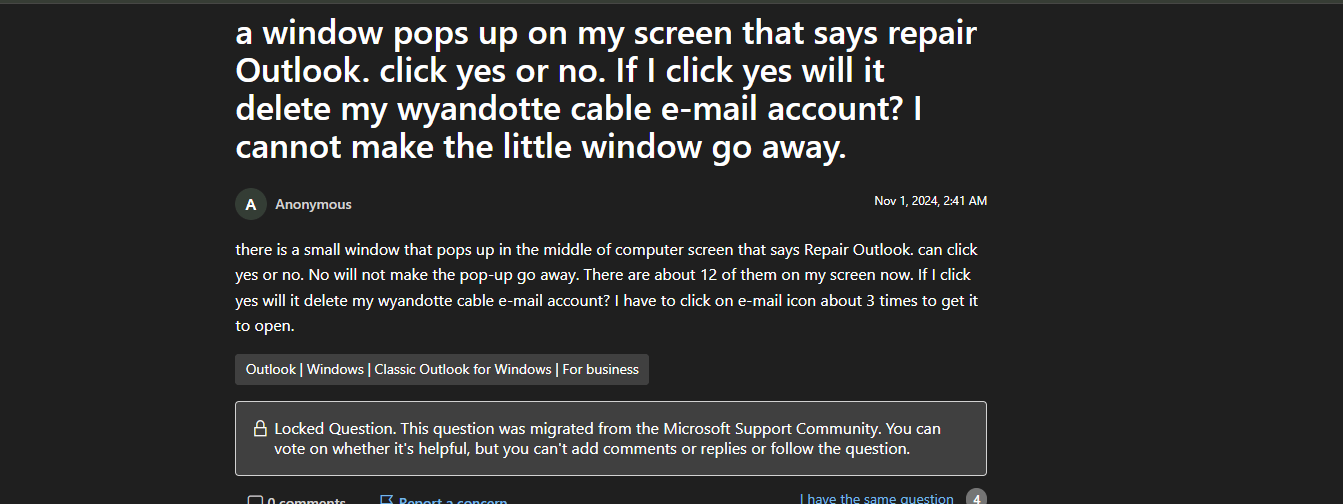

Microsoft Outlook Inbox repair tool keeps popping up

Outlook still shows the error  

Even after running the repair, Outlook still shows the error every time it opens. This issue can occur due to corrupted PST file, incomplete repair by the Microsoft Outlook inbox repair tool, oversized PST file, Problematic add-ins, and other several reasons. In this article we will discuss how to solve this issue.

What are the solutions to fix ‘Microsoft Outlook Inbox repair tool keeps popping up’?

Below are explained the proven methods to fix this problem. Follow the given step-by-step solutions:

1. Manually Run the Inbox Repair Tool

The first step is to let the repair tool complete its process properly. Sometimes the tool needs to run without interruption to fix the corruption.  Here’s how you can do this:

  • Sign out and close your Outlook Completely. 
  • Locate the ScanPST in your drive and open it.

scanpst-folder-location

  • Double click to open the tool.
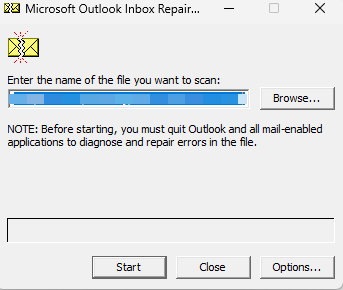
  • Now, simply click on the Browse and choose the required PST file and click on Start.

Microsoft-Outlook-inbox repair tool

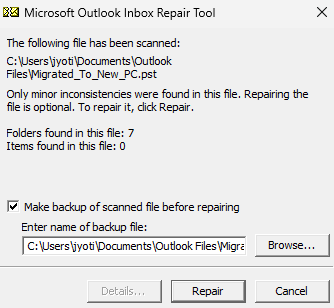
  • After selecting the PST file, click on Repair.

Repair-window

  • Wait for the process get completed.
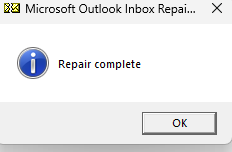
  • Once the repair is done click on OK.

Repair-complete-window

If the issue persists after a manual repair, then try other methods mentioned below.

2. Disable Third-Party Add-ins

Conflicting add-ins can cause Outlook to malfunction and trigger the repair tool repeatedly. Disabling them can help identify the problem. Follow the steps below to disable the add-ins:
  • Launch the Outlook in Safe Mode.
  • Press Windows + R Keys and type Outlook.exe /safe and click Ok.
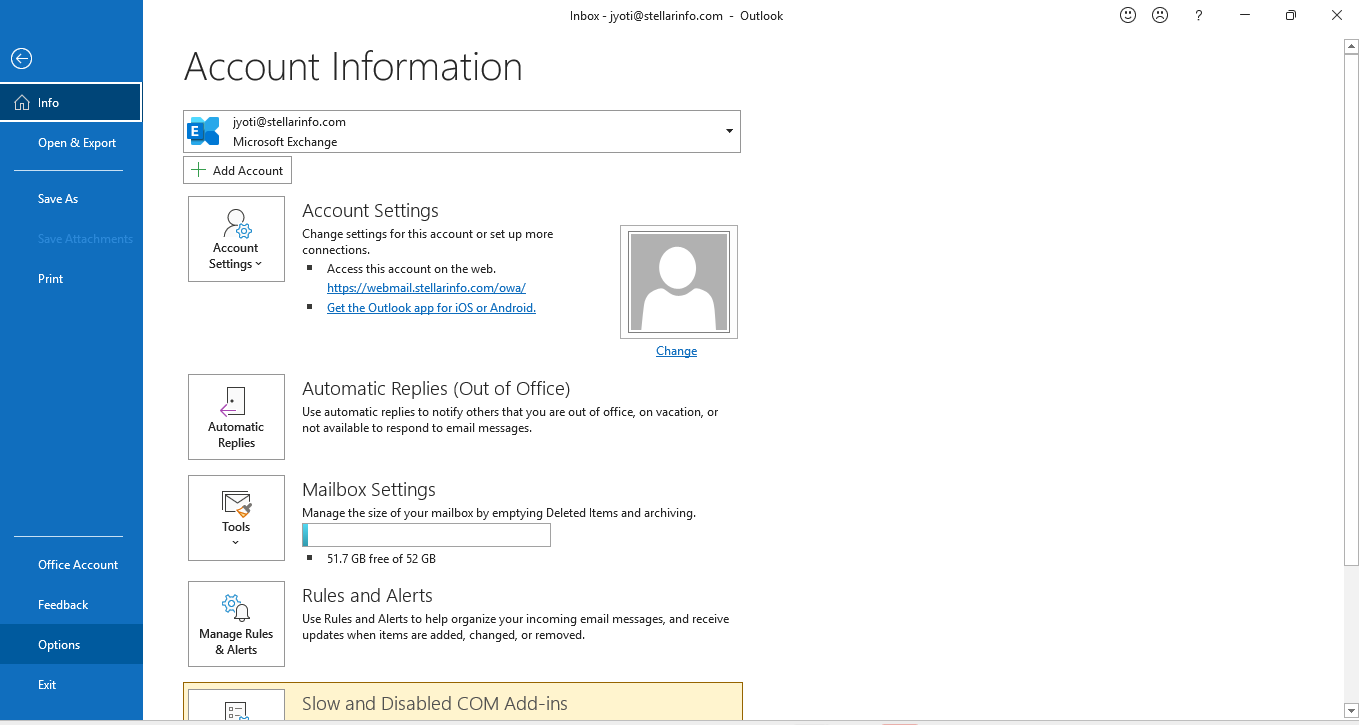
  • Go to File tab and select Option.

Outlook-account-information-window                     

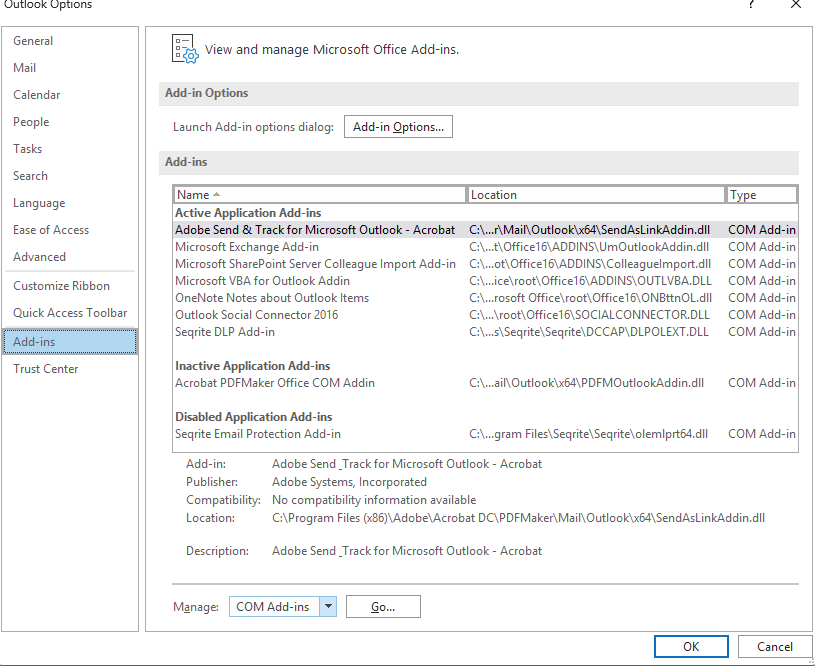
  • Now click on Add-ins and select COM-ads-ins.

Add-ins-window

  • Click on Go.
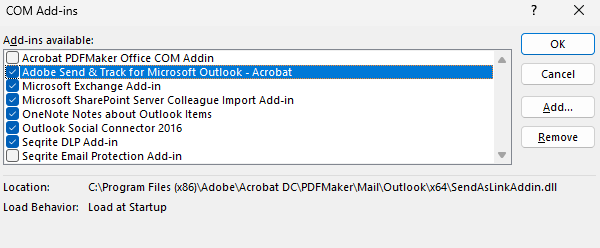
  • Now, a list of Add-ins will appear, uncheck all the add-ins to disable it and click Ok.

Com Add-ins window

  • Close the Outlook and restart it.
  • If the issue is resolve then re-enable the add-ins one-by-one and restarting Outlook after each.
  • Once you find the faulty add-ins, remove that add-in.

3. Create a New Outlook Profile

If your Outlook profile is corrupted then it can prevent Outlook from functioning properly. Creating a new profile often resolves this issue. Follow the outlined steps below to do this:
  • Make sure Outlook is completely closed.
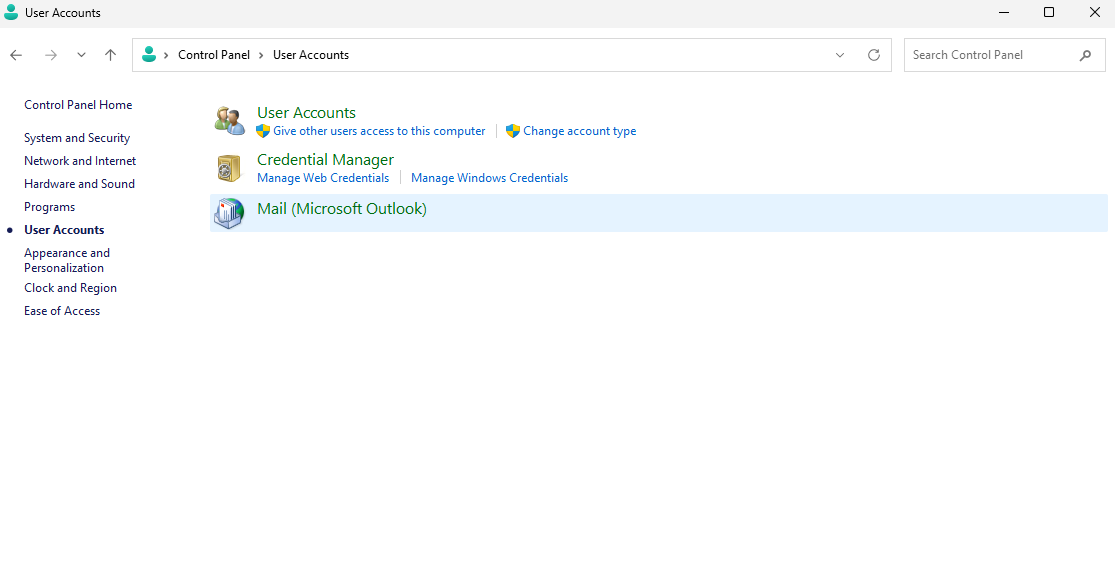
  • Open Control Panel > User Account and Click on Mail (Microsoft Outlook).

Open Control Panel > User Account

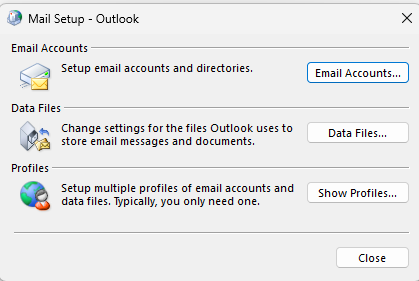
  • Click on Show profiles in the Mail Setup dialog box.

mail-setup-dialog box

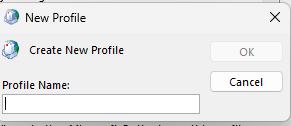
  • Click on Add profiles and type name of your new profile.

add-profile-window

  • After entring the name, click Ok.
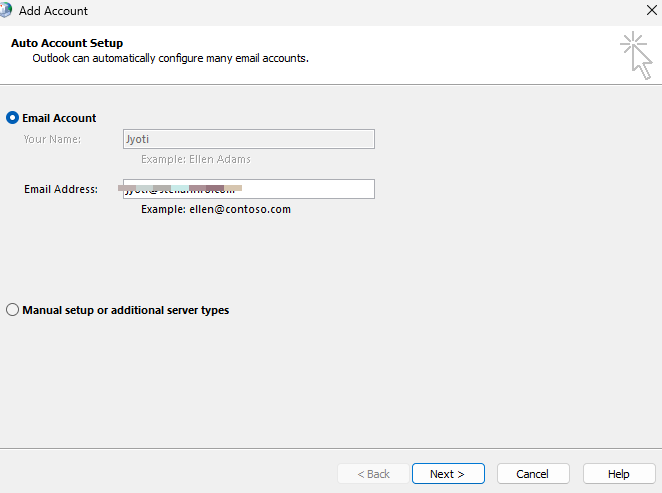
  • Set up your account by entering Email and password.

Set up your account by entering Email and password

  • Click Next.
  • Once the Account is configured click Finish.
  • Now, back in the show profile window and choose new profile.
  • Select “Always use this profile” and click Apply.

4. Repair Microsoft Office Installation

Corrupted Office components can cause Outlook to malfunction. Repairing the installation can fix these issues. Here’s how you can do this:
  • Close all Microsoft Office applications.
  • Press Windows + I to open Settings.
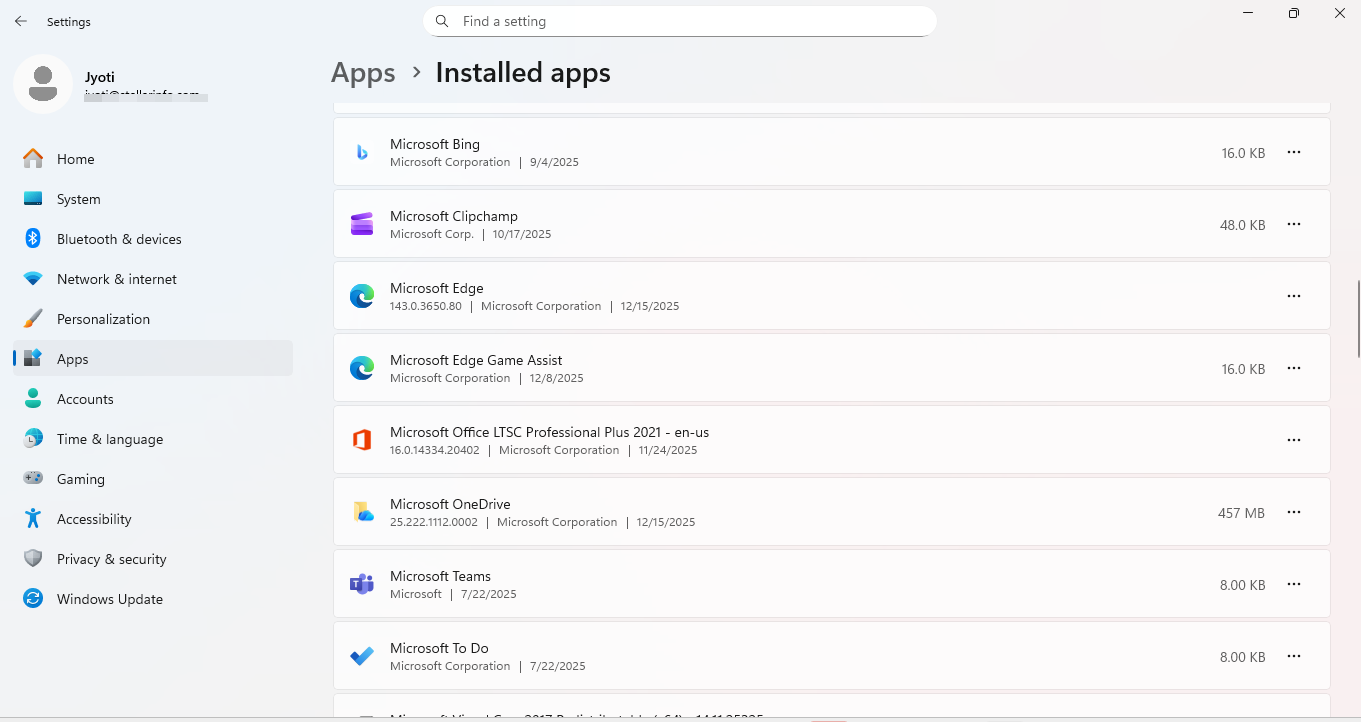
  • Go to Apps > Installed Apps.

installed-apps-window

  • Find Microsoft Office or Microsoft 365 in the list.
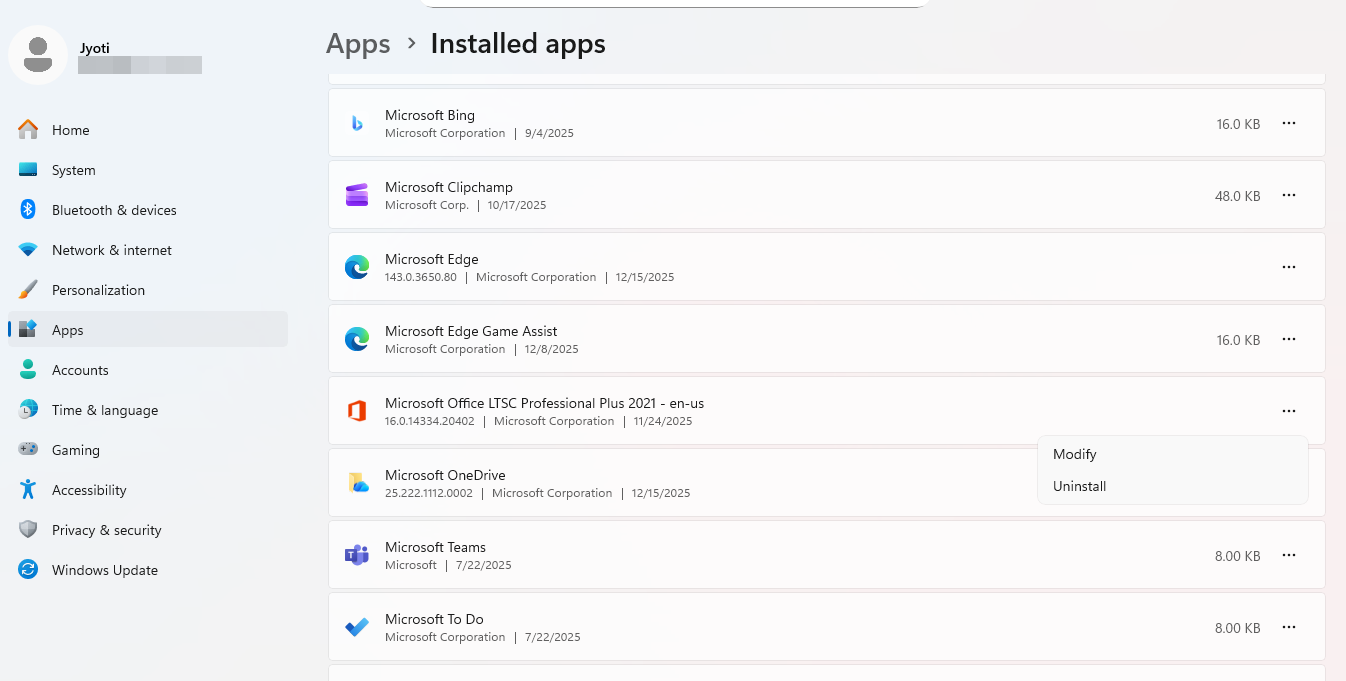
  • Click on it and select Modify.

Installed-apps-window

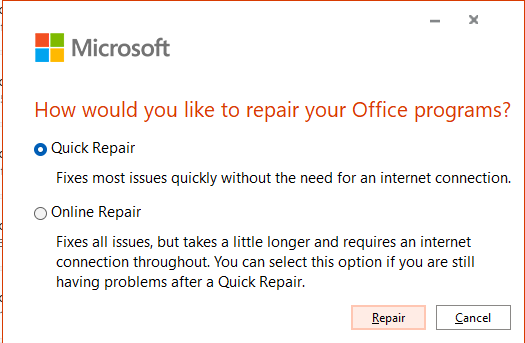
  • Choose Online Repair and click on Repair.

Microsoft-outlook-repair Window

  • Follow the on-screen instructions.
  • Once the repairing process is complete.
  • Then restart your computer.

5. Repair PST file with Stellar Repair for Outlook

If the methods highlighted previously fail to resolve the issue 'Inbox Repair Tool keeps popping up', then you should consider using a professional PST repair tool such as Stellar Repair for Outlook. This tool becomes the only effective alternative that is designed to mend severely corrupted PST files and recover all mailbox items with 100% data integrity. IT professionals and Microsoft MVPs recommended this tool as a trustworthy alternative of the built-in Inbox Repair Tool fails. Key Features of Stellar Repair for Outlook:

  • It recovers large PST files.
  • Recovers Deleted Outlook Items.
  • It provides advanced preview feature, so you can all your recoverable items before saving the repaired files.
  • You can save mailbox data at location of your choice.
  • You can split large PST files into smaller ones based on size, date, or email ID, and compact files by saving attachments separately.
  • It works with all versions of Microsoft Outlook and windows.

Conclusion

When Inbox Repair Tool keeps popping up, this means your Outlook data file is damaged. ScanPST - Inbox Repair tool - is the go-to solution for repairing and recovering PST files in Outlook. But sometimes, due to the limitations of this tool, it does not always solve this issue. In such situation, you should go for an advance PST repair tool like Stellar Repair for Outlook. This tool offers a reliable and efficient solution to fix this problem. 


Was this article helpful?
About The Author
Table of Contents

WHY STELLAR® IS GLOBAL LEADER

Why Choose Stellar?
  • 0M+

    Customers

  • 0+

    Years of Excellence

  • 0+

    R&D Engineers

  • 0+

    Countries

  • 0+

    PARTNERS

  • 0+

    Awards Received

BitRaser With 30 Years of Excellence
Technology You Can Trust
Data Care Experts since 1993
google-trust
×