A Blue Screen of Death appearing right after a Windows update can be difficult to make sense of. You thought you were done with the patch cycle and suddenly the tickets start rolling in. Black screens. Users locked out. Machines crashing over and over.
One such example is the CRITICAL_PROCESS_DIED error with “What failed: rdbss.sys” mentioned on the error screen. At first it may feel like a sudden crash, however, when this appears right after an update it usually means a mismatch between updated system components and existing configurations.
Reports of this issue have surfaced after recent Windows 25H2 updates, where affected systems begin crashing shortly after installation. In this blog, we’ll look at why this happens, what role rdbss.sys plays in the error, and the steps you can take to resolve it effectively.
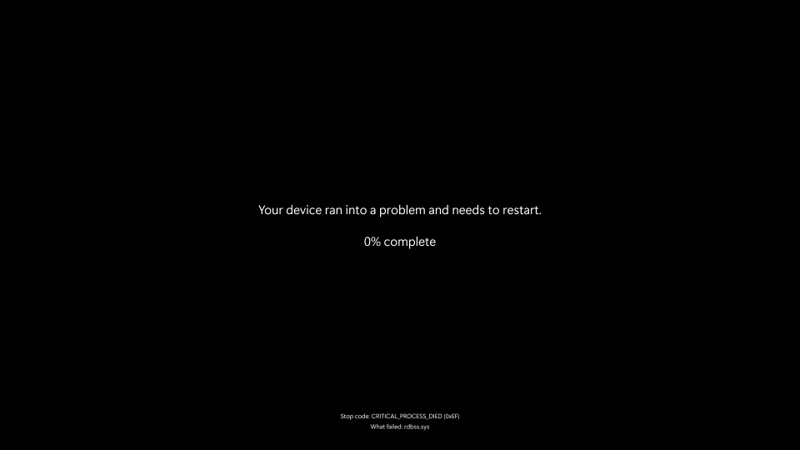
Why This Error Appears After Windows 25H2 Update?
When Windows installs an update, it just doesn’t add new features or security patches – it also replaces or modifies core system components. These changes can sometimes create inconsistencies between updated system files and existing drivers or configurations. Some common triggers include:
- Outdated or incompatible drivers on your system
- Partial or inconsistent system file updates
- Changes to Windows network stack
- Conflicts caused due to third-party software
- Residual configurations from previous updates
What is rdbss.sys and Why It Shows Up in This Error
Rdbss.sys is a system driver in Windows which is a part of the Redirected Drive Buffering Subsystem (RDBSS). When your system wants to access files over a network like shared folders or mapped drives – RDBSS plays an important role in facilitating those operations. It works closely with:
- Network drivers
- File system components
- Third-party tool that interact with network traffic
Usually, rdbss.sys keeps silently working in the background, but when there is a disruption – like a driver incompatibility or a mismatch caused by Windows update, this component may fail and appear as a BSoD error.
How to Fix rdbss.sys CRITICAL_PROCESS_DIED Error?
Since this issue is typically triggered by a mismatch between updated system components and existing drivers or software… the goal is to restore compatibility.
1. Update Network Drivers
Since outdated or incompatible wireless drivers are another big reason behind the unexpected rdbss.sys blue screen error, update them on priority to mitigate this issue.
- Open Device Manager.
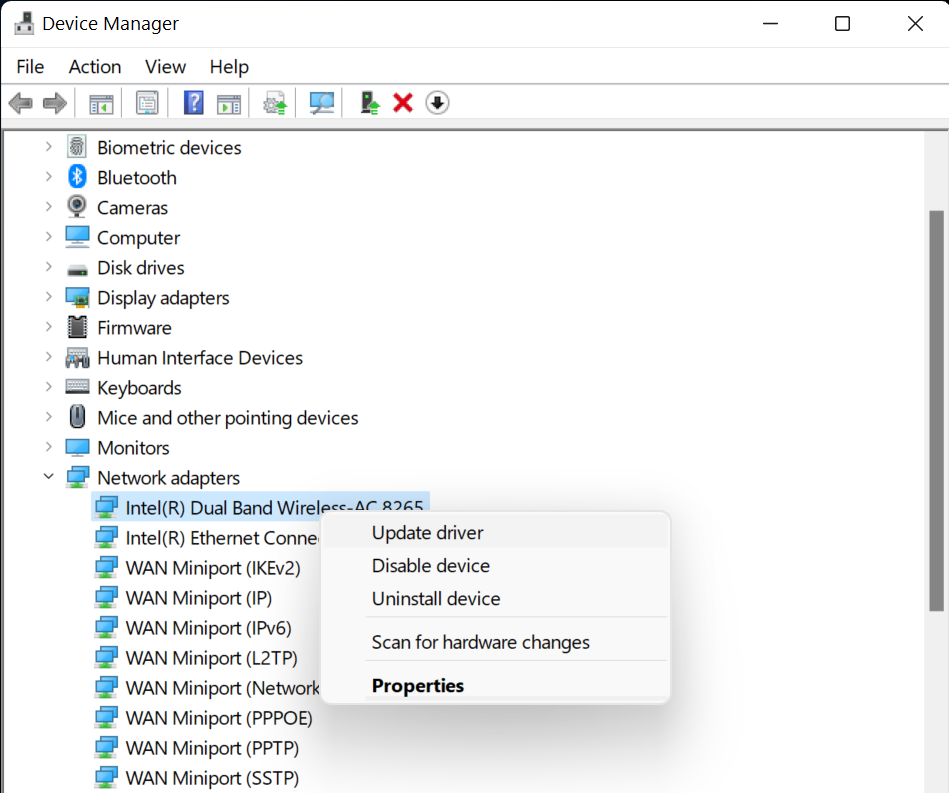
- Scroll down to Network Adapters and expand the entry.
- Right-click on the wireless adapter and click Update driver.
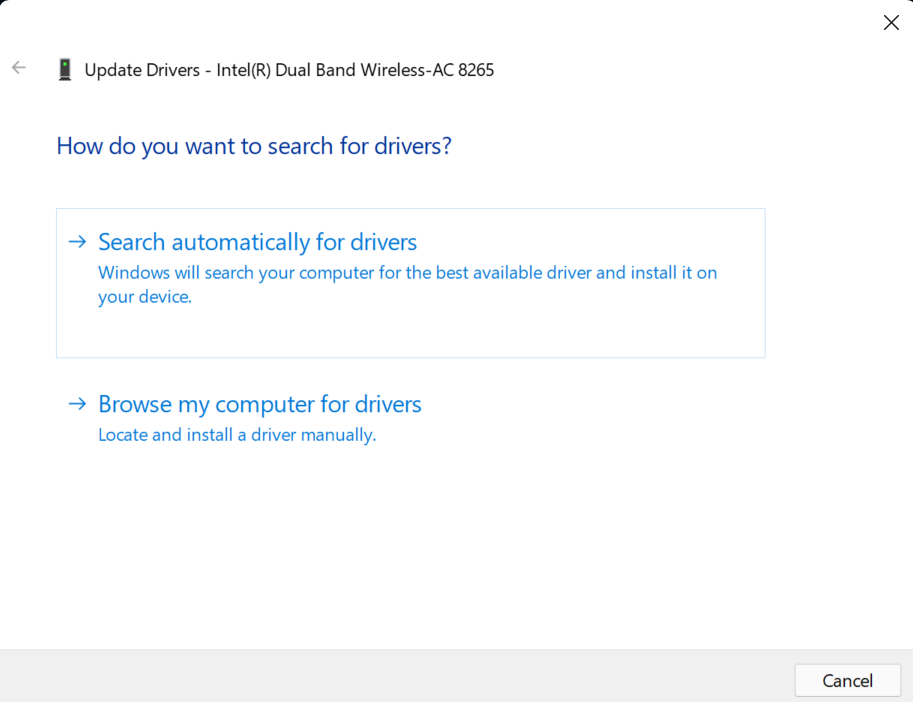
- Click Search automatically for drivers and let Windows install it on your computer.
If the issue still persists, it’s best to reinstall the drivers. For this, right-click on your wireless adapter and select Uninstall device. When you restart your PC, Windows will automatically install the driver.
2. Uninstall the Last Update
If the issue appeared immediately after installing a specific update, rolling it back may restore access. Restart your system after removing the update and see if the issue is resolved.
- Open Settings and click Update & Security.
- Go to Windows Update > Update History.
- Click Uninstall updates.
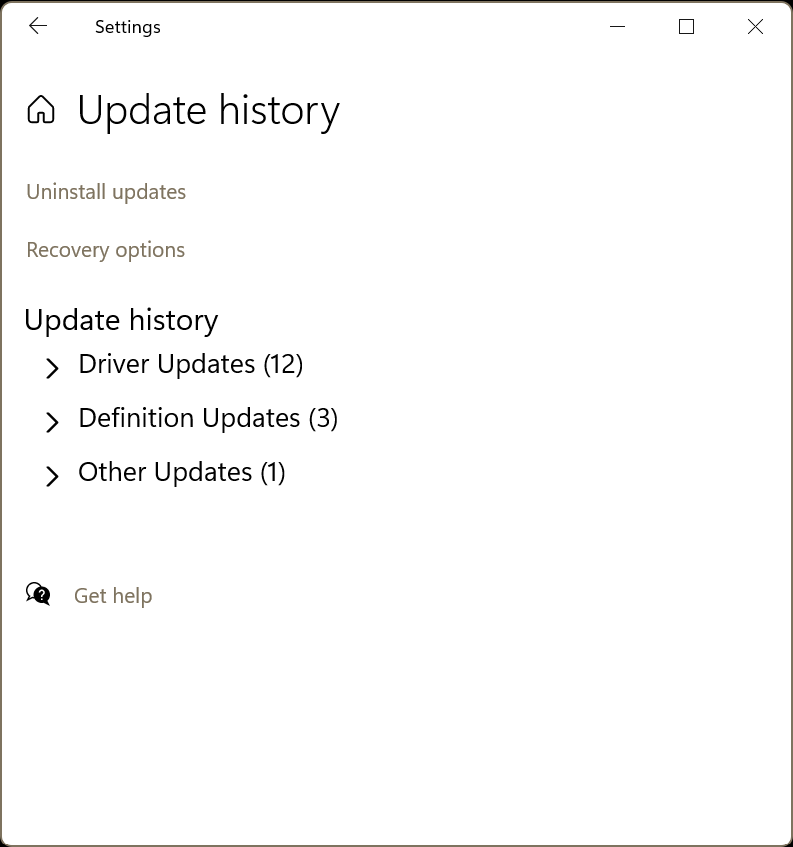
- Locate last update and remove it.
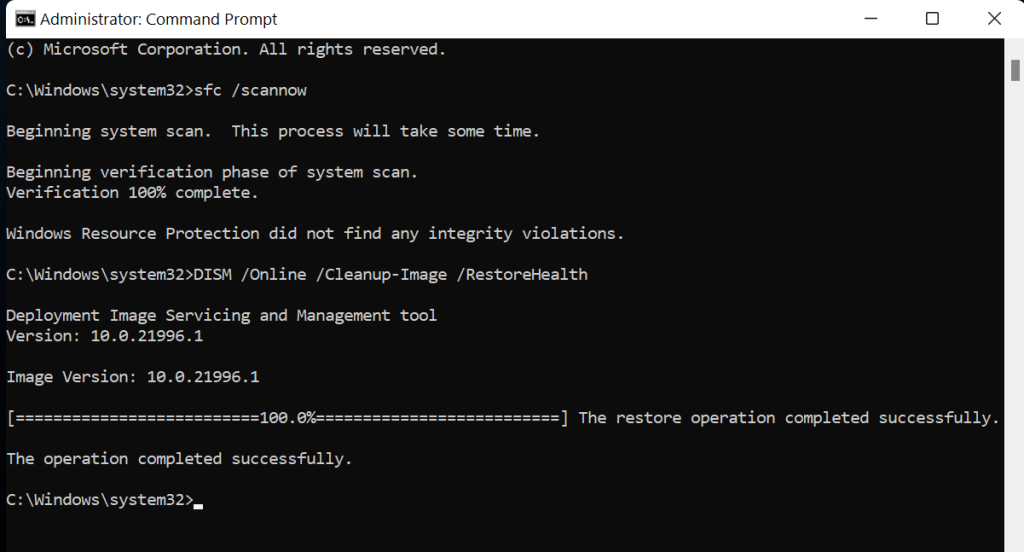
3. Run SFC and DISM Scan to Repair System Files
You may also run into the rdbss.sys blue screen error due to system file corruption. To fix this, we will run the SFC and DISM scans.
- Type CMD in search and click Run as administrator.
- Execute the following commands one by one:
sfc /scannow
DISM /Online /Cleanup-Image /RestoreHealth
4. Disable or Remove Conflicting Software
Some third-party tools – especially the ones that interact with network traffic, can conflict with updated system components. Consider temporarily disabling or uninstalling the following:
- VPN software
- Third-party firewall or antivirus program
- Network monitoring or filtering tools
Restart your PC and see if the issue gets resolved.
Lost Files After the rdbss.sys CRITICAL_PROCESS_DIED Error?
BSoD errors like the rdbss.sys CRITICAL_PROCESS_DIED can interrupt the file writing process on Windows. If the error occurred while writing to the drive, it can result in data loss. In such scenarios, we recommend using a professional data recovery software – Stellar Data Recovery Professional to reclaim your lost files.
The software helps you recover data in complex loss scenarios like BSoD errors, logical drive failures, lost partitions, and more. Download, install & launch the software on your PC and recover data using Stellar Data Recovery is just three simple steps.
Bottom Line
We understand how BSoD errors like the rdbss.sys CRITICAL_PROCESS_DIED hamper and stall your work midway. Such errors usually indicate a critical system issue and used to be accompanied by a blue error screen before. Microsoft has now shifted the crash screen from traditional blue to black in Windows 11 but it’s still functionally a BSoD. So you must not get worried and instead use the methods discussed above to resolve this error in no time.
