“This device cannot find enough free resources (Code 12)” error usually occurs when you install a new graphic card, add a PCIe expansion card, enable virtualization features, or update your Windows. At first the error may sound confusing because we don’t know what resources is Windows pointing out and why would the system suddenly run out of them.
But to explain it in simple terms, this happens when two or more devices compete for the same resources like memory ranges, I/O ports, or IRQ lines in Windows, or when firmware and driver settings fail to properly allocate them. This blog will help you troubleshoot this issue and bring your system back on track.
What Causes “This Device Cannot Find Enough Free Resources” Error in Windows
“This device cannot find enough free resources” error usually occurs when:
- Two hardware devices try to use the same resources and Windows blocks one of them
- Using outdated, corrupted, or incompatible drivers
- Multiple GPUs cause PCIe lane or address space limitations
- Your BIOS/UEFI settings are misconfigured after a reset or update
- Hyper-V or other virtualization features reserve hardware resources
- A faulty firmware prevents proper resource mapping
How to Fix This Device Cannot Find Enough Free Resources (Code 12)” Error?
The right fix depends on what caused the conflict in your system. Common solution involves correcting driver, BIOS, or hardware configuration settings rather than replacing components. Work through them in order.
1. Restart Your PC
The simplest solution is to restart your PC. It may sound basic but a restart forces your computer to reinitialize all hardware and reassign system resources from scratch. This usually clears any temporary allocation conflicts caused after installing new drivers or updates.
2. Check Device Manager for Resource Conflicts
Start by confirming which device is triggering the error.
- Open Device Manager.
- Locate the device with the yellow warning icon.
- Right-click it and select Properties.
- Open the Resources tab (if available).
If Windows reports a conflicting device, note which one it is. This helps determine whether disabling or reconfiguring another component will resolve the issue.
3. Update or Reinstall Device Drivers
Since drivers are a common reason behind the unexpected “This device cannot find enough free resources” blue screen error, update them on priority to mitigate this issue.
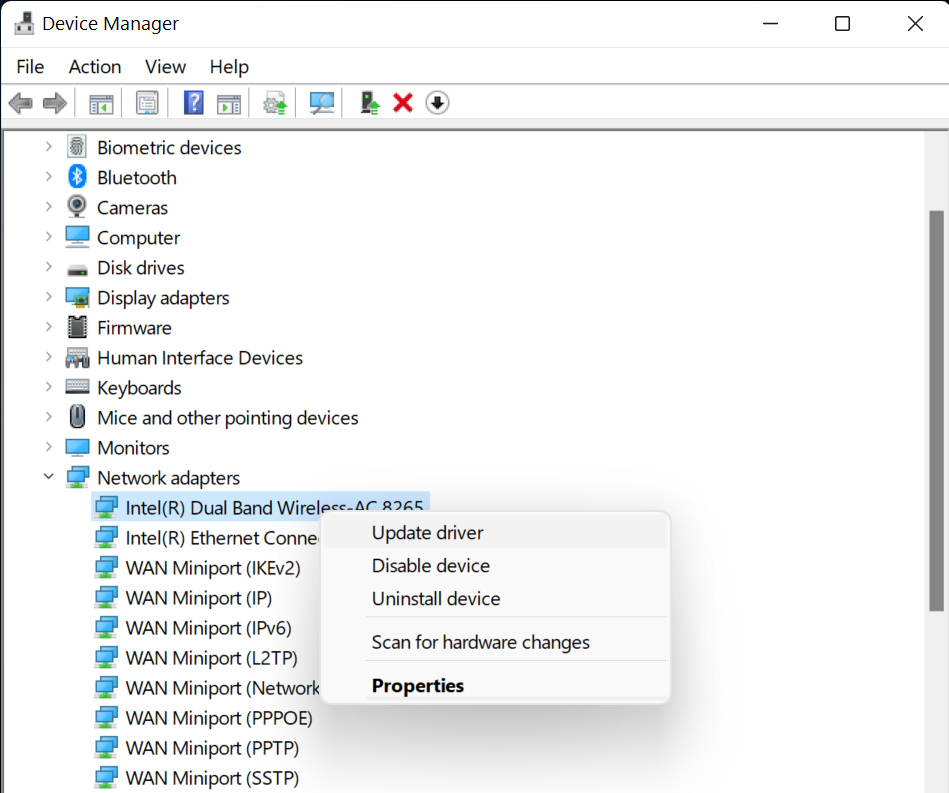
- Open Device Manager.
- Scroll down to affected driver and expand the entry.
- Right-click on the wireless adapter and click Update driver.
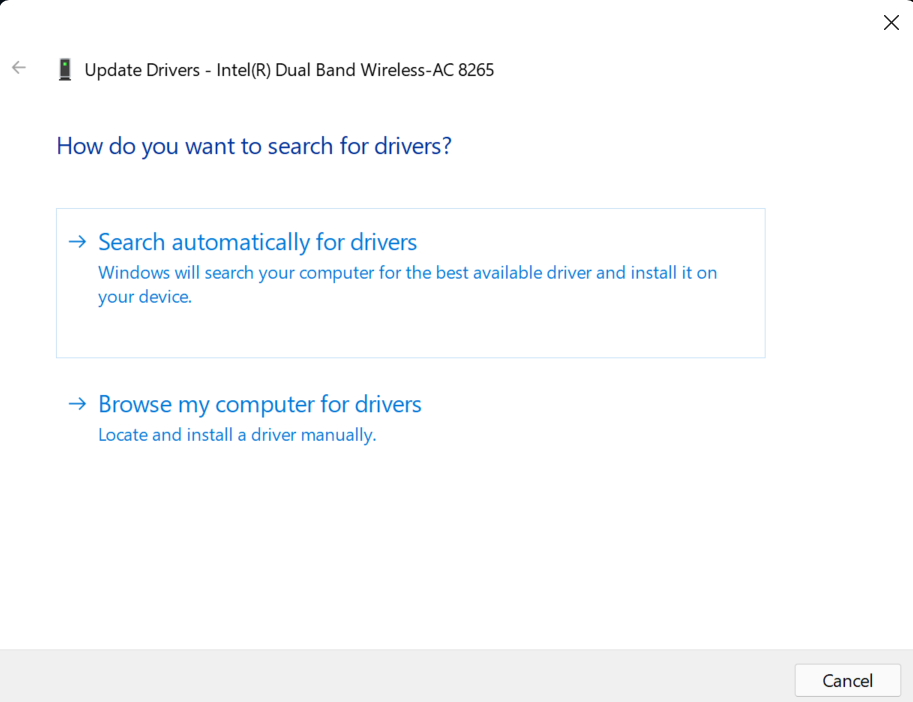
- Click Search automatically for drivers.
- Windows will install it on your computer.
If the issue persists, it’s best to reinstall the drivers. Right-click the affected adapter and select Uninstall device. When you restart your PC, Windows will automatically install the driver.
4. Disable Conflicting Devices
When multiple devices compete for resource, disable one temporarily to resolve the conflict. This frees up the resources it was holding… making them available for the device that actually needs them. This is both a test and a potential fix—if disabling one device brings the other back to life, you’ve effectively pinpointed exactly where the conflict was coming from.
- Open Device Manager.
- Right-click the device.
- Select Disable device.
Restart and see if the issue is resolved.
5. Disable Hyper-V
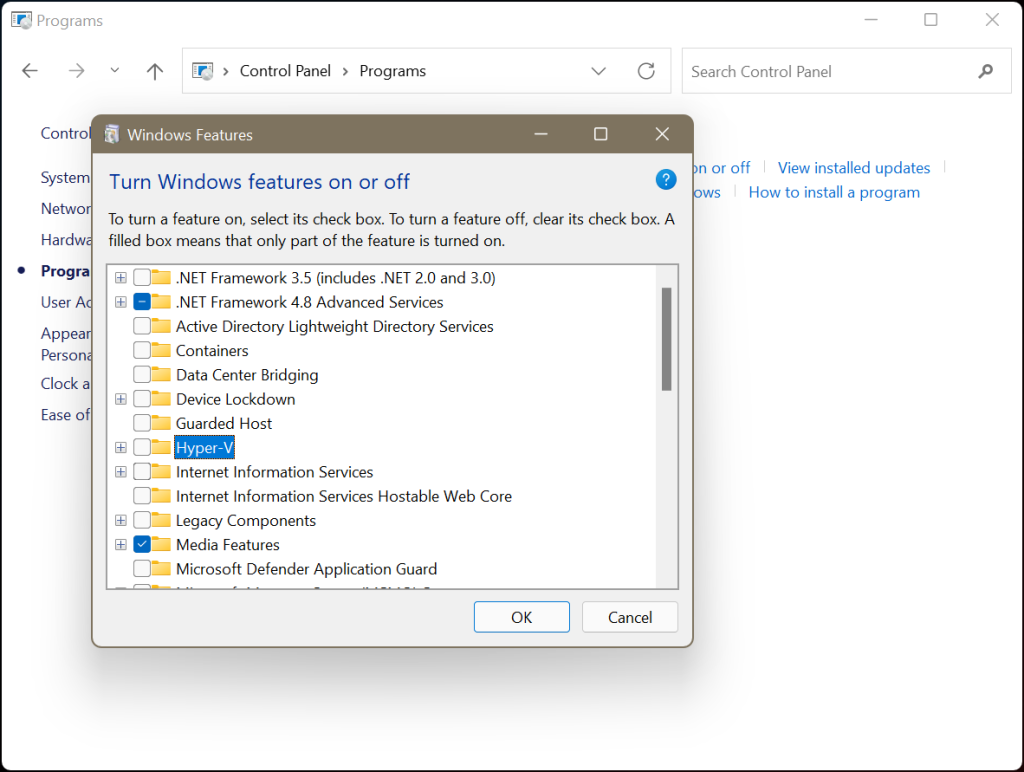
Hyper-V feature reserves some system resources for virtualization in Windows, which can sometimes limit what’s available to physical hardware devices. If you’re not using virtual machines, disable Hyper-V to free up the resources.
- Open Control Panel.
- Click Programs.
- Select Turn Windows features on or off.
- Uncheck Hyper-V.
- Click OK.
- Restart your computer.
6. Reset BIOS/UEFI to Default
If the error started after changing firmware settings, reset BIOS to its default configuration to restore proper PCIe resource allocation.
- Restart your PC.
- Enter BIOS/UEFI (press Del, F2, F10, or Esc during startup).
- Locate Load Optimized Defaults or Restore Default Settings.
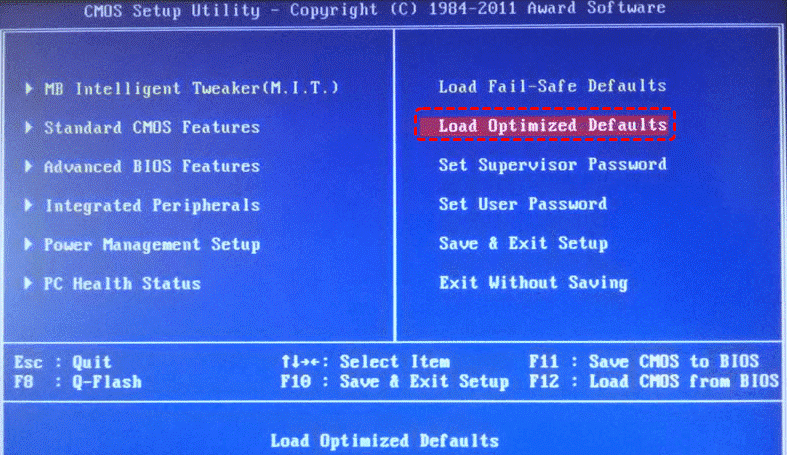
- Confirm the reset.
- Save changes and exit.
Have You Lost Data While Fixing the Code 12 Error?
In most cases, the Code 12 error does not affect your files. However, firmware resets, BIOS updates, or Windows reinstallation attempts can sometimes make drives temporarily inaccessible or lead to accidental data loss.
If important files become unreachable during troubleshooting, avoid formatting the drive repeatedly. Instead, use a reliable Windows data recovery software—Stellar Data Recovery Standard to scan and retrieve lost documents, photos, or system files before making further changes.
Summing Up
“This device cannot find enough free resources” error occurs as result of resource allocation conflict rather than a failing component. Start by identifying the affected device, apply fixes in order and avoid unnecessary hardware replacement. When the underlying conflict is cleared Windows will automatically reassign resources and bring the device back to working condition.
