It’s Monday, you’ve spent the entire last week working on an important product pitch which is due tomorrow, and suddenly your screen freezes with a blue screen & forces a reboot. Upon restart, Windows greets you with the message – EVENT_TRACING_FATAL_ERROR—meaning the Event Tracing for Windows (ETW) subsystem on your computer has failed.
Event Tracing for Windows is a diagnostic and logging system used by the OS to log kernel-level events. Because this system is deeply integrated into Windows, when it fails, the system performs a forced shutdown to prevent data corruption.
The purpose of this blog is to help people who are facing the EVENT_TRACING_FATAL_ERROR (0x0000011D) on their Windows PC and recover lost data.
EVENT TRACING FATAL ERROR: The Causes
After scrolling through some user reports on different forums & technical documentation, we have come up with a bunch of probable causes that could be triggering the 0x0000011D error on your PC:
- Files responsible for event logging (TraceLog) are corrupted or missing.
- Windows is blocking a specific driver from loading because it lacks a valid digital signature.
- The BIOS Secure Boot feature is conflicting with a specific hardware component or driver.
- The drivers (mainly Wi-Fi, Bluetooth, or Chipset) on your PC are incompatible with the current Windows version.
- The RAM settings on your PC are mismatched or the memory modules are failing.
Troubleshooting the EVENT TRACING FATAL ERROR
Effectively troubleshooting the EVENT_TRACING_FATAL_ERROR BSoD needs a specific approach, which depends on how the error occurred in the first place. Start with some basic workarounds like repairing system files to rule out corruption issues.
Type CMD in the search and click Run as administrator. Now execute the following commands one after another:
- sfc /scannow
- DISM /Online /Cleanup-Image /RestoreHealth
This will fix corruption in the Windows system files and component store issues that ETW and kernel logging depend on.
1. Clear Corrupted ETW AutoLogger Files
Corrupted ETW AutoLogger files can prevent Windows from initializing essential tracing sessions during startup. Delete the existing .etl files. It will force Windows to recreate fresh trace logs on the next startup and resolve the error without affecting system stability or user data.
- Press Win + R to launch Run.
- Type services.msc and click OK.
- Go to Windows Event Log and Connected User Experiences and Telemetry, right-click and select Stop.
- Go to the following path in File Explorer: C:\ProgramData\Microsoft\Diagnosis\ETLLogs\AutoLogger
- Delete all the .etl files and Restart.
This will clear corrupted trace sessions that trigger the fatal error during startup.
2. Disable Driver Signature Enforcement
When a driver fails a security check during startup, it can result in the EVENT_TRACING_FATAL_ERROR on your PC. Bypass this check temporarily to identify the issue.
- Press Win + X and click Settings
- Go to Update & Security > Recovery.
- Click Restart now.

- Go to Troubleshoot > Advanced options > Startup Settings.
- Click Restart.
- On the Startup Settings list, press F7 to Disable driver signature enforcement.
If your PC boots successfully after disabling driver signature enforcement, the issue is probably a faulty driver that needs updating.
3. Update Critical Drivers
Since outdated drivers (mainly network, chipset, audio, and storage controller) are another big reason behind the unexpected EVENT_TRACING_FATAL_ERROR blue screen error, update them on priority to mitigate this issue.
- Open Device Manager.
- Scroll down to Network Adapters and expand the entry.
- Right-click on the wireless adapter and click Update driver.
- Click Search automatically for drivers and let Windows install it on your computer.
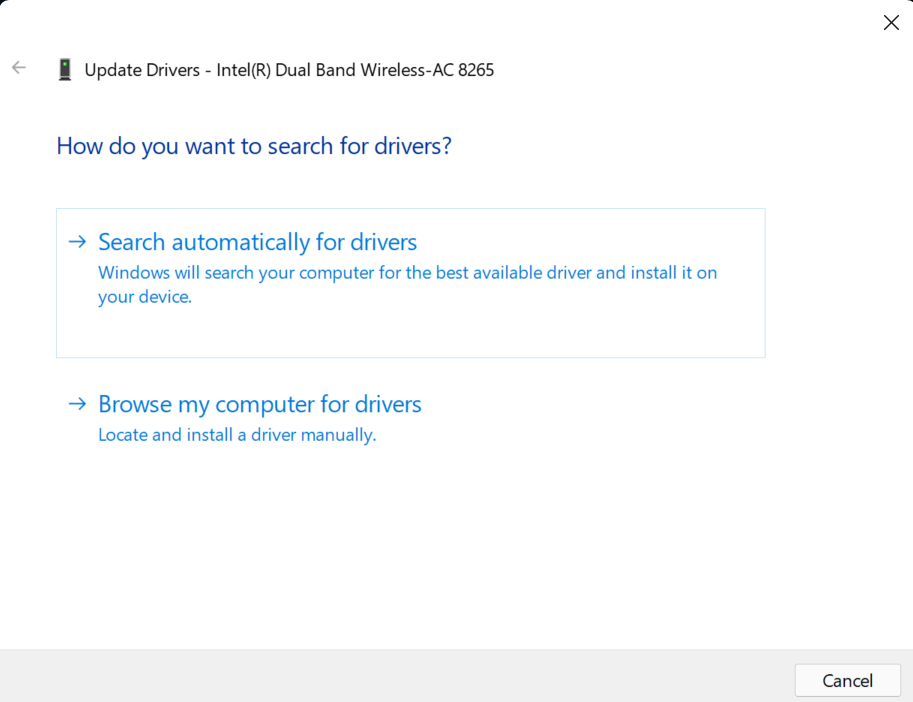
Similarly, update other concerned drivers and reboot your PC.
4. Perform Windows Memory Diagnostic
Usually, driver-related issues are the main factor behind this error, but occasionally, a user or two may face it because of faulty RAM. Run the Windows Memory Diagnostic tool to quickly get past RAM related problems.
- Press Win + S, type CMD, and click Run as administrator.
- Type mdsched.exe and press Enter.
- Click Restart now and check for problems.
- The PC will restart and automatically check for memory faults.
Recover Lost Data After EVENT TRACING FATAL ERROR
Blue screens like the EVENT_TRACING_FATAL_ERROR can interrupt the file writing process on Windows. If the error occurred while you were still saving a document or transferring files, it can result in data loss.
In such cases, we recommend using a professional data recovery software – Stellar Data Recovery Professional to reclaim your lost files. This robust recovery tool helps you recover data in complex loss scenarios like BSoD errors, logical drive failures, lost partitions, and more.
Bottom Line
Keep your drivers updated, make sure you rule out System Files corruption, and run routine Windows memory diagnostics to detect any underlying RAM issues. This will help prevent the EVENT_TRACING_FATAL_ERROR on your computer. If the BSoD crash results in data loss, use professional data recovery software to reclaim your files.
