You’ve just settled in after a hectic photoshoot, ready to view and edit the photos you captured for the client. Right when you open an image, you see the ‘Invalid image file’ error message on the screen.
You wonder whether the image is lost, but in reality, it is just hidden in plain sight. Most of such photos are recoverable. The right methods and tools can help you work around the ‘invalid image error’, even if the error tells that your images are severely corrupted.
That’s what this guide is really about. To provide simple tools and methods that can fix your files and your sanity.
What ‘Invalid Image File’ Error Really Means?
Let’s get down to the basics. Imagine your image file is like a book:
- The file format is the book cover: PNG, JPEG, HEIC, etc.
- The image data is the actual book content.
- The header/metadata is the index page of the book that tells your device how to read and display the content.
If your photo viewer application is unable to interpret the header as well as the metadata of the image, it won’t be able to ‘read’ it, even though the format as well as the data may be correct.
Here are some reasons why this could be happening:
- Your photo editor or viewer doesn’t support that specific format
- The file extension doesn’t match the content
- The image file is incomplete or corrupted
- Interrupted download, or transfer often create unreadable image file
- The file header is damaged
How to Know When it is an Invalid Image File Issue?
If any of these feel familiar, you’re likely dealing with an ‘invalid image file,’ not a lost image file:
- The file size of the image looks normal, but the image won’t open
- The thumbnail shows up, but the image fails to load
- It opens on your laptop, but not your phone
- Your app displays a message, such as ‘Invalid image file’ or ‘Cannot open image.’
Let’s see how to solve it.
Methods to Fix “Invalid Image File” Error Easily
Here are some quick solutions you can try whenever an ‘invalid image file’ error occurs:
Method 1: Try a Different Photo Viewer App
The first (and easiest) fix is to use a different photo viewer app. Many built-in viewing apps, especially on phones, support only the most common formats. If your photo format is even slightly different, they show the “Invalid image file” error.
The most widely used photo viewer apps are Google Photos, Adobe Photoshop, and Snapseed, which support almost every image file format and is compatible with Android, iOS, Windows, and Mac, and are free.
To try it out:
- Download and install any of these apps from the Google Play Store and App Store.
- Now, try opening the image with these.
If it opens correctly, problem solved!
Method 2: Check (and Fix) the File Extension
If the above trick didn’t work, the problem isn’t with the image; it’s with the label. What this means is your camera might have created a .RAW or HEIC image file but saved it as .png. When that happens, the photo viewing app gets confused.
Google Photos, Files by Google for Android, Adobe Lightroom Mobile, or Files on the iPhone can help with fixing the file extension of this image. Changing the file extension will not help if the file is corrupted.
Method 3: Convert the Image to a More Compatible Format
However, if you haven’t succeeded yet, you can then convert the picture to a format that is better known by your device. Try to convert it to JPEG/JPG or PNG, which were the most popular picture formats of 2026.
Option 1: Adobe Photoshop Express
- Open Photoshop Express.
- Open the image > tap Save / Export icon.
- Click on the existing format of the image (here it’s PNG)
- Now, select between PNG and JPEG.
- You can see the changed format in the next screen, then tap Save.
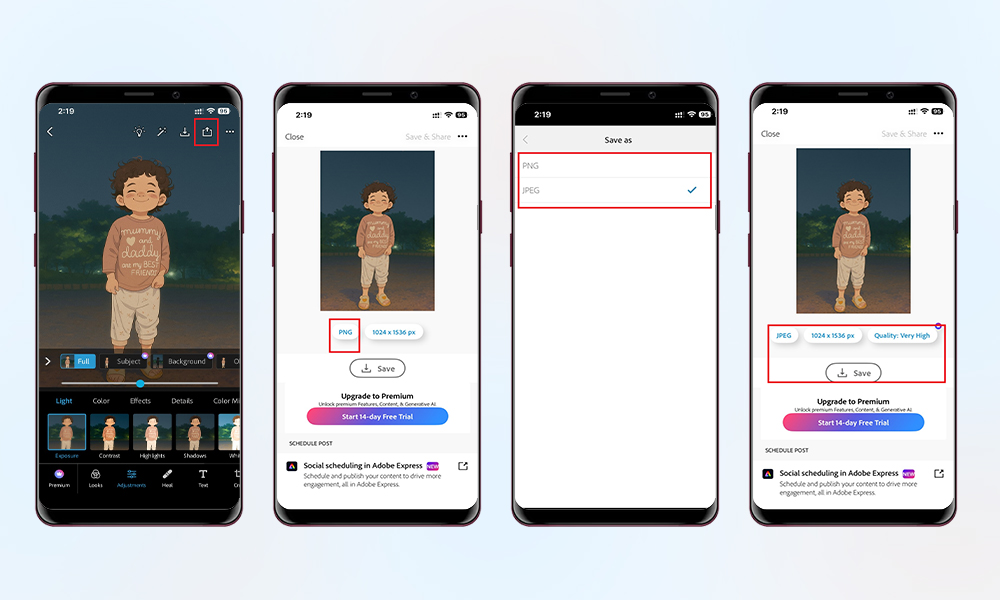
Option 2: Adobe Lightroom Mobile
- Open Lightroom Mobile.
- Open the photo.
- Tap Share / Export icon > choose Export As.
- Click to open the drop-down menu of File Type to select the file format
- At last, tap Export.
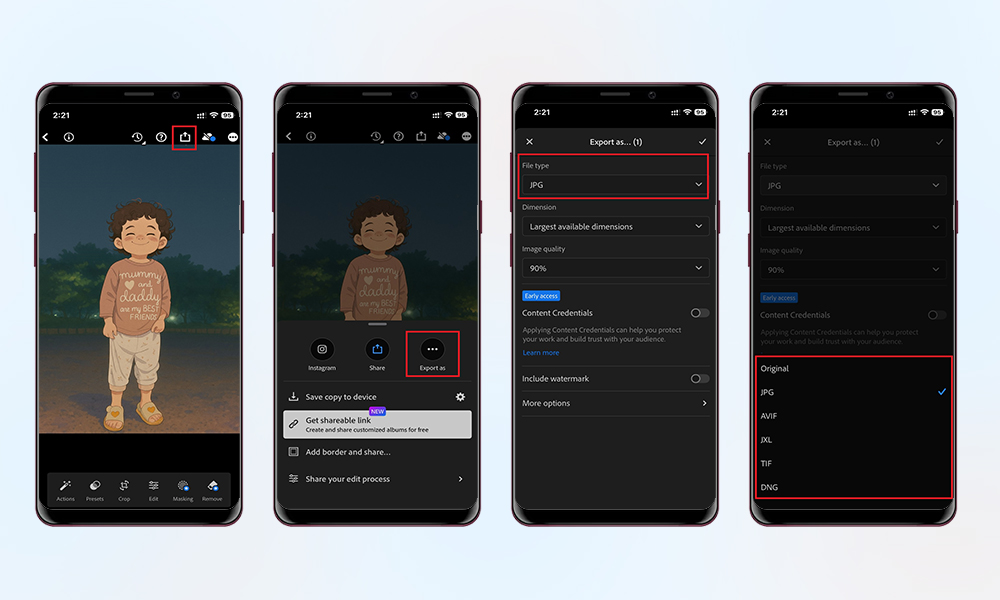
Option 3: Online Tools
- Try platforms like CloudConvert, FreeConvert, or Online-Convert
- Upload image > Select format > Download result.
Tip: Always use trusted online converters. Shady converters can damage files or compromise your data.
Method 4: Re-Download/Transfer the Image
Now that you have tried everything, switching viewing app, renaming, and converting, the image file still shows the error ‘invalid image file’. What to do?
You can check to re-download or re-transfer the image again to see if the interrupted process caused this error. If it were an incomplete file issue, the image should open now after re-download or re-transfer.
Method 5: Diagnose a Corrupted or Incomplete File
If none of the above steps worked, your image might be corrupted.
This usually happens when one or more of the following cases occur:
- An image download stops before it finishes.
- The device shuts down when capturing the image.
- The image came from a sketchy source or site.
- Image files are transferred halfway, and the device is unplugged.
How to fix it: Use a dedicated online image repair tool
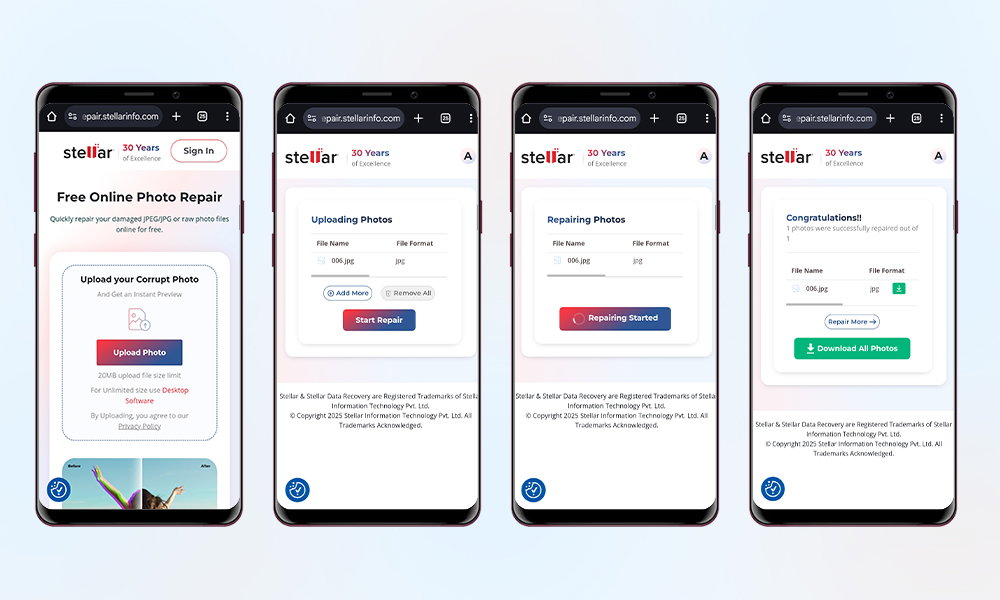
Use online tools like Stellar Online Photo Repair to repair your corrupted photo files without any hassle. This software work entirely in your web browser; no software download or installation needed to get watermark-free repaired image in just “3 Easy Steps: Upload Corrupted Photo, Repair, Save”.
Unlike many online repair tools that don’t provide a privacy commitment. Stellar has a strong commitment to data privacy as all the uploaded and repaired images are auto-deleted within 3 hours in the Free plan and 24 hours in the Premium plan. This online image repair tool fixes corrupted or damaged photos of all popular formats like HEIC, PNG, JPEG, and other formats.
Here’s how it typically works:
- Go to the Online Image Repair page: Launch the Stellar Online Photo Repair page on the web browser of your smartphone.
- Upload your corrupted image file: Click the Upload Photo button and select the damaged image that shows ‘invalid image file’ error.
- Repair: Hit the Start Repair button. The web tool will take some time to analyze the corrupted images and repair them. It shows you the progress in a progress bar here as well.
- Download: After a short time, the tool will give you a download link for the repaired image file.
Bonus: Prevent ‘Invalid Image File’ Errors in the Future
- Safely eject USBs or memory cards after transfers.
- Back up important photos to cloud storage or an external SSD.
- Update your photo viewer or editor apps regularly.
- Avoid unknown download sources or sketchy converters.
- Don’t interrupt the file transfer process
- Avoid renaming the files randomly
Final Thoughts: It’s Just a Glitch
The “invalid image file” error message feels intimidating. But most of the time, it’s a fixable error!
Now, you’ve got a full toolkit and a clear step-by-step process to tackle anything from ‘invalid image file’ to corrupted files. So next time, you try to open an image and get an error, you’ll know exactly what to do.
