Many users encounter the frustrating issue of a Lenovo black screen, often referred to as the Lenovo black screen of death. Whether it’s a black screen on a Lenovo laptop or a case where you think, “Why is my Lenovo laptop screen black?”, this guide will help you understand the causes and solutions for this issue.
Causes for Lenovo Laptop Black Screen
There are various reasons for the Lenovo laptop black screen of death. Some common factors responsible for the issue are:
Peripheral Devices Malfunction or Corruption –
Peripheral devices like external hard drives, printers, or USB devices can sometimes cause the Lenovo laptop black screen issue if they malfunction or become corrupted.
Disk Errors –
Hard disk errors are one of the most common causes behind the Lenovo laptop black screen issue. Typical causes for hard disk errors include power outages/fluctuations, hardware failures, poor system maintenance, viruses, or manual negligence.
Graphics Card Errors –
Another reason behind the ‘black screen of death’ could be an error or malfunctioning of the graphics card. Some early warning signs of a failing graphics card include stuttering, screen glitches, blue/black screens, or excessive fan noise.
Windows OS Behaving Unexpectedly –
Sometimes, the Windows OS starts behaving unexpectedly, such as slower operation than usual, delays in command execution, strange notification sounds, unexplained file or folder changes, etc. Such abnormal functioning can occur due to abrupt power outages, power fluctuations, system crashes, update errors, or virus/malware attacks.
Faulty Laptop Battery –
If your Lenovo laptop is showing a black screen and not starting up, a faulty battery could be the reason. Early signs of battery failure include overheating, failure to charge, short runtimes, and shutdowns.
Faulty Laptop Display –
The sockets or ports connecting the screen to the laptop keyboard might get damaged, causing malfunctions. Typical indicators of a faulty display include no display screen, lines or dots on the screen, dimmed screens, wrong color displays, or distorted screens.
Virus/Malware Attack –
Frequent crashes might be due to a malware infection if other technical issues are ruled out. A weak or absent antivirus program might allow malicious software to hinder your laptop’s performance.
Early Warning Signs or Symptoms
There are some early signs indicating that a laptop black screen problem might occur. Paying attention to these warnings can help you avoid the issue:
- Flickering screen
- Stuttering screen
- Excessive heating
- Increasing fan sound
- Abrupt opening and closing of unwanted windows
- Drive full warning
Solutions to Fix the Lenovo’s Black Screen of Death Issue
If you’re already facing a black screen on your Lenovo laptop, here are some solutions to help you resolve it. Before proceeding, back up your crucial data. In case of data loss, you can use Stellar Data Recovery Professional to recover your files.
1. Reset the Display or Screen Mode
One reason for the black screen issue in Lenovo laptops is the loss of connection between the screen display and the Windows OS. Fix this by resetting the display mode:
- Press Windows + Ctrl + Shift + B.
2. Connect the External Monitor to Test the Display
If the Lenovo laptop is not starting and shows a black screen, the display might be faulty. Connect an external monitor or Smart TV to check the display or inspect the BIOS and RAM.
3. Disconnect Non-essential Peripherals Devices
Remove external hard drives, USB devices, or printers to check if a peripheral device is causing the issue. Reconnect them one by one to identify the faulty device.
4. Hard Reset your Lenovo Laptop
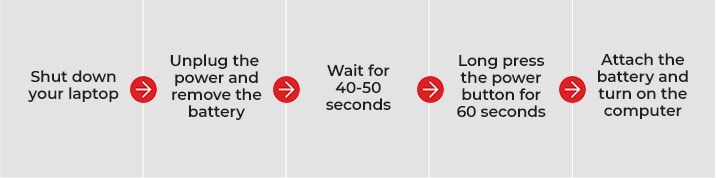
If you see spinning dots during boot-up, perform a hard reset:
- Turn off the laptop, disconnect power, and remove the battery.
- Hold the power button for 30 seconds.
- Reconnect the battery and power on the laptop.
5. Update your Graphics Card Driver

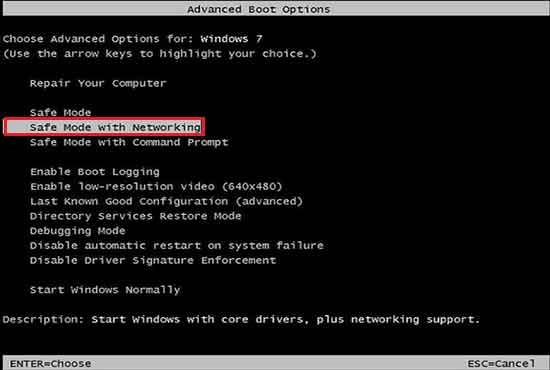
You can perform this step only in Safe Mode:
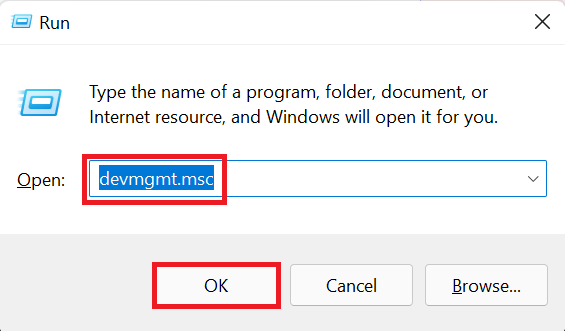
- Press Windows + R to open the Run dialog box.
- Type ‘devmgmt.msc’ and hit Enter to open Device Manager.
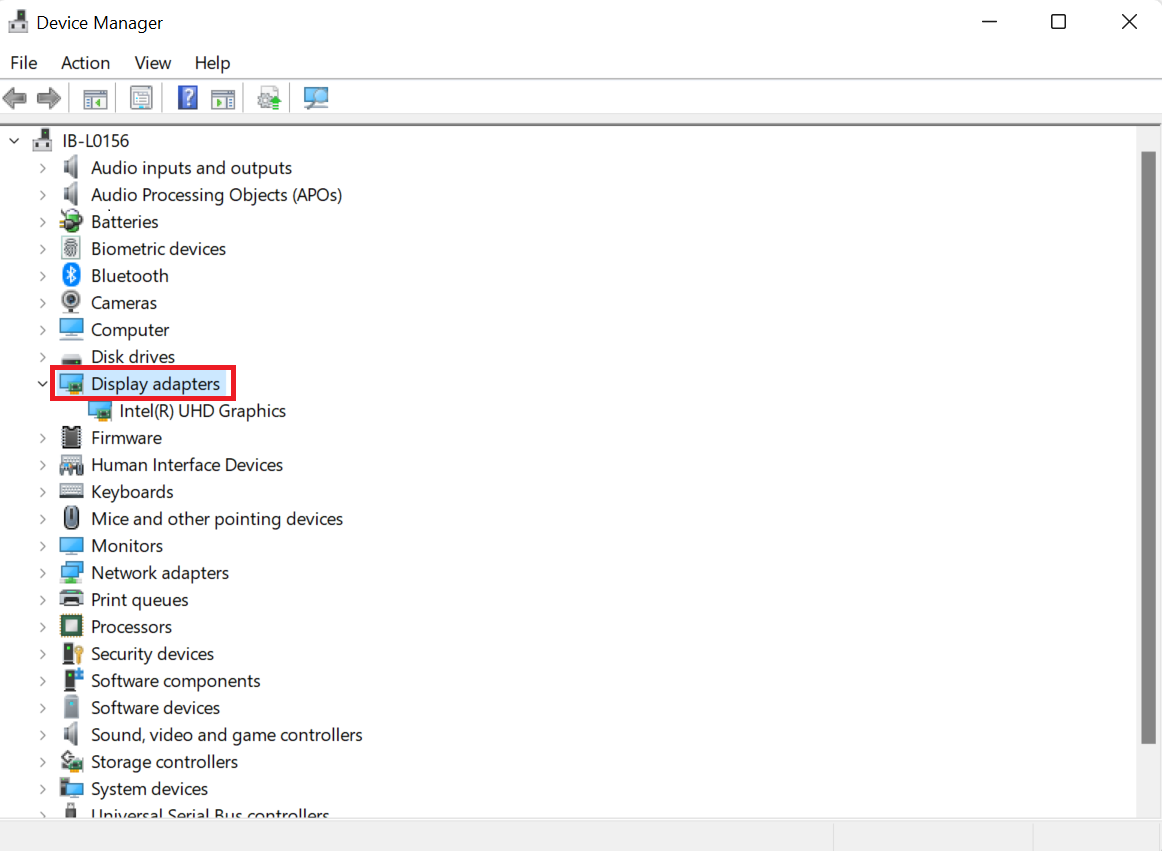
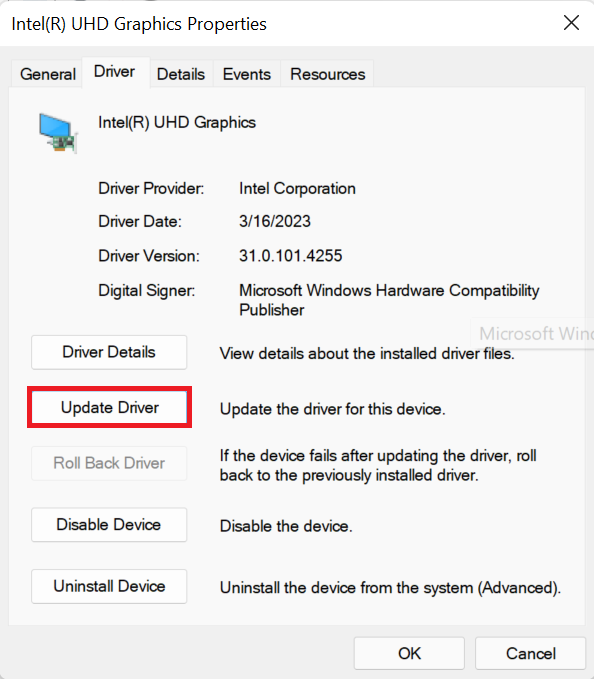
- Under Display Adapters, right-click the graphics card and select Properties.
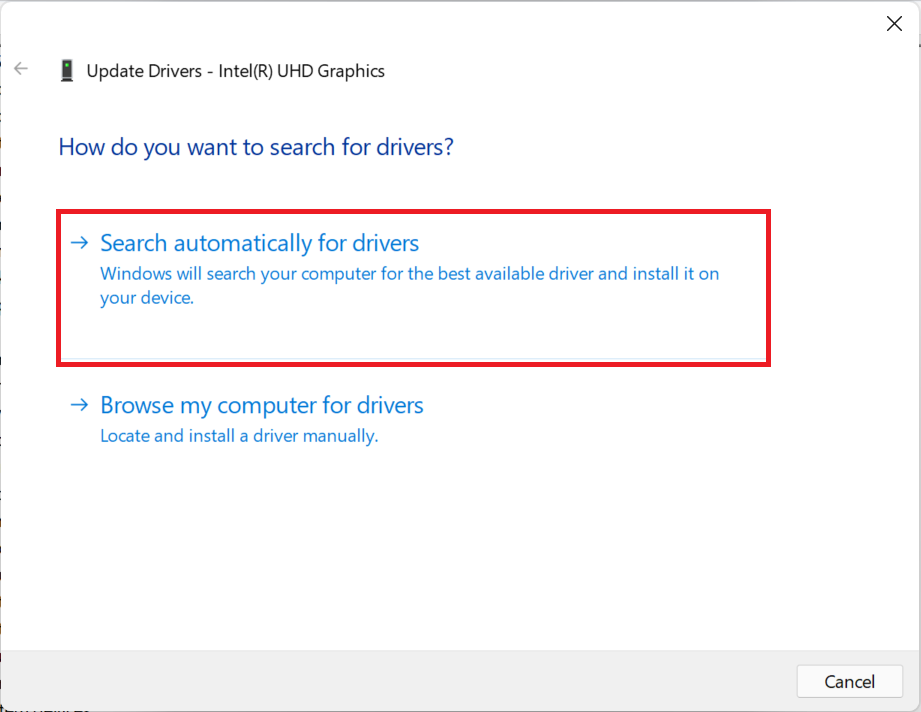
- Update the driver under the Driver tab and follow the instructions.
6. Restart the Explorer.exe Process

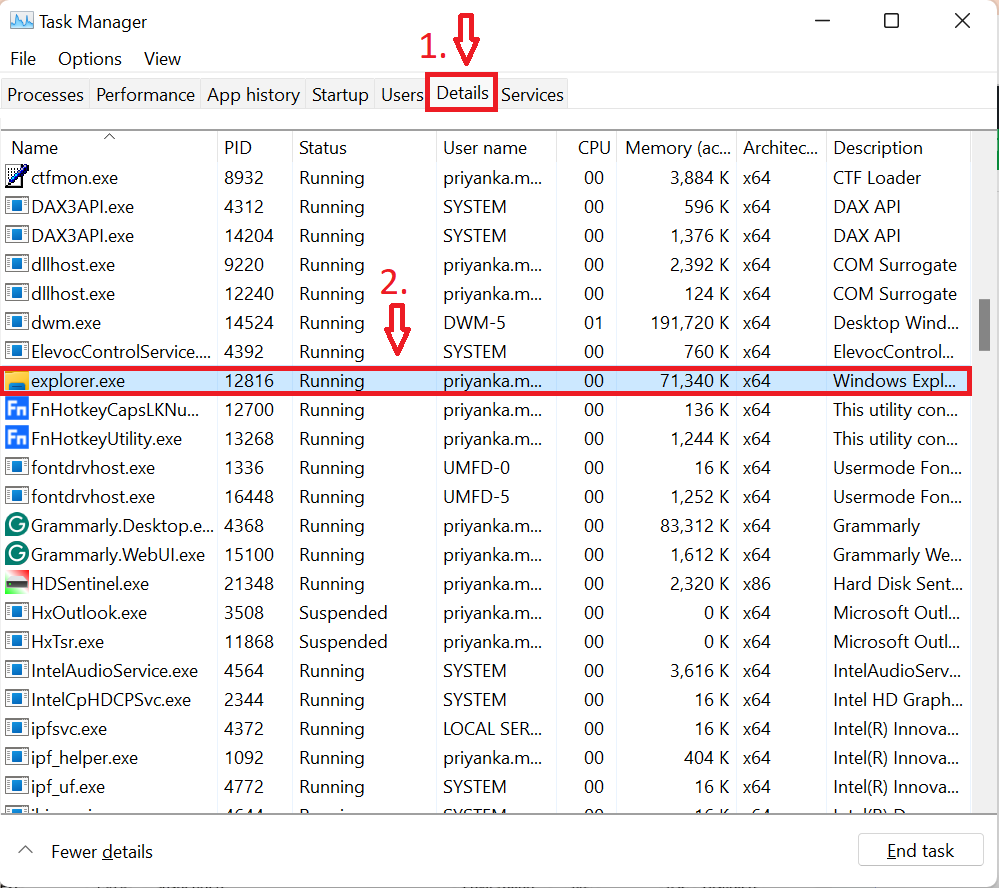
Explorer.exe helps in various functions, like desktop, taskbar, etc. If it is not running on your laptop, then there are cExplorer.exe manages desktop and taskbar functions. Restart it to resolve the black screen issue:
- Under the Processes tab, find and restart explorer.exe.
- Open Task Manager with Ctrl + Shift + Esc.
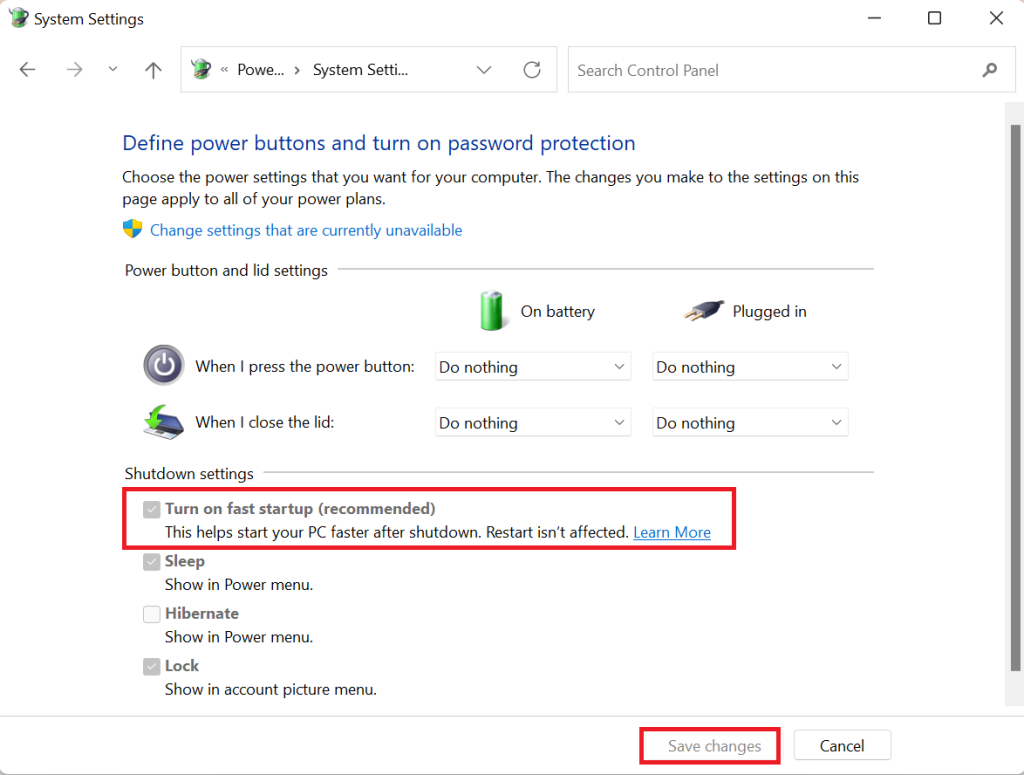
7. Disable Fast Start-up
Fast Start-up, a Windows 10 feature, can cause a black screen. Disable it:
- Restart your laptop..
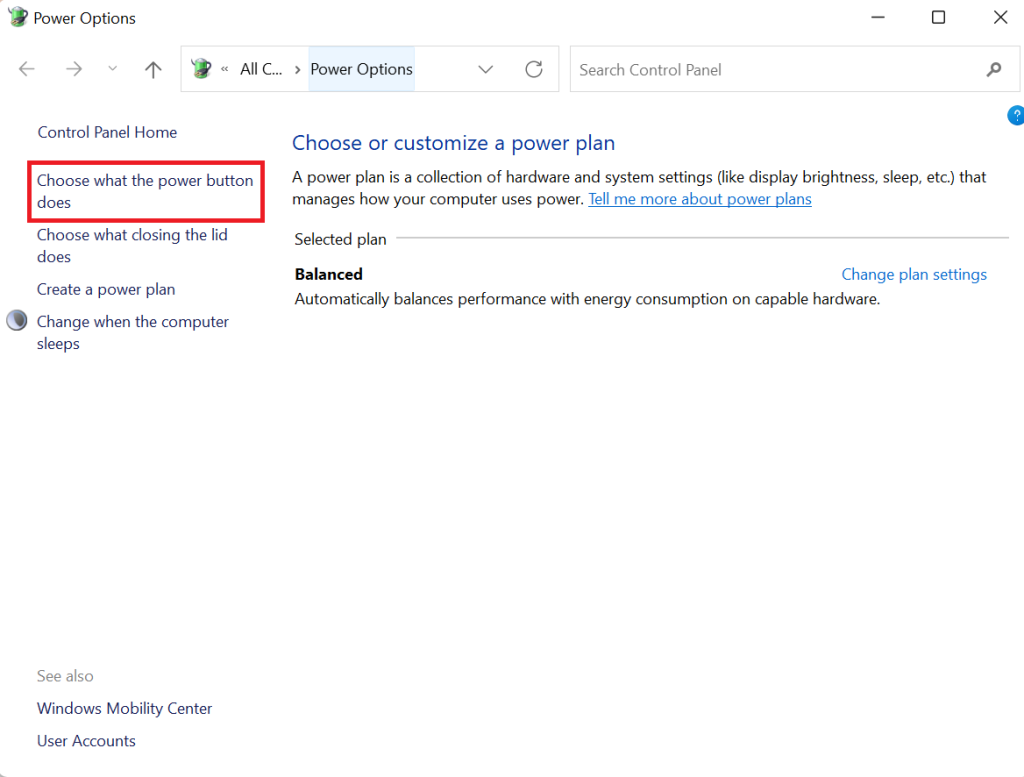
- Open the Run dialog box (Windows + R) and type ‘powercfg.cpl’.
- Select What the power buttons do and click Change settings that are currently unavailable.
- Uncheck Turn on fast start-up and save changes.
8. Reset the Memory Modules
Resetting memory modules can reduce start-up issues:
- Reattach the battery and turn on the laptop.
- Turn off the laptop, disconnect the power supply, and remove the battery.
- Open the service door and carefully release the memory module.
- Clean the module with a soft cloth and reinsert it.
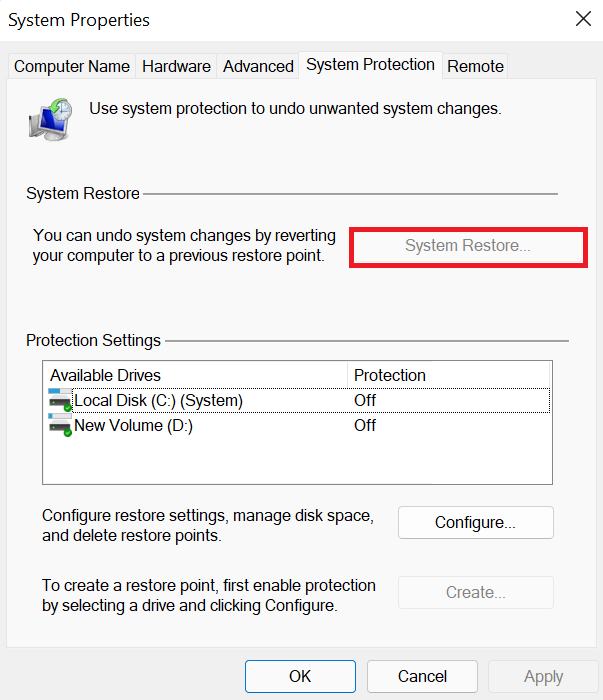
Restore your system to a previous state if recent changes caused the issue:
- Search for ‘restore’ in the taskbar and select Create a restore point.
- Under System Protection, click System Restore and follow the prompts.
What to do if Data is Lost?
If valuable data becomes inaccessible during repairs, use Stellar Data Recovery Professional software to recover it effectively.
Conclusion
Lenovo laptops are known for their reliability, but even the best devices can encounter issues like the Lenovo black screen of death. By following these solutions, you can resolve the problem effectively. If you experience data loss during repairs, consider using Professional data recovery software like Stellar Data Recovery Professional for seamless recovery.
