Outlook 365 stores your mailbox data, including emails, contacts, calendars, tasks, journals, notes, etc., in the OST – Offline Storage Table – file. This file has a predefined limit of 50 GB. However, Outlook users start experiencing issues when the OST file grows large. These include send/receive errors, slow search results, slow Outlook load time, and in severe cases, an Outlook out of memory error.
When the OST becomes too large and reaches the limit (10 GB, 20 GB or more) set by the administrator, Outlook users start receiving the warning message “your mailbox is almost full.” This is a concerning message that must be fixed to ensure uninterrupted email services and avoid issues, such as Outlook cannot send or receive new messages.
However, there are various ways to overcome the issue of OST file storage space. The most common are deleting unwanted messages, clearing junk folders, disabling Cached Exchange Mode, and others.
What Causes the ‘Mailbox is Almost Full’ Error in Outlook 365?
This error message usually appears when your mailbox storage is close to its storage capacity. This error can prevent you from sending and receiving new emails. Therefore, it is important to manage your mailbox in an efficient way to avoid errors related to storage.
Below are the main reasons for receiving Outlook 365 mailbox is almost full error:
1. Large Size of OST File
The large size of Outlook OST file can slow down your application which can cause issues such as slow search results, and occasional freezing. Mailbox storage limits are defined by the subscription plan – 50 GB for most M365 Business plans, and up to 100 GB for Enterprise plans. This limit is configured by the administrator in MS Outlook 365. When this limit gets exhausted, then you may encounter the “Mailbox is Almost Full” error.
2. Deleted Emails
Deleting emails cannot free your mailbox space immediately. These emails move to the Deleted Items folder, where they continue to count toward the mailbox storage quota.
Similarly, emails stored in the Junk or Spam Email folder consume a large storage space. If you do not empty these folders permanently, your mailbox size continues to grow, causing the ” Mailbox is Almost Full” warning in Microsoft Outlook 365.
3. Shared Mailboxes Synced via Cached Exchange Mode
When Cached Exchange Mode is enabled, Outlook automatically downloads a local copy of every shared mailbox you have access to — in addition to your primary mailbox. If you are connected to multiple shared mailboxes, this data accumulates silently in your local OST file and can add several gigabytes over time. Unlike your primary mailbox, shared mailbox data growth is easy to overlook because it happens in the background without any visible warning until the OST becomes excessively large.
Mailbox Full Error in Outlook 365 – Understanding the Possible Causes and Fixes
The table below will help you to identify the possible reasons of the issue, and their recommended fix:
| Your Situation | Possible Cause | Recommended Fix |
| Outlook shows a mailbox size warning, but sending and receiving emails still works | Mailbox is approaching the server storage quota | Archive Mailbox Data or Increase Mailbox Quota |
| Cannot send or receive emails in Outlook | Mailbox storage quota has been exceeded | Remove Large Emails and Attachments and Archive Mailbox Data |
| Outlook displays mailbox full errors even though the server mailbox size is small | OST file has become excessively large or inconsistent | Clean Up OST File or Disable Cached Exchange Mode |
| Shared mailbox is triggering mailbox size or synchronization errors | Shared mailbox data is being downloaded into the local OST file | Disable Cached Exchange Mode for Shared Mailboxes and Disable Sync for Shared Mailboxes |
Solutions to Fix ‘Your Mailbox is Almost Full’ in Outlook 365
Here are the possible ways to fix the “Mailbox is Almost Full” error.
Solution 1: Archive Mailbox Items
Archiving moves your older emails from your active mailbox to a local .pst file which reduce your mailbox size without permanently deleting any mail items. It is the safest and most recommended first step when you see the “Your Mailbox is Almost Full” error.
The quickest way to archive is via File > Cleanup Tools > Archive in Outlook — select your folder, set a date cutoff (6 months works for most users), and Outlook moves older items automatically
For the full step-by-step process including how to also reduce the size of your local OST file after archiving, see our complete guide: How to Compact OST File in Outlook.
Note: As per Microsoft, AutoArchive is not available in New Outlook (2024). Use the manual File > Archive for the new Outlook interface.
Solution 2 – Find and Delete Oversized Emails
Outlook uses up lots of storage space for large emails and attachments. Large email messages and attachments can be located and removed using Outlook’s search feature or sorting emails by size. Make sure to empty Deleted Items folder after deleting emails. Because they continue to occupy the mailbox storage until they are permanently removed.
Below we have listed two methods to find the large emails in Outlook:
Method 1: Sort by Size
- Launch Outlook 365.
- Go to your Inbox.
- Click View > Arrange By > Size.
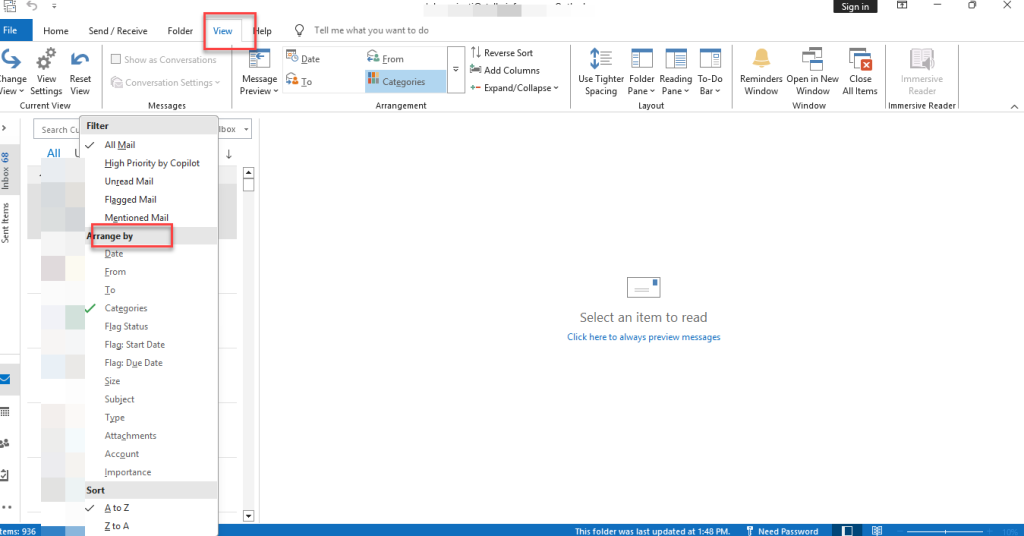
- Largest emails appear at the top.
- Now, review the emails and delete the unnecessary emails and attachments to free up the mailbox space.
Method 2: Search by Size Filter
- In the search bar, type:
- size:>10MB – This shows all emails larger than 10 MB.
- Adjust the number (e.g., 5MB, 20MB)
- Now, Outlook shows all the emails larger than the specified size.
- Then, review and delete unnecessary emails or attachments.
Solution 3 — Use Mailbox Cleanup Tool
Microsoft Outlook offers a built-in Mailbox Cleanup utility. It helps you to identify and remove large mailbox items. By using this tool, you can:
- Check your mailbox size
- Locate old or large emails
- Empty the Deleted Items folder
- And remove unnecessary data to free up the space.
This can help you to reduce your mailbox size and resolve the “Mailbox is Almost Full” error. Here’s how to do so:
- Open Outlook 365
- Click on File > Tools > Mailbox Cleanup
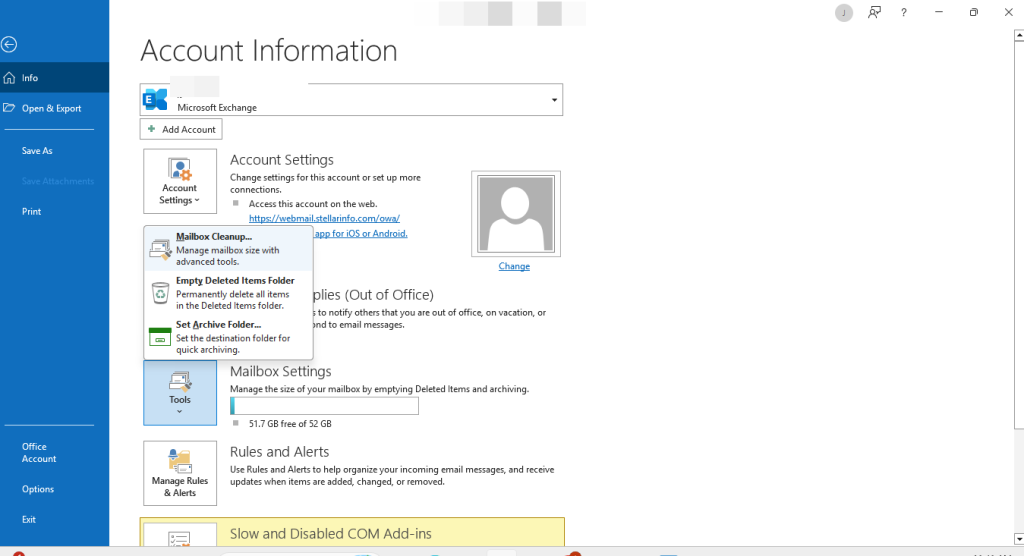
- Click on View Mailbox Size
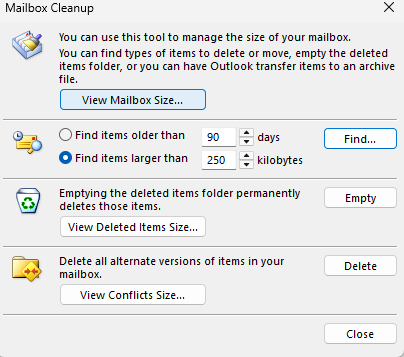
- To find unnecessary emails, you can use options like:
- Find items older than
- Find items larger than
- Now, delete unwanted emails and attachments.
- Then clear Deleted Item Folder by clicking on Empty.
- Restart your Outlook to check if the mailbox warning is resolved.
Solution 4 — Reduce Sync Range or Disable Cached Exchange Mode
If Cached Exchange Mode is enabled in your Outlook 365 profile, it creates a local copy of the OST – Offline Storage Table – files on your computer. Over time, this data file can become very large – especially if you are working with shared mailboxes. This may lead to “Mailbox full error” and slow your email client performance.
In such a case, you can reduce amount of your locally stored mailbox data either by reducing the sync range or disabling the Cached Exchange Mode completely.
Option A — Reduce sync range
Reducing the “Mail to keep offline”range can decrease the amount of mailbox data stored locally while still allowing offline access to recent emails.
- Go to File > Account Settings > Account Settings
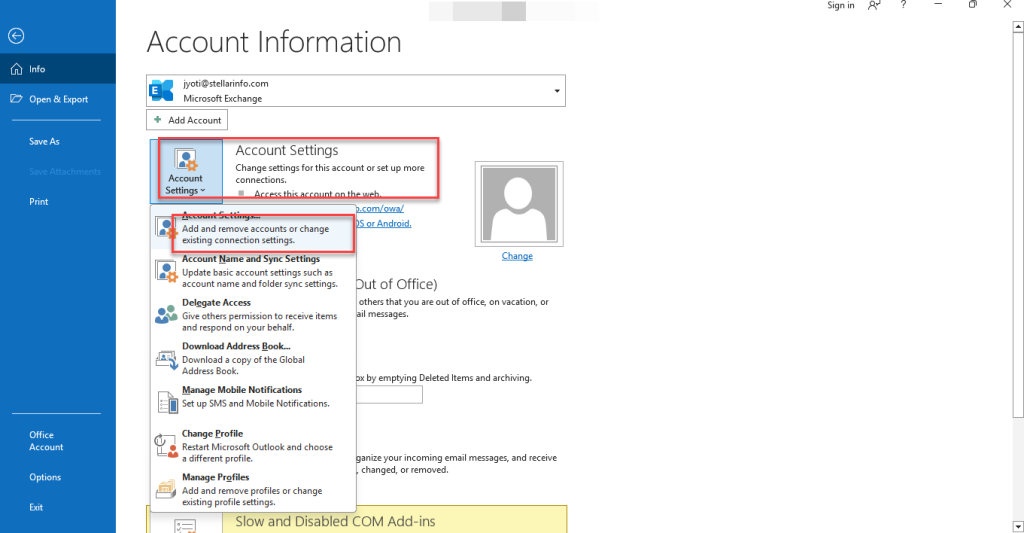
- Select your Exchange/M365 account
- Click on Change
- Move the ‘Mail to keep offline’ slider to 1 month or 3 months
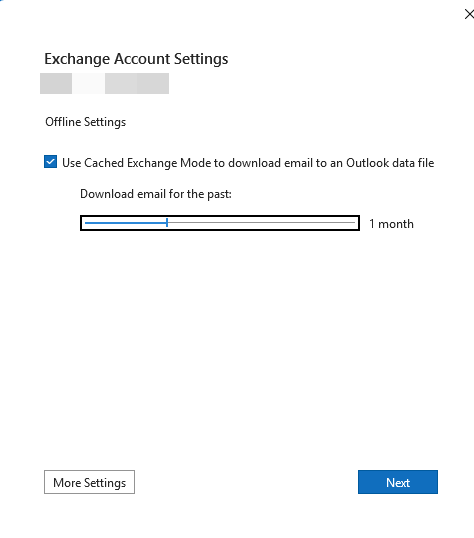
- Click Next > Finish
- Now, Outlook removes older cached data
Option B – Disable Cached Exchange Mode
If you do not need offline access, you can disable Cached Exchange Mode completely. This prevents Outlook from downloading and storing mailbox data locally which help in reducing your mailbox size.
Go to File > Account Settings > Account Settings.
- Click on Change.
- Uncheck Use Cached Exchange Mode.
- Click Next > Finish.
- Then, restart Outlook.
Note: Disabling Cached Exchange Mode removes offline access to emails. For most users, reducing the sync range is the better option. If you want to keep Cached Exchange Mode enabled and just expand the local storage limit, see our guide on how to increase the OST file size limit in Outlook.
Solution 5 — Increase Mailbox Quota in Microsoft 365 Admin Center
If your mail storage has reached its maximum limit, then you may encounter issues in sending or receiving new emails in Microsoft Outlook 365. In such a situation, you can connect with Microsoft 365 administrator to increase the capacity of your mailbox quota enable additional archive storage by using the Microsoft 365 Admin Center.
It allows you to continue using your mailbox without immediately deleting important emails or attachments. Below are the steps to do this:
- Sign in to the Microsoft 365 Admin Center.
- Go to Users
- Click on Active Users.
- Select the affected user mailbox.
- Then, open the Mail tab.
- Click Manage mailbox storage or Mailbox usage.
- Now, increase the mailbox quota limit if your subscription plan allows it.
- Then save the changes
- Restart Outlook if required.
For more details, refer to Microsoft’s official documentation.
Note: Microsoft 365 typically issues mailbox warnings at 90% capacity, restricts sending at 95%, and blocks all mail flow at 100% — thresholds visible to admins in the Microsoft 365 Admin Center under Mailbox usage. For E3/E5 enterprise subscribers, an In-Place Archive – Online Archive – can be enabled by an admin via Users > Active Users > Mail > Manage email apps. Once activated, older items auto-move to this separate cloud store, which appears as an “Online Archive” folder in Outlook and does not consume your primary 50 GB quota.
Solution 6 — Disable Sync for Shared Mailboxes
When your “Cached Exchange Mode” is enabled, Outlook downloads shared mailbox data in your local OST file. If multiple shared mailboxes are connected, then OST file size can increase significantly, which can slow down Outlook and display mailbox almost full error.
Disabling downloads for shared folders can reduce your Outlook data file size and improve performance. To do this:
- Go to File
- Click on Account Settings > Account Settings
- Select your Exchange or Microsoft 365 account
- Click Change > More Settings
- Select Advanced.
- Then uncheck Download shared folders
- Click OK
- Then Click Next > Finish
- Restart Outlook.
Note: If your OST file has already become excessively large or corrupted, see our complete guide on fixing the OST file has reached its maximum size error for detailed recovery steps.
Solution 7 — Convert OST with Stellar Converter for OST
If the above-mentioned methods fail to fix the “Your mailbox is almost full” issue, or your file becomes orphaned/inaccessible, then you should use an OST to PST converter tool. One such a tool you can go for is Stellar Converter for OST. This tool can help you convert and extract from an OST file to a PST file. This utility can help you reduce mailbox size and make Outlook data easier to manage. Along with this, the software provides the following features:
- Convert inaccessible or orphaned OST files to PST
- Splits large PST files into smaller parts for easier management
- Allows you to save attachments separately to help reduce PST file size.
- Export data directly to Exchange Server or Microsoft 365
- Preview mailbox items before saving
- You can save your converted OST file into multiple formats like HTML, PDF, EML, etc.
These features can help you to access your mailbox data from large or inaccessible data file and manage your mailbox data more efficiently.
Quick Comparison — Which Fix to Use?
Below is the comparison table of all discussed solutions that helps you select choose the most appropriate method:
| Solution | Resolves Mailbox Quota Issue | Reduces OST File Size | Recommended For |
| Archive old emails | Yes | Yes | Users who want to free up space without deleting emails |
| Delete large emails | Yes | Yes | Mailboxes filled with large attachments and old emails |
| Use Mailbox Cleanup tool | Yes | Partially | Quickly removing junk, old, or oversized mailbox items |
| Reduce or disable Cached Exchange Mode | No | Yes | Systems where the OST file is consuming too much local storage |
| Increase mailbox quota | Yes | No | Users who genuinely need additional mailbox storage |
| Disable shared mailbox sync | No | Yes | Users syncing multiple shared mailboxes in Outlook |
| Use Stellar Converter for OST | No | Yes | Oversized, corrupted, orphaned, or inaccessible OST files |
Conclusion
Microsoft 365 mailbox has a predefined storage space based on the subscription plan – 50 GB for business plan and 100 GB for Enterprise plans. When your mailbox size reaches this limit, you may encounter issues while using Outlook. In this post, we have mentioned several ways to fix the Outlook 365 storage space problem. However, if your OST file becomes inaccessible or excessively large, you can use an OST converter tool like Stellar Converter for OST. This tool can convert your OST data into PST format and manage mailbox data more efficiently.
FAQs
