If you see a green screen during video playback on a device, do not panic. This happens sometimes due to outdated graphics, hardware acceleration, or other decoding issues. If the green screen appears online on a web browser like Google Chrome, start with the methods provided below in Part 1. If you are trying to play a video file saved locally on your computer, jump to Part 2.
What Causes Green Screen Error in Playback?
Several factors can cause the green error during video file playback.
- Graphics Acceleration Errors – The browser application fails to communicate with your system’s Graphics Processing Unit.
- Outdated Graphics Drivers – Old and outdated display drivers cannot process newer video codecs.
- Incompatible Video Codecs – Your media player lacks codec support needed for video formats.
- Corrupt Video File – Often, the error occurs because the saved video file is broken or corrupt due to an incomplete download or transfer.
- Outdated Browser – An outdated browser cannot render video properly during playback.
Part 1: Fix Green Screen Issue While Watching Videos Online
While playing an online video on a browser, you may notice some disruption and an eventual green screen. A problematic graphics card causing rendering issues, an outdated browser causing streaming issues, and other such errors might cause a green screen while playing an online video. Try these immediate fixes to see what works in your situation.
Fix 1 – Turn off graphics acceleration
A graphic card helps render images, videos, and other animations on your device’s screen. Sometimes, the browser and the graphics card may go out of sync and stop sharing data with each other. When that communication fails, the video feed cuts out completely and leaves behind a blank green canvas.
To fix this in Google Chrome browser
- Look at the top-right corner of your screen and click the three little dots to access the menu bar.
- Open up the settings menu and look for system on the left side bar.
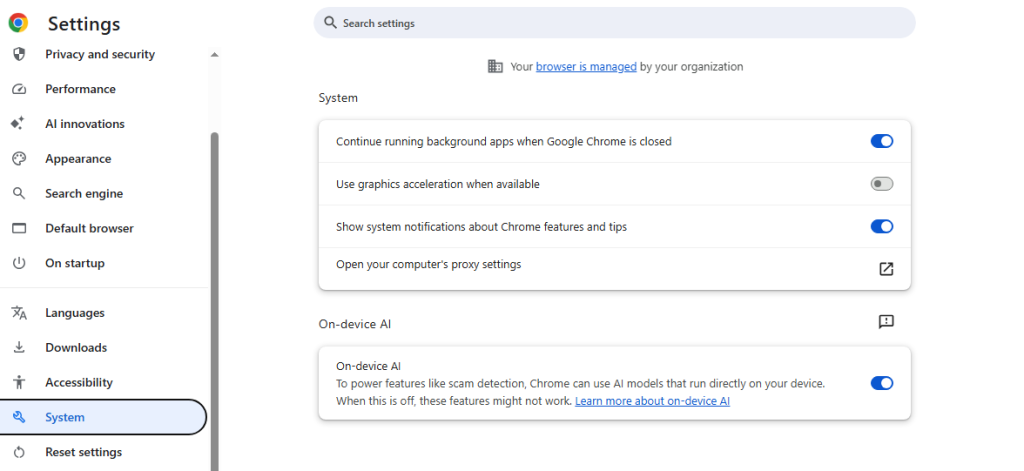
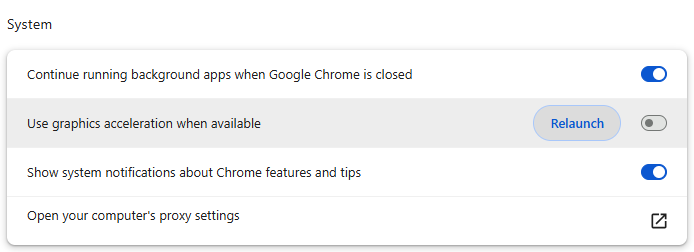
- You will see a small switch that says use graphics acceleration when available. Toggle that switch to off and click the relaunch button that pops up.
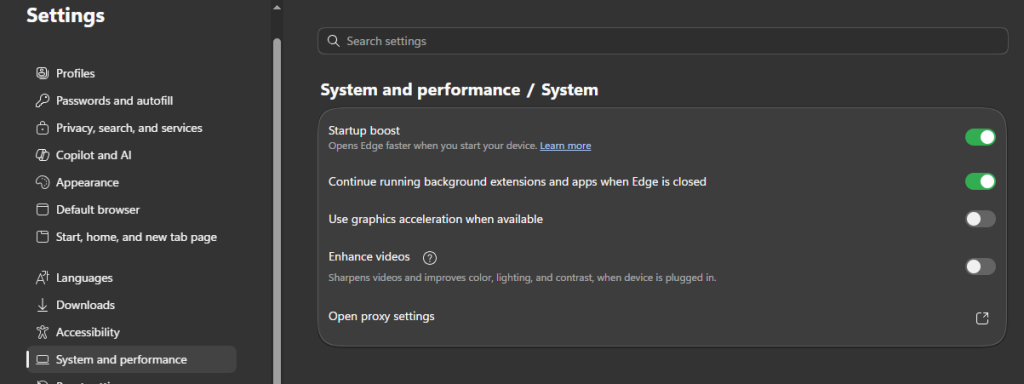
For Microsoft Edge/ Firefox or any other browser
If you use Microsoft Edge or Firefox, you can do the same thing by searching for performance or hardware inside your settings menu and turning it off.
Fix 2: Clean your Browser Cache
Another quick fix is to clean your browser history. When you browse the web, your browser stores temporary data and cached files to help pages load faster. However, when cached data builds up or becomes outdated, it can conflict with streaming sites and cause playback freezes or green screen issues.
- In your browser (e.g., Google Chrome), click on the three dots to access the menu.
- Look for Settings, click on it, and find the Privacy and security section. Else, press (Ctrl+Shift+Delete) at the same time.
- Choose the All Time option and clear your cached images, files (cache data) and cookies.
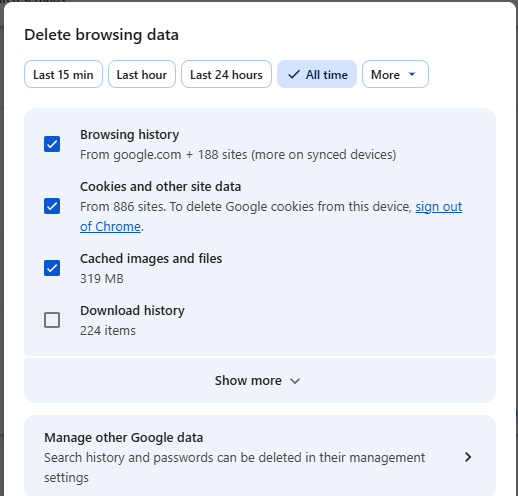
- This is almost like resetting your browser.
Similarly, if you are using any other browser like Firefox or Microsoft Edge, delete your cookies and cache data by following the same steps.
Fix 3 – Update Your Browser
Sometimes, video websites change how they stream their files to the end user. If your web browser is running on an older version, it might not stream a video properly and may cause green screen appearance, at times.
While browser updates are mostly automatic, you can get them manually.
- In your browser, click on the three dots, then go to Help and click About.
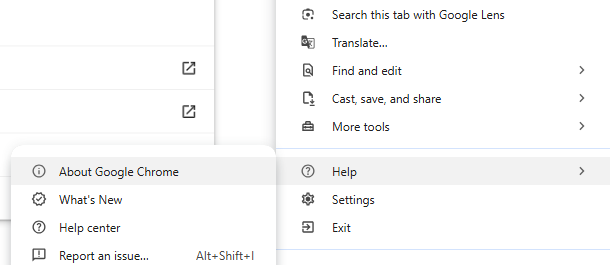
- The browser will instantly check for updates and install them to fix any hidden bugs.
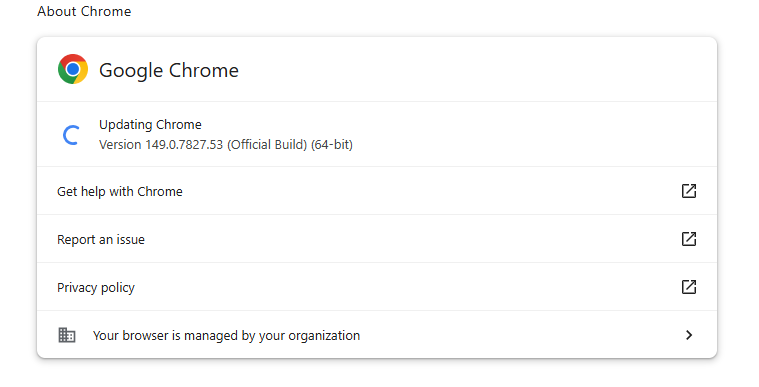
Similarly, try this for any other web browser.
Fix 4: Try a Different Web Browser
If Google Chrome is giving you a green screen error, try opening the video link with Microsoft Edge, Safari, or Firefox browser. If it plays fine, it just might be a temporary glitch with the website or your browser.
Part 2: How to Fix Green Screen Error on a Local File
If you are facing the green screen video playback issue on a local file, for e.g., a downloaded video, a movie transferred from some other device, or simply a video recorded from your phone or camera, the fixes will differ.
If your smartphone or computer’s default video player shows a green screen, it usually means the player does not understand how the video file was recorded, or, say, it lacks the codec support to play that video file.
Note: The first two fixes are exclusively for Windows users experiencing trouble or a green screen error during video playback.
Fix 1: Update Your Graphics Card Driver
Your computer’s graphics card is responsible for rendering any image on your screen. If the graphics card is running on outdated software, it won’t understand how to decode new videos and may result in a blank screen or a green screen with only audio playback.
- Updating your graphics drivers gives the system a fresh set of instructions.
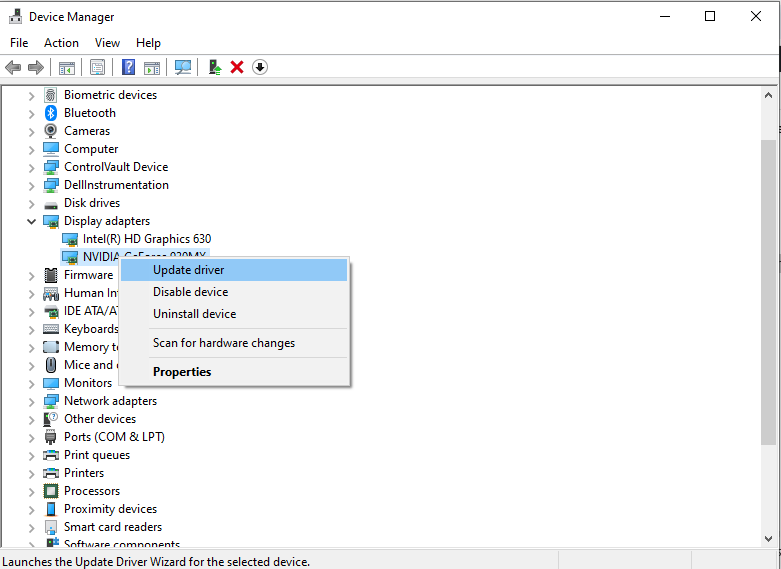
- On a Windows PC, you can search for Device Manager.
- Next, click on Display Adapters, right-click your graphics card name, and choose Update Driver.
Fix 2: Run the Built-In Windows Troubleshooter
If you are still stuck with a green screen while playing videos, your Windows computer system has a built-in troubleshooter that can detect the underlying causes. It runs a quick scan on your hardware to see if any video paths are broken.
- Press the Windows button, type troubleshoot settings into your Windows search bar, and open the menu.
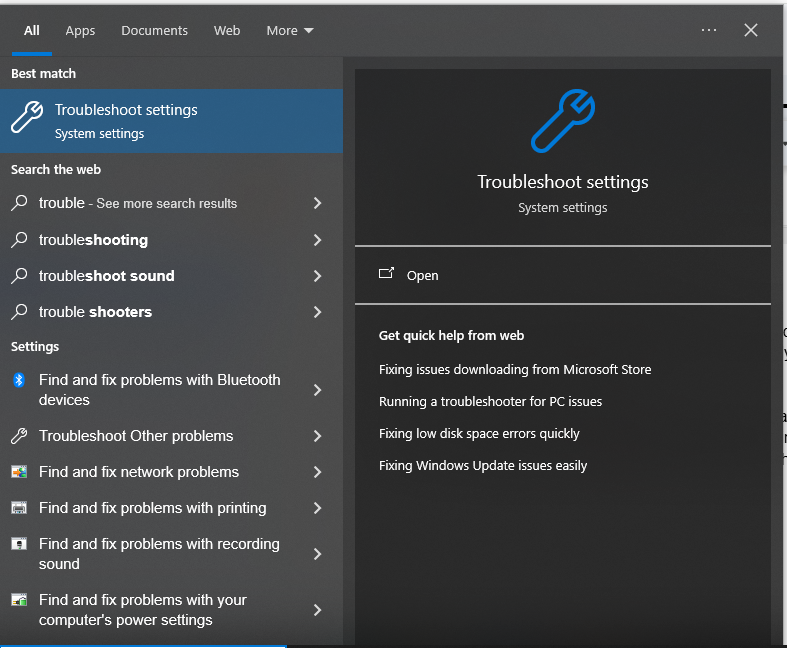
- Look for the option labeled Additional troubleshooters.
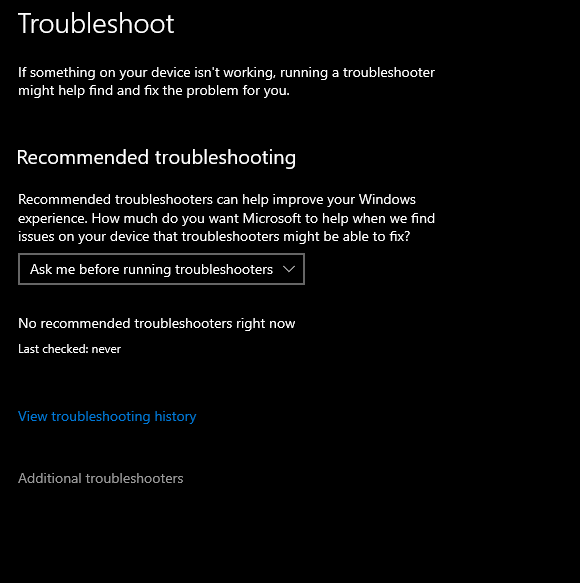
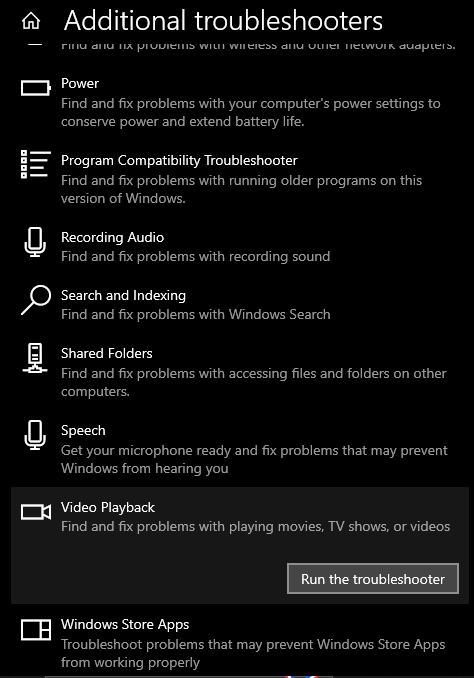
- Find the Video Playback option from the menu, and click Run the troubleshooter.
- The system will scan and analyze the error, and suggest a one-click fix. E.g., Install the HEVC codec for 4K Playback.
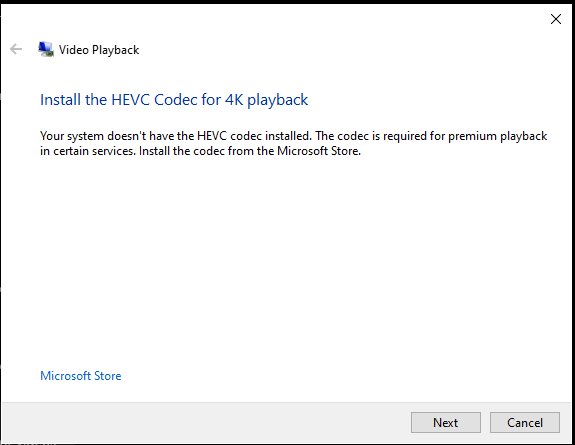
Fix the error displayed on your screen, and the green screen issue may get resolved. If not, try the other methods.
Fix 3: Use VLC Media Player
Sometimes, default video players miss the support and tools required to read newer video files. VLC comes with all of those decoding features built right inside it, so it overrides those glitches.
- Go to videoLAN.org, select your device specs like Windows 32-bit or 64-bit, Mac, others.
- Click on Download VLC to get the Media Player.

- Install and run the player on your device.
- Just open your video with VLC Media Player or inside it, and it should play perfectly.
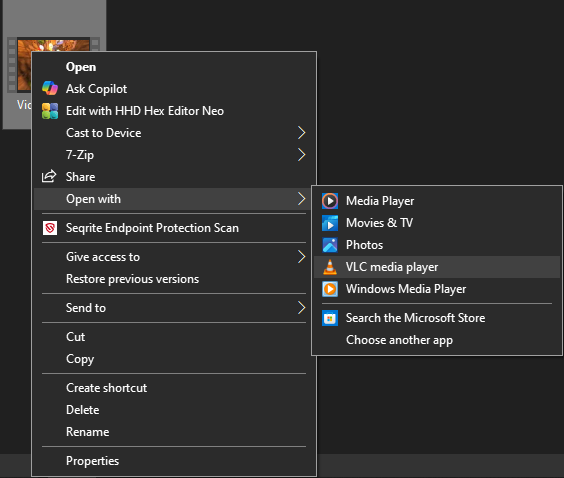
Now, if the video shows a green screen even while being played with VLC, the actual file might be broken.
Fix 4: Use a Video Repair Tool
If a video file shows a green screen across every single app you try, including VLC, the file itself is likely broken or damaged or corrupt. This usually happens if your camera turned off suddenly while recording or if a file download or transfer was interrupted. If only one single video is problematic while every other video plays fine; it means that file is likely broken or corrupt and you might need a video repair tool to get the video file to play normally.
To fix this, you can use specialized tools depending on how big your file is and how badly it is broken.
Option A: Stellar Online Video Repair (For Quick Fixes)
If you are dealing with a standard video clip under 5 GB and you do not want to install new software on your computer, you can fix it on your web browser itself. The tool adds support for almost every video format and video codecs. E.g. MOV, MP4, 3GP, MPEV, and many more.
- Open your web browser and go to the Stellar online video repair page.
- Click the upload button to choose your broken video file from your computer.
- The online video repair tool will ask you to upload a sample video. This means a working video shot on the same phone or camera.
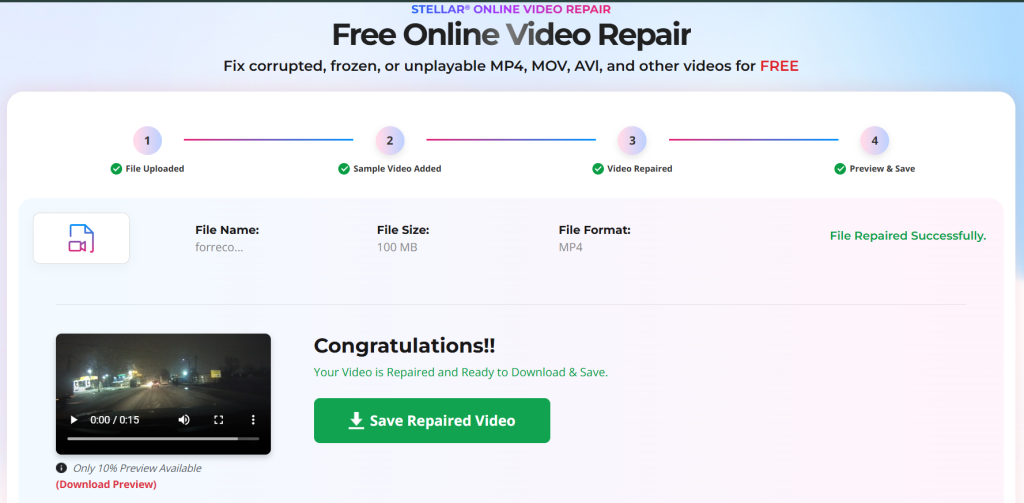
- Click Repair, and once the video file gets fixed, download and watch the free preview of your fixed video before downloading it.
It’s mandatory to upload a sample file shot from the same device to fix the video file using the online video repair tool. But if you can’t arrange one, try the desktop version of the tool.
Option B: Stellar Repair for Video (For Large or Severely Broken Files)
If you have a whole batch of corrupt videos (long dashcam or DSLR videos, etc.), probably larger than 5GB, use the desktop application instead.
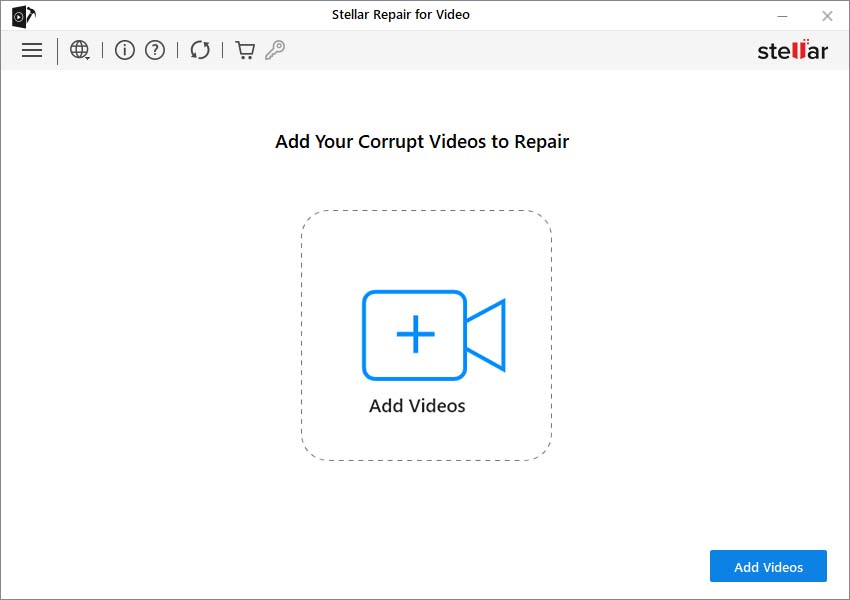
- Download and install Stellar Repair for Video on your Windows PC or Mac.
- Launch the application and click the Add Videos button right in the middle of the screen to select all your corrupt videos.
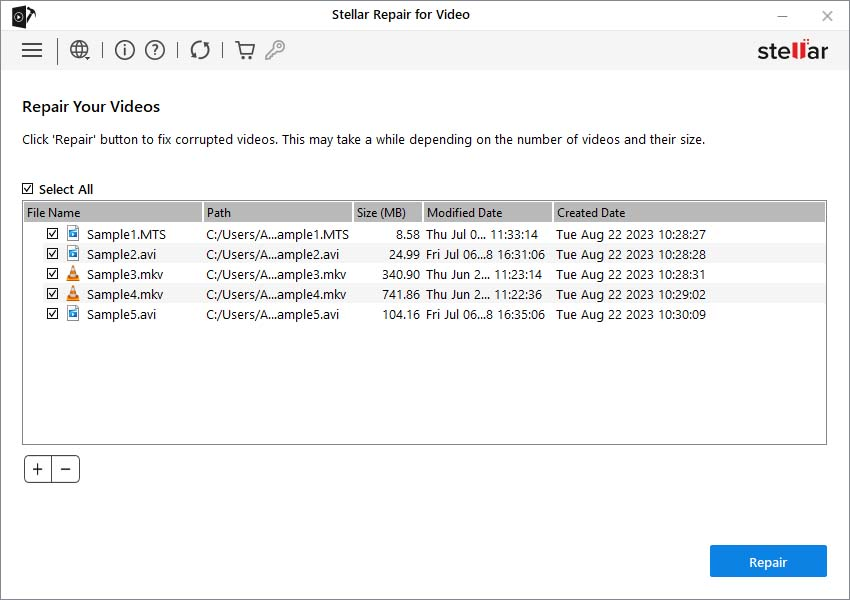
- Click the Repair button to let the software rebuild the broken data layers of your files.
- If a file is heavily damaged, you can also go for the Advanced Repair option and provide a working sample file from the same device.
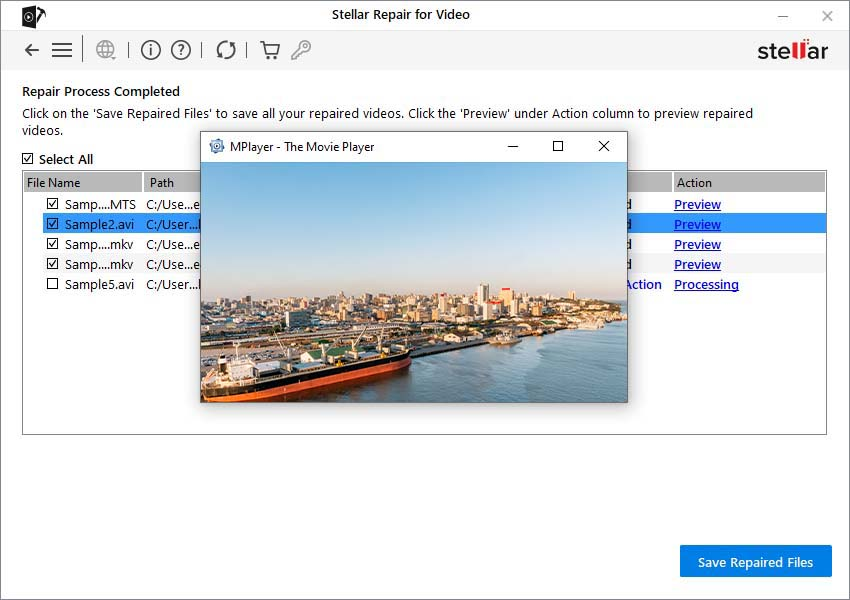
- Preview your fixed video file and save it to your computer.
Why sometimes the screen turns green but audio keeps playing?
When your computer system gets an error mid-stream, it stops sending the color data entirely. Your audio stays perfectly fine because sound travels on a completely different path inside your computer and does not get obstructed by the broken video path.
How to Prevent the Green Screen Problem with Video Playback?
Most green screen errors happen because of graphic card, hardware acceleration or decoding errors. By taking a few precautions, those small adjustments can be avoided.
- Let your camera finish saving before shutting it off.
- Avoid watching videos while running heavy computer games.
- Complete your downloads fully before opening them.
Conclusion
When an internet browser or a streaming app hits an encoding error with your computer’s graphics card, they instantly stop communicating with each other mid-stream. Since the connection breaks, the browser drops the video data entirely, thus defaulting to a green screen error while the audio keeps playing. In that case you can update your browser, clear browser cache and cookies, disable graphics acceleration, or try using a different browser.
A green screen during video playback issue usually occurs when the computer’s default media player lacks the necessary support or codecs needed to open and read it. If you try to force open a broken file, the player will get confused with the broken data layout and display that same flat green screen. In that case, your only savior is a video repair tool.
FAQs
