If your Mac shows a black screen folder with a question mark it means it can’t find the drive with its macOS files. This usually happens when the startup volume is corrupted, missing, or not correctly selected. Don’t worry… most cases can be fixed without losing data.
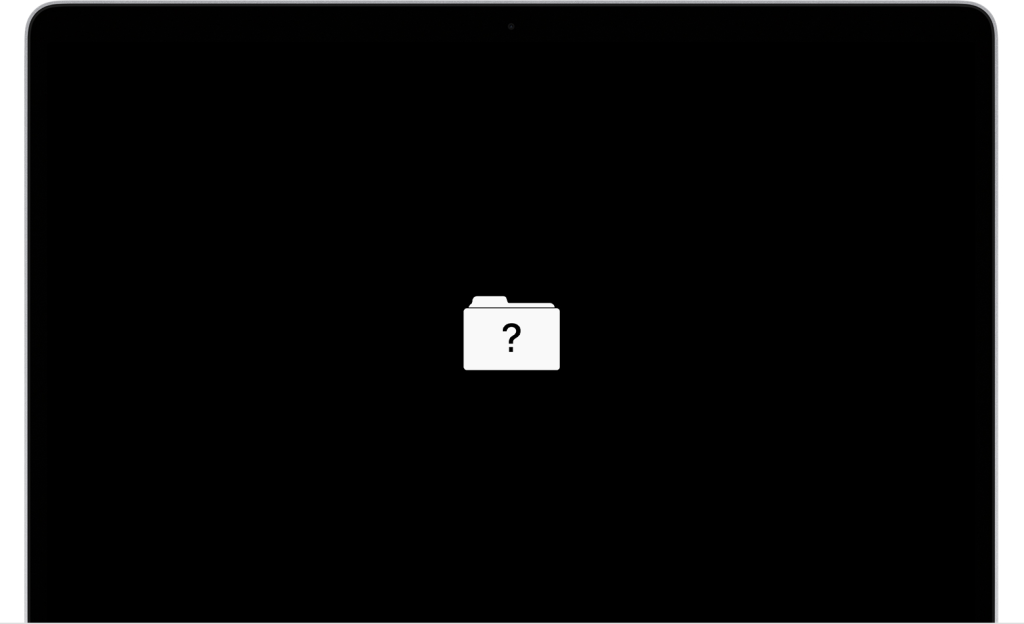
In this guide, we’ll step you through easy solutions.
How to Fix the “No Startup Disk” Error
Below are the most effective fixes for this error. Try them one at a time… each comes with simple steps and explanations.
Method 1: Force Shut Down Your Mac
If your Mac is just frozen during startup or stuck on a blank screen (with that folder icon shown above), a force shutdown is one of those easy hacks. This is not a fix by itself at all but it shall help you to restart your Mac system cleanly and kick out temporary glitches. Here are the steps:
- Press and hold the power button on your Mac for about 10 seconds while it shows the black screen with the folder icon.
- Wait till that Mac screen turns fully black and the Mac powers off.
- Release the button and just wait for 5–10 seconds.
- Press the power button again normally.
Once your Mac restarts, just see to it that it boots normally. If you still see the question mark folder or “No Startup Disk” error, proceed with other methods.
Note: This method should be used only when your Mac is not responsive. Frequent force shutdowns like this shall lead to disk corruption over a period of time.
Method 2: Repair the Startup Disk with Disk Utility
Sometimes, the file system of your has errors that Disk Utility can fix. To do this, just restart in macOS Recovery and then run First Aid on your drive.
- Shut down your Mac.
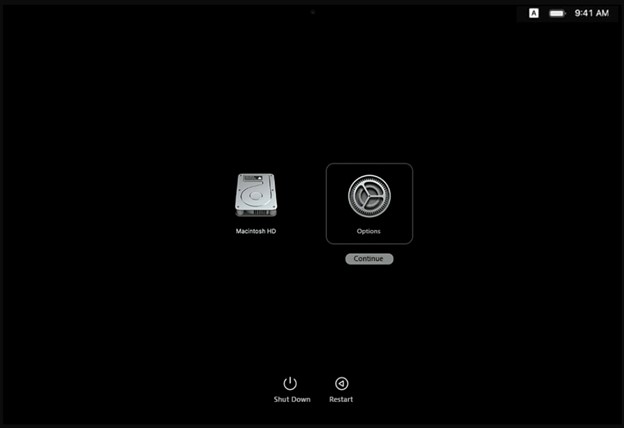
- Turn it on and hold Command (⌘)-R on an Intel Mac or press and hold the power button till Startup Options appear on Apple silicon and then click Options > Continue. This means that you have now booted your Mac into Recovery mode.
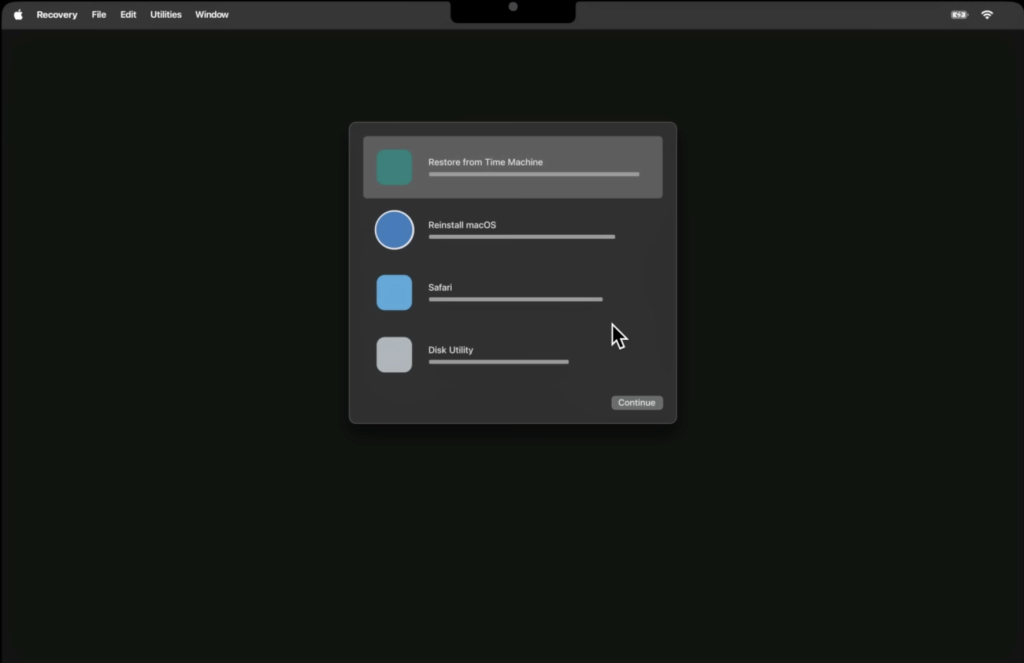
- When the macOS Utilities menu is in front of you, choose Disk Utility and click Continue.
- In Disk Utility, click View > Show All Devices. Select your main Macintosh HD or your primary container in the sidebar.
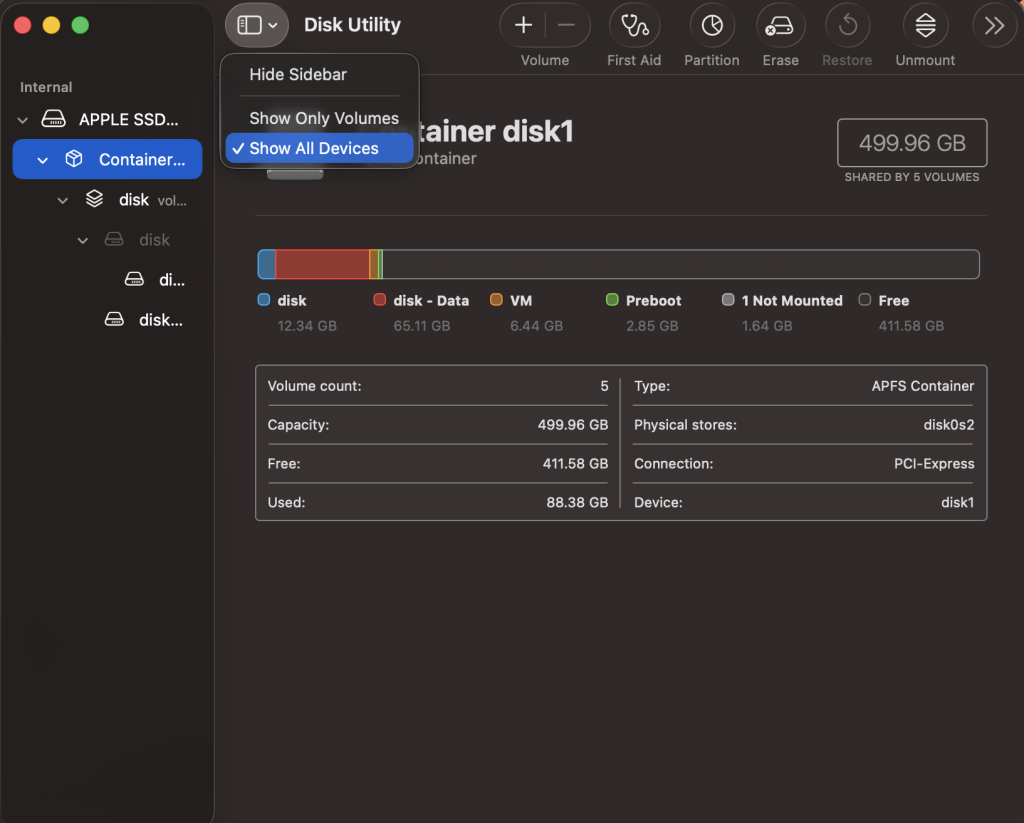
- Click First Aid in the toolbar, then click Run. This will scan the drive for errors and attempt to repair them.
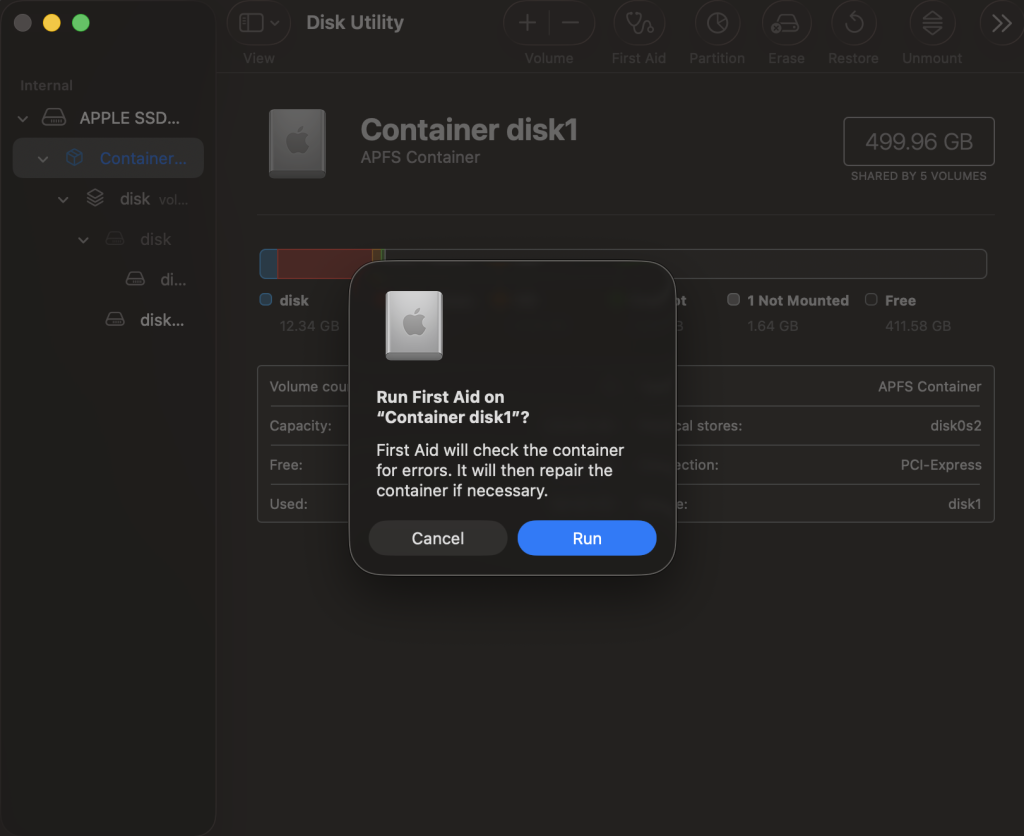
- Let the process finish (it may take several minutes). If First Aid reports it fixed issues, run it again on any remaining volumes. When done, quit Disk Utility.
- Now restart your Mac normally. If the repair was successful, it should now find the startup disk and boot into macOS.
After restarting into Recovery Mode, run First Aid on the Mac’s drive. Disk Utility will check and attempt to repair any disk errors.
If Disk Utility cannot repair the disk or no disk appears, you may need to reinstall macOS (see below). But often, this quick disk repair alone resolves the “No Startup Disk” message.
Method 3: Reset NVRAM/PRAM (Intel Macs Only)
NVRAM or PRAM stores those settings that include the ones that tell your Mac, which disk to boot. Resetting it can just clear out those bad settings so that your Mac system can detect the startup drive again.
Note: Apple Silicon Macs don’t actually require this as these settings are automatically managed by the system on reboot so just skip to next method if you have an M1/M2/M3/M4 Mac.
The steps will be:
- Shut down your Mac system.
- Turn it on and press and hold Option (⌥) + Command (⌘) + P + R at the same time.
- Keep holding those keys for about 20 seconds and you shall see the Apple logo appear and disappear twice. When it happens, release those keys.
- Your Mac shall restart after this on its own.
- Now just go to Apple menu > System Settings > General > Startup Disk to make sure the correct startup disk is selected.
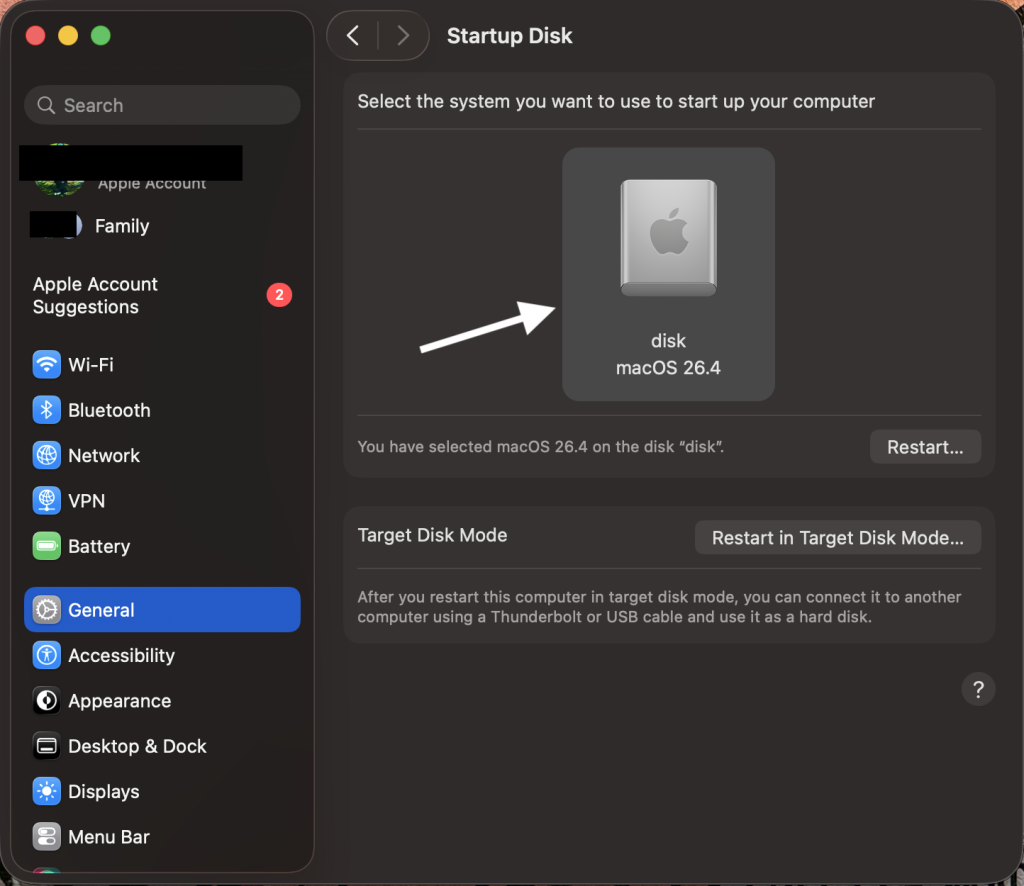
- Finally, restart once more. If your corrupted PRAM was the issue, this reset shall fix the startup disk error.
Resetting NVRAM would not erase your files. It shall just clear those saved hardware settings and if your startup disk was simply forgotten, this step shall force your Mac to discover it again.
Method 4: Select the Correct Startup Disk
If that Mac of yours was trying to boot itself from the wrong volume, you can just choose the right disk manually. It shall resolve the issue hopefully. Let’s do it:
- Power on your Mac system and immediately hold the Option (⌥) key (on Intel). On Apple silicon, hold the power button until those startup options appear.
- The Startup Manager screen will just list available bootable drives.
- Click on your startup disk, which is usually “Macintosh HD” and press Return to boot from it. Just note that there can be multiple drives listed here but you have to choose your startup disk where macOS has been installed.
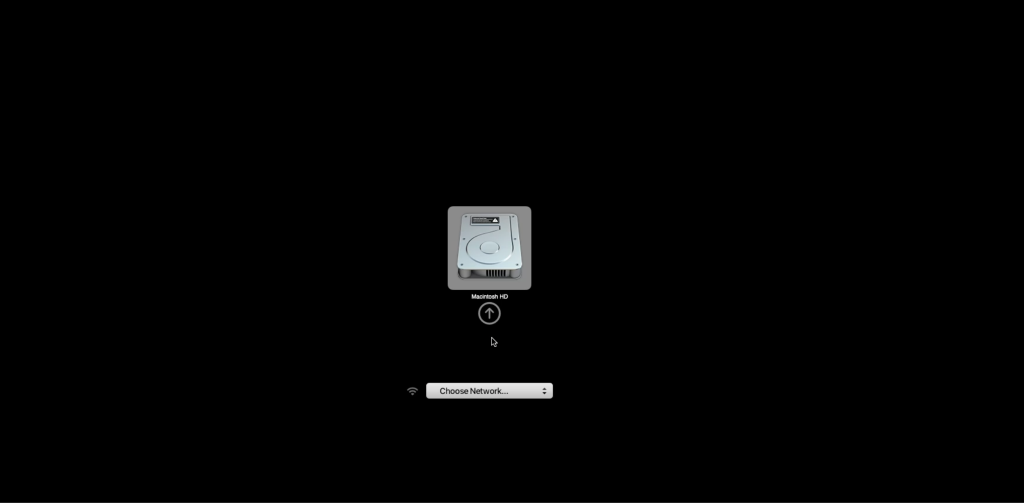
- If macOS gets started normally, just navigate to Apple menu > System Settings > General > Startup Disk and you make sure that Macintosh HD is set as default.
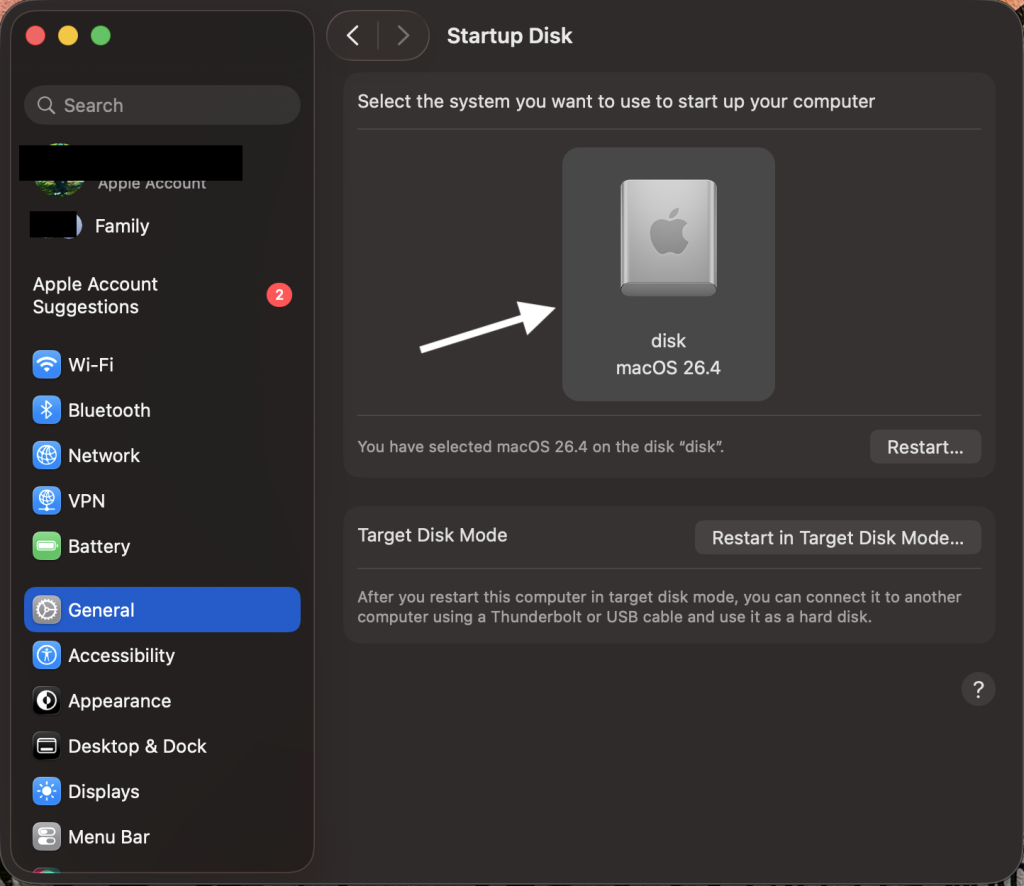
Making sure that your Mac is pointing to the right drive can actually stop the “No Startup Disk” error if it is caused by a simple mix-up. Also, disconnect your external drives during this exercise.
Method 5: Reinstall macOS in Recovery Mode
If disk repair and those settings fixes do not help you at all, reinstalling macOS is the option that is left for you. You can restore missing system files without erasing your personal data.
Note: This fix needs a working WiFi connection, it might take a few minutes to even multiple hours and might fail if there are storage issues, file corruption or improper date/time settings.
Here is how:
- Boot your Mac to Recovery Mode again (Command-R on Intel, or power + hold on Apple silicon).
- From Utilities window, select Reinstall macOS and click Continue.
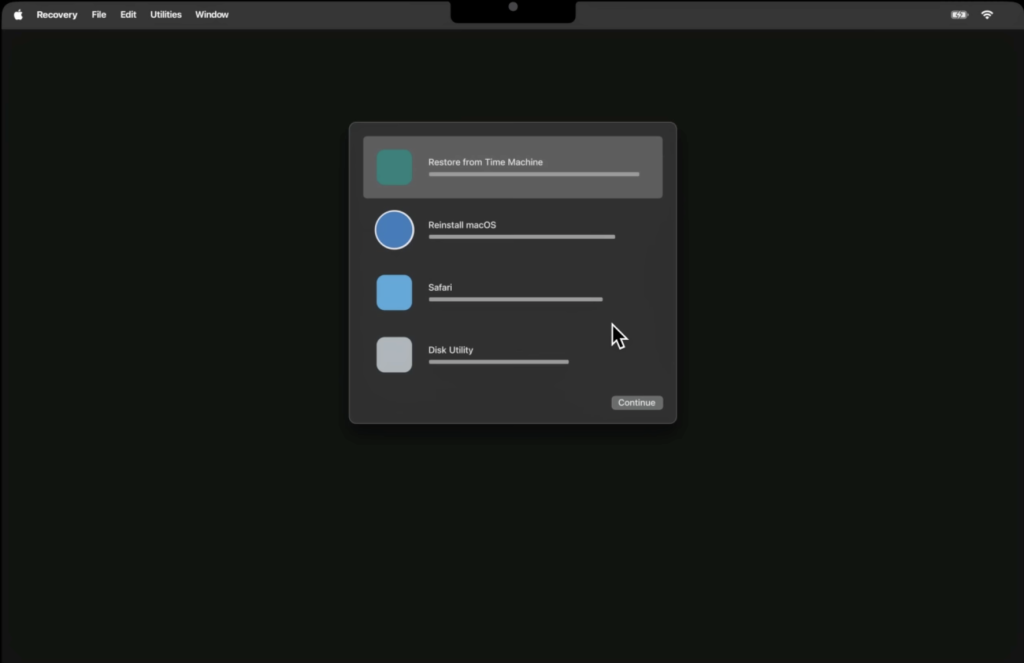
- Follow the on-screen instructions to reinstall macOS onto your main drive (Macintosh HD). Just for you to know, this requires an internet connection if you’re using Internet Recovery.
- Wait for the installation to get completed, which can take some time. Your Mac will reboot automatically when done.
Reinstalling your macOS basically refreshes the operating system. It would not delete your files provided your disk is not corrupted, you don’t choose a wrong volume and the APFS container ain’t damaged… though it is always wise that you have a data backup with you. This step shall fix problems where the Mac system itself was damaged or missing.
Now if you work through these methods and still just cannot boot or if you were forced to erase that startup disk, you have to recover your data before further steps. Stellar Data Recovery, a professional Mac Data Recovery tool, is just great for such logical data loss situations as it can deep scan that drive of yours and retrieve your files… even from an unbootable disk. It uses some advanced scanning algorithms to find files on APFS or HFS+ drives. You can also use it through another bootable Mac, connect this one, and recover your data. In short, if your Mac system is just not starting or you notice missing files after repair, running this dedicated recovery program can help you get your important data back.
Method 6: Use Internet Recovery Mode
If your Mac Recovery partition is missing or damaged, Internet Recovery Mode can help you. This mode downloads your macOS from Apple’s servers directly. This method is useful when you Recovery partition is missing, internal disk has been replaced, Recovery partition is damaged or when the normal Recovery Mode is not opening.
Follow these steps:
- Shut down your Mac.
- Turn on your Mac and enter Recovery Mode:
- Intel Mac: Press and hold Command (⌘) + Option (⌥) + R and just wait till there is a spinning globe.
- Apple Silicon Mac (M1/M2/M3/M4): Press and hold the Power button till Startup Options appear and then click Options > Continue.
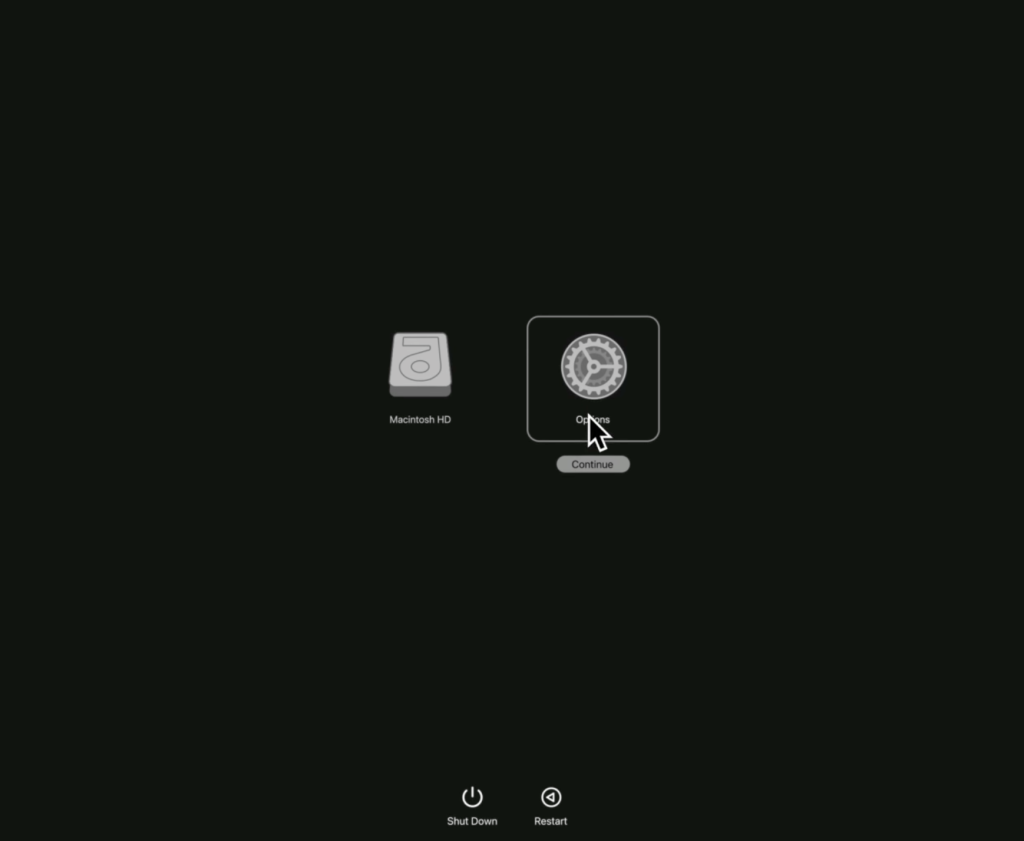
- Connect to Wi-Fi when asked.
- Login to your Apple account.
- Wait till macOS recovery tools download everything from Apple servers.
- When that Recovery screen appears, choose Disk Utility and select Reinstall macOS.
- Follow the on-screen instructions.
Internet Recovery Mode downloads a fresh copy of macOS from Apple’s servers and can maybe help fix the “No Startup Disk” error when other recovery options are not working.
When You Should Start Worrying about the No Startup Disk Error?
Most “No Startup Disk” errors are software-related and can be fixed. But sometimes, the problem can be hardware-related. In such cases, basic fixes may not work.
- If Startup disk is not showing in Disk Utility, it maybe means that the internal drive has failed or is not getting detected.
- Clicking or unusual noises (Intel Macs with HDD): If you hear clicking, grinding or strange noises from inside your Mac, physical disk damage might be there. Stop using the Mac there and then to avoid more data loss.
- Disk Utility fails again and again: If First Aid fails many times and cannot repair the disk, it can mean the file system is badly corrupted.
- Mac stuck in boot loop even after reinstalling macOS: If you have got macOS reinstalled and then also the Mac is restarting again and again, the issue can be due to firmware or failing storage.
If you notice any of such problems, it is better to just stop troubleshooting there and contact Apple Support or a professional data recovery service to prevent permanent data loss.
What are the Causes of the No Startup Disk Error?
Below are some underlying reasons why the “No Startup Disk” error happens. Understanding them can explain why the above fixes work:
- Boot loader or system file corruption
- Locked or encrypted APFS volume
- Failed or missing drive
- PRAM/NVRAM glitches
- Erased or formatted disk
What Precautionary Measures Should You Take to Prevent No Startup Disk Error?
To avoid “No Startup Disk” problems in the future, follow these best practices:
- Keep regular backups. Always use Time Machine or another backup so you can restore if the disk fails.
- Maintain free disk space. A nearly-full drive can cause macOS issues. Ensure your startup volume has several gigabytes free so it can operate normally.
- Use Disk Utility periodically. Run First Aid on your drive if you notice any odd behavior.
- Shut down properly. Don’t force-power-off your Mac unless necessary. A sudden shutdown can corrupt files.
- Protect your hardware. Keep your Mac system always on a steady surface, avoid any of physical shocks and maybe use a surge protector. Hardware damage like a jostled SSD can make your drive unreadable.
- Update software safely. When installing macOS updates, don’t interrupt the process. Let updates finish fully to avoid leaving your system in a broken state.
By backing up and taking care of your Mac’s drive, you minimize data loss and are prepared if recovery becomes necessary.
Conclusion
Seeing a black screen with a folder icon and a question mark on your Mac screen is scary but it is not at all a total doom. Try the fixes we listed above and you shall probably be good to go. If those do not work, then finally just reinstalling macOS will refresh the system files. And remember that even if you can’t boot, your data can still be saved… high chances of that if a professional Mac data recovery tool like Stellar Data Recovery for Mac is by your side. It can actually scan that drive and rescue your files. Follow these steps and your Mac should be back to normal.
