In Microsoft SQL Server, the master database is the primary system database that contains master.mdf (data file) and mastlog.ldf (log file). Master database is important because it records:
- Server login accounts and their properties
- Linked server definitions and endpoints
- Error messages and system stored procedures
- Startup procedures and configuration settings
Without this database, the SQL Server service or instance may not start. Also, the other databases can become inaccessible. If the master database gets corrupted, you may encounter log errors, such as:
- “Cannot open database ‘master’ requested by the login. The login failed.”
- “SQL Server cannot start because it cannot open the master database.”
- This makes recovering master database in SQL a top priority for DBAs and sysadmins.
In this guide, we’ll cover the causes of corruption in the master database and how to repair, restore, and rebuild it in SQL Server.
What Causes Master Database Corruption or Failure?
Corruption in master database can be caused due to several reasons. Identifying the cause helps you choose the correct recovery method. Common reasons include:
- Abrupt SQL Server shutdown: Power failure or OS crash while master database is being written can cause file-level corruption.
- Disk failure or bad sectors: Hardware or storage errors directly damage the master.mdf or mastlog.ldf files.
- Accidental deletion: Administrators may mistakenly delete or move master database files.
- Sudden system shutdown: A sudden restart of the SQL Server instance or abrupt system shutdown while working on master database.
- Virus or ransomware attack: Malware or virus infection in the system hosting the database/server.
- Full transaction log: When mastlog.ldf fills up, SQL Server may mark the database as suspect.
Methods to Rebuild or Restore the Master Database in SQL Server
Recovery of the corrupt master database, depends on the situation — whether SQL Server can start, a backup exists, or the damage is severe. You can run DBCC CHECKDB on the master database to check its integrity but, you cannot directly repair the master database with it. It is not supported for master as it contains startup and configuration files.
If the server installation files in master database are corrupted, you can repair them with the installer. If the backup is available, then restore from backup. If you’re not able to start the server and backup is also not available, then rebuild it using the setup command line or use Stellar Repair for MS SQL. Each method has its own prerequisites and results. Below are the methods to rebuild or restore the SQL Server master database:
Method 1: Repair Master Database using SQL Server Setup Installer
The SQL Server installer includes a built in repair function that re-registers SQL Server components, corrects corrupted system database files including master database, and fixes missing or damaged installation files. Repairing master database using this method does not require a backup file. It does not delete user data. To use this method, there’s no need to start the SQL Server service.
Prerequisites:
- Select all server-side configuration values.
- Note down the location of all the data and log files in the system database.
- Access to the original SQL Server installation media or ISO.
To repair the corrupted server installation files in master database using the MS SQL Server Installer, follow these steps:
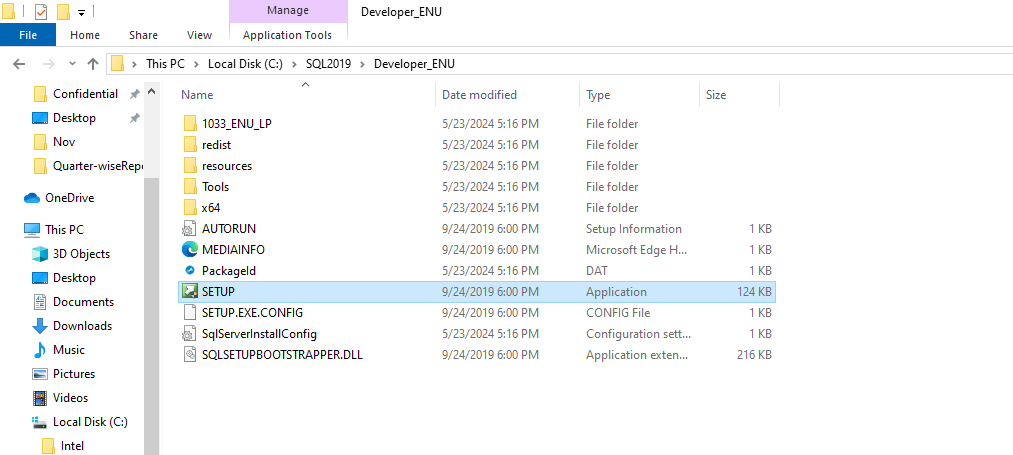
- On your system, go to the SQL Server installer folder and then click on setup.exe.
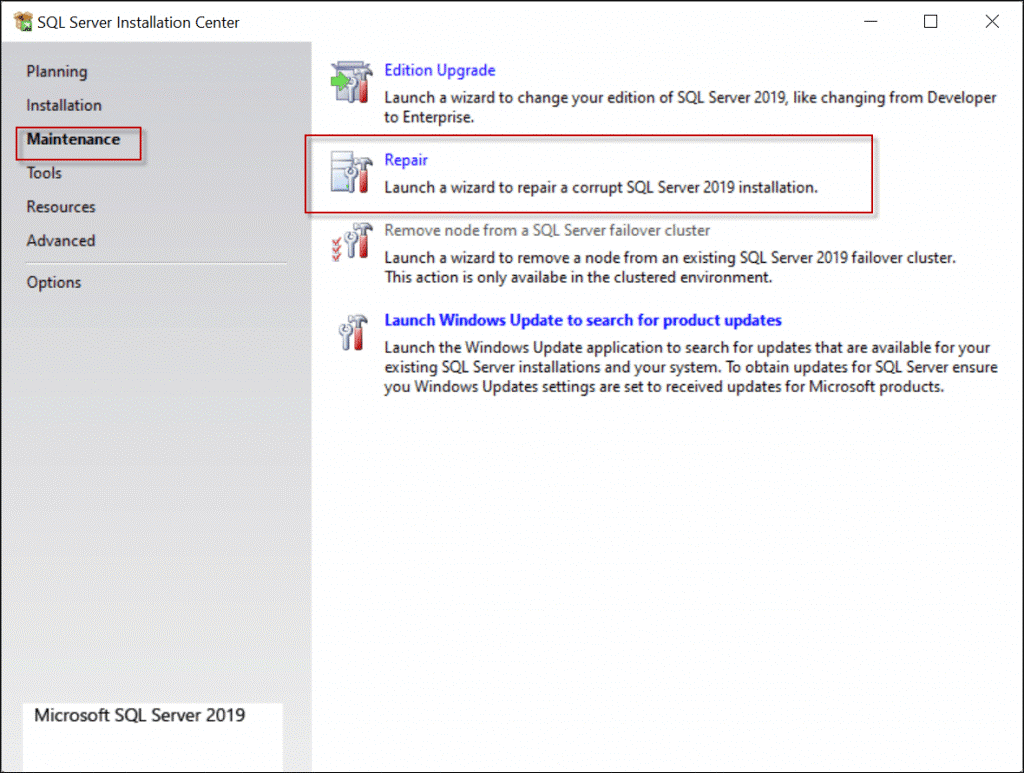
- The SQL Server Installation Center window is displayed. Click Maintenance and then click the Repair option.
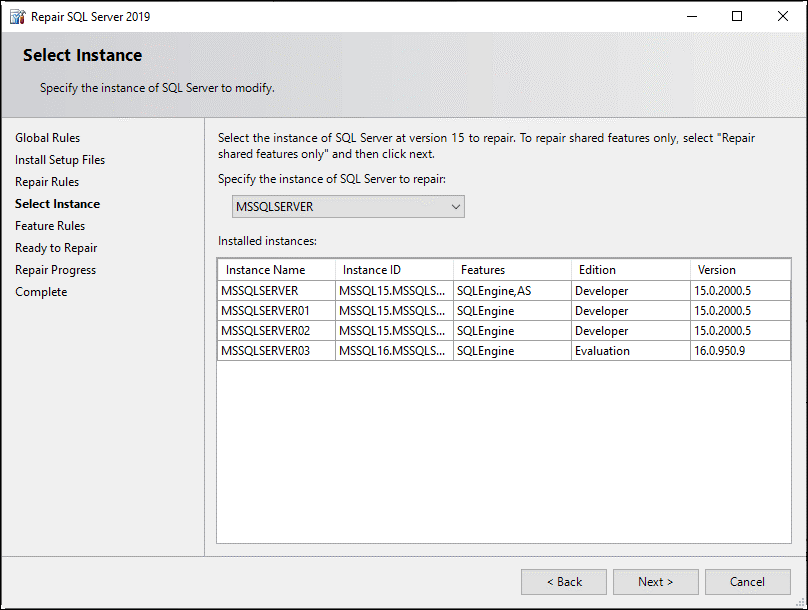
- Select the server instance you want to repair and click Next.
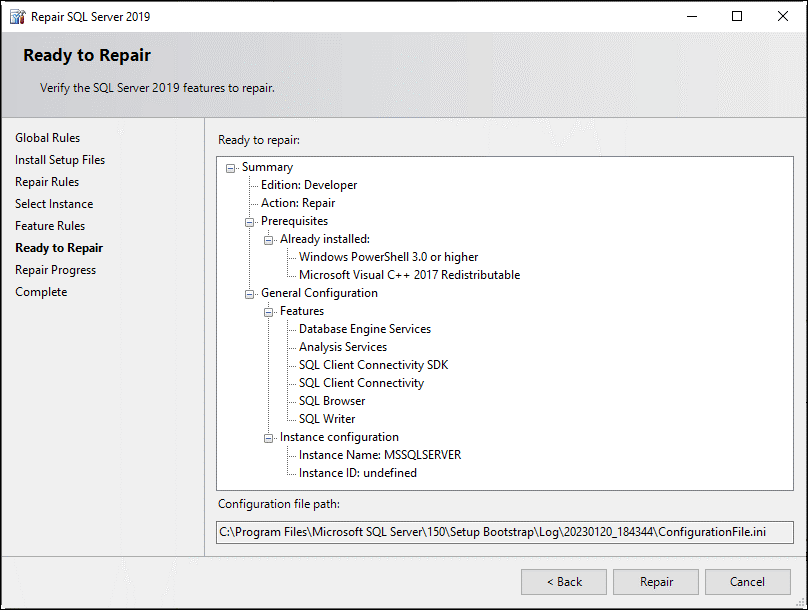
- The Ready to Repair window appears on the screen. You can verify the details and then click on the Repair option.
Method 2: Restore the Master Database from Backup
If you have a readable backup of the master database, you can restore it using SQLCMD in single‑user mode. Unlike restoring a user database, the master database cannot be restored while SQL Server is running in multi‑user mode — the service must be started with the -m (single‑user) parameter first.
Prerequisite:
You must have a master.bak file taken from the same SQL Server version. If there is version mismatch, then you can encounter the error.
Follow the steps cited below to restore the master database in MS SQL Server:
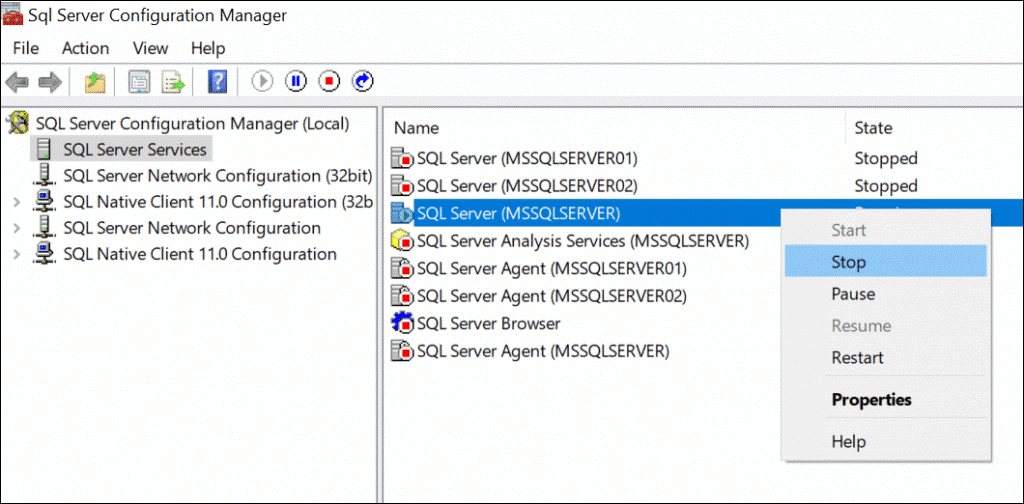
Step 1: Open the Configuration Manager on your system, click SQL Server Services, select and right-click on the instance. Click Stop.
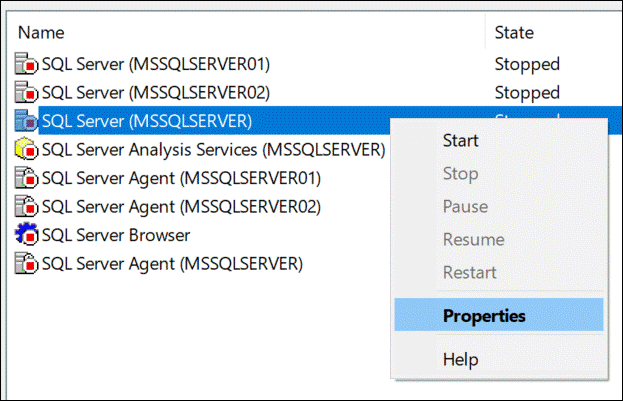
Step 2 – Right-click the instance again and select Properties.
Click Startup Parameters, specify the -m parameter in field under “Specify a startup parameter, and then click Add.
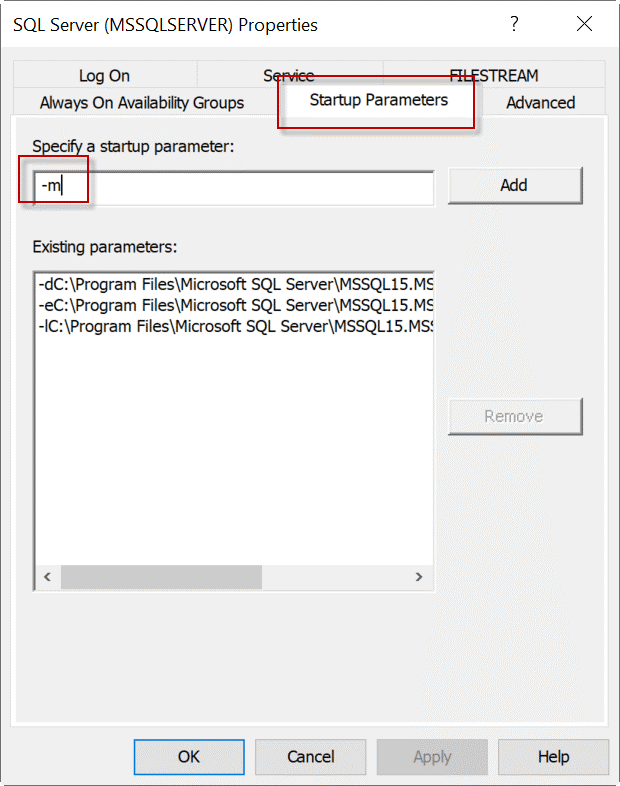
Here, -m is used to set the instance to single-user mode.
Step 3 – Optionally, you can use the -f start option to set the instance with minimal configurations.
Step 4 – Run the following commands in CMD:
NET STOP MSSQLSERVER
NET START MSSQLSERVER /m
Replace the SQL Server instance name with your own server name; in my case, it is MSSQLServer.
Step 5: Once the database is in single-user mode, you can connect with the SQLCMD and restore the database by using the following command:
SQLCMD -S MSSQLServer -E -d master
Here,
MSSQLSERVER is the server’s name.
-E is to connect with Windows Authentication.
-S is to provide the instance name.
-d is to specify the database to connect.
Step 6 – Verify the backup file is accessible before restoring using the following command:
RESTORE HEADERONLY FROM DISK = 'c:\stellarbackups\master.bak';
GO
Step 7 – Finally, run the below restore command to restore the database.
restore database master from disk = 'c:\stellarbackups\master.bak' with replace;
Step 8: Once you have restored the master database from backup, perform the below actions:
- Restart the server instance normally without using startup parameters.
- Make sure you’ve restored the recent full backup.
- Save the restored master database to the original location.
- Check and match the server-side configuration values with the previous configuration values.
Method 3: Rebuild Master Database using the Setup Command Line
You can use the command line to rebuild SQL Server when the master database is severely damaged and no backup file exists. It helps you rebuild the master database to its default state, recreating system objects and configuration settings from scratch. While it helps you start your SQL Server, it also delete server‑level data such as logins and custom configurations. So, you need to recreate them manually.
Prerequisite:
You need access to the original SQL Server installation media.
To run the SQL Server Installer in the Command Prompt, use the below command:
setup /QUIET /ACTION=REBUILDDATABASE /INSTANCENAME=MSSQLServer /SQLSYSADMINACCOUNTS=sa /SAPWD= MyP983”#3 /SQLCOLLATION=Latin1_General_CI_AS
Check the parameter explanation table below, to understand each part of the command:
| Parameter | Value | Explanation |
| /ACTION=REBUILDDATABASE | (fixed) | Triggers the rebuild action for system databases. |
| /INSTANCENAME= | MSSQLServer | Your SQL Server instance name. Default: MSSQLSERVER. For named instances, e.g. INSTANCENAME=SQLEXPRESS. |
| /SQLSYSADMINACCOUNTS= | Sa | The Windows or SQL account to be added as sysadmin after rebuild. |
| /SAPWD= | Your SA password | Required if Mixed Mode authentication is enabled. |
| /SQLCOLLATION= | Latin1_General_CI_AS | Collation for the rebuilt master. Must match the original collation exactly — check with: SELECT SERVERPROPERTY('Collation'). |
Note: You should use this method only when the Installer and Backup methods fail to work.
Method 4: Repair Corrupt Master Database using Stellar Repair for MS SQL
If the master.mdf or mastlog.ldf file is highly damaged or corrupted, you can use Stellar Repair for MS SQL. This software can repair corrupt SQL Server databases in any condition. It can repair and restore primary and secondary database files without any file size limitations. The Technician edition of the tool can repair data from corrupted SQL database backup (BAK) files with complete precision. The tool can restore all the objects and metadata, such as views, including the master database, without requiring a backup file.
Use Stellar Repair for MS SQL to repair database file when:
- SQL Server reports the master database as suspect or corrupt.
- The Installer Repair fails to fix the issue.
- The master.mdf file is damaged at a file‑level that standard SQL recovery cannot address.
Follow the below steps to repair SQL database using Stellar Repair for MS SQL:
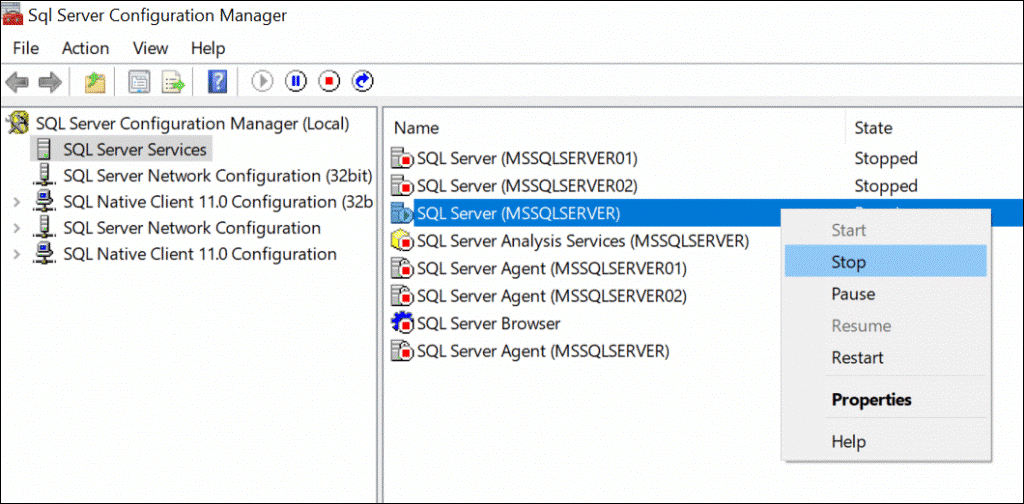
- Stop the SQL Server service in Configuration Manager.
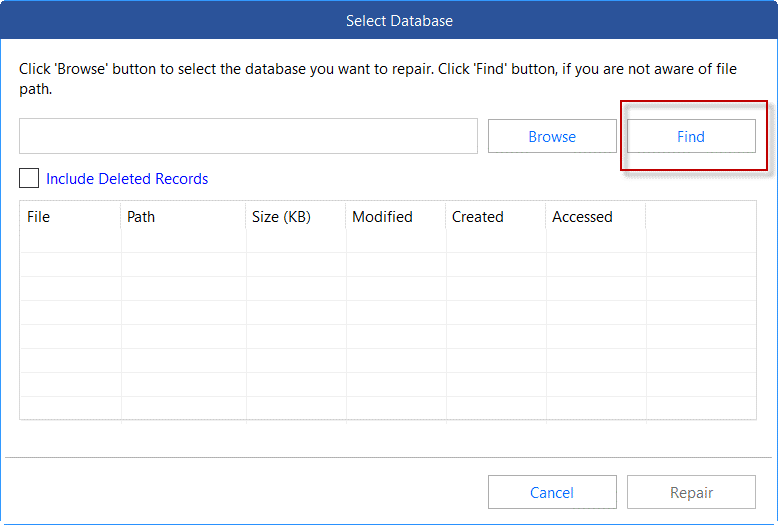
- Launch the software and browse to the location of the master database file. To know the master database location, you can use the Find button in the application.
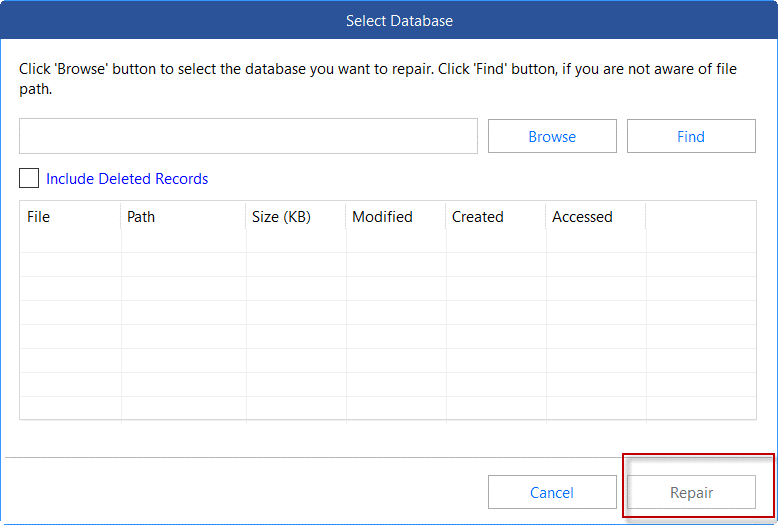
- Once the application finds your master.mdf file, select it, and press the Repair button. You can also check the Include Deleted Records checkbox to recover deleted records.
- Next, select the scan mode and click OK.
- Preview the recovered database objects in the tree view.
- Click Save > choose Save as New Database or export to CSV/Excel/HTML.
Best Practices for Master Database Backup and Protection
Follow these best practices to ensure that you can recover master database quickly in case of corruption or failure:
- Schedule regular master backups after any significant server configuration change — logins added, linked servers created, databases registered, etc.
- Back up after every server-level change: The master database only needs backing up when its content changes. Automate this using SQL Server Agent.
- Try to keep the backup of your master database on a separate drive or network location.
- Document the collation value as you will need it for a rebuild. Changing the collation post-rebuild is extremely complex.
- Restore master database to a test instance periodically.
- Enable SQL Server error logs to learn about alerts before they precede master database corruption.
Conclusion
If your SQL Server service fails due to corruption in master database, recovering it requires specialized approaches. In this guide, we explored four methods to address corruption in Master database. You can use SQL Server Installer, or restore from Backup via SQLCMD. If no backup is available, then you can use the command-line method as a last resort, as it can cause data loss. To repair corrupt master.mdf files directly without any backup, use Stellar Repair for MS SQL.
FAQs
