Windows OS may restart unexpectedly anytime while you are working on an important project, a document, or a spreadsheet. It doesn’t matter which app you are using; Windows may restart at any point without prior warning. This may happen due to several reasons discussed in this post.
However, due to an automatic system restart, apps get abruptly closed which might result in data loss. And you may lose your file or edits that might have taken hours or days to create.
Also, sometimes a Windows system may enter an infinite boot loop.
Why Does Windows Restart Automatically?
Windows may restart automatically due to the following reasons:
- Damaged system files
- Corrupt Windows updates
- Incorrect system settings
- Hardware issue
- Drive problems
- Malware infection
- Corrupt device drivers
- System failure
Problems with hardware, drive, or device drivers can also cause the system to crash. Usually, when the system crashes, you see the Blue-Screen-Of-Death. The BSOD can have severe implications on the drive and the system. In a worst-case scenario, BSOD may cause drive corruption and permanent data loss.
Therefore, it’s crucial to urgently fix the Windows 10 automatic restart issue. However, to fix the issue, you need to explore and perform repair or alterations in all possibly affected areas in the system.
Important Note: In case data is lost during auto-system reboot, you must immediately perform data recovery. It’s crucial, as continuous use of the system may overwrite the deleted data making successful recovery almost impossible. Therefore, if you don’t want to complicate the recovery process and lose the data permanently, use a Windows data recovery software such as Stellar Data Recovery to restore the data first and then proceed to the fixes.
Steps to Stop the Automatic Restart Windows 10 Issue
1. Disable Auto Restart
To disable auto restart from advanced system settings, follow these steps:
- Open Control Panel and navigate to Control Panel\System and Security\System (copy paste in the Control Panel address bar)
- Click ‘Advanced system settings’ and click ‘Settings…’ under the Startup and Recovery section
- Under System Failure, uncheck Automatically Restart
- Click ‘OK’ and ‘OK’ again to close the window
2. Run Malware Scan
To check out the possibility of a malware causing the automatic system restarts, run a deep malware scan. Use some reliable anti-malware scanner app. You can use the inbuilt Windows Defender malware scanner for the purpose.
If nothing is found, proceed to the other fixes.
3. Repair System File
Damaged Windows system files can cause severe issues in your PC such as auto-reboot. Besides auto-rebooting for installing updates and due to system failure, Windows OS may also crash or abruptly shut down due to damaged or corrupt system files.
To check system file integrity, you can run the SFC scan. The scan searches for the system files and inspects them for any corruption or damage. A corrupt or damaged system file is replaced with a new file if found.
To run the SFC scan, follow these steps:
- Press Windows+S and type CMD
- Right-click on command prompt and click ‘Run as administrator.’
- Type sfc /scannow and press the ‘Enter’ key on the keyboard to begin the scan
NOTE: During the SFC scan, keep the Windows Repair Disc or Installation disc handy for replacing the damaged file if not found in the cache.
- After the scan, restart the system and use normally
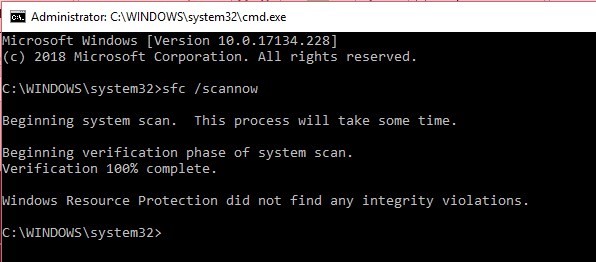
If the problem persists, continue to follow other solutions, as mentioned below.
4. Uninstall Recent Program or System Changes
If you had recently installed a software or driver update after which the issue started, consider uninstalling them immediately. Maybe the update you installed is corrupt, damaged or infected. You may use the system restore feature in Windows to restore your system. Always install software and drivers from a trusted source to avoid such issues.
5. Run Disk Scan
To check whether your hard drive is working fine, use Windows built-in error-checking tool as follows:
- Right-click on the hard drive where Windows is installed and choose ‘Properties.’
- Go to ‘Tools’ and click ‘Check’ under ‘Error Checking.’
- Click ‘Scan drive’ when prompted
- Wait for the scan to complete
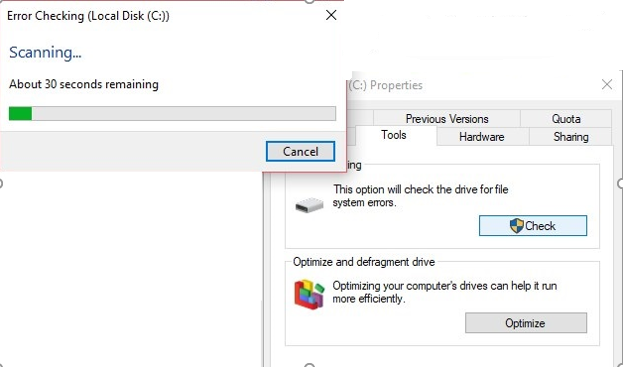
This may fix most errors with the drive or may reveal some problem with the drive. Take appropriate measure, based on the outcome. To get deeper insights, use a tool such as ‘Drive Monitor’.
6. Manually Install Windows Updates
Sometimes updates may cause serious troubles instead of solving the existing ones. Due to damaged or incomplete updates, Windows update may fail triggering a system reboot loop at every unsuccessful attempt.
To stop automatic restart Windows 10 issue, you must uninstall problematic updates and install the updates manually by following these steps:
Step 1: Uninstalling Updates:
- Go to Control Panel\Programs\Programs and Features
- In the left pane, click ‘View installed updates’ link
- Note the update details that keeps re-installing
- Right-click on the update and choose ‘Uninstall.’
- Grant admin access and then click ‘Uninstall’ once again
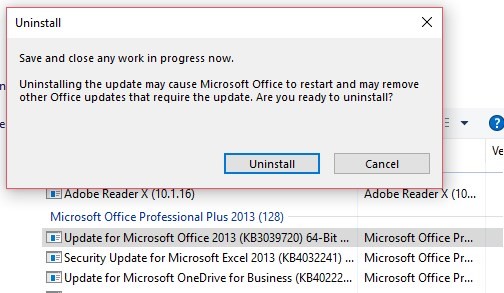
- Restart the system and then follow Step 2
Step 2: Installing Updates Manually
- Under Windows Update, click view update history
- Note down the updated—it must be something like KB01234567
- Visit Windows Updates Catalogue
- In the search bar, enter your update code and press the ‘Enter’ key or simply click the ‘Search’ button
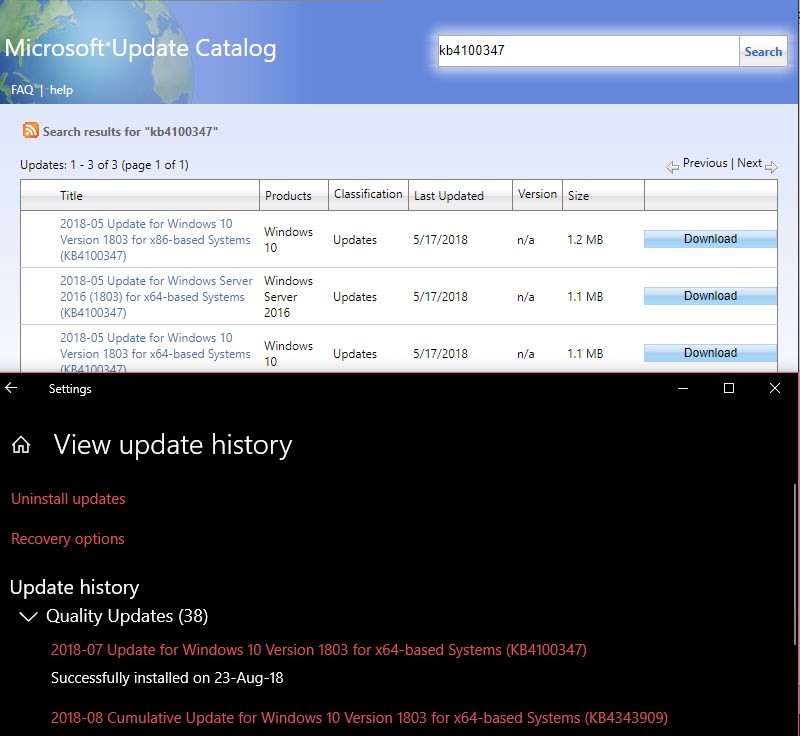
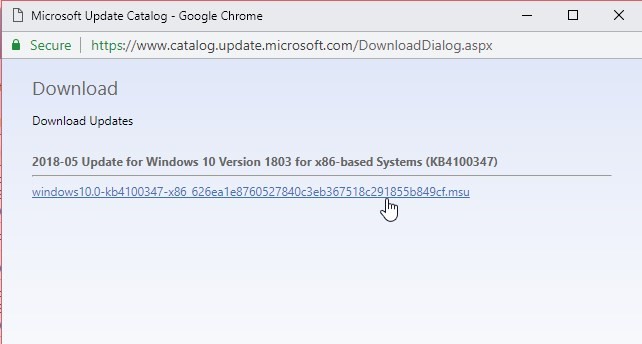
- Then click the ‘Download’ button against update version. A new pop up window appears
- Click the update download link and then install it normally—similar to how you install any other software
Did Not Fix?
Then re-install Windows!
But before that, use a data recovery software to recover your data that may have got deleted or lost due to automatic system restart. It’s crucial to perform data recovery before re-installing Windows, as re-installation may overwrite the deleted and lost data beyond recovery.
You can use a software such as Stellar Data Recovery. It can help you get back your lost, deleted, or formatted data in most common data loss situation from a Windows PC.
After installing the software, all you need to do is
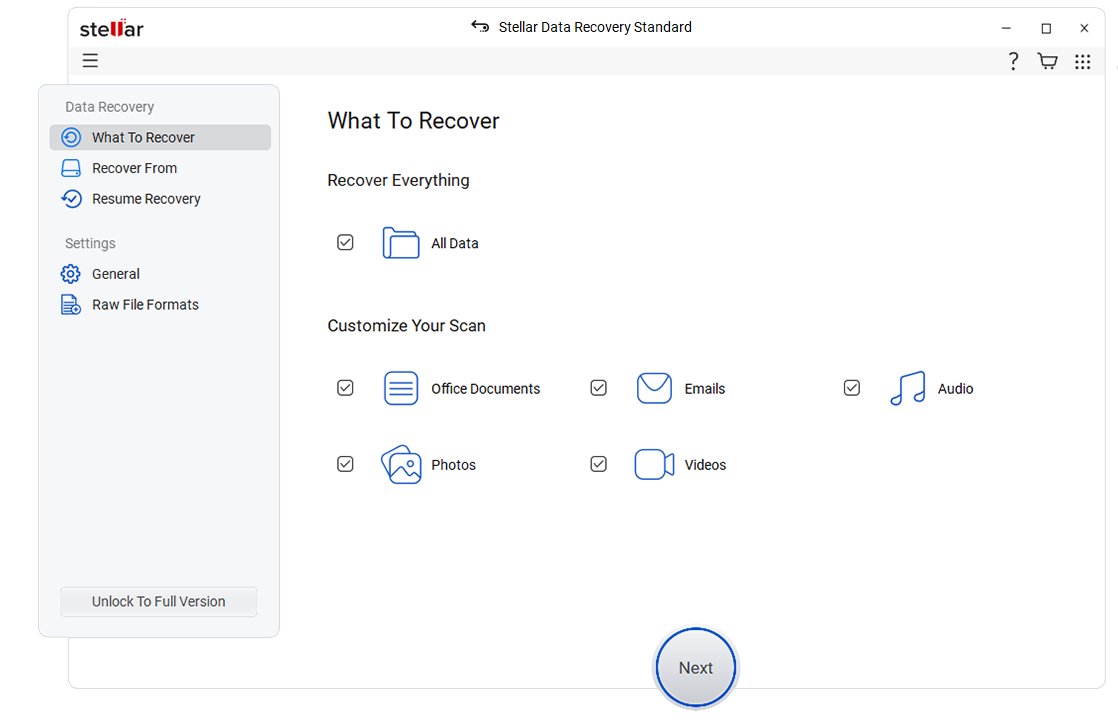
- Choose the location from where it was lost or deleted
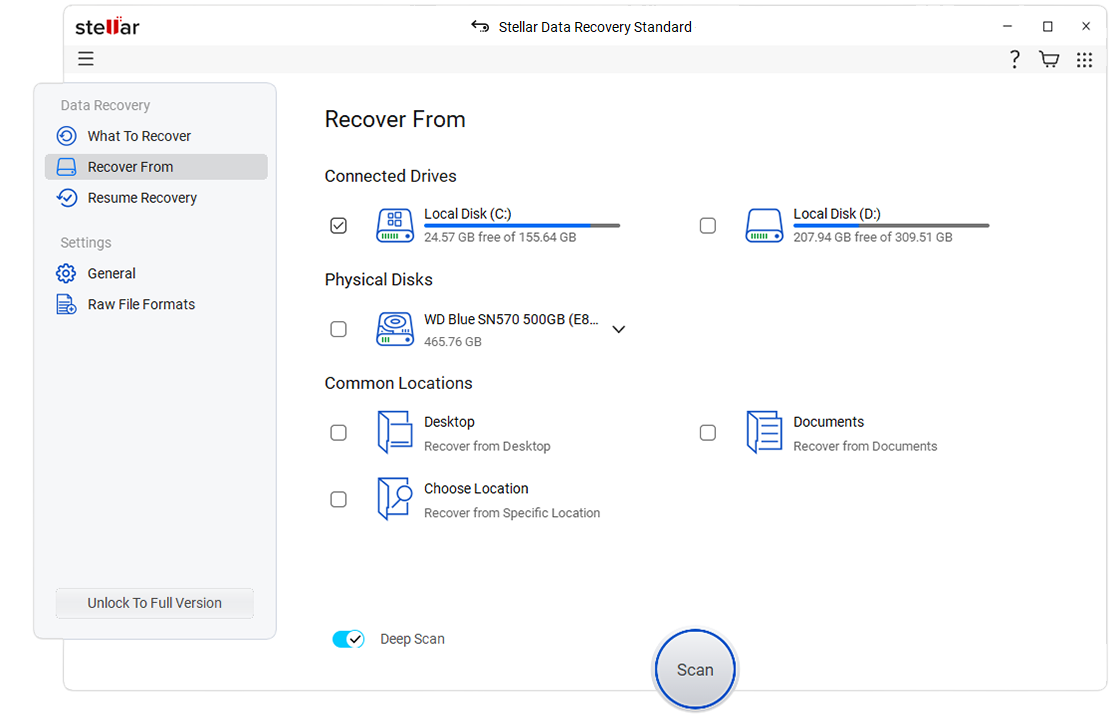
- Run scan to restore your files
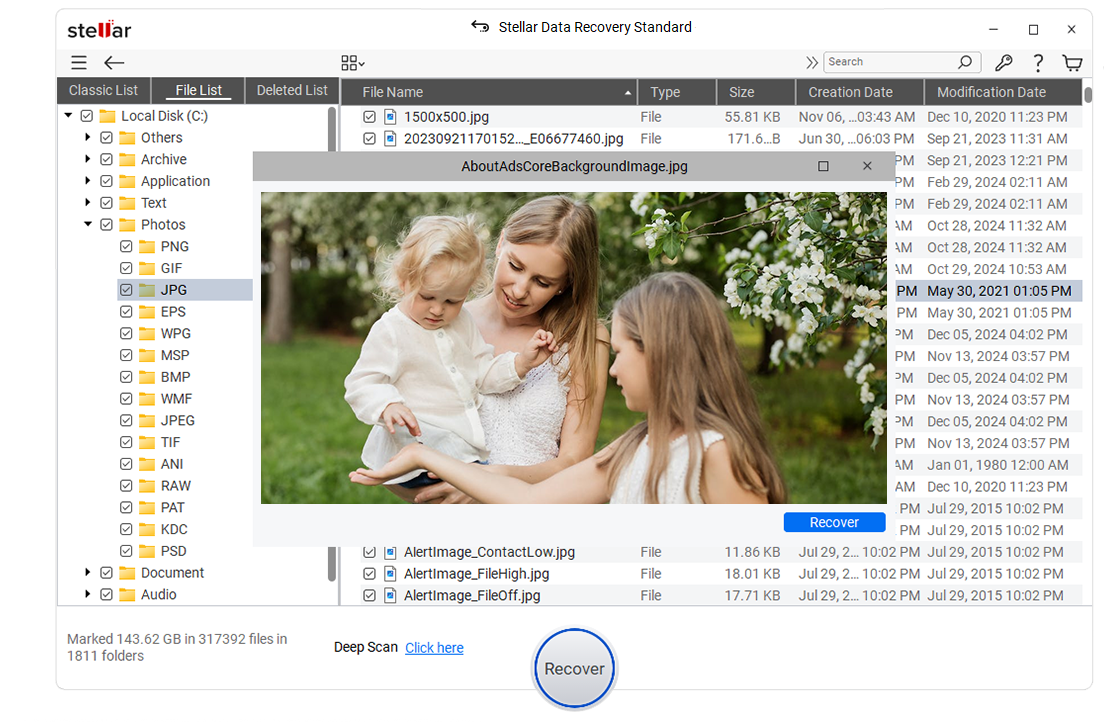
The software also recovers data from a severely corrupt and formatted storage media with NTFS, FAT (FAT16/FAT32), or exFAT file system.
Conclusion
It’s normal for Windows to auto-restart to install Windows updates and you can always disable the auto-reboot from the system settings. However, sometimes disabling auto-restart setting may not work as the problem may also arise due to issues with the system files, devices drivers, or system hardware.
To help you fix and stop automatic restart Windows 10 issue, we have discussed a few solutions. The fixes can help you fix the auto-restart issue in Windows and safeguard against data loss due to sudden system shutdowns. Further, we mentioned how to restore data in case you lose it due to abrupt or auto system restart in Windows PC or laptop.
FAQ
