When you start up your Windows 10/11 computer, it shows a blue login screen with a “Welcome” message and a spinning circle of dots. Sometimes, this screen stays for longer than anticipated, freezes, or refuses to boot altogether. Wondering why it happens?
The Desktop Windows Manager (DWM) renders the Windows graphical interface, including the “Welcome” screen. If the DWM cannot initialize, it indicates that a corrupted driver, file, or third-party software is disrupting its function and resulting in the “Windows stuck on Welcome screen” issue on your computer. Read on to find some effective solutions to fix this problem.
Why is Your PC Stuck on the Welcome Screen?
Wondering why your Windows 10/11 always gets stuck at the welcome screen? The problem can be caused due to multiple reasons. In this article, we will cover the most frequently encountered ones:
- Corrupted Boot Configuration Data (BCD)
- Outdated, corrupted, or missing drivers
- Failed or half-failed updates
- Outdated or incompatible software
- Corrupted registry entries
- Malicious software
How to Fix PC Stuck on Welcome Screen?
Many users have reported fixing this error simply by checking their Wi-Fi connection. Therefore, before proceeding to the other solutions, attempt to disable your Wi-Fi, and see if that solves the problem. If not, proceed to the next troubleshooting step below.
Method 1: Reboot in Safe Mode
This should be your initial step, especially, if you can’t boot normally. Sometimes, third-party drivers and applications conflict with Windows, causing errors. Starting your computer with basic drivers, features, and processes ensures a clean environment for troubleshooting errors.
Follow the steps below to restart in Safe Mode:
Step 1: Power on your PC as usual.
Step 2: On the Windows sign-in screen, hold down the Shift key and choose Restart from the Power menu.
Step 3: When your PC reboots, a screen labeled Choose an option will come up. Choose Troubleshoot > Advanced options > Startup Settings > Restart.
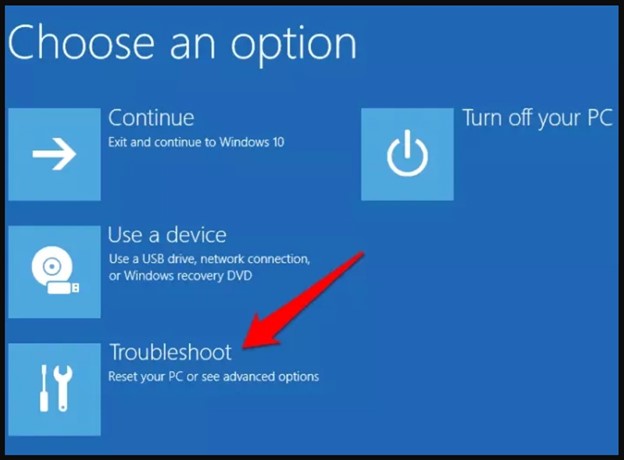
Step 4: After the subsequent reboot, a menu with some options will show up. To boot your PC in Safe Mode with Networking, press F5.
Method 2: Update Windows or Reinstall the Last Update
Make sure you have the most recent version of Windows by ensuring no updates are available through Settings > Update & Security > Check for updates. If the Windows stuck on startup screen problem occurs after the latest Windows Update, that update can be uninstalled to make the problem go away.
Method 3: Run the SFC and DISM Scan
The Deployment Imaging Service and Management Tool (DISM) and System File Checker (SFC) are strong Windows built-in tools that repair system files and correct underlying problems.
SFC checks system files, such as DLL files, and restores corrupted files to a cached copy found in a compressed folder at: %WinDir%\\System32\\dllcache
The DISM utility fixes the Windows image, such as the Windows Component Store, and resolves problems that the SFC is unable to correct on its own.
Here’s how to run these scans:
Step 1: Look for Command Prompt in the taskbar and choose Run as administrator.
Step 2: Now run the following command for SFC scan: sfc /scannow
Step 3: Then, run the following command for DISM scan: DISM /Online /Cleanup-Image /RestoreHealth
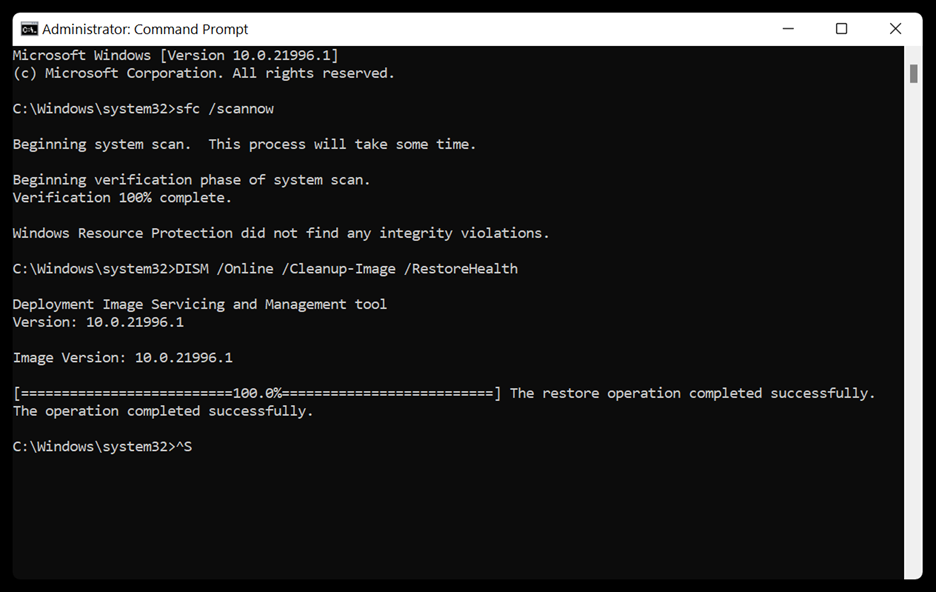
Then, reboot your computer and check if the problem is resolved.
Method 4: Run Startup Repair
Startup Repair is a built-in utility in Windows. If the Windows stuck on startup screen error keeps you from logging into your system, you can boot to the Windows Recovery Environment to resolve the issue. Here’s what you need to do:
Step 1: Navigate to Settings > Update and Security.
Step 2: Click Recovery on the left-hand sidebar.
Step 3: Under Advanced startup, tap Restart now and wait until Windows boots into Advanced Startup Options.
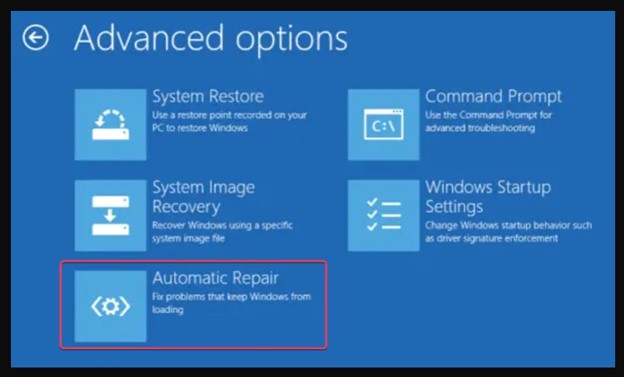
Step 4: Now, click Troubleshoot and Advanced options.
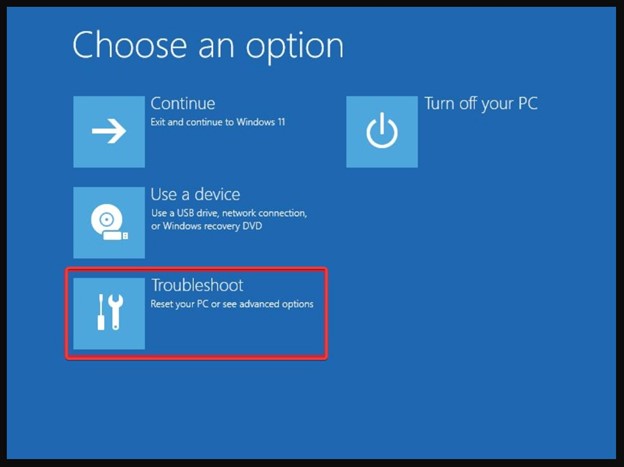
Step 5: Tap on the Automatic Repair option.
Method 5: Repair Boot Configuration Data (BCD)
Windows Boot Manager utilizes BCD to save data on the installed operating systems and the boot parameters needed to boot them. A damaged BCD file can make your Windows hang on the welcome screen. To fix BCD, do the following:
Step 1: Restart your computer and press F8 to boot into Windows Recovery Mode.
Step 2: Click Troubleshoot and choose Advanced Options.
Step 3: Open Command Prompt.
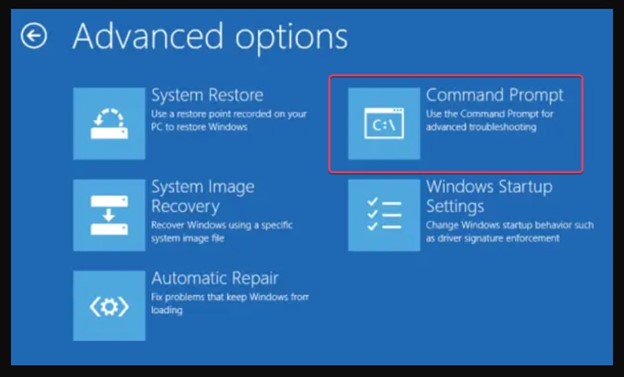
Step 4: Now run the following commands, one by one:
bootrec /RebuildBcd
bootrec /fixMbr
bootrec /fixboot
Step 5: Exit and restart your system to check if the problem is solved.
Method 6: Disable Fast Startup on Windows
The Fast Startup option in Windows makes your PC boot faster, but at times, it can prevent Desktop Windows Manager (DWM) from properly initializing. If DWM is having trouble initializing, disable Fast Startup, as it provides sufficient time for the system to load all services. Here’s how to do it:
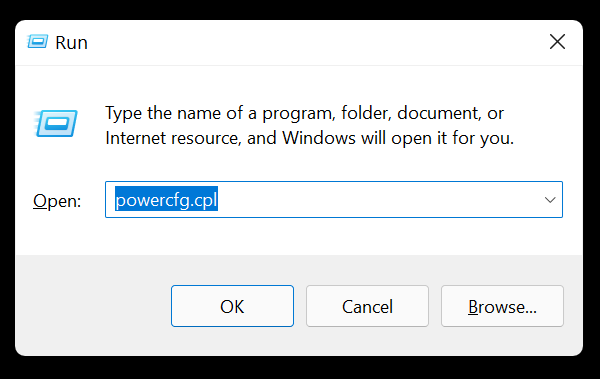
Step 1: Press Windows + R to open Run.
Step 2: Type powercfg.cpl and press Enter.
Step 3: In the Power Options window, click on Choose what the power button does.
Step 4: Then, click Change settings that are currently unavailable.
Step 5: Disable the Turn on fast startup option under Shutdown settings.
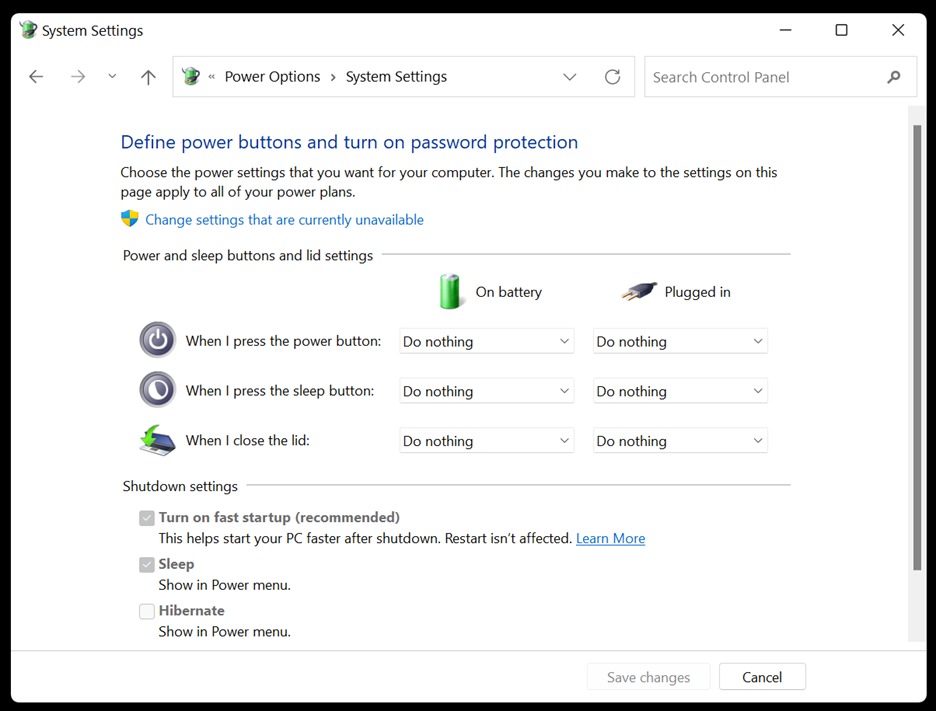
Step 6: Finally, click Save Changes and restart your PC.
Summing Up
If you have the problem of Windows 10/11 stuck on welcome screen on your computer, all hope is not lost. The six troubleshooting techniques discussed in this blog can assist you in fixing the problem. If the above solutions do not work and you cannot access your files, recover your lost files using Windows data recovery software.
