To improve system performance and user security, Microsoft released a cumulative update known as KB5062554. This was a mandatory update as part of Microsoft’s July 2025 Patch Tuesday and was supposed to address 136 vulnerabilities along with a zero-day. Although the update released about 13 new changes and fixes, few users have reported some unusual effects.
After updating their PC, a user complained that most of their files had vanished from subfolders of the Documents folder. Others complained of experiencing recurring Blue Screen of Death (BSoD) errors on their PCs. In this blog, we will explain how to recover lost data following Windows update KB5062554.
Common Signs of Data Loss After Windows Update KB5062554
There have been instances in the past where during an update, a user’s profile is set aside and instead, a temporary profile is used for the update. And when the update has finished installing, the original user profile is restored.
But sometimes, the user profile is not restored when the PC restarts at the end of the update and you are logged into a temporary profile. It makes it seems like all your data is gone. In this situation, you need to restart your PC multiple times until the original user profile is restored.
Some signs of data loss after Windows update KB5062554 are:
- Your files are missing from desktop or the documents folder
- The subfolders are empty or partially filled
- Your user profile is reset to temporary profile
- A partition or drive is not showing up
- The system files are corrupted
Preliminary Steps Before Recovery
Before attempting the recovery methods mentioned in this blog, make sure you have covered the following steps:
- Stop using your PC to prevent overwriting
- Note which folders were affected by the update
- Check available storage to ensure enough space
Once you’re ready, move to recovery methods.
1. Restore System to a Previous Version
If the USB blue screen error has started to come up only recently, then it could be because of some recent changes made to your system. Resolve this by resetting your system to a previous version when it was working fine.
- Press Win + S to launch search and open Create a restore point.
- A System Properties dialog box will appear.
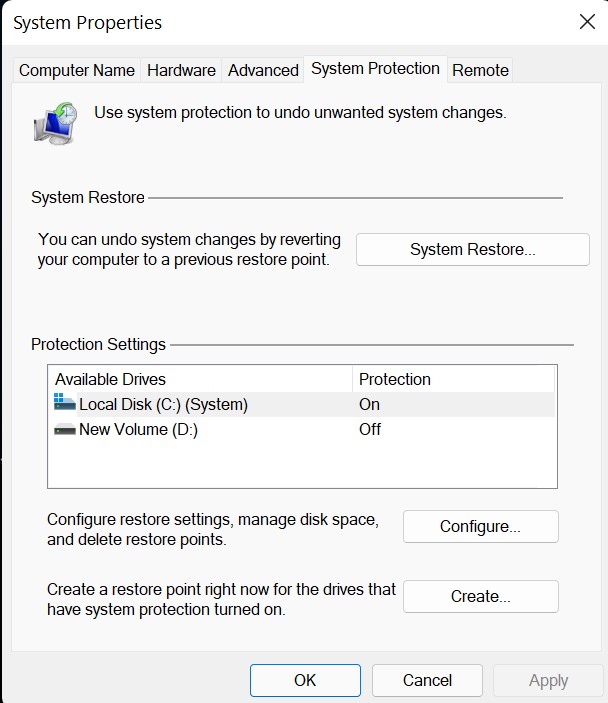
- Under the System Protection tab, click System Restore.
- Choose a restore point before UsbHub3.sys error and click Next.
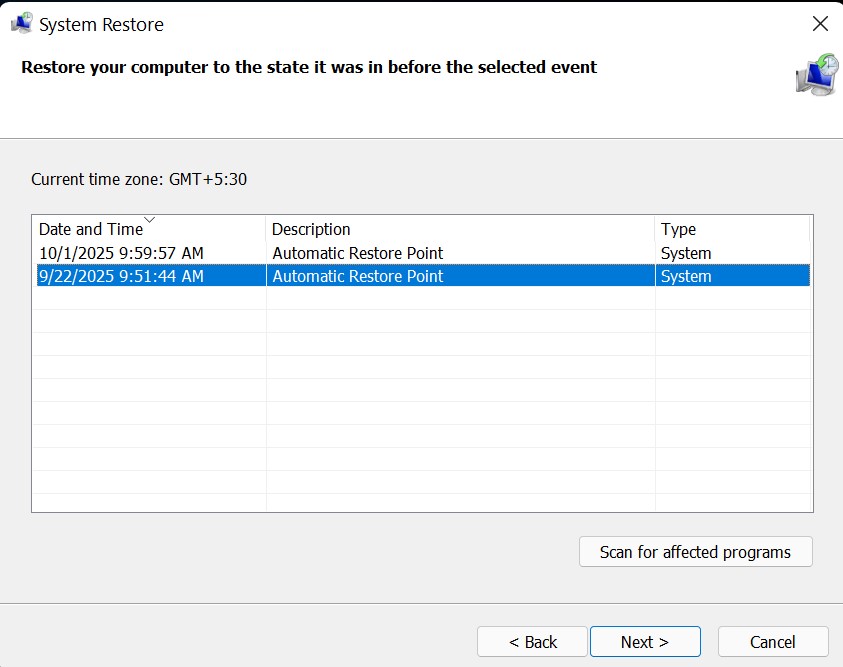
- Confirm the restore point by clicking Finish and you’re good to go. Your PC will restart to apply the changes.
2. Restore Files Using Local Backup
Windows OS offers a built-in local backup feature called Windows File History which was first introduced in Windows 8 and has been continued ever since. If enabled beforehand, File History automatically keeps copies of your files in a network location or external drive, allowing you to recover them in instances of abrupt loss.
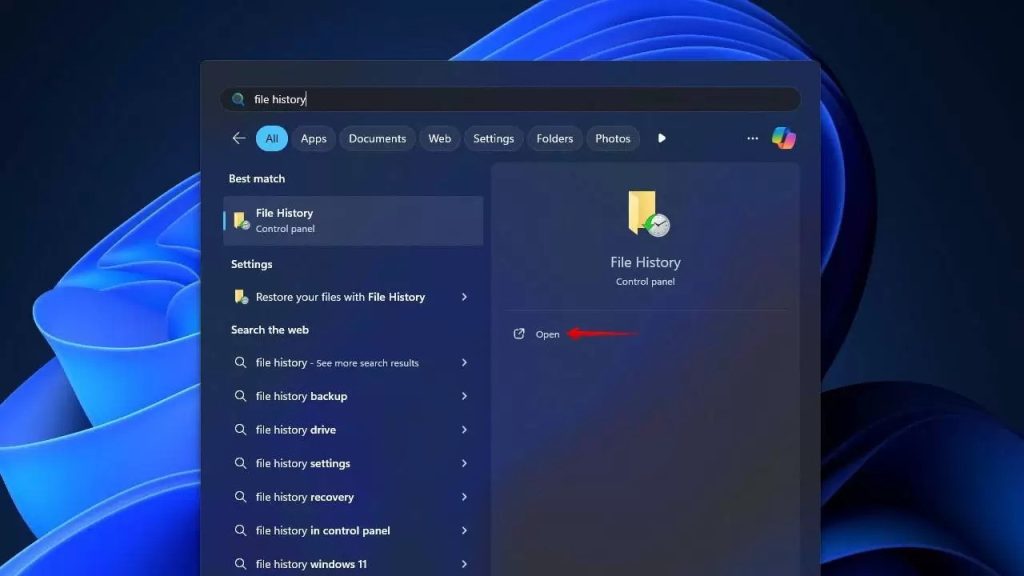
- Connect your backup drive to the PC and go to the Startmenu, type File History, and launch it.
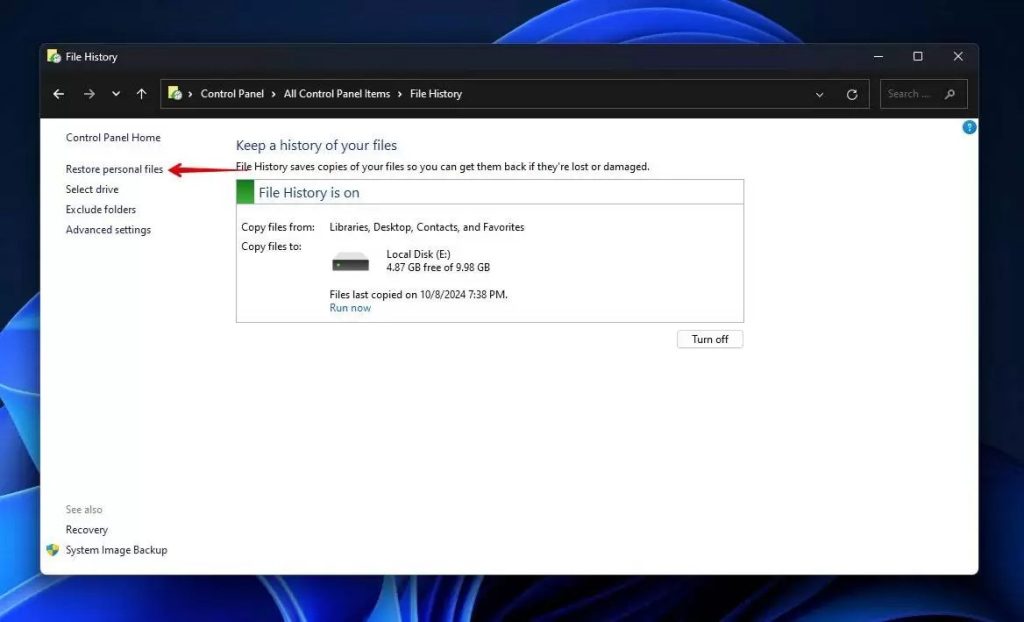
- Select Restore personal files.
- Browse to the items from your encrypted drive that you want to recover.
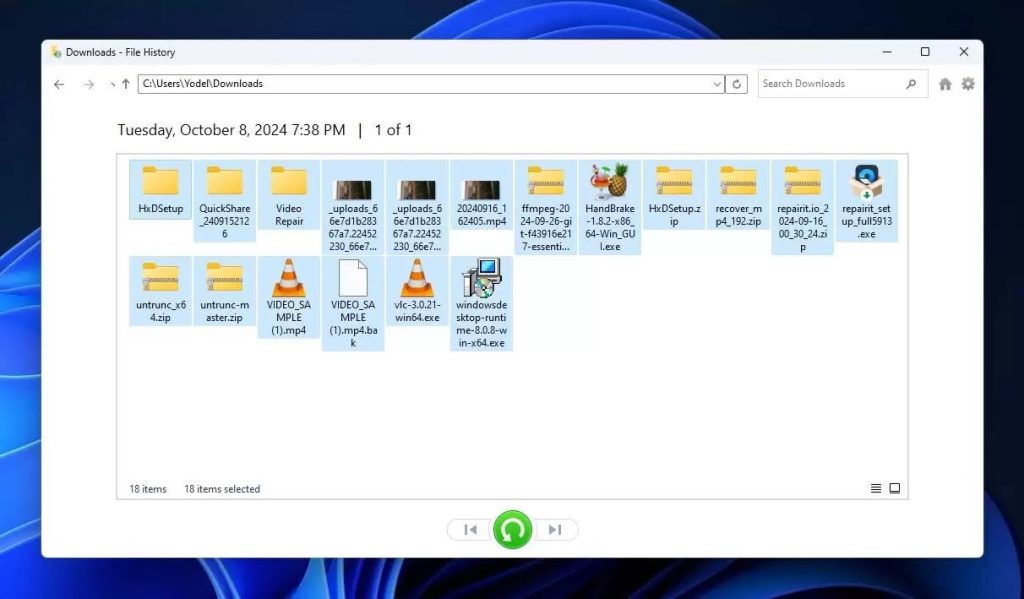
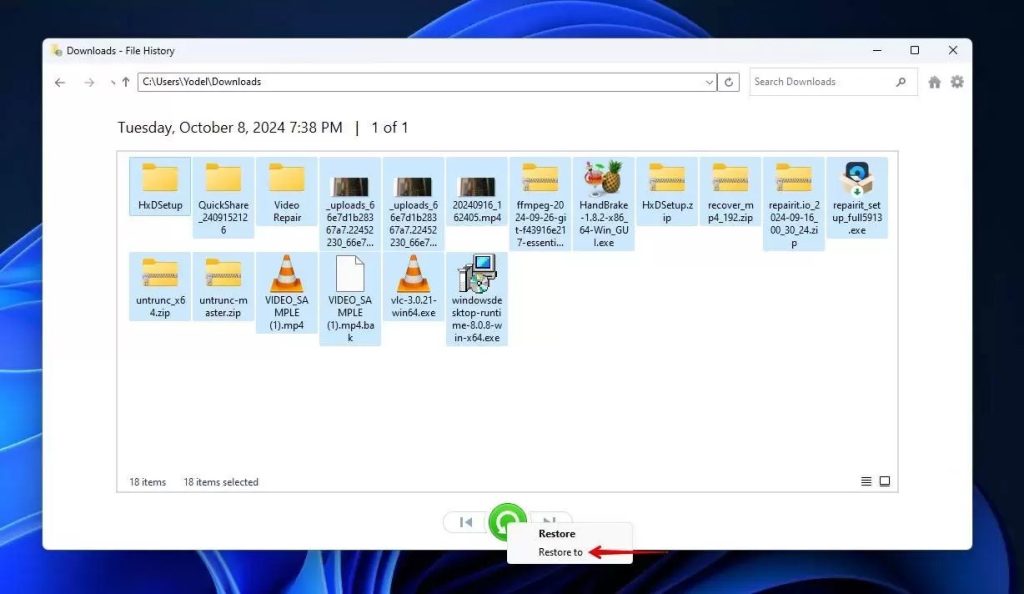
- Right‑click the green Restore button and choose Restore to pick a location.
3. Restore Using Cloud Backup
A cloud backup service like Microsoft OneDrive automatically syncs your files to the cloud, making them accessible from anywhere. If you had synced your files before system reset, you can restore them with much ease.
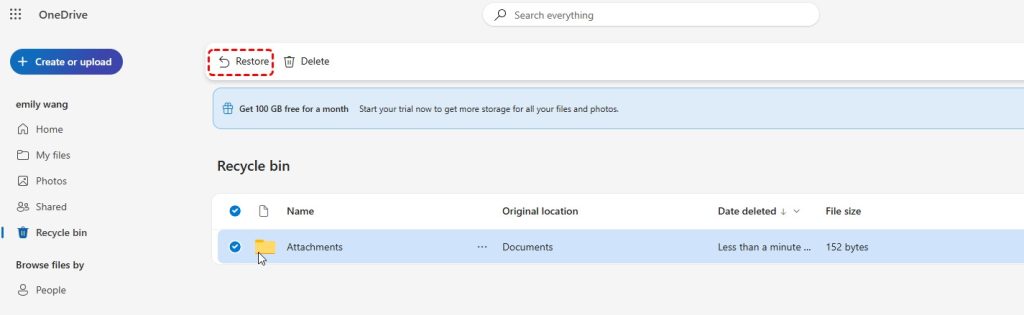
OneDrive stores deleted files in its Recycle Bin folder for a period of 30 days, giving you ample time for recovery, even after deletion as in the case of a factory reset.
- Go to onedrive.live.com.
- Sign in using Microsoft account credentials.
- Click Recycle Bin on the left sidebar, select the files you want and hit Restore
4. Recover Files Using Data Recovery Software
While backup tools can help you restore data in certain situations, each comes with its own limitation. For example, the last two methods work well only if they were set up in advance. But for those of you who did not have such fail-safe in place, the best bet is to use a specialized data recovery software.
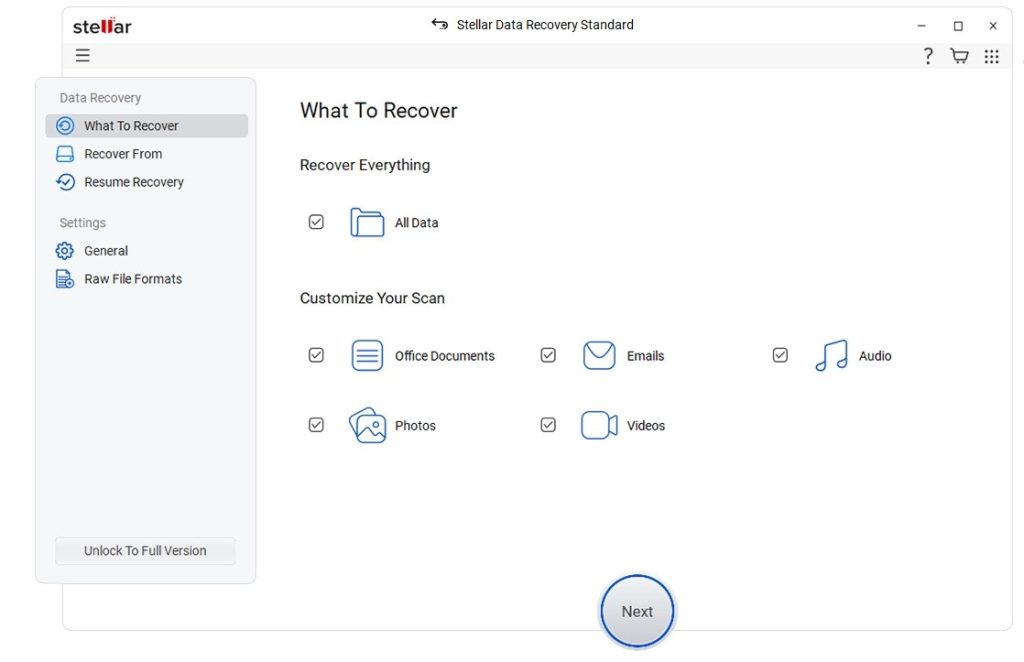
Stellar Data Recovery is a DIY data recovery tool that helps you efficiently retrieve data from your Windows PC, even after a factory reset (depending how much data is overwritten). It supports recovery from both internal and external storage mediums, including HDDs, SSDs, SD cards, etc. The software helps you recover lost data after factory reset, logical corruption, accidental deletion, formatting, and other issues.
Wrapping Up
Updating Windows is a great option when you’re dealing with a system issue or security hiccups but it may also come with a drawback, namely, the risk of losing your data. But fortunately, not all is lost and there are still ways left to get your files back. Backups are real life savers in such scenarios. However, if case you don’t have one, we recommend using a dedicated Windows data recovery software to reclaim your lost files.
