You can restore a QuickBooks company file by using your .QBB backup through File > Open or Restore Company. If the backup is unreadable, corrupted, missing, or larger than 1.5 GB, QuickBooks tools may fail. In such cases, Stellar Repair for QuickBooks can repair the damaged QBW file and recover all data without needing a backup.
QuickBooks is a highly useful accounting software used to manage accounts in small, medium, and large enterprises. It stores all its data, from customer data to employee reports, in the QuickBooks company file. This file is not immune to corruption; it can easily get corrupted due to various reasons. When corruption occurs in the QBW file, all the stored data becomes inaccessible, disrupting the organization’s accounting operations. Such a situation is really unacceptable as the company file contains all the important information. You can restore the QuickBooks company file from the backup. However, this is possible only if you created a backup earlier and it is readable. In this article, we will explain the methods available in QuickBooks to restore backup. To restore the company file without backup, use a professional QuickBooks recovery tool.
Methods to Restore QuickBooks Company File from Backup
Here are the methods you can use to restore the data from the QuickBooks company backup (QBB) file.
Method 1 – Use Open or Restore Company Option
You can use the Open or Restore Company option in QuickBooks to restore the backup company file. However, you need to remember that QuickBooks utilizes the backup company (.qbb) file for creating a new QBW file.
Note: Before restoring, make sure to move the backup file to your local hard drive, if it is stored on an external device.
- Open your QuickBooks application.
- Click the File menu and then click Open or Restore Company.
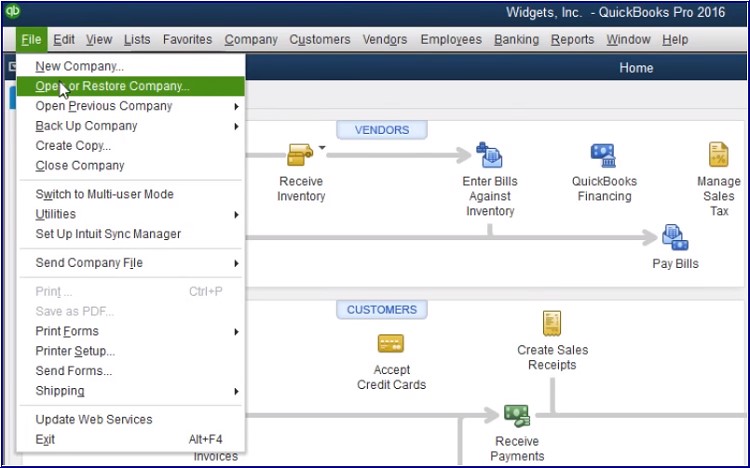
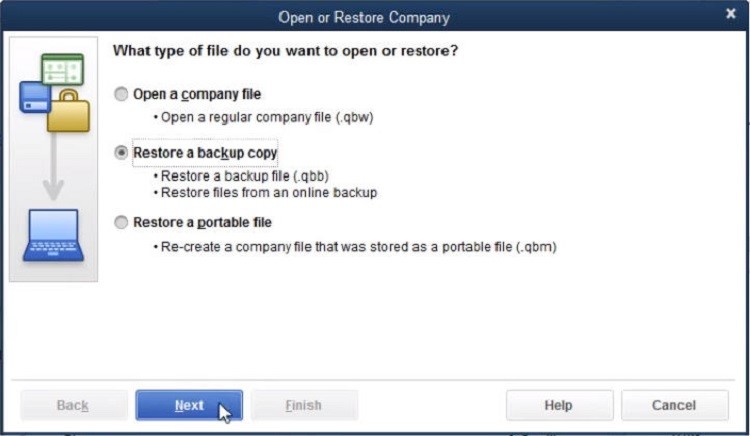
- Click Restore a backup copy and click the Next option.
- Click on the option labeled – “Local Backup” and then click Next.
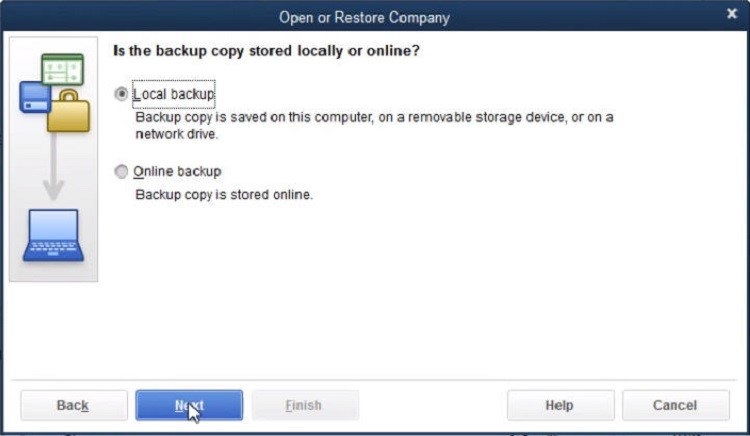
Note: If you’ve saved the backup copy online, select the Online backup option instead of the Local backup.
- Click the Next tab to continue after making a choice between Online backup and Local backup.
- Use Open Backup Copy dialog box to select your backup company file (with extension .qbb).
- Select a location where you want to save the restored company file and then click Open.
- After selecting the Company file, click the Save tab
Note: Use the Verify and Rebuild utility to check the integrity of restored company file. If errors appear, repair the file with QuickBooks File Doctor or another professional repair tool.
Method 2 – Use Auto Data Recovery Tool
To restore the data from corrupted QBW file, you can use the built-in tool in QuickBooks – Auto Data Recovery tool. It can help recover data (recent transactions) using readable backup files (.TLG file and .QBW.adr file). To use Auto Data Recovery tool, make sure:
- The size of the backup file is not more than 1.5 GB.
- The QuickBooks version should be QuickBooks Pro, Premier, or Enterprise solutions.
- The version of your QuickBooks Desktop is fully updated.
Best Solution to Restore QuickBooks Company File
If the above manual methods won’t give the desired results, if the backup is not available, or if the backup restore fails, then you can go for Stellar Repair for QuickBooks® software to repair the corrupt QuickBooks company file. The tool does not require readable backup file to restore the corrupt company file. It can easily restore payroll transactions, job details, paychecks, etc., from the QBW file of any size and created in any version. The tool supports QuickBooks Premier, Professional, and Enterprise editions.
The tool also lets you preview the repaired file data, including employees, payroll data, etc., before saving it to a new QBW file. It works efficiently in resolving all types of corruption-based errors in QuickBooks, such as H202, -6150, etc.
Some other reasons to use QuickBooks® file repair software are as follows:
- If your company file is severely corrupted
- The backup (QBB) file is corrupted
- If you are encountering backup restore failed errors
- If you are facing data integrity issues after restoring QBW file
- If some important components from the backup file are missing
- You don’t have permission to access the folder in which your backup file is stored
- If your QBB file is greater than 1.5 GB.
Conclusion
To repair and restore corrupt QBW file, you can restore the backup file. In this post, we have mentioned the methods to restore QuickBooks company file from backup. We have also mentioned the best and quickest solution – Stellar Repair for QuickBooks that can come in handy in case the restore operation fails. This professional tool can quickly repair and extract data from damaged QBW file with complete precision. You can use the demo version of the tool to scan the damaged company file and preview the recoverable data before saving.
