So one bright sunny morning, you’re setting up a new Samsung Galaxy phone and using Smart Switch to move your precious photos, contacts, and apps, etc., and suddenly Smart Switch refuses to cooperate. You’re not alone here, my friend. Millions and millions of Samsung users have relied on Smart Switch to migrate data smoothly, but then again, its tech… glitches can and do happen. Luckily enough… Most of the time, you can fix those problems with simple tweaks. So let’s walk through those likely causes that put you in situations like these first, and then dive into step-by-step solutions.
Why Samsung Smart Switch is Not Working
- Compatibility Issues: Smart Switch works with some particular devices and OS versions only. It requires Android 4.3 or newer on Samsung devices, and in case of Apple, iOS 5 or above for cable transfers and iOS 12 or above for Wi-Fi. Plus, the target phone must be a Galaxy device, loud and clear.
- Cable/Connection Problems: A loose or faulty USB cable or USB-C adapter is known as a common culprit in the tech community all over.
- USB Mode Not Enabled: When you are connecting to a computer, the phone needs to be in file-transfer aka MTP mode.
- Not Enough Storage: If the phone that is on the receiving end runs out of storage space during the transfer, this Smart Switch can freeze.
- App Glitches or Outdated Version: Like any other app out there, Smart Switch can also get bogged down if there is a corrupt cache, or an old release, or some hidden issue.
- Wireless Network Issues: If you’re using the Wi-Fi mode here, any hiccup in the network will interrupt this transfer.
How to Fix Samsung Smart Switch Issues
Many users report that simply rebooting both devices resolves the issue with Smart Switch. Start with simple checks (like restarting your devices), then move on to deeper fixes mentioned below.
Method 1: Check Your USB Cable and Connections
Believe it or not, many Smart Switch headaches come down to the cable or port. Even if the cable looks fine, it might not support data transfer (some cables are charge-only).
- Ensure the USB cable is firmly connected to both devices. If you’re using an OTG adapter, make sure it’s fully seated.
- Use the original Samsung cable or a high-quality data cable, if possible. Avoid cheap third-party cables that only do power.
- Try a different USB port on your computer or a different adapter on the phone. (Ports can fail.) If using a desktop, prefer a USB 2.0 port over a front-panel USB port or a USB 3.0 hub.
- Inspect the cable ends for damage. Even a single bent pin on a USB-C plug can break the connection. If in doubt, swap to a spare cable.
Samsung’s own support recommends checking the cable and port. “Make sure the USB cable is fully plugged in… try a different USB cable. Not all USB cables can transfer data”.
Method 2: Enable File Transfer (MTP) Mode
On Android phones, the USB mode can default to “Charge only.” For Smart Switch to work (especially with a PC), you must switch it to file transfer mode.
- Connect your Samsung phone to the computer via USB and unlock the phone. You should see a notification about the USB connection.
- Swipe down from the top and tap the USB notification. Choose “Transferring files” (MTP) or similar.
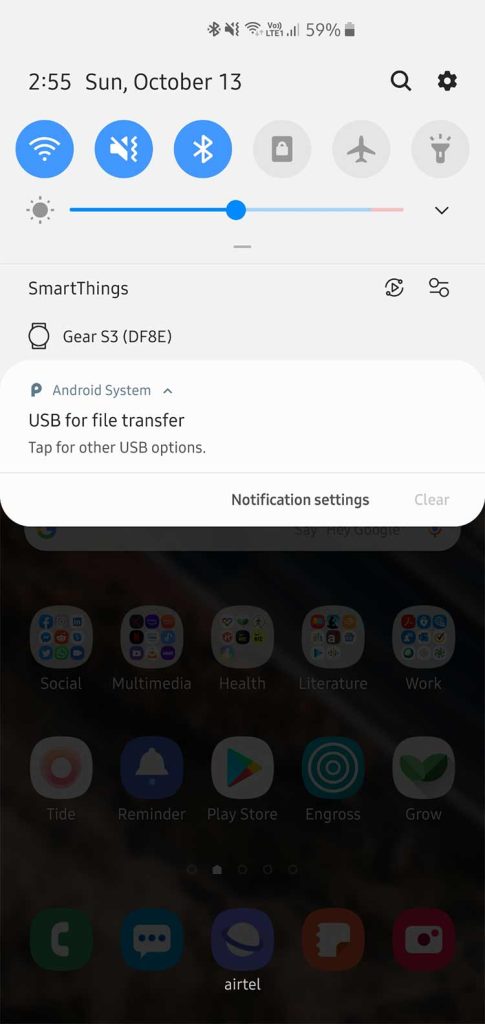
- If a prompt appears on the phone asking to allow data transfer, tap “Allow”.
- On the computer, open Smart Switch again. The program should now detect your phone.
If the MTP option disappears, try unplugging and plugging the cable again. On some phones you may need to go to Settings > Developer Options > Default USB configuration and select “File Transfer.” Ensuring MTP mode lets Smart Switch actually see your files.
Method 3: Clear Smart Switch App Cache and Data
Apps can accumulate junk data that causes unpredictable behavior. Resetting Smart Switch on your phone (or computer) can resolve corruption issues.
- On your Samsung, go to Settings > Apps.
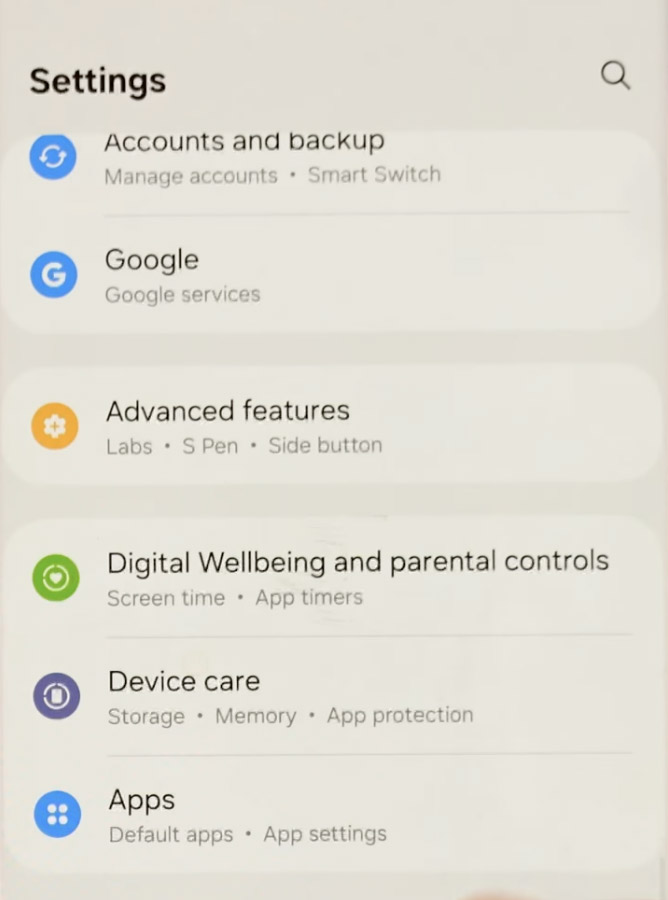
- Look for Smart Switch Mobile (or it may appear as “Smart Switch”).
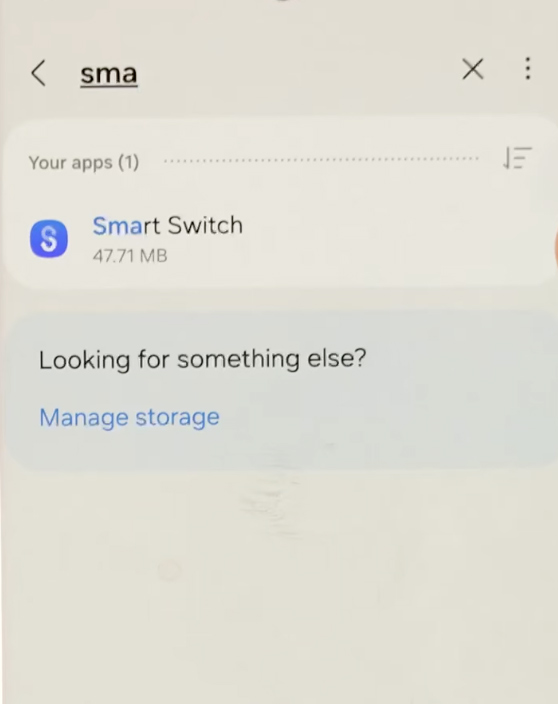
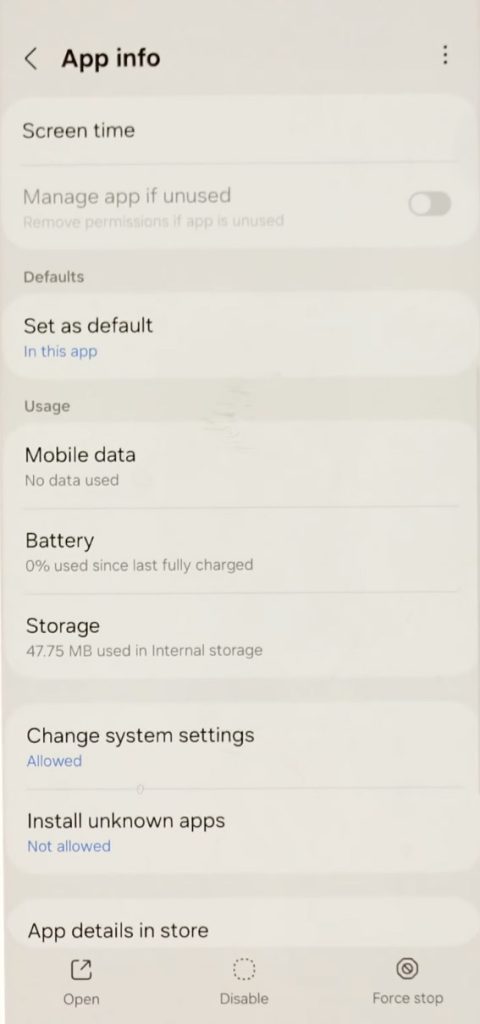
- Press Clear Cache. If problems persist, also tap Clear Data (Note: This resets any Smart Switch settings).
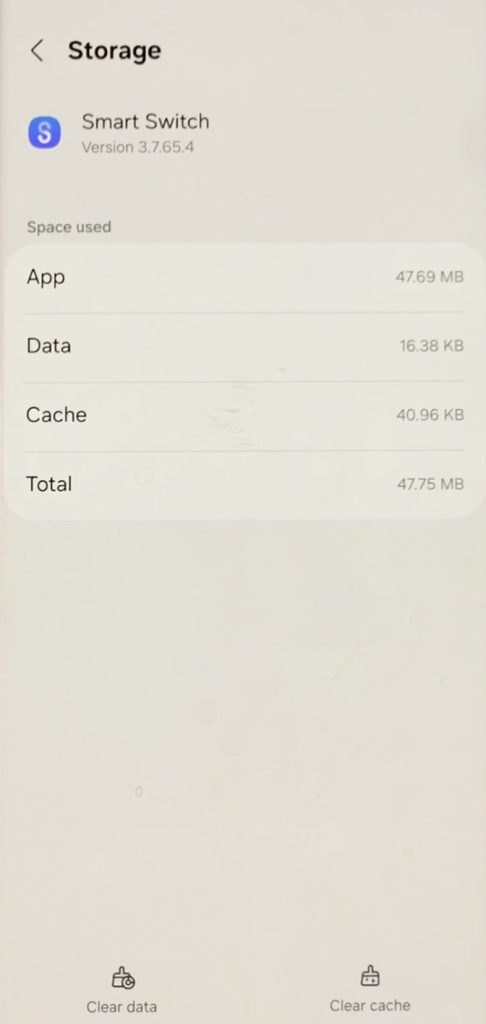
- Force-close the app, then restart Smart Switch and try again.
Clearing cache/data and reinstalling gives Smart Switch a clean slate. Samsung even suggests clearing the app’s cache if transfers fail. This often fixes weird bugs.
Method 4: Update or Reinstall Smart Switch
If Smart Switch app is out of date or is becoming a pain by being unstable, you know that updating or reinstalling is going to probably fix it.
- On Android, open the Google Play Store and check for that update to Smart Switch Mobile. Install it then and there.
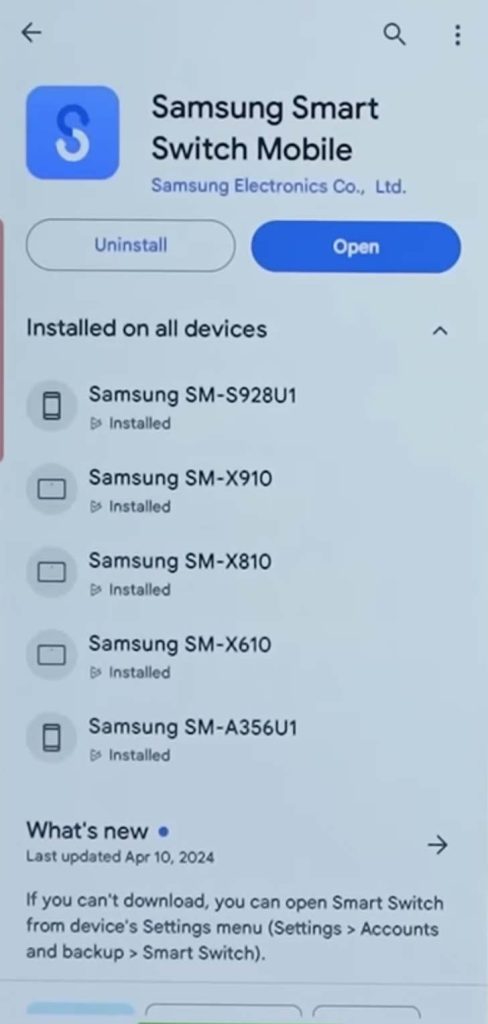
- If problems continue to haunt, uninstall this Smart Switch app from your phone immediately, reboot the phone and then go ahead and reinstall it… fresh from the store.
- On a PC or Mac, uninstall Smart Switch via the usual method (e.g. Add/Remove Programs on Windows), then go to the Samsung Smart Switch website and download the latest installer. Install the new version.
- After updating, restart your device and try the transfer again.
Keeping Smart Switch up-to-date is crucial. Users often find that a newer version or a fresh reinstall solves stubborn crashes.
Method 5: Free Up Storage on Your Devices
A common issue in any of those phone-related hiccups is that you simply run out of space without even knowing. Smart Switch will definitely complain if the target phone doesn’t have enough area for the data that is incoming.
- On the Samsung phone that is on the receiving end, just go to Settings > Device Care or Storage and check the available storage.
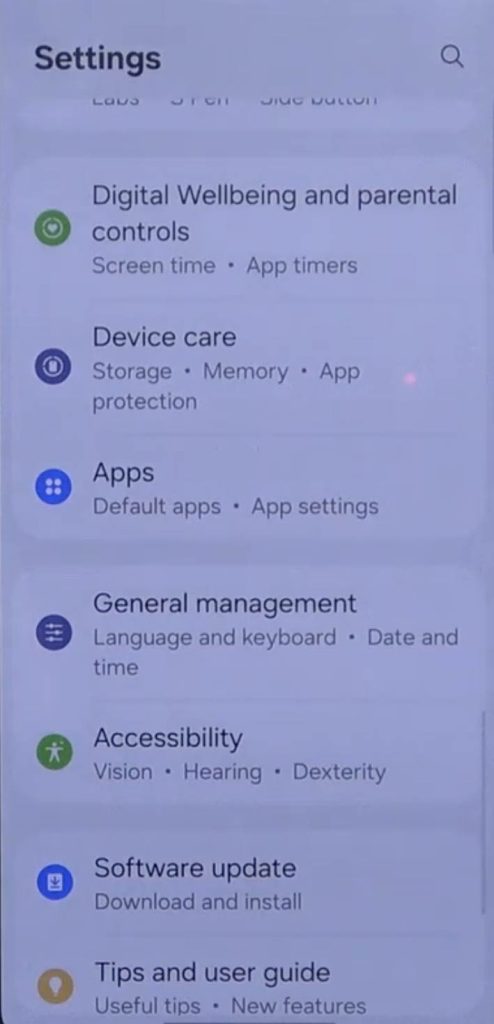
- Go to Storage and if space is low, you know what to do. Delete or offload those files of yours. Remove large videos/photos you don’t need, clear app caches (Settings > Apps), or uninstall unused apps.
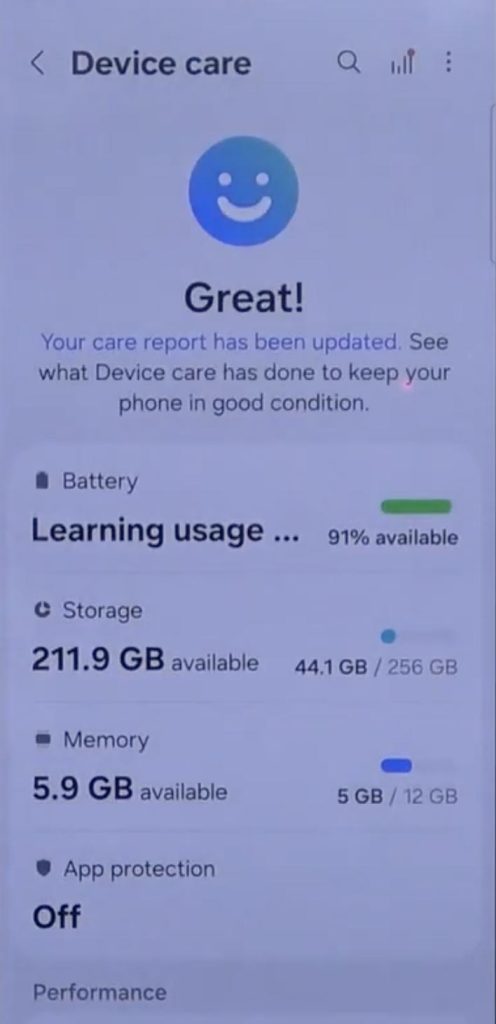
- Retry the transfer after freeing up space.
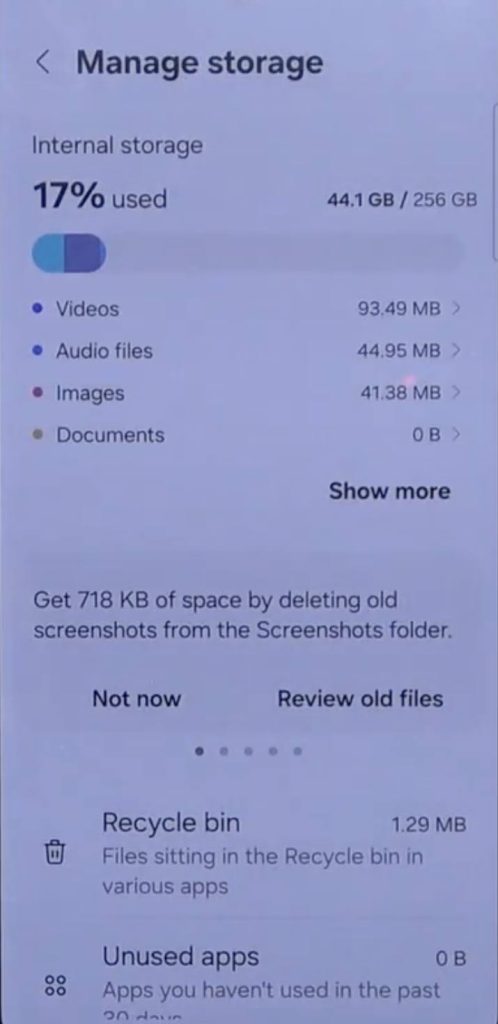
Pro Tip: Samsung support recommends ensuring that the total transfer size does not exceed the phone’s free space. Deselect “Select All” and try moving your data in parts, if needed.
Method 6: Check Device Compatibility and Permissions
Make sure your phones meet the requirements and that Smart Switch has all needed permissions.
- Verify OS versions: Both phones should have supported OS levels. (Samsung Galaxy devices need Android 4.3 or above; source phones should also meet Smart Switch’s OS requirement.) Check in Settings > About phone, if unsure.
- On Samsung, go to Settings > Apps > Smart Switch > Permissions. Ensure it has permission to access Storage, Contacts, SMS, etc. Likewise, on the old phone (if Android), ensure Smart Switch Mobile has similar permissions.
- If transferring from iPhone, remember that Smart Switch for mobile can import from an iCloud backup (no iPhone app needed) or from a wired iTunes backup. Check you’re using the correct method.
Compatibility note: Smart Switch only works properly when all requirements are met. An unsupported device or missing permission can silently block the transfer.
Method 7: Transfer Data in Smaller Batches
If Smart Switch is consistently failing or freezing at some percentage on the way, it should be understood that it is choking on too much data all at once. So guess what – transferring in smaller chunks can help.
- In Smart Switch, don’t choose Select All. Instead, go ahead and pick one data type like Contacts to transfer first, just to test.
- After that completes, go back and transfer the next type (e.g. Photos, then Videos, then Messages, etc.). This is slower but more reliable.
- Especially avoid sending all app data in one go. Some users report freezing when app data is included. Try skipping apps and transferring them manually later, if needed.
- If Smart Switch lets you choose, deselect any categories you can live without (like wallpapers, themes).
Bulk transfers can overwhelm Smart Switch. It’s often better to migrate contacts, then media, then messages separately. This trick comes recommended by experts and community posts to avoid the “99% stuck” issue.
Method 8: Use a Reliable Data Recovery Software
If you’ve tried all the above and Smart Switch still isn’t playing nice, and you can’t find some of that crucial data of yours after the transfer, don’t panic. Sometimes, Smart Switch can leave things in limbo. In that case, we do not have any option but to introduce Stellar Data Recovery for Android, a specialized, professional Android Data Recovery Software that can step in for your rescue here. This tool can scan your phone’s memory on the move to recover deleted or missing photos, messages, contacts, and more.
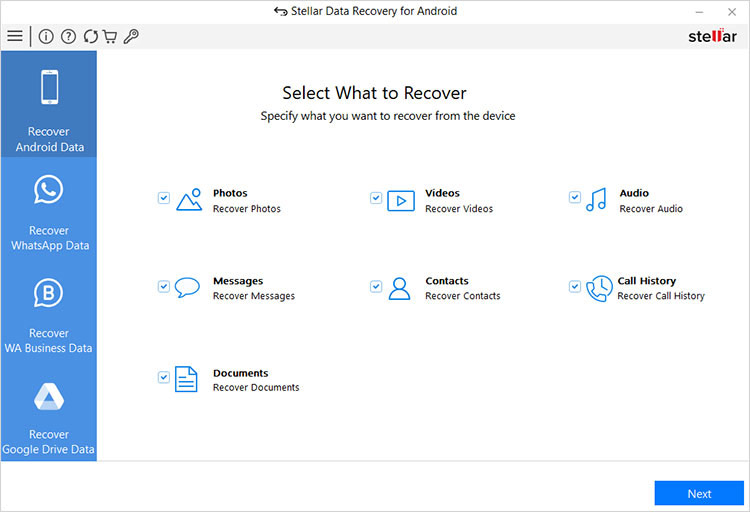
The process is truly very simple… just connect the phone to a PC, let the software analyze it real good and it will display any recoverable files in moments, literally. Most often, you can try this software for free to see what it can find and then only pay for the full version, if it recovers what you need. In other words, even if Smart Switch hiccupped to the core and your memories are lost in oblivion, an Android recovery tool is your saviour that will save the day.
Conclusion
Smart Switch is one of those handy tools to help you switch to a new handset, but like all software out there in the market, it can also have its hiccups. In most of these cases, basic troubleshooting will most probably get it working again… friendly and easy. By working through the methods above, you should be able to resolve the “Smart Switch not working” error without too much drama. And if a transfer attempt goes wrong on the way, just remember that Android data recovery software exists and has your back for times like these… to help you retrieve any wayward files. With these tips in hand all the time, you will definitely be back to swapping phones and safekeeping your data in no time.
