Sometimes, recovered JPEG files throw an error or open as a blank white or grey box. Some of those files also open with visual artifacts, may have glitches, or are only half visible. This is often a result of JPEG file corruption due to partial overwriting that happened before recovery. Read this blog to explore 7 distinct fixes that can help repair files recovered from SD cards, memory cards, external drives, and more.
Why Won’t Recovered JPEG Files Open?
Some recovered JPEG ends up with a broken header or missing chunks of data due to partial overwriting. Most image viewing applications need the full file structure to open JPEGs without errors, and when that data is missing, they simply refuse to open the file.
7 Fixes for Recovered JPEG Files That Won’t Open
Recovered JPEG files won’t open sometimes because the recovery process often brings back damaged or incomplete file data. Most of the times, you will need to rebuild this data to open the JPEG files properly. Minor troubleshooting methods may help like renaming the JPEG file or opening it with other image viewing apps.
Solution 1: Repair the Corrupt JPEG File
A recovered JPEG may also become corrupt due to a file saving or transferring error. Here’s how to know whether you’re facing JPEG file corruption.
- If the JPEG file throws an error the moment you try to open it.
- It opens but shows only a grey or white screen.
- The image loads halfway and then turns into a scrambled grid of color blocks.
The file shows a size of 0KB, which means there is no data left inside.
If a recovered JPEG file is corrupt, renaming or switching apps will not help. Since the file’s internal structure is damaged, you need to repair it.
Stellar’s Online Photo Repair Tool
This is the quickest way to test whether your JPEG file is repairable. On any browser, open the Free online photo repair tool and upload the file. The free trial allows you to fix 3 JPEG photo files under 20MB file size. Let the tool fix header damage, structural errors, and any other issues, then preview the result, and finally download it back to your device. If you have a file bigger than 20MB, upgrade to the paid version that comes with a 500MB per file size limit.
Embed:
Stellar Repair for Photo (Desktop Software with Batch repair)
The same online tool has a desktop version that allows you to fix a JPEG file locally on your Windows or Mac device. You can add all your damaged JPEG files at once, click Repair, and preview every result. To download the repaired files however, you’ll have to upgrade to the paid version.
- Download and install the Stellar Repair for Photo desktop tool on your Mac or Windows system.
- Open Stellar Repair for Photo software and click Add Photos.
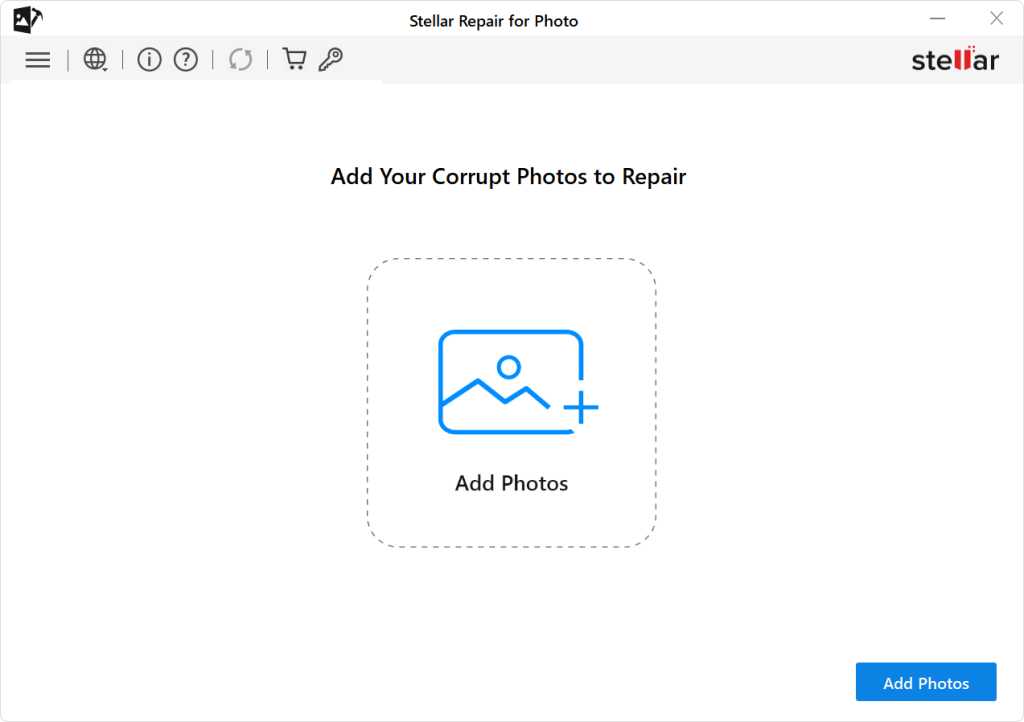
- Select all your corrupt JPEG files. Click Repair and wait.
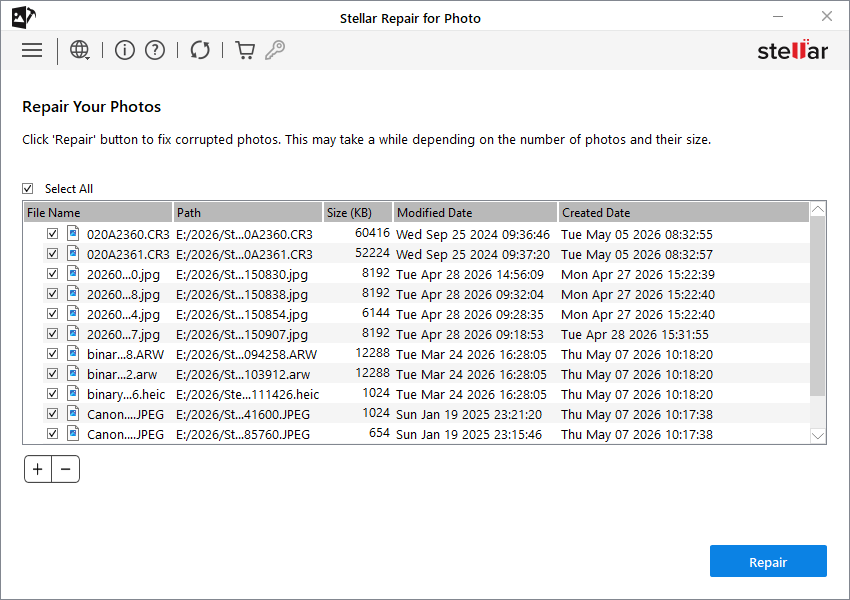
- Preview each JPEG photo and save the ones required.
If you have a larger batch, go with Stellar Repair for Photo (Desktop version) as it works locally on your computer.
Solution 2: Rename or Correct the File Extension
Sometimes, a recovery tool restores files without any extension at all, or tags them with .tmp or .dat. The file data inside might be completely fine. The only problem is that the name is wrong. Windows looks at the extension to decide what app to use, and if the extension is missing or incorrect…
- Open File Explorer and go to View, then Details.
- Look for a checkmark or toggle near ‘File name extensions’ and make sure it is on.
- Now, right-click the recovered file and choose Rename.
- Change the extension to .jpg and press Enter.
- Windows will warn you that changing the extension might break the file.
- Click Yes anyway and try opening it.
If the file already says .jpeg, rename it to .jpg and vice versa. Windows treats them as the same format, but certain apps are picky about which exact version they see.
Tip: Renaming only works when the actual data inside is intact. If the file still won’t open after you rename it, the data is damaged, and you need to fix it using an JPEG repair tool.
Solution 3: Try Opening the JPEG in a Different Image Viewer
Most gallery apps, including Windows Photos, aren’t flexible when it comes to opening a slightly damaged photo file. If a JPEG file has even a small structural issue or minor damage, it gets rejected immediately. Third-party specialized photo viewers are built differently and can often open files that normal apps fail to open.
One of them is – IrfanView, it’s free, small, and runs only on Windows. XnView is another option that works on Windows as well as Mac. GIMP is free for all platforms and handles more file types than either of those two. Download any one of them and try opening your recovered JPEGs.
- In IrfanView, go to File and then Open, then navigate to your recovered file.
- If it opens, even partially, go to File and then Save As right away.
- Save it as a new JPEG to a different folder.
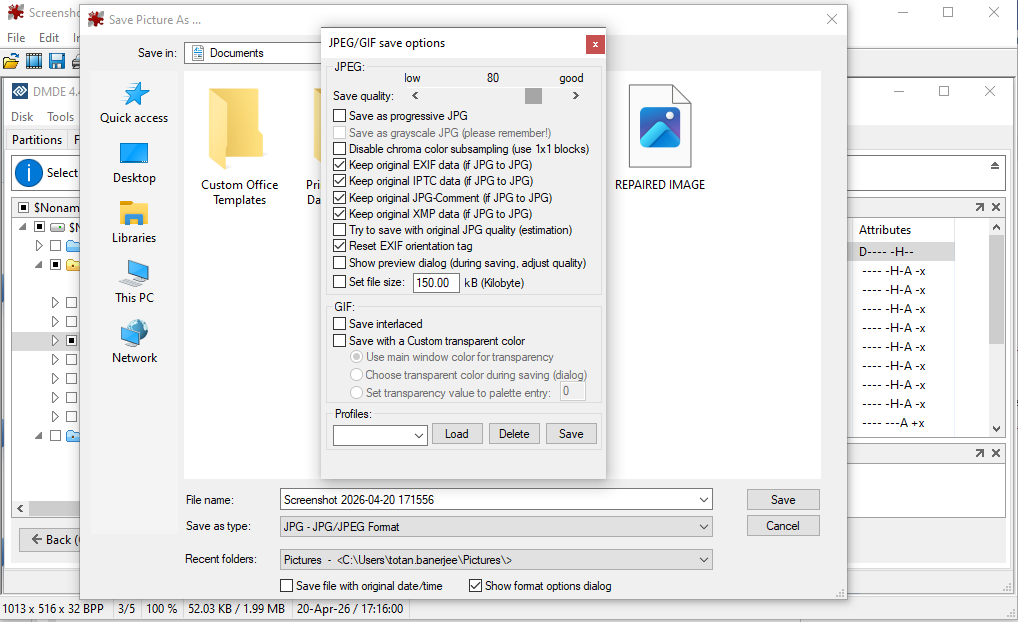
- That saved copy will be a cleaner version of the file that opens normally in Windows too.
If IrfanView also fails to open your JPEG file, try GIMP or else move to the next method and try opening it using Windows Paint.
Solution 4: Open in Windows Paint and Re-save the Image
Paint is a popular Windows app that has been around since the beginning of Windows. Minor header problems, stripped metadata, and small structural issues often don’t bother Paint at all. If Paint can open a file that Photos won’t, you can use Paint to save a clean copy.
- Right-click the recovered JPEG and choose Open with, then Paint.
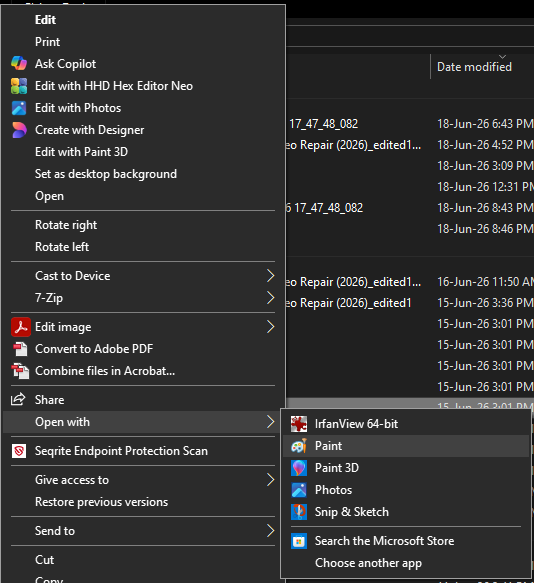
- If the image appears, go to File and then Save As.
- Choose JPEG from the file type list.
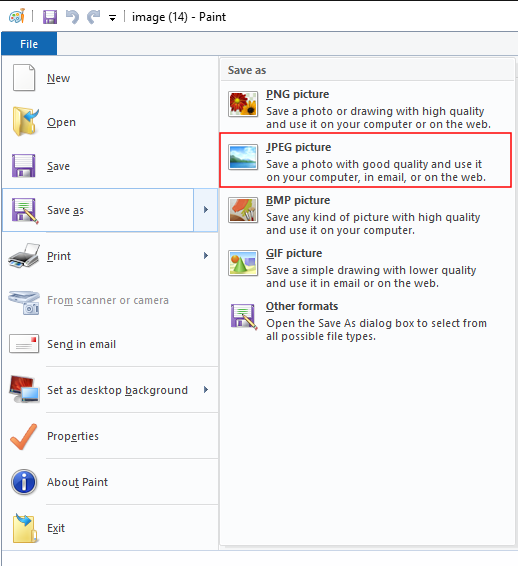
- Give it a new name and save it to a different folder.
A lot of recovery-related metadata problems can get resolved through this process because Paint writes its own fresh version of the file structure when it saves the JPEG file.
Paint is not a repair tool, though. If the file looks completely blank inside Paint or doesn’t open, move to the next solution i.e. opening the file in Photoshop or Lightroom.
Solution 5: Try Opening in Adobe Photoshop or Lightroom
Photoshop and Lightroom use more advanced JPEG parsing compared to basic image viewers. Occasionally, they can open a file that every other app refuses to open, especially when the damage is mild and sits in the metadata or the color profile rather than the actual image data.
In Photoshop, go to File and then Open and select your recovered JPEG. If the image appears at all, immediately go to File and Save As. Save it as a new JPEG at the highest quality setting you can select. That newly saved file should be structurally clean.
If Photoshop shows a message saying it could not complete the request because of a program error, try File and then Open As instead.
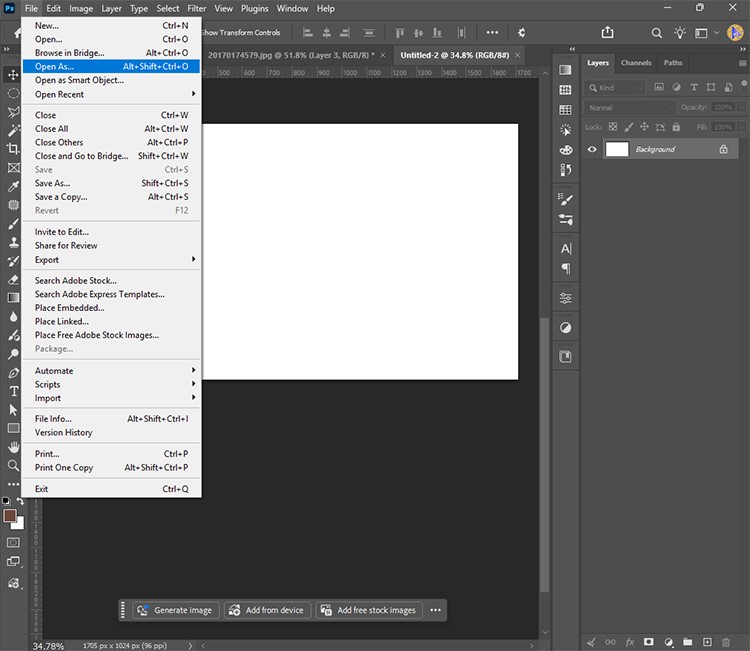
Manually pick JPEG from the format list. If it does not open try selecting Camera Raw. Sometimes, Photoshop needs the format specified directly rather than guessed from the extension.
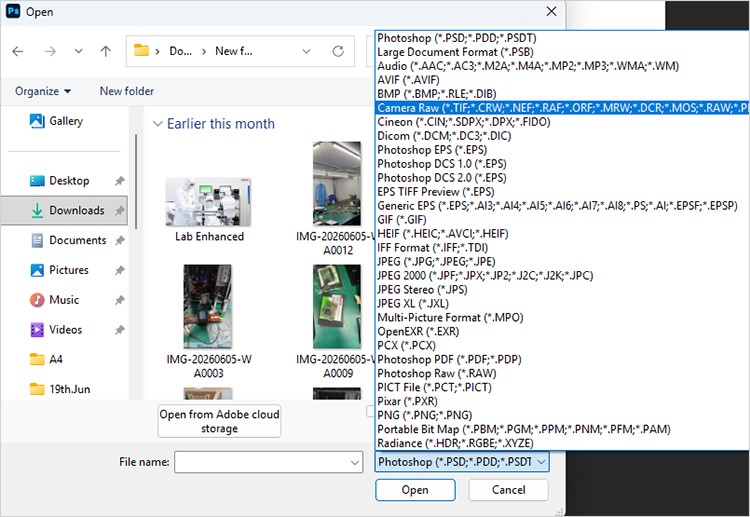
Photoshop is good at handling mild corruption, but it does have limits. Severely damaged JPEG headers or files with large missing data blocks are beyond what it can recover on its own and needs a specialized photo repair tool like Stellar Repair for Photo.
Solution 6: Check File Permissions (Windows)
This one is easy to miss because it has nothing to do with the file being corrupt. Recovery tools sometimes restore files with wrong permissions. For these files, Windows blocks access and shows an Access Denied message, which can look a lot like corruption when it isn’t.
- Right-click the JPEG file and choose Properties.
- Go to the Security tab and click Edit.
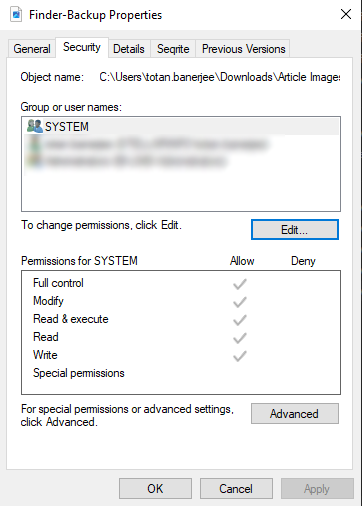
- Find your user account in the list, click on it, and check the box next to Full Control.
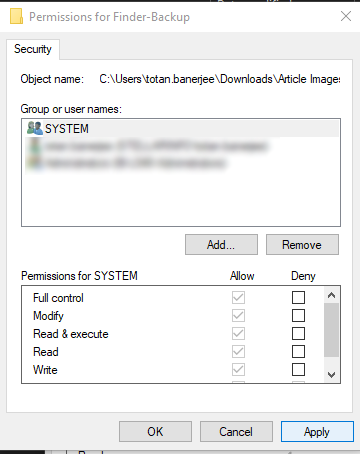
- Click Apply and then OK. Now try opening the file again.
If you have a whole folder of recovered photos that aren’t opening, you can fix them all at once. Select everything in the folder, right-click, choose Properties, and then go to the Security tab. Edit the permissions for your account the same way.
If this fix works, it means the file was never actually broken at all. The permissions just needed a reset. No repair tool needed.
Solution 7: Run a Malware Scan on the Recovered Files
Storage devices that were infected with ransomware or other malware before the photos were deleted can cause recovered files to come back in an encrypted or locked state. The file exists, it has a normal file size, but nothing can read it because the data was scrambled into ciphertext at the source.
Run Windows Defender or any antivirus tool on the folder where the recovered JPEGs are stored. This scan is vital to help detect, isolate, and quarantine malicious codes. But that does not mean the damaged JPEG file will open. Here, a major issue is that malware encrypts a file that no repair tool or antivirus software can decrypt to open.
But exceptions are there. If there is an intermittent or partial encryption where poorly optimized ransomware only scrambles a small portion of the file. In these specific cases, an advanced file or image repair tool may be able to pull data from these files that were only partially encrypted.
If ransomware fully encrypted your photos before they were deleted, no antivirus systems or even advanced image repair tools can decrypt them or make them viewable.
How to Prevent Recovered JPEG Files from Becoming Corrupt?
- Stop using the storage device immediately after you notice data is missing.
- Always save recovered files to a different drive than the one you are recovering from.
- Do not install recovery software onto the same drive you are trying to recover.
- Let recovery run until it fully finishes.
- Use a reliable recovery tool from the start.
- Back up photos to at least two places after every shoot.
- Use a card reader to transfer photos rather than a USB cable connected to the camera.
- Format memory cards inside the camera rather than on a computer.
Wrapping Up:
If you cannot open recovered JPEG files, it doesn’t always mean the file is completely gone. Maybe it is the wrong extension – where file name says .jpg, but inside, it is actually a different format. Maybe it has a broken header or the image data could be corrupt. All of these issues can cause a JPEG file not opening error. However, you can fix these issues with the help of the above solutions because the actual photo data is still inside the file.
But if the file was completely overwritten by new data, or fully encrypted by malware, then the photo is gone. In these cases, the original data does not exist inside the file anymore. No software or repair tool can fix it because there is nothing left to repair.
Frequently Asked Questions
