You must have heard of software crashes, failing hardware, overheating CPUs, and malware attacks. But this one? You will definitely not see coming. Its lesser known, silent, and strikes when you least expect – often when you’re doing something as commonplace as plugging in an external drive. Say hello to UsbHub3.sys error!
Still wondering? Well, the UsbHub3.sys is a system driver responsible for smooth communication between Windows OS and USB 3.0 devices. When UsbHub3.sys fails, your computer will return error code like:
- DRIVER_IRQL_NOT_LESS_OR_EQUAL – UsbHub3.sys
The UsbHub3.sys BSoD error just doesn’t disrupt your workflow, it can also disable all your USB ports and leave your mouse, keyboard, or other peripherals unusable. And if the crash occurs while writing to the drive, it can cause data corruption.
UsbHub3.sys Blue Screen Error: What is It?
UsbHub3.sys is a driver file responsible for reading, configuring, and communicating with all kinds of USB 3.0 devices in Windows. Whenever you connect a USB 3.0 based flash drive, webcam, or some other peripheral, UsbHub3.sys works as the facilitator between the connected hardware and the OS.
It’s because of this file that Windows can run multiple USB 3.0 devices simultaneously. You can locate the file in the C:\Windows\System32\drivers directory. It automatically loads upon boot and keeps running in the background.
When the UsbHub3.sys file becomes outdated or corrupted, it can come back to bite you: USB ports can go unresponsive, or your system may crash with repeated BSoD errors.
UsbHub3.sys Blue Screen Error: The Causes
Reasons that could be causing the UsbHub3.sys error on your PC are:
- USB 3.0 drivers on your PC are either outdated or corrupted.
- The USB ports on your PC are damaged.
- The connected USB devices are faulty.
- Incompatible Windows update or BIOS setting is conflicting with USB drivers on your system.
- A virus or malware is affecting USB drivers.
- The system files or registry entries on your PC are corrupted.
- Faulty RAM or SSD Sectors on your PC.
Troubleshooting the UsbHub3.sys Error
Go through some preliminary checks before troubleshooting the error:
- Close background applications and disconnect extra USB devices.
- Test using different USB ports and cables.
- Disable the firewall and Antivirus program.
- Restart Windows in Safe Mode.
1. Update the USB Drivers on Your PC
Since problematic USB drivers are the main reason behind UsbHub3.sys blue screen error, update them on priority to mitigate this issue.
- Open Device Manager.
- Go to Universal Serial Bus controllers and expand it.
- Right-click USB Root Hub (USB 3.0) and click Update driver.

- Hit Search automatically for drivers and let Windows install it on your computer.

2. Run SFC and DISM Scan to Repair System Files
As already mentioned above, you may also run into the UsbHub3.sys blue screen error due to system file corruption. To fix this, we will run the SFC and DISM scans.
- Press Win + R and search Command Prompt.
- Click Run as administrator.
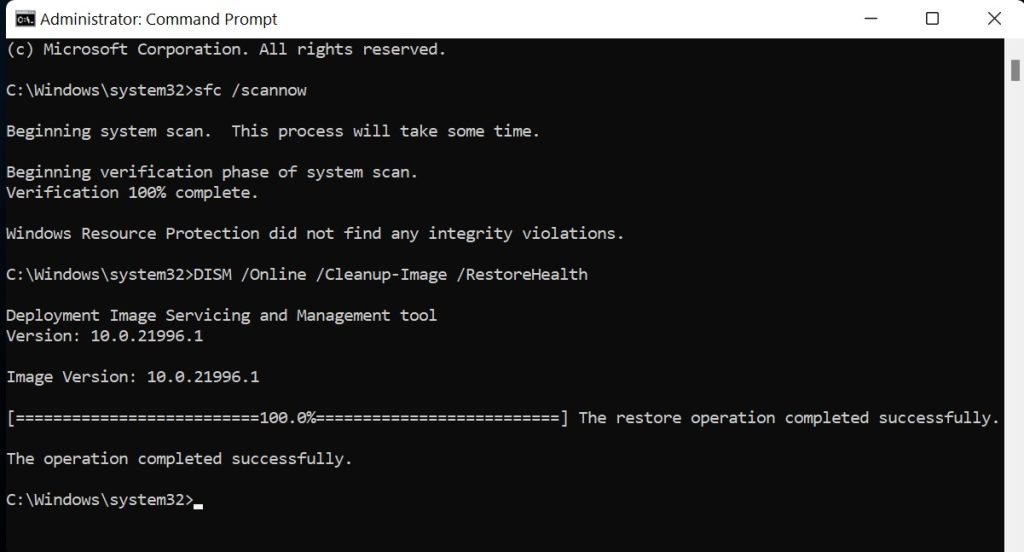
- Now execute the following commands one by one:
sfc /scannow
DISM /Online /Cleanup-Image /RestoreHealth
3. Run System Restore
If the USB blue screen error started recently, restore your system to a previous version when it worked fine.
- Search for Create a restore point and open it.
- A System Properties dialog box will appear.
- Under the System Protection tab, click System Restore.
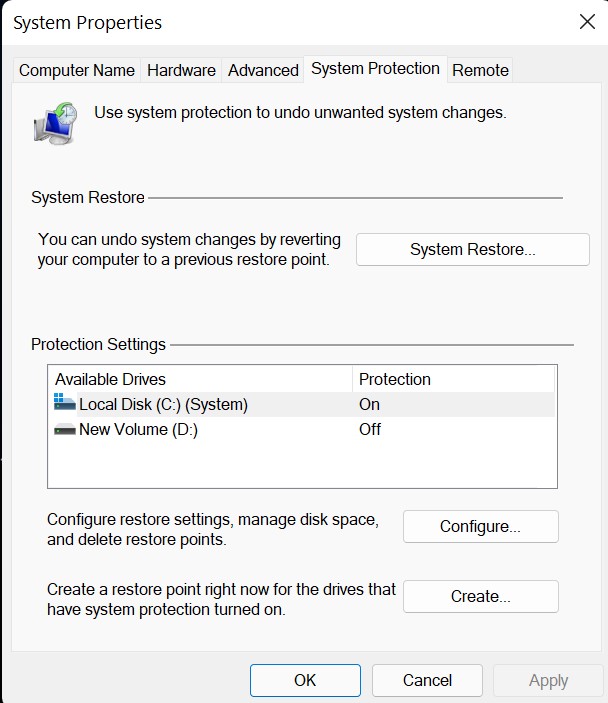
- Choose a restore point before UsbHub3.sys error and click Next.
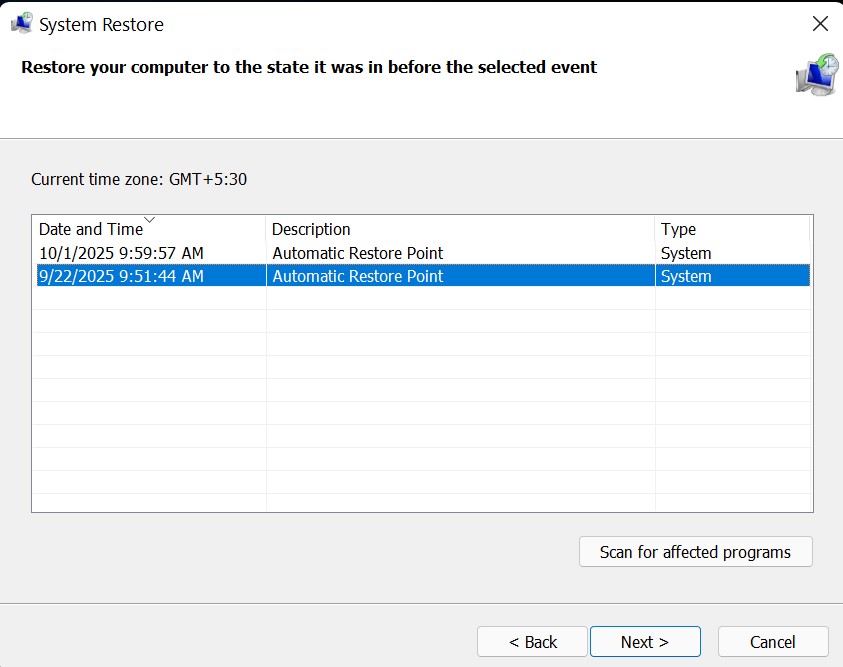
- Confirm by clicking Finish and you’re good to go.
4. Check for Disk Errors
CHKDSK is a built-in utility on Windows to scan and repair disk-related errors. You can execute it with a single command in Command Prompt or Windows PowerShell to fix Recycle Bin issues. Here’s the rundown:
- Press Win + S to open the search menu.
- Type CMD in the search bar and click Run as administrator.
- Now execute the following command (replace k with the corrupted drive letter): chkdsk k: /r /x
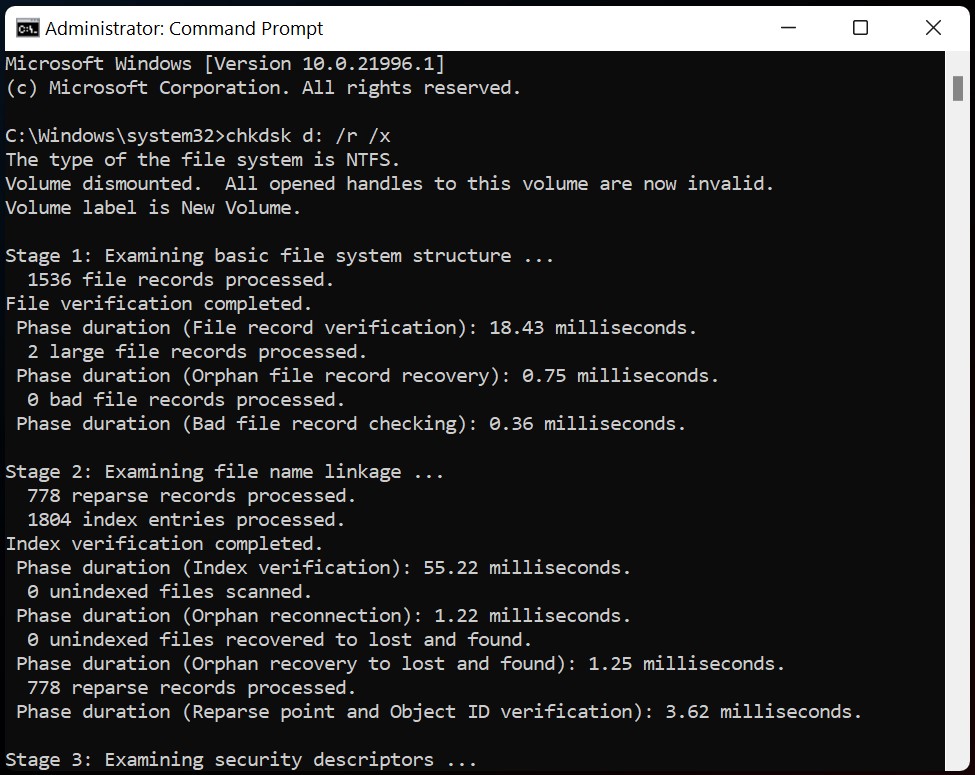
- Wait for the process to complete and then Restart your PC to see if the issue is resolved.
5. Run Memory Diagnostic to Fix RAM Issues
A faulty RAM can trigger the Usb3.sys blue screen error on your PC. Run the Windows Memory Diagnostic tool to mitigate this issue.
- Open search, type CMD and click Run as administrator.
- Type mdsched.exe and press Enter.
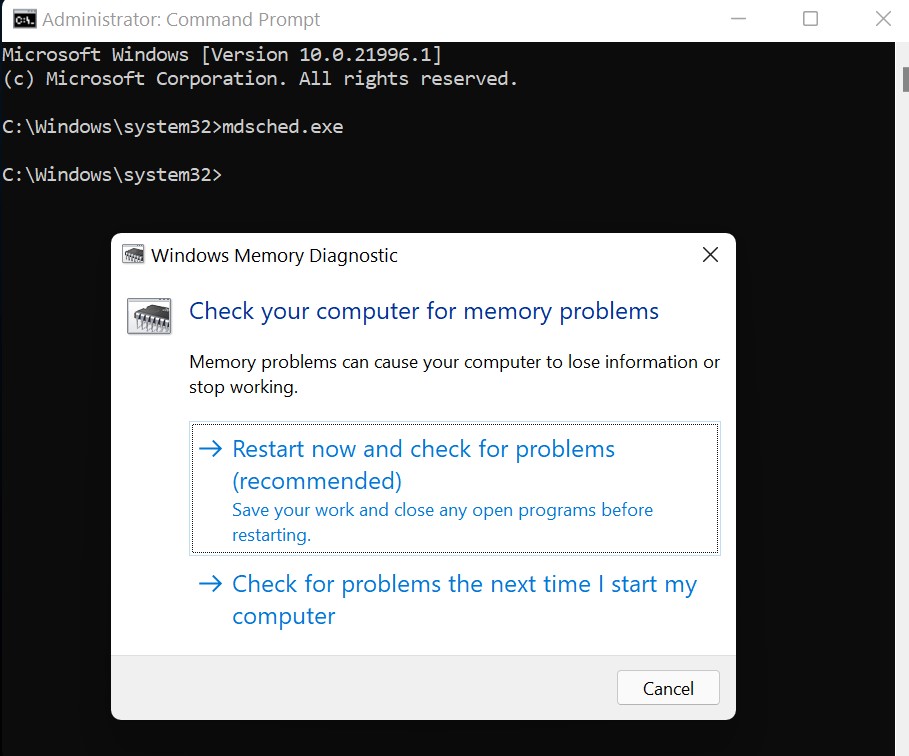
- Click Restart now and check for problems.
- The PC will restart and automatically check for memory faults.
6. Disable USB Selective Suspend
Windows comes with a power saving feature called USB Selective Suspend that helps the system regulate power supply to individual USB ports. When the USB hubs experiences power management issues it can cause the UsbHub3.sys to fail, leading to a blue screen error.
- Open Control Panel.
- Type Power Options in the search bar and press Enter.

- Go to Change battery settings > Change Plan settings.
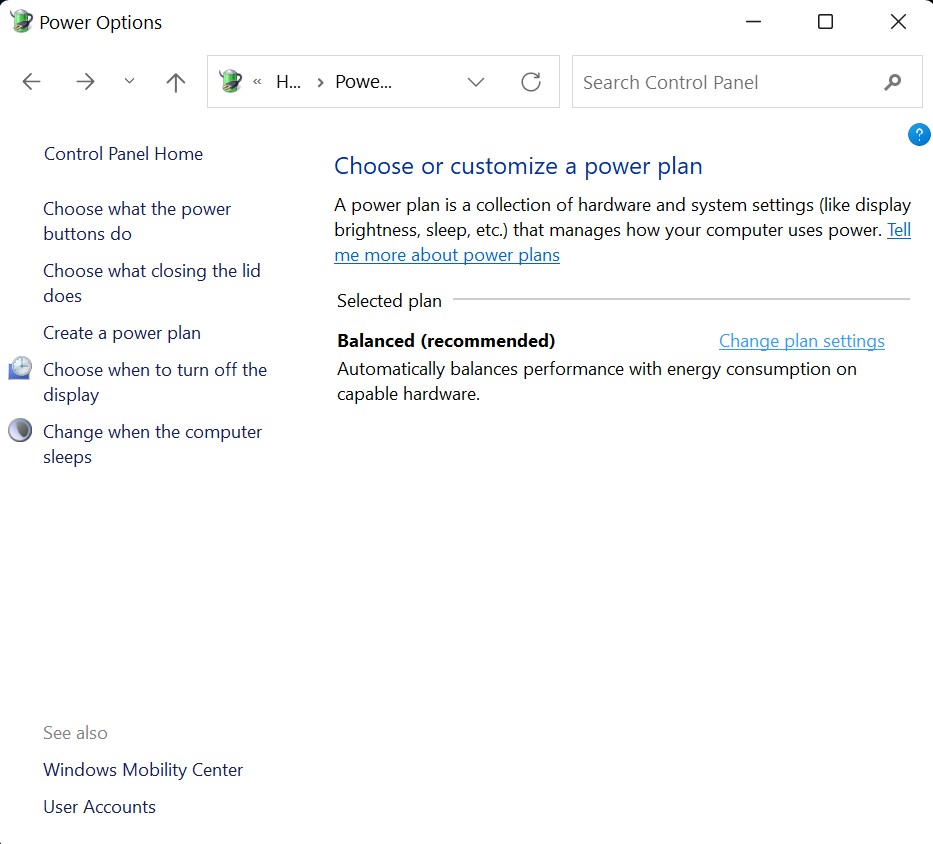
- Click Change advanced power settings, navigate to USB settings, and expand the list.
- Click USB selective suspend settings and disable them.

Recover Lost File After the UsbHub3.sys Errors
BSoD errors like the UsbHub3.sys can interrupt the file writing process on Windows. If the error occurred while writing to the drive, it can result in data loss. In such scenarios, we recommend using a Windows data recovery software – Stellar Data Recovery Standard to reclaim your lost files.
The software helps you recover data in complex loss scenarios like BSoD errors, logical drive failures, lost partitions, and more. Download, install & launch the software on your PC and recover data using stellar Data Recovery in just three simple steps.
Summing Up
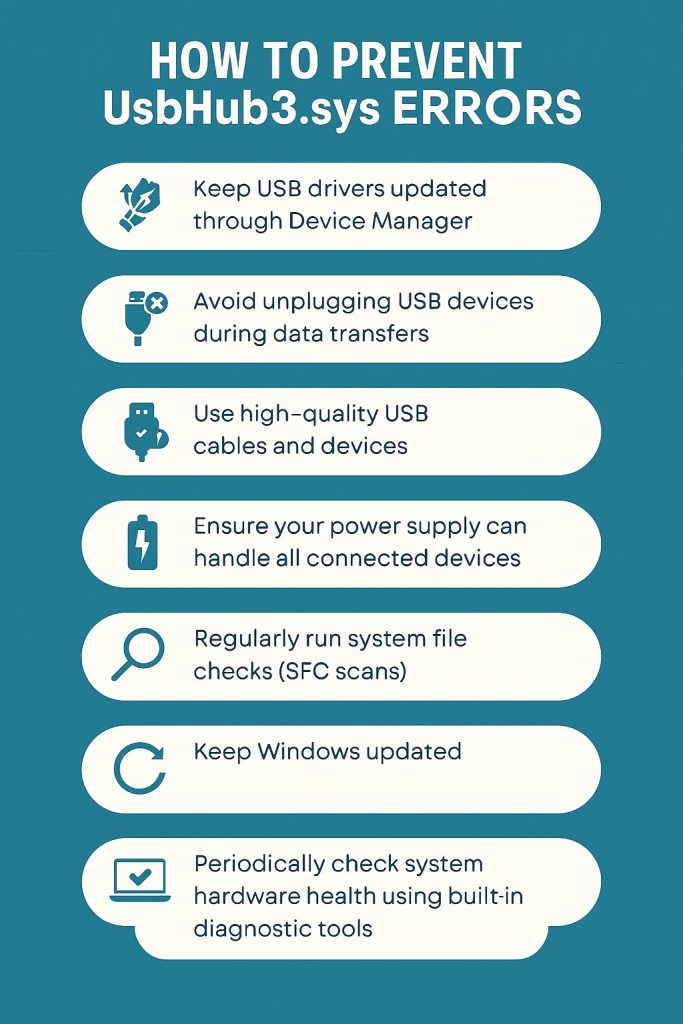
Although the Usb3.sys blue screens occur unpredictably, they’re usually simple to fix. To restore USB function back to normal consider updating USB drivers, run system file repair, test & fix RAM issues, and disable USB selective suspend. Unfortunately, if the crash occurred during file transfer, immediately stop using that drive and use Stellar Data Recovery to retrieve your lost files.
