-
 Für EinzelpersonenZurück zum Hauptmenü
Für Einzelpersonen
-
 Datenwiederherstellung
 -
 Dateireparatur
 -
 Datenlöschung
-
-
 Für UnternehmenZurück zum Hauptmenü
Für Unternehmen
-
 Exchange Reparatur
 -
 E-Mail-Konverter
 -
 File & Database Repair
 -
Datenwiederherstellung
-
Löschung von Daten
-
 Toolkit
-
-
 Labor-Dienstleistungen
 -
 Unsere Partner
 -
 ÜberZurück zum Hauptmenü
Über
-
 Ressourcen
 -
 Support
 -
 Kontaktieren Sie uns
 Unternehmen
 Leiterschaft
  Medienberichterstattung
  Pressemitteilungen
  Karriere
  Blogs
Blogs  Artikel
  Videos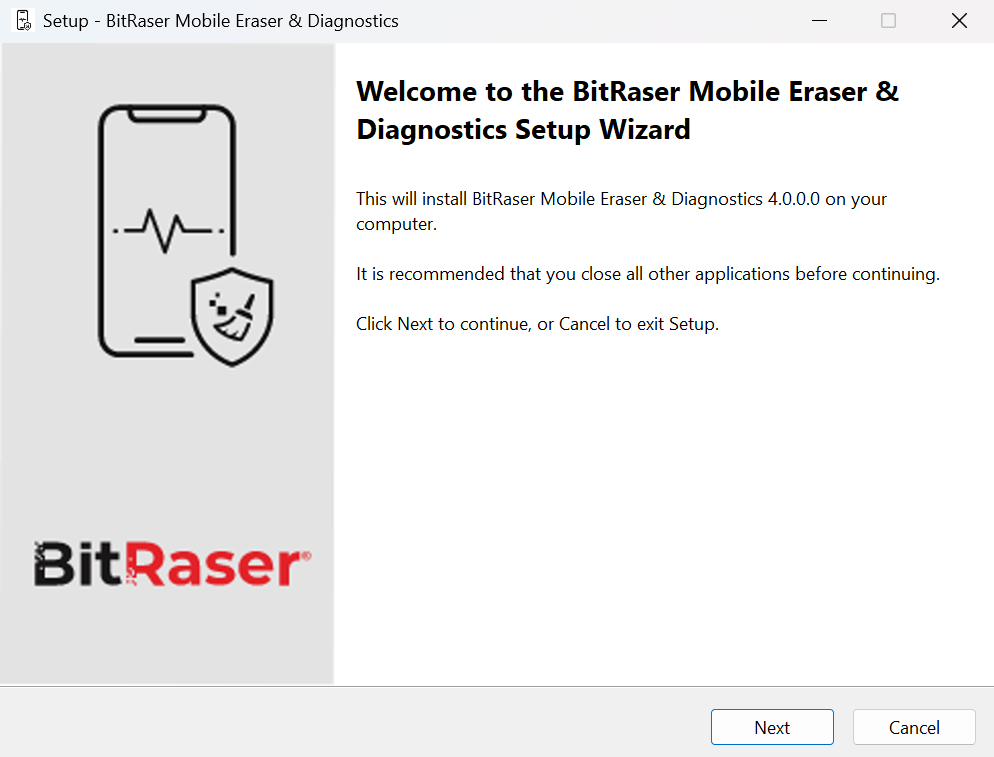
 Kostenloser Download
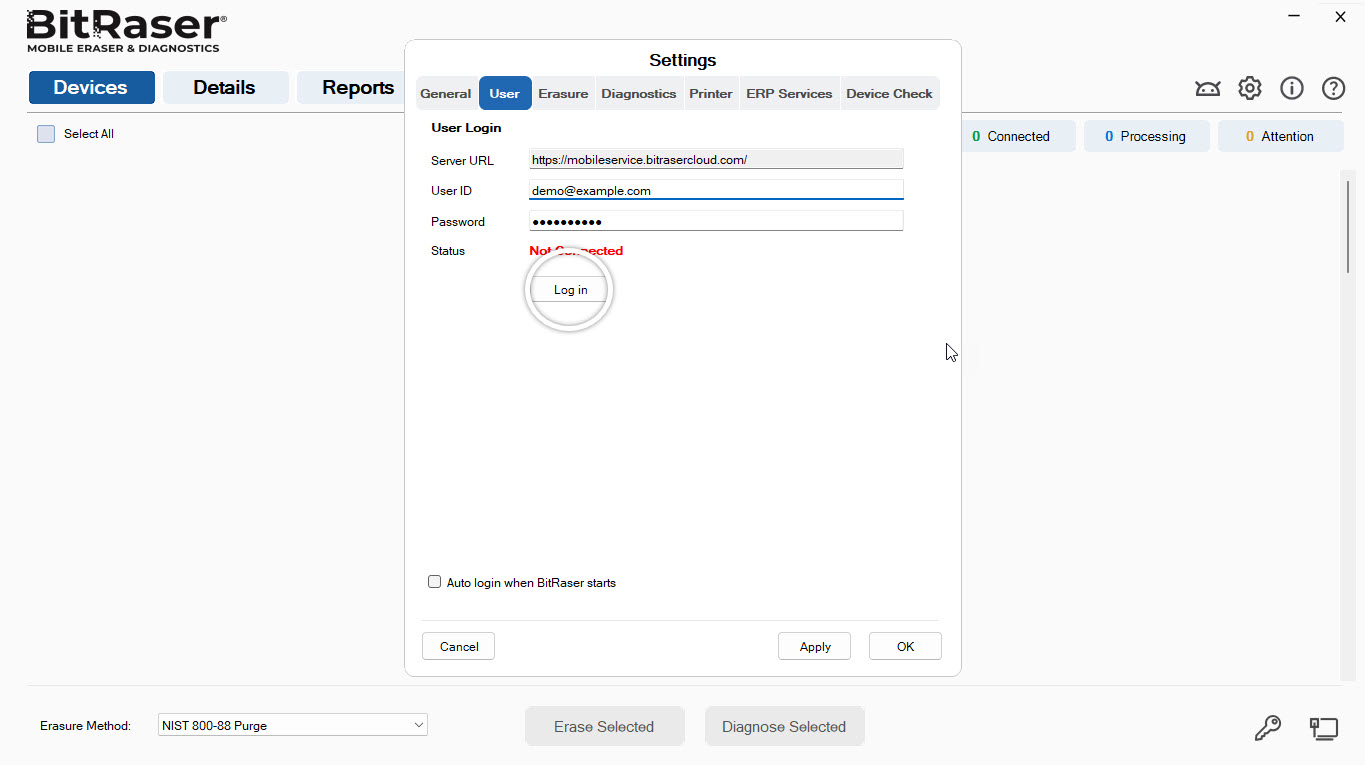
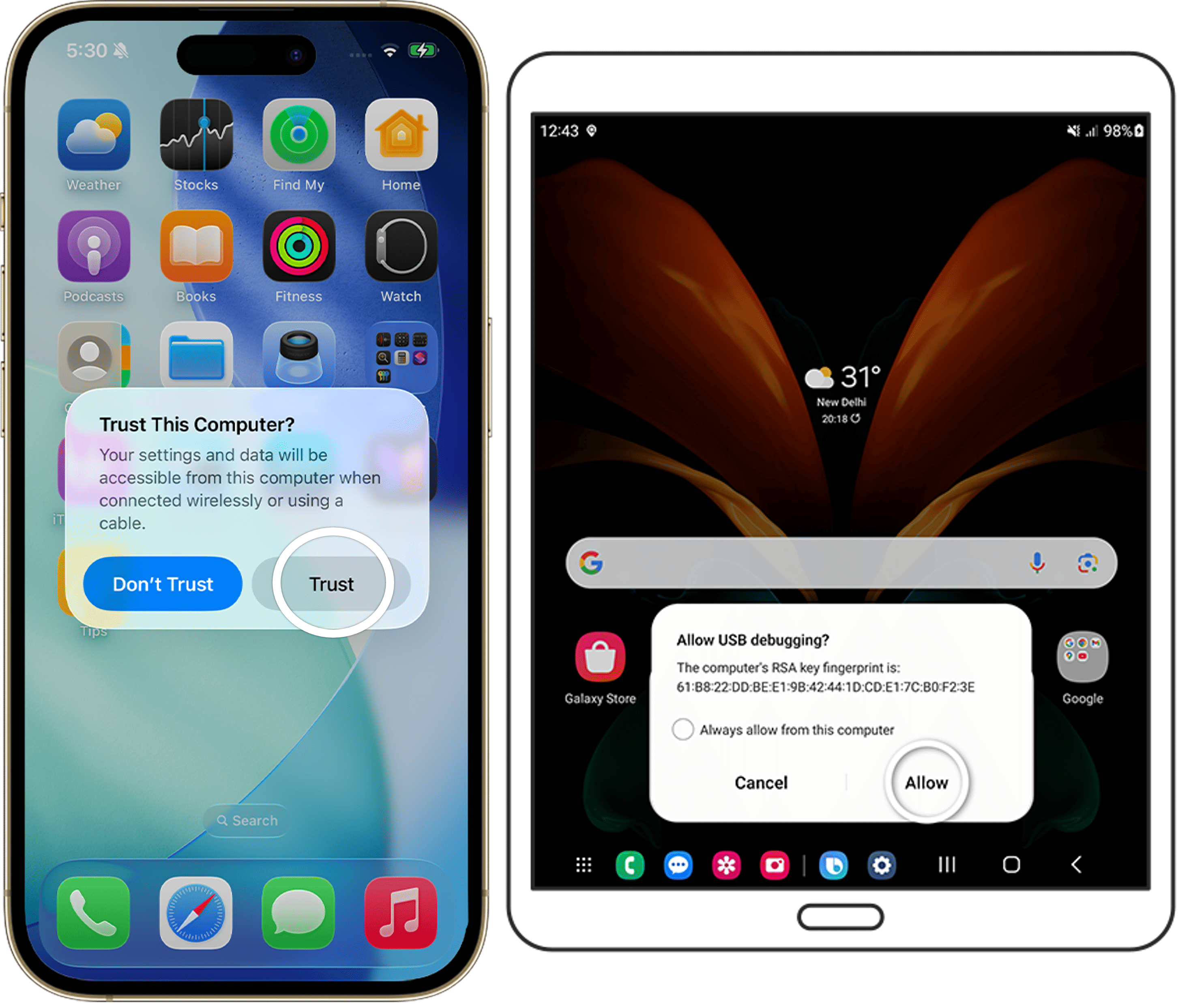
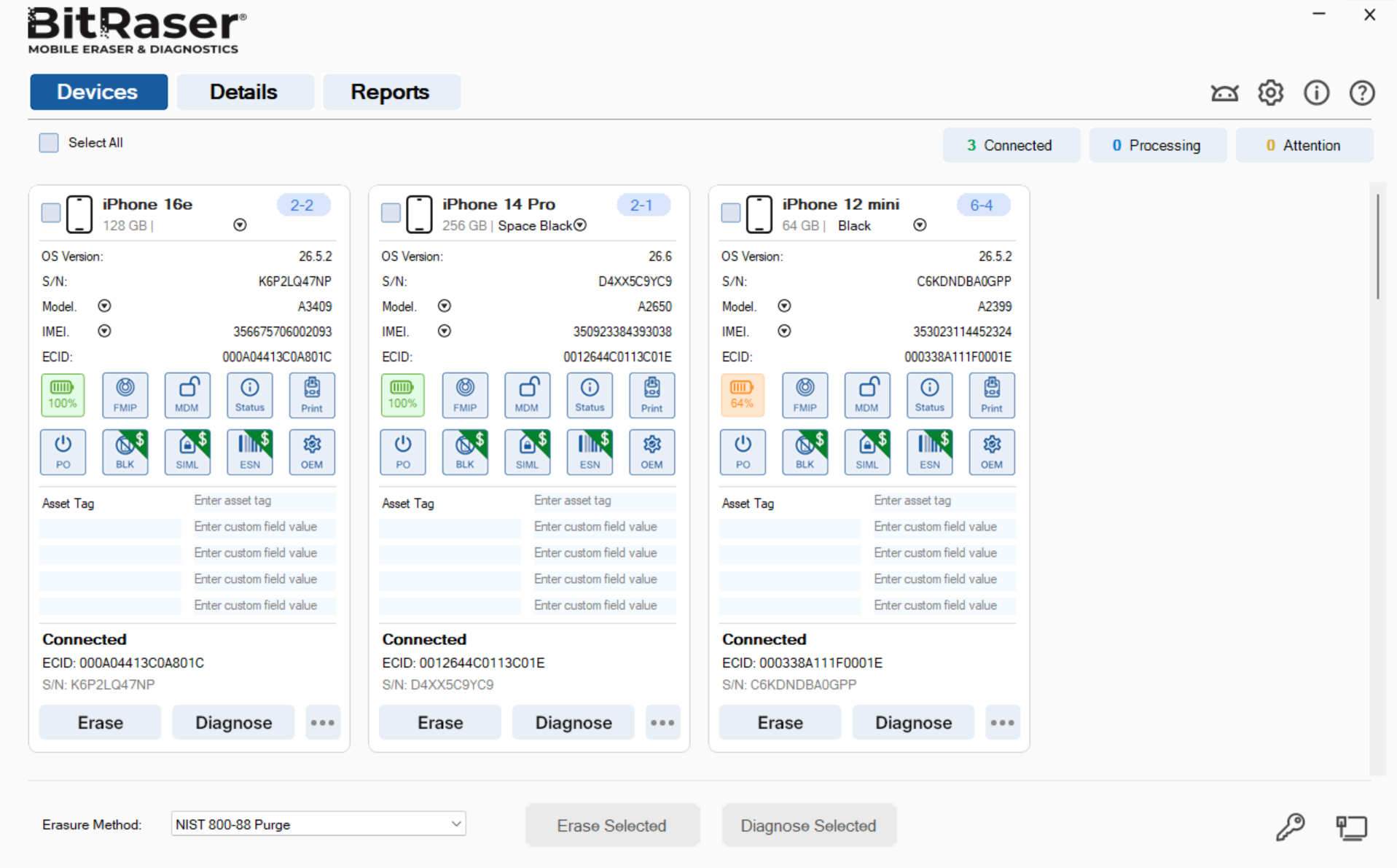
  Installation