


Quick Fixes for Excel ‘Data Source Reference Not Valid’ Issue
August 8, 2025| 7 min read



Summary: You may encounter the “PivotTable Report cannot Overlap” error in Excel while updating data in the pivot table. It usually occurs due to an issue with the data or columns in the pivot table. This article will discuss the causes behind this error and the possible solutions to fix it. Also, it mentions an advanced Excel file repair tool that can help resolve the error if it has occurred due to corruption in the file.
Free Download 100% SecureIn Excel, you need to refresh the pivot table data source after adding new data. However, sometimes, while refreshing the pivot table, you may experience an error “PivotTable Report cannot Overlap.” This issue usually appears when there are multiple pivot tables in a single worksheet. It often occurs when you try to place one pivot table on top of another or if you try to set a common cell range to multiple pivot tables. However, there are many other causes associated with the error.
You can get the pivot table overlapping issue if the field in pivot table crossed the maximum items limit. According to the Microsoft guide, you can specify up to 1,048,576 items to return per field. Check the cell fields in your pivot table. Also, make sure each column’s label is unique. Sometimes, the hidden columns or hidden sheets can also prevent you from modifying the pivot tables. You can check for hidden columns in the Data view.
If the error still persists, then try the below-mentioned methods to fix the error.
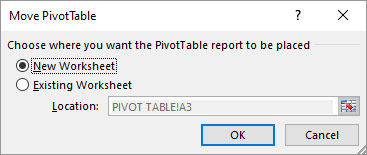
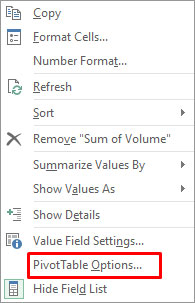
The “PivotTable Report cannot Overlap” error can occur if there is an issue with the columns in the pivot table. In this case, you can try moving the pivot table to a new worksheet. Moving the pivot table to a different worksheet automatically resets the column width according to the new sheet and creates space that can help in preventing the overlapping issue. Here are the steps to do so:

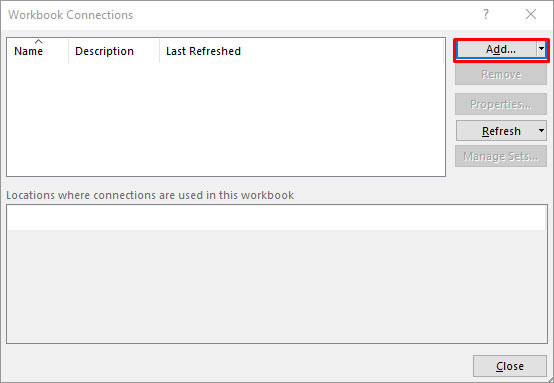
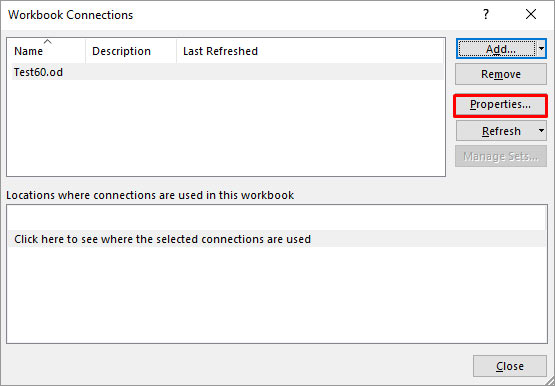
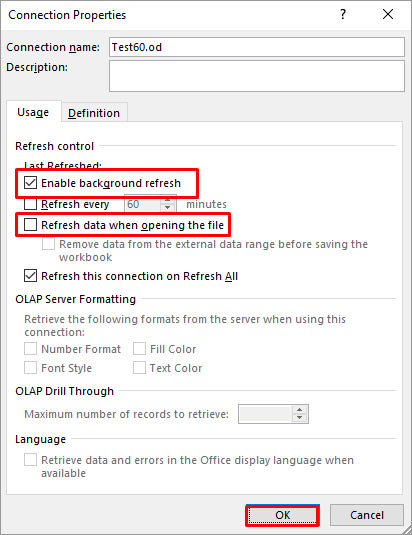
When the background refresh option is enabled, then Excel updates the pivot table in the background after every minor change. It may create issue if you have a large-sized Excel file with multiple pivot tables. You can try disabling the background refresh option. Here’s how:

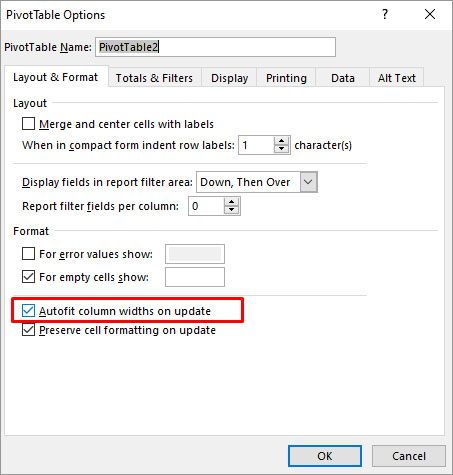
When the Autofit column widths option is enabled, Excel automatically resizes the pivot table whenever you make changes to it. These automatic adjustments can sometimes add or remove fields which can result in the PivotTable Report cannot Overlap issue. To fix this, you can disable the “Autofit column widths on update” option. To do this, follow these steps:
Several users have reported experiencing the “Excel PivotTable Report cannot Overlap” error when using the Workbook.RefreshAll method. This method is used to refresh data ranges in the pivot report. Sometimes, the error can occur due to missing variable that is representing an object (workbook) in a query. So, make sure you’re using the Workbook.RefreshAll function correctly.
You may also encounter the “A PivotTable Report cannot Overlap” error if the Excel file is corrupted. You can use the inbuilt utility in Excel - Open and Repair to repair the corrupt file. Here’s how:
If the “Open and Repair” utility fails to fix the issue, then it means there is high level of corruption in the Excel file. To tackle this, you can take the help of a professional Excel file repair tool, such as Stellar Repair for Excel. The tool can easily repair severely corrupted Excel file and recover all the objects of the file, such as pivot tables, macros, charts, etc. with 100% integrity. You can download the free trial version of the tool to check its functionality.
In this article, we have discussed the possible reasons behind the “PivotTable Report cannot overlap” error in Excel. You can follow the methods mentioned above to fix the issue. The error may also occur if the Excel file gets corrupted. In this case, you can try repairing the corrupted Excel file using the Open and Repair utility or consider using Stellar Repair for Excel. The tool makes the process of repairing the Excel file smooth and quick.
Data Recovery Expert
This article was Reviewed by Kuljeet Singh, a Data Recovery Expert at Stellar Data Recovery.
Senior Content Writer
This article was written by Monika Dadool , a Senior Content Writer at Stellar Data Recovery.
August 8, 2025| 7 min read
![[Fixed] This Document is either Deleted or not Currently Accessible](https://www.stellarinfo.com/public/image/article/Fixed-This-document-is-either-deleted-or-not-currently-accessible-1129.jpg)
February 5, 2024| 7 min read
February 5, 2024| 7 min read






 7 min read