


How to Fix Outlook won't Connect to POP3 Server Issue?
July 28, 2026| 7 min read



Summary: To fix the Outlook freezing or hanging issue after installing Windows 11 update (KB5074109), you can install the out-of-band update (KB5078127) released by Microsoft on January 24 to fix the issue. If the issue still persists, then repair/recreate the Outlook profile or repair the PST file. The best solution to repair PST file is by using Stellar Repair for Outlook. Download it now!
Free Download 100% SecureMicrosoft has released a cumulative update - KB5074109 - for Windows 11 on January 13, 2025.
However, after installing this update, several Classic Outlook users with POP accounts reported experiencing an issue where the application is not exiting correctly. Moreover, some other users reported that their Outlook application hangs, freezes, or shows not responding error.
Here are some other issues reported by the users after this update:
After 11 days from the initial update (KB5074109) release, Microsoft issued out-of-band update for Windows – KB5078127 – to fix the issue. This is a cumulative update and includes security fixes and improvements from the January 13, 2026, update.
If you’re still experiencing issues in Outlook, then repair/recreate the profile or use ScanPST to repair the PST file. If ScanPST fails, use Stellar Repair for Outlook to repair the PST. Read this article to know the details.
Latest Update on the Issue
Some users tried to switch to New Outlook but it was still hanging and freezing. Even repairing the Outlook (MS Office) installation and removing the add-ins also fail to resolve the issue.
Here are some solutions you can try to fix this issue in Outlook.
You can install the out-of-band Windows update - KB5078127 - to resolve the Outlook is freezing, hanging, or not responding issue. To install the updates, follow these steps:
Note: If automatic updates are enabled, your system will automatically receive this update.
Note: This update will appear in Windows Update only if your device has one of the January updates that caused the issue.
According to Microsoft, if you’re facing issues when accessing PST file data even after installing the out-of-band update, you can use ScanPST – Outlook Inbox Repair tool – to repair the PST file. Below are the steps to run the ScanPST:
Note: Before running ScanPST, make sure to create a backup of your PST file.

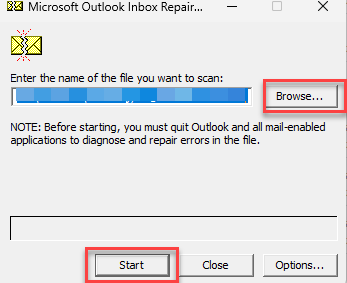
Though ScanPST can repair damaged or corrupted PST files, it has certain limitations that users should be aware of:
It may freeze, hang, or even fail to repair the PST file, if it is too large.
As an alternative to ScanPST, you can use Stellar Repair for Outlook - an advanced PST repair tool. This tool is specially designed to repair severely corrupted or damaged PST files of any size. By using this tool, you can even repair an encrypted and inaccessible PST file and restore your mailbox data in a fresh PST file. It preserves the original mailbox structure and hierarchy after repair. Apart from PST format, you can save your repaired data in multiple formats, like RTF, HTML, EML, MSG, PDF, etc. You can free download Stellar Repair for Outlook on your system to scan and repair your corrupted PST file.
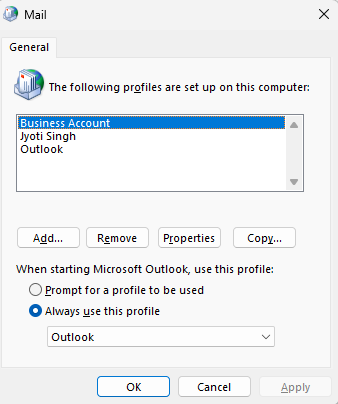
If the issue is still not resolved after installing the out-of-band Windows update, you can repair your Outlook profile as recommended by Microsoft. Follow the instructions given below:
If repairing the profile doesn’t work or Outlook is not opening, then you can recreate the Outlook profile. Here’s how to do so:
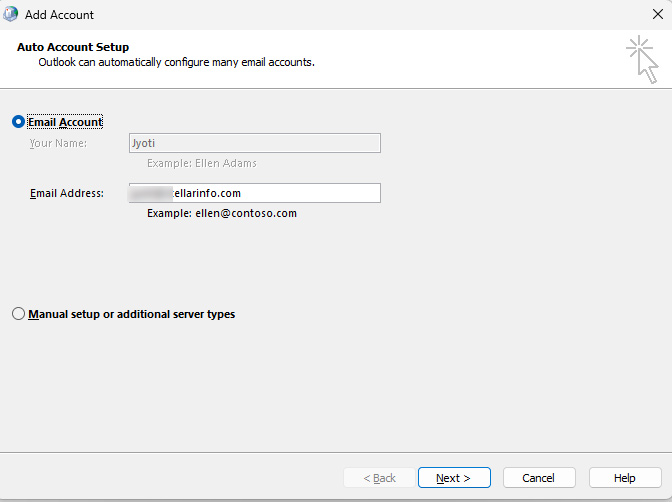
Once you have created a new Outlook profile, you can import the repaired PST file into it.
After installing the recent (January 13) update - KB5074109 - of Windows 11 OS, many Outlook users have informed facing freezing/hanging issues with the application. You can try the solutions mentioned in this article to resolve the issue and access your Outlook data. The best possible way is to create a new Outlook profile, repair the PST file, and import the repaired file into your profile. For quickly and effectively repairing the PST file, you can use Stellar Repair for Outlook. It can help you restore all your mailbox data to a new PST file with complete integrity.
There is no particular reason why your Outlook starts freezing or crashing after installing Windows 11 update. This might happen due to the following possible reasons:
Here are some troubleshooting steps you can try to resolve this issue:
Data Recovery Expert
This article was Reviewed by Kuljeet Singh, a Data Recovery Expert at Stellar Data Recovery.
Technology expert
This article was written by Shelly Bhardwaj , a Technology expert at Stellar Data Recovery.
July 28, 2026| 7 min read
July 28, 2026| 7 min read

October 24, 2024| 7 min read





 7 min read