


Quick Fixes for Excel ‘Data Source Reference Not Valid’ Issue
August 8, 2025| 7 min read



Summary: The error “There is no object in this control” in Microsoft Access usually occurs when you try to access an object that does not exist in the control. In this article, we will discuss the causes of this runtime error and different ways to fix it. It also outlines an advanced Access repair software that can help fix the error if it occurs due to corruption in the database.
Free Download 100% SecureYou may encounter the runtime error 2683 - “There is no object in this control” when working on forms in MS Access or using controls (such as the text box, option button, combo box, toggle button, list box, and check box) in VBA. This error usually appears when you try to reference an object in a control that does not exist.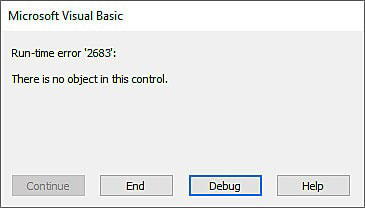
This error can occur due to a variety of reasons. The most common causes include:
You can try the below-given methods to fix the runtime error 2683 – There is no object in this control in Microsoft Access.
The error “There is no object in this control” can occur if the properties of the control are not set correctly. This error can occur if the properties fields, such as record source, control source, or control name are set as invalid or empty. Follow these steps to check the properties of the form in a database:
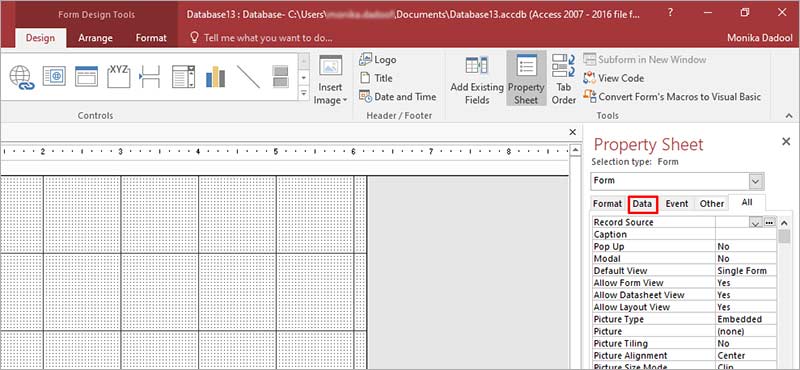
The Access application can throw the error if it fails to read the objects in the control. It can happen if the objects are not visible in the control. To fix this, you can check the visual properties of the control and change the control properties to true.
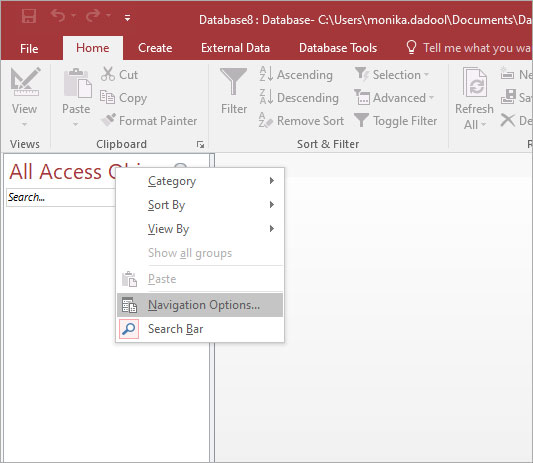
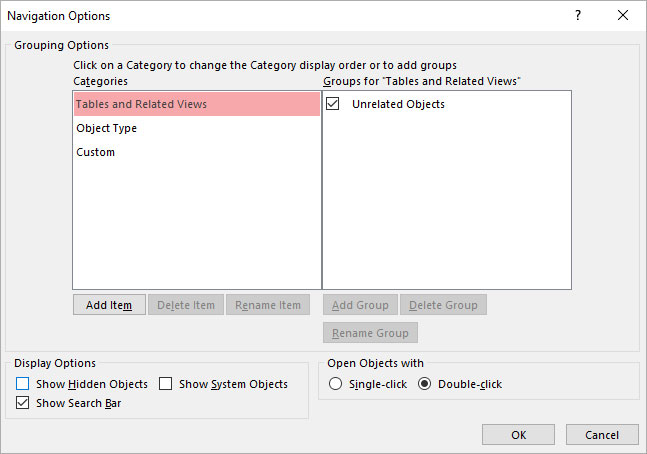
Sometimes, hidden objects, such as tables, forms, queries, and macros in the Access database can create errors. You can open the visual property in the MS Access to unhide the objects. Follow these steps:
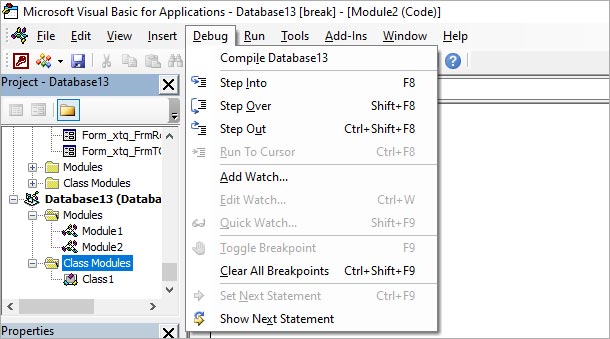
The runtime error “There is no object in this control” can occur if the name of the objects or controls do not match exactly with the code. Make sure all objects and controls are spelled correctly. To check this, you can use the debug feature in MS Access. The debugging tool can help you in identifying the source of the error. Once it highlights the lines with error, you can easily fix the issues. Here are the steps to debug the code:
The error “There is no object in this control” can occur when you do not have sufficient permissions to access the database objects. Make sure you have the permissions to access the objects in the control.
Sometimes, corruption in the Access database prevents the application from accessing object in the control. You can try repairing the database using the “Compact and Repair” utility. To use this utility, follow these steps:
The MS Access will create a new, compacted version of the database file.
The Compact and Repair tool can help you repair only minor issues in the database. If your database is severely corrupted, it may fail to repair it. In such a case, you can use a third-party Access repair tool, such as Stellar Repair for Access. It is an advanced tool that is designed to repair corrupted Access database. The tool can help you recover all the objects from corrupted database with 100% integrity. It can help you fix any data corruption issues in your Access database. Also, it provides option to preview the repaired Access database before saving it.
The runtime error 2683 is a common error in MS Access that occurs in VBA programming when a control is not properly installed or has been corrupted. The methods outlined above can help you fix the error. The VBA error 2683- There is no object in this control can also occur due to corrupted objects. You can use an Access repair tool, such as Stellar Repair for Access to repair the corrupt database file. Its advanced algorithms thoroughly scan the Access database file and fix all the corruption issues. It helps you recover all the data from corrupted database file.
Data Recovery Expert
This article was Reviewed by Kuljeet Singh, a Data Recovery Expert at Stellar Data Recovery.
Senior Content Writer
This article was written by Monika Dadool , a Senior Content Writer at Stellar Data Recovery.
August 8, 2025| 7 min read
![[Fixed] This Document is either Deleted or not Currently Accessible](https://www.stellarinfo.com/public/image/article/Fixed-This-document-is-either-deleted-or-not-currently-accessible-1129.jpg)
February 5, 2024| 7 min read
February 5, 2024| 7 min read






 7 min read