If you are reading this post, there’s a good chance that your Android phone is acting slow, apps are opening late, home screen pages don’t swipe instantly, and photos are taking extra time to load. When your device storage gets full or has very little free space, such problems arise.
Usually, you would delete some large files from your phone’s storage to free up space, but a smart way to do this is by clearing your cache. Clearing cache helps empty a good amount of storage space on your Android without removing any useful files. This cache is basically the residual data that builds up quietly every time you access a search engine, app, or website.
Along with hogging up your storage space, accumulated cache can even slow down your Android device overtime. So you must clear it every now and then and keep your storage optimized.
Clearing cache data on Android might sound technical, but it isn’t.
How to clear cached data for any app on Android?
Here’s how to clear the cache of a specific app.
- First, go to your phone’s Settings.
- Scroll down and tap Apps or Apps and notifications.
- A list of installed apps will appear.
- Open the app that is causing errors.
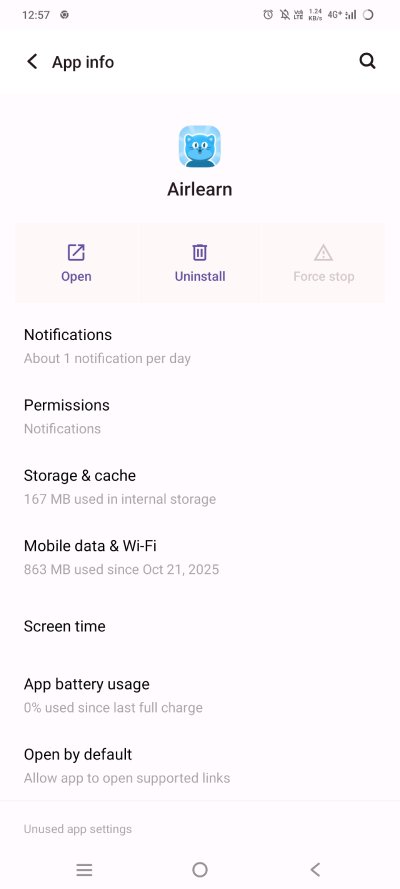
- Select Storage or Storage and cache.
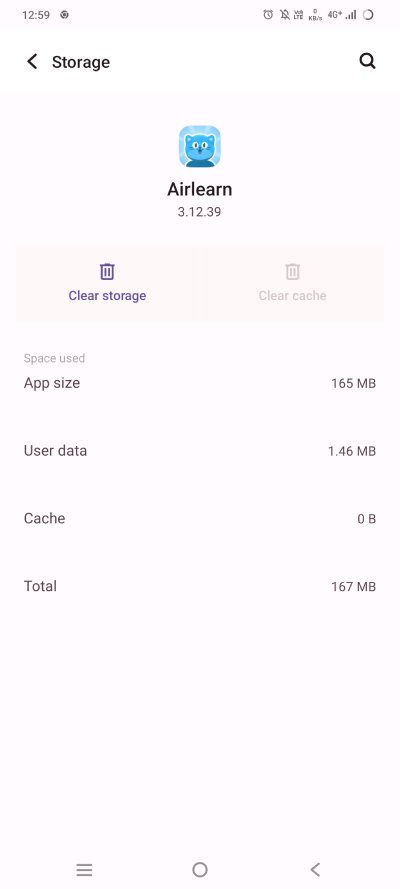
Warning – Do not tap on Clear data. Clear data resets the app completely.
I have tried this method on phones from Samsung, Motorola, and Google Pixel. The steps were the same.
How to clear cache for all apps using in-device settings?
In older Android phones with Android 10 and 11, there is a built-in feature that allows clearing the cache from one place.
- Open Settings on your phone and go to Storage.
- Tap on Clear Cached data or Clean storage option, which deletes the cache for all the apps at once.
However, almost all newer Android phones and OS have removed it from devices. But you may still find this option on Samsung phones.
1. Use the phone’s built-in phone cleaner tools
Many Android phones offer built-in Android cache cleaner apps that allow one-tap cleaning of cache and temporary files. For e.g.;
- Samsung phones have Device care
- Xiaomi phones have Cleaner
- OnePlus includes Storage manager
- Vivo and Oppo include iManager
These tools scan the phone and suggest clearing junk files, which include cache. They are easy to use and safe in most cases.
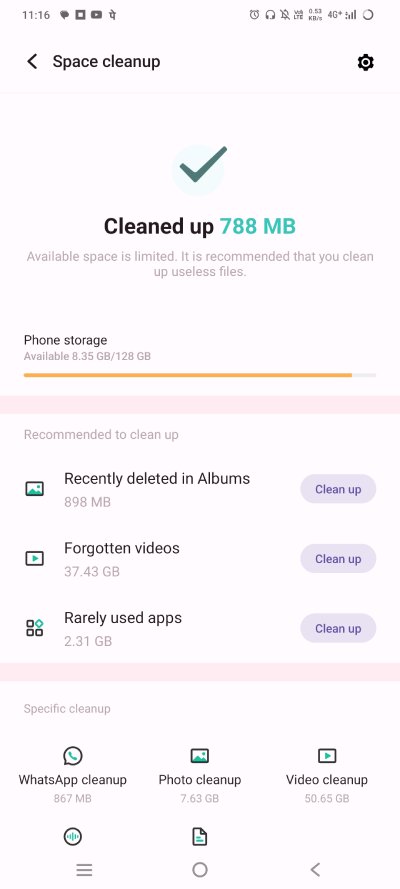
Enter the App e.g., iManager, on your Vivo or Oppo and then look for Space cleanup.
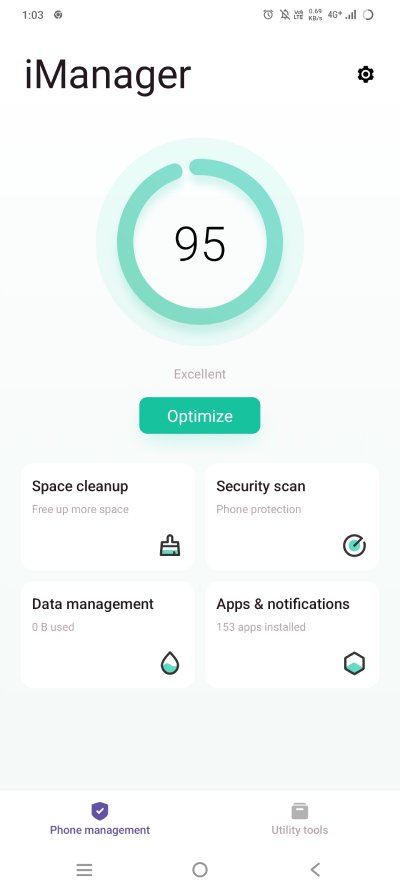
Let the tool scan your device storage for junk files, temporary files, or cached data and suggest clearing the files.
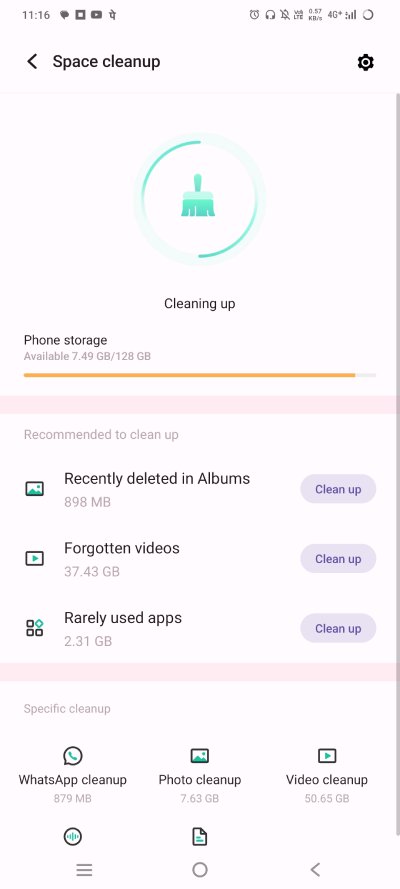
Hit the Cleanup All button and wait for the device to clean your storage.
2. Clearing browser cache on Android
Your phone’s browsing app, like Google Chrome or Mozilla Firefox collect a lot of cache and temporary files, which help you access sites faster. However, you need to clean the browser cache after an interval.
- Open the browser app like Chrome.
- Tap the three dots menu and go to Settings.
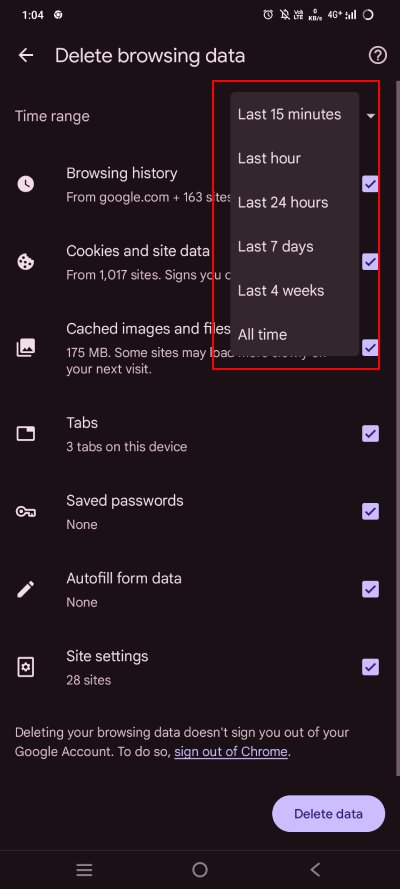
- Next, tap on History > Delete Browsing Data and then select a time range like 24 Hours, 7 days, 1 Month, or All time. Prefer All Time.
- Now check the boxes against – Cached Images and Files, and Cookies and Site Data.
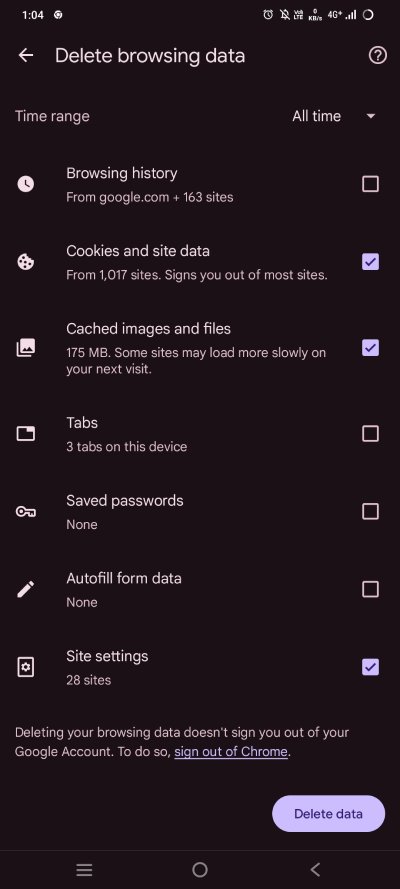
- Once selected, tap on Delete data.
Clearing the browser cache helped me clear approx 500 MB on one phone after just 1 month of use.
When Does Android cache causes problems?
Cached data for Apps and Websites is useful, but not always. Because newer cache files keep accumulating on your device without removing the older ones. This can result in Phones slowing down, app crashes, games or camera lag.
Since photos, videos, and apps consume a lot of storage, Android phones already struggle with free space. When the cache fills the free storage, the phone shows low storage warnings. Many users face this problem, especially with mid-range Android phones.
When your Android phone accumulates too much cache data, it’s time to get rid of the data.
Will clearing Android cache delete important data from phone?
No, clearing or removing the cache files from your Android phone will not remove important data from the phone. Cache files are not personal data. They are not your photos, videos, document files, or anything of importance. They are not your messages or contacts either. Hence, clearing the cache does not delete important files.
After clearing the cache, apps will load slower for the first time. But once new cache builds, the issue will be resolved. For best results, clearing the App cache every few weeks is ideal to make your phone feel lighter and improve its performance.
When to clear cache from an Android Phone?
It’s simple:
- If your Android phone gets slow for no reason.
- If games or other heavy apps lag after opening.
- If storage shows almost full even when you did not store any large files or after deleting them.
- If your camera is lagging while recording files, or cannot record new files.
- If an Android device is corrupting photos or videos.
- If an app keeps crashing or freezing, clearing its cache can fix it. Check the next section.
Can clearing the cached data result in the loss of important files?
No, clearing the cached data does not delete any files. While most users mix up clearing cache with data deletion, it is not related.
As a user, when cleaning your Android files, you must remember:
- Removing the cache does not erase your device files like photos or documents, it only deletes the temporary app files.
- Also, clearing app data does not remove the app, it only removes login and other important details and settings from the app, but not any of your files.
- Only a factory reset erases everything from the device, including your files, app and settings.
Sometimes, while clearing temporary files or cache data from an Android device, things might go bad with a wrong tap, and users can accidentally remove important files, including photos and videos. But don’t worry, this is not permanent deletion. You can still recover lost Android files from the recycle bin, or a cloud backup.
However, if there is no help from the trash or backups, you can rely on Android data recovery tools like – Stellar Data Recovery for Android. The tool scans the phone storage and looks for deleted files, allows free recovery of a few files, and is helpful for users who are not technical because of its DIY steps and simple UI.
How to reduce cache problems with everyday habits?
Clearing the cache is good practice, but building habits that help manage storage on your Android is better.
- Install a reputed third-party cleaner on your phone to delete cache files.
- Update your phone’s apps regularly and then clear the app’s cache.
- Restart the phone every time you clear the cache.
- Remove or uninstall apps that are not in use and occupy space.
- Delete duplicate files from your phone. This will help manage free space.
- Always upload important photos and videos to cloud storage, such as Google Photos.
- Check your storage once a month and clear unnecessary app files like WhatsApp photos that are not required.
Final thoughts
Remember this – Cache data is not a problem, but excessive cached data can block your device’s free storage. Cached files help apps and browsers work faster. But too much cache creates trouble for your device, resulting in sluggish performance and reduced storage space.
Many users either do not know how to proceed with cache cleaning or simply ignore it. It hardly takes a few minutes to delete piled up cache on your Android phone, and the results are noticeable. Your phone works faster. Storage gets free for new files, and gaming and other heavy apps work better.
