Have you been in a situation where a DLL derailed your entire day’s productivity? A missing Comdlg32.dll can do exactly that. Comdlg32.dll is a shared dynamic link library that contains functions and resources used by different Windows and third-party applications.
It provides standard dialog box functionality that allows you to perform tasks like opening files, saving them, selecting printers etc. Windows loads it into memory when an app needs one of these panels, and several programs can use the same copy of the DLL simultaneously.
But like any other system file, when Comdlg32.dll runs into errors it can make application fail and destabilize Windows, and disrupt the normal working of your PC.
Comdlg32.dll: Understanding the Basics
Comdlg32.dll supplies common dialog boxes that apps call when a user opens or saves files, chooses fonts or colors, prints documents. It bundles those UI routines so developers don’t have to reinvent the same windows for every program.
As many programs make use of those shared routines, Windows depends on this library to keep a consistent interface and minimize duplicated code across apps. If the Comdlg32.dll file goes missing or gets damaged – it can disrupt its dependent UI elements.
Comdlg32.dll Not Found Error: What Causes It
From what we’ve seen & read on various debugging forums, some common reasons behind the Comdlg32.dll missing or not found error are:
- Accidental deletion
- Corrupted system files because of forced shutdowns or disk-related errors
- Incomplete app installations or removals that leave DLL references broken
- A malware or other malicious software messing with your shared libraries
- Faulty Windows update that was unable to register files properly
Comdlg32.dll Missing or Not Found: The Fixes
Accidental deletion is, more often than not, the most common reason behind a missing Comdlg32.dll file… If you suspect this, do not worry as the file can be easily restored from Recycle Bin. Also avoid downloading DLLs from unknown sites as they can turn out to be malicious or incompatible.
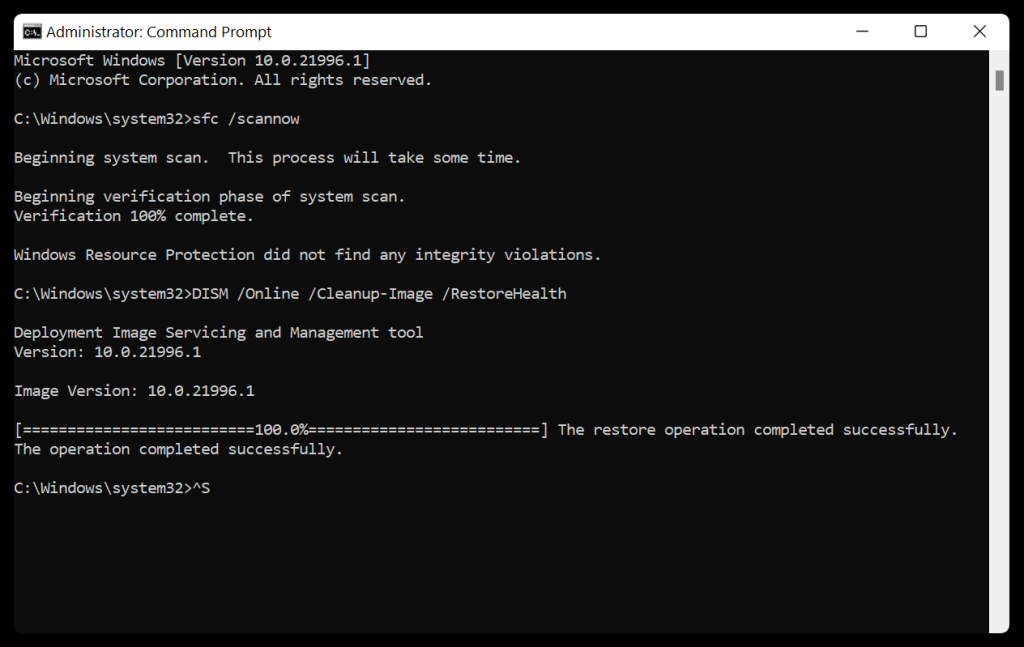
1. Use SFC and DISM to Restore Missing DLL
The SFC and DISM are built-in utilities on Windows to repair system files and fix any underlying errors. SFC scans system files, including DLL files, and replaces corrupt files with a cached copy.
DISM repairs Windows image, including the Windows Component Store and fixes issues that the SFC can’t resolve by itself.
- Open Command Prompt as administrator.
- Execute the following commands one by one:
sfc /scannow
DISM /Online /Cleanup-Image /RestoreHealth
2. Update Windows
Microsoft regularly ships fixes for repairing broken file mappings and replacing corrupted system components. Install the updates to restore missing DLL files.
- Open Check for updates by searching for it.
- Click Check for Updates.
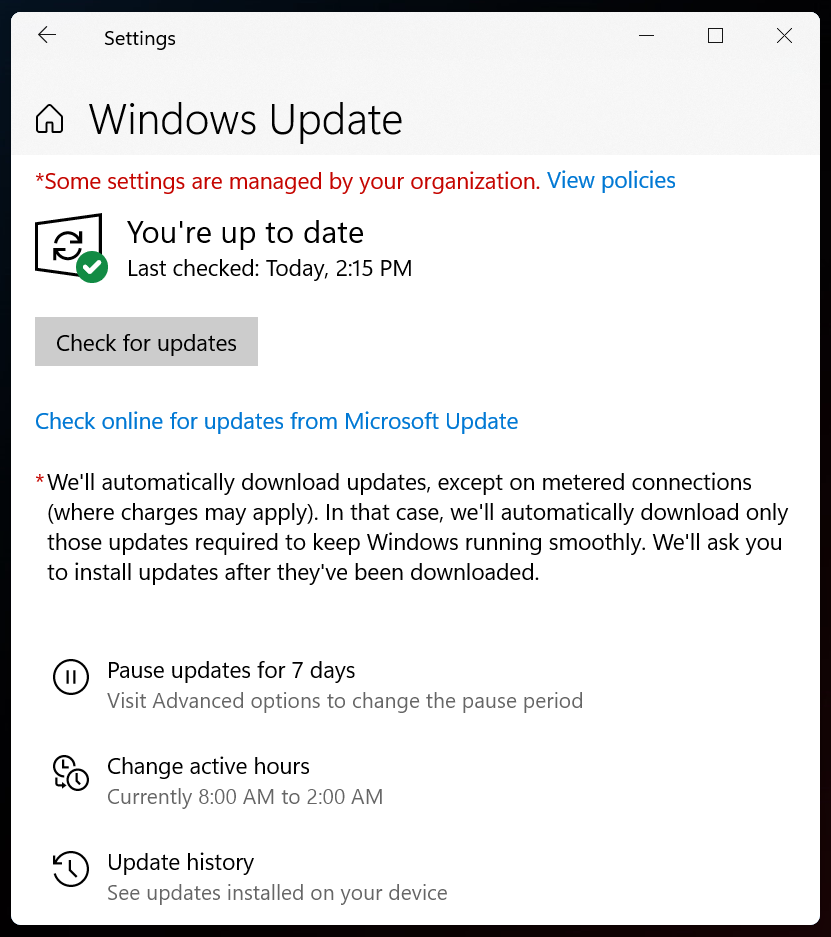
- If the updates are available Windows will automatically download and install them on your system.
3. Scan Your PC for Virus or Malware
The Comdlg32.dll error can also occur if a virus or malware corrupts, modifies or replaces the DLL files on your PC. Scan your computer for these threats and eliminate them to resolve the issue.
- Press Win + S and launch for Windows Security.
- Click Virus & threat protection > Scan options.

- Click Windows Defender Offline Scan > Scan Now.
4. Restore Your PC
If you’re not sure about what actually caused the Comdlg32.dll missing or not found issue, restore Windows to a previous state before the DLL corruption happened.
- Search for Create a restore point and open it.
- A System Properties dialog box will appear.
- Under the System Protection tab, click System Restore.
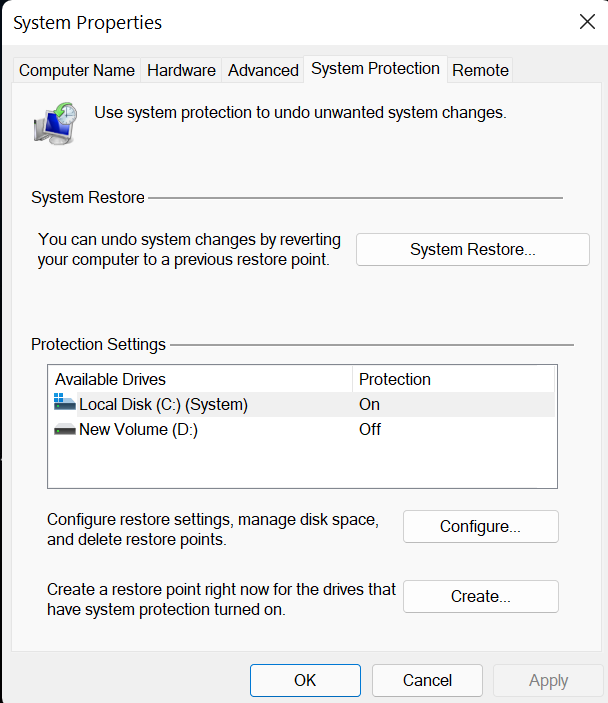
- Choose a restore point before the Comdlg32.dll missing or not found error and click Next.

- Confirm the restore point by clicking Finish and you’re good to go.

Let the process complete. The Windows Defender will scan your computer for existing threats.
5. Perform Clean Boot
A clean boot helps when you’re unsure about a third-party driver, service, or app that could be causing the Comdlg32.dll not found issue on your computer. Perform a clean boot to purge any background app that could be causing the trouble.
- Type msconfig in search and press Enter.
- Go to the Services tab and tick the box against Hide all Microsoft services.
- Click Disable all.
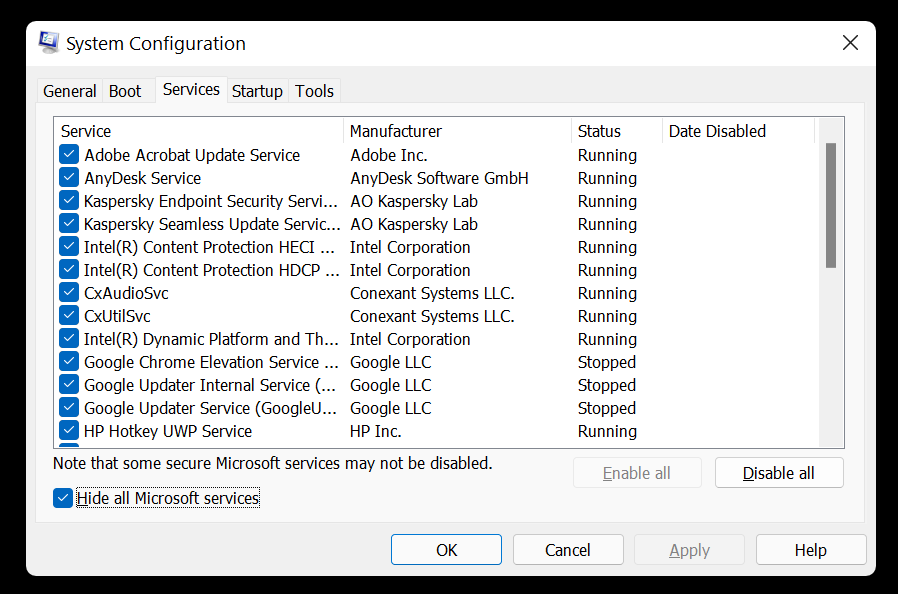
- Switch to the Startup tab and open Task Manager.
- Disable all the startup items.

- Close Task Manager and restart your computer.
Recover Data After the Comdlg32.dll Missing or Not Found Error
When system files become severely corrupted, malware tampers with core components, or a drive starts failing, you may lose access to important files. DLL-related errors point to deeper disk-related issues.
If your PC refuses to boot after the Comdlg32.dll error or you notice signs of disk corruption, securing your files becomes utmost important. This is where a Windows data recovery software – Stellar Data Recovery Standard can help. It scans corrupt, inaccessible, or damaged partitions and recovers your files with ease, even when Windows fails to boot.

Wrapping Up
When crashes recur, or your drive begins to slow down, take those signs seriously and secure your data beforehand. Comdlg32.dll error may look alarming, but it can very well be fixed. With proper troubleshooting – checking and repairing file corruption to restore missing DLLs, updating Windows, and getting rid of malware – you can regain access to your PC in no time.
Suggested read: 5 Easy Solutions to Fix Ole32.dll Not Found Error in Windows
