In Outlook, to compact the OST file, open the Account Settings > select the Data Files option > file > Settings, and select the Compact Now option. This process removes White Space – created after deleting the mail items. This will reduce the file size and help improve your Outlook performance, and also prevent other issues associated with large data files.
Read this guide to know the detailed process to compact OST file in Outlook.
What is an Offline Storage Table (OST) File?
An OST – Offline Storage Table – file is a cached copy of your Exchange mailbox. It stores all your mailbox items on your local device. You can access these items even when you are not connected to the server.
What Causes OST Files to Grow in Size?
Your OST file can grow in size due to the following factors:
- Continuous emails accumulation
- Large email attachments
- Synchronization of data and metadata in the background
- Lots of white space (unused space after mail items deletion)
- Downloading of shared mailboxes and public folders data
- Cached Mode is enabled
What Happens When an OST File becomes Large?
When the OST file becomes too large or oversized, it can lead to problems like:
- Slower Outlook performance
- Synchronization errors
- Send/receive errors
- Outlook freezing or not responding issue
What is the Maximum OST File Size Limit?
The maximum OST file size limit depends on your Outlook version. As per the Microsoft document, the file size limits are 50 GB in Outlook 2010 and later versions. This limit can be increased via registry or Group Policy if your OST hits its default size limit.
The table below shows the default and maximum configurable size limits for OST files across different versions of Outlook:
| Outlook Version | Default OST Size Limit | Maximum Configurable Size (Registry) | Recommended Compact Frequency |
| Outlook 2007 | 20 GB | Not applicable | Not applicable (no registry override) |
| Outlook 2010 / 2013 | 50 GB | 100 GB | Every 2–3 months |
| Outlook 2016 / 2019 / 2021 / Microsoft 365 | 50 GB | 100 GB | Monthly for heavy users |
What Happens When OST Becomes Large?
When your OST file becomes too large, Outlook may start showing performance issues like slow startup, delayed send/receive operations, sync failures, etc. In some cases, you may also see warnings like Outlook 365 mailbox almost full, which indicates that mailbox maintenance is required.
Why should you Compact the OST File?
Here are some benefits of compacting the OST file:
Reclaims unused space left after deleting emails and other items
Deleted emails leave behind unused space inside the OST file. Compacting removes this white space and helps reduce the file size.
Improves Outlook startup, shutdown, and search performance
A smaller OST file helps Outlook open, close, and search emails faster with fewer delays.
Helps prevent sync errors and send/receive failures
Large OST files can cause syncing problems with the mail server. Compacting improves synchronization and reduces send/receive errors.
Reduces the risk of OST file corruption
Oversized OST files are more likely to get damaged. Compacting keeps the file manageable and improves Outlook stability.
What are the methods to Compact OST File in Outlook?
Below, we have explained four methods that you may follow to compact the Outlook OST file:
Method 1. Use ‘Compact Now’ Option in Outlook
Outlook compacts the OST file by default when the “unused space” (white space) reaches 20% of the file size. However, you can also manually compact the OST file using the built-in option.
Note: Before compacting the OST file make sure empty the Deleted Items folder first. Compact Now only removes white space from already-deleted items — compacting does nothing if Deleted Items is full.
To do this:
- Open Outlook.
- Navigate to File.
- Select Account Settings > Account Settings.
- Click on the Data Files tab.
- Select the OST data file that you want to compact.
- Then click Settings > Advanced.
- Select Outlook Data File Settings…
- Click onthe Compact Now button.
This process will compact your OST file and reduce the size of your OST file.
Note: Outlook automatically compacts the OST file in the background when unused white space exceeds 20% of the total file size. Manual compacting gives you immediate control over when this happens.
Source: Microsoft Docs – Reduce the size of an Outlook data file
“Outlook’s Compact Now feature is often misunderstood. It does not shrink the file by deleting data — it reclaims the empty space left behind after items are permanently removed. Think of it like compressing a half-empty box. The data hasn’t changed, but the container is smaller. For best results, empty all deletion folders before compacting.”
— Diane Poremsky, Microsoft Outlook MVP Outlook Tips & Slipstick Systems | outlook-tips.net
Method 2. Use ‘Mailbox Cleanup’ Option in Outlook
Outlook’s Mailbox Cleanup tool can help you manage the size of your OST file. It primarily helps you identify and delete unnecessary items to free up mailbox space. Here’s how:
- Go to File > Info.
- Click the Cleanup Tools dropdown button
- Then select Mailbox Cleanup from the menu
- In Mailbox Cleanup dialog box, click on ‘View Mailbox Size…’ button.
- To compact OST file, choose any of the following options:
- Find items older than: To find and delete emails older than a certain number of days that you don’t require anymore.
- Find items large than: To find and delete emails larger than a certain size.
- Alternatively, you can ‘Empty Deleted Items folder,’ ‘View Deleted Items Size,’ ‘View Conflicts Size’, or ‘Empty Conflicts’ to compress the OST file.
After deleting items using Mailbox Cleanup, run Compact Now (see Method 1) to reclaim the resulting white space from the OST file. Mailbox Cleanup alone does not reduce the OST file size—the freed space only becomes available after compacting.
In case you want to compact OST without deleting older emails, follow the next method.
Method 3. Archive Old Emails to PST
This feature moves items OUT of the OST cache into a separate PST file on disk. You can use this method to keep older emails by exporting the emails to a local PST or personal folder file. This can help reduce OST size significantly without deleting a single email. Here’s how:
- In Outlook 2013,
- Go to File > Cleanup Tools > Archive.
- In Outlook 2016 or 2019,
- Navigate to File > Info > Tools > Clean up old items.
- Select the ‘Archive this folder and all subfolders’ option.
- Choose an email folder from the list for the Archive.
- Then, choose the date in the ‘Archive items older than:’ option.
- Click on Browse to select a save location.
- Then click OK.
You can also set Up AutoArchive for automatic cleanup. To automate this process and prevent the OST file from growing too large again, you can enable AutoArchive:
- Go to File > Options > Advanced
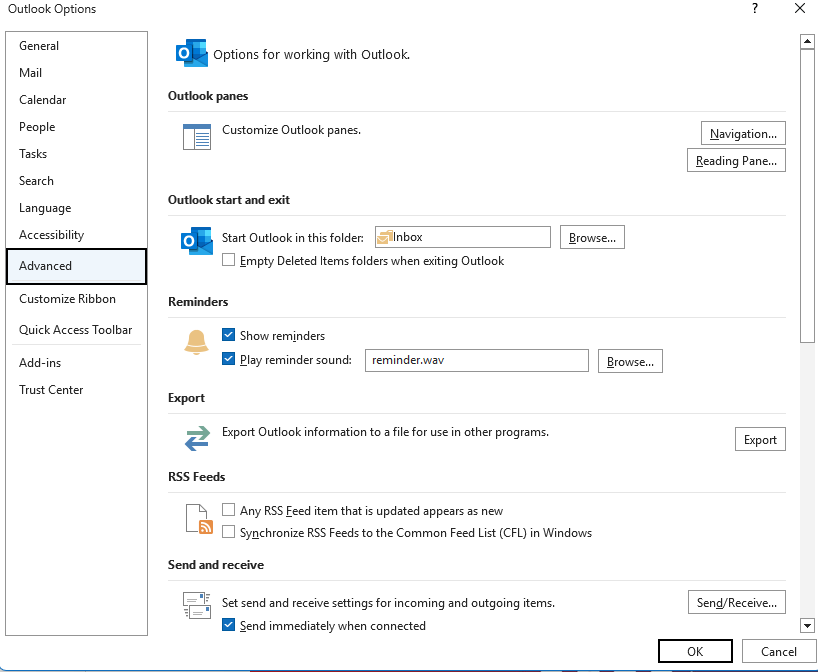
- Under the AutoArchive section, click AutoArchive Settings
- Check Run AutoArchive every [X] days
- Configure the preferred archive settings such as folder cleanup frequency, old item removal, and archive file location
- Click OK to save the settings
This helps Outlook automatically move older emails to a PST file at regular intervals.
Note: After archiving completes, run Compact Now (see Method 1) to reclaim the white space left in the OST file by the moved items. Refer Microsoft’s official documentation on managing PST files for detailed guidance.
4. Convert the OST File to PST
If the methods mentioned above fail to compact the OST file or your data file is corrupted, then converting it to PST format is the most reliable option. You can convert your OST file to PST format by using Stellar Converter for OST – an advanced OST to PST converter tool. This tool converts your large-sized OST file to PST and provides two options:
- Compact and Save PST: This option allows you to extract email attachments and save them in a separate folder, while preserving the attachment links with their respective emails. This reduces the PST file size to a few MBs or GBs. Now you will be able to access the PST file in Outlook and all the attached links. The Technician version of this tool includes this option.
- Split and Save PST: You can use this option to split resultant PST file on the basis of mail ids, date, size. This feature helps you to split large PST file and keep the original hierarchy of the mailbox.
Additionally, Stellar Converter for OST – Technician offers features such as:
- Converts OST file to PST with 100% accuracy.
- Allows saving converted data in multiple file formats including PDF, HTML, RTF, EML, and MSG.
- Option to directly export OST data to live Exchange Server.
- Supports migration of OST data to Office 365.
- Allows exporting mailbox data to an existing Outlook profile.
- Maintains original folder structure and data integrity during conversion.
- Supports conversion of large and inaccessible OST files.
- Provides preview of mailbox items before saving.
Which Method you should Choose to Compact OST File?
You can choose the method that is suitable for your specific needs. Below are the key differences:
| Method | Purpose | What It Does | Deletes Emails | Risk Level | Best For | Difficulty Level |
| Compact Now | Reduce OST size | Removes white space left after deleted items | No | Very Low | Quick and safe size reduction | Easy |
| Mailbox Cleanup | Free up mailbox space | Finds and deletes old or large emails | Yes (Selective) | Moderate | Ongoing mailbox maintenance | Easy |
| Archive Old Emails | Move older emails | Moves emails from OST to PST file | No (Moves data) | Low | Keeping all emails while reducing OST size | Moderate |
| OST Converter | Recover & rebuild mailbox | Converts OST to new PST file | No | Very Low | Recovering Mail Items from Large, Corrupt, inaccessible, or orphaned OST Files | Easy (DIY Tool) |
Conclusion
A large OST file can cause issues and errors in Outlook. You can prevent these problems and errors by compacting the OST file. Above, we have explained various ways by which OST files are compacted using built-in MS Outlook features. If these features are unable to compact the OST file, then advanced OST to PST converter software such as Stellar converter for OST is the only option. This converter converts the inaccessible OST to PST and splits the converted PST file into multiple files. It also provides an advanced option to save attachments in a separate folder that helps compact the resultant PST file.
