You can export the Global Address List (GAL) to CSV file by using PowerShell commands in Exchange Management Shell or by using Outlook. However, these native methods have certain limitations. An effective and easy method to export the GAL is by using Stellar Converter for EDB – a specialized EDB to PST converter tool. In this post, we will explain how to use these methods to export Global Address List (GAL) to CSV file.
What is Global Address List (GAL) in Exchange Server?
Global Address List (GAL) is a central address book in Exchange Server, which serves as the primary directory for address book lookups in Outlook and other clients. It lists all mail-enabled objects in an organization, like users, groups, and resources along with their contact details. Clients such as Outlook use GAL to find names and email addresses for all email users.
Methods to Export Global Address List (GAL) to CSV
You need to export the GAL to CSV for various purposes, such as migration to another platform, backing up the organization’s contacts, enabling offline access, etc. Whatever be the reason, you can follow the methods mentioned below to export GAL to CSV.
- Export Global Address List (GAL) to CSV by using PowerShell
- Export Global Address List (GAL) to CSV via Outlook
- Export Global Address List (GAL) to CSV by using EDB to PST Converter Tool
How to Export Global Address List (GAL) to CSV by using PowerShell?
You can use PowerShell commands in Exchange Management Shell (EMS) to export Global Address List (GAL) to CSV file. Let’s take a look at the stepwise process.
First, you need to get the list of all the mailboxes. So, open the EMS as an administrator and then use the Get-Mailbox cmdlet to fetch the list of all mailboxes. By default, Exchange outputs 1000 mailboxes when you run this cmdlet. However, you can also increase or decrease the size of result, based on the number of mailboxes in your organization. In the below example, we are setting unlimited value for the resultsize parameter to display all the mailboxes.
get-mailbox -resultsize unlimited
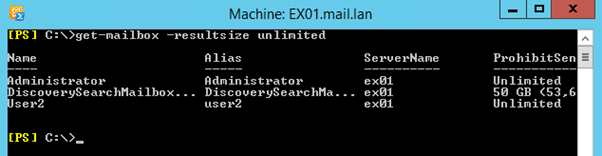
This command will list all the mailboxes, even those that are marked as hidden. If you open the mailbox from the Exchange Admin Center (EAC), you will find the “Hide from address lists” tick box enabled.
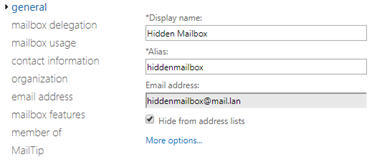
These mailboxes are system or notification mailboxes, which might not be needed. So, you can skip listing these mailboxes by adding an exception to the command:
get-mailbox -resultsize unlimited | ?{$_.HiddenFromAddressListsEnabled -eq $false}

In case, you want to list these hidden mailboxes, use the command as given below:
get-mailbox -resultsize unlimited
The next part is to export all the necessary details from the mailboxes to get your address book by using the Get-User PowerShell cmdlet. After that, you can filter out the details needed by using the Select cmdlet. If you use the Get-User cmdlet alone, it will export all the details of mailboxes, like Object Category, Creation date, and other items that you wouldn’t need in your export.
To fetch field names of your choice, you can use the Get-User | Select * command like this:
get-mailbox -resultsize unlimited | ?{$_.HiddenFromAddressListsEnabled -eq $false} | get-user | select *
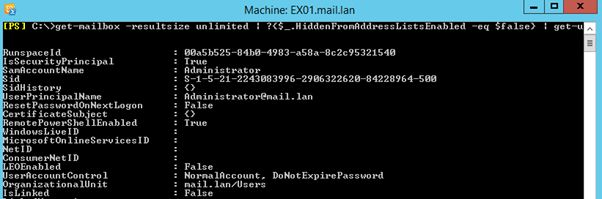
Once the criteria for export is ready, you can build the Select command to choose specific fields you need. In the example below, we are selecting Display Name, Work Phone, and Email Address. However, you can customize the Select command to add other fields such as department, alias, etc.
get-mailbox -resultsize unlimited | ?{$_.HiddenFromAddressListsEnabled -eq $false} | get-user | select DisplayName,Phone,WindowsEmailAddress
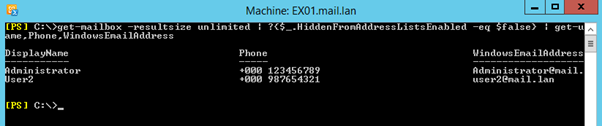
Lastly, export the results of the command to a CSV file. You can do this by using the Export-CSV <destination path> command (see the below example):
export-csv c:\GAL-Export.csv
Enclose the path in inverted commas. This prevents the command from failing. However, it has one issue—it exports a Type information row in your CSV. So, if you want to automate this process, you need to add a switch parameter to remove the first row.
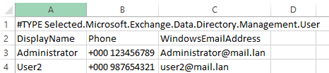
In order to remove this row, you can add –NoTypeInformation at the end of the command:
Export-CSV c:\GAL-Export.csv -NoTypeInformation
Once you have all this settled and in place, you need to add all the steps together to export the whole address book as desired. The example below will export the Display Name, Work Phone, and Email Address for all users which are not hidden in the address book to a CSV in C:\GAL-Export.csv.
Get-Mailbox -ResultSize Unlimited | ?{$_.HiddenFromAddressListsEnabled -eq $false} | Get-User | Select DisplayName,Phone,WindowsEmailAddress | Export-CSV c:\GAL-Export.csv –NoTypeInformation
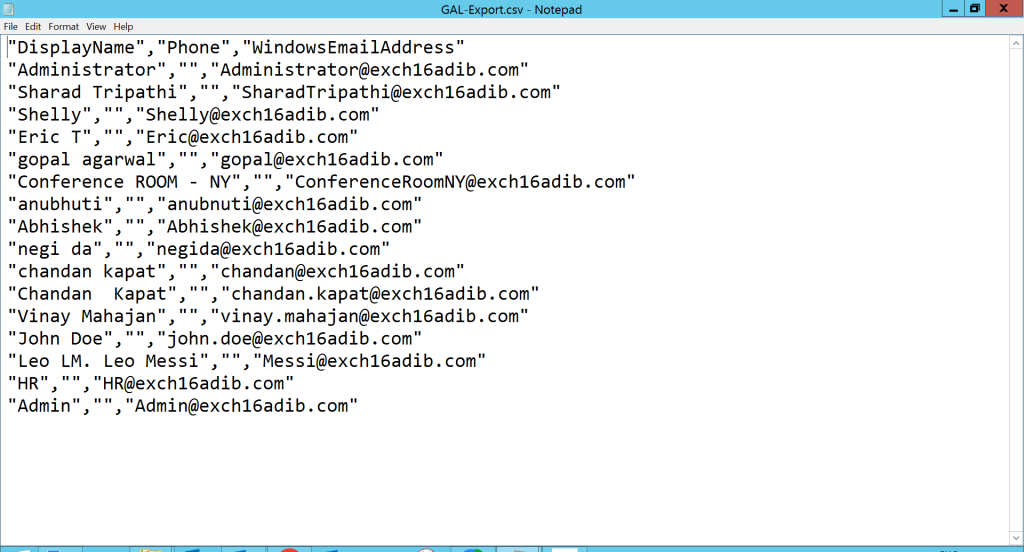
One thing to note is that this command only works if your Exchange Server is in good working condition.
How to Export Global Address List (GAL) to CSV via Outlook?
To export GAL via Outlook, you need to first move the GAL to a personal Contacts folder. Open the Address Book and select the list that contains the global address book copy (OAB).
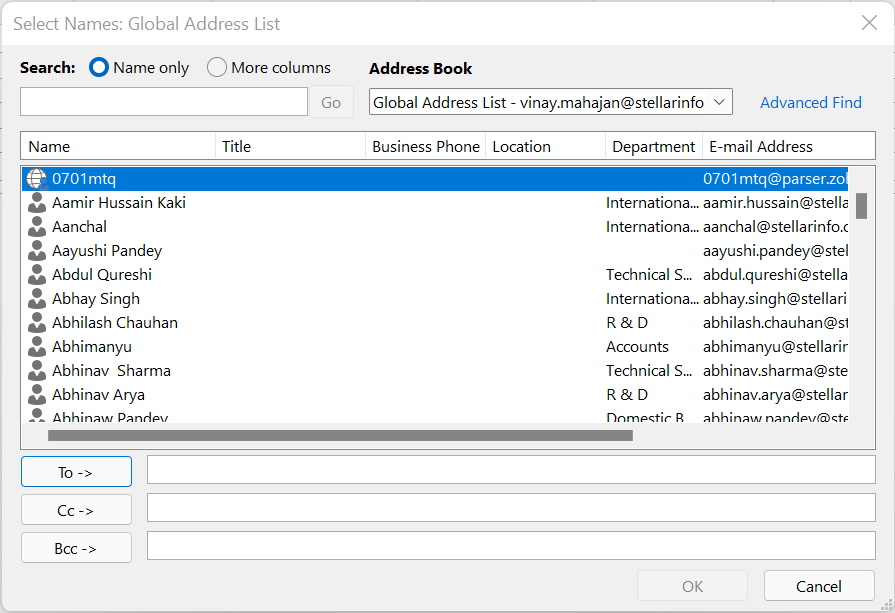
Select all the contacts you wish to export, right-click on the selection, and select Add to Contacts. After that, you can export these contacts to CSV file.
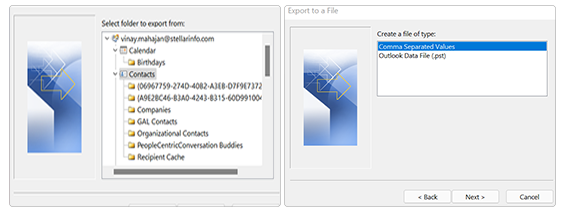
It is to be noted that OAB only includes visible entries, which means hidden mailboxes cannot be exported via Outlook. Another thing to consider is that exporting large number of contacts from Outlook can be very time-consuming. Such exports may noticeably degrade Outlook performance during the process.
The most effective and easiest method to export the GAL to CSV is by using Stellar Converter for EDB. This EDB to PST converter tool allows to save the contacts to CSV file. All you need to do is run the tool, select offline EDB option, and open the EDB file.
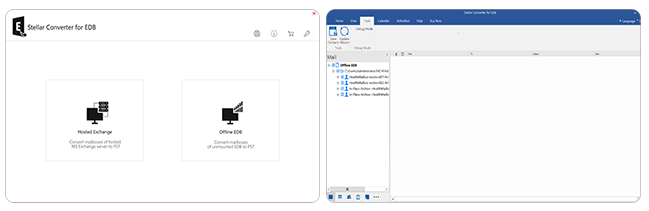
After that, go to Save Contacts under the Tools tab. You can then save the contacts in CSV file at a desired location.
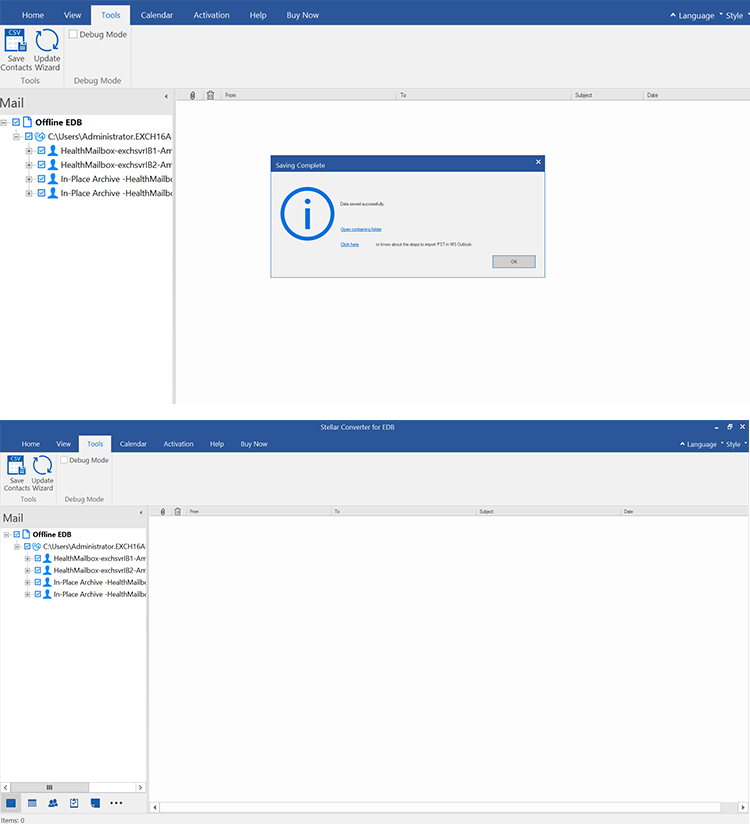
Benefits of using Stellar Converter for EDB:
- There is no need to use PowerShell and other complex commands to perform GAL to CSV export when using this tool.
- Besides exporting contact list to CSV, it also converts mailboxes to PSTs, which you can save for backup and archiving purposes.
- You can export the mailboxes directly to live Exchange Server or Microsoft 365 tenant.
Conclusion
Above, we have explained how to export Global Address List (GAL) to CSV by using PowerShell commands and Outlook. However, these methods have some limitations. To overcome such limitations, you can use Stellar Converter for EDB – a professional EDB to PST converter tool that can help you export contacts from the EDB file to CSV in just a few simple steps. It works even when EDB file is offline or the server is not available.
