Storage drivers and SD cards are prone to various problems. Sometimes, they don’t show up in File Explorer in Windows, go undetected in Mac, show display on, but no drive appears, and most classic one is when your device fails to load photos from the SD card. Apart from other issues, the error “failed to load photos” remains a mystery for many.
When you hit this problem, usually the photo files open but display an error/black screen, the photo or file directory is unreadable, your photos show a blank thumbnail preview, or you may witness other similar symptoms, like displaying a 0 KB image file in image details. But no matter which of these symptoms appears, remember it’s fixable. Follow this tutorial to learn how to fix the “failed to load photo in SD card” error and get access to your favorite photos.
How to Fix “Failed to Load Photo in SD Card?”
Let’s try the quick troubleshooting fixes to resolve the SD card failed to load photos error.
Remove the SD card from your camera or phone and connect it to your system. Now do the following:
Check Your SD Card Connection
Sometimes, photos may not load on SD cards due to connection issues. Here’s what you can do:
- Remove and re-insert the SD card into your Android phone.
- Use a soft cloth to clean the SD card before re-inserting again.
- Try cleaning the metal contacts with a cleaning solution or Alcohol.
- In case of a computer, unplug the SD card from the SD card reader and reconnect it. See if this works. If not, move on to the next method.
Change the USB Port on your Device
Sometimes the problem can be with the USB Port on your device. Hence, try connecting the SD card to another USB port on your PC or Mac. Else, change the SD Card reader and check again if this works.
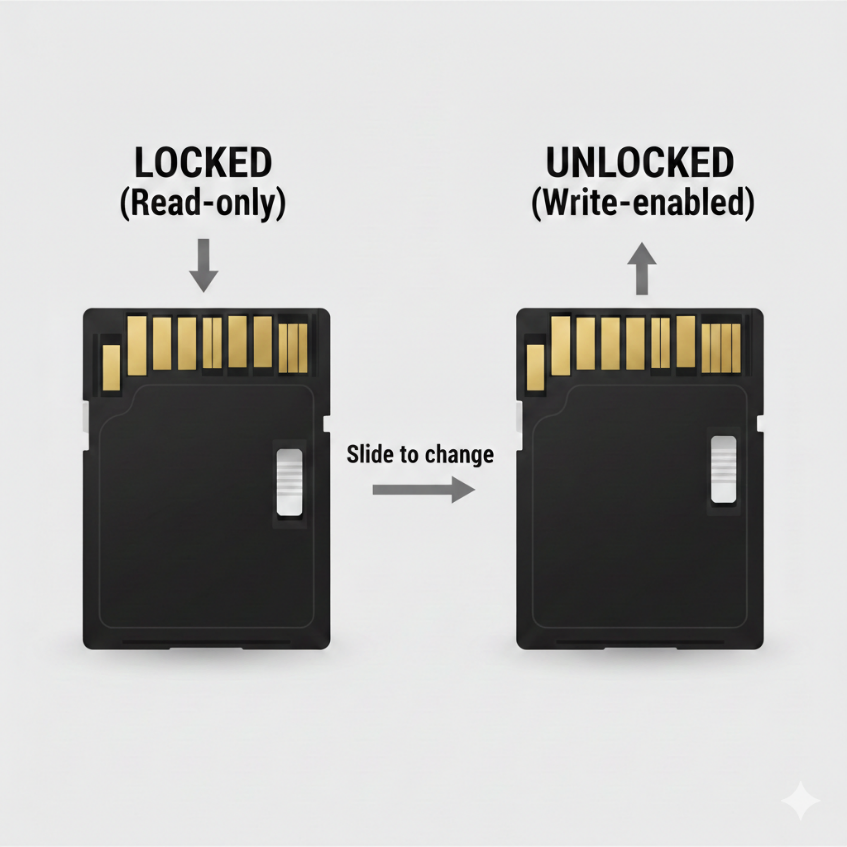
Check the Lock Switch on Card
If your SD card is not showing photos, check the small lock switch on the side of the card and unlock it, if it’s locked. This allows your device to read and load the files in your SD Card, properly.
Use Antivirus Software
If you think it’s too early to use a free photo recovery tool, or want to try out any other methods, first, opt for a powerful antivirus software. That’s because many times, viruses or malware may hide files on your SD card or corrupt your card.
Run a reputable and powerful Antivirus software on your Android phone or computer. If the scan results show any virus or malware, take necessary steps to quarantine it from your device. Now your SD card will be readable and can load the photos. Once the scan is complete, try checking for your photos on the SD card, now they might load.
Change the SD Card Drive Letter
Many times, SD cards or storage drives without letters are not detected by Windows. Assign a drive letter to your SD card so that Windows can detect it.
- Press Windows + E key, the File Explorer opens.
- Go to This PC, right-click on it, and then click Manage.
- Go to storage on the left side and click Disk Management.
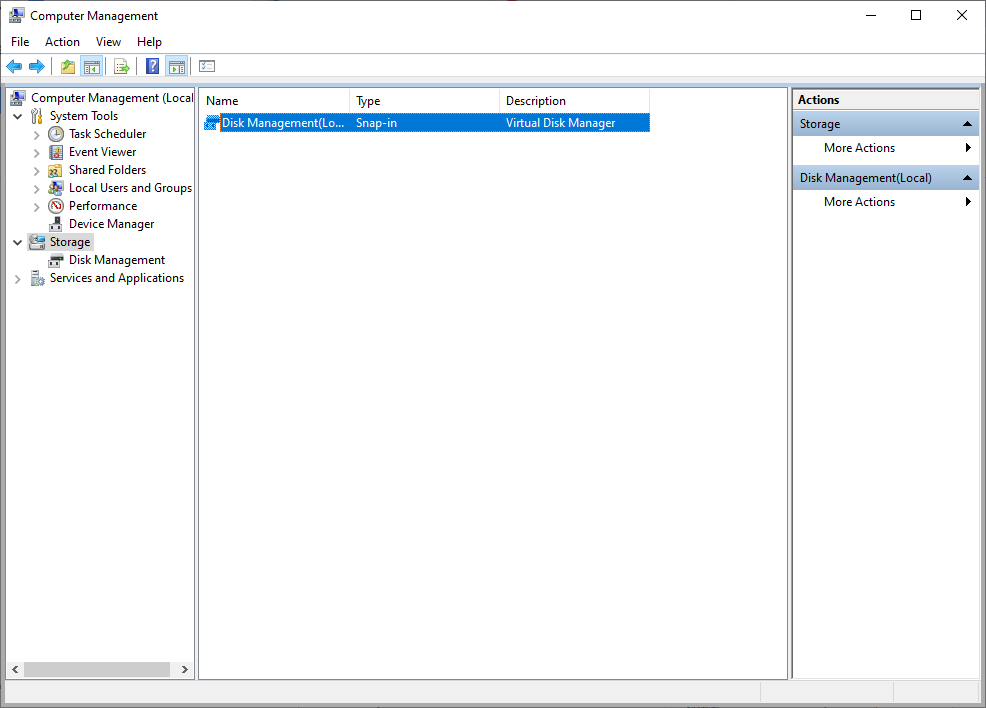
- Now right-click on the SD card, then select ‘Change Drive Letter and Path.’
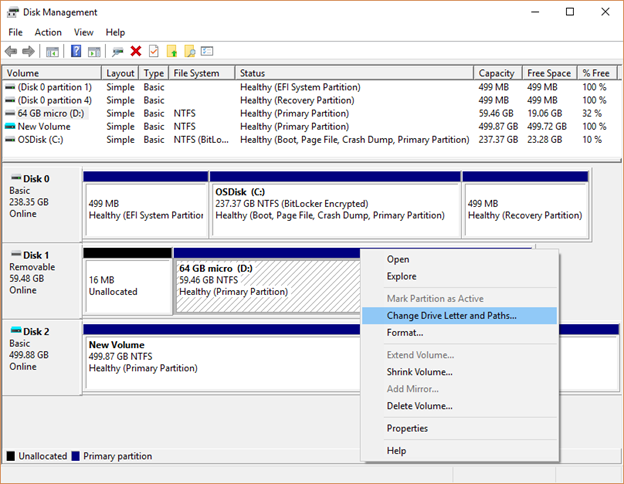
- Select the drive or SD card and then click Change.
- Assign a new drive letter to the card.
Once the process is completed, check if the ‘photo won’t load on SD card’ error is fixed or not.
Use a Free Photo Recovery Tool
Free photo recovery tool like Stellar Photo Recovery software can help recover lost or deleted photos from the SD card for free.
- Download and install the free Stellar Photo Recovery tool on your computer.
- Choose the file type, like video, photo, or audio, then select the location. For e.g., Generic Storage Device H: Drive, and click Scan.
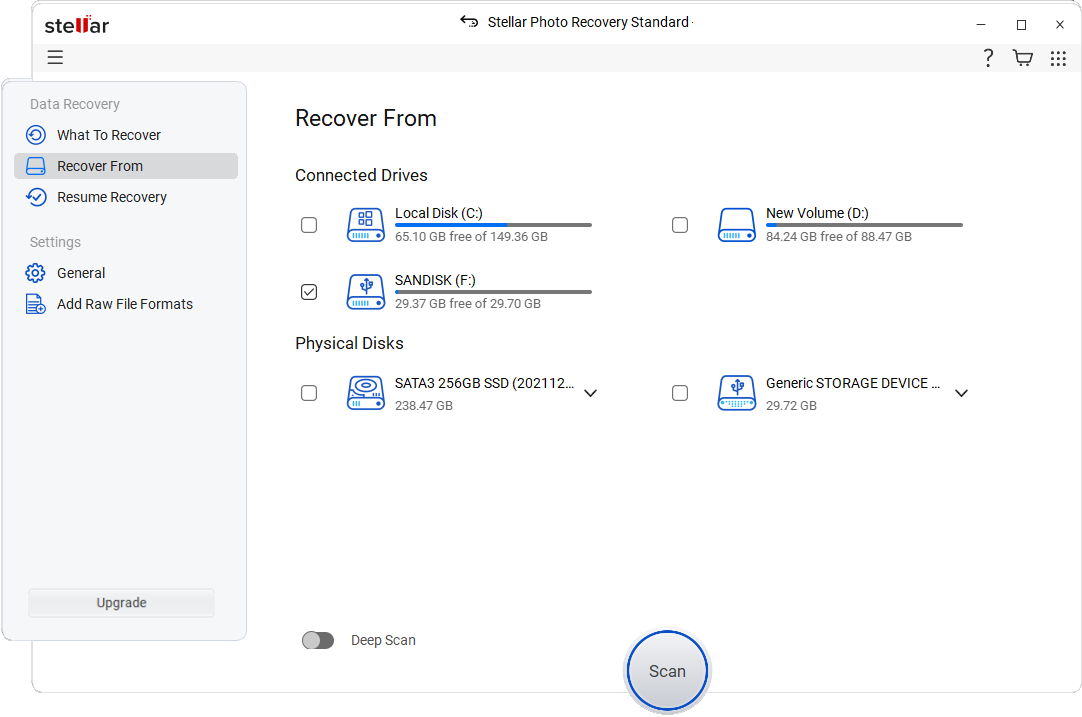
- Once the scanning is complete, you can preview the recoverable photos.
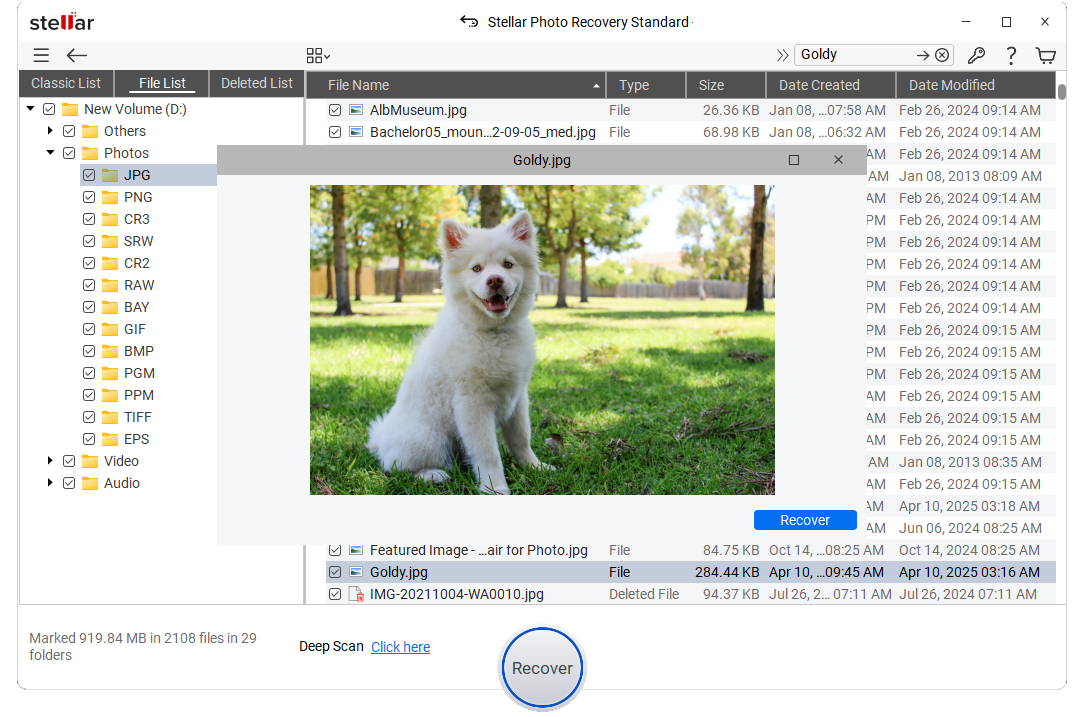
- Next, choose the photos you want to restore.
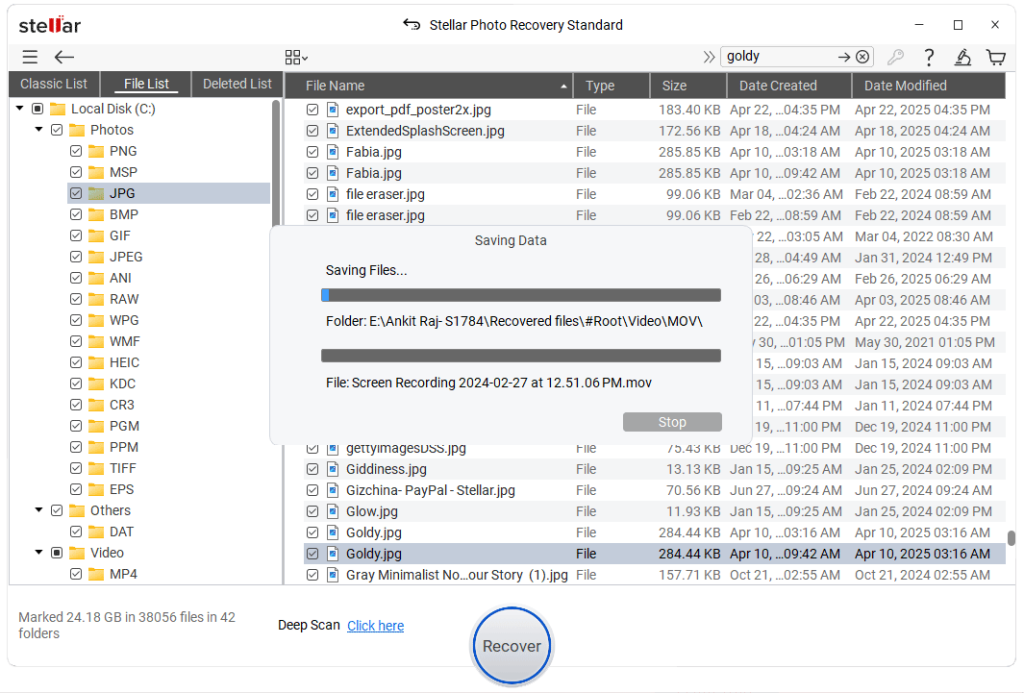
- Now, click the Recover button and save them at your desired location.
This free software allows you to recover 10 photo or video files of size 10MB each for free.
Why Won’t Photos Load on SD Card?
Common factors include:
- The photos are deleted or lost due to logical errors.
- You are trying to open an incompatible image file format.
- Connection error between the SD card and your PC.
- SD card drive letter is missing or unassigned.
- A virus or malware-infected the SD card.
- Photo file is corrupt.
Conclusion
The “failed to load photos in SD card” error arises for various common reasons like drive issues, file format compatibility, virus or malware, etc. Moreover, this issue can be fixed easily by checking the connection between the SD card reader and device, updating the drive letter of your SD card, and scanning it for viruses. Further, if your SD card is corrupted or you have formatted it, use Stellar Photo Recovery software to recover photos from the SD card.
