You can resolve MySQL Syntax Error 1064 by correcting the associated SQL query. The error message itself highlights the problematic line number in the query. Common fixes include checking for mistyped commands, replacing obsolete commands, and addressing database corruption. If corruption in the database is causing conflicts in queries, you can restore the database using a professional MySQL repair tool. In this article, we’ll explain the major causes of Error 1064 and provide some tested and tried solutions to resolve it.
What is MySQL Error 1064?
MySQL error 1064 can occur when the server fails to understand the command you’re trying to run, due to incorrect syntax. It usually occurs when you try to insert or extract data to/from the MySQL database. You can even face this error while dumping or restoring the backup in MySQL. It is also known as a parsing error in MySQL and can appear in the following variants:
#1064 – you have an error in your SQL syntax (Usually seen in PhpMyAdmin)

Error 1064 (42000) : You have an error in your SQL syntax; check the manual that corresponds to your MySQL server version for the right syntax to use near 'WHERE id=101 SET name='foo'' at specific line number
To understand MySQL 1064 error in detail, I have reproduced this error through a simple scenario:
Database name: companyMoni_db
Table name: EmployMoni
Task: Extract all rows from the table EmployMoni .
When I try to extract data from the table named “EmployMoni” in Database named companyMoni_db using MySQL Workbench 8.0, I’m getting the following error:
10:54:27 SELECT * FORM employMoni Error Code: 1064. You have an error in your SQL syntax; check the manual that corresponds to your MySQL server version for the right syntax to use near 'FORM employMoni' at line 1 0.000 sec
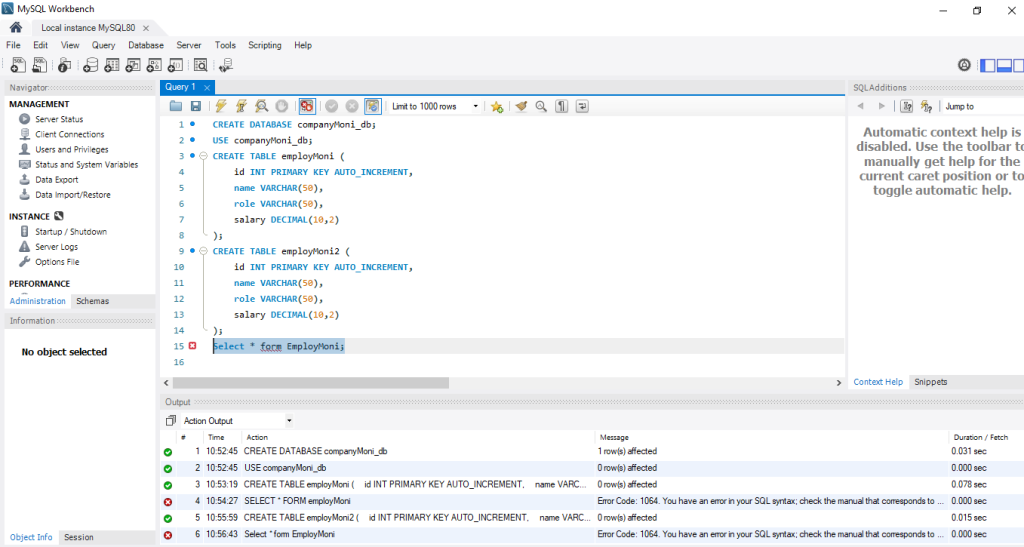
When I looked into the error message, I realized that the query contained the incorrect SQL along with the line number, i.e., 4
Select * form EmployMoni;
As a quick solution, I checked the syntax used in that line number (4) and corrected the spelling of FORM to FROM which resolved the MySQL error 1064.
MySQL Server Error 1064-Common causes
Some of the reasons for MySQL error 1064 in queries are:
- Typos in SQL keywords like FROM, SELECT, WHERE, etc.
- Incorrect table or column names, mismatched quotation marks or parentheses.
- Using reserved keywords in query.
- Version incompatibility between MySQL and SQL commands.
- Corruption in MySQL database
What are the Troubleshooting Methods to Fix MySQL Error 1064?
Following are the methods with example to resolve this error:
Method 1- Resolve Syntax Incompatibility in MySQL
You can face the error 1064 due to a syntax incompatibility issue in the MySQL version you’re using. This often happens when importing or exporting databases across different MySQL releases.
For example, you may fail to run GROUP BY DESC command in MySQL 8.0 which you can easily execute in MySQL Server 5.7.
use CompanyMoni2
SELECT EmployMoni2, COUNT(*) FROM CompanyMoni2
GROUP BY employMoni2 DESC;
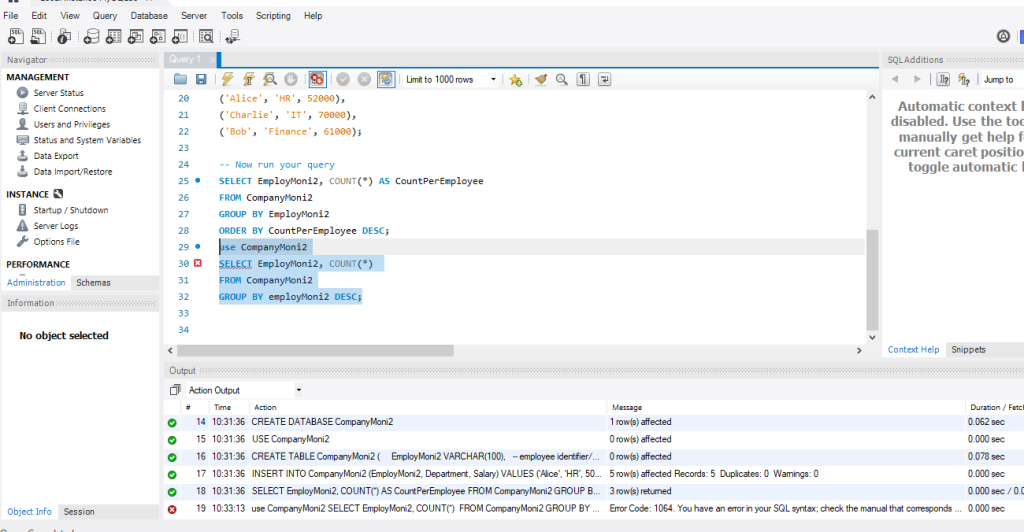
To resolve this, I have removed the GROUP BY … DESC which is not supported in higher version.
SELECT EmployMoni2, COUNT(*) AS CountPerEmployee
FROM CompanyMoni2
GROUP BY EmployMoni2
ORDER BY CountPerEmployee DESC;
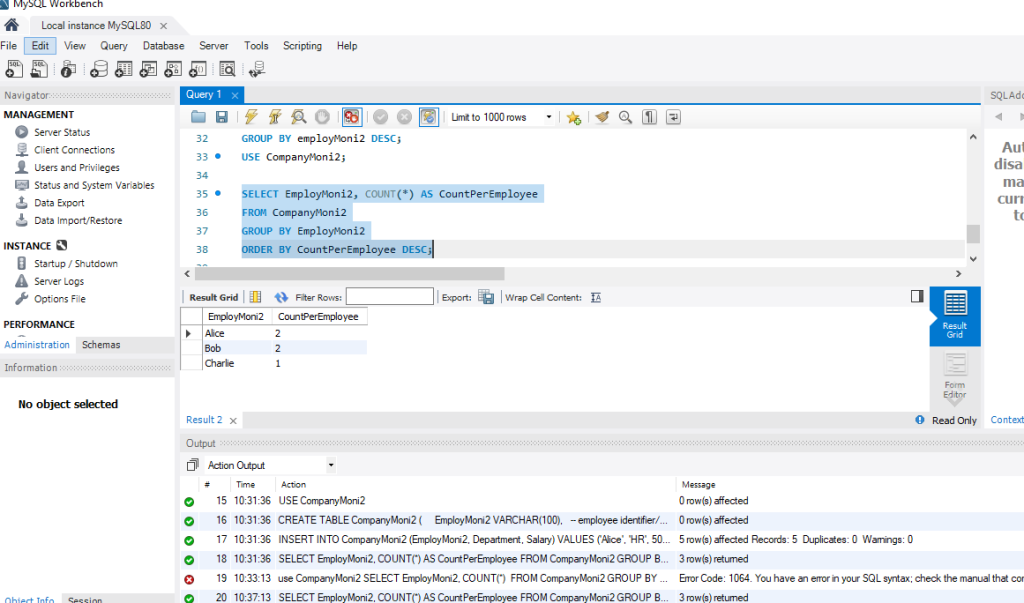
When upgrading to a new version, for instance, MySQL 8.0, many queries and SQL statements no longer work. For example, the authentication plugin is changed to caching_sha2_password. You can check other changes in MySQL 8.0 to troubleshoot syntax errors like underlying error 1064 if they occur due to server incompatibility issue.
Method 2- Check and fix Missing Data in SQL query
If your database does not contain the value you have entered in the query, the server throws the error 1064. You can verify all the important fields containing values and column names. If any value is missing, enter it.
Let’s learn how missing data causes this error through this small example.
Database name – CompanyMoni2
Table name- CompanyMoni2
Task- Extract all rows from the table CompanyMoni2 where the column EmployMoni2 equals ‘Alice’ using the following command:
SELECT * FROM CompanyMoni2 WHERE user_id = ;
This query will fail and result in a parsing error 1064, as a column value in the WHERE clause is missing.
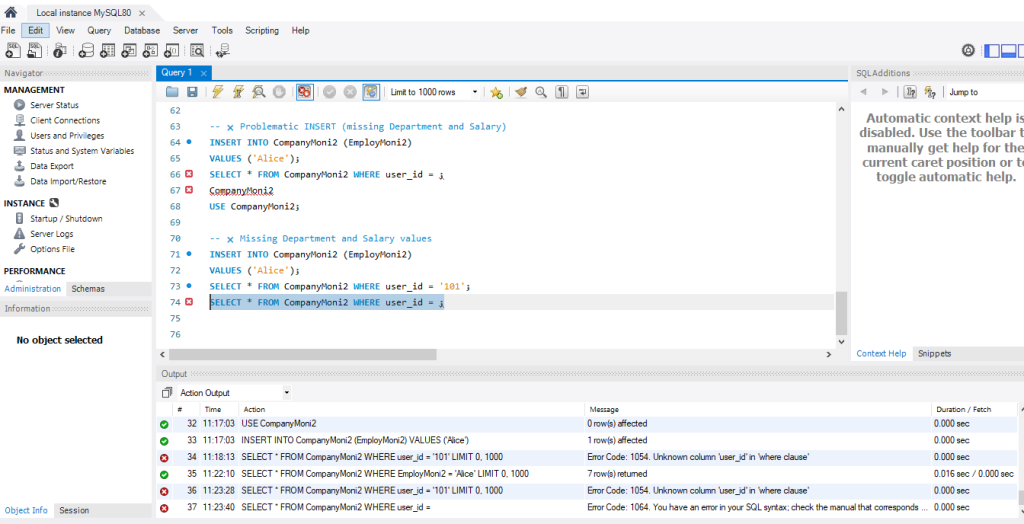
To resolve this, change the missing column value to a correct value i.e. EmployMoni2 = ‘Alice’; .
USE CompanyMoni2;
SELECT * FROM CompanyMoni2 WHERE EmployMoni2 = 'Alice';
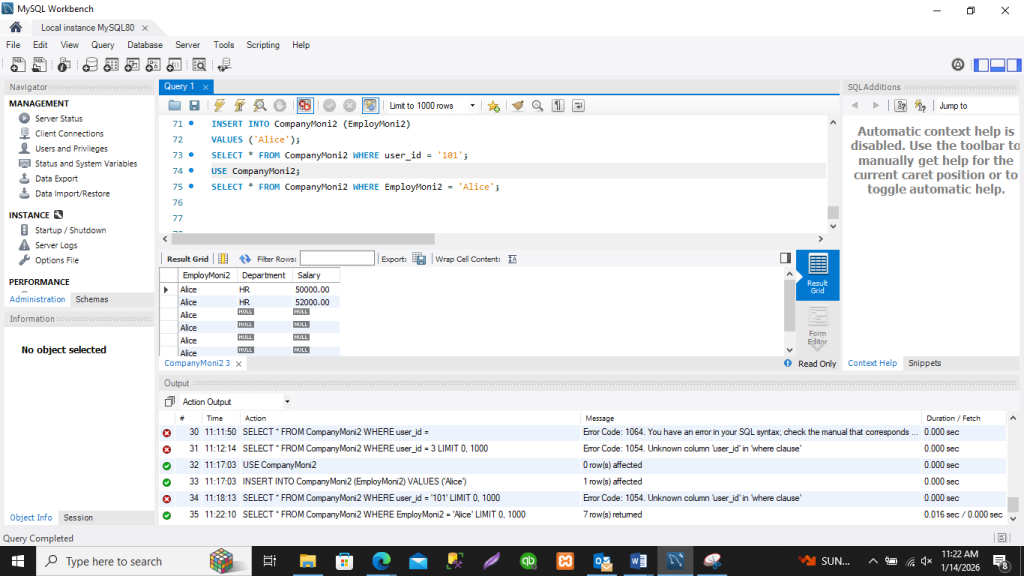
You can also verify all the important fields containing values and column names. If any value is missing, enter it.
Method 3- Check and fix incorrect Syntax
The primary reason for the error 1064 is incorrect SQL syntax. It includes issues like
- Misplaced commas
- Missing keywords
- Spell mistakes
- Improper query structure.
Example of syntax issue causing the 1064 error:
SELET * FROM CompanyMoni2
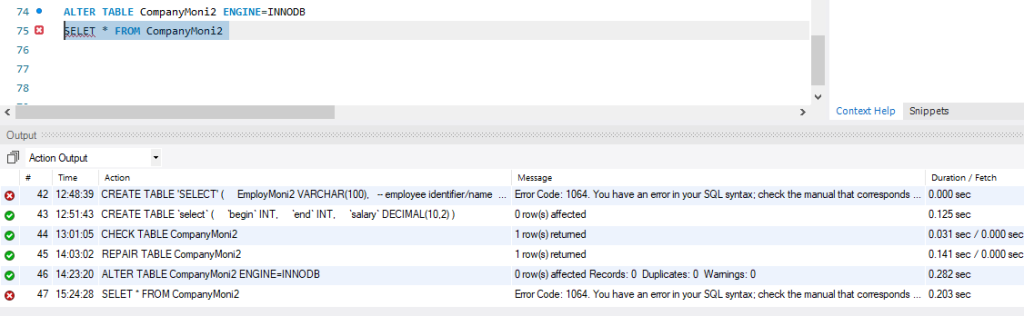
In the above syntax, there is typo in the syntax. i.e. SELET in place of SELECT.
To resolve this, correct the typo by replacing SELET with SELECT.
SELECT * FROM CompanyMoni2
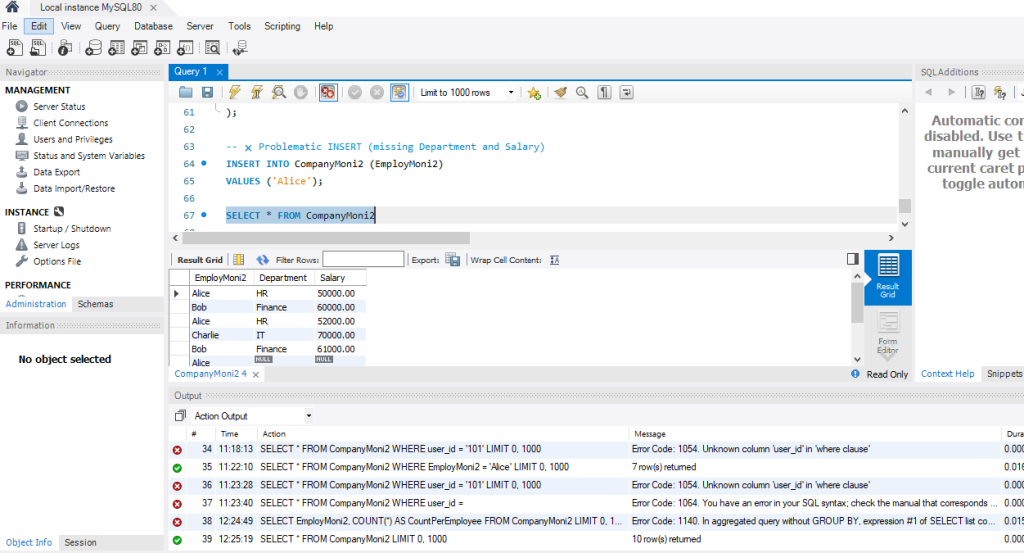
Method 4- Check if Reserved Words are used as Identifiers in MySQL
The syntax errors like 1064 can occur if you’re using reserved words as an identifier, like you might be trying to create a table name with SELECT.
CREATE TABLE SELECT (
EmployMoni2 VARCHAR(100),   -- employee identifier/name
Department VARCHAR(100),    -- example extra column
Salary DECIMAL(10,2)        -- example extra column
);
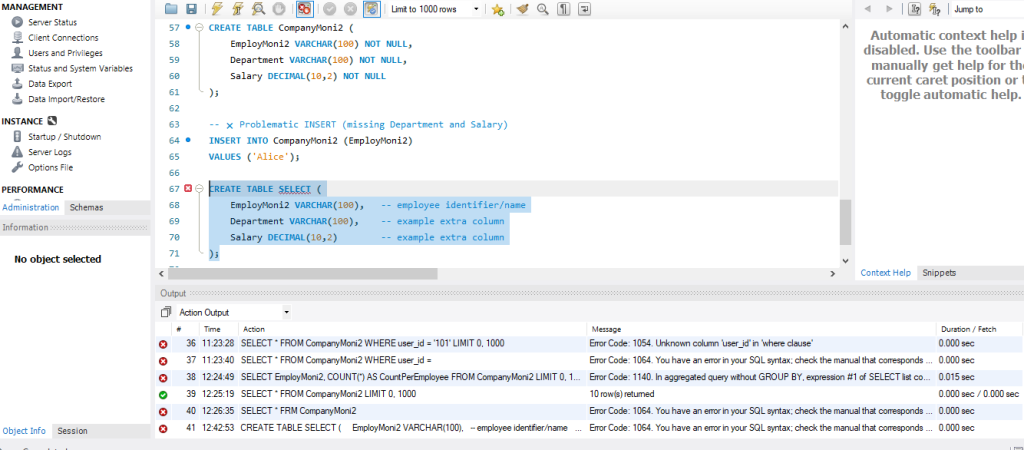
To resolve this, just quote SELECT i.e. ‘select’ or ‘SELECT’
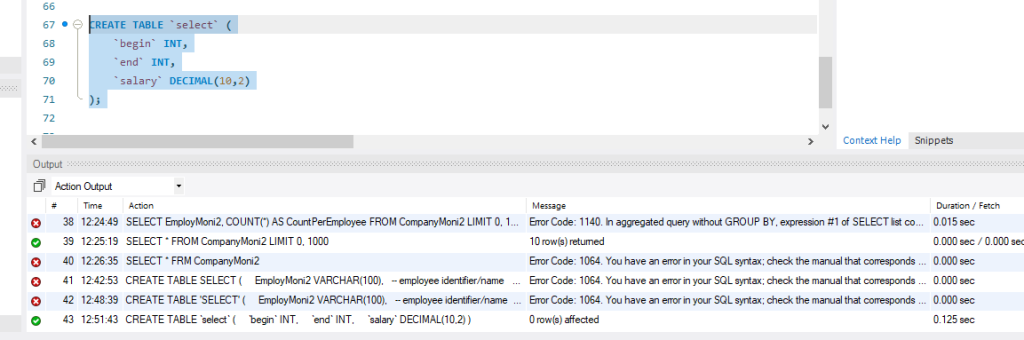
Each MySQL version includes different reserved words for specific tasks. Some of the reserved keywords in MySQL 8.0 are CREATE, ALTER, ORDER BY, HAVING, LIMIT, RIGHT JOIN etc. All such words are required to be used in a specific format. For example, if you want to use reserved words as identifiers, like column name or table names, you need to quote them:
CREATE TABLE `select` (
`begin` INT,
`end` INT,
`salary` DECIMAL(10,2)
);
Method 5- Check and repair Corruption in database
Corruption in InnoDB and MyISAM tables in MySQL database can cause the syntax errors like 1064, 1146. It make the server fails to interpret the query. To confirm this reason, you can check the tables for corruption by executing the following command:
CHECK TABLE CompanyMoni2
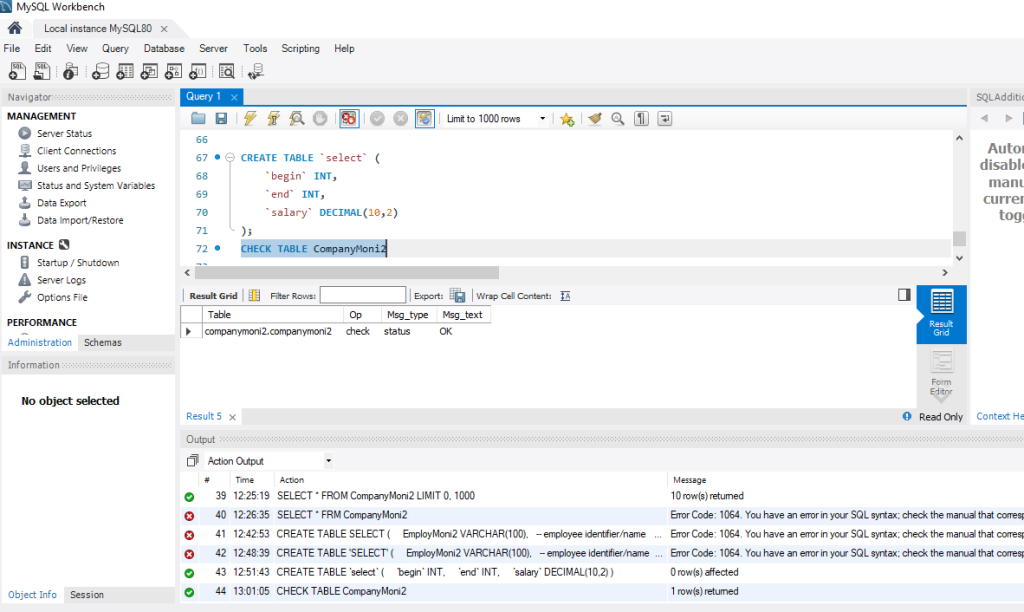
If it displays the OK status, this means the table is free from corruption. If it is corrupted, then it may show error. In such a case, you can restore the backup (dump file) using dump utility by following these steps:
- First, create an empty database to save the restored database. Here’s the command:
mysql> CREATE DATABASE companyMoni_db_restored;
- Then, restore the database using the following command:
mysql -u root -p companyMoni_db_restored < dump.sql
- It will restore all the objects of the database. You can check the restored InnoDB tables by using the below command:
‘mysql> use companyMoni_db_restored;
mysql > show tables;’
If the dump file is not readable or it’s not available, then repair MySQL database using PhpMyAdmin. But it has some limitations, such as:
- While repairing InnoDB tables using phpMyAdmin, you can face errors.
- You may encounter time-out issues when uploading large database files.
Alternatively, you can use other methods to repair MySQL database and tables.
Quick Method to Repair MySQL Database
If above methods fail or you need a faster and more reliable solution to repair the corrupt MySQL database, then use Stellar Repair for MySQL. This DIY repair tool can easily and quickly repair corrupted tables without errors. It can repair both InnoDB and MyISAM tables and recover all their objects, with complete precision and integrity. To understand how Stellar Repair for MySQL works, watch this video.
How to Prevent MySQL Error 1064?
You can prevent the error 1064 by following these preventive measures:
Use PREPARE Statements
PREPARE statements prevent 1064 error by:
- Enforcing valid single-statement syntax.
- Separating query structure from data values.
- Validating syntax upfront during PREPARE.
- Ensuring consistent parameter typing across executions.
Use Official Documentation to Write Commands
To write correct SQL query, make sure you’re referring the trusted source or use official documentation of MySQL.
Check Reserved Words in Queries
Make sure you’re not using the reserved words in queries as they can lead to syntax errors and issues. You can check the MySQL version and then verify the reserved words accordingly.
Ensure your MySQL Server is Updated
The tool you’re using to access the MySQL like WorkBench, PhpMyAdmin, XAMPP should be updated.
Conclusion
Many reasons can cause MySQL error 1064. You can follow the methods discussed above to resolve the error. If corruption in the database is causing this syntax error, use Stellar Repair for MySQL. This tool can help you repair both InnoDB and MyISAM tables of MySQL database. It also allows the selective recovery of database tables. It can recover all objects from MySQL tables with complete integrity.
