When I asked – What’s PhotoRec? My colleague replied, “It’s a free data recovery tool, but you pay with your time.” And now I know why. No Doubt – PhotoRec is a powerhouse, provided you have the patience to work with an 80s-style terminal screen.
PhotoRec has its separate fan base. Though on my tests, I found that users coming for this free photo recovery platform often go through the complex command-line interface. But there are options. For those who prefer time and ease over anything, other free photo recovery tools can fill the gap. This blog discusses and compares the 5 best free alternatives for photorec recovery tool.
Why you may need Alternatives for PhotoRec?
PhotoRec is useful as a free tool, and that makes it popular. But the fact that it is not for non-tech-savvy users is not hidden, as it relies on complicated technical commands.
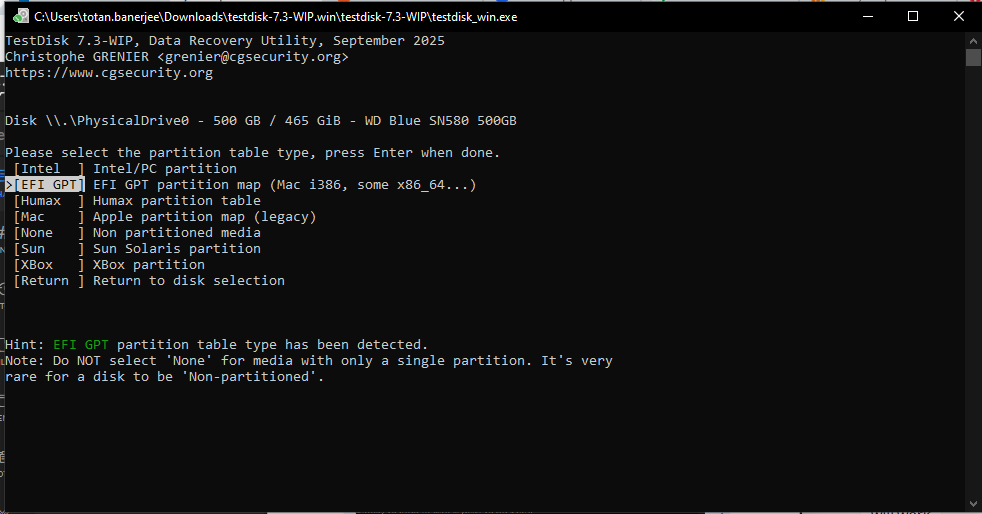
Although it handles common file types with precision, it struggles with less common video, photo, or document file formats. Even most of the time, the files recovered are corrupt or unsupported by programs on your device.
The list of these limitations is long, such as:
- A late 80s installation setup that’s confusing
- Complex command line recovery setup
- Navigating through the recovery setup isn’t easy
- Recovery is slow and time-consuming
- Previewing the files isn’t an option
- Unique file formats may not be found in the recovered list
- Some recovered photos and videos may not open or get corrupted.
Despite these challenges, we cannot deny the fact that it is one of those free tools that offers immense accuracy while scanning small-sized disks and recovering deleted data, and so are its alternatives, and most of them remove the above limitations.
Top 5 Alternatives for PhotoRec
Before putting up any of these tools on the list, I passed them through real-world tests and listed the most competitive or better photo recovery options that you get for free. Here are the parameters on which I tested these tools.
- Installation and Setup experience
- Scanning Time
- Recovery Rate
- Ease of Use and UI experience
- File format support
- Preview feature
- Free recovery limitation
1. Stellar Photo Recovery
Stellar has been around since 1993, and that kind of experience shows in how their Stellar photo recovery tool works and the UI behaves. It does not just scan your drive and dump random files. It actually lets you preview recovered photos before you save them, which is a huge deal when your drive has thousands of files, and you do not know what is actually worth keeping.
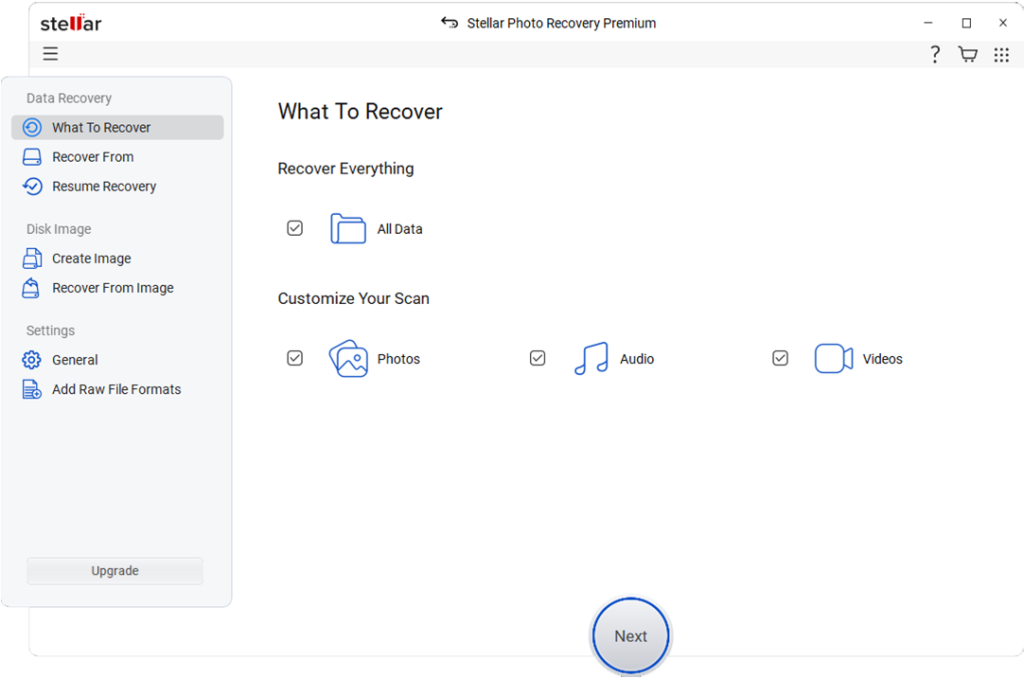
It supports over file formats and works on both Windows and Mac. For storage devices, it covers hard drives, SSDs, SD cards, USB drives, and even drones and digital cameras. The free version lets you recover up to 10 photo or video files for free, which is a fair way to test the tool before spending any money.
Buying a paid subscription can feel a bit steep if you only need it once and have already exhausted the 10 free file limit. But for anyone who shoots a lot of photos and wants both recovery and repair under one roof, Stellar Photo Recovery is genuinely worth a try.
Best for: Designed for all types and ages of users. Also, Mac and Windows users who want photo recovery and photo repair in one place.
2. Recuva
My first impression about the data recovery tool – Recuva is, it’s clean and simple UI, something that one can easily navigate even if they have never used recovery software before.
Here is what I liked about it: you do not have to pay a single dollar to use the full version. Most tools give you a free version that is cut down and barely useful. Recuva is different. The free version has no recovery limit, no file cap, and no watermark. You just download it and start scanning.
For photo recovery specifically, it handles RAW camera files pretty well, which is something PhotoRec can sometimes struggle with depending on the camera brand. It also shows you a “recovery chance” percentage next to each file, so you have a realistic idea of whether that photo is worth trying to get back or not.
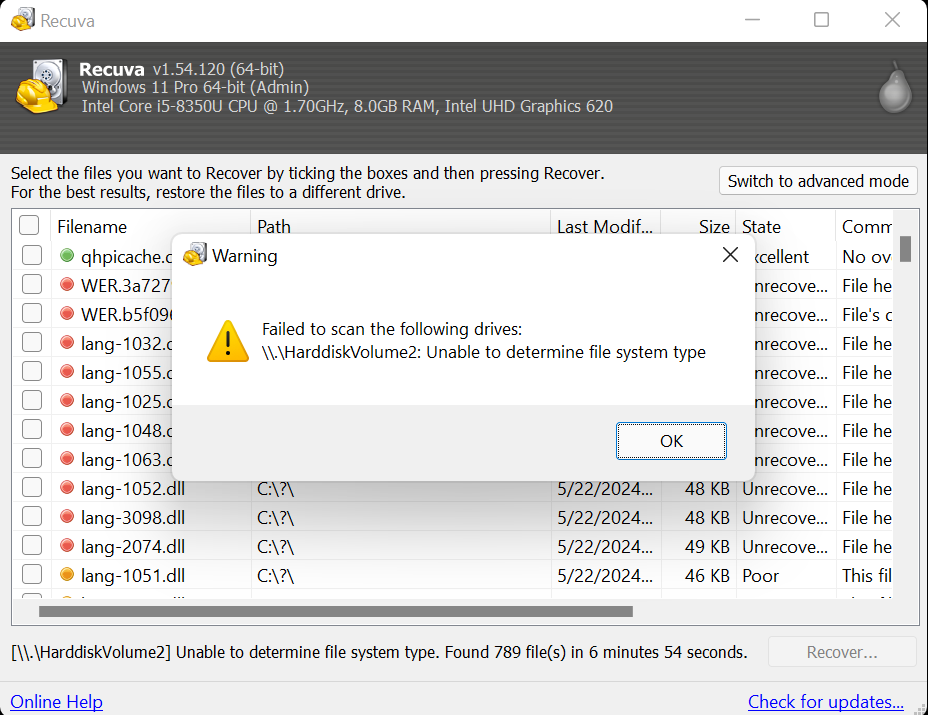
The Deep scan mode is what you want to use when the regular scan comes up empty. It takes longer, sometimes a good while on larger drives, but it digs deeper and tends to find files that the quick scan missed. One thing to keep in mind: if Windows has already overwritten the space where your file was stored, Recuva cannot help with that. No tool really can at that point.
It only works on Windows, and the interface can look slightly dated compared to newer tools. But for free price tage, it is hard to complain.
Best for: Windows users who want a completely free recovery tool, that is easy to use.
3. DiskGenius
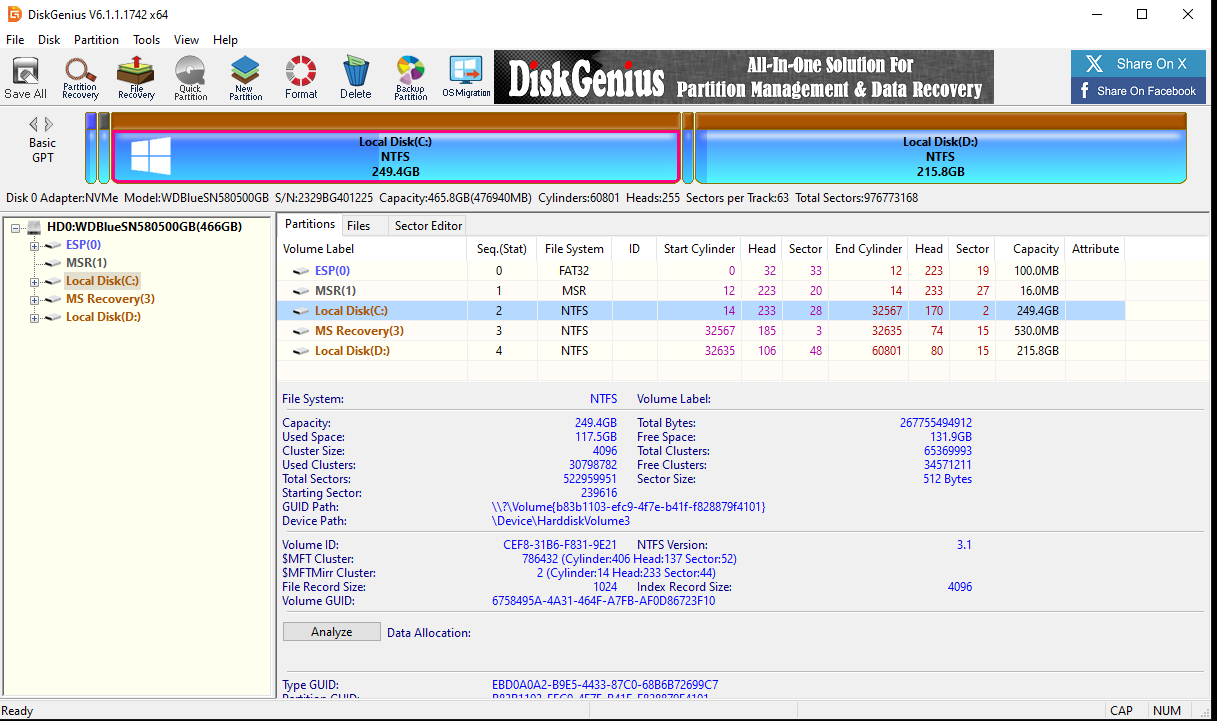
DiskGenius is the tool that tries to do everything. Most tools that try to combine disk management with file recovery end up being mediocre at both. DiskGenius manages to be genuinely good at both.
DiskGenius handles photos from NTFS, FAT32, and exFAT file systems, and it claims to recover files after deletion or even partition loss. In testing, it brought back more usable image files than expected, and it preserved folder names and file names better than raw signature-based tools like PhotoRec usually do.
The interface seems complicated and information overloaded, thus confusing users with actual recovery process. The free version limits recovery to files smaller than 64 KB, which is not much. To recover actual photos, you will need the paid version.
Best for: Users who want basic photo recovery and disk management tools in a single package.
4. DMDE Photo Recovery
DMDE is the kind of tool that a regular user might avoid at first. The interface is not something to be appreciated, and it throws a lot of information at you right away. But once you go past that, it is genuinely good for the reason it’s free.
I found that DMDE’s unique selling proposition is how it handles damaged drives and broken file systems. Most good tools give up when a partition is missing or a drive is showing as RAW. But DMDE does not. It goes in at a deep level, reads the disk structure directly, and tries to reconstruct what was there even when the file system is completely corrupted.
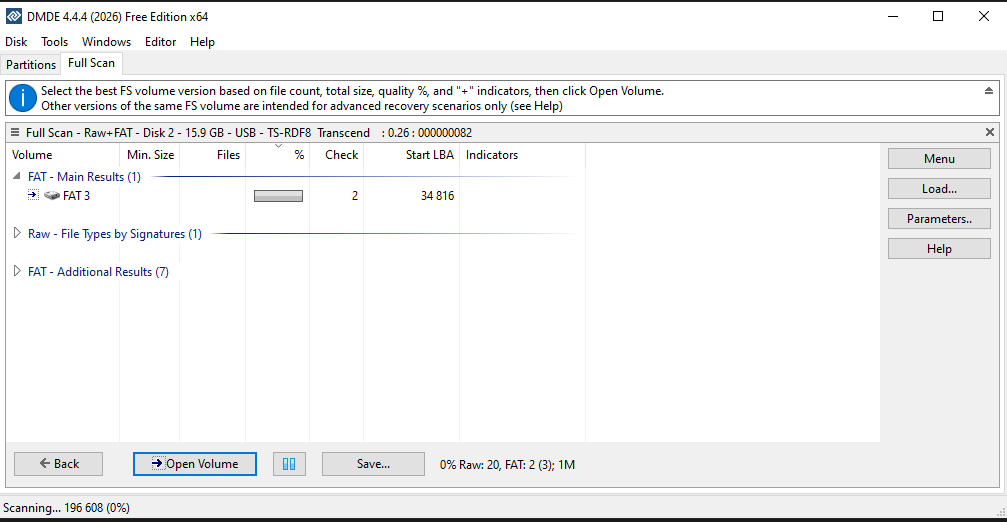
For photo recovery, it supports a decent range of image file formats and does a good job of scanning disk images, which is actually the smarter way to recover files from a failing disk. You make a copy of the drive first, then scan the copy. This protects the original from further damage during the recovery process. There are only a few high-end recovery tools that come with a disk imaging or cloning feature.
The free version does have a limit, roughly 4,000 files, which is something to keep in mind. The paid version is reasonably priced compared to a lot of bigger brands. If you are dealing with a messy, complicated data loss situation and other tools have already let you down, DMDE is worth the learning curve.
Best for: Advanced users or people dealing with corrupted partitions and damaged drives.
5. R-Photo
Most people have not heard of R-Photo, but it does something really well that a lot of other tools overlook. It was built with one specific goal: recovering photos and video files from memory cards, flash drives, and digital camera storage.
Unlike general-purpose tools that try to recover everything from emails to spreadsheets, R-Photo keeps its focus narrow. And because of that focus, it handles image file formats really thoroughly. It supports a wide range of RAW formats from camera brands like Canon, Nikon, Sony, and more, which matters a lot if you are a photographer trying to recover original, unedited shots.
The scan is quiet and thorough. It does not rush through the drive. It reads sector by sector, and even when a memory card shows up as empty or unreadable, R-Photo can still often pull photos out of it. That kind of deep scan approach is similar to what PhotoRec does, but R-Photo gives you a proper visual interface with thumbnail previews, so you can actually see what you are recovering before you save anything.
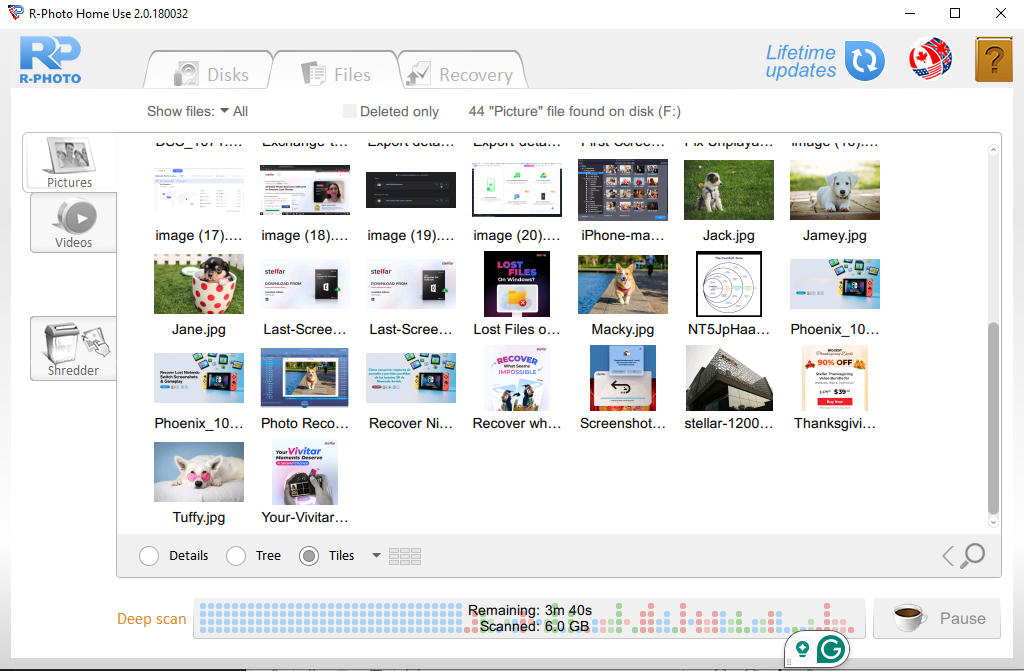
There is a demo version that shows you what it found before asking you to pay, so you can decide if the results are worth it. For photographers who shoots on memory cards, R-Photo can be a useful tool, only if it delivers.
Best for: Photographers who need to recover photos and videos from camera memory cards.
| Tool | Best For | Free Version | Compatibility |
| Stellar Photo Recovery | Photo Recovery + corrupt photo repair | Up to 10 Photo or Video Files(10 MB each) | Both Windows and Mac |
| R-Photo | Camera memory card recovery | Demo only | Windows only |
| DMDE | Damaged drives, advanced users | Limited (4000 files) | Windows, Linux |
| DiskGenius | Recovery + disk management | Files under 64 KB only | Windows only |
| Recuva | Free file recovery | Unlimited Files | Windows only |
Conclusion
Undoutbedly, PhotoRec is free and capable, but it lacks a user-friendly UI and is complex to use. That makes it time-consuming and does not offer any preview. Repairing is an extra demand, but tools like Stellar Photo Recovery do offer this.
The above suggested PhotoRec alternatives have something or the other feature on offer. Best part, they all have a UI that helps with easy navigation and makes the recovery process look simple. They all fill PhotoRec’s limitations in one or another way, depending on what you actually need. You can pick the one that matches your situation.
