To back up and restore a SQL Server database (which contains data stored in MDF and NDF file), use BACKUP DATABASE command to create a backup (.BAK) file and the RESTORE DATABASE command to recover or rebuild the database from that file. You can also perform these actions using SSMS wizard. For this, right-click on the database and then select Backup or Restore as required. To explore these methods in detail, read this guide.
In this guide, we will also explain Full, Differential, and Transaction Log backup types, along with all restore methods. We will cover database migration between servers, common restore errors, and quick ways to troubleshoot them. Additionally, we will introduce a professional SQL database backup repair tool to fix corrupted .BAK files when the restore process fails.
SQL Server Backup and Restore Process – An Overview
SQL Server DBAs are responsible for keeping data available and safe. Regular backups — stored securely off site — are the simplest way to protect against data loss during unexpected issues or disasters. A healthy, valid backup prevents potential data loss and helps in recovery of data within minimal downtime. Here are the situations where SQL Server Backup and Restore is Needed:
- Upgrading the current SQL Server version to the latest version
- Making the database available for remote-branch operations
- Configuring database mirroring for the database or Always On Availability Groups
- For testing consistency of the database across different servers
- Hardware/server failure
- Accidental table drop or data deletion
- Database corruption
- Natural disasters
- Ransomware attacks
Prerequisites for SQL Database Backup and Restore
Make sure:
- SQL Server Management Studio (SSMS) is installed
- SQL Server version is supported
- Sufficient disk space at backup destination
- Appropriate permissions on the database
- To choose the right recovery model
Understanding SQL Server Recovery Models
Recovery models are important because they control data loss risk, recovery flexibility, and backup strategy. In practice, they are required to determine how transactions are logged, what types of backups and restore operations are possible, and how the backup and restore process works.
For instance, databases in the Full model are restored in a sequence – full, differential, and then transaction log backups – to a specific moment. On the other hand, restoration in the Simple model is limited only to full or differential backups.
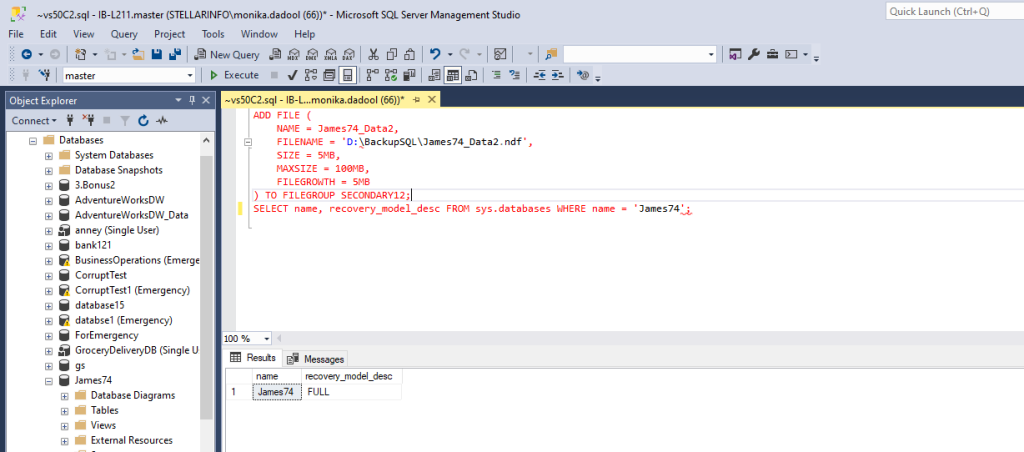
If you don’t know your current recovery model, you can use the below command:
SELECT name, recovery_model_desc FROM sys.databases WHERE name = 'James74';
Let’s see which backup type supports which recovery model:
| Backup Type | Simple Recovery Model | Full Recovery Model | Bulk-Logged Recovery Model |
| Full Backup | Supported | Supported | Supported |
| Differential Backup | Supported | Supported | Supported |
| Transaction Log Backup | Not supported | Supported | Supported (with limitations during bulk operations) |
| Filegroup Backup | Not Supported | Supported | Supported |
How to Take Different Types of SQL Server Database Backups?
In SQL Server, there are 4 common SQL database backup types. Let’s discuss them in detail.
1. Full Backup
It serves as a foundation of all other types of backups. However, creating a full backup of large database requires considerable storage space and time. You can create a full backup using SQL Server Management Studio (SSMS). This is a walkthrough:
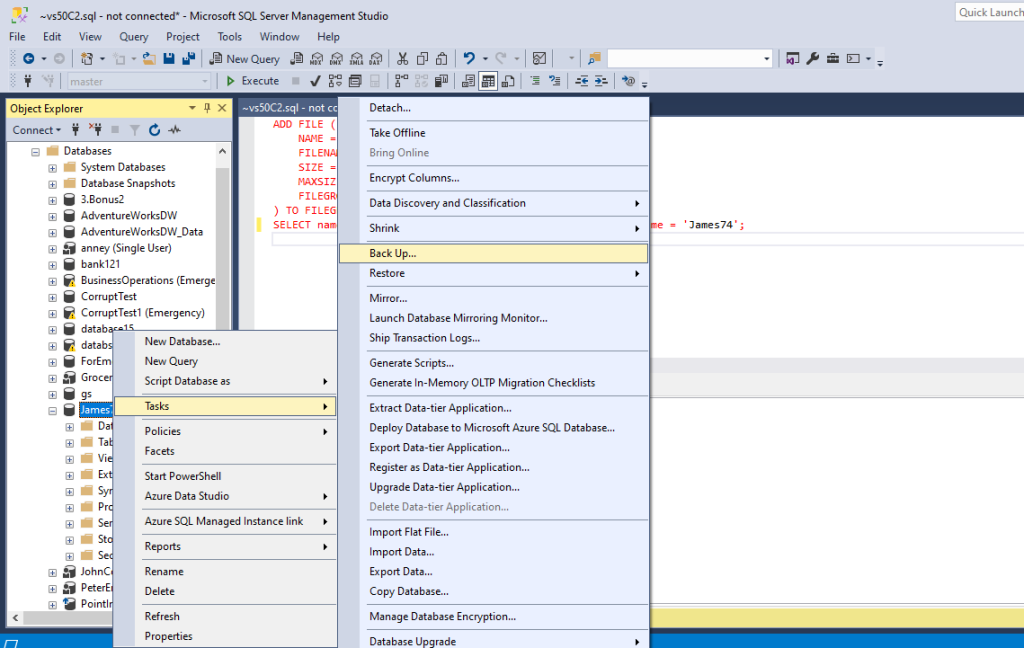
- Open SSMS. In the Object Explorer, right-click the database, and select Tasks > Back Up.
- In the window, select Full.
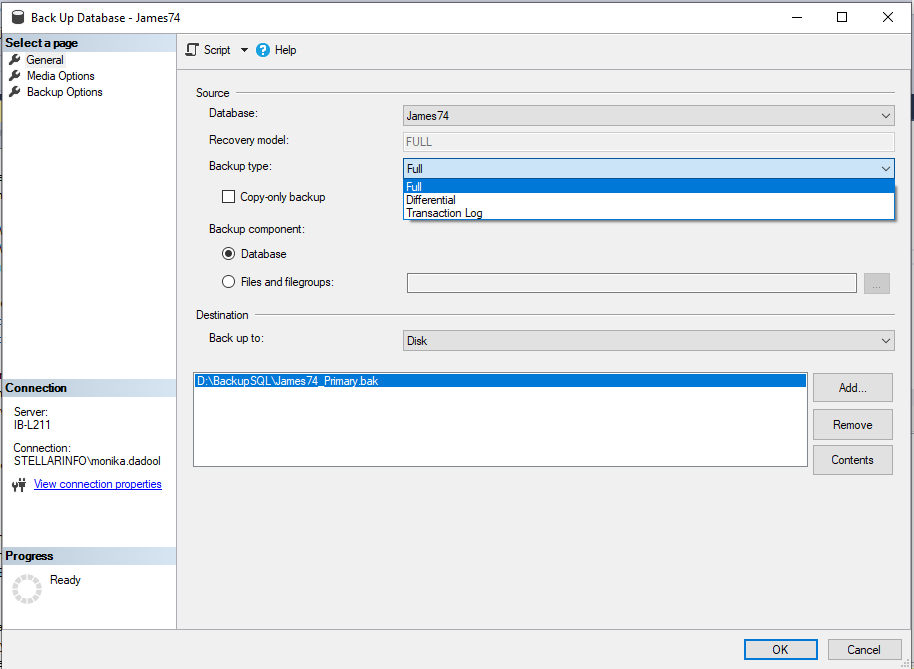
- Select Database under Backup component, choose a destination to store the backup, and click Add.
- Click OK. Wait till the backup is completed.
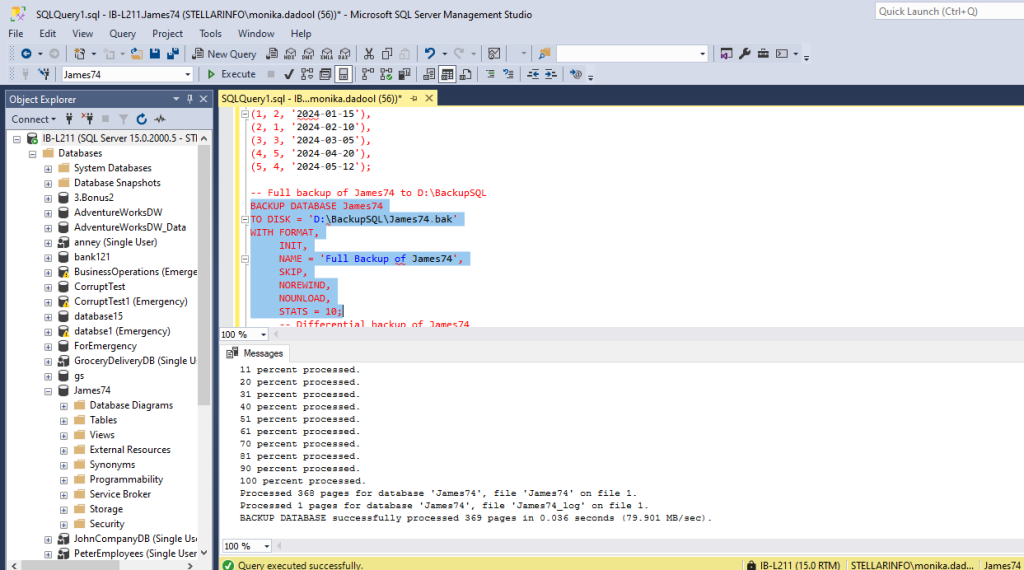
Here are the T-SQL commands to create a full backup:
BACKUP DATABASE James74
TO DISK = 'D:\BackupSQL\James74.bak'
WITH FORMAT,
     INIT,
     NAME = 'Full Backup of James74',
     SKIP,
     NOREWIND,
     NOUNLOAD,
     STATS = 10;
2. Differential Backup
Differential Backup stores only the modifications since the last full backup was created. This helps save storage space and time. Since it stores only the changes after the last full database backup, it requires less information. However, you need to restore the full back up before restoring the differential backup. Here are the steps to create differential backup using the SSMS:
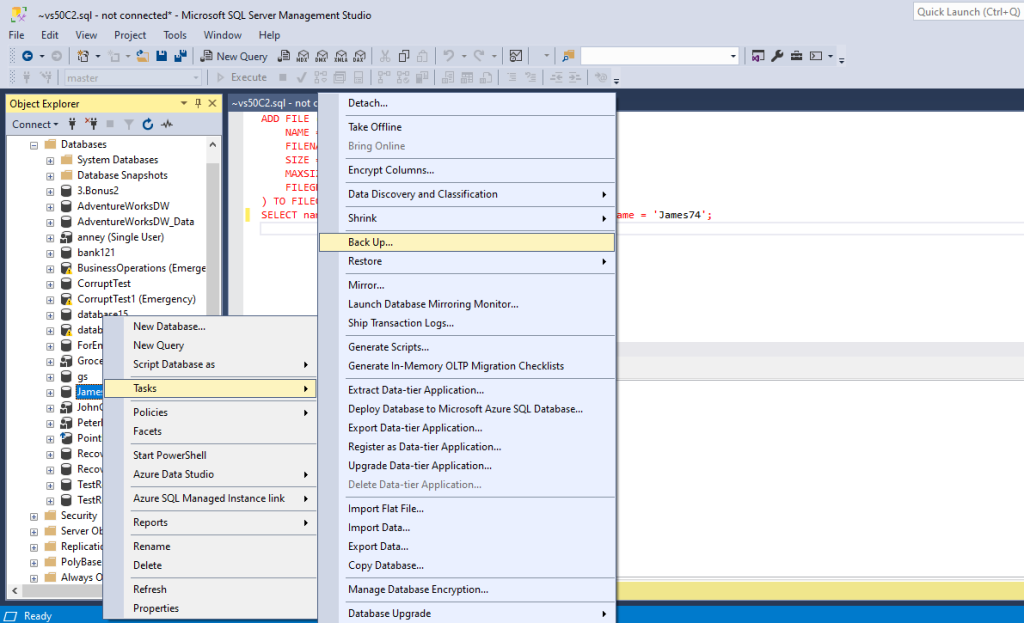
- Open SSMS. In Object Explorer, right-click the database and select Tasks > Back Up.
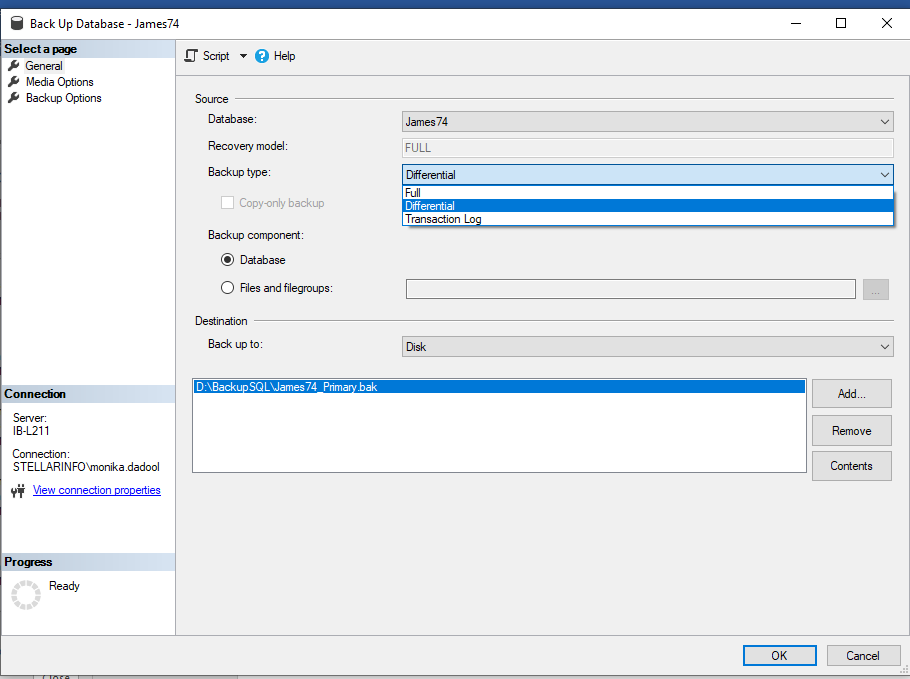
- In the Backup type dropdown, select Differential backup.
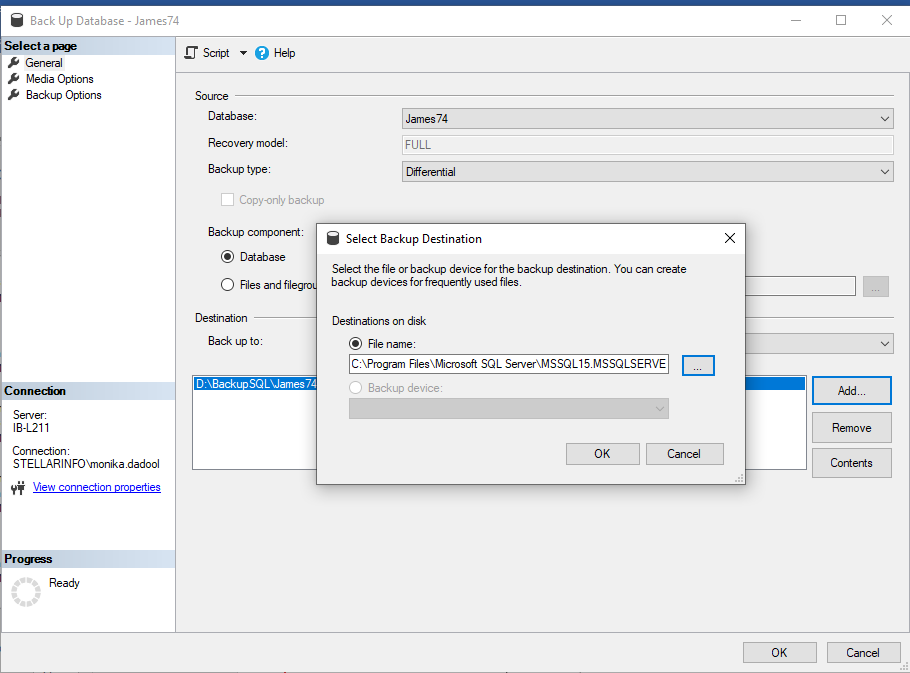
- Select the Database option under Database component, select a destination to store the backup, click Add.
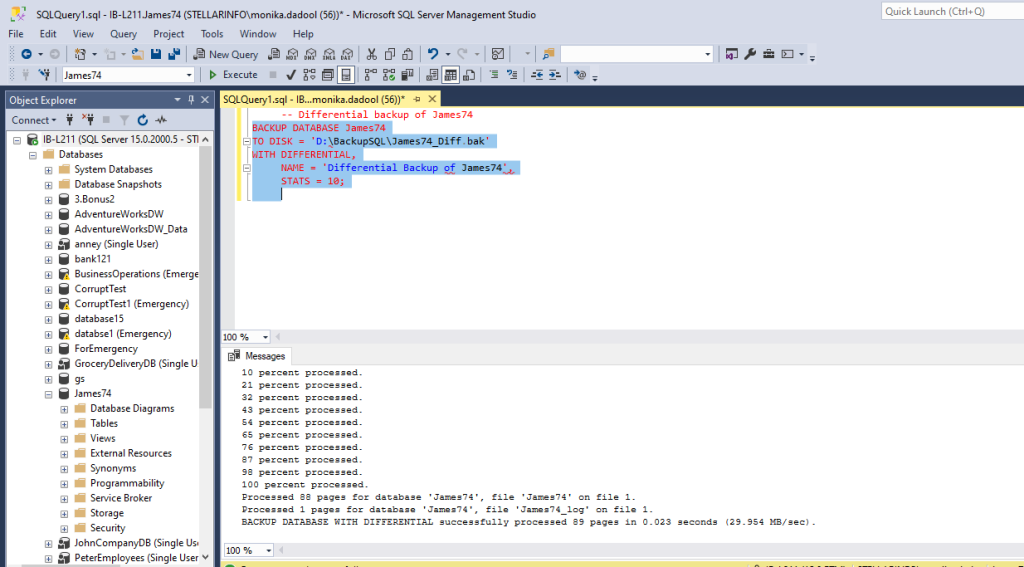
You can also the following query to create a differential backup:
BACKUP DATABASE James74
TO DISK = 'D:\BackupSQL\James74_Diff.bak'
WITH DIFFERENTIAL,
     NAME = 'Differential Backup of James74',
     STATS = 10;
3. Transaction Log Backup
Transaction Log Backup is a type of incremental backup that stores all the transactions logs. It contains only changes made to the database since the last log backup. It allows you to perform point‑in‑time recovery with minimum data loss. To create the transaction log backup , the backup type should be full or bulk-logged recovery.
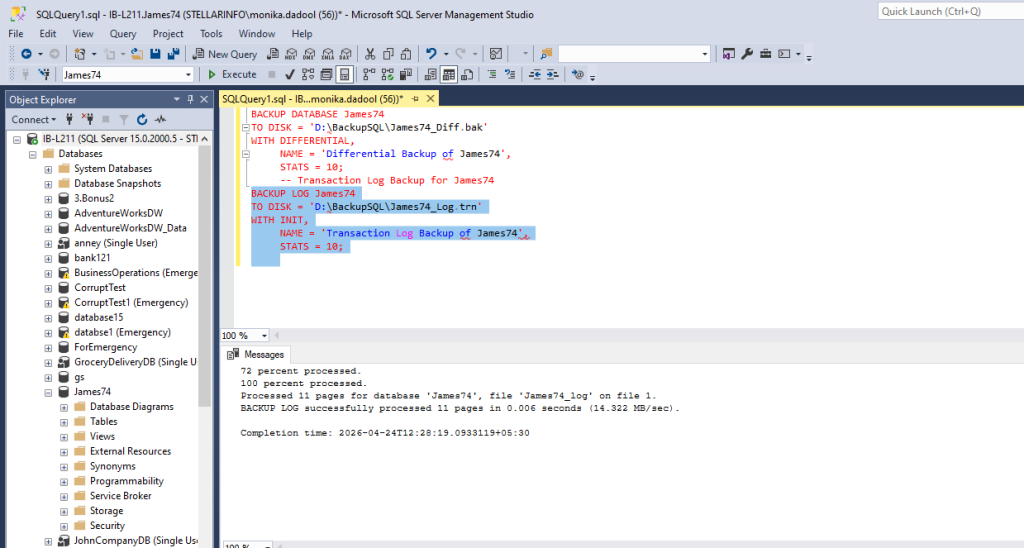
Run these commands to create this type of backup:
BACKUP LOG James74
TO DISK = 'D:\BackupSQL\James74_Log.trn'
WITH INIT,
     NAME = 'Transaction Log Backup of James74',
     STATS = 10;
4. Files and Filegroups Backup
Files and Filegroups backup stores a copy of selected files or filegroups within the database. This backup type is suitable if you only need to back up a specific part of the data regularly. This helps save significant storage space and time. If you’re trying to backup under the simple recovery model, then use READ_WRITE_FILEGROUPS. You also need to back up all active (read/write) filegroups together. It also allows you to perform piecemeal restore in MS SQL Server.
Here are steps to create files or filegroups backup using SSMS:
- In SSMS, go to Object Explorer, right-click the database, and select Tasks > Back Up.
- Select the Files and filegroups option.
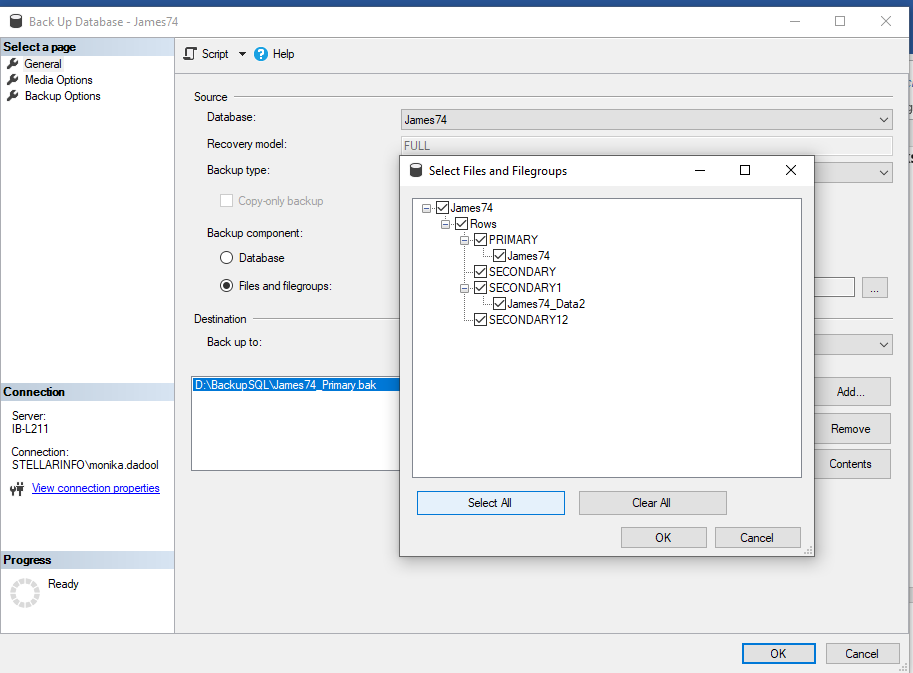
- Under “Select Files and Filegroups,” select the files that you want to back up
- Provide database name, specify the backup set, and choose a backup destination. Click OK.
- In the backup complete message, click OK.
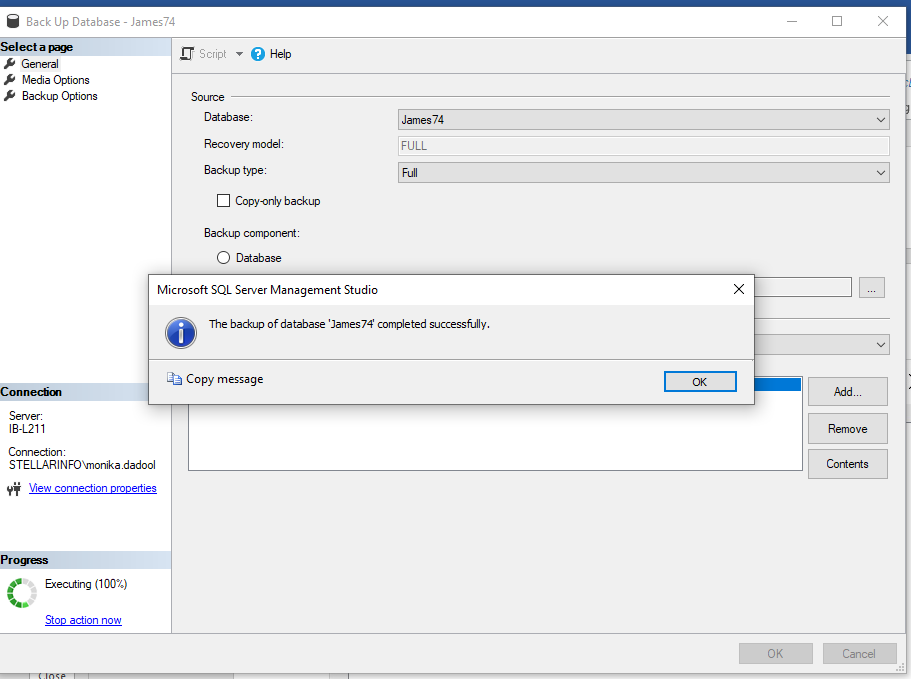
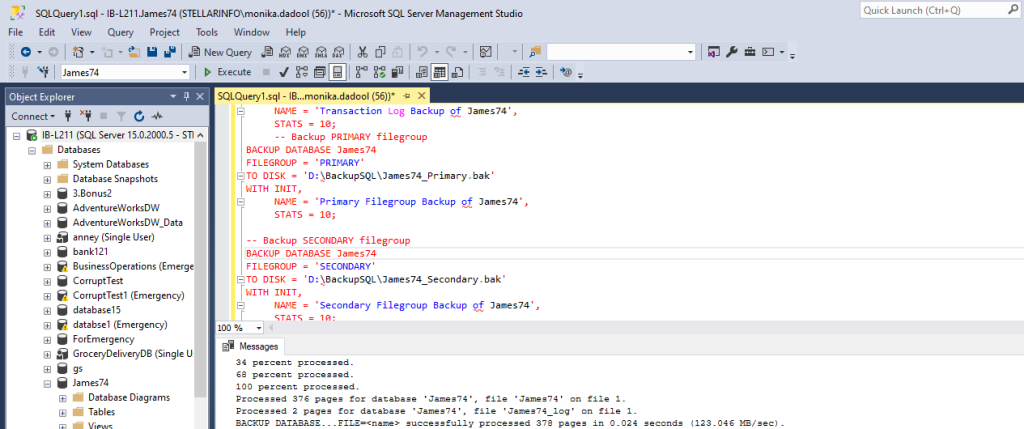
Alternatively, you can use the following T-SQL commands to create files or filegroups backup:
BACKUP DATABASE James74
FILEGROUP = 'PRIMARY'
TO DISK = 'D:\BackupSQL\James74_Primary.bak'
WITH INIT,
     NAME = 'Primary Filegroup Backup of James74',
     STATS = 10;
How to Schedule SQL Server Backup?(Easy Steps)
SQL Server also allows you to schedule the backup to run automatically at a specific time. Here’s how to do so:
- In SSMS, under Object Explorer, right-click on the database, click Tasks and backup…
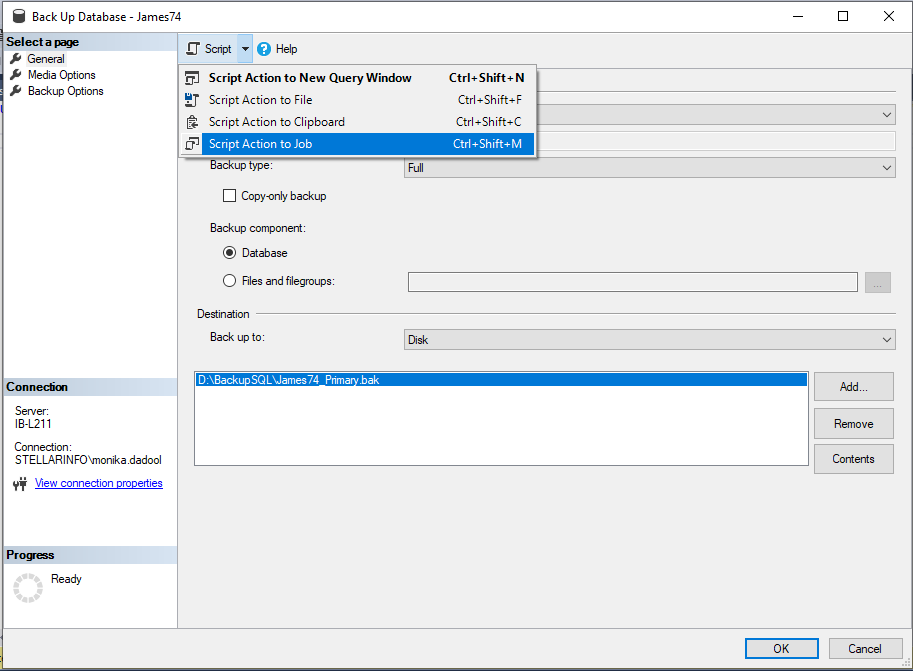
- In Back Up Database window, click Script and then select Script Action to Job.
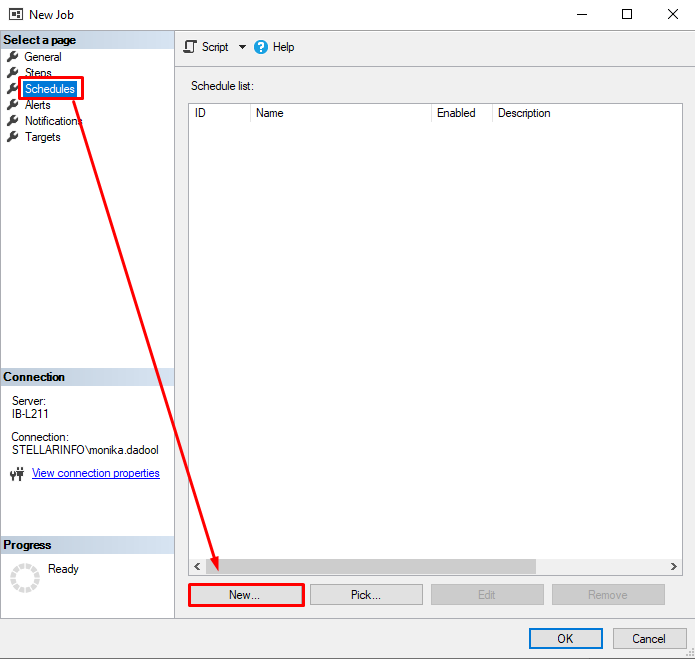
- Now, under Select a page, click Schedules and then click New.
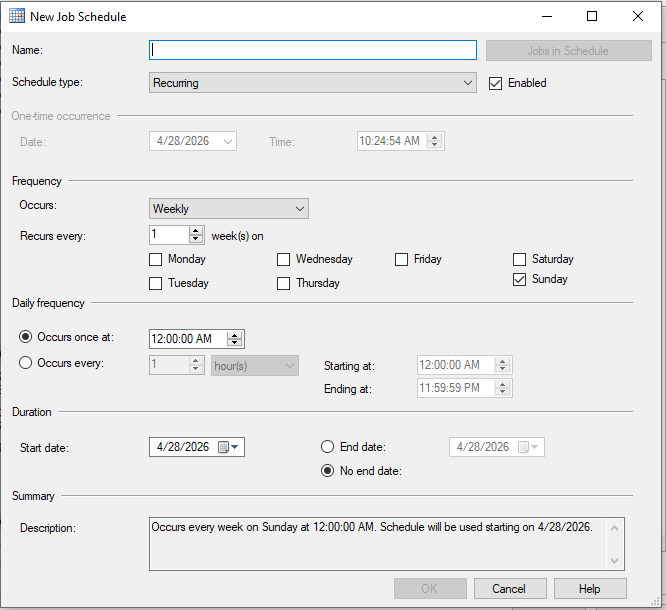
- Under the New Job Schedule, fill the fields according to your need and click OK to create backup job.
You can also use the Maintenance Plan Wizard and SQL Server Agent Job to create automated backups.
Best Practices to Create SQL Server Backups
- Follow the 3-2-1 Rule of storing backups:
- Keep 3 copies of your .bak file
- 2 copies on different media types
- 1 copy stored offsite or on the cloud
- Test your backups regularly using RESTORE VERIFYONLY
- Use backup compression to reduce storage size and improves performance
- Use SQL Server Agent Jobs to schedule backups.
How to Restore SQL Server Database Backup?
If you have a healthy, updated backup of your SQL Server database, you can simply restore it by using the T-SQL commands. Here’s how:
- In SSMS, click New Query option.
- In the Query Editor window, run the following command to restore the entire database from the .bak file:
Note: WITH RESTORE commands overwrite the existing database with the backup, even if from a different source so use cautiously in production.
RESTORE DATABASE James74
FROM DISK = 'D:\BackupSQL\James74.bak'
WITH REPLACE, RECOVERY;
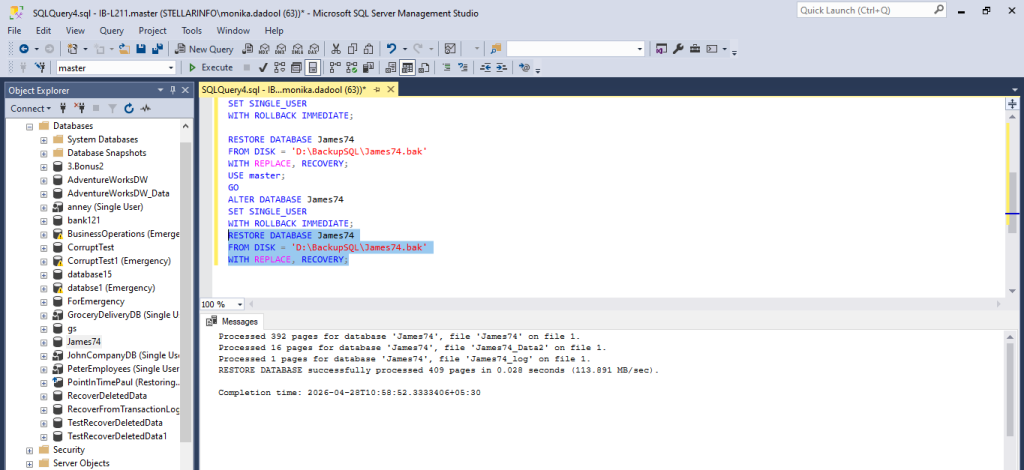
Sometimes, while executing this command you may face restore failed errors.
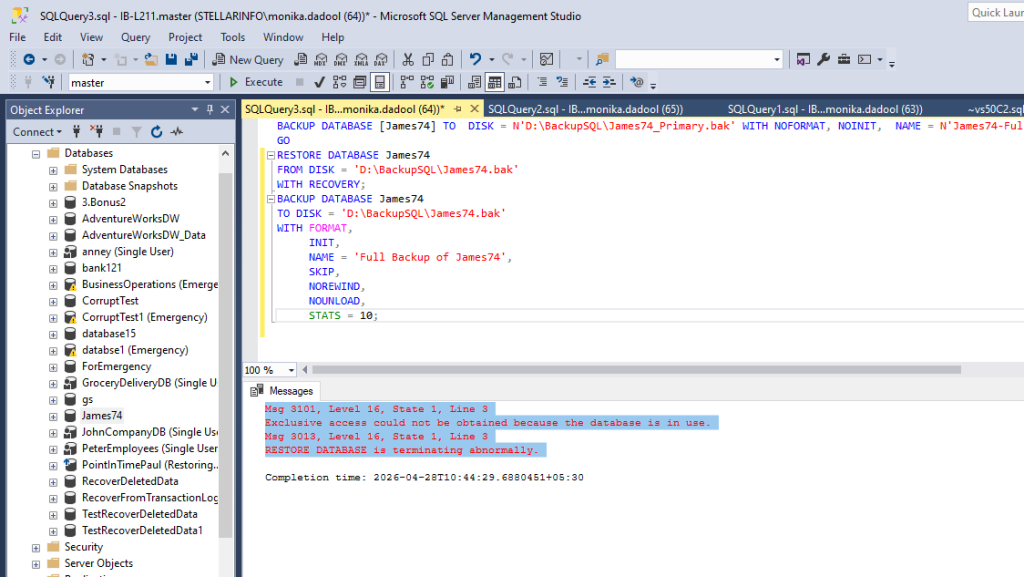
In such a case, you can run the following commands before restoring the database.
USE master;
GO
ALTER DATABASE James74
SET SINGLE_USER
WITH ROLLBACK IMMEDIATE;
For more details, read Error Resolved: SQL Database Restore Failed, Database in Use.
Alternatively, you can restore the SQL Server database backup using the SSMS or Windows PowerShell.
Restore the SQL Server Transaction Log Backup
For restoring SQL database using logs, ensure the following:
- You must have the RESTORE permissions on the Transaction Log Backup.
- You should have the VIEW DEFINITION permission to decrypt the encrypted backup.
- The backups have been created by using the full recovery model or bulk-logged recovery model.
Next, follow these steps:
- First, open the SQL Server Management Studio (SSMS) and then connect to the appropriate instance of the SQL Server.
- In Object Explorer, click the server name and expand the Databases node.
- Then, expand the System Databases node and click on the system database.
- Click Tasks, select Restore, and then click Transaction Log.
Note: You can restore the transaction log backup only in the restoring mode. If it is not in this mode, the transaction log option will be grayed out. In this case, restore the full or differential backup first.
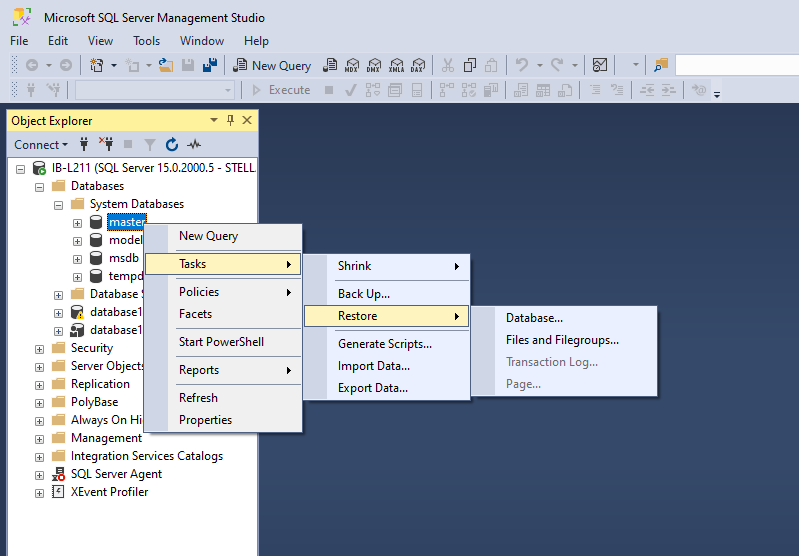
- In the Restore Transaction log window, click on the General option.
- On the General window, under Database, click on the database name.
- Next, specify the source and the location of the backup sets to restore. Click OK.
- In the Select the transaction log backups to restore window, select the backups to restore. This window lists the transaction log backups available for the selected database. You can see a list of the log backups according to LSN (log sequence numbers). Follow the order sequence to restore the log backups.
- Next, select Point in time or Marked transaction option.
- To select the advanced options, in the Select a Page pane, click Options.
- In the Restore options section, select the Recovery state as WITH RECOVERY. Click OK.
This will restore the selected transaction log backup files.
Another option is to use Transact-SQL commands to restore SQL Server transaction log backup.
How to Perform Point-in-Time Recovery in SQL Server?
You can use the query window or graphical user interface in the SSMS to restore the database to a specific point in time. Steps to restore database using point in time recovery via the graphical user interface are:
- In Object Explorer, connect to the appropriate instance of the SQL Server Database Engine and expand the server tree.
- Right-click on the Databases and select Restore Database.
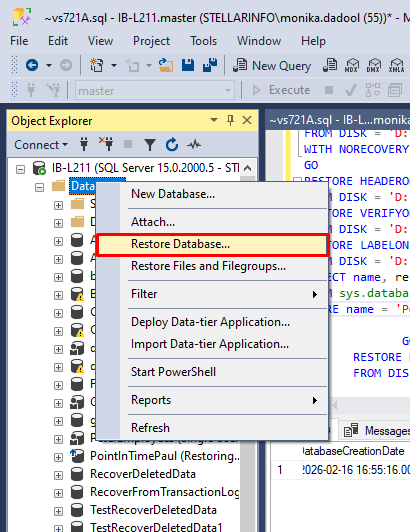
- In Restore Database window, select the required database in the Source. In the destination, the name of the database to be restored will populate automatically in the Database field.
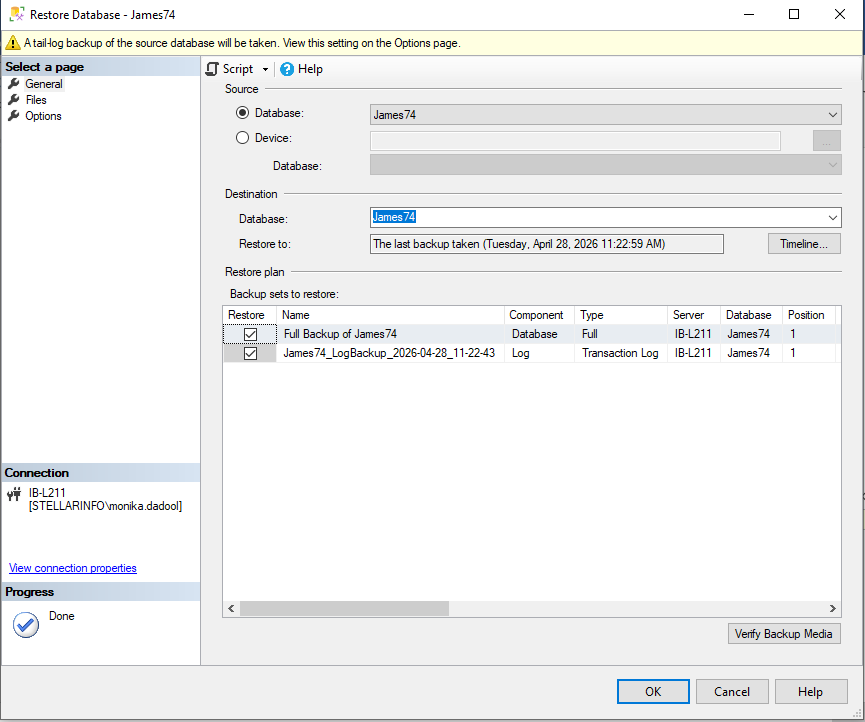
- Next, click on Timeline option to open the Backup Timeline window.
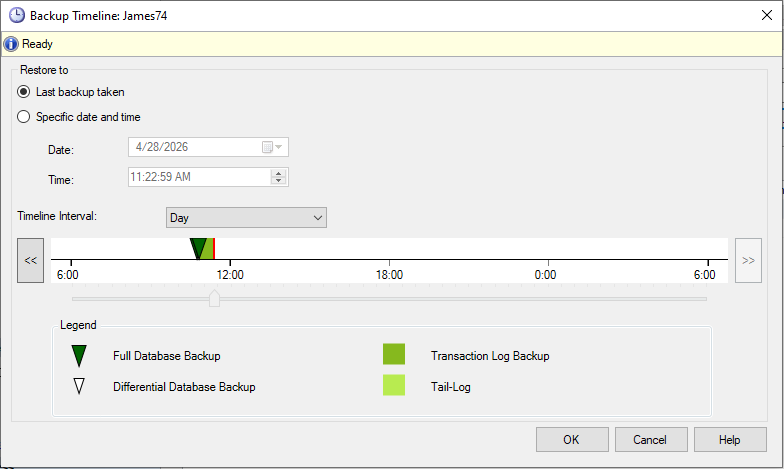
- In the Backup Timeline window, under Restore to section, click Specific date and time and use slider bar to specify date and time. Click OK.
- Click on Options and select the Restore Options according to your situation. Select the right Recovery state. Next, check the Close existing connections option to ensure that all active connections between Management Studio and the database are closed. Click OK.
How to Restore Specific File Groups from Backup?
You can restore one or specific filegroups from backup instead of restoring the complete backup using a filegroup restore. Here are the commands to do so:
RESTORE DATABASE James74
FILEGROUP = 'PRIMARY'
FROM DISK = 'D:\BackupSQL\James74_Primary.bak'
WITH REPLACE, RECOVERY;
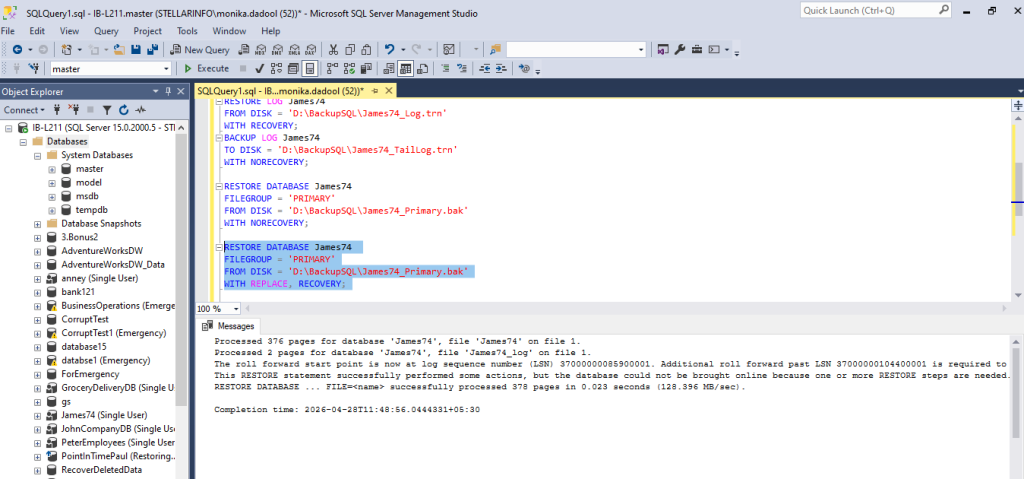
You can perform database recovery with piecemeal restore to bring some parts of the database online while other filegroups are being restored.
How to Restore SQL Database Backup from One Server to Another?
For restoring database from one SQL Server to another, you have to first back up the required database on the source server and then restore it on the destination server. Let’s see how:
- Open SSMS and connect to another SQL Server instance from where you want to restore the backed up database copy of the old server.
- Create a database with the same name that you want to restore. In our example, we have created a ‘Test’ database.
- Go back to the original backup file location and copy the ‘Test.bakfile.
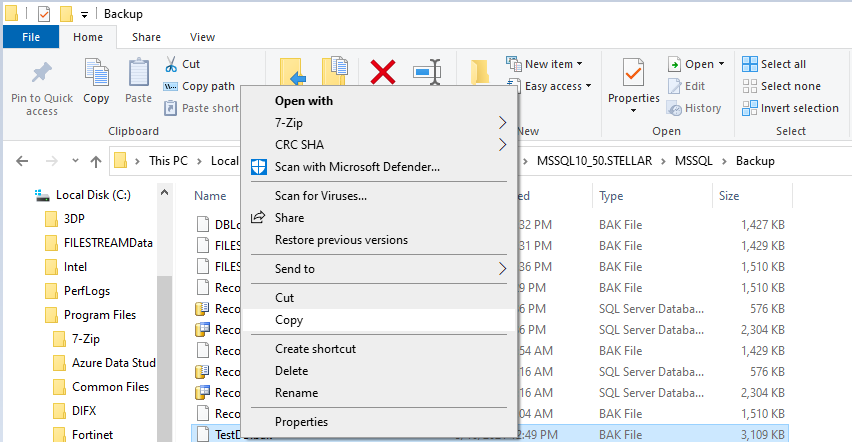
- Now paste the copied backup file in a temp folder on Windows Server 2012 (or any other Windows Server where you plan to restore the database).
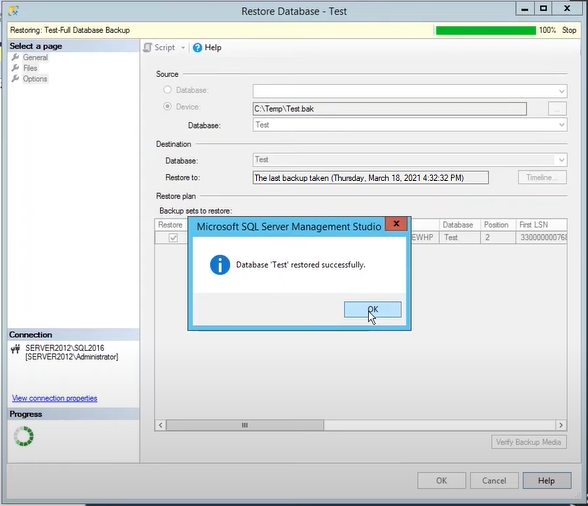
- Right-click on the Test database, and then select Tasks > Restore > Database.
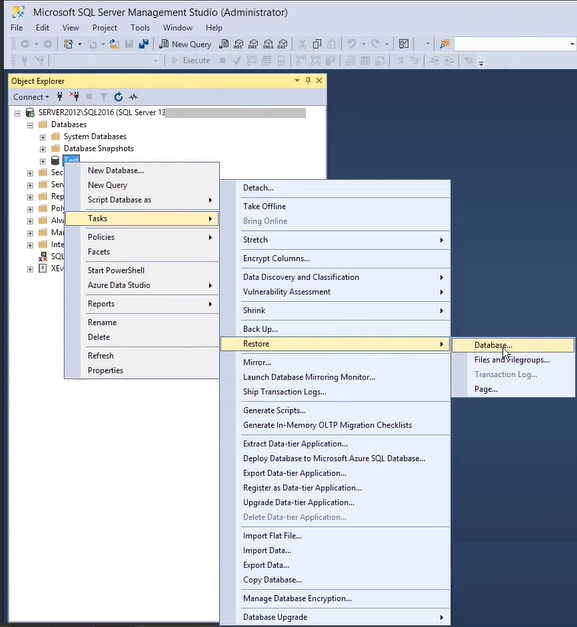
- In the ‘Restore Database’ window, click on the button with 3 dots. When a ‘Select backup devices’ dialog box opens, click on Add.
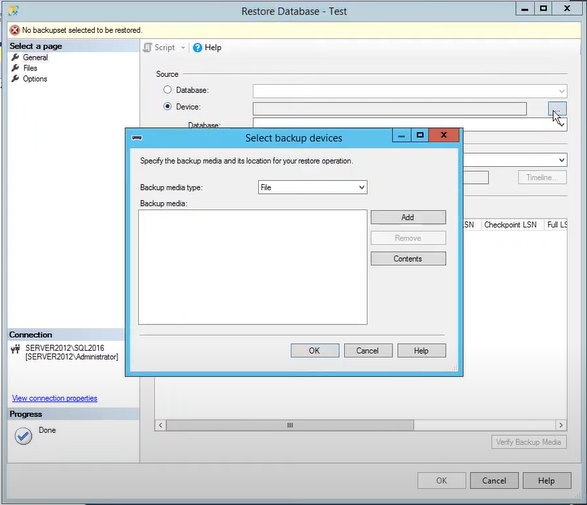
- In the ‘Locate Backup File’ dialog box, select the backup file that you want to restore, and hit OK.
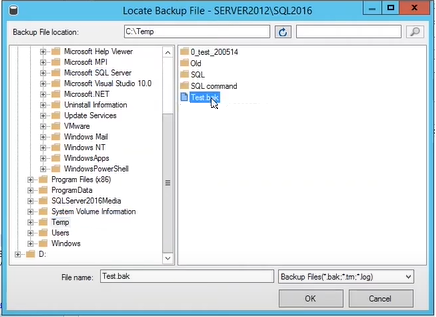
- Click the OK button once again.
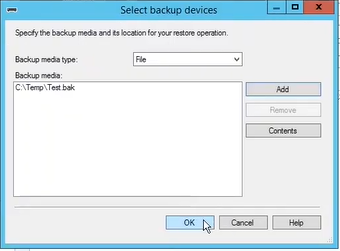
- The ‘Test.bak’ file will be added in the ‘Restore Database’ window. Click OK.
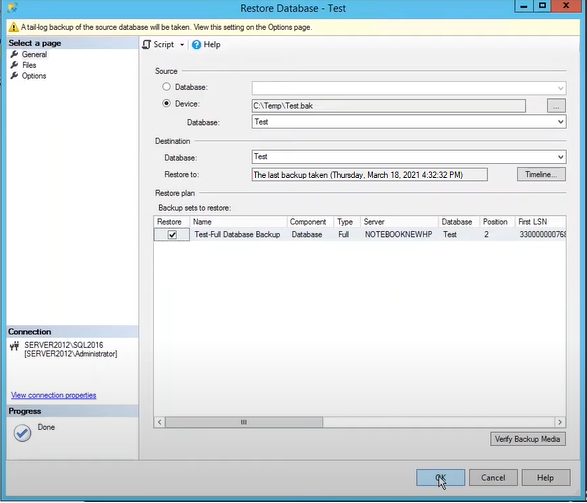
- Once complete, you’ll see the message “Database restored successfully.” Click OK.
Common Issues and Errors while Restoring SQL Database Backup
Here are error messages that you may encounter while restoring the BAK file:
Error 3183: Corrupt SQL Backup File
If there is corruption or integrity issues in the .BAK file, you may encounter this error when restoring it. As a workaround, you can try using the CONTINUE_AFTER_ERROR option with the RESTORE command. If there is corruption in .BAK file, you can fix it to resolve the 3183 error.
SQL Database Restore Failed, Database in Use
This error specifies that the backup file you’re trying to restore is already in use or has some issues. So, check and disconnect all existing connections. After this, restart the SQL services. If the file itself is corrupted, you can repair it to resolve the SQL database restore failed error.
Database cannot be opened: It is in the middle of a restore
This error indicates that the database is already in restore mode. So, wait until the database is restored. Corruption in the backup file can also cause this error. You can repair the backup file to resolve the Database cannot be opened: It is in the middle of a restore error.
The database cannot be recovered because the log was not restored
This error occurs when your SQL Server database is stuck in the RESTORING state. This might happen due to corruption in the SQL database or the backup file. You can repair the database or backup file to resolve the error ‘The database cannot be recovered because the log was not restored.’
SQL Database Error 3241: Restore Headeronly
This error usually appears when you try to restore the backup file of a higher SQL Server version in an older one. You can check the version of backup file to resolve the SQL database error 3241: Restore Headeronly.
SQL Backup Restore Error 3013
You can encounter this error due to issues with backup file, permission issues, and other reasons. You can check the file permissions or repair the backup file to resolve the SQL Error 3013.
What if the Backup isn’t Available, is Outdated, or is Corrupted?
You can try attaching the database (if intact), if your backup file is unreadable or corrupted. If the log chain is readable, you may also try to retrieve recent modifications using transaction logs. For high‑availability setups, check whether current or near real‑time copies exist. To reduce data loss, you can either extract data from these copies or failover to a backup server.
If nothing works, then you can use a professional SQL database repair tool – Stellar Repair for MS SQL Technician. It can help you repair and recover SQL database file and backup file in any condition without any file-size restrictions. It can help you restore all the components, including tables, indexes, etc., from damaged backup (.bak) files. The tool supports restoring backups of all types – Full, Differential, and Transaction Log. It provides a preview option to view all the recoverable objects in the file before saving it. Once you have repaired the backup file, then you can verify it using RESTORE VERIFYONLY command and then perform SQL database recovery.
Conclusion
You can back up and restore different types of database backups in SQL Server with SSMS and T-SQL commands, by following the above guide. You can even schedule the backups to save time and effort. If corruption in a backup file causes restore errors, you can use a proven tool to repair backups and recover all data. Stellar Repair for MS SQL Technician is one such reliable tool that you can use to repair and restore SQL backup/database files.
FAQs
