Page is the primary storage unit in SQL Server. All the information in SQL Server database (MDF/NDF) files is stored in pages of 8 KB size. Each page starts with a 96-byte header that stores information, like page number, page type, free space etc. If a page gets corrupted, then it can impact the entire database. In this case, you may receive different errors when opening the database file or even not able to access the database. Therefore, fixing page-level corruption immediately is important.
What is Page-Level Corruption in SQL Server?
It is a specific type of corruption where only specific pages in the database are affected instead of complete database. When this happens, you may face errors like incorrect PFS free space information error, error 8966, and more.
Pages may contain table data (data pages), index structures (index pages), large objects (text/image pages), or allocation metadata such as GAM, SGAM, and PFS pages. In SQL Server, an extent is a group of eight physically connected pages that help in efficiently managing these pages. Allocation maps like Global Allocation Map (GAM), Shared Global Allocation Map (SGAM), and Index Allocation Map (IAM) track page usage.
Here is a table showing the types of SQL Server pages used to store and manage data:
| Page Types | Description |
| Data Page | Stores actual table data (rows) |
| Index Page | Stores index structures for faster data retrieval |
| Text/Image Page | Stores large objects such as TEXT, NTEXT, and IMAGE |
| GAM (Global Allocation Map) | Tracks allocated extents |
| SGAM (Shared Global Allocation Map) | Tracks mixed extents with available space |
| IAM (Index Allocation Map) | Maps extents used by a table or index within a 4GB GAM interval |
| PFS (Page Free Space) | Tracks page status and available free space |
What Causes Page Corruption in SQL Server?
The following table outlines the most common causes of page-level corruption in SQL Server database and their descriptions:
| Cause of Corruption in SQL Database Page | Description |
| Hardware/disk issues | Bad sectors, issues in drive, I/O errors, etc. Can cause errors such as error 823 |
| Torn Page writes | Incomplete page write to disk — triggers error 824 |
| Checksum mismatch | Page verification fails on read – results in Error 824 |
| Sudden server shutdown | Crash during write operation – causes page corruption errors |
| Ransomware/malware attack | Encryption or modification of pages in MDF/NDF files – causes corruption errors |
| Software bugs | OS-level or SQL Server bugs affecting read/write operations – leads to corruption scenarios |
Common SQL Server Page Corruption Errors
Here are some page-level corruption errors in SQL server.
SQL Server Error 823
It is one of the common page errors which occurs when SQL Server fails to read or write a database page. It occurs due to hardware failure, bad disk sectors, or I/O controller issues. Another variant of this error is cyclic redundancy check (CRC) error.
SQL Server Error 824
This is one of the errors reported by DBCC CHECKDB. It occurs when this command fails internal validation checks on the database. The major reasons are page checksum failures, incorrect page header values, and others.
SQL Server Error 825
Basically, it is a read-retry warning. SQL Server successfully read the page but only after retrying the operation. This is an early warning that the storage subsystem is degrading. The page was read successfully this time — but if the problem progresses, Error 823 failures will follow. It occurs due to disk or controller issues.
How to Detect Page Corruption in SQL Server Database?
Before proceeding to the solutions to fix corruption, you need to check the SQL database for corruption. There are various ways to check page-level corruption in SQL Server database. Some of them are explained below:
1. Run the SELECT Statement to Query the suspect_pages Table
SQL Server keeps a log of all the suspect pages in the suspect_pages table in msdb (system) database, containing all the corrupt pages that are reported by SQL queries. This table gets automatically updated when the server detects checksum failure, read/write, or torn pages error. You can check the suspect_pages table to see the corrupted pages in the database. For this, you can run the SELECT statement as given below:
SELECT * FROM msdb..suspect_pages

The above command will return a grid with a row of each corrupted page. In the above image, you can see that the page, with id 368, is corrupted.
Key Terms to Understand suspect_pages Results
To interpret the output of the msdb..suspect_pages table, focus on these core columns:
database_id: Identifies the affected database.
file_id: Specifies the database file (MDF/NDF) where corruption occurred.
page_id: Identifies the exact corrupted page within the file.
event_type: Indicates the type of corruption error detected on the page:
- 1 = Error 823 (I/O or CRC error): Typically caused by disk or hardware issues.
- 2 = Error 824 (Bad checksum): Indicates logical corruption detected during page verification.
- 3 = Error 824 (Torn page): Indicates incomplete page write due to sudden interruption.
2. Run DBCC CHECKDB Command
DBCC CHECKDB is one of the best commands to check physical and logical integrity of database objects, pages, and index relationships. Here’s how to use it to check for corruption in pages in the SQL database.
DBCC CHECKDB (person);

The above will show errors if it detects any issue related to consistency, allocation, and integrity. It also display which objects are affected and suggests possible repair options. Consider the below-given key indicators to understand command’s output:
Msg 823: Indicates physical I/O errors (disk-related corruption)
Msg 824: Indicates logical corruption (checksum failure or torn page)
Msg 825: Indicates read-retry warnings (early sign of potential corruption)
Object details: Shows which table or index is affected
Page information: Shows specific corrupted pages (File ID, Page ID)
Allocation errors: Indicates issues with page linkage or structure
3. Use PAGE_VERIFY CHECKSUM Option
You can also use the CHECKSUM option to detect page-level corruption in SQL database, if the PAGE_VERIFY option is set to CHECKSUM. It is a database option that defines the process in SQL Server to check page consistency when it is written to the disk and read again from the disk. If verification fails, you may face an error, clearly specifying corruption.
To check whether the CHECKSUM option is enabled for your databases, run the following command:
SELECT name, page_verify_option_desc FROM sys.databases
If it is already set, then SQL Server actively detects corruption during read/write operations.
If CHECKSUM is not set, add database in following command to add it:
ALTER DATABASE [nameofdb] SET PAGE_VERIFY CHECKSUM WITH NO_WAIT;
4. Run DBCC PAGE Command
The DBCC PAGE command is an undocumented command used by many SQL admins that is used to detect corrupt pages in a database. It works only if you know the file_id and page_id of a damaged page in MDF/NDF file, you can view its contents using DBCC PAGE. To see the output, enable trace flag 3604 first. Here is the command:
Caution: Use this command in non-production environment.
DBCC TRACEON (3604)
DBCC PAGE('Recovery_test',1,368,2) WITH TABLERESULTS
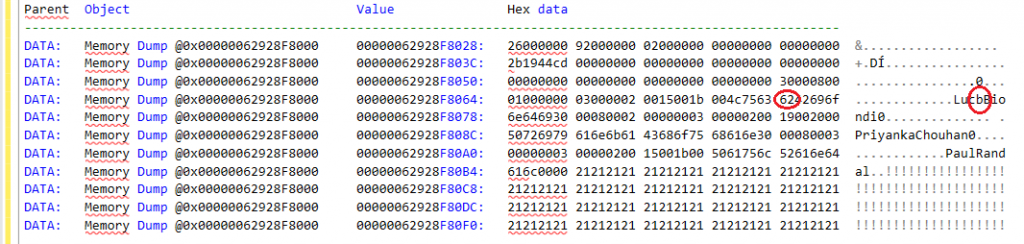
The command output helps identify the type of corruption and affected data by displaying detailed page information, including the header, metadata, and low-level binary (hex) data.
Database name– The MDF/NDF file name you want to check.
File ID -The logical file ID within the database. Each database file (MDF, NDF) has its own ID.
Page ID -The specific page number within the file. Pages are the fundamental storage units in SQL Server (8 KB each).
Print option helps to controls the level of detail returned:
- 0 → Header only
- 1 → Header + page data
- 2 → Header + hex dump
- 3 → Header + each row
Suggested Read: How to Repair MDF File in SQL Server Database?
5. Monitor SQL Server Error Log
SQL Server automatically records all events including corruption-related errors in the error log, making it a crucial source for early detection of database issues. To check the error logs in SQL server, go to Object Explorer, expand Management Plans section.
Next, click SQL Server Logs, select View > Error Logs.
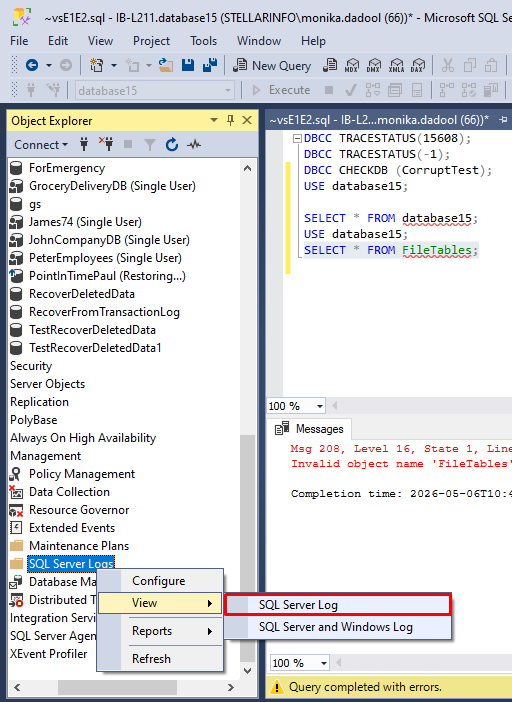
You can check for SQL server errors 825, 824 and 823 which indicate I/O problems, logical corruption, and read-retry warnings.
Solutions to Fix Page Corruption in SQL Server Database
If you find any page-level errors or corruption in SQL database, then follow the below solutions to repair the database and recover the data.
Solution 1 – Perform Page Level Restore
You can perform “Page Restore” to restore only the corrupt/damaged pages, without restoring the entire database. This is a faster way when you need to restore only a few individual pages. The page restore applies to databases that use full or bulk-logged recovery system. You can restore pages by using the SQL Server Management Studio or T-SQL commands. In SSMS,
- First connect to correct SQL Server instance.
- Now check under the options in Object Explorer, expand the Databases node, right-click on the affected database, and select Tasks > Restore > Page. This will open the Page Restore window.
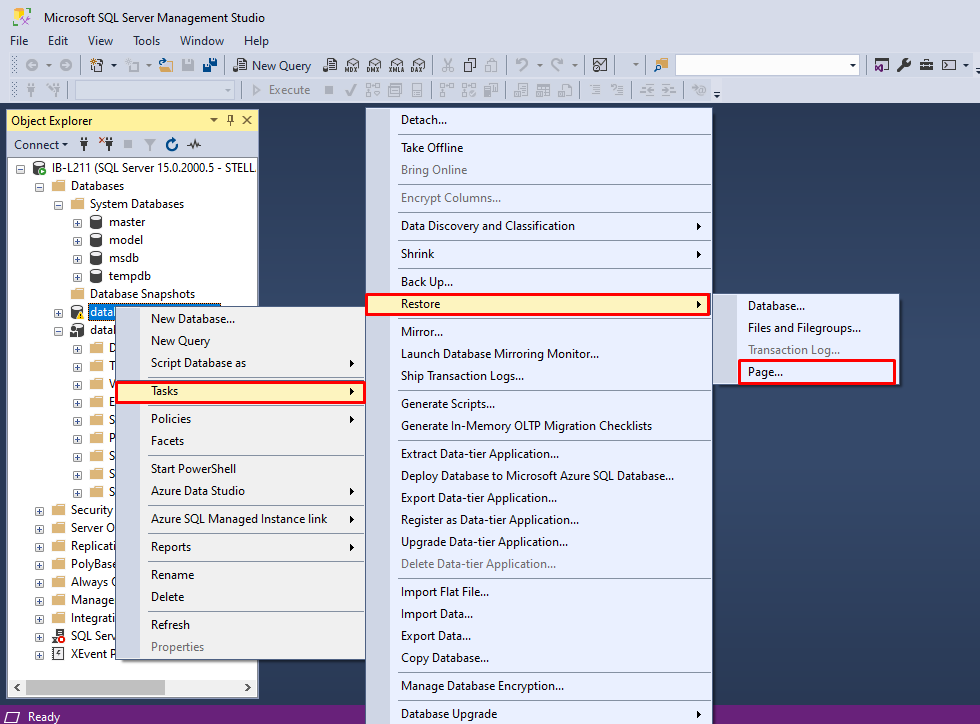
- In the Page Restore window, check the selected database, backup file, backup set, and other required details.
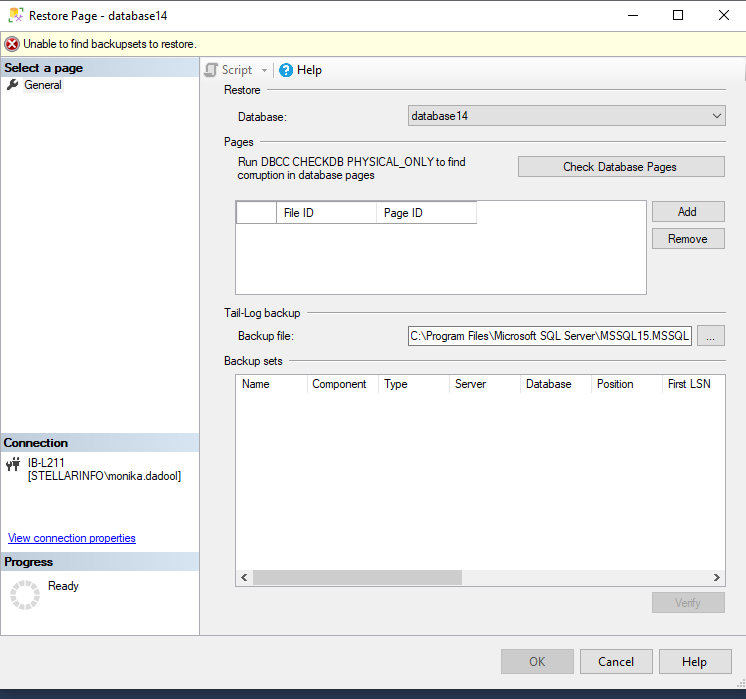
- To identify the corrupt pages, click Check Database pages. This may take some time.
- When the process is finished, it will display the pages grid. Here, you can identify the pages to be restored.
- Use the Add and Remove button to add or delete the pages.
- Next, click OK to restore the pages listed in the pages grid.
You can also use the T-SQL command-RESTORE DATABASE (as shown below) to restore the page.
Note: You must know the File ID where the page is located and Page ID of the corrupted page.
RESTORE DATABASE <db_name>
PAGE = '<file: page> [ ,... n ] ' [ ,... n ]
FROM <backup_device> [ ,... n ]
WITH NORECOVERY
Limitations of the above method:
- Restoring multiple pages using Page Restore is a time-consuming process.
- It can restore only database pages. It does not restore Transaction log, Allocation pages, Page 0 of all data files (the file boot page), Page 1:9 (the database boot page), and Full-text catalog.
- It only supports databases that use the full or bulk-logged recovery model.
Solution 2 – Restore Full Backup
If multiple pages are corrupted, then you can restore full backup to recover the database. It can helps you restore Allocation pages, including Allocation maps (like Page Free Space, Global Allocation Map, Shared Global Allocation Map, etc.).
To restore corrupt SQL database from backup, use this command:
USE master;
GO
RESTORE DATABASE [YourDatabaseName]
FROM DISK = N'C:\Backups\YourDatabaseBackup.bak'
WITH RECOVERY;
Solution 3 – Use DBCC CHECKDB Command
If multiple pages are corrupted and backup is not available, then you can use the DBCC CHECKDB command to repair the corrupt SQL database. You can use the REPAIR_REBUILD to fix minor corruption issues. If it fails to work for you then use REPAIR_ALLOW_DATA_LOSS option with the command.
First, you need to set the database in single-user mode by running the below command:
ALTER DATABASE Dbtesting SET SINGLE_USER
Then, run the below command to repair the database:
DBCC CHECKDB (N ’Dbtesting’, REPAIR_ALLOW_DATA_LOSS) WITH ALL_ERRORMSGS, NO_INFOMSGS;
GO
After repairing the database, set it to multi-user mode by using the below command:
ALTER DATABASE Dbtesting SET MULTI_USER
Limitations of the above method:
- It may deallocate rows, pages, or series of pages, when repairing the database. This may result in some data loss.
- You may require to run this command several times to resolve the issues, which is a time-consuming process.
Solution 4 – Use DBCC WRITEPAGE
It’s an undocumented SQL Server command that allows direct modification of database pages, bypassing normal safeguards. SQL admins usually use it in R&D or sandbox environments to simulate corruption for practice in recovery scenarios. It is quite risky because it can overwrite values at the byte level, potentially breaking page checksum and causing errors. Recovery of corrupted data using this way is only possible if the original state is known. The values are then restored by re-writing them.
Syntax of this command:
DBCC WRITEPAGE (databasename, fileid, pageid, offset, length, data, directORbypassbufferpool)
Solution 5 – Use a Professional SQL Repair Tool
If the above methods fail to repair highly corrupted SQL database files then use a professional SQL repair tool, such as Stellar Repair for MS SQL. It is trusted by MVPs as it can easily repair and recover damaged databases without any data loss. It restores tables, pages, views, keys, and indexes with complete integrity and precision.
Some key features of Stellar Repair for MS SQL:
- Supports PAGE compressed data.
- Repairs both MDF and NDF files.
- Restores all the data from damaged SQL database with complete integrity.
- Supports repairing SQL databases on both Windows and Linux systems.
- Supports MS SQL Server 2022 and lower versions.
- Allows to save the repaired file in multiple formats – live database, new database, CSV, and XLS.
- Helps to resolve complex corruption-related errors.
Watch the below video to know how the software works:
To Conclude
There are various reasons that can cause page-level corruption in SQL Server databases. Above, we have discussed how to detect page-level corruption in the database. If the number of affected or damaged pages is less, you can restore them using the page restore method. If multiple pages are corrupted, DBCC CHECKDB can repair the database; however, both methods have limitations, as mentioned in the article. In such cases, taking the help of any trustworthy repair tool like Stellar Repair for MS SQL is an optimal solution. It can quickly and easily recover severely damaged MDF/NDF files and restore data accurately.
FAQs:
