It’s every photographer’s nightmare: you go to open your precious RAW photos (DNG files) on your Windows PC and… nothing. The files won’t open, or show gibberish or errors. Before you panic, know that DNG corruption is often fixable. In this article, we’ll walk through various fixes from free Windows tools to specialized programs to get your images back and explore why DNG files get damaged in the first place. If a quick fix doesn’t work, we’ll also introduce an easy tool that can repair even severely corrupted DNGs. Read on, and don’t lose hope!
What are the Best Ways to Repair DNG Files?
Below are the troubleshooting methods we discussed above and you can try those on Windows in the below order:
- Use a Different Photo Viewer or Convert the File
- Run SFC Scan to Fix System Errors
- Update Device Drivers for Access Issues
- Use System Restore
- Run CHKDSK to Repair Storage Errors
- Use Professional DNG Repair Software
Method 1: Use a Different Photo Viewer or Convert the File
Sometimes, the issue isn’t the file but it is the software at fault. Try to open it in a different program that has RAW image support. You can:
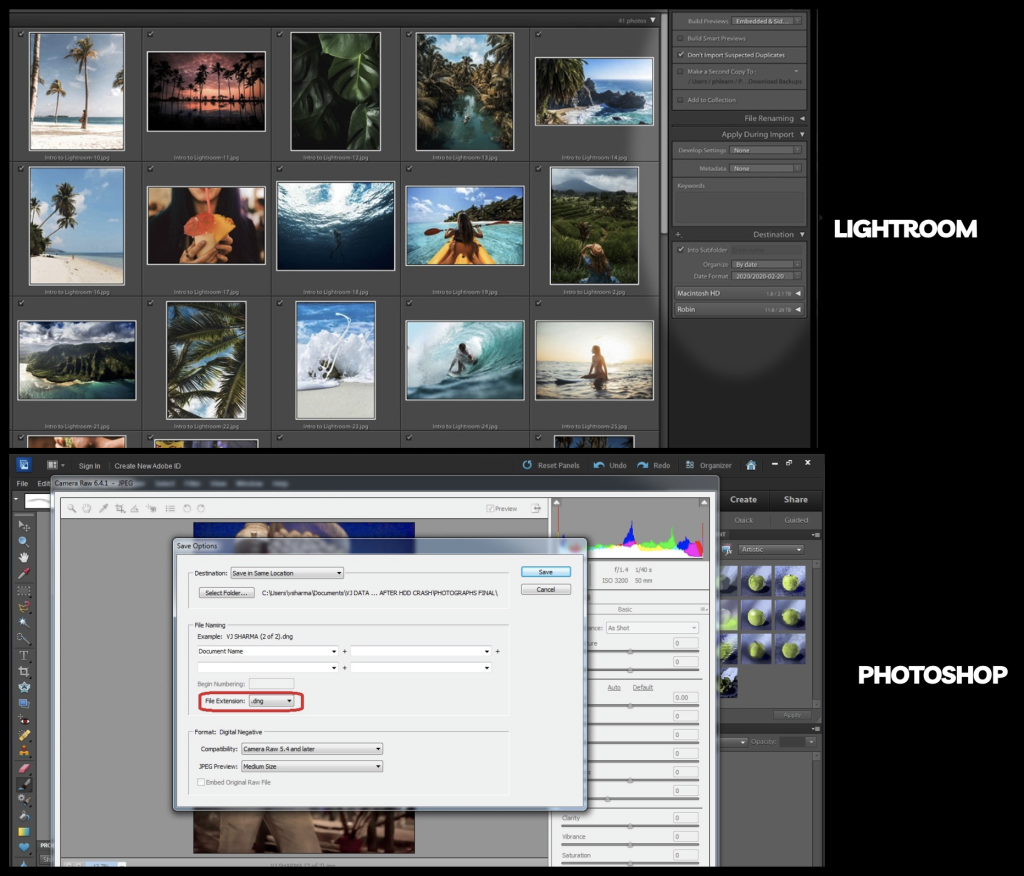
- Open DNG Files with Photoshop or Lightroom: Right-click on .dng file, click “Open with” and then choose Photoshop or Lightroom. If one program fails, try another and you might get lucky here.
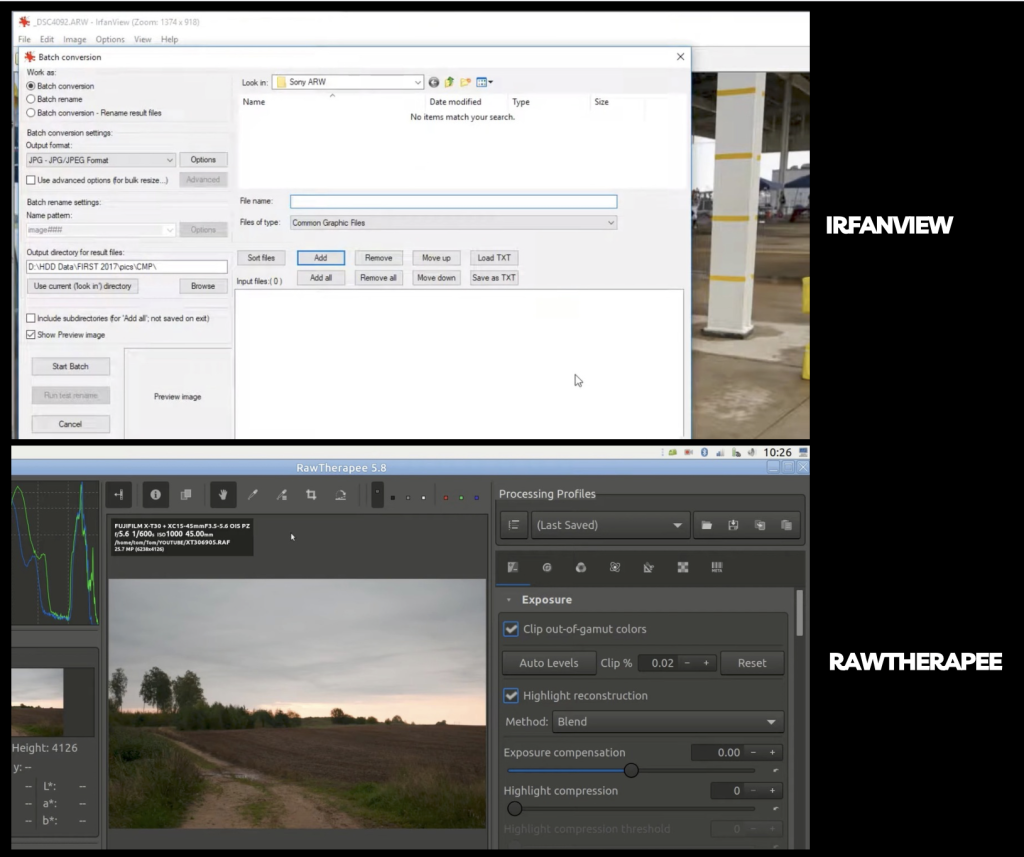
- Use a Free RAW Viewer: Install a free-to-use or open-source app like IrfanView with CamRAW Plugin or RawTherapee and just attempt to open the .dng file.
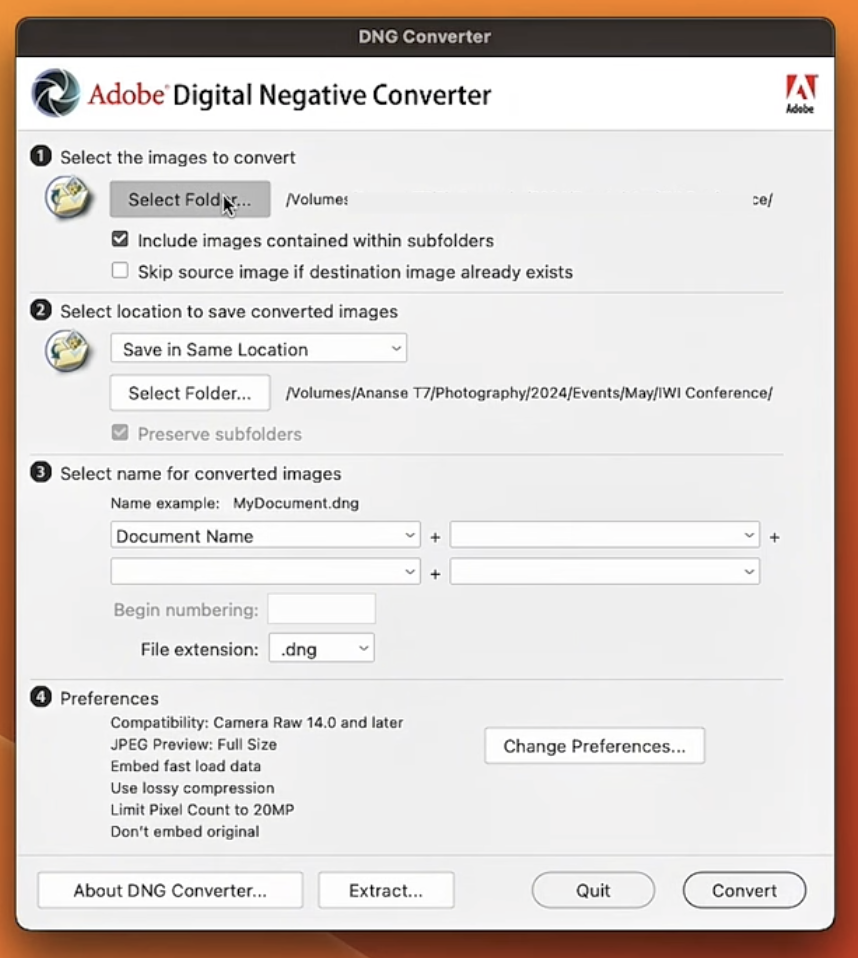
- Convert with Adobe DNG Converter: As an alternative to the tools above, go ahead and download Adobe’s free DNG Converter. Run it on the file and it may just rebuild the file and output a fresh .dng that opens correctly.
After trying each option see if you can view or export that image. Sometimes, when you use a different editor or re-save the file… it simply fixes these minor issues. If none of these work at all, you have to move on to Windows system tools.
Method 2: Run System File Checker (SFC) to Fix System Errors
Windows in its package includes an SFC scan feature that can repair system’s file corruption, which affects how images are handled occasionally. To run it:
- Open the Start menu, search for Command Prompt, right-click and choose Run as administrator.
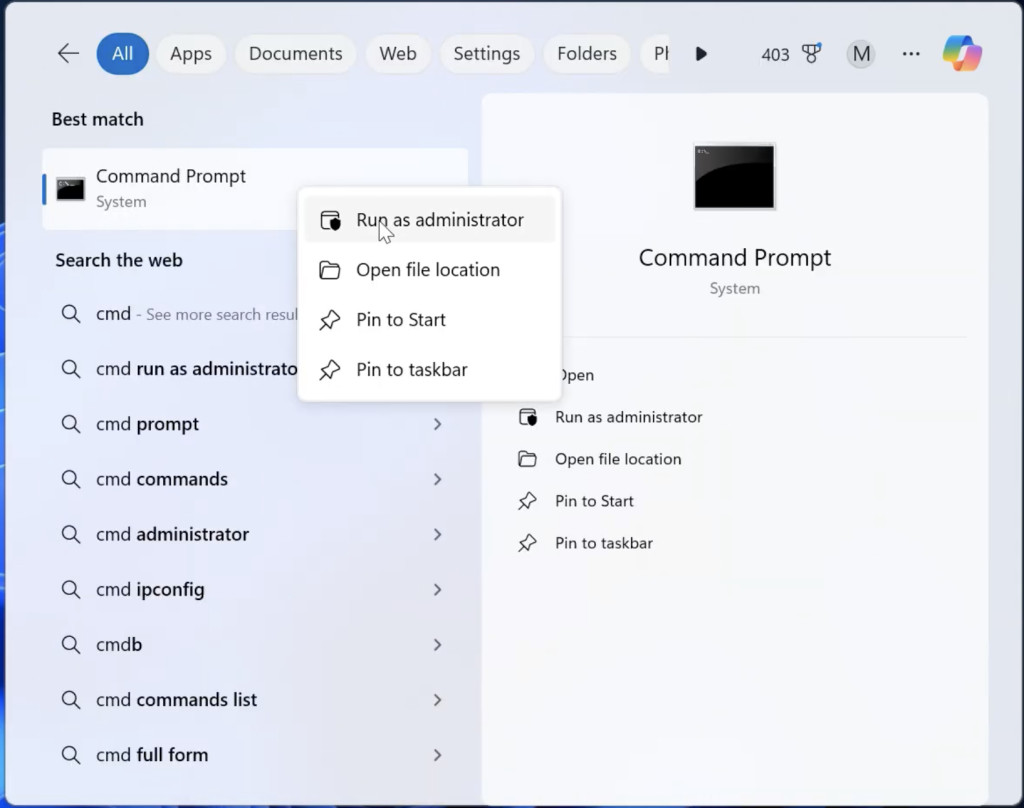
- In the command window, type sfc /scannow and press Enter. This will scan your system files and repair any that are corrupted.
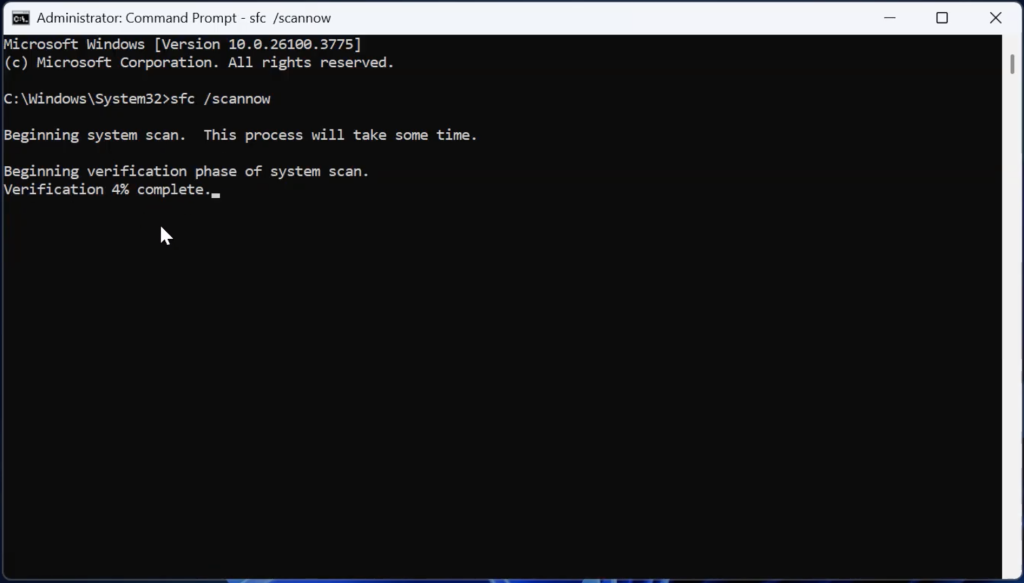
- Wait for the scan to finish (it can take several minutes). Restart your PC when it’s done.
- Try opening the DNG again.
SFC won’t directly fix a corrupt photo but it can resolve those underlying Windows errors that prevent image codecs from working.
Method 3: Update Device Drivers to Fix Access Errors
Out-of-date drivers especially for USB controllers, SD card readers or even cams can cause file access errors. To update those:
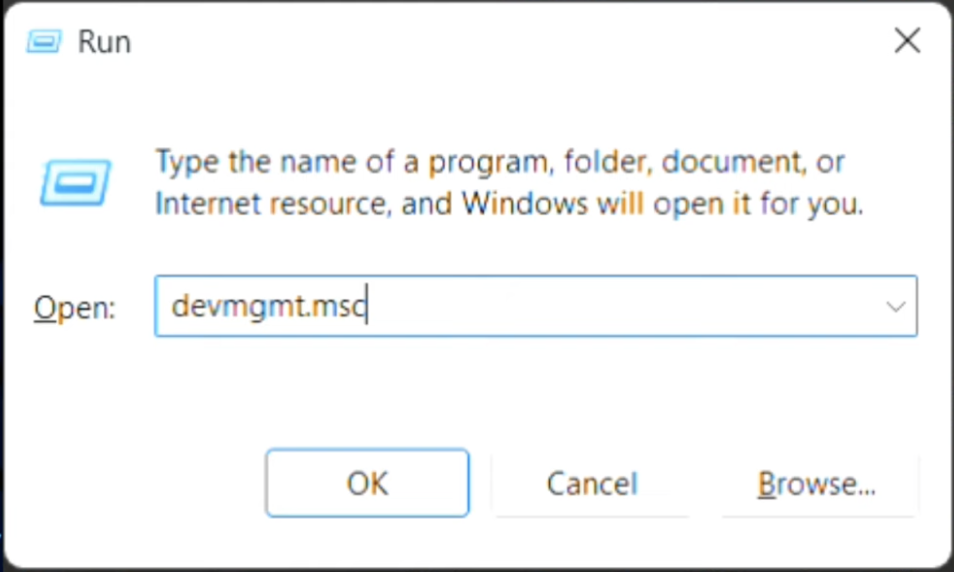
- Press Win+R, type devmgmt.msc and press Enter to open Device Manager.
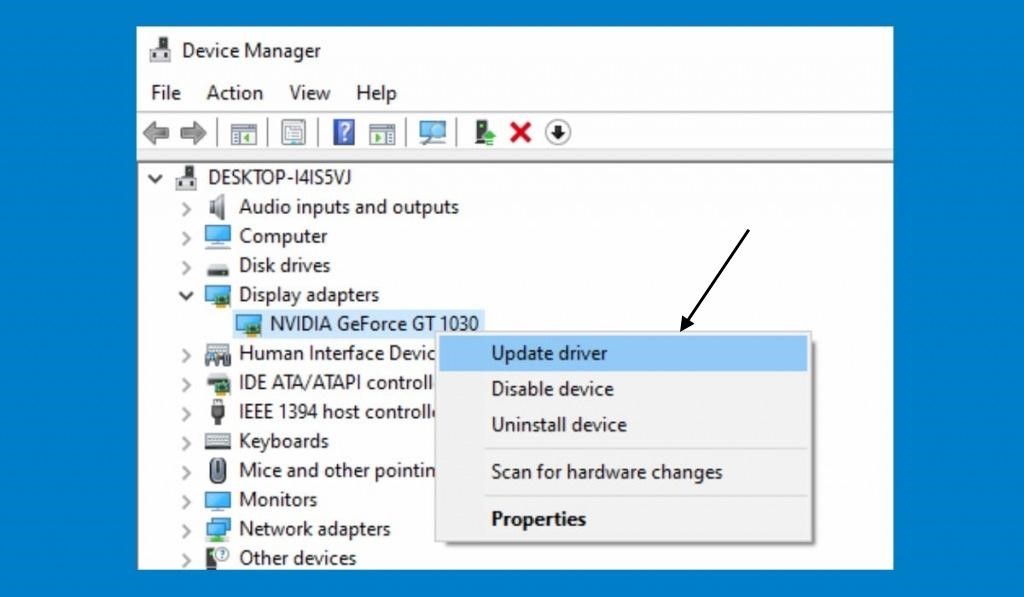
- Look under categories like Disk drives, Universal Serial Bus controllers, or any camera-related hardware.
- Right-click each relevant device and choose Update driver. Select Search automatically.
- After updating, restart your computer.
Now try opening the DNG again. (DiskInternals notes that outdated drivers often cause programs to fail on files.)
Method 4: Use System Restore to Roll Back to a Previous Version
If the file has suddenly stopped working and you think have a recent Windows restore point lying in place, rolling back basically fixes the problem by making your system return to a previous state:
- Press Win+R, type Control Panel and hit that Enter key or click OK.
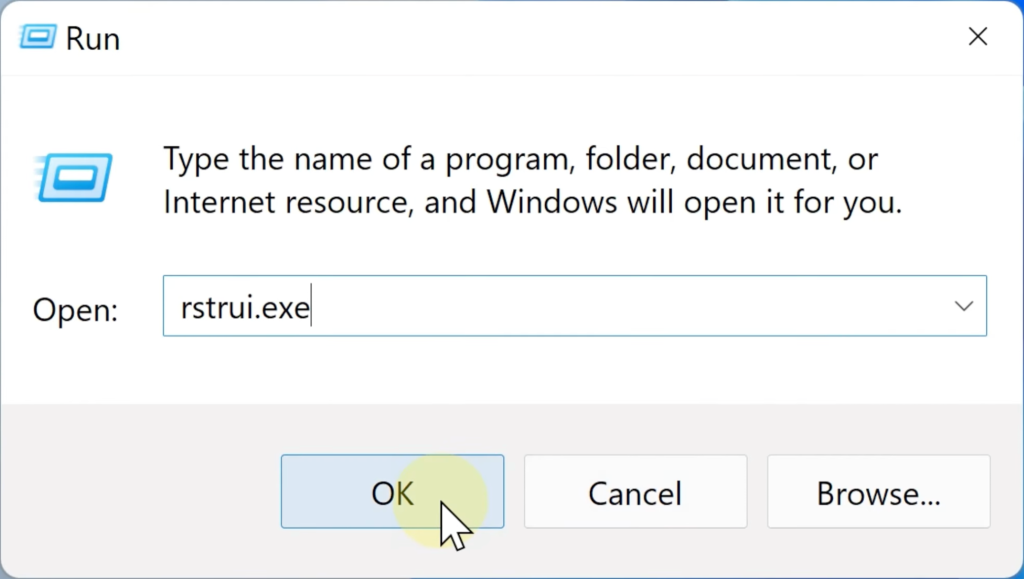
- Follow the prompts to choose a restore point from before the issue began.
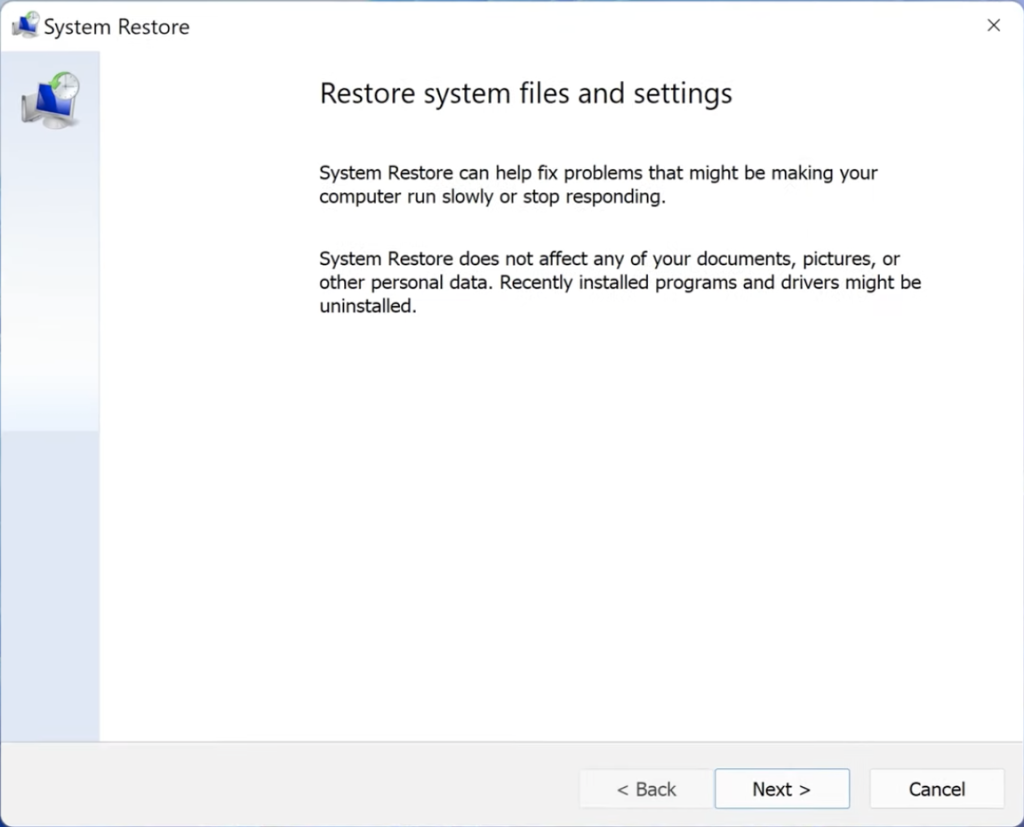
- Let Windows reboot your system to that older state.
After restoring, your installed programs and drivers revert to that earlier date (files remain intact). Then test the DNG. This can undo recent changes that broke raw file support.
Method 5: Scan and Repair the Storage Device (CHKDSK)
If the DNG is on a memory card or external drive, file system errors could be the culprit. Run CHKDSK to fix disk issues:
- Connect the card or drive to your PC. Note its drive letter (e.g. E:).
- Open Command Prompt as administrator.
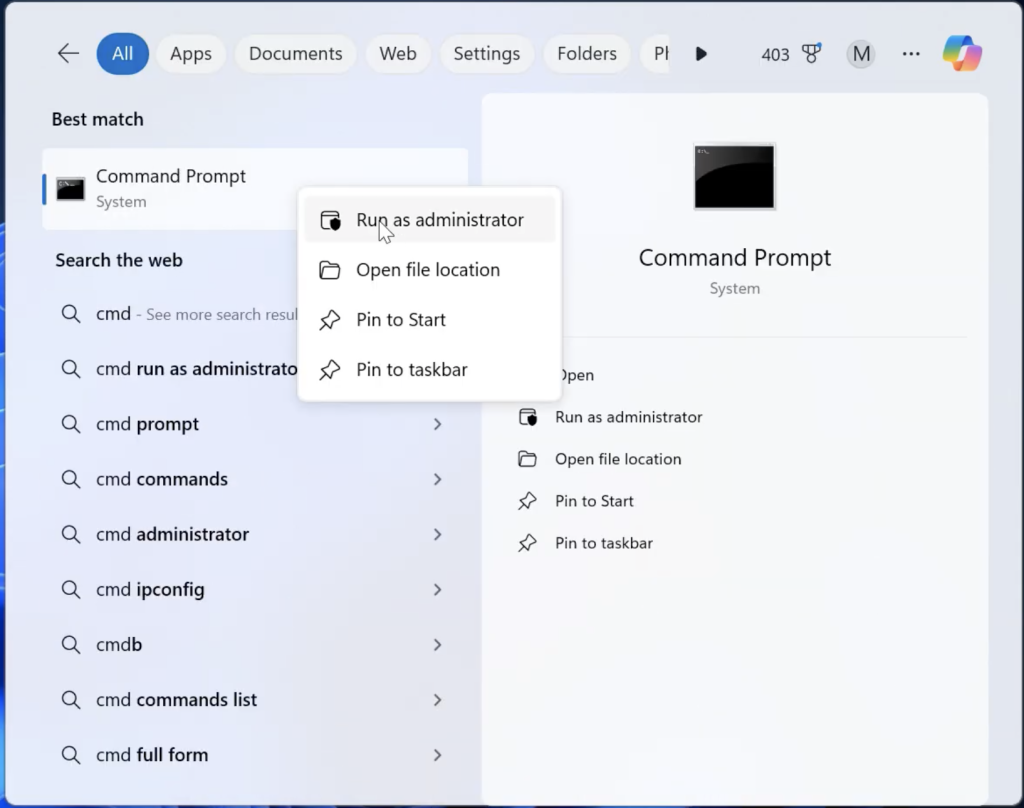
- Enter chkdsk e: /f /x /r (replace e: with your drive letter in lower case please) and press Enter.
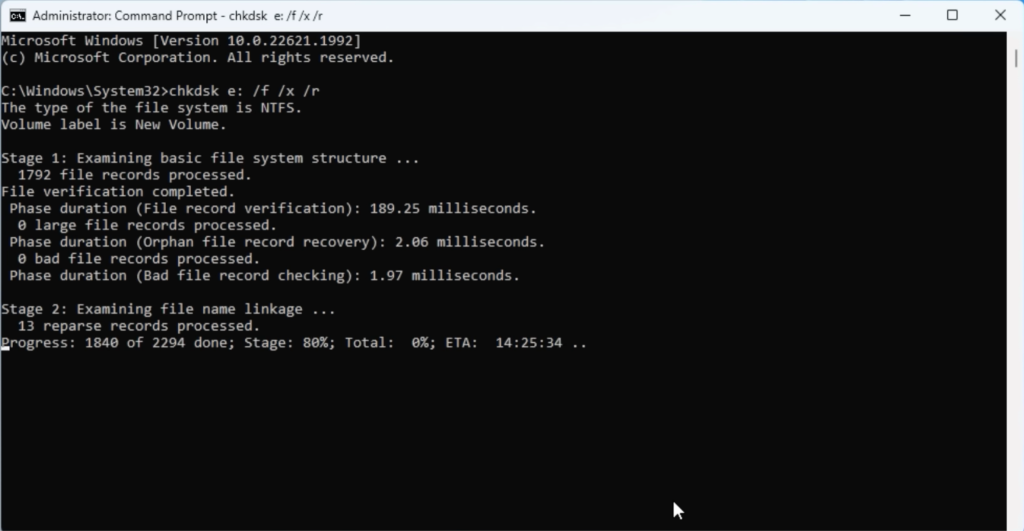
- The tool will scan for bad sectors and attempt recovery. Wait until it completes.
- Safely eject the device and reconnect it.
Now try opening the DNG from that drive. CHKDSK repairs file structure errors that might have prevented the file from opening.
Method 6: Repair DNG Files using Professional Tools
If the above methods didn’t bring your DNG files back to life and you’re absolutely tired walking down this road, just take a deep breath. We got you covered with not one but a couple of ways to get those files back safe and sound.
Stellar Photo Repair Online
If the corrupted DNG file you’re trying to repair is below 20 MB or want a quick solution for a RAW file of yours, you can quickly access Stellar’s online tool and do away with it. Here’s how:
- Go to Stellar Photo Repair Online webpage and click Upload. It’ll redirect you to the web tool.
- Here, just click Upload again and select the DNG file/s you want to repair.
- Once done, hit that Repair button and the tool will do the magic for you.
- Once it is finished repairing, just go ahead and download the repaired file, and then you can access it normally from the Downloads folder on your system.
Yes… It’s that easy. Stellar’s repair tools are always designed to be a simple upload-repair-download process, convenient for anyone.
When to use Stellar Repair for Photo?
If you are working with large RAW files or there is a whole batch of images waiting to be repaired, the online tool won’t work. For situations like those, follow the steps below:
- Download Stellar Repair for Photo and install it like any other software.
- Click Add File and select all those photos you want to repair.
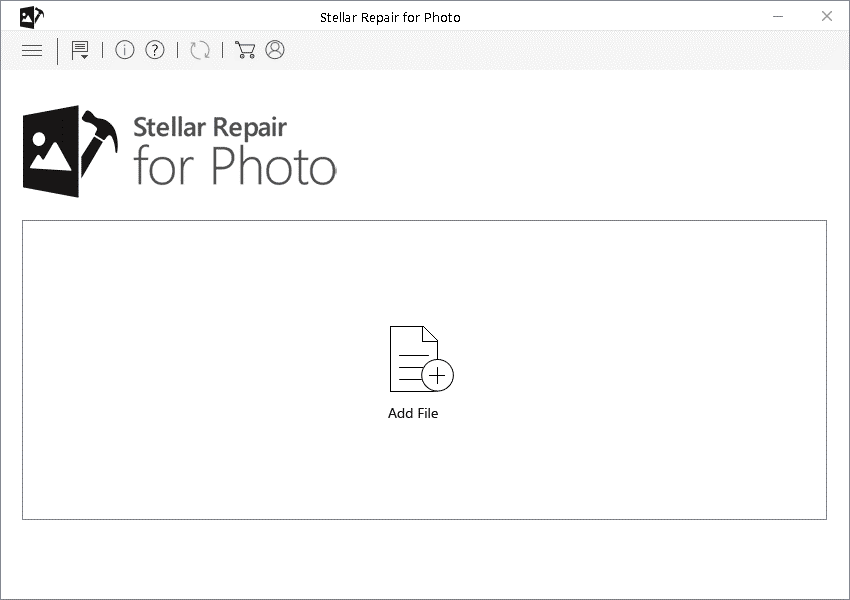
- Click Repair to start the file repair process. The tool will take some time to repair them.
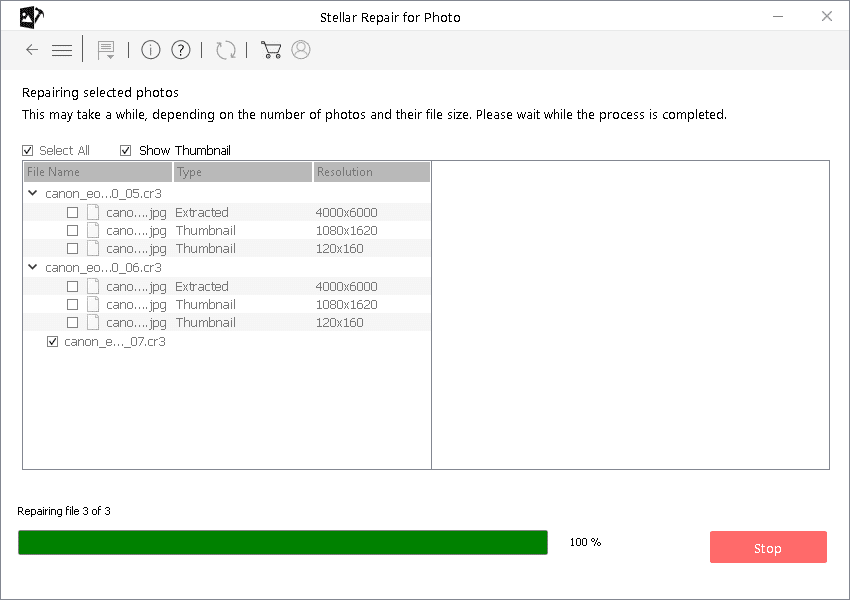
- Once you see a preview of those repaired files on the screen, go ahead and click Save Repaired Files. You can save them to the location of your choice.
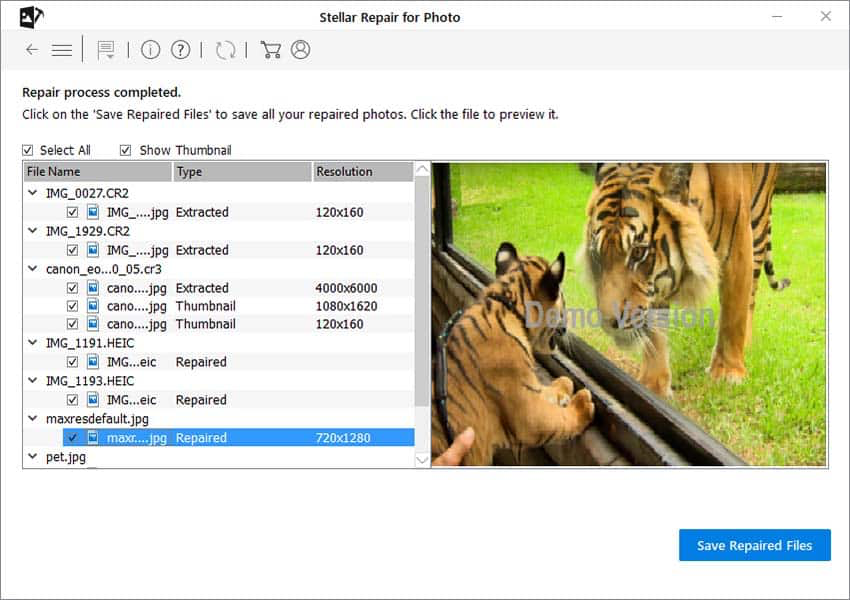
Voila! You just got the files you were so worried about, not so long ago. Professional photo repair software from Stellar mentioned above are designed to handle all kinds of corrupt photos and RAW files, including JPEG, MXPEG, TIFF, DNG, HEIC (both Android & iPhone version) and almost all the other common image file formats. Their preview feature allows you to see the repaired pictures right within the tool before you save them. These tools succeed and save you where manual fixes fail so it’s worth a try when everything else is exhausted.
Probable Causes of DNG Corruption
Understanding how your DNG files got damaged can help choose the right fix. Common causes include:
- Malware or virus infection.
- Interrupted transfers or downloads.
- Outdated or faulty drivers/software.
- Low Camera Battery or Full Memory Card.
- Faulty or Aging Storage Media.
- File system or OS Issues.
- Accidental Formatting or Conversion.
These and similar glitches can scramble the DNG data or its index, at times making the photo unviewable. Now that we know how to fix them, let’s just discover how to prevent such situations from happening… one step at a time.
How Can You Prevent DNG File Corruption?
You can prevent those DNG files from corruption by adopting a few simple habits while you capture, transfer and store your clicks.
- Always eject your storage device safely without a miss.
- Never ever interrupt your file transfers or remove your card while data is still being written.
- Keep your camera firmware, drivers and even the editing software updated.
- Use high-quality memory cards from those reliable brands to reduce failure risks.
- Avoid filling the storage device completely and keep some free space.
- Regularly back up those DNG files of yours to another drive or cloud storage.
- Protect your storage devices from physical damage, heat and even moisture.
Through these precautions, you will actually reduce chances of corruption and those DNG files shall always be safe and accessible.
Conclusion
A corrupt .DNG file is scary, but in most cases you can recover your picture. Try the methods that we have discussed above and if the file still is unreadable, data-recovery tools or photo-repair apps can work wonders. And of course, the best safety net is a backup – always keep your photos saved in more than one place. Armed with these tips (and the right tools), you’ll have a good chance of fixing even badly damaged DNG images.
