You can increase the OST file size limit in Outlook by editing two registry values — MaxLargeFileSize and WarnLargeFileSize — or by deploying Group Policy (GPO) in enterprise environments. This guide explains a step-by-step process to use these two methods to increase the OST file size.
Why Do OST Files Become Too Large?
Over time and with continuous inflow of emails and other items, the OST file can grow large or reached its maximum size limit. This can result in size-related warnings or performance issues in Outlook. Though you can reduce the size of the file, at times, it is not possible to reduce the file size due to compliance, legal hold, or other requirements. In such situations, you can increase the size limit of OST file.
Note: When using Cached Exchange Mode, OST files are typically 50–80% larger than the server mailbox size. Source: Microsoft Learn — Plan and configure Cached Exchange Mode
When to Increase the OST File Size Limit and the Recommended Fix
Use the table below to decide whether increasing the OST size limit is the right solution for your situation:
| Situation | Recommended Fix |
| Mailbox size exceeds 50 GB and triggers size-related errors | Increase the OST size limit |
| Mailbox is small, but OST file is large due to deleted or unnecessary items | Compact or reduce OST size |
| Emails cannot be deleted due to legal hold, compliance, or audit requirements | Increase the OST size limit (covered in this article) |
| Users working on multiple devices or with shared mailboxes causing large OST files | Reduce sync range or cached data What is the Outlook Cached Mode Sync Slider |
Microsoft Learn — PST and OST file size limits in Outlook
What Happens When OST File Reaches Maximum Size?
When your OST file reached it size limit, you may encounter Outlook errors or performance issue such as the following:
- Outlook becomes slow or unresponsive
- New emails stop syncing
- Search functionality stops working properly
- Send/receive errors appear
- Error messages such as:
- “Mailbox has reached maximum size”
“Cannot add new data to OST file”
Understanding the OST Size Registry Keys
Microsoft Outlook controls OST file size through four registry values, which define the maximum and threshold limits. As per Microsoft, these settings can be configured to manage the size limits of both OST and PST files.
For Unicode-format files (default since Outlook 2003), there are two key values:
| Registry Value | What It Controls |
| MaxLargeFileSize | This is the maximum size limit. Outlook stops writing data to the OST file entirely, once this limit is reached. |
| WarnLargeFileSize | This is the threshold limit. Once it is reached, Outlook restricts users to perform certain actions, such as sending emails, copying items between folders, etc. |
You can learn more about configuring these values in the official Microsoft documentation.
Note: MaxFileSize and WarnFileSize are the equivalent values for ANSI-formatted OST files (Outlook 97–2002).
Methods to Increase OST File Size in Outlook 2021, 2019, 2016, 2013, 2010, 2007, 2003, and Microsoft 365
You can follow the methods discussed below to increase the OST file size.
Note: These methods are applicable for Unicode-formatted OST file.
Method 1: Increase OST File Size via Registry Editor
When Outlook or any application is installed on Windows, it creates registry keys. You can modify the registry keys to change Outlook behavior or functions. Similarly, you can create new registry keys or files to increase the size of OST file. Here’s how:
Note: Incorrect entries or changes in the registry can lead to system issues. It is suggested to take a backup of the registry before making changes.
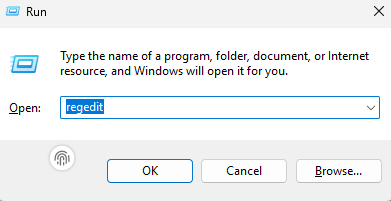
- Press Windows + R.
- Type Regedit and press the Enter key.
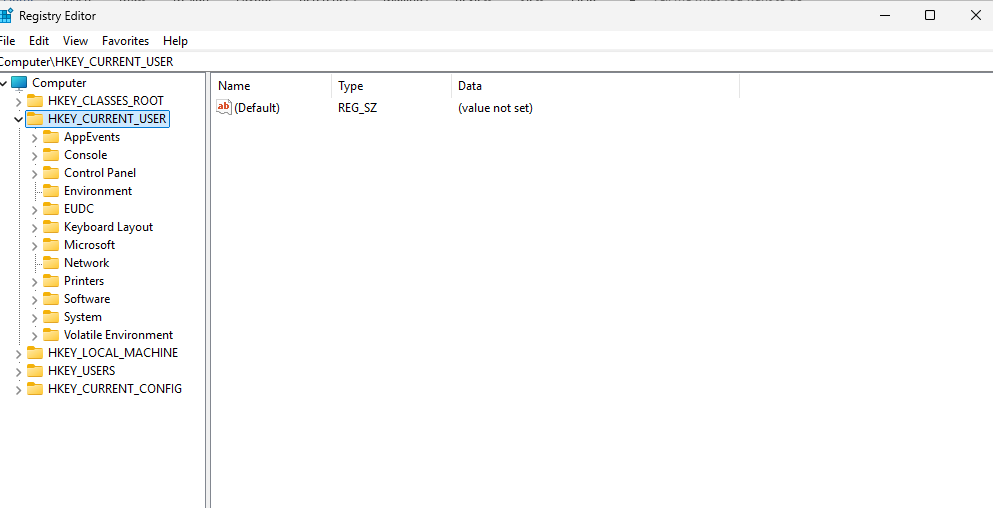
- This opens the Registry Editor window.
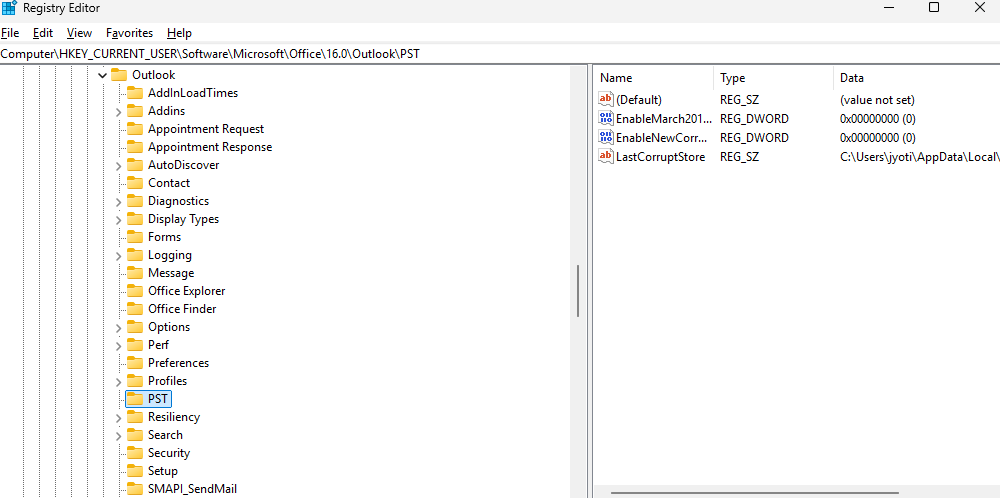
- As per your Outlook version, go to the mentioned location in the Registry Editor:
| Outlook Version | Registry Path |
| Outlook 2003 | HKEY_CURRENT_USER\Software\Microsoft\Office\11.0\Outlook\PST |
| Outlook 2007 | HKEY_CURRENT_USER\Software\Microsoft\Office\12.0\Outlook\PST |
| Outlook 2010 | HKEY_CURRENT_USER\Software\Microsoft\Office\14.0\Outlook\PST |
| Outlook 2013 | HKEY_CURRENT_USER\Software\Microsoft\Office\15.0\Outlook\PST |
| Outlook 2016 / 2019 / Microsoft 365 | HKEY_CURRENT_USER\Software\Microsoft\Office\16.0\Outlook\PST |
Note: Don’t be confused with the PST at the end of the registry path. The location and keys we will create can be used to increase the size of both OST and PST files.
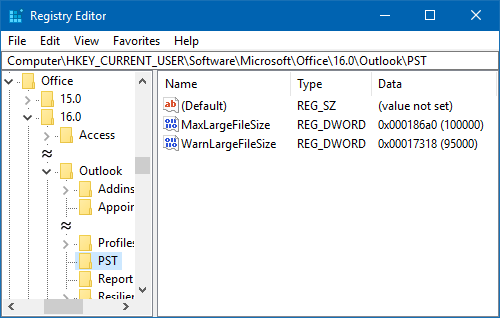
- Once you are at the location, right-click and create two DWORD (32-bit) values:
- WarnLargeFileSize with value 95000 (in MB).
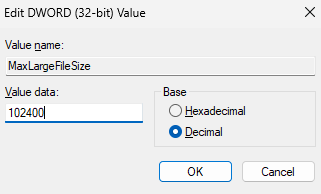
- MaxLargeFileSzie with value 100000 (in MB).
- Save the changes and restart the system.
This will increase the OST file size limit to 100 GB (maximum size limit) and threshold limit to 95 GB.
Recommended Registry Values for Common OST Size
Use the table below to set appropriate values (in MB) for different target OST file size limits:
| Target Size | MaxLargeFileSize (MB) | WarnLargeFileSize (MB) |
| 75 GB | 76800 | 74752 |
| 100 GB | 102400 | 100352 |
| 150 GB | 153600 | 151552 |
| 200 GB | 204800 | 202752 |
Method 2: Increase OST File Size via Group Policies (GPO)
This method is advanced and can be performed by the Exchange/IT Administrators only. As a user, you can ask your administrator to increase the OST file size. Follow these steps to increase OST file size via Group Policies:
- Download and install the ADMX/ADML Administrative Template files for your Office version from the Microsoft Download Center.
- Make sure the ADMX/ADML Administrative template files are installed on the server for the Microsoft Office version you are using or being used in the organization. These are required to set Group Policies for Outlook and other Microsoft applications.
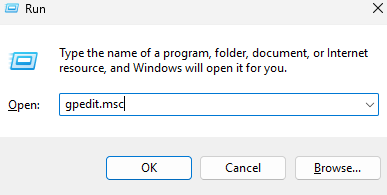
- Press Windows + R and type: gpedit.msc
- Press Enter.
- Navigate to User Configuration > Administrative Templates > Microsoft Outlook [version] > Miscellaneous > PST Settings.
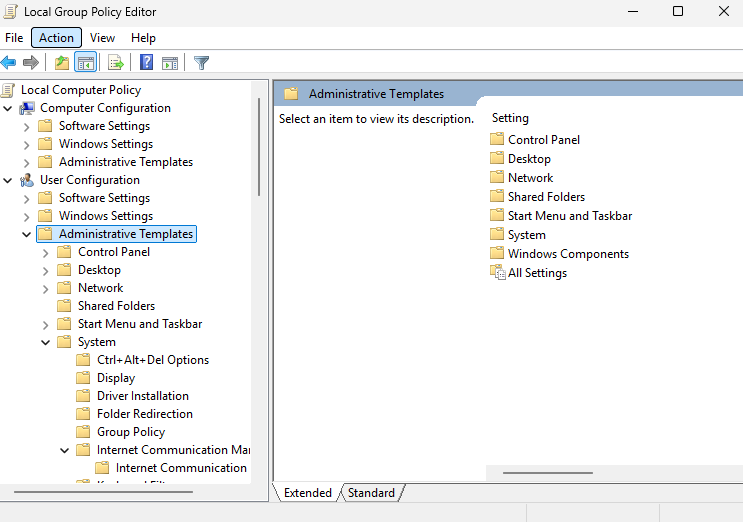
- Once at the location, make the following changes:
- Set Large PST: Absolute maximum size.
- Enter value in MB (e.g. 100000 for 100 GB).
- Set Large PST: Size to disable adding new content.
- Keep this value lower than the Large PST: Absolute maximum size value.
- Once changes are made, you can restart your system to apply the changes.
Experts recommend reducing the cached mailbox size by moving older or less frequently used items to the archive. Source – Reddit
What if Increasing the Limit doesn’t Fix the Sync Issues?
If Outlook is still not syncing properly even after increasing the size limit of OST file, then you should consider the following possibilities:
1. OST File is Corrupted
Sometimes, an OST file that can get corrupted, leading to synchronization issues or errors in Outlook. You can fix this issue by recreating the OST file.
2. OST File needs to be Compacted
OST file may contain unused space – known as white-space – that is create when the mailbox items are deleted. You can compact the OST file to remove that white space.
3. The OST File is Orphaned or Inaccessible
If your email account on the mail server is deleted or disabled, the associated OST file becomes orphaned and Outlook will not be able to open or sync such a file. In this case, your best option is to use an OST to PST converter tool to convert your OST file to PST. One such tool you can go for is Stellar Converter for OST. This tool is designed to convert orphaned or inaccessible OST files to PST format. This tool can also handle encrypted and oversized OST files. After conversion, you can import the PST file into any Outlook profile and restore your mail items. This tool is compatible with all the versions of Outlook.
Conclusion
Although you can increase the OST file size, it is recommended to keep the size in a moderate range (20-25 GB) to avoid errors and enhance Outlook’s performance. However, if your OST file becomes inaccessible due to oversizing, then you can go for a reliable OST to PST converter software like Stellar Converter for OST. With the help of this tool, you can recover your mail items from the inaccessible OST file. The software can scan and extract mail items from OST files without any size limit. It also supports encrypted OST files and can help you export mail items directly to Office 365 or live Exchange mailbox in a few clicks. It can save you from data loss as inaccessible or orphaned OST files cannot be opened or accessed through any Outlook profile.
