Creating an iPhone backup is no longer optional. A mishap can occur at any time. An accidental tap, a failed update, a software glitch, or malware infection and all the important data on your iPhone can be gone. Without a backup, recovery requires a specialized tool and sometimes it’s not completely recoverable.
For creating iPhone data backup – there are two great options available for users – iCloud and iTunes. While iCloud’s free tier provides 5GB of storage, Apple offers expanded iCloud+ plans (50GB, 200GB, 12TB) in most regions.
Although most users still prefer the iCloud free tier that fills up quickly. Luckily, iTunes and Finder are great at addressing this, that’s because it’s locally stored on your Windows or Mac computer, limited only by available space on your computer storage.
iTunes backups are easy to create, but sometimes restoring data from an iTunes backup remains challenging for many. That’s because Apple’s standard way of recovering deleted data wipes your entire phone in the process. However, now there are other ways to recover deleted iPhone data from iTunes that do not compromise the data stored on your iPhone device, and allow specific data type or file recovery.
Whether you are on a previous generation iOS 18 or the latest iOS 26 running on your new iPhone 17pro or and older iPhone 14 model. Whether you are using the latest Mac OS Tahoe or Windows 11 – we will guide you with step by step iPhone data recovery process from iTunes on your iPhone.
Do These 4 Things Before Attempting iTunes Recovery
Don’t skip this part – it’s important to follow the caveats below to avoid permanently losing your data.
Stop using your iPhone right now – because every photo you take, every app you open, and every message you send after a deletion risks overwriting the space where your lost data might still exist. It’s best to switch the device to Airplane Mode.
Check if you have an iTunes backup – and look at its date. An old backup from six months ago might not have what you lost. Here is how to verify it:
On Windows:
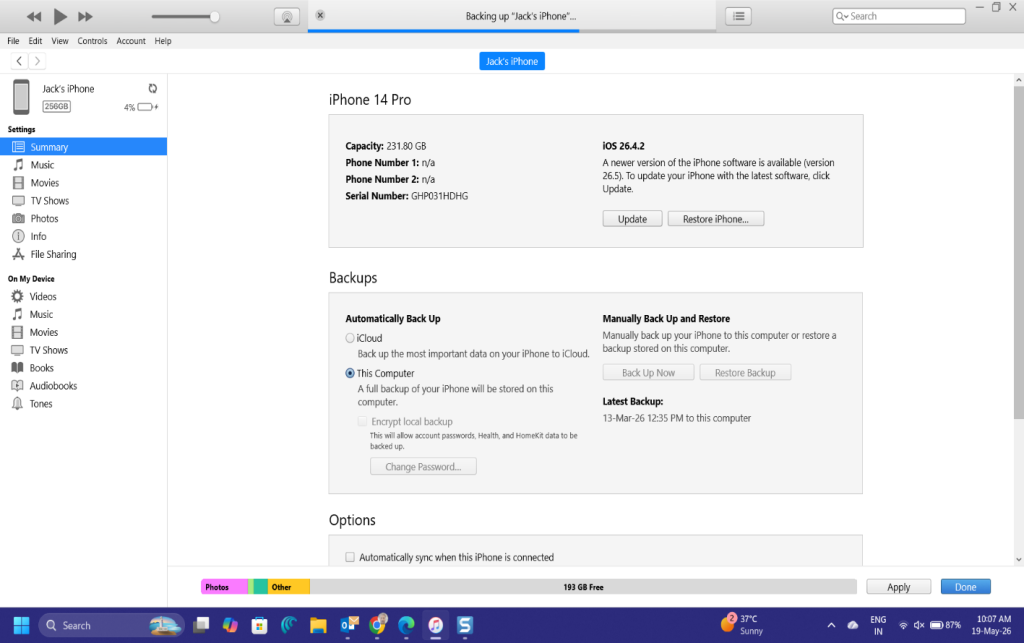
- Open iTunes (or the Apple Devices app if you are on Windows 10 or Windows 11)
- Click on the device icon near the top-left
- Under the “Backups” section, look for the date of your most recent local backup
On Mac (macOS Catalina and Later):
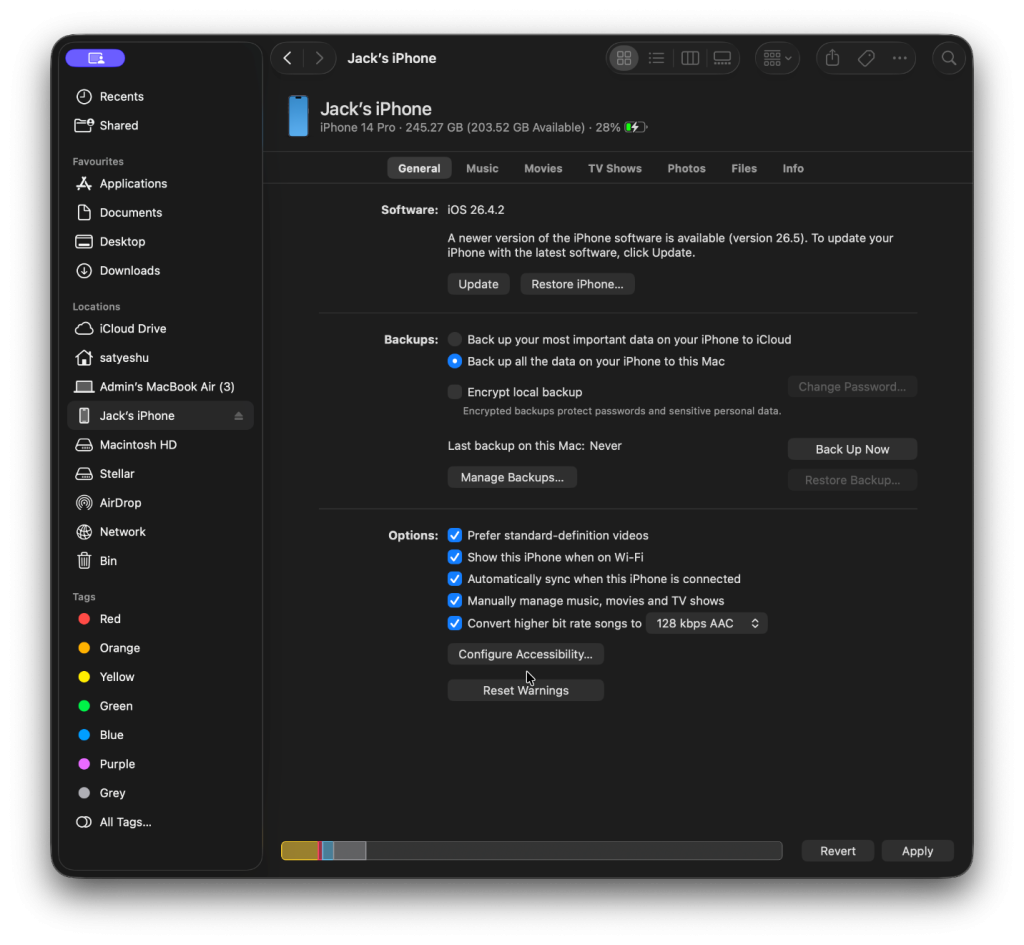
- Connect your iPhone and open Finder.
- Click your device in the left sidebar.
- Under the “General” tab, the backup date is listed near the bottom.
For any Mac running macOS Mojave (10.14) or earlier, be informed that until this version – Apple didn’t move device management over to Finder. Here, iTunes is the only tool available for creating backups and recovering them.
Confirm the backup predates your data loss – A backup made after a deletion will not have that deleted file in it. Hence, the backup needs to have been created before the files were lost and also after they were saved.
Which recovery path should you choose:
| What happened? | Which method to use |
| Lost everything / setting up a new iPhone / phone was wiped | Method 1 — Full Restore |
| Only need specific files and still have the current data you want to keep | Method 2 — Selective Recovery |
Method 1: Restore iPhone Data from iTunes Backup
This is Apple’s built-in approach. It works well when you have completely lost everything, or when you are setting up a new or factory-reset iPhone. The trade-off is significant: it wipes your entire current phone and replaces it with what was in the backup. Anything you added after the backup date will be gone permanently.
Warning: Always create a fresh backup of your current iPhone before doing a full restore. That way, if something goes wrong or you change your mind, you have a way back.
On Windows – iTunes or Apple Devices App
- With the help of USB cable – connect the iPhone to your PC.
- Make sure your iTunes app is already open on the screen.
- iTunes immediately spots that your phone is empty.
- It automatically opens a special screen that says “Welcome to Your New iPhone.”
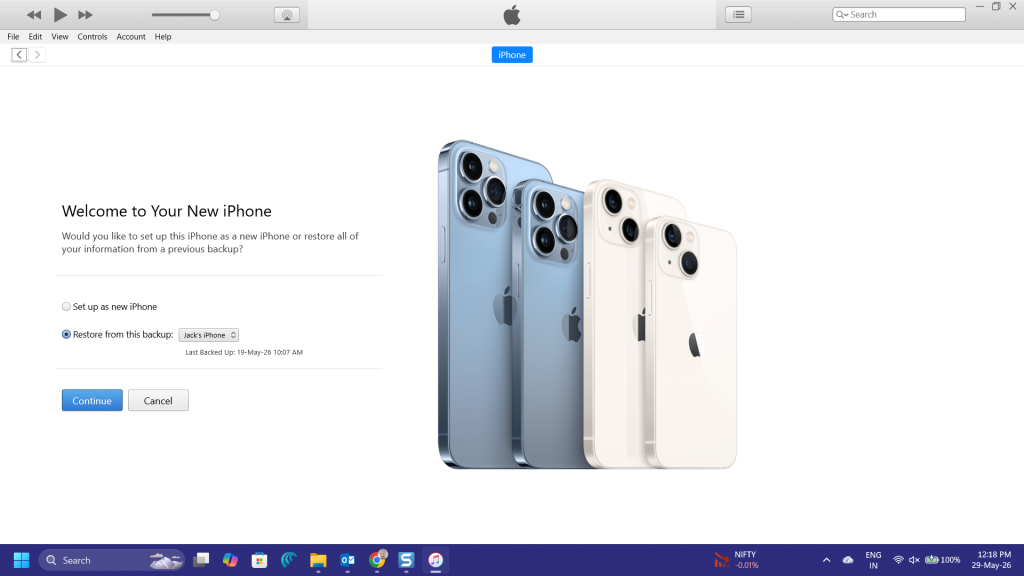
- iTunes automatically ticks the box for “Restore from this backup” and selects your device name.
- Keep the cable connected during the transfer. After a minute, the bar turns green and starts filling up.
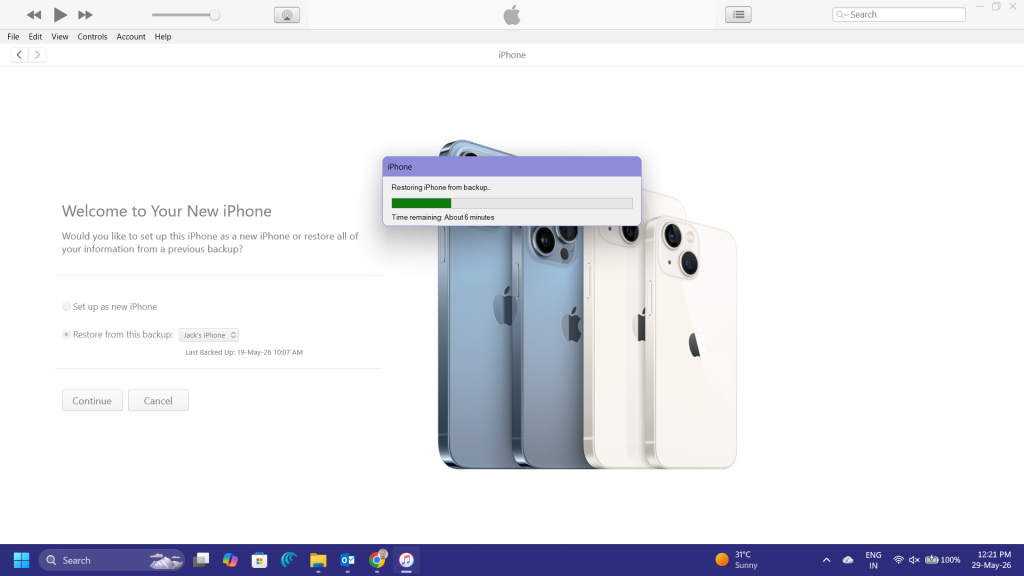
On Mac – Finder (macOS Tahoe and below)
- Connect your iPhone and open Finder.
- Select your iPhone from the left sidebar under “Locations.”
- Click the General tab.
- Click Restore Backup.
- Choose the backup that predates your data loss and confirm.
The restore will take several minutes, depending on how much data is being transferred. Your phone may restart during the process – that is normal.
What Gets Restored (and What Does Not)
| Included in iTunes Backup | NOT Included |
| Photos and Camera Roll | iCloud Photos |
| iMessages and SMS | Face ID / Touch ID settings(Not Designed to Backup) |
| Contacts and Calendars | Content stored only in iCloud |
| App data and settings | Payment info |
| Health data/saved passwords (encrypted backups only) | Files stored only in iCloud Drive |
| Call history | Files stored in third-party apps |
| Notes, Voice Memos, Safari Bookmarks | Content synced only via iCloud |
Method 2: Recover Specific Data from iTunes Backup Without Wiping Your iPhone
Apple’s native restore is an all-or-nothing fix. It works great when you need everything back, but when you have just lost one conversation thread or a batch of photos or a few contacts – it’s absolutely ineffective.
Ineffective because restoring an entire old backup to retrieve a few files or photos means losing everything added to your phone since that backup date. So while you get back the deleted files, you lose every file on the iPhone added after the backup was created. This can sometimes also lead to file corruption if not finished properly.
A dedicated iTunes backup extractor that changes the situation. Instead of rolling back your entire device data, it can read the backup file on your computer, and let you preview exactly what is recoverable, and lets you pull out only what you need.
What is an iTunes Backup Extractor and How Does It Work?
iTunes backup extractors are designed to read the internal database files inside your local iTunes backup folder, rebuild the data into readable categories, and let you preview and export specific items without touching your live iPhone at all. Because they work entirely on the backup file stored on your computer, there is zero risk of overwriting your current device or losing anything new.
Among the tools that do this kind of selective extraction, Stellar Data Recovery for iPhone is one that, apart from primarily recovering deleted iPhone data from the device, has an iTunes recovery module, and it also handles encrypted iTunes backups.
It works on both Windows and Mac, supports all current iPhone models, including the iPhone 17 series, and shows you a preview of every recoverable item before you commit to restoring anything.
And not just that – an iTunes backup extractor works without iPhone – so if someone lost or damaged their iPhone and the data goes missing – Stellar Data Recovery for iPhone – iTunes backup extractor can help get those files back from the iTunes backup.
Steps to Recover iTunes Backup with Stellar Data Recovery for iPhone
- Download and install Stellar Data Recovery for iPhone on your Windows or Mac computer – where your iPhone backup was created.
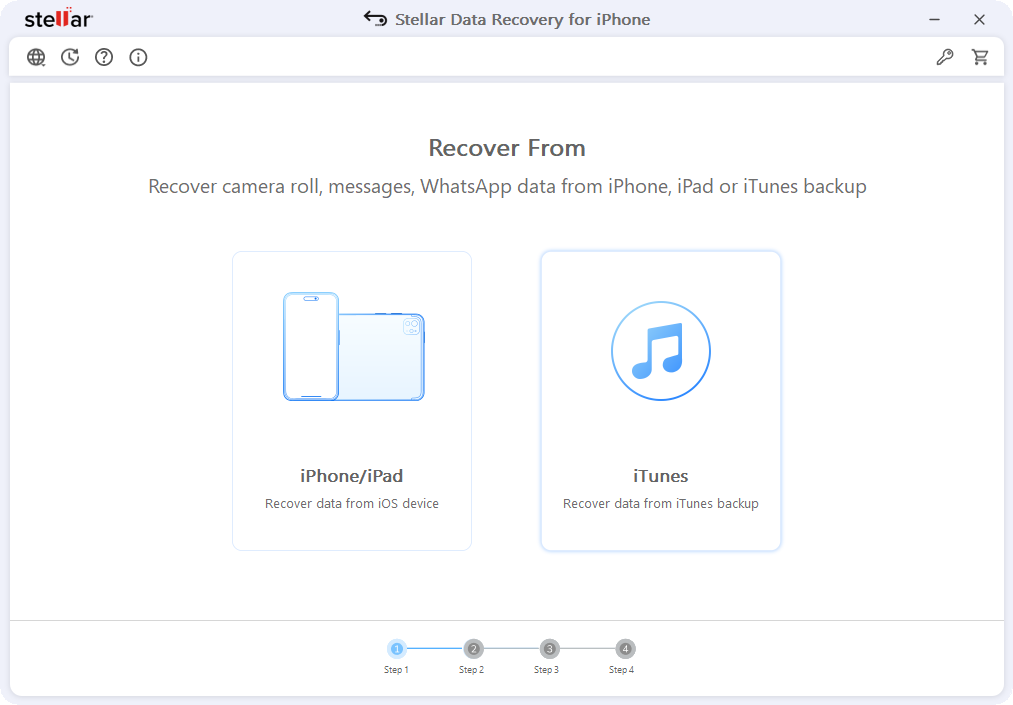
- Launch and Select – Recover from iTunes backup. This automatically detects every iTunes backup stored on your computer, so there is no need to search folders manually.
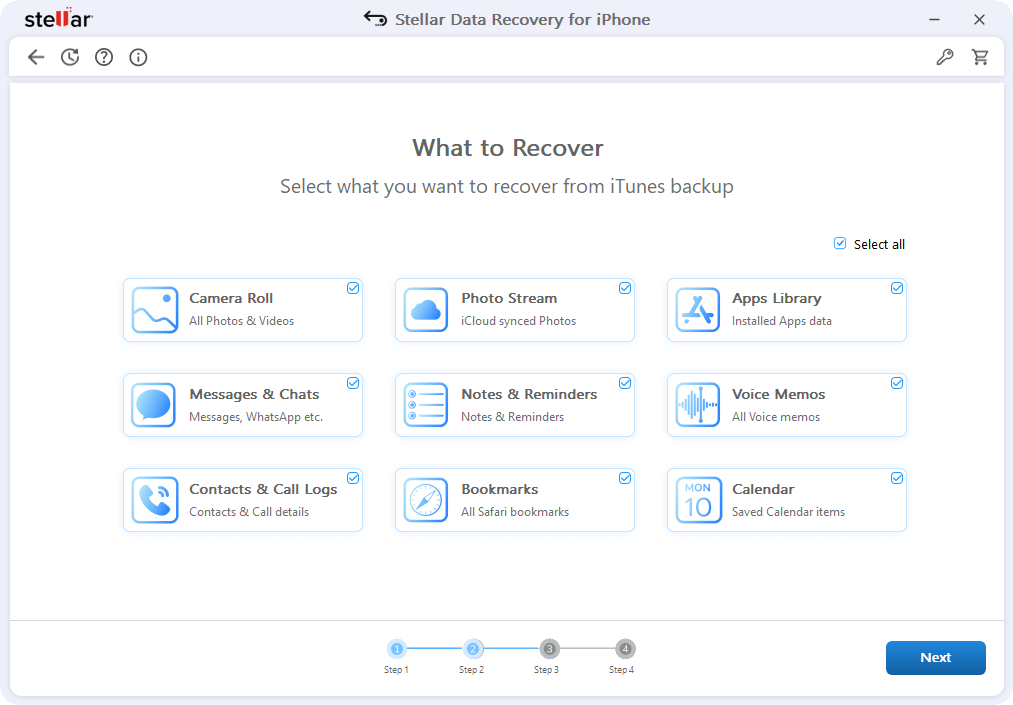
- Select the file type that you want to recover on the What to Recover page. For e.g., Photos, or Bookmarks.
- Select the Correct Backup when the list of detected backups appears, each showing the device name and other details. Select the backup and click on the scan button.
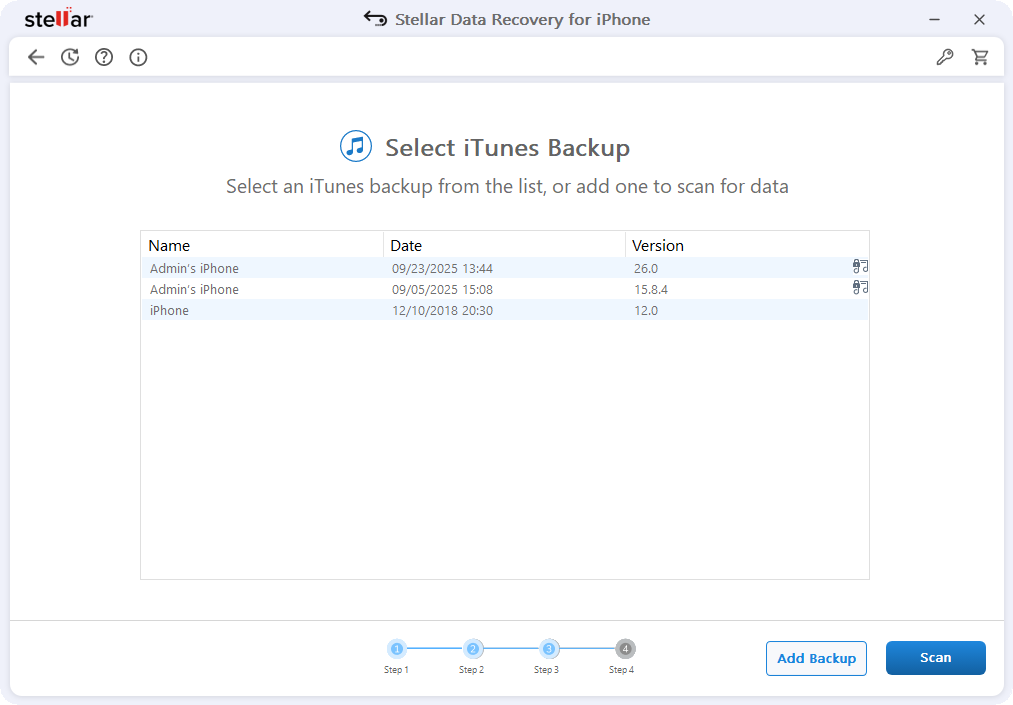
- The software will scan your iTunes backup and list the recoverable files. If a backup is encrypted – you need to enter the encryption key.
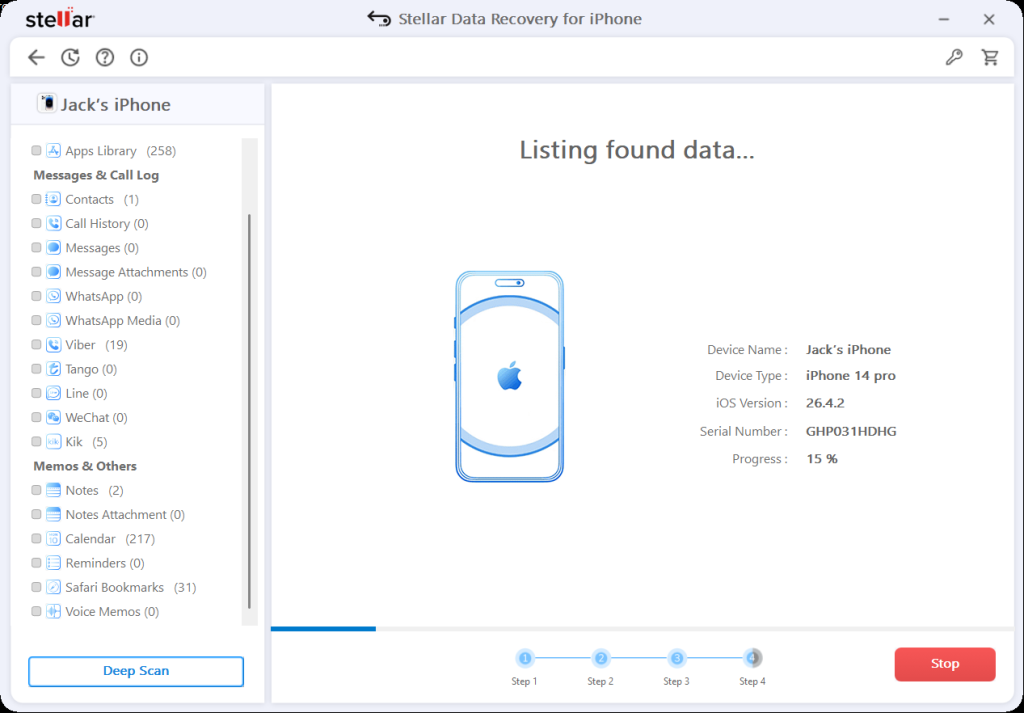
- Preview Recoverable Items by clicking the file type sections from the left side pane once the backup is extracted.
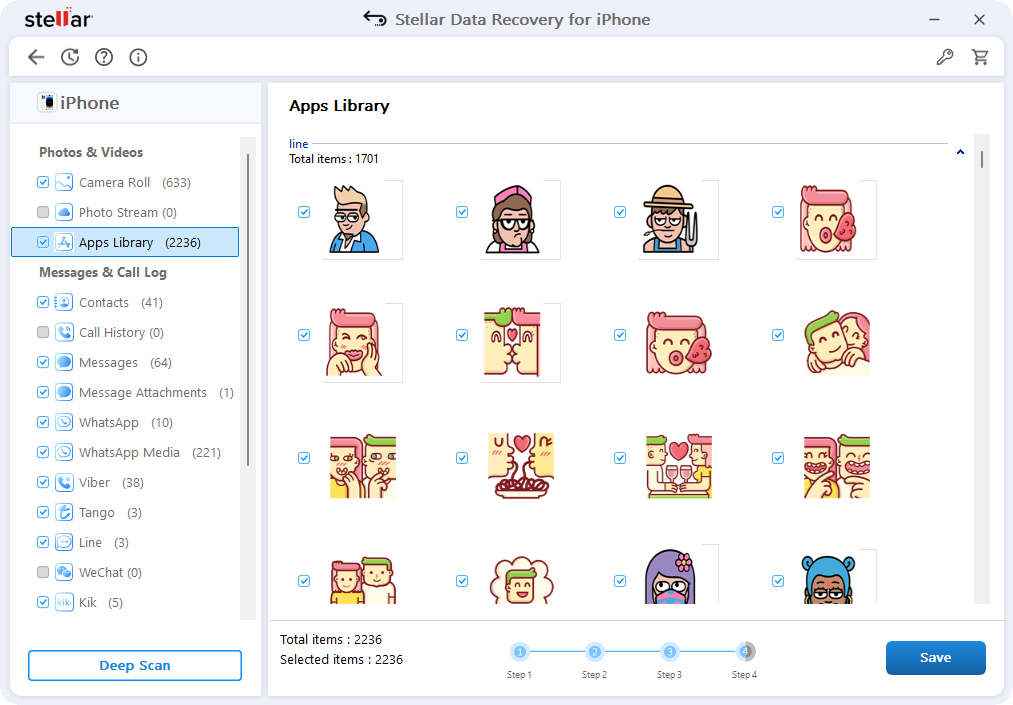
- Select and Recover the specific items you want to save.
Note: The Mac version of the tool offers a free trial allowing recovery of 10 photos or videos (10MB each) – for full recovery you need to upgrade to the paid plan.
What Stellar Can Recover from an iTunes Backup
| Data Type | Recoverable via iTunes Backup |
| Photos and Camera Roll | Yes |
| Videos | Yes |
| iMessages and SMS | Yes |
| Contacts | Yes |
| Call History | Yes |
| Notes and Attachments | Yes |
| Voice Memos | Yes |
| Calendar and Reminders | Yes |
| Safari Bookmarks | Yes |
| Encrypted iTunes Backups | Yes (password is required) |
Stellar vs. Native iTunes Restore
| Feature | Native iTunes Restore | Stellar Data Recovery |
| Overwrites the current iPhone? | Yes – always | No – reads backup only |
| The iPhone is required | Yes – always | Not required |
| Selective file recovery? | No | Yes |
| Works on encrypted backups? | Yes | Yes |
| Preview before recovery? | No | Yes |
| Requires iPhone connection? | Yes | No |
| Best for | Total device restore | Getting specific files back |
Note that Apple’s native restore is simple to use. But, if you need specific files without risking your current data, Stellar’s iTunes backup recovery module is the more precise option.
How to Find Your iTunes Backup Files?
An iTunes backup extractor finds these automatically, but it is still useful to know where they are actually stored on your computer- especially if you want to check the file size or make a manual copy.
Windows (iTunes / Apple Devices App)
C:\Users\[YourName]\AppData\Roaming\Apple Computer\MobileSync\Backup\ Microsoft Store iTunes:
Or
C:\Users\[YourName]\AppData\Roaming\Apple Computer\MobileSync\Backup\
Or
C:\Users\[YourName]\Apple\MobileSync\Backup\
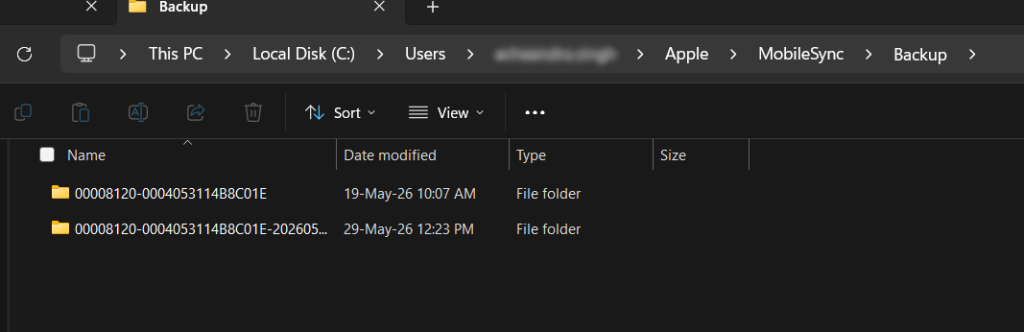
The path varies with the app installation source be it standalone iTunes, or Apple Devices app or Microsoft App Store. Also, AppData folder is hidden by default. To access it, open File Explorer, click the View menu, and check “Hidden items.”
Mac (Finder)
~/Library/Application Support/MobileSync/Backup/
On a Mac, open Finder, click Go in the menu bar, hold the Option key, and click Library to access this folder.
How to Check the Backup Date and Confirm It Is Usable
It’s simple – follow the steps, and you’re there:
- Open iTunes (Windows) or Finder (Mac) and connect your iPhone
- Look under the device’s backup section for the timestamp of each backup
- Compare that date to when your data was lost – the backup must be older than the loss event to contain the missing data
Backups are stored as folders full of numbered database files. You cannot open them like regular folders and see your photos – that is what the recovery tool does for you.
Common iTunes Recovery Problems and How to Fix Them
Backup Does Not Contain the Deleted Data
If the backup was made post deletion, the data will not be in it. But take your chance and check every available backup – sometimes older ones are stored on the same computer. If no backup predates the data loss then recovery through iTunes is not possible. However, for such instances when data cannot be recovered via iTunes backup – you need a specialized iPhone data recovery software that scans the device storage to get your lost data back.
Note – iTunes/Finder keeps only the most recent backup by default and overwrites older ones unless you manually archive them. However, multiple backups can exist if you have multiple devices or if you’ve manually archived a backup.
Backup File Is Corrupt or Will Not Load
iTunes will often refuse to restore from a corrupt backup. This usually happens with large backup files. iPhone Backup Extractors can sometimes read partial backups where iTunes may fail. This is because these backup extractors reads individual database files rather than processing the whole thing as a single package.
“Not Enough Storage” Error During Restore
Your iPhone needs enough free space to receive and restore the backup. Try deleting large apps or media temporarily before starting the restore, then reinstall them afterward. This will help you avoid situations where you cannot restore iTunes backup.
Forgot the Encrypted Backup Password
Unfortunately, Apple or any other backup extractor cannot bypass an encrypted backup password – because it is how backup encryption is designed to work. Even with Backup extractor you need the password to decrypt the backup. Many times users store their key in password manager. The best you can do is try passwords you commonly used around the time you set up the backup.
Restore Gets Stuck at a Percentage
The most common cause in 2026 is an iOS version mismatch: if the backup was created on a newer iOS than what is currently on your iPhone, the restore will stall or fail. The fix is to update your iPhone’s iOS first, then retry the restore. Other causes include a loose USB connection or an outdated version of iTunes. Try a different USB cable or a different port. Make sure iTunes is fully updated. If the phone has a passcode, unlock it before starting the restore.
Note: You can only restore the backup to the same or a newer iOS version, not to downgraded one.
What’s Actually Inside an iTunes Backup?
A lot of people assume that an iTunes backup stores everything on their phone. It does, and it does not – and that gap causes real confusion. A noteworthy fact is that if your photos are stored in iCloud Photos and have not been downloaded locally to your phone, they will not be in your local iTunes backup. The backup captures what lives on the device itself, not what is sitting in iCloud.
| Included in Backup | NOT Included |
| Photos and Camera Roll | iCloud Photos (if not downloaded locally) |
| iMessages and SMS | iCloud Drive files |
| Contacts and Calendars | Apple Music and purchased media |
| Notes, Reminders, Safari Bookmarks | Face ID / Touch ID data |
| App data and settings | Payment information |
| Health data (encrypted backups only) | Content synced only via iCloud |
| Call history and Voice Memos | Files in third-party cloud apps |
How to Set Up Regular iTunes Backups?
The process and hassle of getting your lost data back is stressful. To avoid this stress, you can enable automatic backup on your device:
On Windows: In iTunes – go to your device and check “This computer” under Backups, then check “Back Up Automatically.”
On Mac: In Finder – select your iPhone and under the General tab, check “Back up all of the data on your iPhone to this Mac.” Then check “Automatically sync when this iPhone is connected.”
Follow the 3-2-1 backup rule: This implies creating 3 copies of your data. On 2 different media types. With 1 stored off-site or in the cloud.
How often should you back up?
If you use your phone constantly for photos, messages, and work, I suggest creating a backup twice a week on a local computer via iTunes or Finder. If you are an occasional user: once a month or any time you do something important, is a reasonable pattern.
Suggested read: A Helpful Manual to Backup, Restore, and Recover iPhone Data
Wrapping Up
While Apple’s native restore via iTunes or Finder is the right tool when you need everything back and do not mind starting fresh. No doubt – it is reliable and built into every Mac and Windows PC. iTunes backup extractors are the right tool when you need specific files or some of your important photos back without risking anything currently on your phone.
Here’s the next steps you should follow:
- Firstly, try the free scan, download Stellar Data Recovery for iPhone and run it against your iTunes backup. Then confirm if your data is recoverable before spending anything.
- Next step is to set automatic backups. Connect your iPhone, open iTunes or Finder, and enable automatic local backups.
- Lastly, you can bookmark the recovery folder paths, and Windows and Mac backup paths from this article. This will help you find your backup files manually if something goes wrong.
