“I accidentally deleted some of my sister’s wedding videos from my Samsung phone yesterday while making some space. Now I want those files back, as those are precious memories. Are my videos lost forever? Please help!”
Deleted Android Videos are (often) recoverable. But you need to be cautious; here’s how you should act depending on the situation, to recover your deleted files from an Android device.
- You accidentally tapped “delete” after selecting your video files? The video files can be recovered from the Recycle Bin.
- Your videos were deleted some days ago, and they are now untraceable in the recycle bin. Not to worry, you can still restore the videos from a cloud backup, if available.
- But what if you didn’t back up the deleted videos? In that case, only recovery tools can help you recover the files.
Read this detailed guide to learn how to recover deleted videos on Android from in-device trash, and different Cloud storage services. You will also learn how free Android data recovery software can help you recover lost or deleted videos.
How To Retrieve Deleted Videos On Android?
Gallery app recycle bin, cloud storage backups, and Android data recovery tools can help retrieve deleted videos on Android.
Method 1. Recover Deleted Videos from Android via the Recycle Bin Folder
Any video deleted from your Android phone is moved to the Recycle Bin or Trash folder in the Gallery app. Here it remains for 30 days before being permanently removed.
Here’s how to recover deleted videos from the Gallery app:
- Open the Gallery app on your Android Phone.
- Click on the hamburger icon and choose Recycle Bin. (Note – The name may vary depending on your Android phone brand)
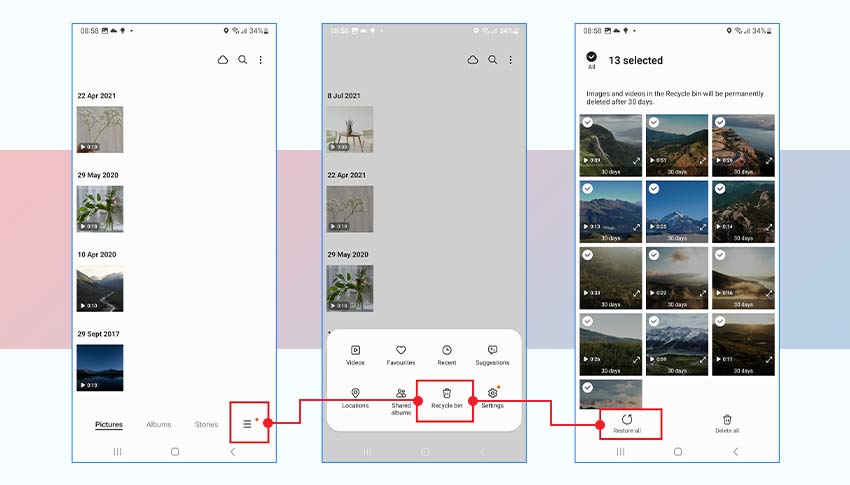
- Select the videos you want to recover and click Restore all. All the videos will move back to the Library of your Gallery app.
Method 2. Recover Using Free Android Data Recovery Tool
Do you know that certain free Android data recovery tool can help you recover your lost Android files? Yes, Stellar Data Recovery for Android is one of them. The free version recovers 10 video or photo files of 10MB each for free. Altogether, it supports free installation, free preview, and free recovery of lost files.
Install it on your Windows PC.
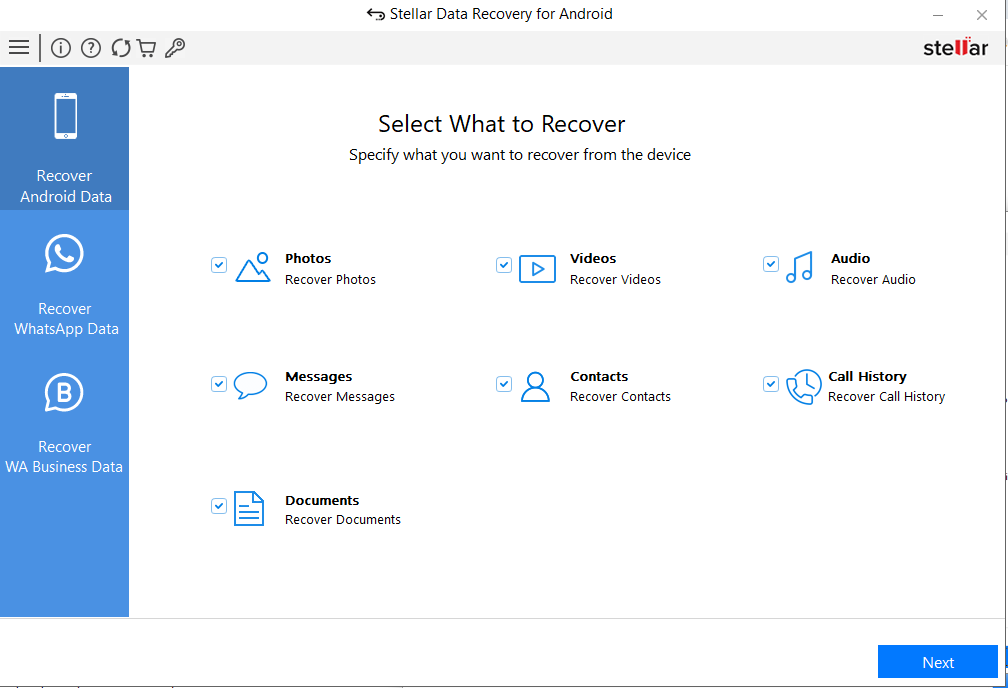
Open the tool. Home screen shows file types. Here, click Videos.
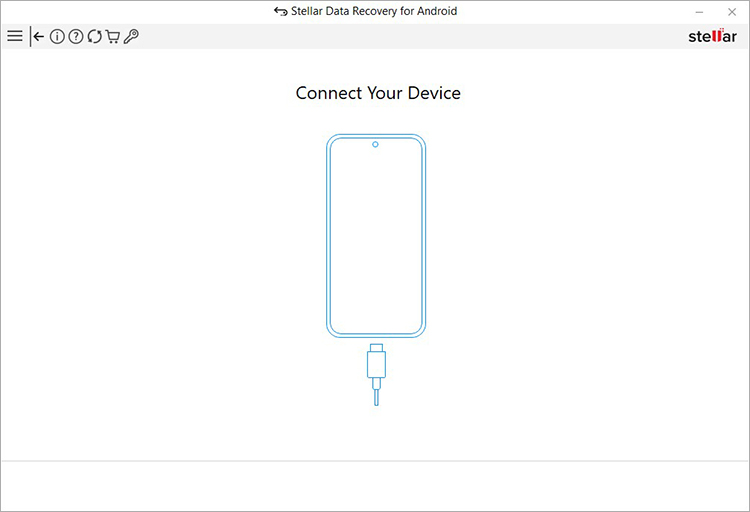
Now get a USB cable that helps connect the Phone to the PC.
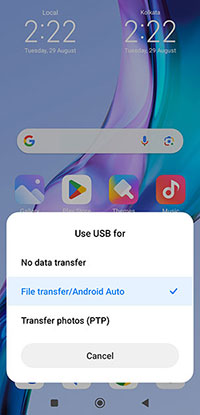
Your phone’s going to ask what the USB is for. Don’t ignore that. Pick File Transfer. Or let it auto decide, but just don’t leave it in charging mode, or else nothing will show up.
Now, this is the step most of us skip, but it’s important – USB Debugging. Go into Settings on your phone.
Find Developer Options. If you can’t find this option, you probably haven’t unlocked it yet. Go to settings and tap on About Phone, and look for Build Number, tap on it 7 times to unlock developer options.
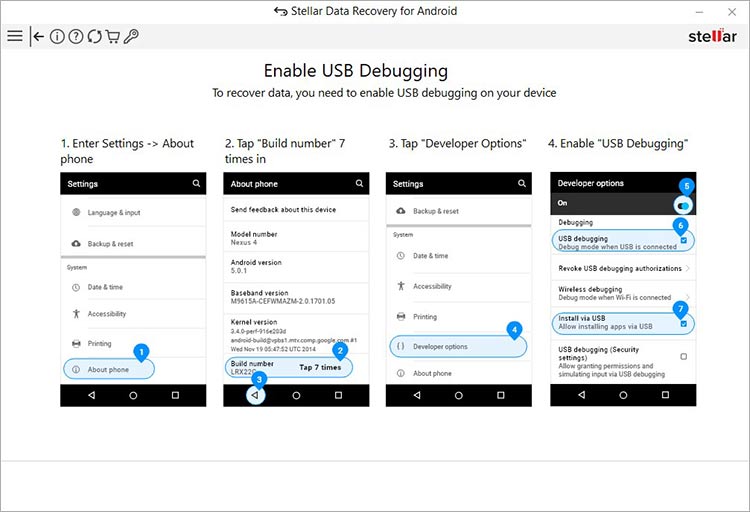
But that’s not the case with every phone. Xiaomi does it differently. Samsung does it differently. Just Google how to enable USB debugging on your phone brand and follow that.
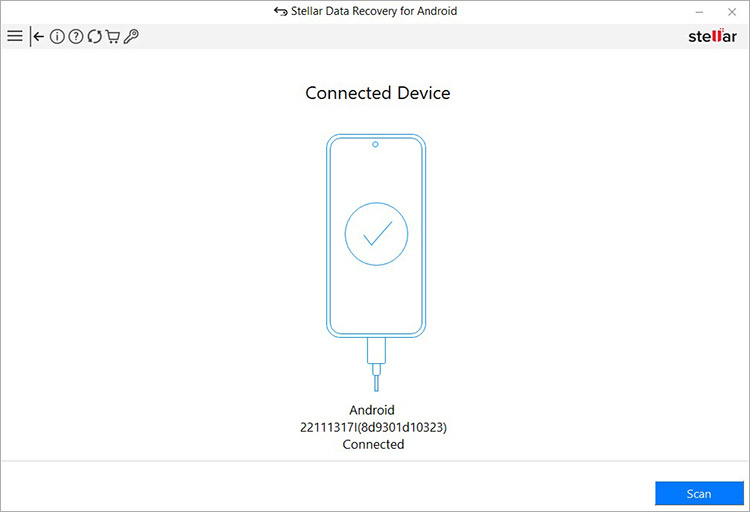
Once it’s on, the tool should show the phone as connected. Hit Scan. The phone might ask you to install something. Tap Install. Then another pop-up – Allow. It needs access to your files and media, that’s the whole point.
After some time, the Scan Complete message pops up, hit OK.
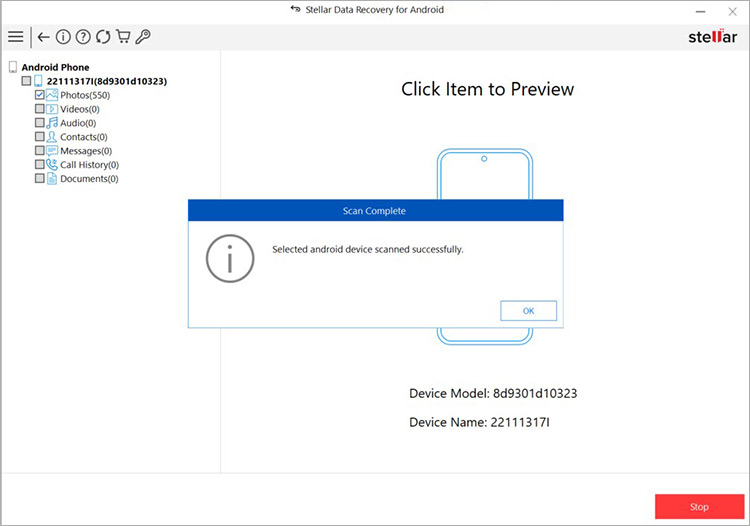
The left panel shows a Videos folder. Double-click it, thumbnails show up, pick what you want, Save, choose a folder on your computer, and hit OK.
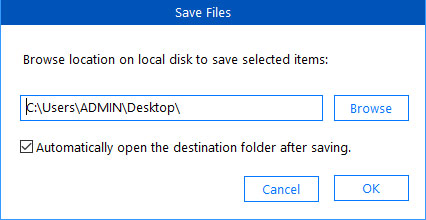
Done. That’s it.
Suggested Read: How to enable USB Debugging on Xiaomi Phone?
Method 3. Use Google Photos for Deleted Video Recovery in Android
If backup is enabled, Google Photos and Google Photos Trash hold these deleted videos for up to 30 days. Open Google Photos, tap on the Collections options to access the Library, look for the videos you deleted; they might be sitting on your Google Photos Backup.
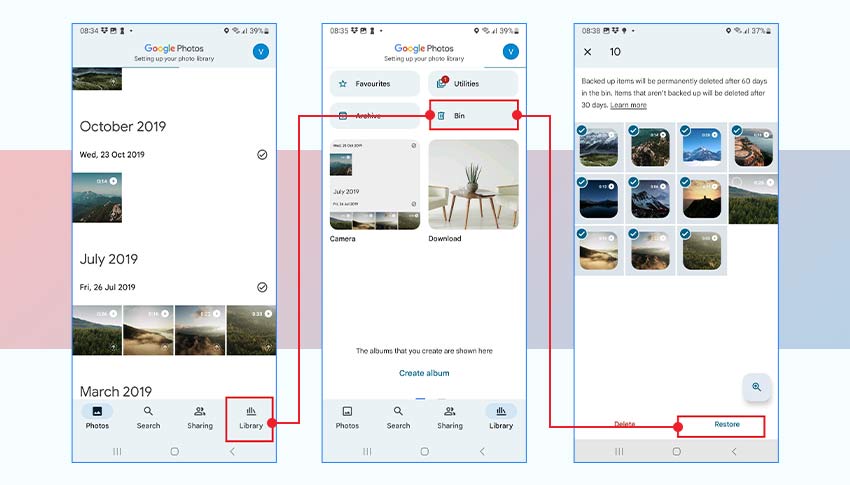
If not, then the Google Photos Trash. You will find the Trash option here. Long-press the video and then hit Restore.
Method 4. Recover Deleted Videos for Android Using Google Drive Backup
Didn’t find your videos on Google Photos? Try Google One Drive, the in-built cloud backup feature from Google that helps backup and restore all types of files, including photos and videos. If you routinely sync video files from your Android phone to the Google Drive app, restore your deleted videos from there.
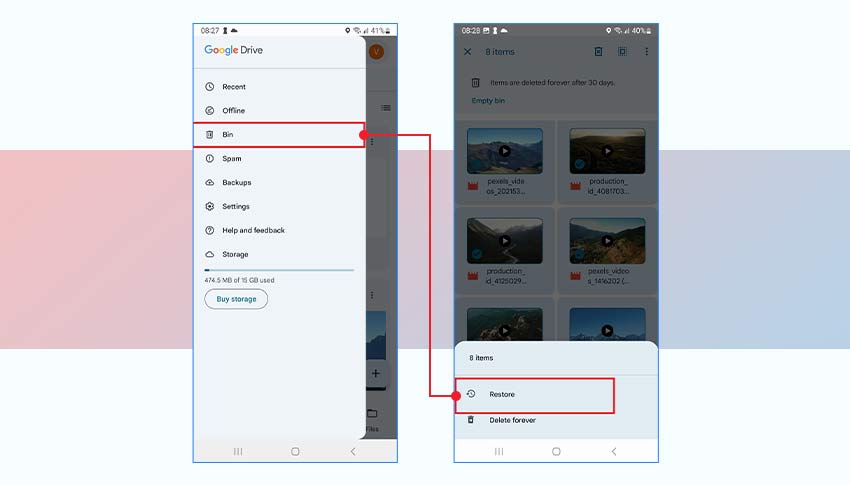
Open the app, hit the three lines top left, and find Bin in there somewhere. Long-press the video you want, three dots pop up, just tap restore. It’s done and takes like 30 seconds when I did it. You can now check the restored videos in Google Drive.
Method 5. Recover Deleted Videos from Android via Microsoft OneDrive
OneDrive is basically the same thing, but with a slightly different layout. There’s a “Me” section at the bottom of the app, recycle bin is hiding in there. Select whatever you lost, click on the three dots, and hit restore. The video files goes straight back to your phone’s gallery. The only thing I’d say is don’t wait too long, because they don’t keep deleted files for long.
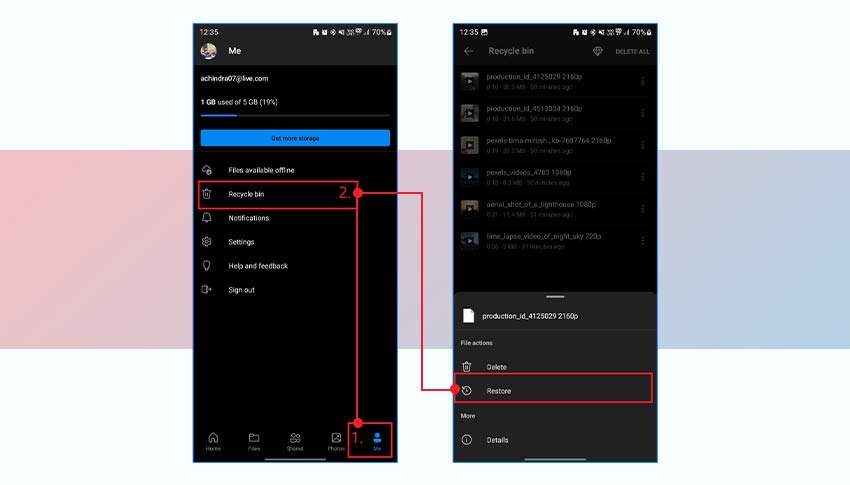
Method 6. Recover Deleted Videos from Android via Dropbox
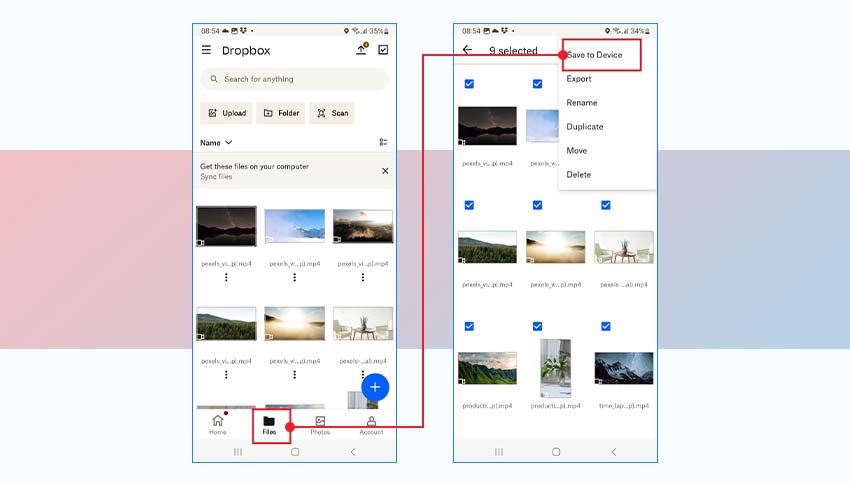
Dropbox is a little bit different. There’s no real trash folder for this. You just go into Files, find the video, tap the three dots next to it, and hit Save to Device. It just redownloads it. This is pretty simple, assuming you were actually backing up to Dropbox before this happened.
Bottom Line
Let’s settle the concern – Android doesn’t just remove the videos or files deleted from the device. They are moved to the built-in trash bin. Then there’s cloud backups, well, if you enabled them right away before deleting or losing the files. But even if the video files are lost from the device’s gallery, technically, it’s not and they’re still sitting there on your device’s storage. You just need a reliable data recovery tool for Android to restore the files.
But I’ll give you a cheat sheet – Don’t use your phone, check the Recycle Bin, use Stellar’s free Android data recovery tool, then check Google Photos, check Google Drive trash, check OneDrive, and all other cloud storage and their recycle bin. Save your time and always back up your Android device to multiple sources.
