You might have seen this before — you try to run a program or code, install a software, or open files, but the system runs into the Windows error, “The system cannot find the file specified.” A quite common error, occurring when Windows tries to access a file/folder that it fails to locate, and mostly comes up when the file path is incorrect, or when the files have been moved or deleted.
In some cases, presence of a malware or wrong registry entries can make Windows search for files that were removed or never existed in the first place. Other usual suspects behind this error are corrupted system files, failed or incomplete updates, damaged disk sectors, missing drivers, permission issues, etc.
Is it Possible to Fix “The system Cannot Find the File Specified” Error?
Yes. Try to check the path file/folder, reassign the drive letters for external/network drives, or update your drivers. If the problem persists, then a system scan using Windows Defender/antivirus software or registry cleaning may resolve the problem. We will discuss all these workarounds in detail in this article. But first, let’s learn why this error occurs on your system.
The main causes behind “The system cannot find the file specified are:
- Invalid file path
- Disk errors
- Outdated drivers
- Incorrect registry entries
- Corrupted system files
- Missing drivers
- Malware
- Antivirus software or Firewall
“The System Cannot Find the File Specified” Error: Detailed Troubleshooting Methods
This blog will cover the various fixes in detail below; you can give them a shot and see which one works in your specific case.
1. Check System Log Files for Missing File or Driver
Because this error mostly happens when Windows gets lost looking for a specific driver or file, your best bet is to check if the target is actually there. Just keep in mind that this specific log file has a narrow focus: use it to troubleshoot driver and hardware setup glitches, but don’t expect it to help with regular missing file issues.
- Open Windows Explorer
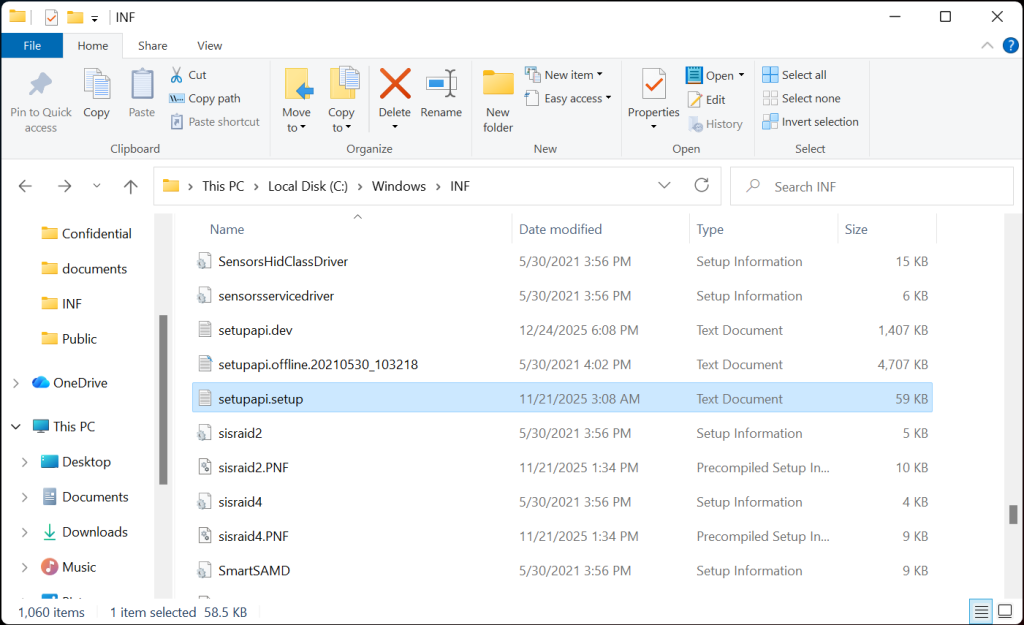
- Go to C:/Windows/inf (This folder contains setup information files used by Windows during driver installation)
- Search for setupapi.dev.log or setupapi.dev
- Double-click the log file to open it.
- Press Ctrl + F in Notepad.
- Search for: failed or !!! (three exclamation marks)
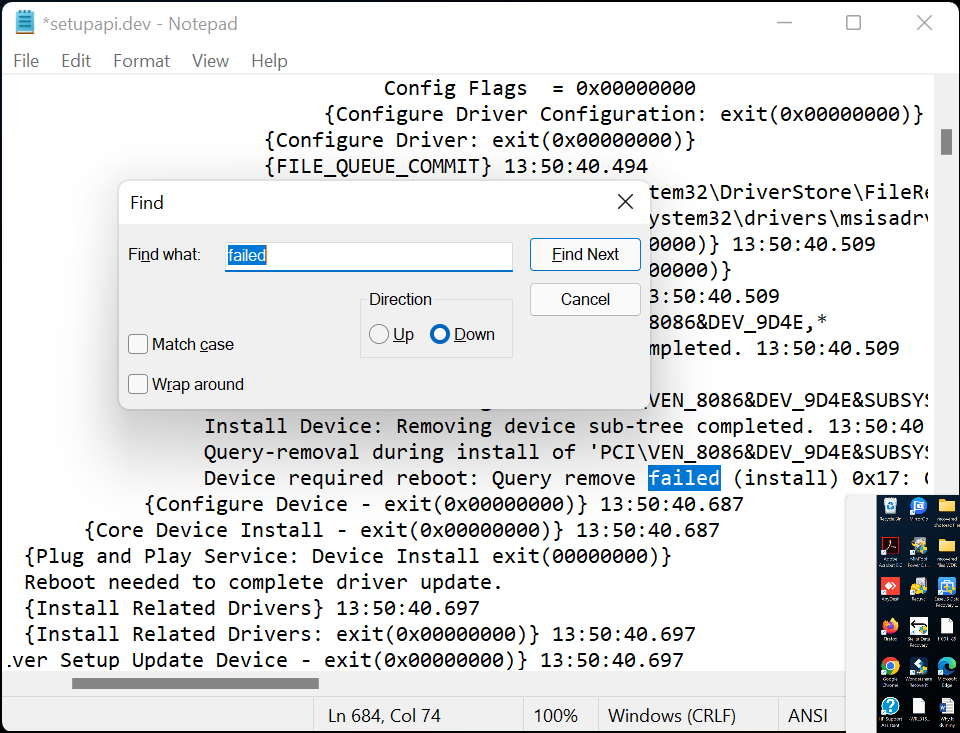
- Note down the file name, driver name, or device ID mentioned near the error entry to help identify the failing component.
- Use the information to find out which device or driver triggered the error.
- Uninstall it using Device Manager and reboot.
- Download the latest compatible driver from the OEM’s official website & reboot.
2. Run the SFC and DISM Scan
The SFC and DISM are built-in utilities on Windows to repair system files and fix any underlying errors. SFC scans system files, including DLL files, and replaces corrupt files with a cached copy.
DISM repairs Windows image, including the Windows Component Store and fixes issues that the SFC can’t resolve by itself.
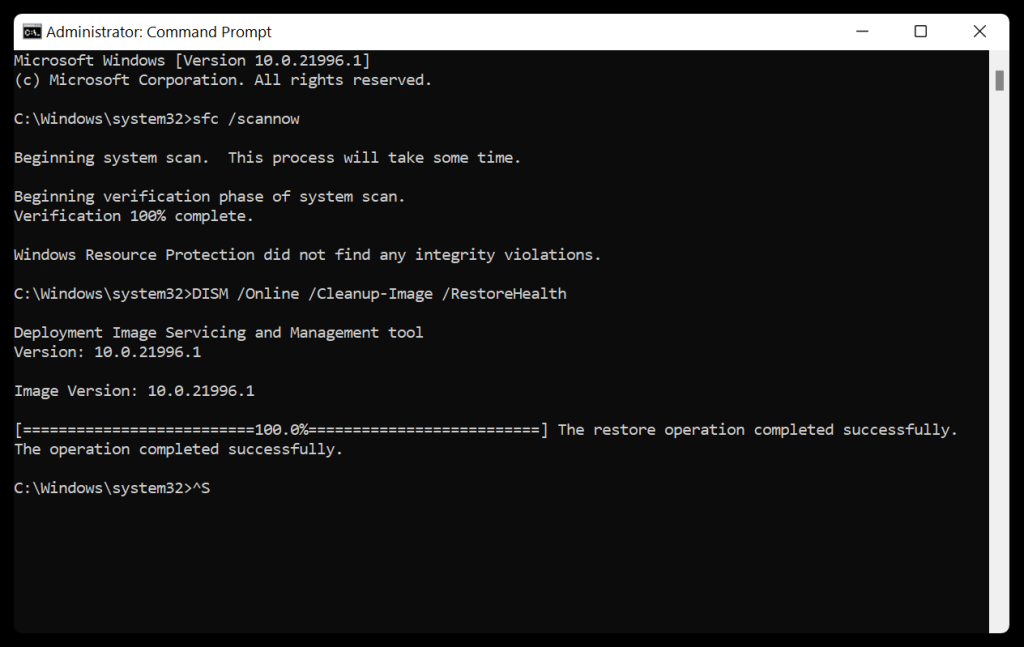
- Open Command Prompt as administrator.
- Execute the following commands one by one:
sfc /scannow
DISM /Online /Cleanup-Image /RestoreHealth
3. Verify the File Path and Filename
The error also occurs when there is an incorrect file name/path indicated by a command, program, or configuration. For ex., if a folder is named “User” instead of “Users,” a path like C:\Users\Name\File.txt will not work.
To overcome this, one needs to check the path & file name carefully for spelling errors and ensure that the file exists at the indicated location.
4. Check for Disk Errors
Disk errors due to improper shutdowns, or wear & tear can cause “The system cannot find the file specified” error on your Windows PC. Use CHKDSK to scan the drive for errors and automatically fix them.
- Run Command Prompt as Administrator.
- Type chkdsk L: (replace L with the affected drive letter) and press Enter.
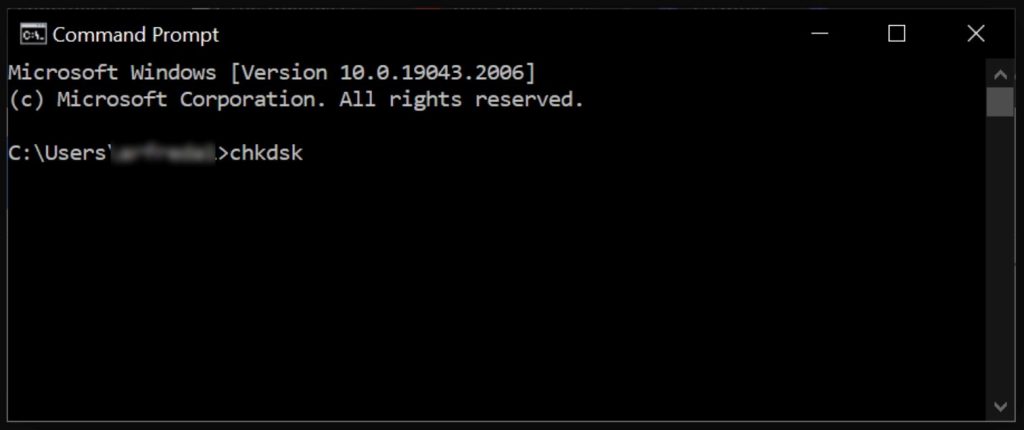
- If errors are detected, enter chkdsk /r and press Enter.
5. Scan Your PC for Malware
“The system cannot find the file specified” error could also occur due to the presence of a virus or malware on your system which can remove or redirect system files, causing repeated errors. Scan your computer for these threats and eliminate them to resolve the issue.
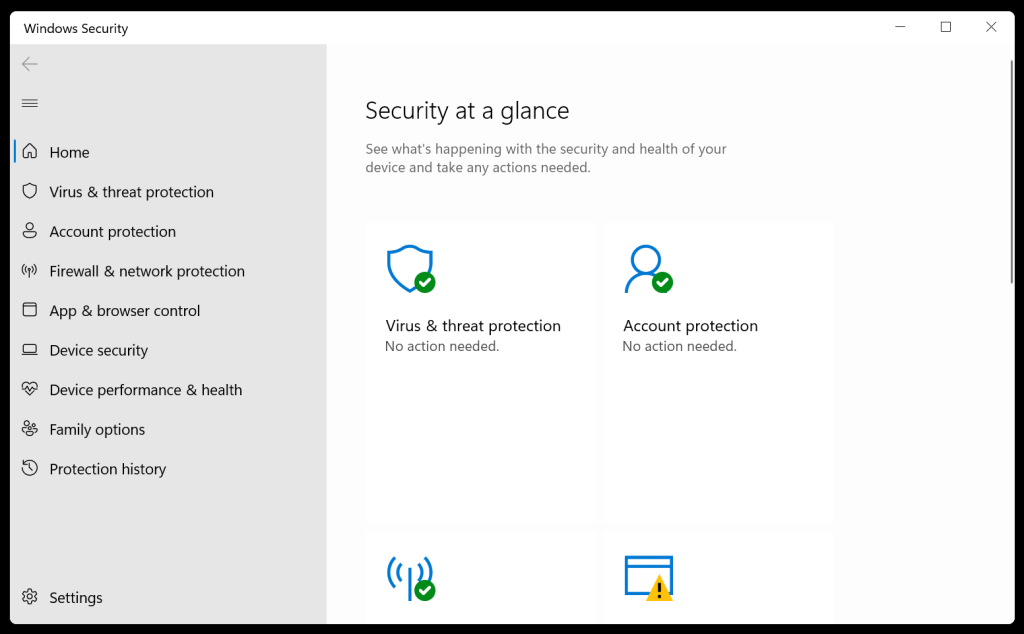
- Open Windows Security by searching for it.
- Click Virus & threat protection > Scan options.
- Click Windows Defender Offline Scan > Scan Now.
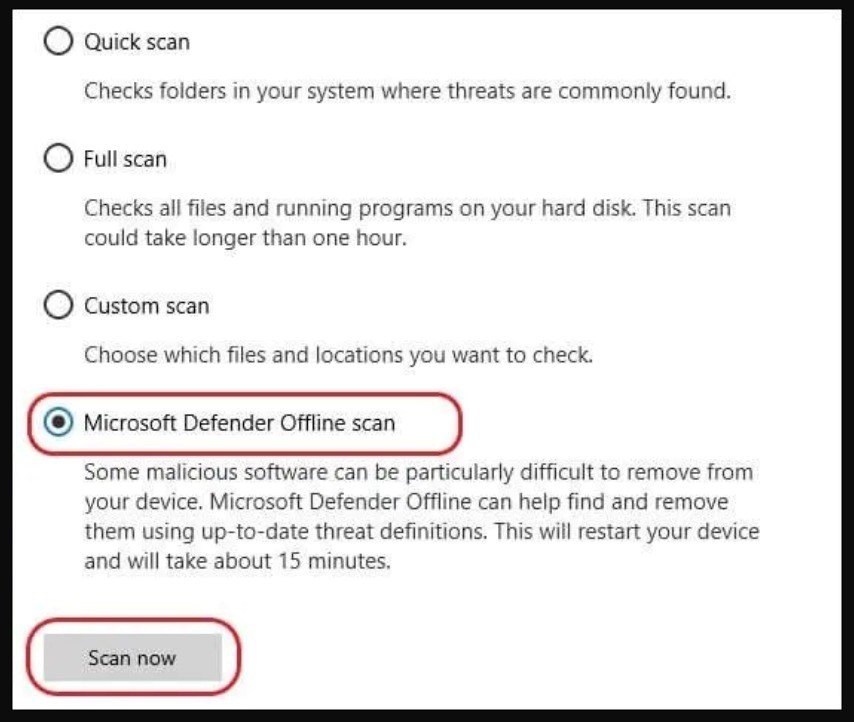
Let the process complete. The Windows Defender will scan your computer for existing threats.
6. Update Disk Drivers
Since disk and storage drivers related issues are another big reason behind the unexpected “The system cannot find the file specified” error, update them on priority to mitigate this issue.
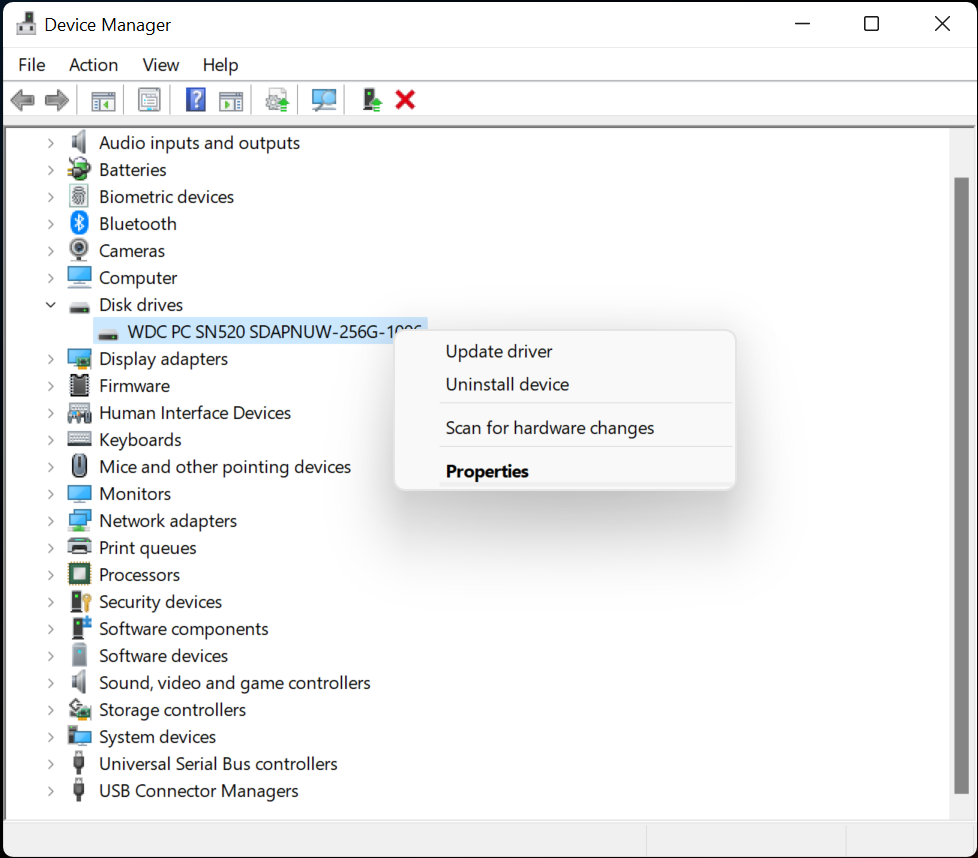
- Open Device Manager.
- Scroll down to Disk drives and Storage controllers.
- Right-click the device and click Update driver.
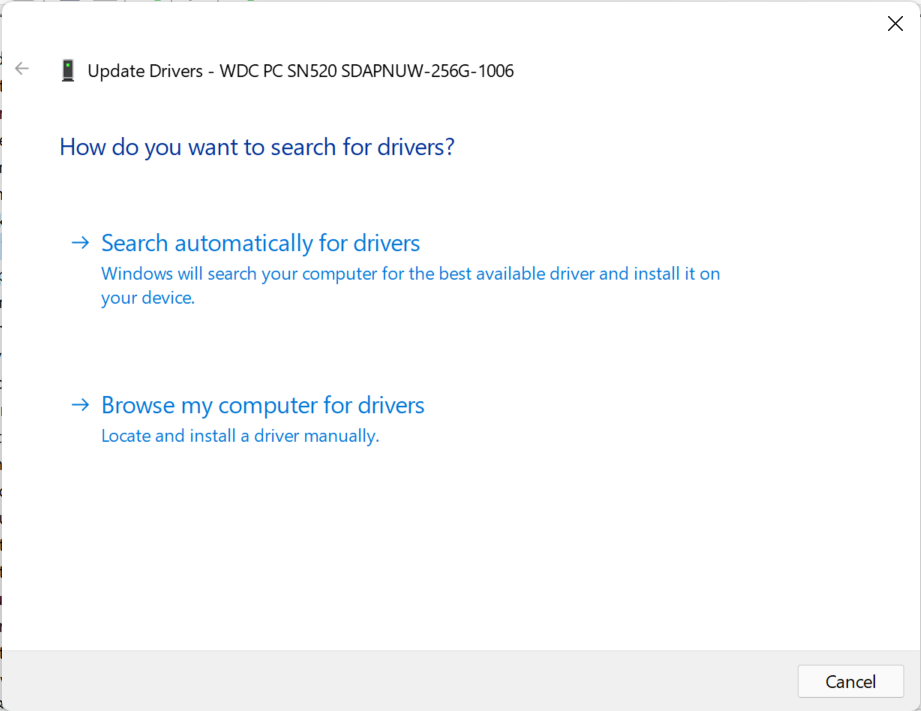
- Click Search automatically for drivers and let Windows install it on your computer.
If the issue still persists, it’s best to reinstall the drivers—right-click on your disk or storage adapter and select Uninstall device. Upon restart, Windows will automatically install the driver.
7. Fix Invalid Registry Startup Entries (For Advanced Users)
“The system cannot find the file specified” error also occurs when Windows tries to open a startup item that points to a file or program that no longer exists on your system. Identify these invalid references in the Windows Registry and remove them.
- Search for Registry Editor and open it.
- Before making any changes, backup the Registry. Click File > Export, select a suitable location and click Save.
- Go to the following paths one by one: HKEY_LOCAL_MACHINE\SOFTWARE\Microsoft\Windows\CurrentVersion\Run
HKEY_LOCAL_MACHINE\SOFTWARE\Microsoft\Windows\CurrentVersion\RunOnce
HKEY_CURRENT_USER\SOFTWARE\Microsoft\Windows\CurrentVersion\Run
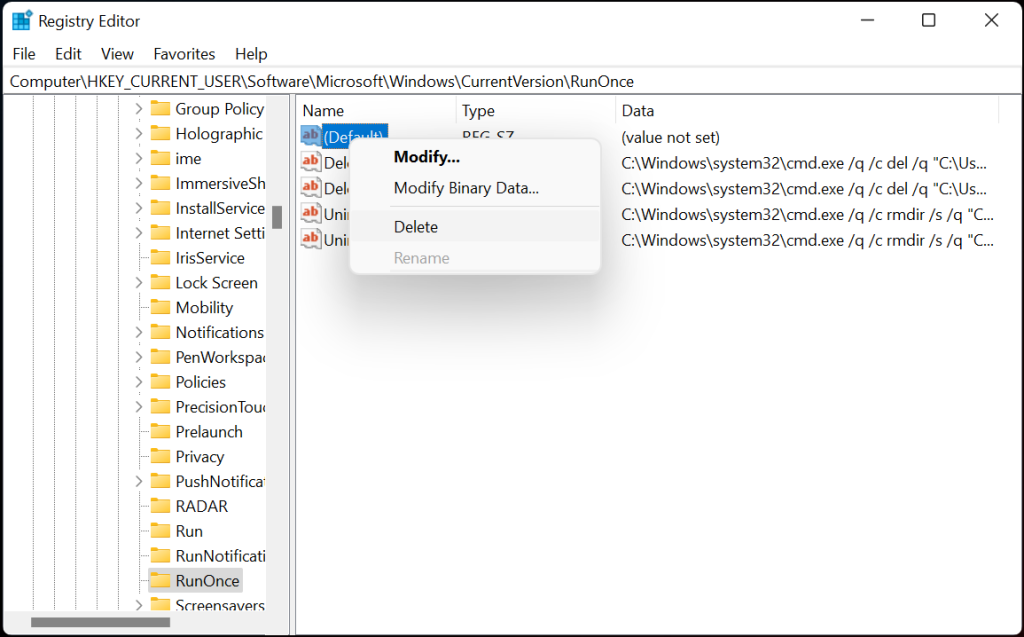
HKEY_CURRENT_USER\SOFTWARE\Microsoft\Windows\CurrentVersion\RunOnce
- The above keys contain programs automatically run by Windows during startup.
- Select a key and review the entries.
- Look for values with non-existent file path or that belonging to uninstalled applications
- Copy the file path from each entry and paste into File Explorer.
- Check if the file actually exists.
- If the file can’t be located, it’s the one causing the error.
- Right-click the registry value pointing to the missing file and click Delete.
- Restart your PC and see if the issue is resolved.
Recover Data After “The System Cannot Find the File Specified” Error
Errors like “The system cannot find the file specified” can suddenly occur while installing a software, during file transfer, or when updating Windows, leaving files in an incomplete or inconsistent state. And any unsaved data in the program’s memory at the time might get lost.
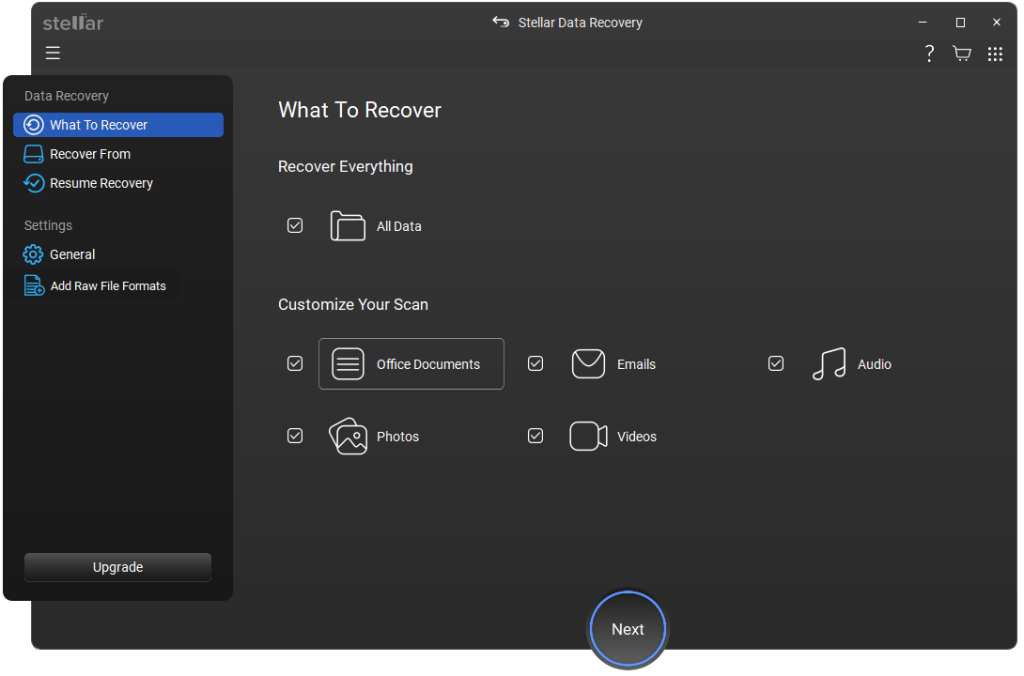
In such cases, we recommend using a Windows data recovery software – Stellar Data Recovery Standard to reclaim your lost files. The software helps you recover data in complex loss scenarios like system file corruption, sudden crashes, logical drive failures, lost partitions, and more.
Bottom Line
To prevent “The system cannot find the file specified” error, use proper uninstallation methods, maintain disk and file system health, and keep your drivers and Windows updated. If the crash results in lost or corrupted data, use a Windows data recovery software to reclaim your files.
