When trying to move mailboxes from on-premises Exchange Server to Exchange Online (Office 365) in a hybrid environment, you may receive the following error:
The target mailbox doesn't have an SMTP proxy matching '<domain>.mail.onmicrosoft.com'
This error could occur due to one or more of the following conditions:
- The source mailbox doesn’t have the stamp of the Microsoft address <your name>.mail.onmicrosoft.com as an SMTP address.
- The proxy address <your name>.mail.onmicrosoft.com in your local Exchange Server alias is not synchronized to Exchange Online and the object being moved doesn’t have the cloud mail-user object to correspond with.
Solutions to Resolve the Mailbox doesn’t have an SMTP Proxy Matching Issue
The first thing to do is find the mailbox that doesn’t have the correct addresses and find any missing email addresses in your local Exchange Server by using the Exchange Management Shell (EMS) and the Exchange Online PowerShell.
For the local Exchange Server, run the following command:
Get-Mailbox <AffectedUser> | FL EmailAddresses, EmailAddressPolicyEnabled

For Exchange Online, execute the following command:
Get-MailUser <AffectedUser> | Select -ExpandProperty emailaddresses

If the address <your name>.mail.onmicrosoft.com is missing from your local Exchange Server and if you have an applied email address policy, this means that it is missing the <your name>.mail.onmicrosoft.com address. You can update the policy to include the address for the user as a secondary email. You can do this by opening the Email Address Policy from the Mail Flow in the Exchange Admin Center (EAC).
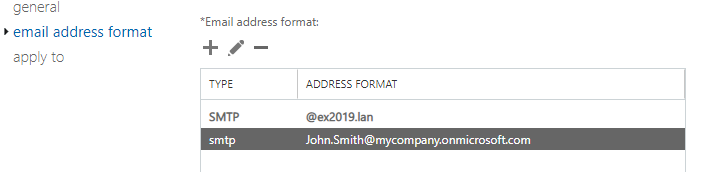
Once the synchronization is complete, the mailbox should be able to move.
In case the address is missing from Exchange Online, you will need to check the Office 365 object using the following commands.
(Get-MsolUser -UserPrincipalName <AffectedUserUPN>).Errors.ErrorDetail.ObjectErrors.ErrorRecord.ErrorDescription
(Get-AzureADUser -ObjectId <AffectedUserUPN>).Errors.ErrorDetail.ObjectErrors.ErrorRecord.ErrorDescription
If the address is missing, run the following command to confirm if the online object has the missing email address.
(Get-MsolUser -UserPrincipalName <AffectedUserUPN>).ProxyAddresses
(Get-AzureADUser -ObjectId <AffectedUserUPN>).ProxyAddresses
After checking the affected user on Exchange Online, you can re-sync the object in the Azure Active Directory (AAD) sync application to try to identify the issue and rectify it.
Another solution to the problem is to create a migration endpoint from the Exchange Admin Center (EAC).
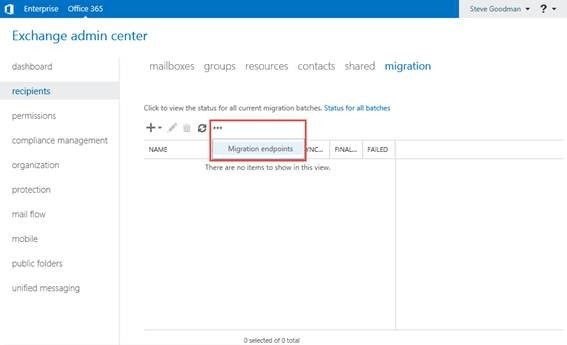
You can create a new Migration Endpoint to start the wizard and choose Exchange Remote as this uses the MRS-Proxy base for migration. When the endpoint is created, you can create the migration batch. Once you select the users to migrate, choose the migration endpoint you just created. This should re-start the migration progress.
To Conclude
The above process should fix the problem and you should be able to move your mailboxes from local Exchange Server to Office 365 tenant. However, there could be underlying issues with the configuration of your hybrid setup, Exchange Server, or third-party applications or configurations that could be affecting your hybrid setup. In such cases, you can re-install your Exchange Server and restore the databases from backup but you will lose the business data between the last healthy backup.
The local and native tools are not a guarantee to recover the data. Also, this would result in an increase in the cost of recovery, added resources, and administrative effort. Apart from this, the native tools are only limited to user mailboxes, if you don’t use complex scripting tools to move other objects, such as Public Folders.
To resolve such migration challenges and ensure zero data loss, Stellar Migrator for Exchange is a perfect solution. With this advanced tool, you can seamlessly migrate mailboxes between Exchange Servers or directly to Office 365, without downtime or disruption. The application can be installed on any Windows client or Server operating system.
After a quick connection setup, you can view all mailboxes and migrate them selectively including primary mailbox, archive mailbox, and public folders. You can perform cross-forest, cross-domain, and hybrid migrations with complete integrity. With Stellar Migrator for Exchange, you can achieve fast, secure, and hassle-free mailbox migration every time.
