“Whenever I open my Valorant, during match or even in lobby, my game crashes and BSoD occurs saying, “SYSTEM THREAD EXCEPTION NOT HANDLED,” and vgk.sys failed. I have watched so many videos but couldn’t fix it. Please help me fix this problem.”
When playing Valorant or League of Legends, users report facing the vgk.sys blue screen error. This Blue Screen of Death (BSoD) is associated with Riot Vanguard, the anti-cheat system required to play Valorant. While it is designed to prevent cheating, it operates at the kernel level (Ring 0), meaning any instability can crash your entire operating system, not just the game.
Recently, this error has surged among users with high-end Intel CPUs, but it affects older systems too. Whether you are facing a SYSTEM_THREAD_EXCEPTION_NOT_HANDLED, or a boot loop, this guide will provide effective solutions to get you back in the game.
Potential Causes Behind vgk.sys BSoD Error
There can be various reasons why the vgk.sys error is occurring on your computer. Here, we will list the most common ones:
- Intel 13th/14th Gen Instability: Improper voltage settings on motherboards causing the CPU to fail when Vanguard checks system integrity.
- Corrupted Vanguard Files: Updates to the game or Windows can break the driver.
- Driver Conflicts: Third-party antivirus or older drivers clashing with Vanguard.
- Windows Fast Startup: Preventing the driver from loading correctly during boot.
Fixing the vgk.sys Blue Screen of Death Error
Before troubleshooting your system’s vgk.sys error, ensure your game client and Vanguard software are already updated. Make sure you have the latest updates installed for your processor, and choose the following settings: For MSI, go into your BIOS and choose Intel Default Settings; for ASUS, enter BIOS and choose Intel Baseline Profile; and for Gigabyte, go to BIOS and select Intel BaseLine.
Solutions 1: Update BIOS & Enable “Intel Default Settings”
If you are using an Intel 13th or 14th Gen processor (e.g., i9-13900K, i7-14700K), this is likely your issue. Motherboard manufacturers often push these CPUs too hard by default.
- Restart your PC and enter the BIOS (usually F2, Del, or F10).
- Look for a BIOS update in your manufacturer’s tool or website—install it immediately.
- Once updated, reset your BIOS to defaults.
- Look for an option labeled “Intel Default Settings”, “Intel Baseline Profile”, or “Enforce All Limits”.
- Save and Exit.
This stabilizes the voltage and often stops the vgk.sys crashes instantly.
Solution 2: Disable Fast Startup on Windows
The Fast Startup feature on Windows helps your PC boot faster but may stop certain software or drivers, such as Vanguard, from initializing properly. If Vanguard fails to initialize, disabling Fast startup might be a good idea as it gives the system enough time to load all services, thereby resolving the issue. Here’s how to do it:
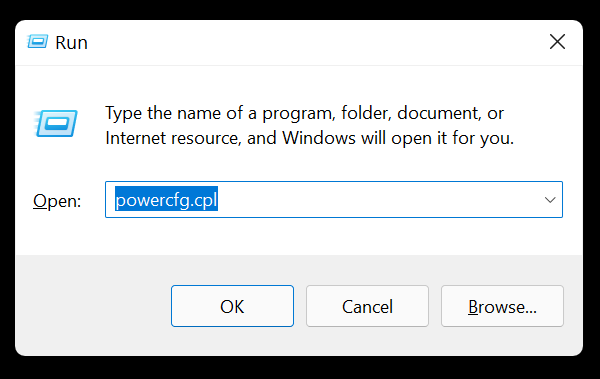
- Press Windows + R to launch Run.
- Type in powercfg.cpl and press Enter.
- In the Power Options window, click on Choose what the power button does.
- Next, click Change settings that are currently unavailable.
- Uncheck the Turn on fast startup option under Shutdown settings.
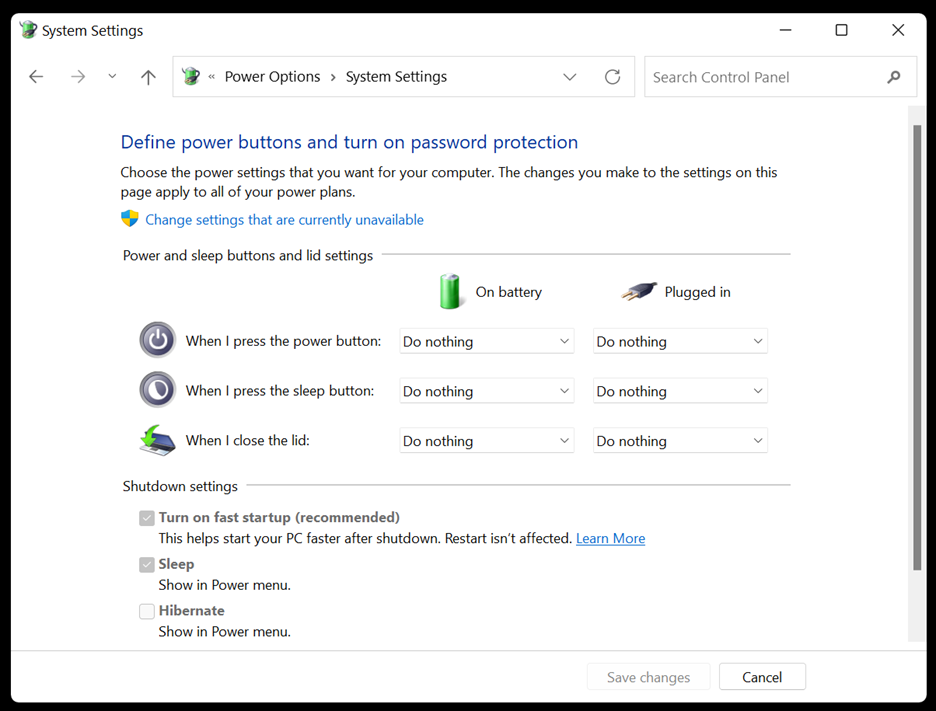
- Lastly, click Save Changes and restart your PC.
Solution 3: Repair Game Files in Riot Client
Missing or corrupted game files might also cause the vgk.sys blue screen error on your computer. Follow the steps below to repair the damaged files:
- Open the Riot client, click the profile icon and select Settings.
- Select the game whose files you want to fix and click Repair.
- Wait for the process to complete and Restart your game.
Solution 4: Disable Virtualization-based Security
Although virtualization-based security protects your operating system from malware and other attacks, it can slow down your system’s performance. Some players reported that disabling this feature on their system helped resolve the vgk.sys blue screen error. Here’s the rundown:
- Press Win + S to launch Windows search.
- Type in CMD and select Run as administrator.
- Now execute the following command: bcdedit /set hypervisorlaunchtype off
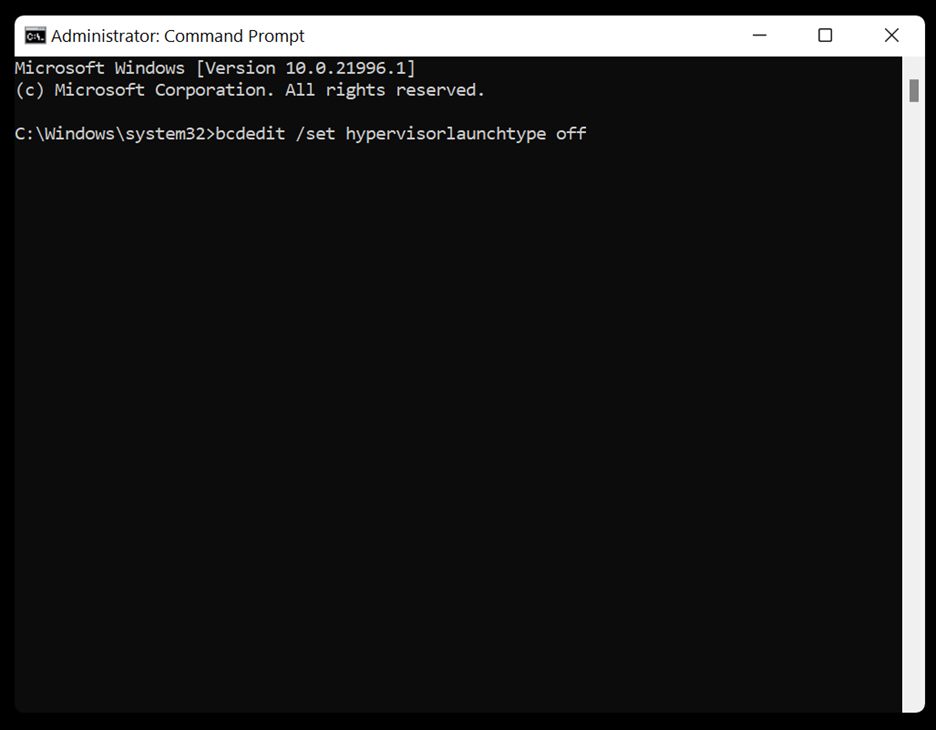
- Once the process is completed, restart your computer.
Solution 5: Reinstall Vanguard
Corrupt Vanguard files can cause vgk.sys error while launching or playing Valorant and League of Legends. In such cases, reinstalling Vanguard is a good idea. It can help you get rid of damaged files and install them afresh. Here’s how to do it:
- Press Win + S to launch Windows search.
- Open Control Panel and go to Programs > Uninstall a program.
- Locate Riot Vanguard and click the Uninstall option.
- Once the uninstallation is completed, go to the official website of Riot Games to download the Riot client and reinstall Valorant.
Solution 6: Update Drivers and Windows
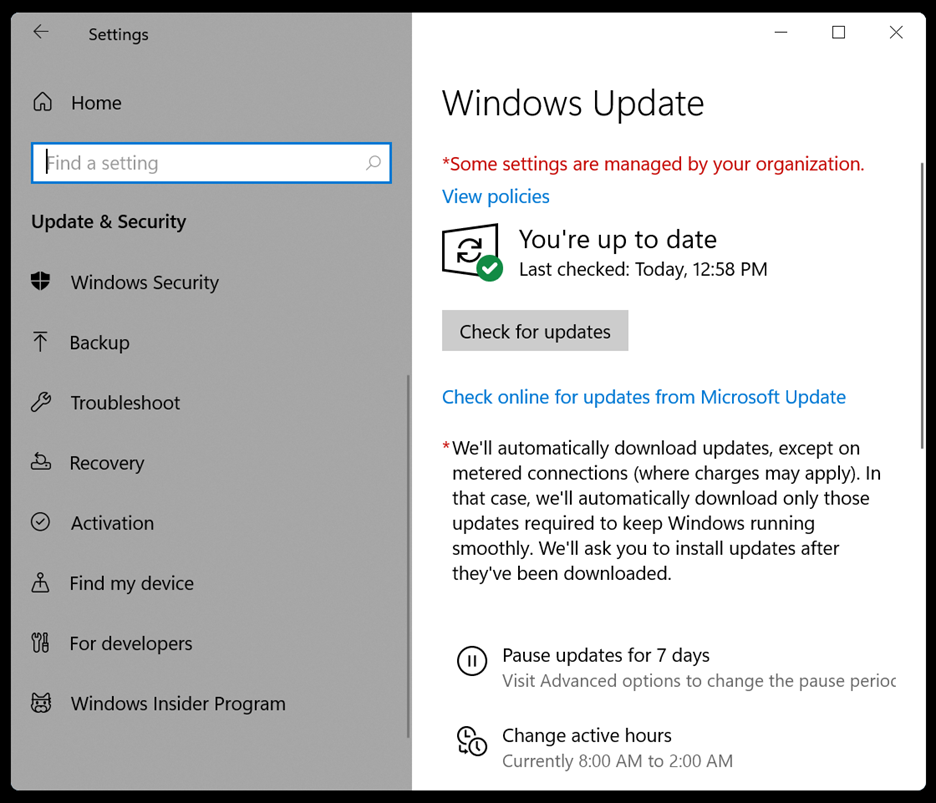
An outdated Windows OS or drivers, particularly the graphic driver, can affect the performance of Vanguard-based games. To fix this, consider updating your Windows OS and drivers. To update Windows, go to Settings > Windows Update, check for updates, and install them on your system.
For graphic drivers, visit the official NVIDIA or AMD website to download and install the appropriate driver for your PC.
Solution 7: Enable “VGC” Service in Services.msc
Sometimes the Vanguard service (vgc) is installed but set to “Manual,” causing it to fail at startup.
- Press Win + R, type
services.msc, and hit Enter.
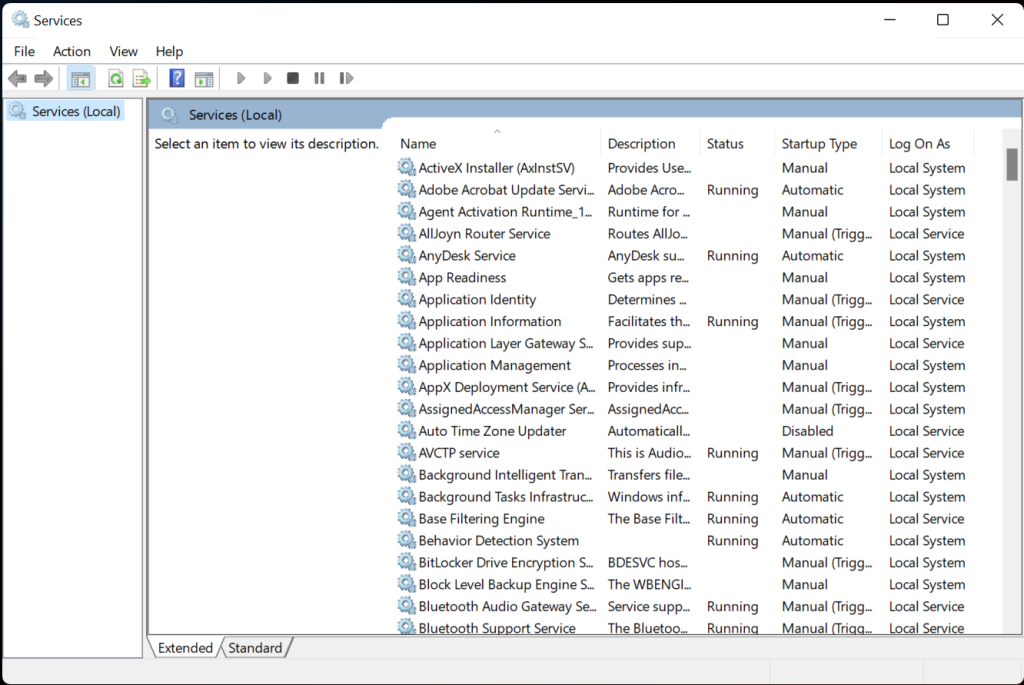
- Locate the vgc service in the list.
- Right-click it and select Properties.
- Change the Startup type to Automatic.
- Click Start (if the service is stopped) and then Apply.
Solution 8: Enforce Secure Boot in BIOS (Motherboard Specific)
Valorant on Windows 11 strictly requires TPM 2.0 and Secure Boot. If these aren’t configured correctly in your BIOS, Vanguard will force a crash or refusal to boot.
For ASUS Motherboards:
- Enter BIOS (F2/Del) > Advanced Mode (F7).
- Go to Boot > Secure Boot.
- Set OS Type to Windows UEFI Mode.
For Gigabyte Motherboards:
- Enter BIOS > Boot tab.
- Disable CSM Support.
- Enable Secure Boot.
For MSI Motherboards:
- Enter BIOS > Settings > Advanced.
- Go to Windows OS Configuration.
- Set BIOS UEFI/CSM Mode to UEFI.
- Go to Secure Boot and set it to Enabled.
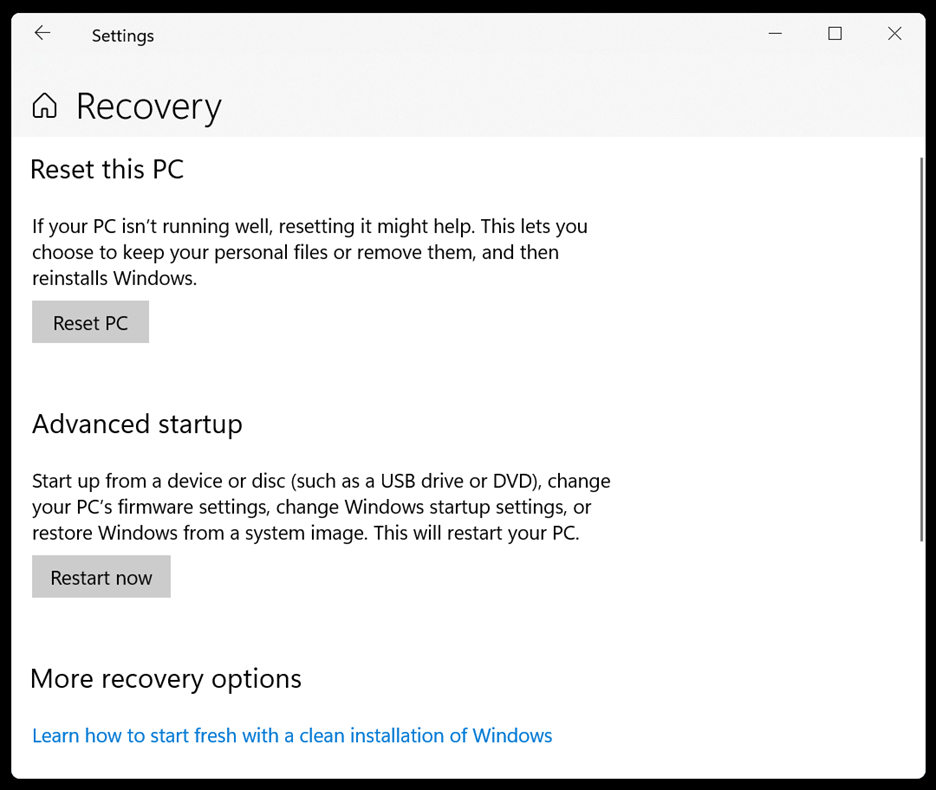
Solution 9: Reset Windows
If the above methods fail to resolve vgk.sys error on your computer, we recommend resetting your Windows as the last resort. But remember to back up your data before carrying out this procedure. Follow the steps below to reset your PC:
- Navigate to Start > Settings > Update & Security > Recovery
- Under Reset this PC, click Reset PC and follow the instructions to complete the process.
How to Recover Lost Data after Experiencing vgk.sys Blue Screen Error?
The vgk.sys blue screen error may not directly cause data loss. However, if the crash occurs while an application is actively writing data on your hard disk, it could lead to data corruption in that specific file, making it inaccessible.
In such cases, we recommend using a professional data recovery software to retrieve your inaccessible files. Stellar Data Recovery is a tool that helps you recover lost data from Windows systems that crash due to BSoD errors, corrupted system files, drive file-system damage, and more.
