Imagine this scenario in your daily life: you’ve just sat on your couch comfortably and queued a video up after a long day at work… and instead of seeing that first frame, you are treated with a spinning loader and a terse message on the screen, “This video file cannot be played (Error Code 232011).”
Frustrating, ain’t it? Well, the good news we have for you is that it isn’t just you. This is quite a common browser/streaming hiccup.
However, know that this code itself doesn’t directly say that your device is dying. Instead, it means something on your end or the site’s end or maybe in your browser’s settings is blocking playback. Let’s get your video playing again with some fixes.

Possible Causes of Error Code 232011
This particular error can crop up from nowhere. Error Code 232011 can appear due to several browser, network, or website-related issues. Some of the most common causes include:
- Unstable Internet: If you have a slow internet connection, and there are one too many devices hogging your bandwidth, video streaming on the browser can fail.
- Corrupted Browser Data: A lot of that accumulated cache, cookies, or an outdated browser can “result in errors like the above, preventing videos from loading.
- Conflicting Extensions or Blockers: Some of the add-ons like ad-blockers or privacy extensions that you install on your system for may also be interrupting video players.
- Unsupported or Missing Content: The video file that you are trying to play might also be in a format that your browser can’t handle, or the link could be broken/removed.
- Geo-Restrictions: Certain videos are region-locked and if you’re outside the country that it is allowed in, your playback of that video on the browser will be probably blocked.
Knowing these factors helps guide which fix to try first.
Methods to Fix “Video Cannot Be Played” (Error Code 232011)
Let us help you tackle the error code by applying different methods available.
Method 1: Clear Browser Cache and Cookies
To lower the loading time, your browser is always stashing caches & cookies from a website. However, corrupted or bloated data can sometimes cause issues and stop video playback in browser. When you clear this data, the browser gets refreshed, and there are good chances that those playback issues are resolved on their own.
Note: This error code always appears in browsers, and to explain the steps, we will take Chrome’s example, as it is the most widely used browser.
- Step 1: Open those browser settings or menu by clicking the three-dot menu icon.
- Step 2: Go to More tools if your version asks for it and select Clear browsing data. Many a times, it is there in the “Privacy” settings.
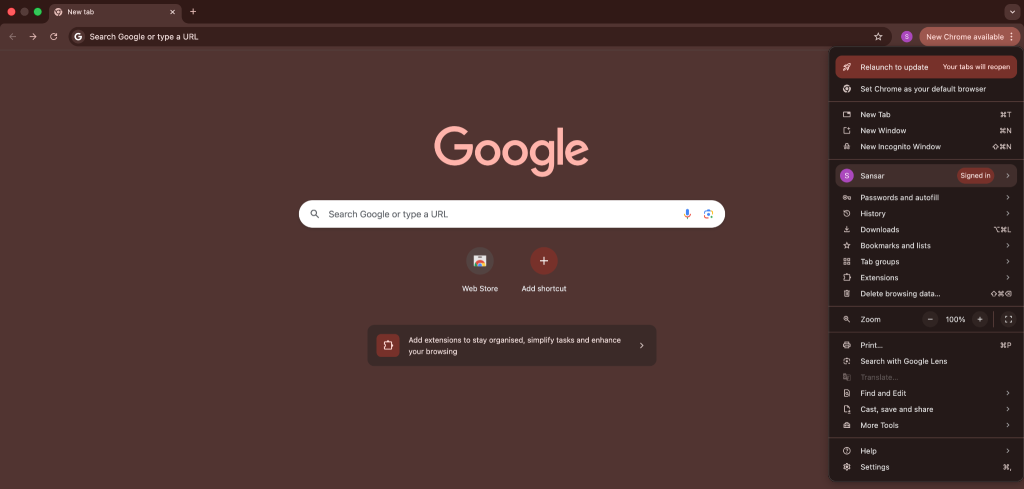
- Step 3: Set the Time range to All time and then select the Cached images/files and Cookies and other site data.
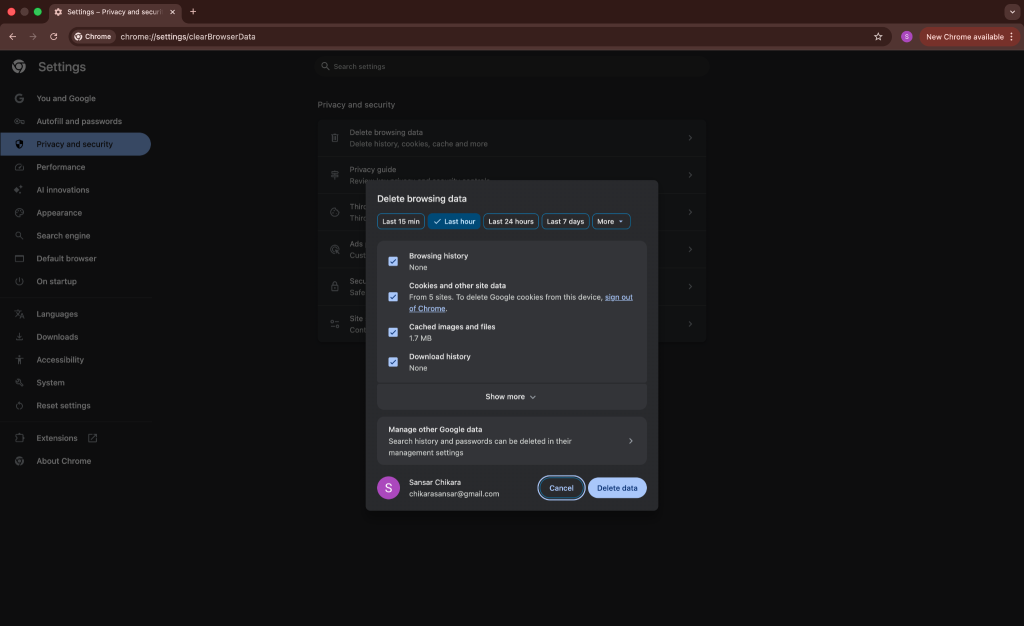
- Step 4: Click on the Clear data or Clear now button.
- Step 5: Restart the browser and replay the video.
This will help the video to start playing normally.
Method 2: Open the Video in Incognito/Private Mode
If your video starts playing normally in the incognito mode, understand that it’s an extension or a setting that you might have enabled earlier.
- Step 1: Open a New incognito window in Chrome.

- Step 2: Navigate to the same video URL or site in this newly opened window.
- Step 3: Now attempt to play the video.
Method 3: Turn Off Hardware Acceleration
The hardware acceleration option lets your browser use your GPU to decode your video and play it. However, while doing so, it can cause conflicts with the operating system.
- Step 1: In your browser, go to Settings.
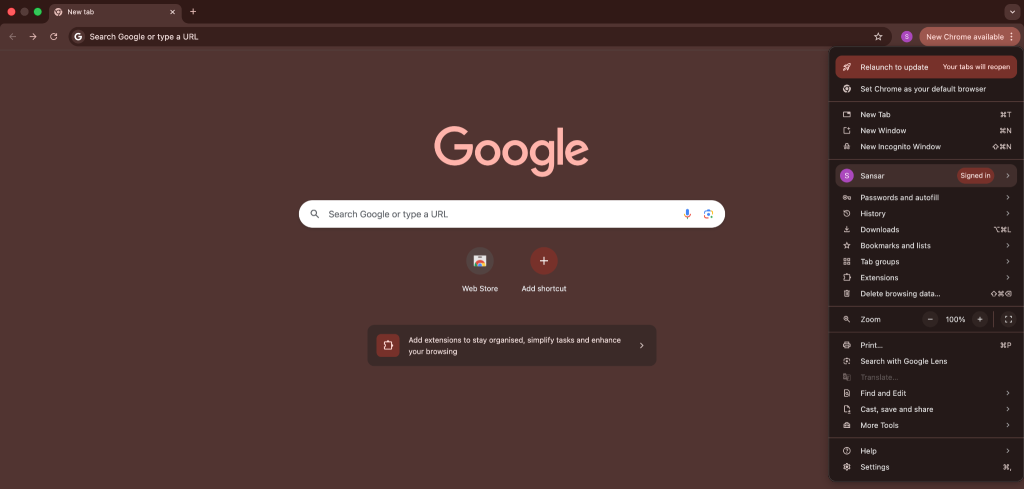
- Step 2: Navigate to Advanced (if needed) and find System settings.
- Step 3: Locate Use hardware acceleration when available and toggle it off (or on, if it was off).
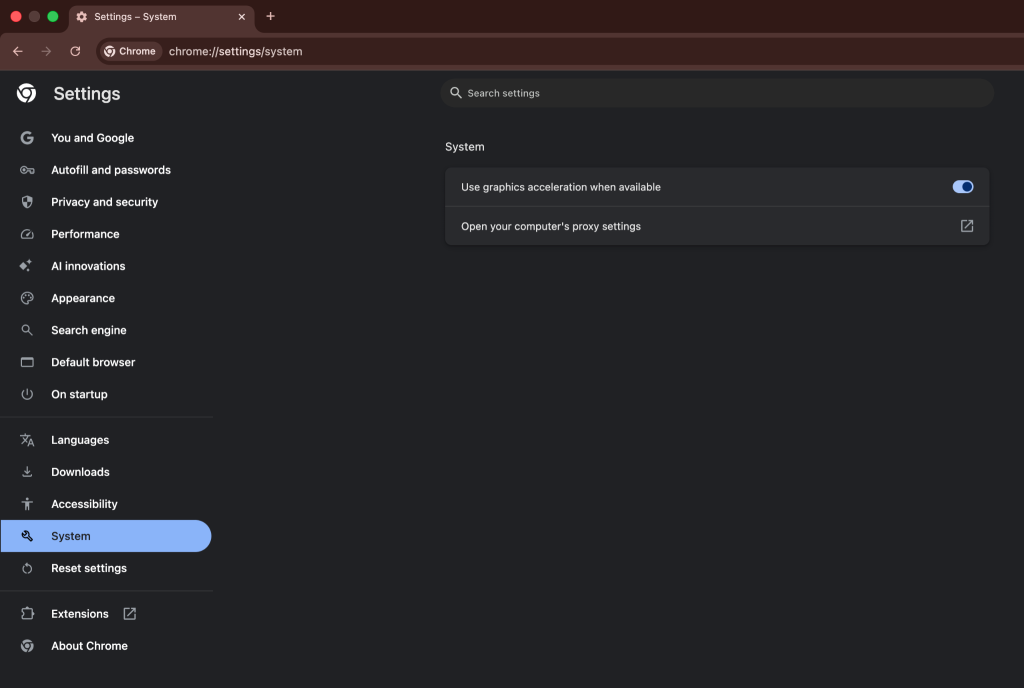
- Step 4: Restart your browser.
This shall force the video decoding to use your CPU instead of the GPU or the other way round, and may fix your issue.
Method 4: Disable Browser Extensions
Disabling or removing several browser extensions, most especially ad-blockers or VPN/privacy tools, can lead to playback working well again.
- Step 1: Open the browser and go to Settings > Extensions (in Chrome) or similar in other browsers.

- Step 2: One by one, disable or Remove unnecessary extensions.
- Step 3: After disabling an extension, refresh the video page and check if it plays.
- Step 4: Repeat until the problematic extension (if any) is identified.
After following the above steps, users can find out that specific extension which was causing the error. Once it’s turned off, the video should be playing normally as it does.
Method 5: Update or Switch Your Browser
Outdated browsers that you have not updated for years now mights not support the video codecs or features that are a norm these days. Similarly, some sites may be working in a better way in one browser than the other one.
- Step 1: Ensure your browser is up to date. In Chrome, click Settings > About Google Chrome and let it update. For Firefox or Edge, find the Update option in settings.

- Step 2: After updating, restart the browser and retry playing the video.
- Step 3: If it still fails, try a different browser.
Using the latest version of your browser or trying an alternate browser can resolve the issues that arose due to compatibility. Often, switching between various browsers that you have is an easy test… what fails in one may work in another.
Method 6: Check Your Internet Connection
A shaky network with interruptions might be the reason behind the video streaming problem. Even if a streaming website is working fine, playing a video in a good enough resolution requires a steady bandwidth.
- Step 1: Run any of those online internet speed tests like speedtest.net. This is just to ensure that bandwidth of your home connection is adequate for streaming.
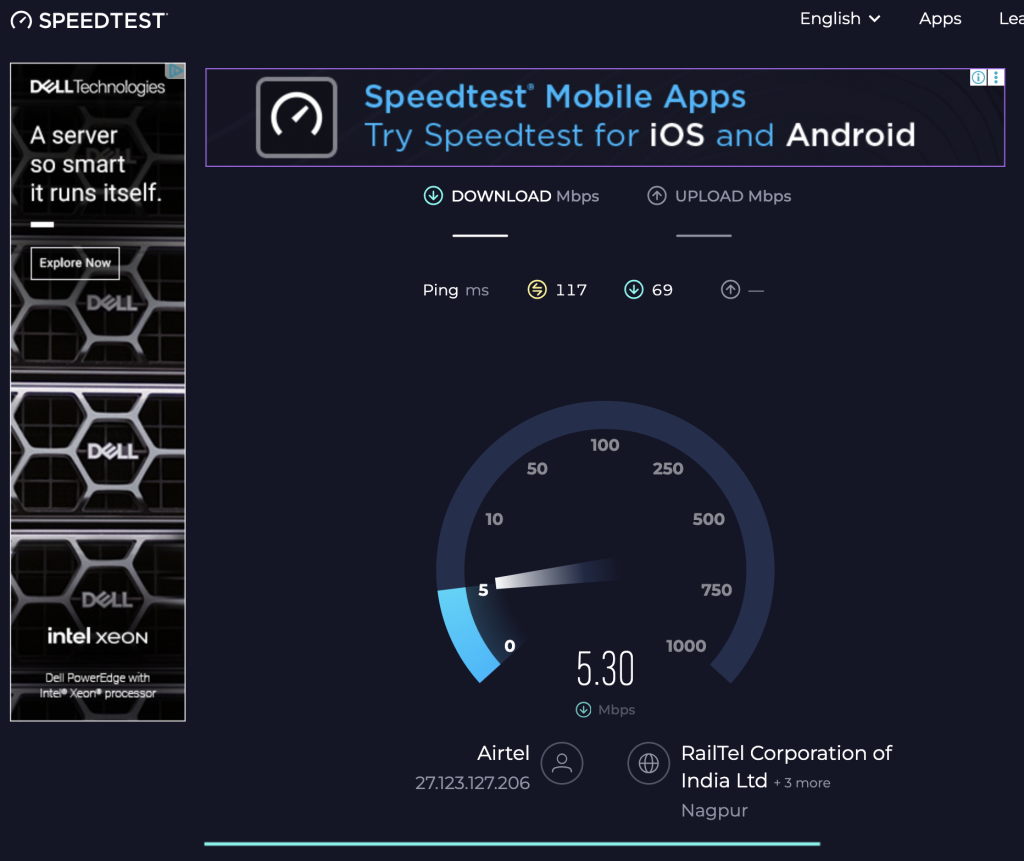
- Step 2: Disconnect other heavy users of your network (pause downloads, stop streaming on other devices).
- Step 3: If on Wi-Fi, try restarting the router or moving closer for a better signal. You can also try using a wired connection, if possible.
- Step 4: Reload the video page.
A weak or unstable or crawling connection very often causes the infamous error 232011. Fixing that internet connection of your home can make the error disappear and for that, you will have to call up your provider and lighten your pockets.
Note: If you suspect geographic blocking (see reasons above), you could also try a VPN to appear in another region.
Method 7: Use a Professional Video Repair Tool
If you have tried all the above steps that we explained in detail and the video still won’t play at all… It’s very much possible that the video file itself is the root of the whole problem. In short, it can be corrupted or just incomplete. In that case, a professional video repair software, like Stellar Repair for Video can help. You can load a broken video into the program, let it fix issues in the file header/metadata, and output a playable file.
Conclusion
You can fix the error code 232011 in most cases by clearing the browser cache, opening the browser in incognito mode, and checking those hidden settings.
With these fixes, next time you hit that “Play” button and see this message flash like a nightmare, you’ll be more than ready to tackle it and get back to watching your video.
